Deploy an FTDv Gateway in AWS Using MCD
Available Languages
Contents
Introduction
This document describes how to onboard your AWS account to Cisco Multicloud Defense (MCD) and deploy FTDv gateways by using the Cisco MCD controller.
Prerequisites
- A cloud-delivered Firewall Management Center (cdFMC) provisioned for the SCC tenant.
- An AWS EC2 Key Pair available in the region targeted for deployment.
- An AWS account with sufficient IAM permissions to deploy a CloudFormation stack.
- An active Cisco Multicloud Defense subscription/entitlement on the SCC tenant, along with the applicable FTDv license types and performance tier entitlements.
- SCC administrative access with rights to manage Platform Subscriptions and Multicloud Defense infrastructure.
- AWS Console access with permissions to create and monitor CloudFormation stacks and EC2 resources.
Requirements
Cisco recommends that you have knowledge of these topics:
- Cisco Security Cloud Control (SCC) navigation
- Basic AWS networking concepts (VPC, CIDR, Transit Gateway, Availability Zones)
- AWS CloudFormation stack deployment and review
Components Used
- Cisco Security Cloud Control (SCC)
- Cisco Multicloud Defense (MCD)
- Cisco Secure Firewall Threat Defense Virtual (FTDv)
- Cloud-delivered Firewall Management Center (cdFMC)
- Amazon Web Services (AWS) – CloudFormation, EC2, VPC, Transit Gateway
The information in this document was created from the devices in a specific lab environment. All of the devices used in this document started with a cleared (default) configuration. If your network is live, ensure that you understand the potential impact of any command.
Background Information
This document covers a first-time MCD deployment into a single AWS account and region using a Transit Gateway (TGW) network type. AWS Cloud WAN network types and ingress gateway deployments are outside the scope of this document, as ingress gateways are not currently supported by MCD.

Note: Ingress gateways are not currently supported by Multicloud Defense. Only Egress/East-West gateway deployments are covered in this document.
Note: If the initial cdFMC registration attempt fails or times out, this is expected behavior. Allow additional time for the cluster to retry registration automatically before troubleshooting further.
Configure
Enable Cisco Multicloud Defense on the SCC Tenant
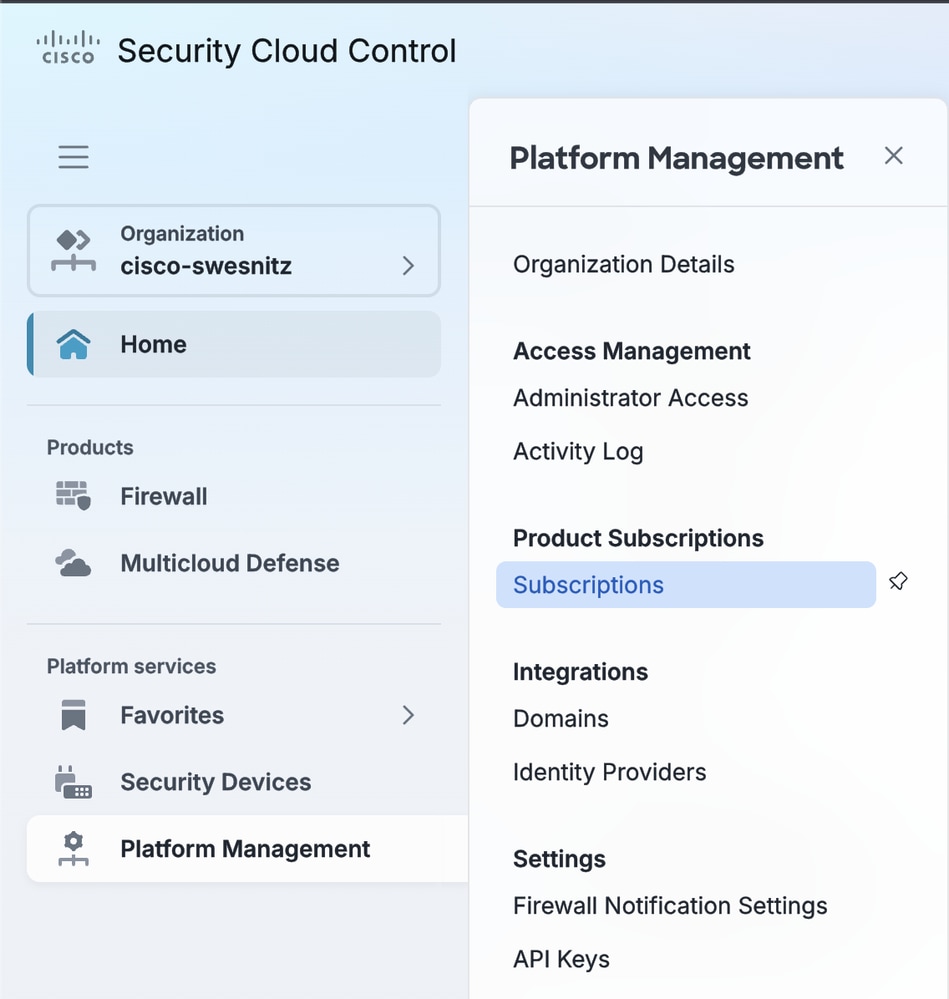
- In the Cisco Security Cloud Control (SCC) console, navigate to Home > Platform Management > Subscriptions.
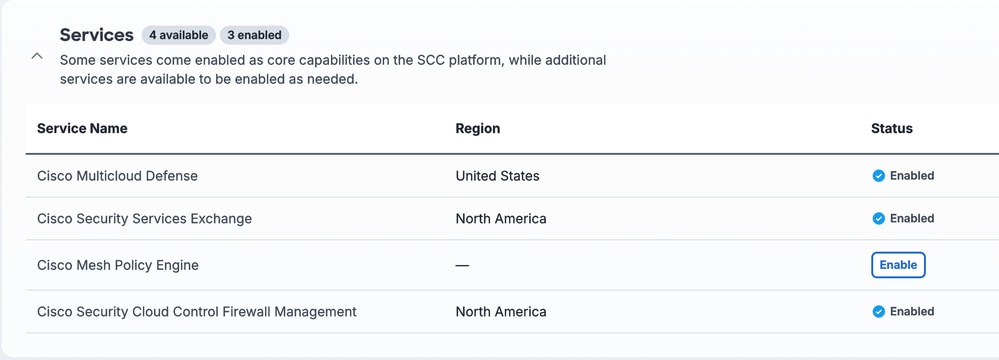
- Enable the Multicloud Defense subscription for the tenant.
Onboard an AWS Account (CSP Account)
This step connects an AWS account to the Multicloud Defense Controller so MCD can deploy and manage resources on its behalf. This example uses AWS as the Cloud Service Provider (CSP).
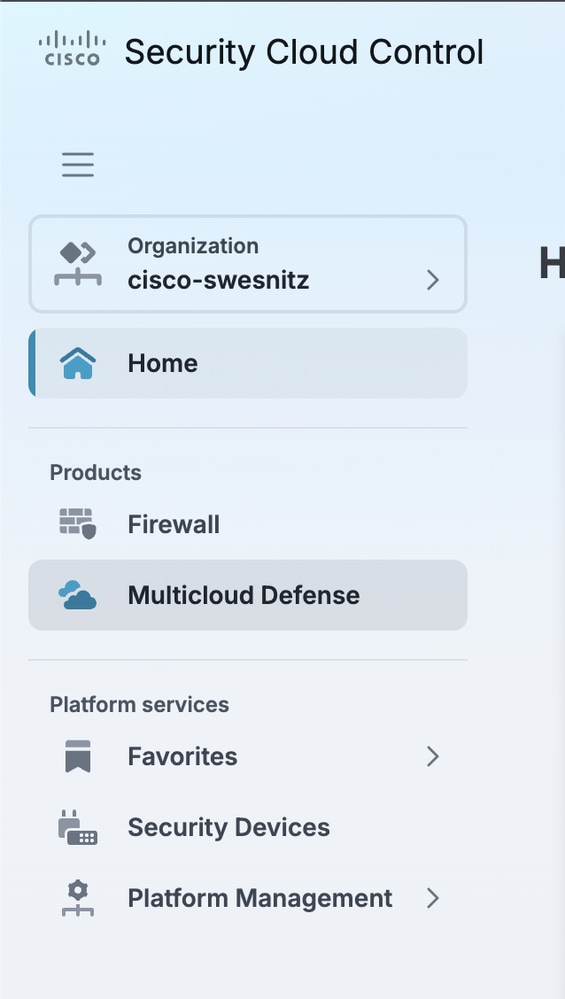
- From the SCC left navigation pane, select Multicloud Defense.
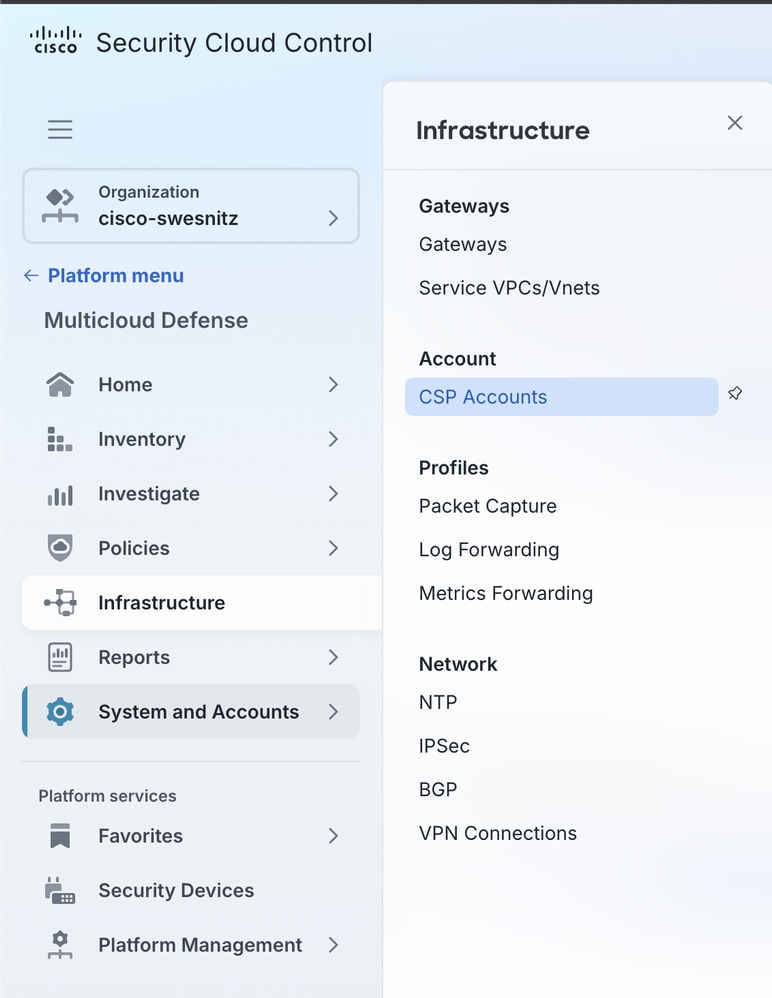
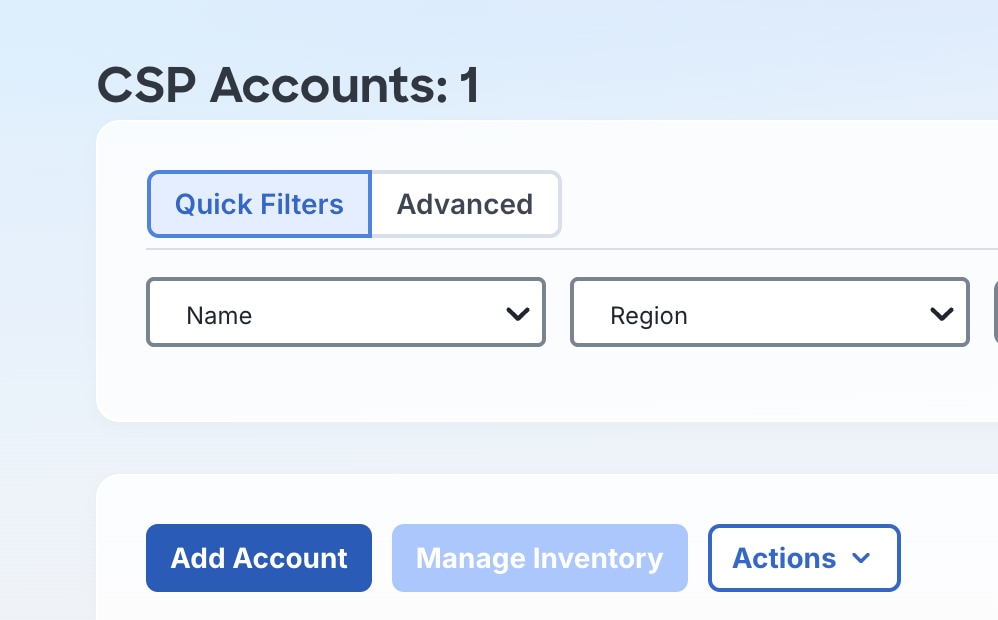
- Navigate to Infrastructure > CSP Accounts.
- Select Add Account.
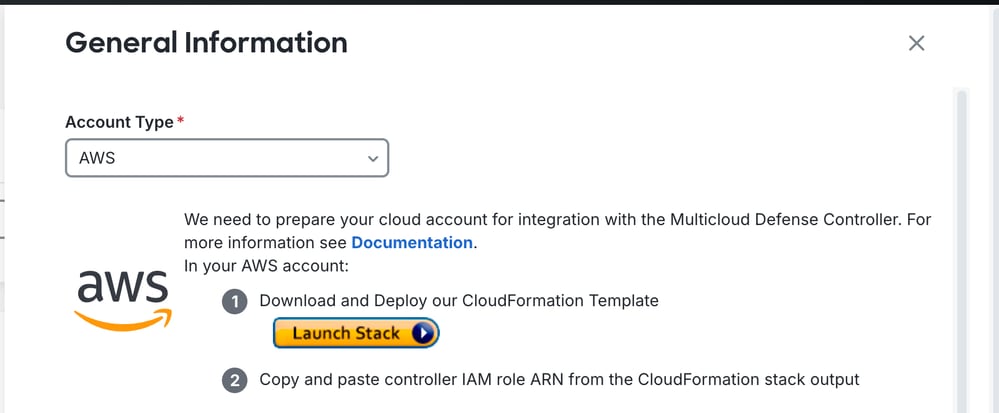
- From the Account Type drop-down, select AWS.
- Select Launch Stack. This opens a new browser tab and launches an AWS CloudFormation stack that deploys the IAM roles and resources required for MCD to integrate with the AWS account.
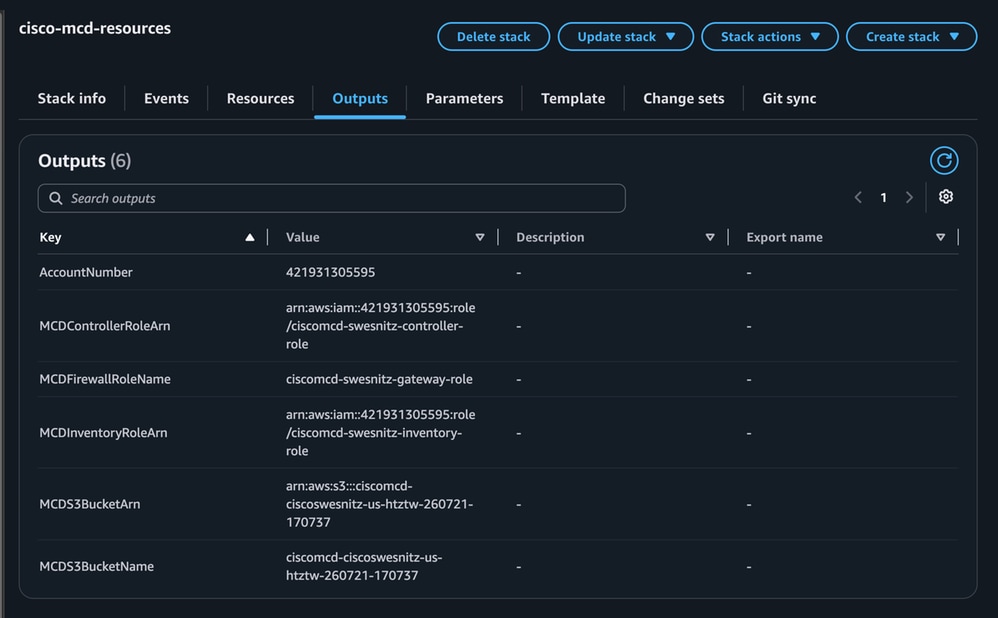
- In the AWS Console, confirm the CloudFormation stack completes successfully.

- Open the Outputs tab of the CloudFormation stack. These values are required in the next step.
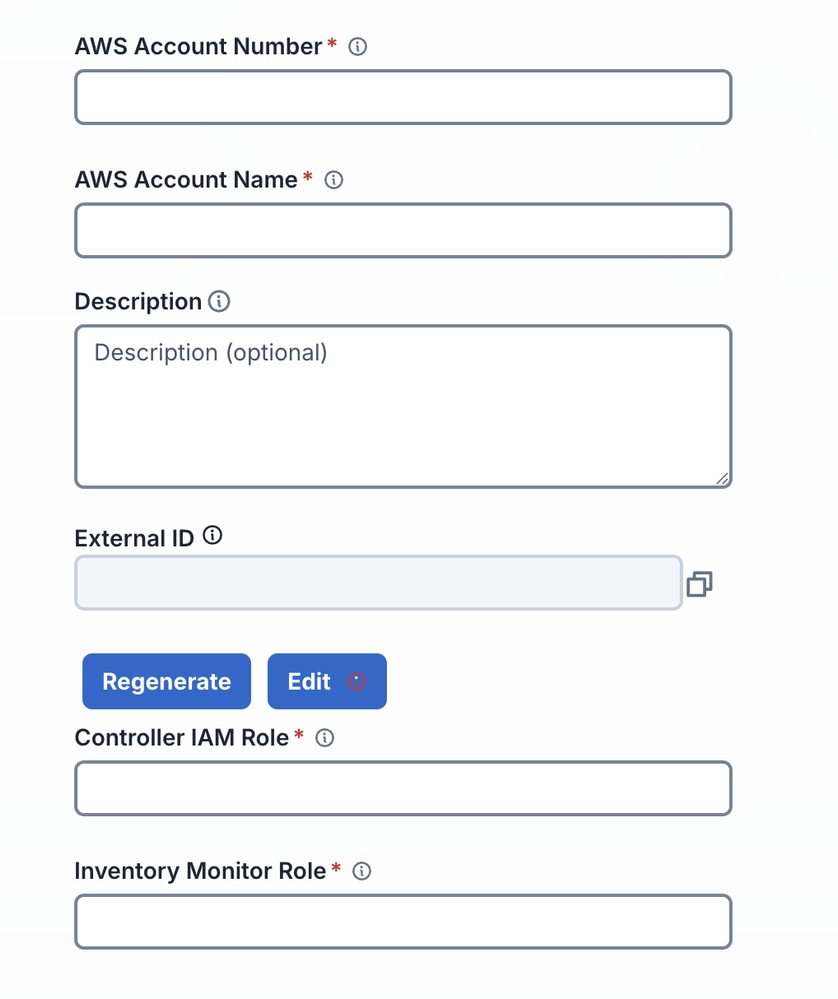
- In the MCD Add Account form, enter these values:
AWS Account Number: TheAccountNumberoutput from the CloudFormation stack.
AWS Account Name: A friendly, identifiable name for this AWS account within MCD.
Controller IAM Role: TheMCDControllerRoleArnoutput from the CloudFormation stack.
Inventory Monitor Role: TheMCDInventoryRoleArnoutput from the CloudFormation stack.
9. Save the account. The AWS account is onboarded to MCD.
Create a Service VPC
The Service VPC hosts the networking infrastructure (subnets, route tables, Transit Gateway) used by the FTDv gateway.
- Navigate to Multicloud Defense > Infrastructure > Service VPCs/VNets.
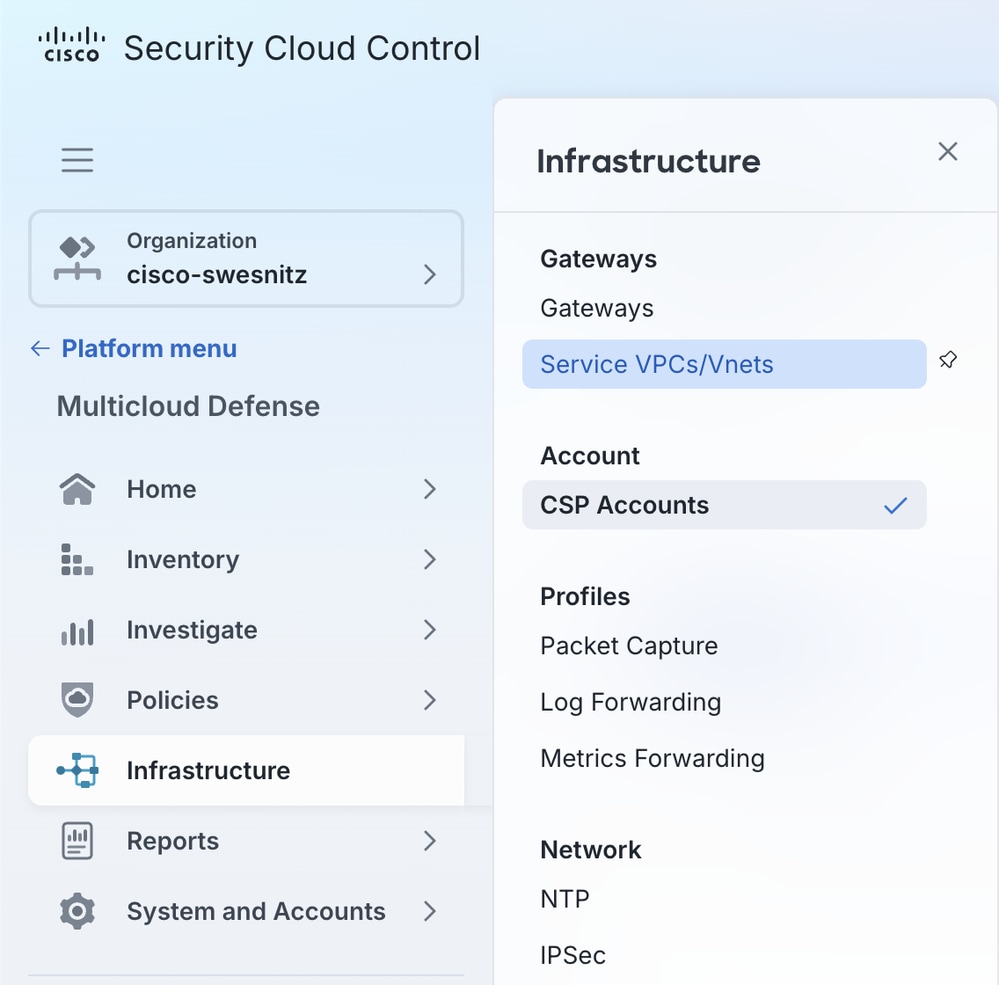
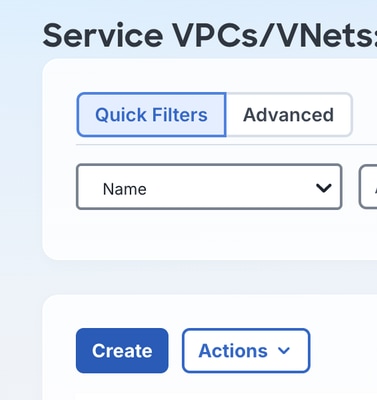
- Select Create.
- Configure the VPC settings:
Name: A unique, easily identifiable name for the VPC.
CSP Account: The AWS account integrated in Step 2.
Region: The AWS region where the FTDv cluster is launched.
CIDR Block: A CIDR range dedicated to this MCD deployment (must not overlap with existing VPCs).
Availability Zones: At least one AZ; two are recommended for redundancy.
Network Type: Select Transit Gateway (TGW). CloudWAN is a separate network type used specifically for AWS Cloud WAN deployments and is out of scope for this document.
Transit Gateway: Select create_new, with a unique name for the new Transit Gateway.
NAT Gateway (optional): Enables all egress traffic to route through a NAT Gateway. Not enabled in this example; NAT Gateway configuration is out of scope for this document.
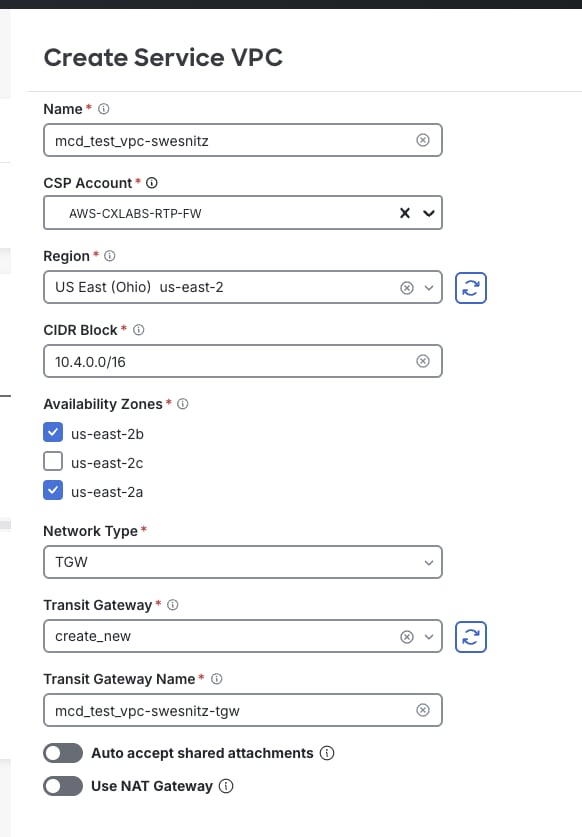
4. Select Save.
Start the FTDv Gateway Wizard
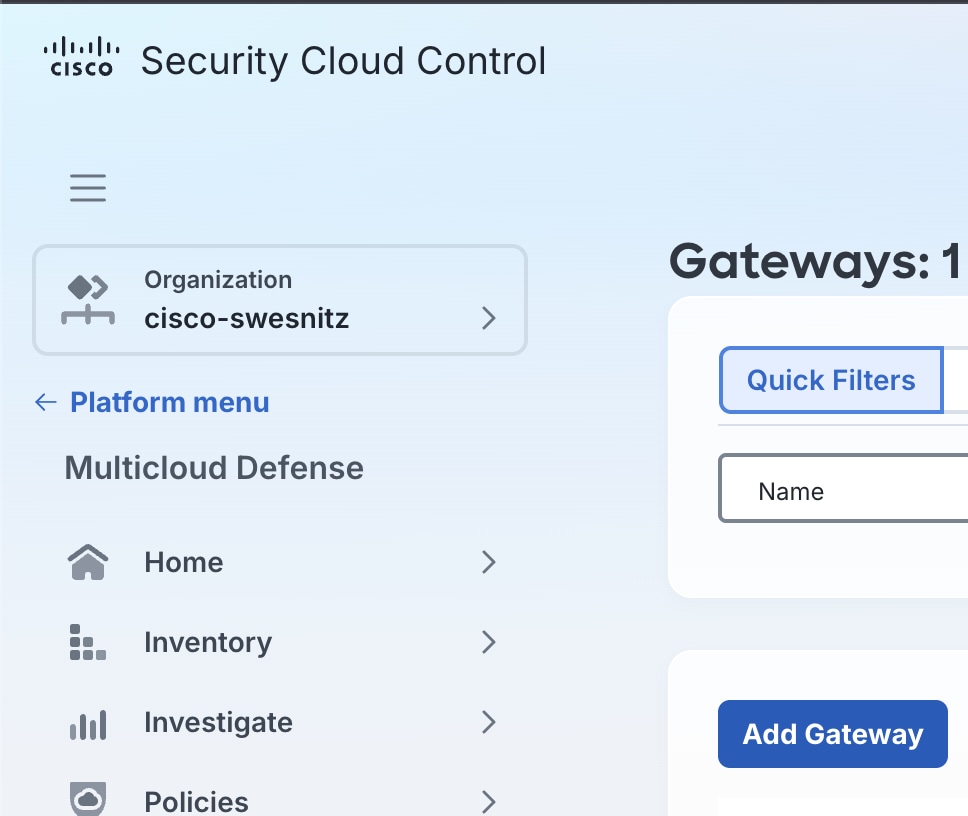
- Navigate to Multicloud Defense > Infrastructure > Gateways.
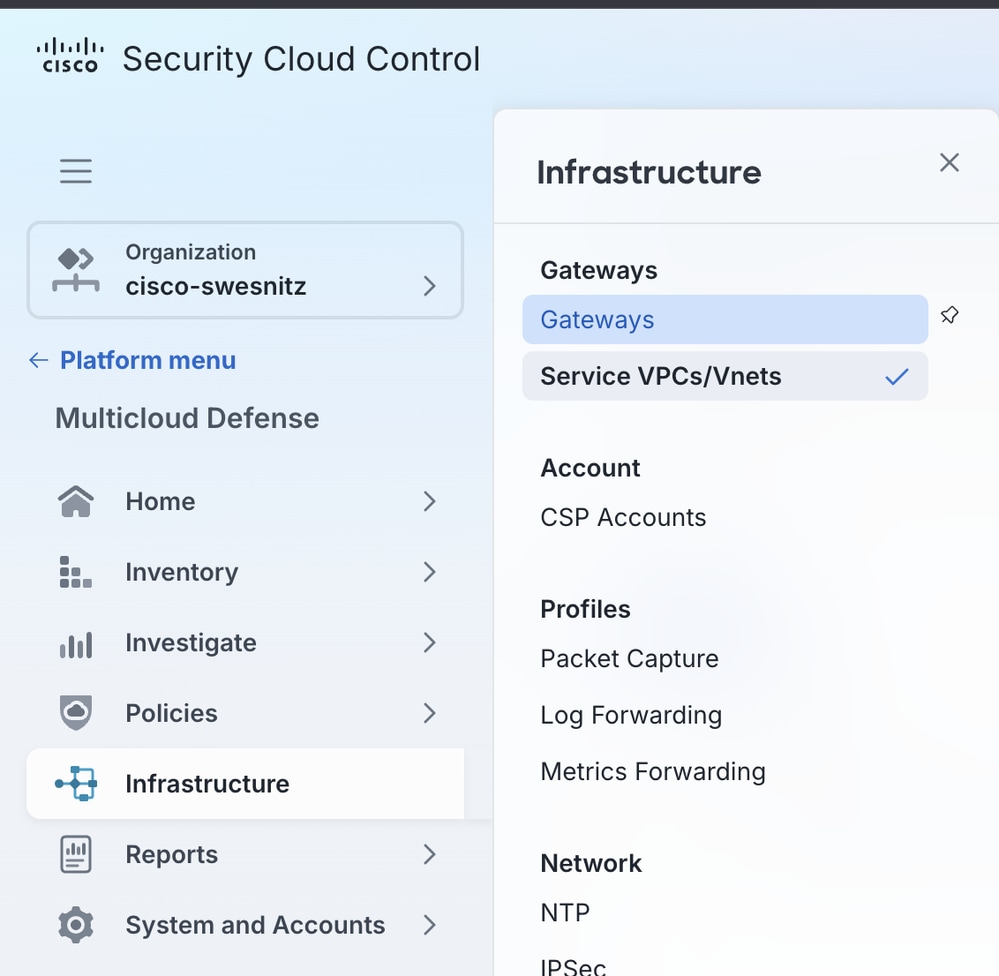
- Select Add Gateway.
- Configure the initial settings:
Accounts: The CSP account integrated in Step 2.
Gateway Type: Select FTDv Gateway.
Name: The display name for this cluster in MCD.
Instance Type: The instance size matching the required throughput and performance needs. This example uses the minimum supported type,C5_XLARGE.
Minimum/Maximum Instances: The desired scaling range. Minimum is 1 instance; maximum is 10.
HealthCheck Port: Default is 65534; change only if a different port has been specified for the MCD load balancer. If changed, the port must be allowed in any datapath security groups associated with the FTDv instances.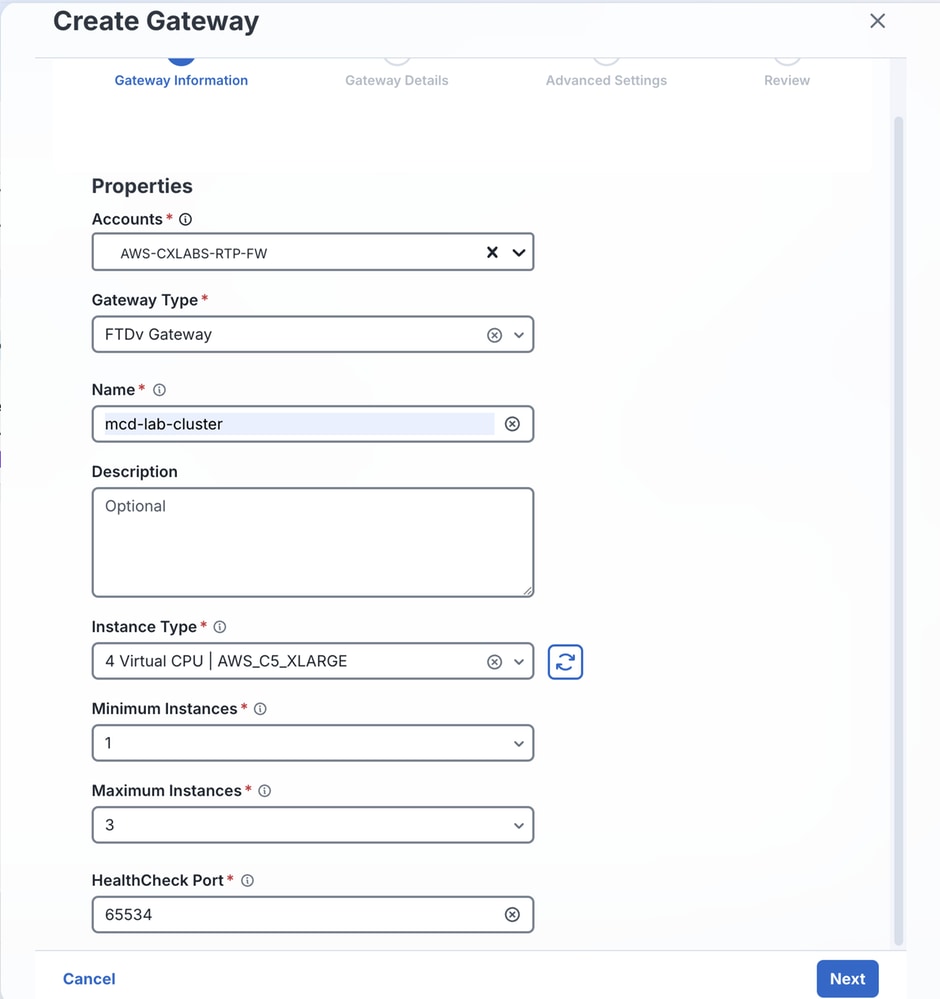
- Select Next.
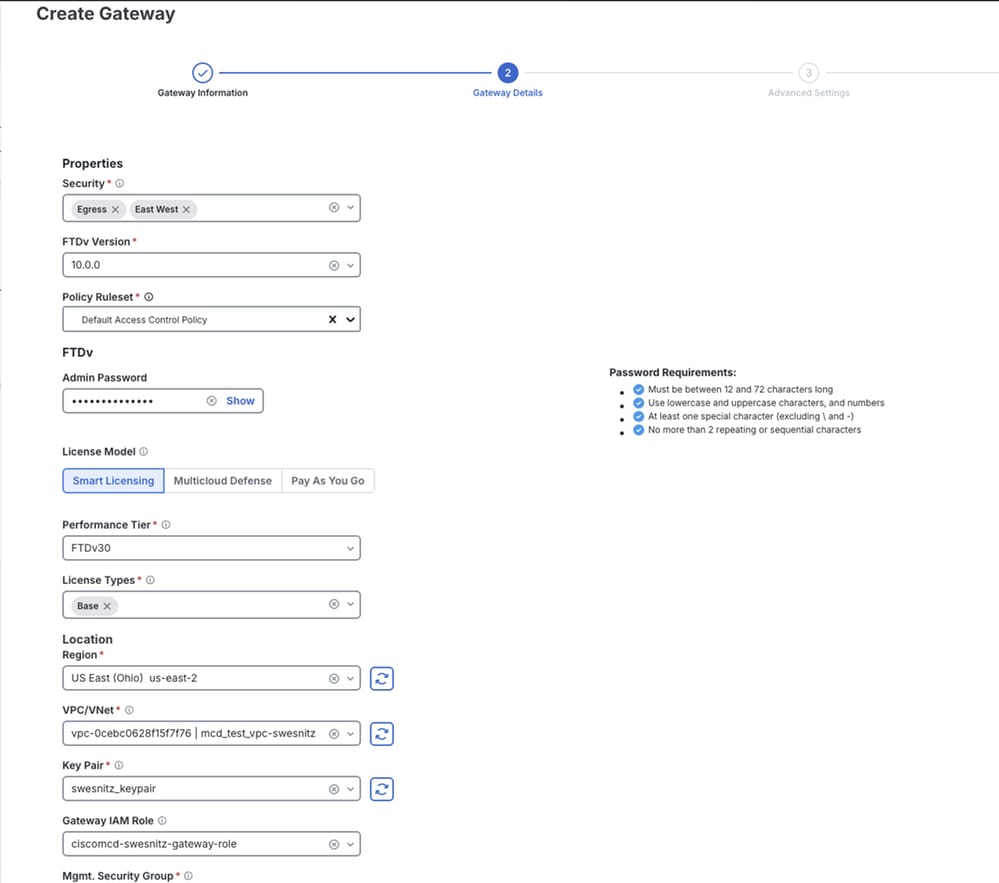
Configure Gateway Properties
Properties: Select Egress/East-West. Ingress gateways are not currently supported.
FTDv Version: The software version best suited to the environment.
Policy Ruleset: The access control policy (ACP) to apply to this FTDv cluster.
Password: A password for the FTDv instances.
License Model: The desired licensing model.
Performance Tier: The tier appropriate for the expected device throughput.
License Types: The license types purchased for this deployment.
Region: The region where these FTDv instances are deployed.
VPC/VNet ID: The Service VPC created in Step 3.
Key Pair: An existing AWS Key Pair.
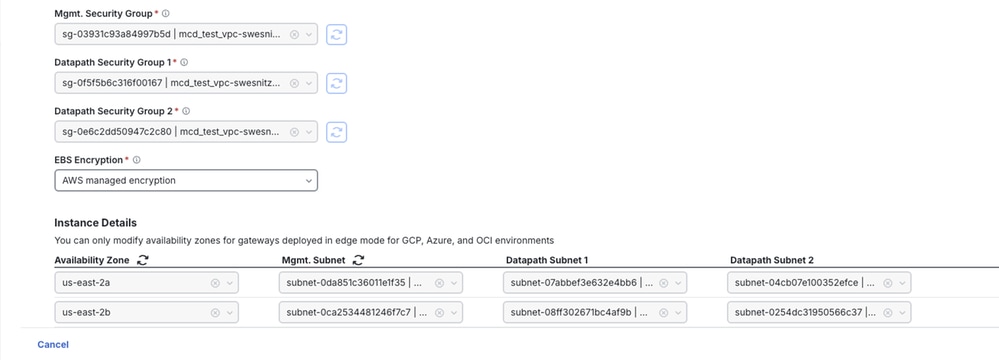
Gateway IAM Role: The role containing gateway in its name, corresponding to the MCDFirewallRoleName value from the CloudFormation stack in Step 2. Selecting this role automatically populates the associated Security Groups.
EBS Encryption: AWS-managed encryption is selected by default. Amazon EBS automatically and transparently encrypts block storage volumes, data in transit, and snapshots.
1. Select Next.
Configure Advanced Settings (Optional)
Advanced Settings allow configuration of options such as disabling public IP addresses for the FTDv instances. Advanced settings are not configured in this example.
Review and Deploy
- Review all configured settings for accuracy.
- Select Finish to begin deployment.
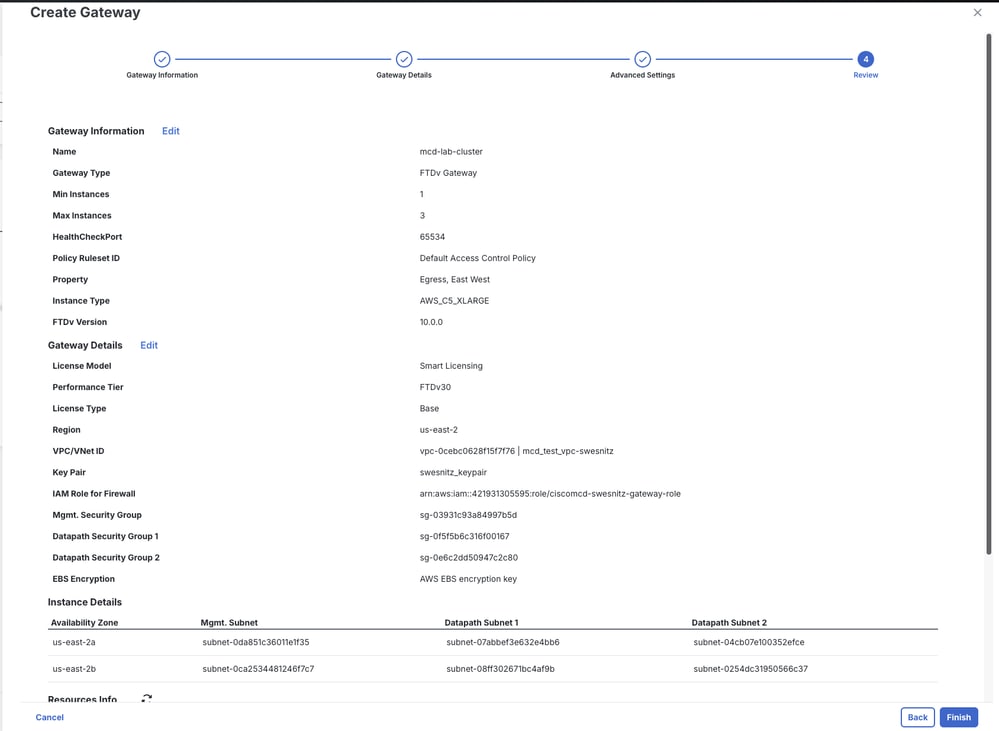
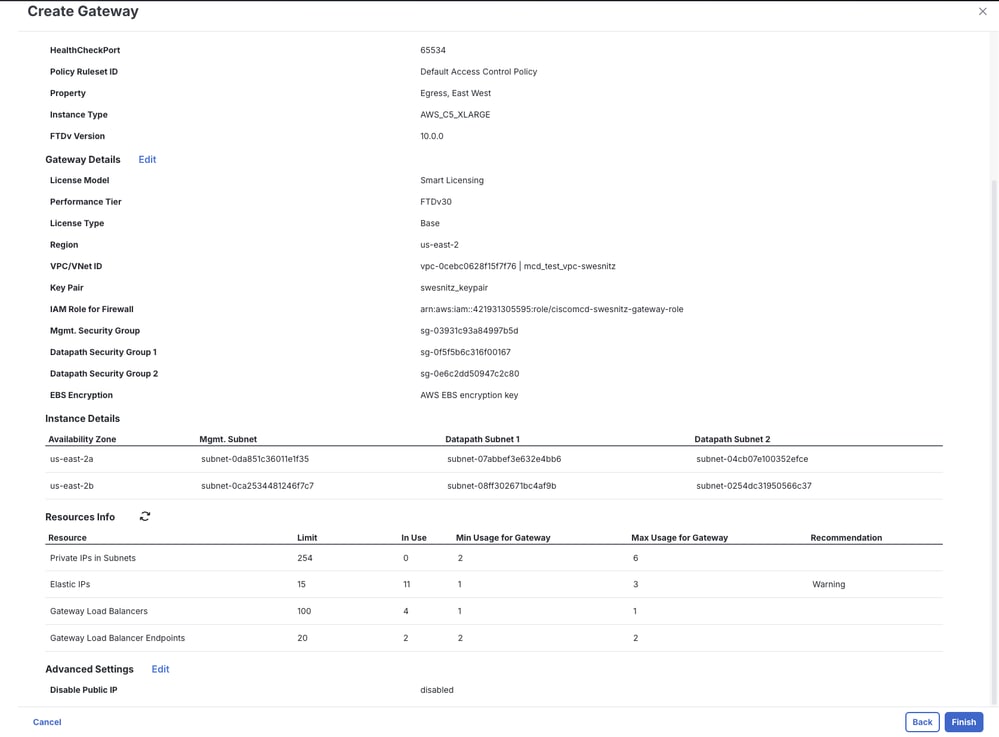
Note: Deployment can take up to 30 minutes. During this time, MCD provisions and clusters the specified number of FTDv instances and registers them with cdFMC.
Verify
Use this section in order to confirm that your configuration works properly.
Deployment and registration success can be confirmed from several locations:
- cdFMC: Immediately after selecting Finish, the new cluster appears (in a pending state) in cdFMC under Devices > Device Management.
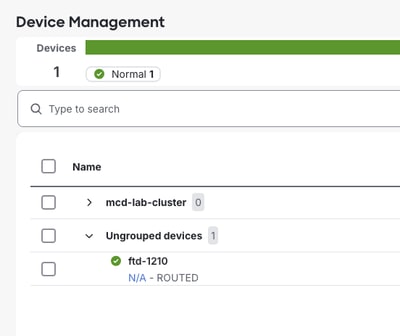
- MCD Gateway Details: Selecting the gateway name opens a details panel showing launch progress.
Select the specified name then click the Instances tab.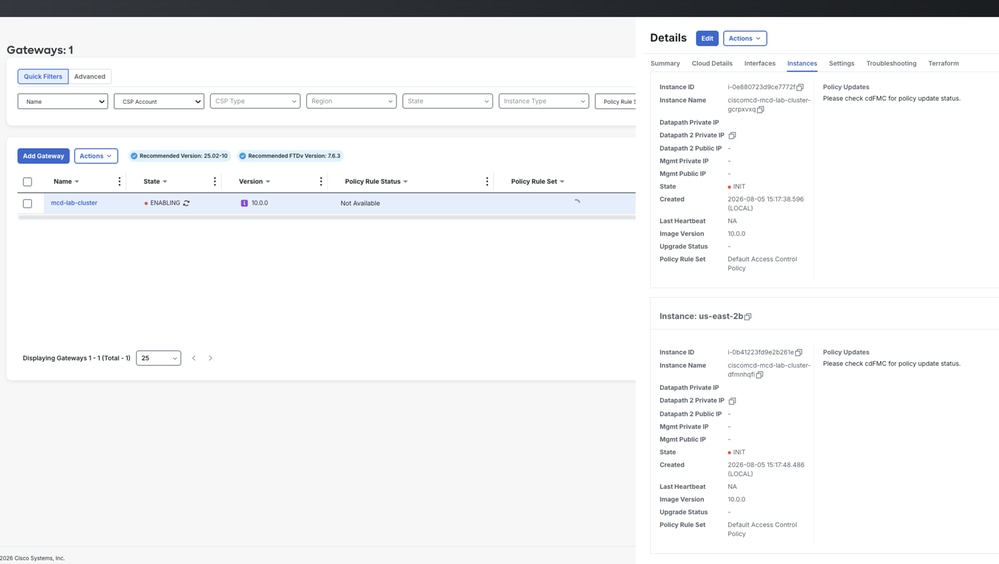
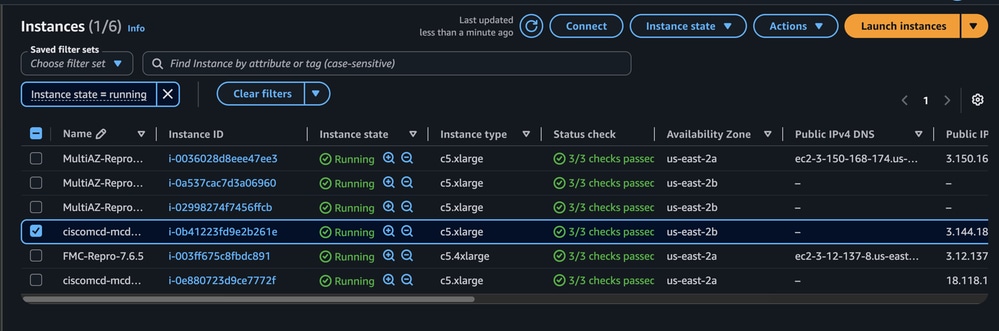
- AWS EC2 Console: Individual instance status can be monitored directly in EC2 > Instances.
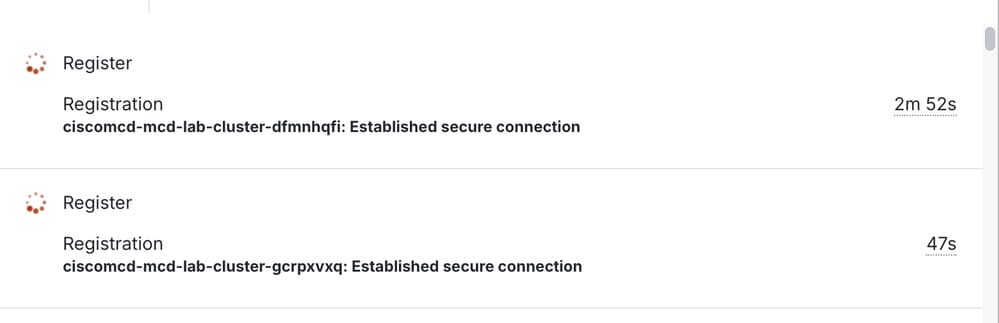
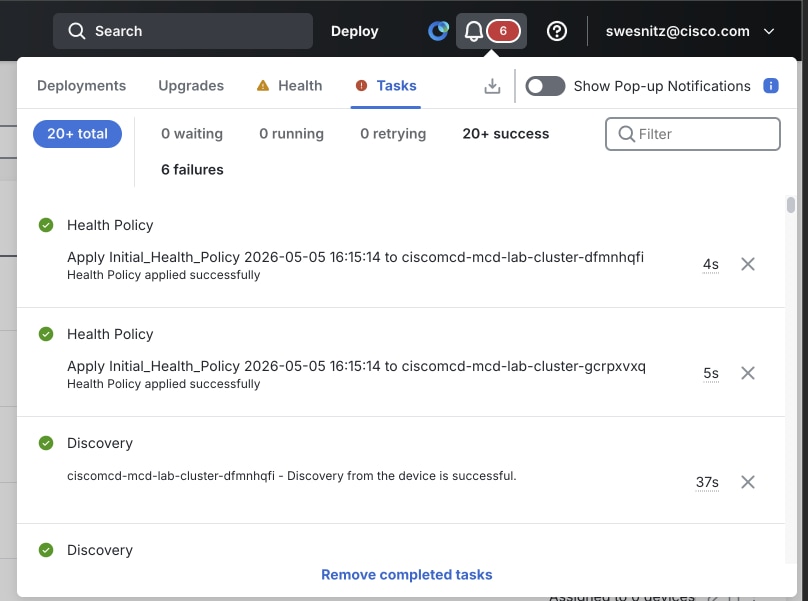
- cdFMC Tasks Tab: Registration progress is tracked here:
Registration continuing:
Registration success:
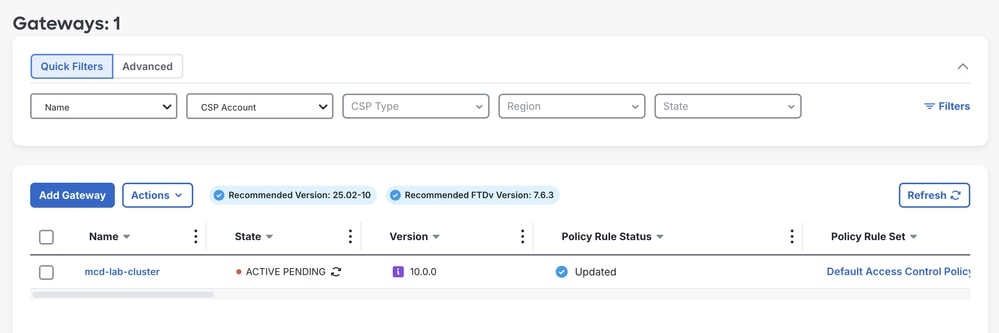
- Final State: After successful registration, the gateway shows an Active - Pending status before transitioning to fully Active, confirming the cluster is deployed and operational.
Troubleshoot
This section provides information you can use in order to troubleshoot your configuration.
- Initial registration attempt fails or times out in the cdFMC Tasks tab – Expected behavior on the first registration attempt. Allow additional time for the cluster to retry registration automatically before further troubleshooting.
- CloudFormation stack fails to complete – Verify the AWS IAM user/role deploying the stack has sufficient permissions, and review the Events tab for the specific failure reason.
- Gateway IAM Role or Security Groups do not populate in the Gateway wizard – Confirm the CloudFormation stack in Step 2 completed successfully and that the correct CSP Account and Region were selected.
Summary
Completing this procedure results in:
- Multicloud Defense enabled on the SCC tenant.
- AWS account onboarded via CloudFormation.
- Service VPC created with a Transit Gateway.
- Clustered FTDv gateway deployed and registered to cdFMC.
The FTDv gateway is active and ready for policy configuration and traffic inspection.
Related Information
Revision History
| Revision | Publish Date | Comments |
|---|---|---|
1.0 |
19-Oct-2026
|
Initial Release |

 Feedback
Contact Cisco
- Open a Support Case

- (Requires a Cisco Service Contract)