Upgrade Software with Device Upgrade Wizard on Secure Firewall Threat Defense
Available Languages
Introduction
This document describes the Upgrade Wizard in the Cisco Secure Firewall Threat Defense (FTD) and the different options to use it.
Prerequisites
Requirements
Cisco recommends that you have knowledge of these topics:
- Cisco
Secure Firewall Threat Defense (FTD) - Cisco
Secure Firewall Management Center (FMC)
Licensing
No specific license requirement, the base license is sufficient
Components Used
The information in this document is based on these software and hardware versions:
- Cisco
Secure Firewall Threat Defense (FTD), CiscoSecure Firewall Management Center (FMC)version 7.2.1
The information in this document was created from the devices in a specific lab environment. All of the devices used in this document started with a cleared (default) configuration. If your network is live, ensure that you understand the potential impact of any command.
Background Information
A new Upgrade Wizard for FTD was introduced in the FTD software release 7.0
The advantages this wizard offers are:
New Deviceupgrade page- Multiple FTD upgrades in parallel
- Better organization to select the target device to be upgraded
FMC Wizard flow
Steps 1,2 and 3 are optional, the shortcut starts in step 4.
Step 0. Upload the package to be installed in the FMC.
Step 1. Navigate to Devices > Device management.
Step 2. Select the device to be upgraded to have a menu at the top.
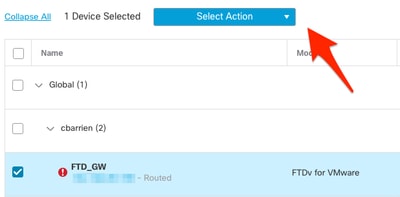
Step 3. Click Upgrade Firepower Software to have the Device Upgrade view.
Shortcut: Select Devices / Device Upgrade from the general menu.
Step 4. Make sure the device(s) to be upgraded are selected.
Step 5. In the Upgrade to option, select the target version.

Step 6. In the menu shown, push the image to the FTD to copy the upgrade package if this process has not been done.
(Cisco recommends that you push updates in the old way, through Configuration > Updates).
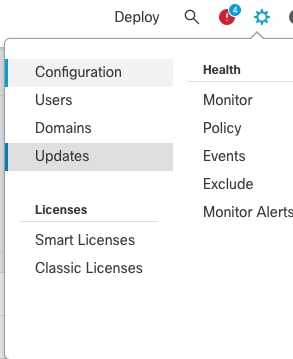
Step 7. Click on Readiness check and monitor it in the menu tasks for completion. Once it is done, click Next.
Step 8. Click Start Upgrade and confirm with the Upgrade button.
Step 9. Click Finish to complete and close the wizard.
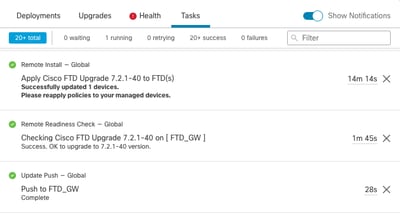
Step 10. Monitor the tasks in the Tasks menus.
FTD HA Flow
For the FTD HA upgrade flow, the only option to be modified is to decide what FTD unit acts as active and which as standby.
The process for an FTD-HA upgrade is as follows:
- Upgrade of the Standby unit (reload done automatically).
- Failover.
- Upgrade of the new standby unit (reload done automatically).
- Manual failover (optional).
Cluster FTD Flow
In the Cluster upgrade flow, the upgrade order of the data units can be modified with respect to the requirements.
The normal flow is:
- Upgrade of the data unit(s) (reload done automatically).
- Disable Cluster on the control unit (done automatically).
- Upgrade the old control unit (reload done automatically).
- Join the old cluster unit in the cluster (done automatically).
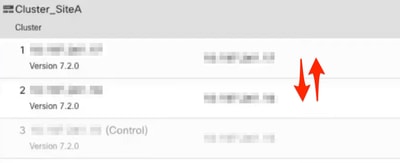
After the Readiness check is completed for the cluster devices, click on the button with the legend Change Upgrade Order.

A popup menu appears, then just drag and drop to the top in the desired order.
Verification
- Monitor every step in the Tasks menu.
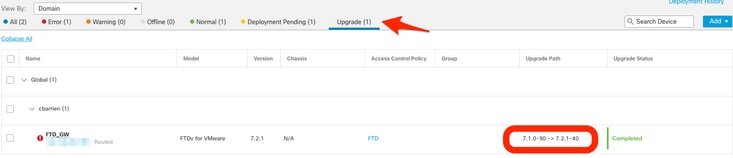
- In the
Devices Managementmenu, there is a new tab calledUpgrade, which shows the device upgrade path.
Revision History
| Revision | Publish Date | Comments |
|---|---|---|
1.0 |
26-Oct-2022
|
Initial Release |

 Feedback
Contact Cisco
- Open a Support Case

- (Requires a Cisco Service Contract)