How to Change the Time Zone of an ISE Node
Available Languages
Contents
Issue
The time zone configured in an ISE node is incorrect and needs to be updated.
Environment
Identity Services Engine (ISE) version 3.1 or later
Standalone/Hybrid/Distributed ISE deployment
Policy Administration Node (PAN)
Resolution

Warning: This process requires a service restart for the affected ISE node to apply the changes.

Note: Cisco recommends configuring all Cisco ISE nodes in a deployment to use the same time zone. This is to ensure that reports and logs from different nodes have synchronized timestamps.
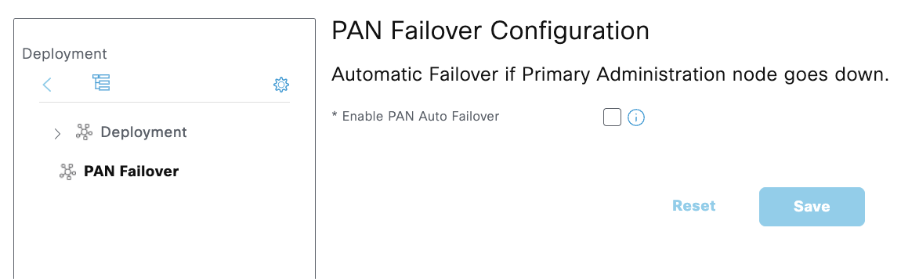
1 . Disable the PAN Auto Failover if it is enabled.
1.1 . Log in to the ISE Primary PAN Graphical User Interface (GUI) using an account with Super Admin privileges.
1.2 . Navigate to Administration > System > Deployment > PAN Fail over.
1.3 . Clear the Enable PAN Auto Failover checkbox.
1.4 . Click Save.
2 . Login to the affected ISE node Command Line Interface (CLI) using an account with Admin privileges.
3 . Use this command to list out all available time zones and identify the appropriate time zone for you.
show timezones
4 . Enter this command to enter configuration mode.
configure terminal
5 . Set the identified time zone using this command:
clock timezone <timezone>
For example,
clock timezone UTC
6 . Enter “yes” at the prompt to confirm the time zone change and initiate the required ISE service restart.
7 . Wait for the ISE node services to restart and the GUI to become accessible.
8 . Enter “exit” to leave configuration mode, then run this command to verify the time zone change. The output displays the current time in the updated time zone.
show clock
9 . If required, re-enable PAN Auto Failover in the Primary PAN GUI.
Cause
The time zone in an ISE node was incorrectly configured during installation.
Related Content
Revision History
| Revision | Publish Date | Comments |
|---|---|---|
1.0 |
31-Oct-2026
|
Initial Release |

 Feedback
Contact Cisco
- Open a Support Case

- (Requires a Cisco Service Contract)