Configure External Syslog Server on ISE
Available Languages
Introduction
This document describes how to configure External Syslog Server on ISE.
Prerequisites
Requirements
Cisco recommends that you have knowledge of these topics:
- Identity Services Engine (ISE)
- Syslog Servers
Components Used
The information in this document is based on these software and hardware versions:
- Identity Services Engine (ISE) 3.3 version.
- Kiwi Syslog Server v1.2.1.4
The information in this document was created from the devices in a specific lab environment. All of the devices used in this document started with a cleared (default) configuration. If your network is live, ensure that you understand the potential impact of any command.
Background Information
.
Syslog messages from ISE are collected and stored by log collectors. These log collectors are assigned to Monitoring nodes so MnT storages the collected logs locally.
To collect logs externally, you configure external syslog servers, which are called targets. Logs are classified into various predefined categories.
You can customize logging output by editing the categories with respect to their targets, severity level, and so on.
Configuration
You can use the web interface to create remote syslog server targets to which system log messages are sent. Log messages are sent to the remote syslog server targets in accordance with the syslog protocol standard (see RFC-3164).
Configuring Remote Logging Target (UDP Syslog)
In the Cisco ISE GUI, click the Menu icon ( ) and choose click Add.

Note: This configuration example is based on screenshot named: Configuring Remote Logging Target.
- Name as Remote_Kiwi_Syslog,here you can enter the name of the Remote Syslog server, this is used for descriptive purposes.
- Target Type as UDP Syslog, in this configuration example, UDP Syslog is being used; however, you can configure more options from Target Type drop-down list:
UDP Syslog: Used for sending syslog messages over UDP, suitable for lightweight and fast logging.
TCP Syslog: Used for sending syslog messages over TCP, which provides reliability with error checking and retransmission capabilities.
Secure Syslog: it refers to syslog messages being sent over TCP with TLS encryption, ensuring data integrity and confidentiality.
- Status as Enabled, you must choose Enabled from the Status drop-down list.
-
Description, optionally you can enter a brief description of the new target.
- Host / IP Address, here you enter the IP address or hostname of the destination server that store the logs. Cisco ISE supports IPv4 and IPv6 formats for logging.
Note: It is essential to mention that if you are going to configure a syslog server with FQDN, you must set up DNS caching to avoid impact on the performance. Without DNS caching, ISE queries DNS server each time a syslog packet has to be sent to the remote logging target configured with FQDN. This have a severe impact on ISE performance.
Use the service cache enable command in all the PSN of the deployment to overcome this:
Example
ise/admin(config)# service cache enable hosts ttl 180 - Port as 514, in this configuration example, the Kiwi Syslog Server is listening in port 514 which is the default port for UDP syslog messages. However, users can change this port number to any value between 1 and 65535.Make sure your desired port is not being blocked by any Firewall.
- Facility Code as LOCAL6, you can choose the syslog facility code that must be used for logging, from the drop-down list. Valid options are Local0 through Local7.
- Maximum Length as 1024. Here you can enter the maximum length of the remote log target messages. Maximum length is set to 1024 by default ISE 3.3 version, values are from 200 through 8192 bytes.
Note: To avoid sending truncated messages to your Remote Target, you can modify the Maximum Length as 8192. You can identify truncated messages by taking a capture.
- Include Alarms for this Target. To keep it simple, in this configuration example, Include Alarms for this Target is not checked; however, when you check this check box, alarm messages are sent to the remote server as well.
- Comply to RFC 3164 is checked, when you check this check box, the delimiters (, ; { } \ \) in the syslog messages sent to the remote servers are not escaped even if a backslash (\) is used.
-
Once configuration is finished, click Save.
-
Once you save, the system is going to display this warning: You have chosen to create an unsecure (TCP/UDP) connection to the server. Are you sure you want to proceed?, click Yes.
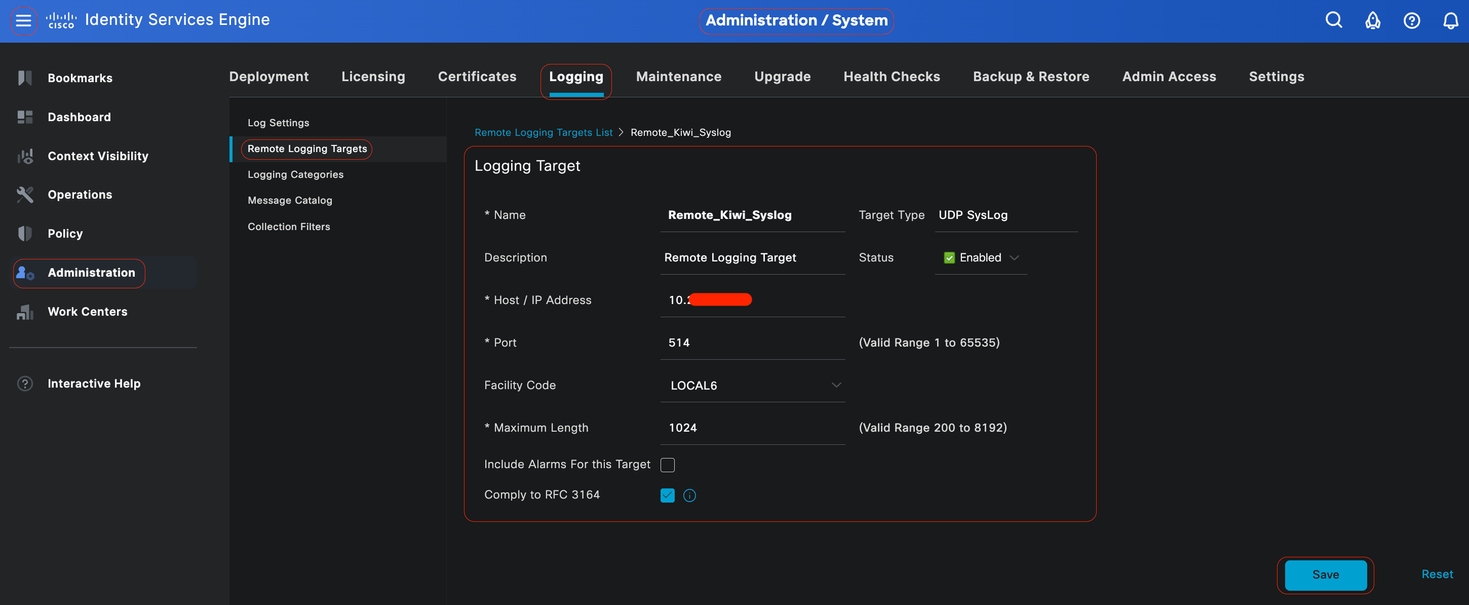 Configuring Remote Target
Configuring Remote Target under Logging Categories
Cisco ISE sends auditable events to the syslog target. Once you configured your Remote logging Target, you then need to map the Remote Logging Target to the intended categories to forward the auditable events.
The logging targets can then be mapped to each of these logging categories. Event logs from these log categories are generated only from PSN nodes and can be configured to send the relevant logs to the Remote Syslog server depending on the services that are enabled on those nodes:
-
AAA Audit
-
AAA Diagnostics
-
Accounting
-
External MDM
-
Passive ID
-
Posture and Client Provisioning Audit
-
Posture and Client Provisioning Diagnostics
-
Profiler
Event logs from these log categories are generated from all nodes in the deployment and can be configured to send the relevant logs to the Remote Syslog server:
-
Administrative and Operational Audit
-
System Diagnostics
-
System Statistics
In this configuration example, you are going to configure Remote Target under four Logging Categories, these 3 to send authentication traffic logs: Passed Authentications, Failed Attempts and Radius Accounting, and this category for ISE Administrator logging traffic:
Note: This configuration example is based on screenshot named: Configuring Remote Logging Target
In the Cisco ISE GUI, click the Menu icon ( ) and choose and click the required category (Passed Authentications, Failed Attempts and Radius Accounting).
Step 1- Log Severity Level: An event message is associated with a severity level, which allows an administrator to filter the messages and prioritize it. Select the log severity level as required. For some logging categories, this value is set by default, and you cannot edit it. For some logging categories, you can choose one of the these severity levels from a drop-down list:
-
FATAL: Emergency level. This level means that you cannot use Cisco ISE and you must immediately take the necessary action.
-
ERROR: This level indicates a critical error condition.
-
WARN: This level indicates a normal but significant condition. This is the default level set for many logging categories.
-
INFO: This level indicates an informational message.
-
DEBUG: This level indicates a diagnostic bug message.
Step 2- Local Logging: This checkbox enables the local log generation. Meaning, that the logs generated by the PSNs are saved on the specific PSN generating the log as well. We recommend to keep the default configuration
Step 3- Targets: This area allows you to choose the targets for a logging category by transferring the targets between the Available and the Selected areas using the left and right arrow icons.
The Available area contains the existing logging targets, both local (predefined) and external (user-defined).
The Selected area, which is initially empty, then displays the targets that have been chosen for the category.
Step 4- Repeat from step 1 to step 3 to add Remote Target under Failed Attempts and Radius Accounting categories.
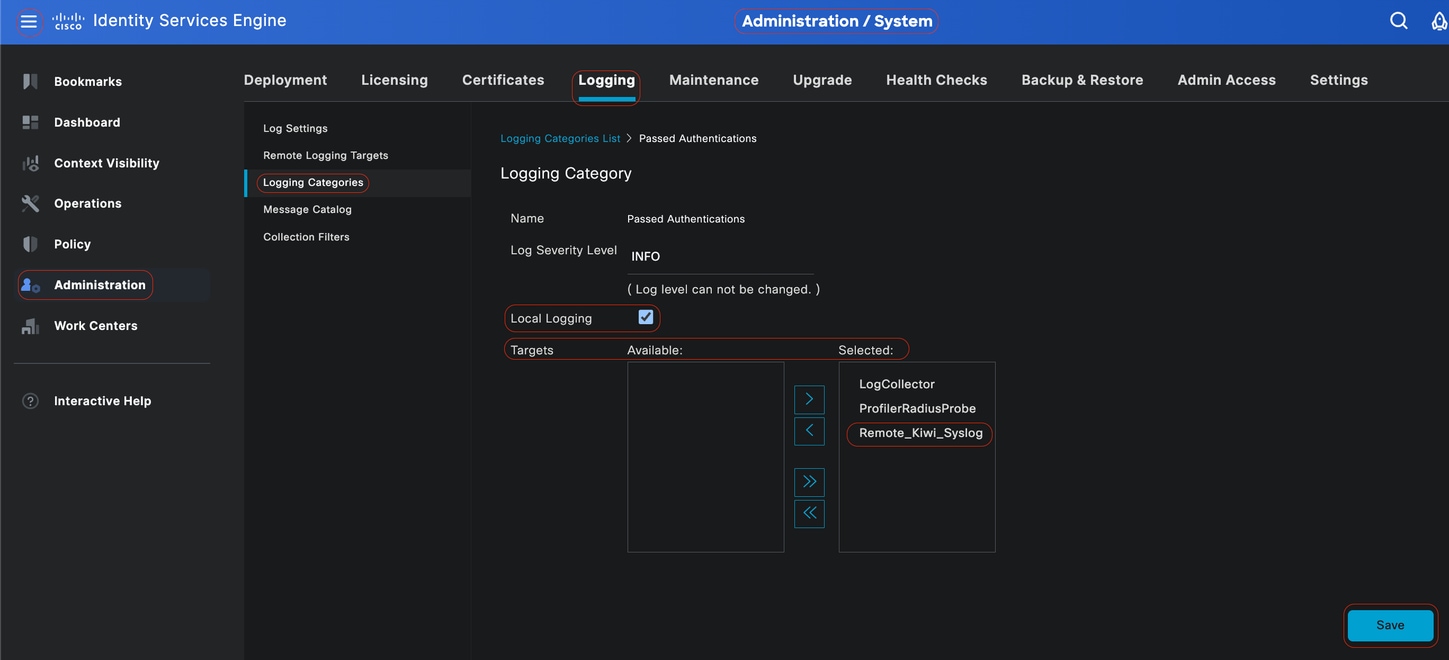 Mapping Remote Targets to intended Categories
Step 5- Verify that your Remote Target is under the required categories.You must be able to see the remote target you just added.
In this screenshot, you can see the remote target Remote_Kiwi_Syslog mapped to the required categories.
 Verifying Categories
Understanding Categories
A message is generated when an event occurs. There are different types of event messages generated from multiple facilities such as the kernel, mail, user level, and so on.
These errors are categorized within the Message Catalog and these events also are organized hierarchically into categories. These categories have Parent Categories containing one or some categories.
|
Parent Category
|
Category
|
|---|---|
| AAA Audit |
AAA Audit Failed Attempts Passed Authentication |
| AAA Diagnostics |
AAA Diagnostics Administrator Authentication and Authorization Authentication Flow Diagnostics Identity Store Diagnostics Policy Diagnostics Radius Diagnostics Guest |
| Accounting |
Accounting Radius Accounting |
| Administrative and Operational Audit |
Administrative and Operational Audit |
| Posture and Client Provisioning Audit |
Posture and Client Provisioning Audit |
| Posture and Client Provisioning Diagnostics |
Posture and Client Provisioning Diagnostics |
| Profiler |
Profiler |
| System Diagnostics |
System Diagnostics Distributed Management Internal Operations Diagnostics |
| System Statistics |
System Statistics |
In this screenshot you can see that Guest is a Message Class and categorized as a Guest Category. This Guest Category has a Parent Category called AAA Diagnostics.
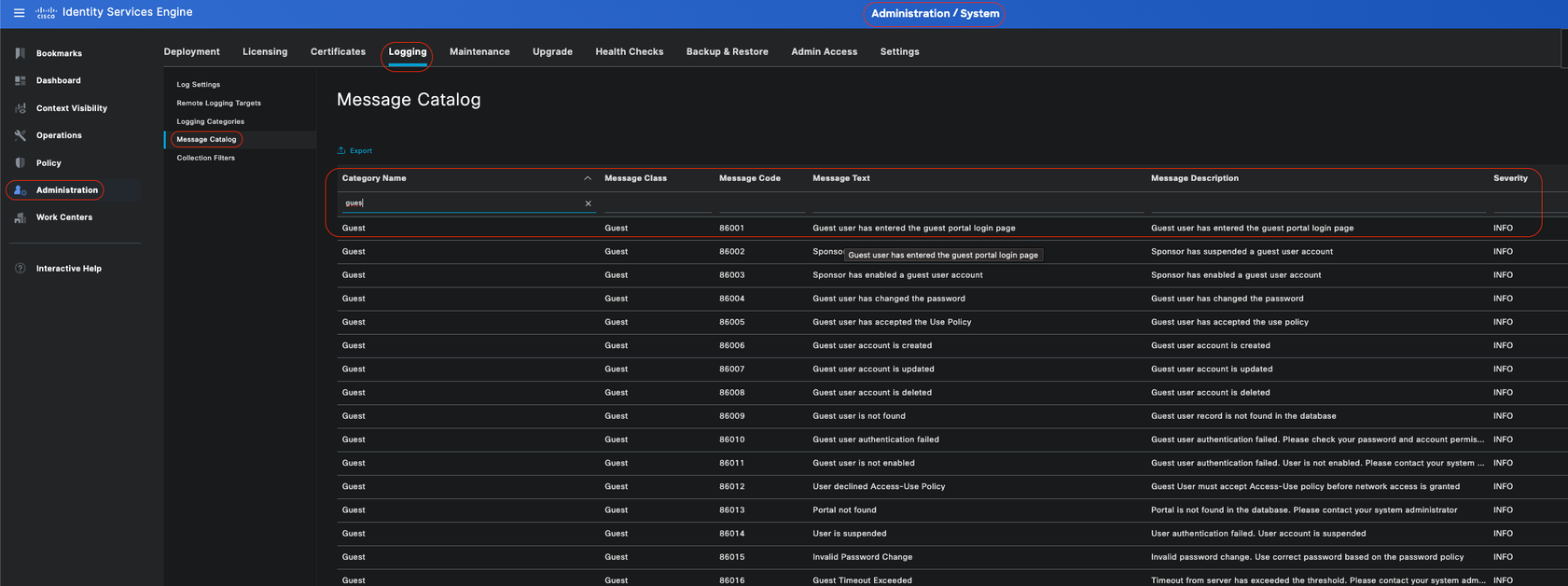 Message Catalog
Verify and Troubleshoot
Taking a TCP Dump against the Remote Logging Target is the fastest troubleshooting and verifying step to confirm whether or not log events are being sent.
Capture must be taken from the PSN that authenticates user because PSN is going to generate log messages and these messages are going to be sent to the Remote Target
In the Cisco ISE GUI, click the Menu icon ( ) and choose Troubleshoot.
 TCP Dump
In this screenshot, you can see how ISE is sending Syslog messages for ISE Administrator logging traffic.
 Syslog traffic
Revision History
| Revision | Publish Date | Comments |
|---|---|---|
2.0 |
15-Sep-2026
|
Recertification - Updated Alt Text and Formatting. |
1.0 |
26-Jul-2024
|
Initial Release |

 Feedback
Contact Cisco
- Open a Support Case

- (Requires a Cisco Service Contract)