Configure Certificate Renewals on ISE
Available Languages
Contents
Introduction
This document describes the best practices and proactive procedures to renew certificates on Cisco Identity Services Engine (ISE).
Prerequisites
Requirements
Cisco recommends that you have knowledge of these topics:
- X509 certificates
- Configuration of a Cisco ISE with certificates
Components Used
The information in this document is based on these software and hardware versions:
- Cisco ISE Release 3.0.0.458
- Appliance or VMware
The information in this document was created from the devices in a specific lab environment. All of the devices used in this document started with a cleared (default) configuration. If your network is live, ensure that you understand the potential impact of any command.
Background Information
This document describes the best practices and proactive procedures to renew certificates on the Cisco Identity Services Engine (ISE). It also reviews how to set up alarms and notifications so administrators are warned of imminent events such as certificate expiration. As an ISE administrator, you eventually encounter the fact that ISE certificates expire. If your ISE server has an expired certificate, serious problems can arise unless you replace the expired certificate with a new, valid certificate.
The ISE administrator must install a new, valid certificate on the ISE before the old certificate expires. This proactive approach prevents or minimizes downtime and avoids an impact on your end-users. Once the time period of the newly installed certificate begins, you can enable the EAP/Admin or any other role on the new certificate.
You can configure the ISE so that it generates alarms and notifies the administrator to install new certificates before the old certificates expire.
Configure
View ISE Self-Signed Certificates
When the ISE is installed, it generates a self-signed certificate. The self-signed certificate is used for administrative access and for communication within the distributed deployment (HTTPS) as well as for user authentication (EAP). In a live system, use a CA certificate instead of a self-signed certificate.
The format for an ISE certificate must be Privacy Enhanced Mail (PEM) or Distinguished Encoding Rules (DER).
In order to view the initial self-signed certificate, navigate to Administration > System> Certificates > System Certificates in the ISE GUI, as shown in this image.
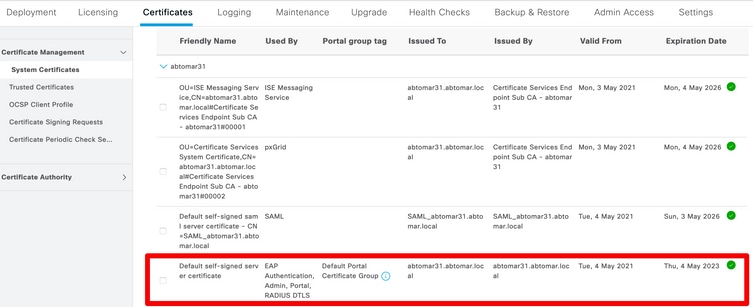
If you install a server certificate on the ISE via a Certificate Signing Request (CSR) and change the certificate for the Admin or EAP protocol, the self-signed server certificate is still present but is in a Not in-Use status.
Determine When to Change the Certificate
Assume that the installed certificate expires soon. Is it better to let the certificate expire before you renew it or to change the certificate before expiration? You must change the certificate before expiration so that you have time to plan the certificate swap and to manage any downtime caused by the swap.
When must you change the certificate? Obtain a new certificate with a start date that precedes the expiration date of the old certificate. The time period between those two dates is the change window.
This image depicts the information for a certificate that expires soon:

Generate Certificate Signing Request
This procedure describes how to renew the certificate through a CSR:
- In the ISE console, navigate to Administration > System > Certificates > Certificate Signing Requests and click Generate Certificate Signing Request:
- The minimum information that you must enter in the Certificate Subject text field is CN=ISEfqdn, where ISEfqdn is the Fully Qualified Domain Name (FQDN) of the ISE. Add additional fields such as O (Organization), OU (Organizational Unit), or C (Country) in the Certificate Subject with the use of commas:
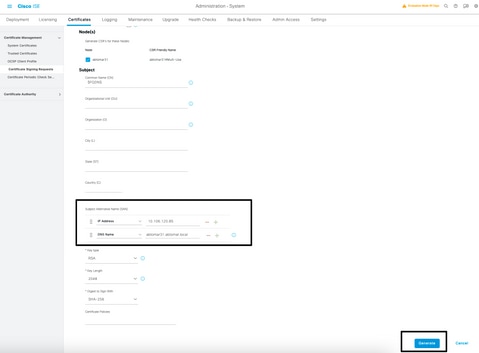
- One of the Subject Alternative Name (SAN) text field lines must repeat the ISE FQDN. You can add a second SAN field if you want to use alternative names or a wildcard certificate.
- Click Generate, a popup window indicates whether the CSR fields are completed correctly or not:
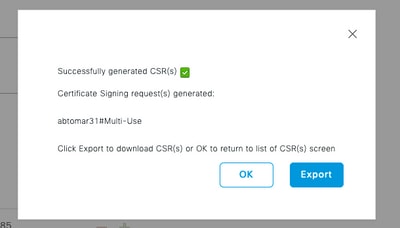
- In order to export the CSR, click Certificate Signing Requests in the left panel, select your CSR, and click Export:
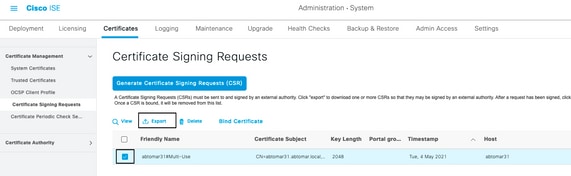
- The CSR is stored on your computer. Submit it to your CA for signature.
Install Certificate
Once you receive the final certificate from your CA, you must add the certificate to the ISE:
- In the ISE console, navigate to Administration > System >Certificates>Certificate Signing Requests, then select the checkbox on CRSand click Bind Certificate:
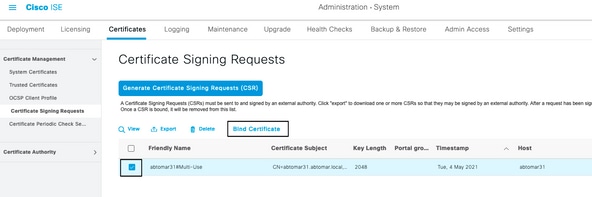
- Enter a simple, clear description of the certificate in the Friendly Name text field and hit submit.
- Under System Certificate, you have a new certificate that is Not in Use as shown here:

- Because the new certificate is installed before the old one expires, you see an error that reports a date range in the future:
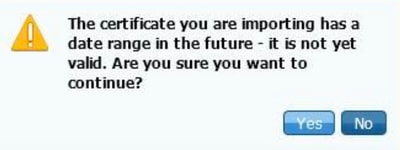
- Click Yes in order to continue. The certificate is now installed, but not in use, as highlighted in green.

Configure Alerting System
The Cisco ISE notifies you when the expiration date of a local certificate is within 90 days. Such advance notification helps you avoid expired certificates, plan the certificate change, and prevent or minimize downtime.
The notification appears in several ways:
- Color expiration status icons appear on the Local Certificates page.
- Expiration messages appear in the Cisco ISE System Diagnostic report.
- Expiration alarms are generated at 90 days and 60 days, then daily in the final 30 days before expiration.
Configure the ISE for email notification of expiration alarms. In the ISE console, navigate to Administration > System > Settings > SMTP Server, identify the Simple Mail Transfer Protocol (SMTP) server, and define the other server settings so that email notifications are sent for the alarms:
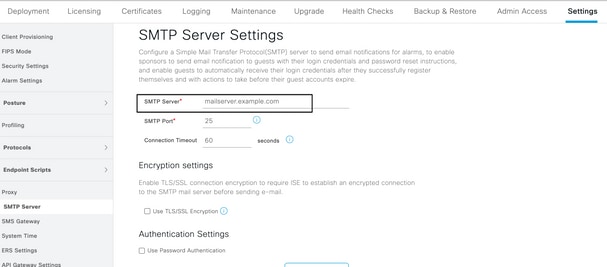
There are two ways that you can set up notifications:
- Use Admin Access in order to notify administrators:
- Navigate to Administration > System > Admin Access > Administrators > Admin Users.
- Check the Include system alarms in emails checkbox for the Admin Users that need to receive alarm notifications. The email address for the sender of the alarm notifications is hardcoded as ise@hostname.
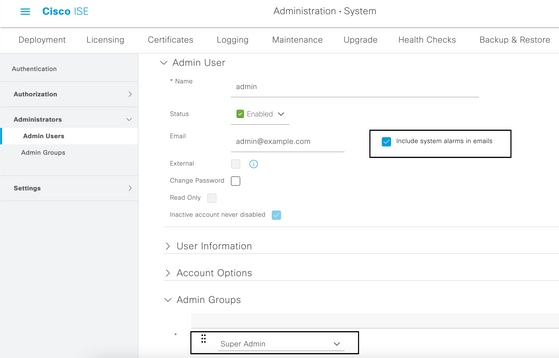
- Navigate to Administration > System > Admin Access > Administrators > Admin Users.
- Configure the ISE alarm settings in order to notify users:
- Navigate to Administration > System > Settings > Alarm Settings > Alarm Configuration, as shown in this image.
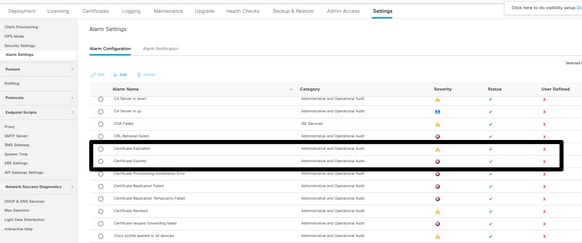
- Select Certificate Expiration and then click Alarm Notification. Enter the email addresses of the users to be notified, and save the configuration change. Changes can take up to 15 minutes before they are active.
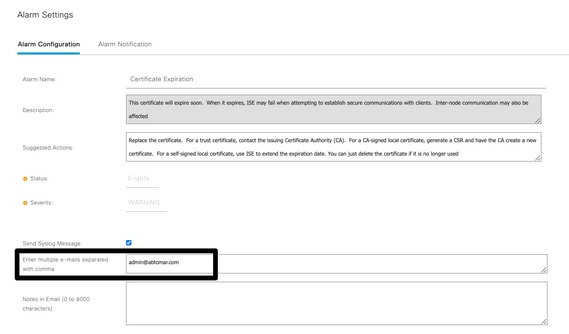
- Navigate to Administration > System > Settings > Alarm Settings > Alarm Configuration, as shown in this image.
Verify
Use this section in order to confirm that your configuration works properly.
Verify Alerting System
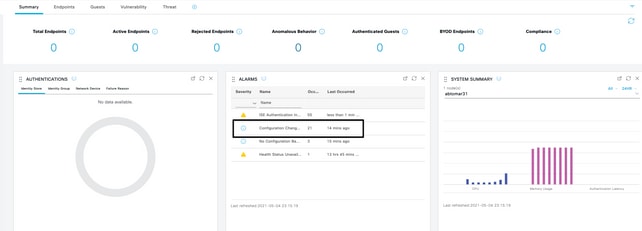
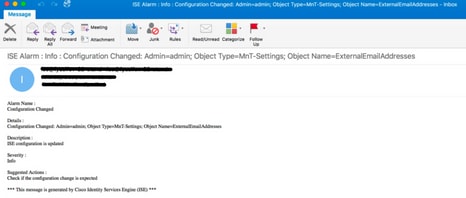
Verify that the alerting system works correctly. In this example, a configuration change generates an alert with a severity level of Information. (An Information alarm is the lowest severity, while certificate expirations generate a higher severity level of Warning.)
This is an example of the email alarm that is sent by the ISE:
Verify Certificate Change
This procedure describes how to verify that the certificate is installed correctly and how to change EAP and/or Admin roles:
- On the ISE console, navigate to Administration > Certificates > System Certificates and select the new certificate in order to view the details.
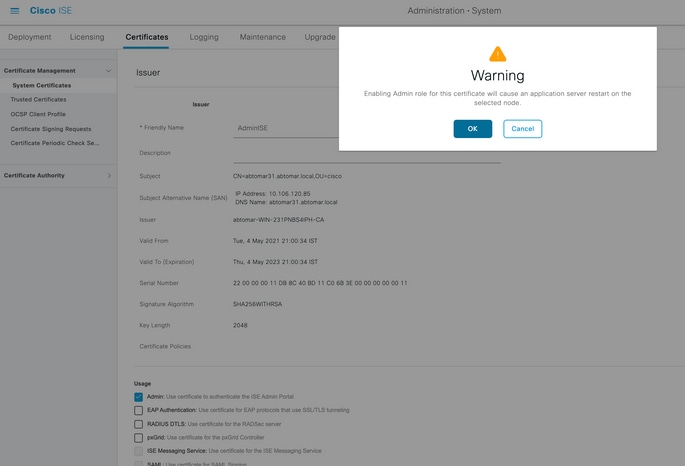
- In order to verify the certificate status on the ISE server, enter this command into the CLI:
CLI:> show application status ise
- Once all of the services are active, attempt to log in as an administrator.
- For a distributed deployment scenario, navigate to Administration > System > Deployment. Verify the node has a Green Icon. Place the cursor over the icon to verify the legend shows Connected.
- Check that the end-user authentication is successful. To do this, navigate to Operations > RADIUS > Livelogs. You can find a specific Authentication attempt and verify that those attempts were successfully authenticated.
Verify Certificate
If you want to check the certificate externally, you can use the embedded Microsoft Windows tools or the OpenSSL toolkit.
OpenSSL is an open-source implementation of the Secure Sockets Layer (SSL) protocol. If the certificates use your own private CA, you must place your root CA certificate on a local machine and use the OpenSSL option -CApath. If you have an intermediate CA, you must place it into the same directory as well.
In order to obtain general information about the certificate and verify it, use:
openssl x509 -in certificate.pem -noout -text
openssl verify certificate.pem
It can also be useful to convert the certificates with the OpenSSL toolkit:
openssl x509 -in certificate.der -inform DER -outform PEM -out certificate.pem
Troubleshoot
There is currently no specific diagnostic information available for this configuration.
Conclusion
As you can install a new certificate on the ISE before it is active, Cisco recommends that you install the new certificate before the old certificate expires. This overlap period between the old certificate expiration date and the new certificate start date gives you time to renew certificates and plan their installation with little or no downtime. Once the new certificate enters its valid date range, enable the EAP and/or Admin. Remember, if you enable Admin usage, there is a service restart.
Revision History
| Revision | Publish Date | Comments |
|---|---|---|
5.0 |
22-Apr-2026
|
Updated SEO. |
4.0 |
10-Oct-2024
|
Added Legal Disclaimer, and Alt Text.
Updated Style Requirements, and Formatting. |
3.0 |
07-Sep-2023
|
Recertification |
2.0 |
04-Aug-2022
|
Initial Release |
1.0 |
16-Jun-2021
|
Initial Release |

 Feedback
Contact Cisco
- Open a Support Case

- (Requires a Cisco Service Contract)