Configure ISE Sponsor Portal with Microsoft Entra ID SAML SSO
Available Languages
Contents
Introduction
This document describes how to configure Microsoft Entra ID as a SAML identity provider for the Cisco ISE Sponsor Portal.
Prerequisites
Requirements
Cisco recommends that you have knowledge of these topics:
- Microsoft Entra ID
- Cisco Identity Services Engine (ISE) 3.0
- Basic knowledge on Security Assertion Markup Language (SAML) Single Sign-On (SSO) Deployments
Components Used
The information in this document is based on these hardware and software versions:
- Cisco ISE 3.4 (the procedure applies to Cisco ISE 3.1 and later)
- Microsoft Entra ID
The information in this document was created from the devices in a specific lab environment. All of the devices used in this document started with a cleared (default) configuration. If your network is live, ensure that you understand the potential impact of any command.
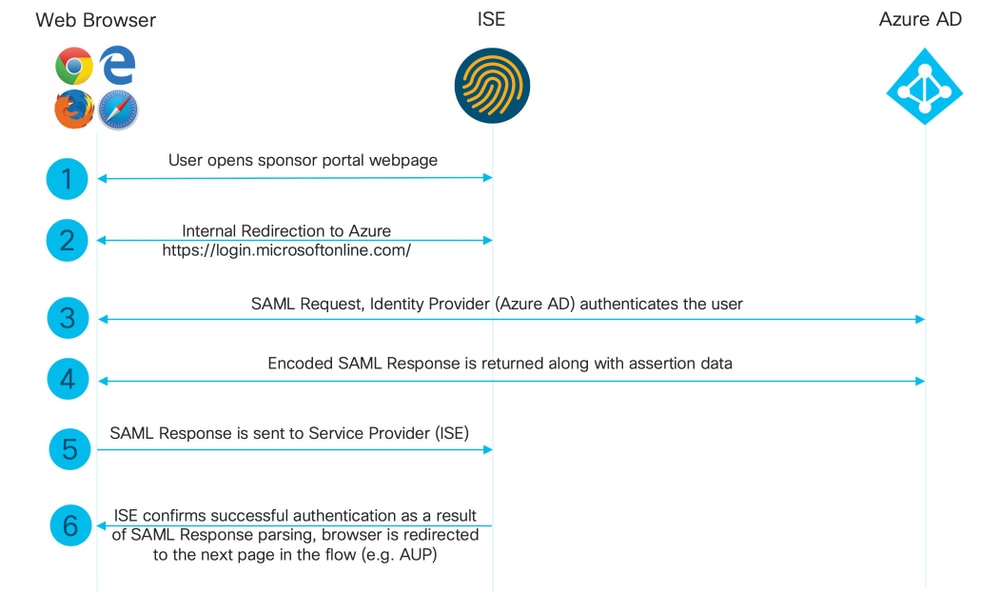
High-Level Flow Diagram
Configure
Step 1. Configure SAML Identity Provider and Sponsor Portal on ISE
Add the SAML Identity Provider
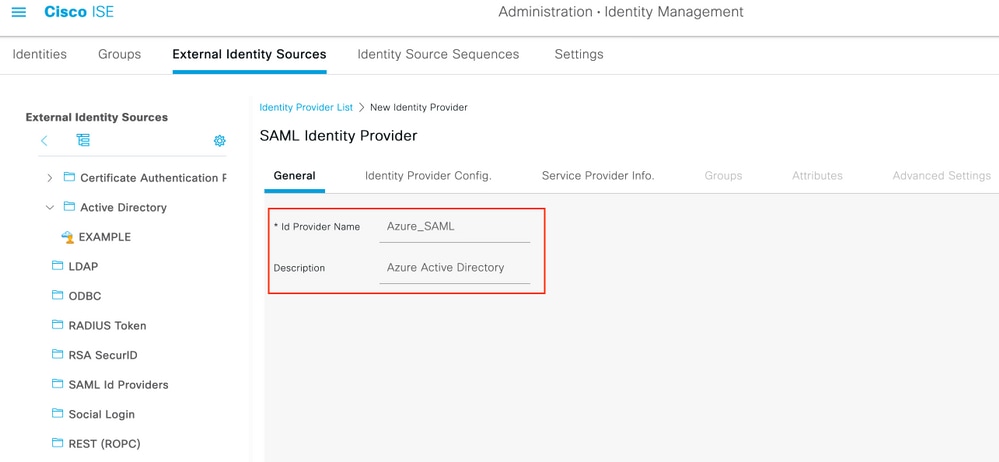
1. On ISE, navigate to Administration > Identity Management > External Identity Sources > SAML Id Providers and click the Add button.
2. Enter the ID Provider Name and click Submit to save it. The ID Provider Name is significant only for ISE as shown in the image.
Configure Sponsor Portal to the idP
1. Navigate to Work Centers > Guest Access > Portals & Components > Sponsor Portals and select your Sponsor Portal. In this example, Sponsor Portal (default) is used.
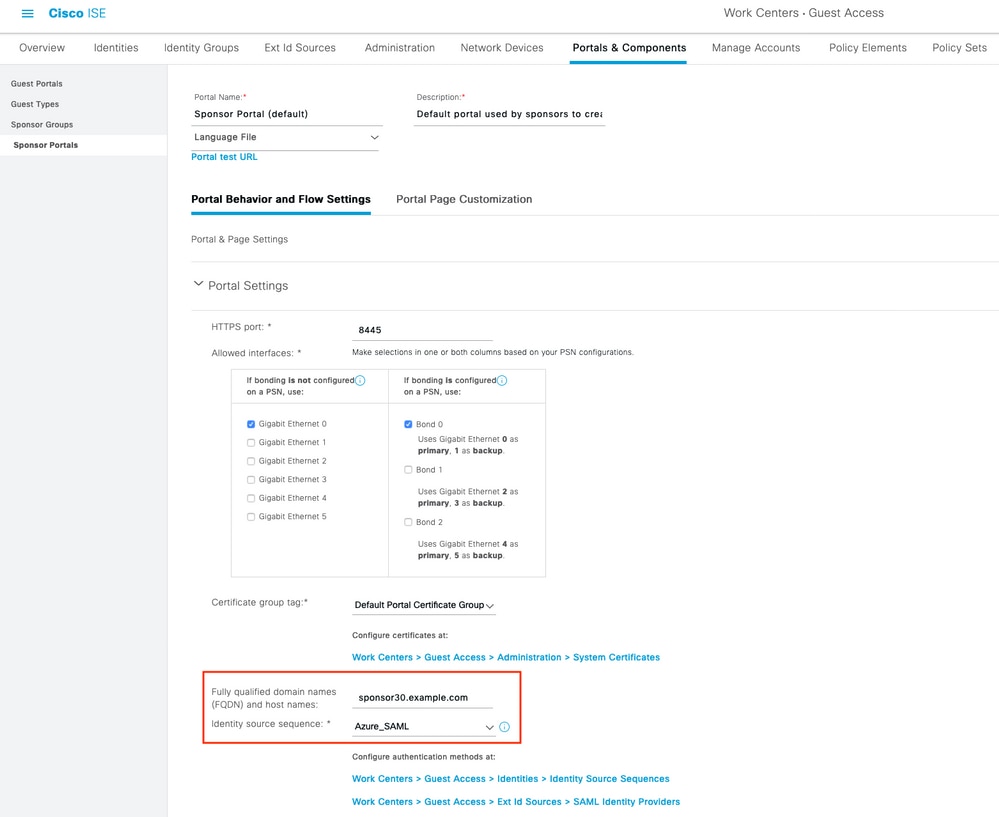
2. Expand Portal Settings and select the new SAML Identity Provider in Identity Source Sequence. Configure the Fully Qualified Domain Name (FQDN) for the sponsor portal and note the HTTPS port (8445 is the Sponsor Portal default). Click Save.
Export Service Provider Information
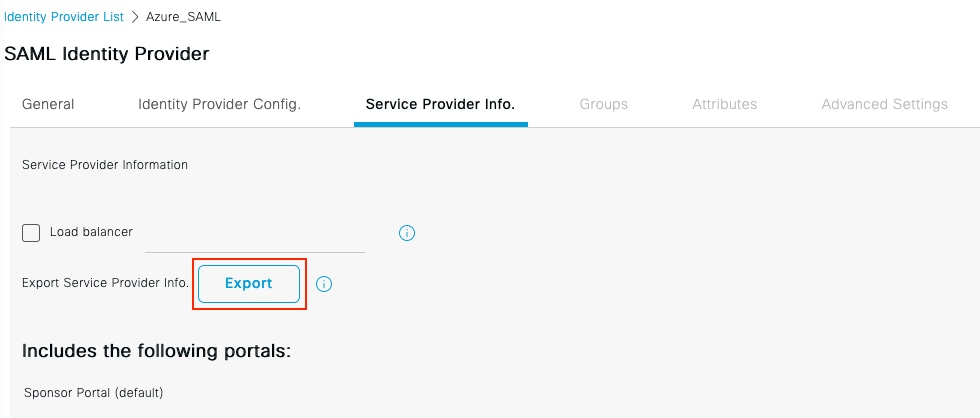
1. Navigate back to the SAML provider and open the Service Provider Info tab. Confirm the Sponsor Portal appears under "Includes the following portals" — the portal must be bound to the IdP before the export, or the metadata does not include it. Click Export.
2. From the downloaded XML, note:
- entityID: For example, http://
CiscoISE/1f789a00-ad9d-4ec0-9a47-ce4909a65db2. - Every AssertionConsumerService Location (one per node name/IP — a standalone node produces three; multi-node deployments produce more).
- The SingleLogoutService ResponseLocation: Sponsor Portal - Logout Response
<?xml version="1.0" encoding="UTF-8"?>
<md:EntityDescriptor xmlns:md="urn:oasis:names:tc:SAML:2.0:metadata"
    entityID="http://CiscoISE/1f789a00-ad9d-4ec0-9a47-ce4909a65db2">
  <md:SPSSODescriptor AuthnRequestsSigned="false" WantAssertionsSigned="false" ...>
    <md:KeyDescriptor use="signing">
      <ds:X509Certificate>MIIFUDCC...(ISE portal signing certificate)...</ds:X509Certificate>
    </md:KeyDescriptor>
    <md:SingleLogoutService Binding="urn:oasis:names:tc:SAML:2.0:bindings:HTTP-Redirect"
        Location="https://sponsor.n3tgeek.com:8445/sponsorportal/SSOLogoutRequest.action?portal=1f789a00-..."
        ResponseLocation="https://sponsor.n3tgeek.com:8445/sponsorportal/SSOLogoutResponse.action"/>
    <md:NameIDFormat>urn:oasis:names:tc:SAML:2.0:nameid-format:transient</md:NameIDFormat>
    ...(additional NameIDFormat entries)...
    <md:AssertionConsumerService Binding="urn:oasis:names:tc:SAML:2.0:bindings:HTTP-POST"
        Location="https://sponsor.n3tgeek.com:8445/sponsorportal/SSOLoginResponse.action" index="0"/>
    <md:AssertionConsumerService Binding="urn:oasis:names:tc:SAML:2.0:bindings:HTTP-POST"
        Location="https://192.168.1.204:8445/sponsorportal/SSOLoginResponse.action" index="1"/>
    <md:AssertionConsumerService Binding="urn:oasis:names:tc:SAML:2.0:bindings:HTTP-POST"
        Location="https://prox-ise04.n3tgeek.com:8445/sponsorportal/SSOLoginResponse.action" index="2"/>
  </md:SPSSODescriptor>
</md:EntityDescriptor>

Caution: The XML also contains an SSOLogoutRequest.action?portal=... URL in the Location attribute. That is not the value to use as the Log out URL in Entra ID — using it causes the "SSO Logout failed" error described in the Troubleshoot section. The correct value ends in SSOLogoutResponse.action.

Note: Re-export and re-import this metadata whenever any of these changes: a new ISE node is registered, a node hostname or IP changes, the Sponsor portal FQDN changes, port or interface settings change, or a load balancer is associated. If the IdP keeps stale metadata, it rejects authentication requests. The exported ZIP also includes a Readme file with per-IdP configuration instructions.
According to the XML file:
SingleLogoutService ResponseLocation=https://
entityID="http://
AssertionConsumerService Location="https://
AssertionConsumerService Location="https://
AssertionConsumerService Location="https://
Note: This lab uses a single ISE node, so the exported XML contains only that nodes three AssertionConsumerService entries: the Sponsor portal FQDN, the node IP, and the node FQDN. In a multi-node deployment, the XML lists the entries for every node that serves the Sponsor portal (the portal FQDN, plus an IP and an FQDN for each node). Add all of these as Reply URLs in Entra ID, not just those of one node. If a node's URL is missing from the Reply URLs, authentication fails when the user is redirected to that node.
Step 2. Configure Microsoft Entra ID
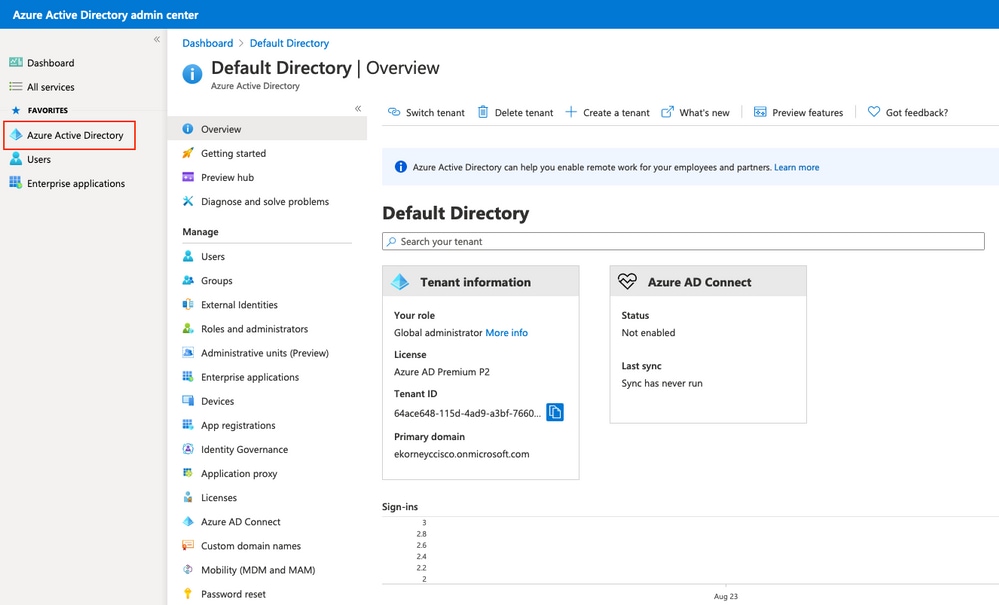
Create an Azure AD User
1. Log in to the Microsoft Entra Admin Center.
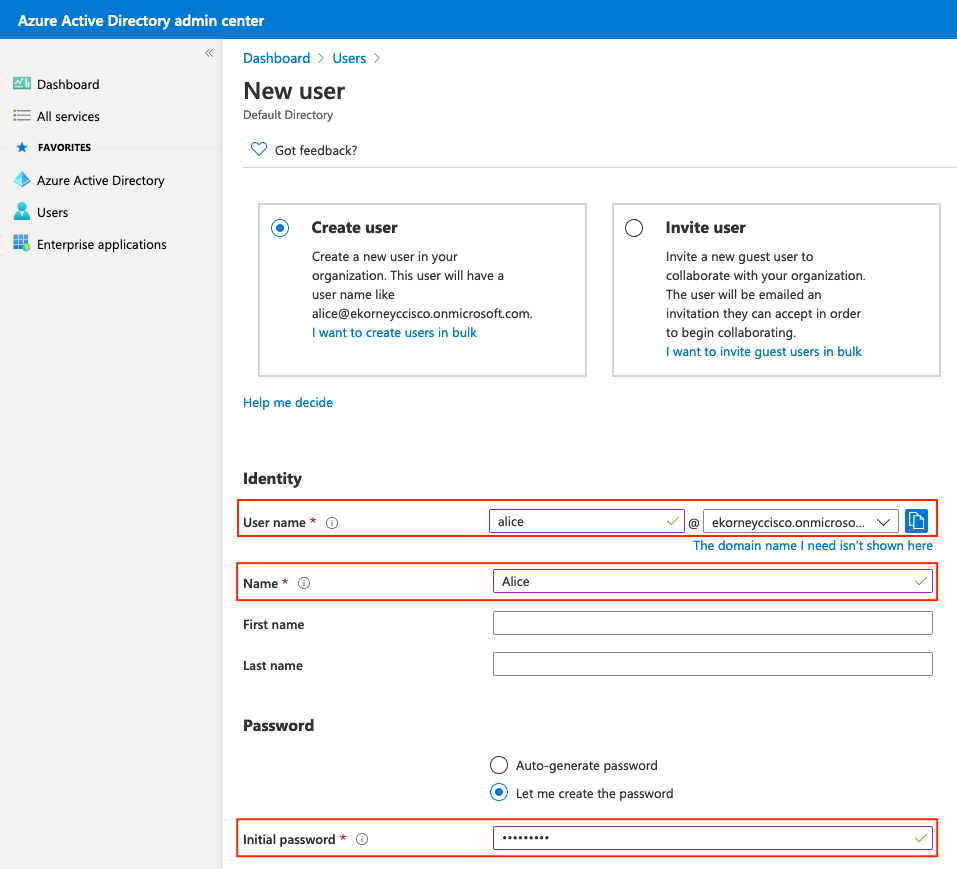
2. Navigate to Entra ID > Users > New user > Create new user and create a cloud-only test user.
Note: Use a cloud-only member user, not an invited guest — guests authenticate against their home tenant and the resulting NameID format prevents ISE from extracting the username. A new user must change the password at first sign-in, and tenants with security defaults also require MFA registration; complete both once before the Verify section.
2. Create a Group and Add the User
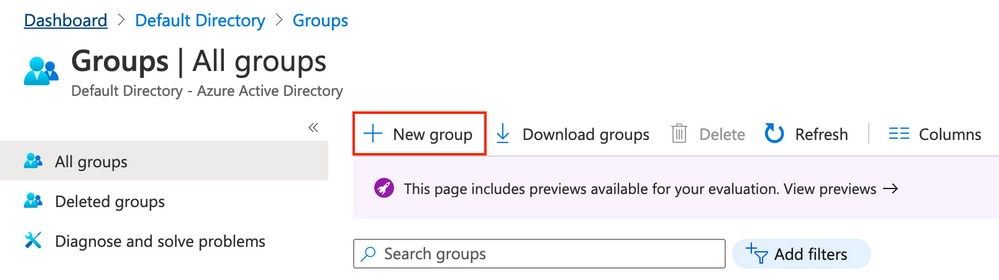
1. Navigate to Entra ID > Groups > New group.
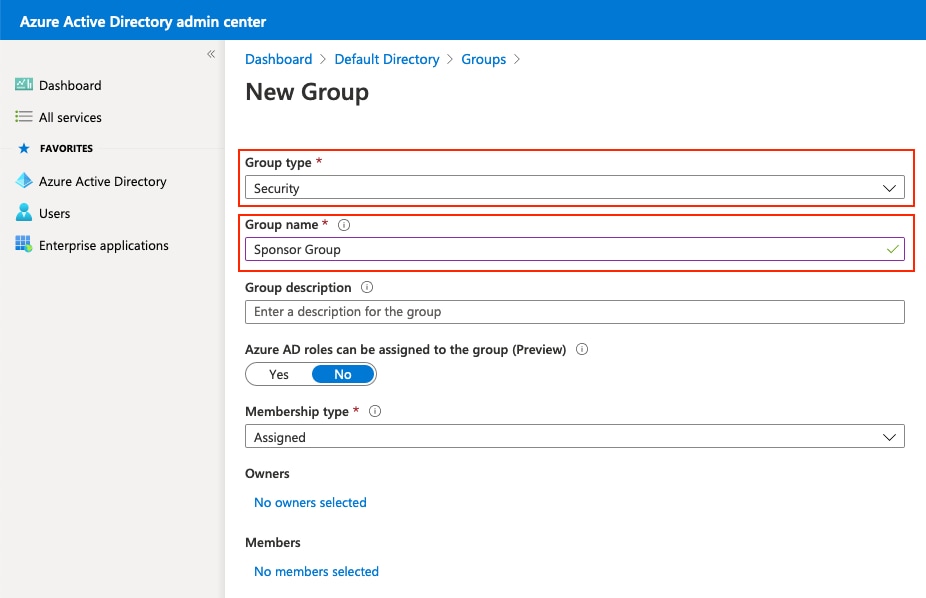
2. Keep Group type as Security. Configure Group name as shown in the image:
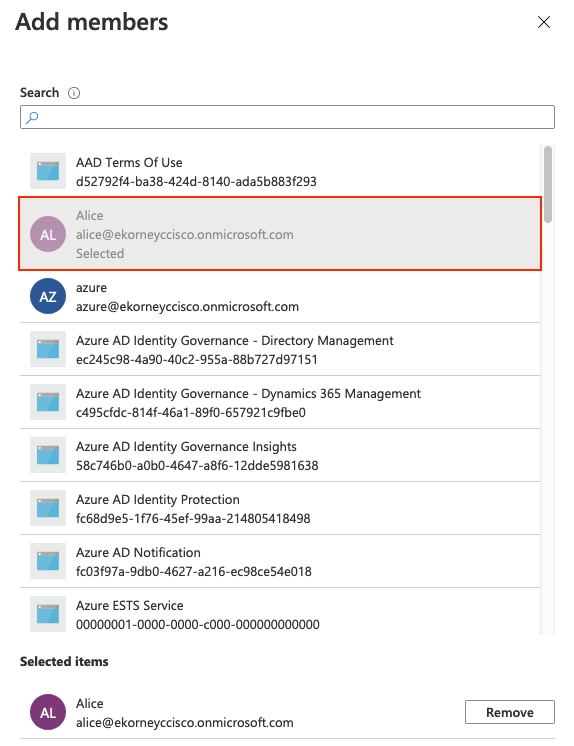
3. Open the group Members page, click Add members, search for the test user, select it, and click Select.
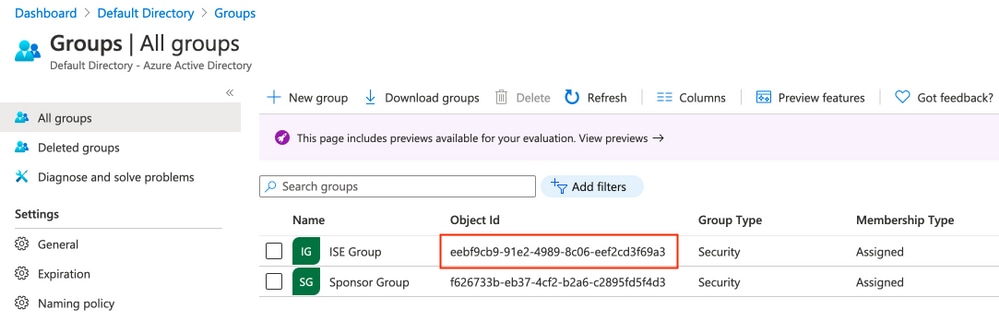
4. Make a note of Group Object ID, in this screen, it is 48f07fce-26e5-41e5-a82b-ed095b32bab8 for the Sponsor Group.
3. Create an Entra Enterprise Application
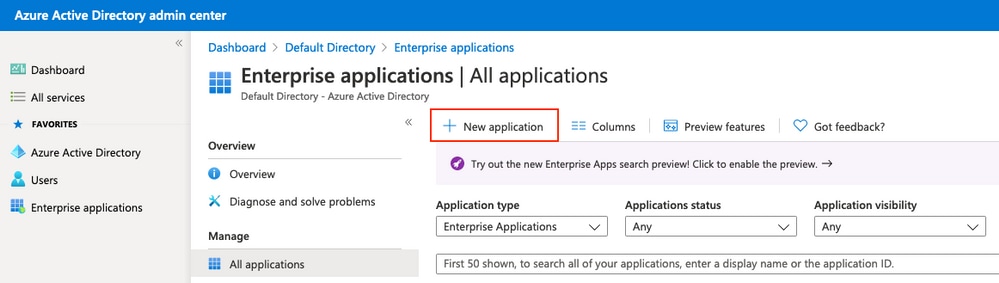
1. Navigate to Entra ID > Enterprise apps > All applications > New application.
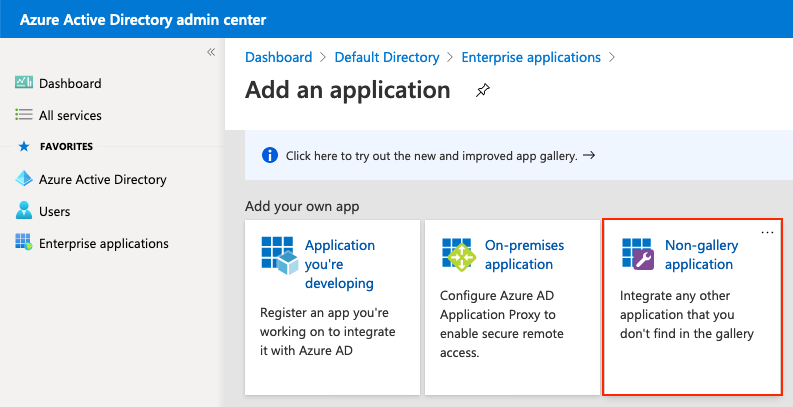
2. Select Create your own application.
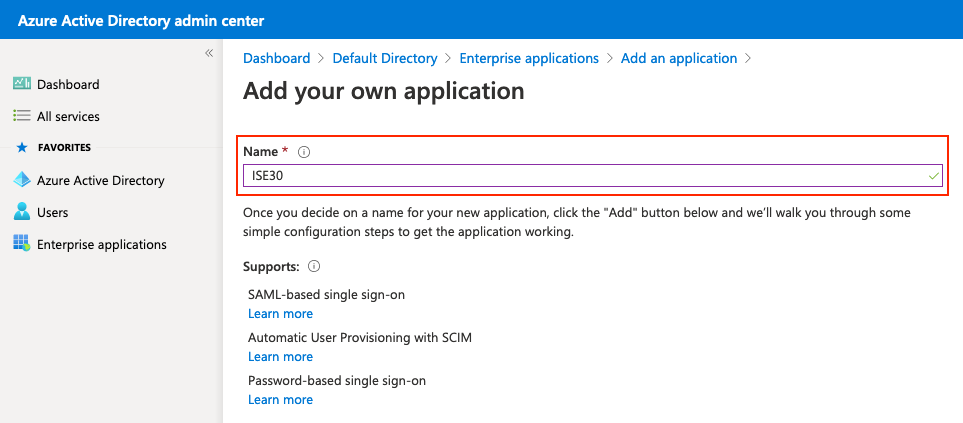
3. Enter a name, select "Integrate any other application you don't find in the gallery (Non-gallery)" and click Create.
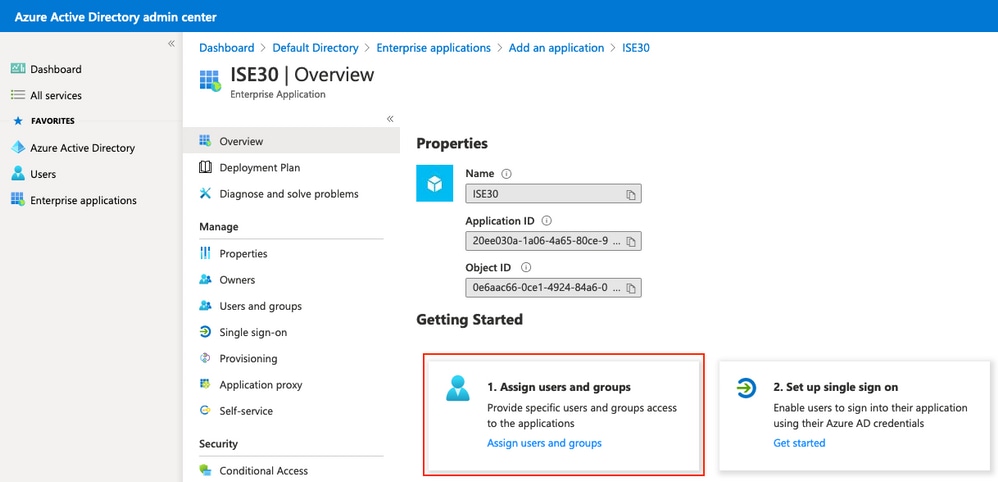
4. Assign the Group (or User) to the Application
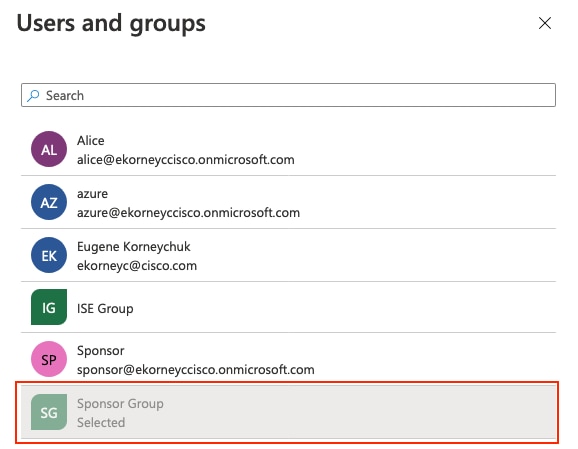
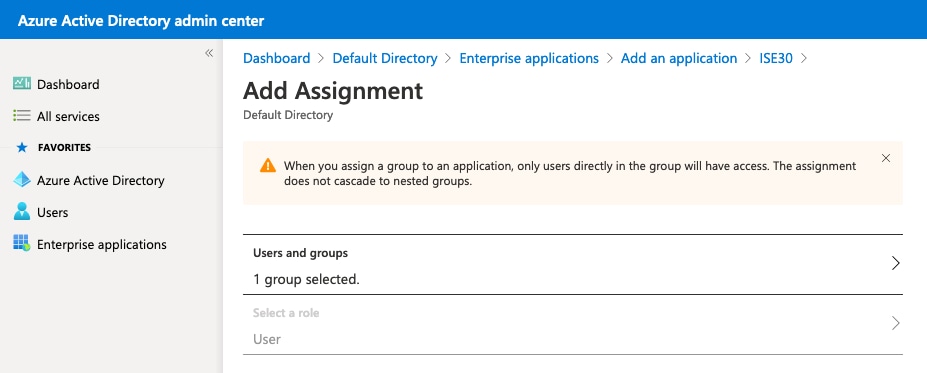
1. In the application, navigate to Users and groups > Add user/group and assign the group created previously.
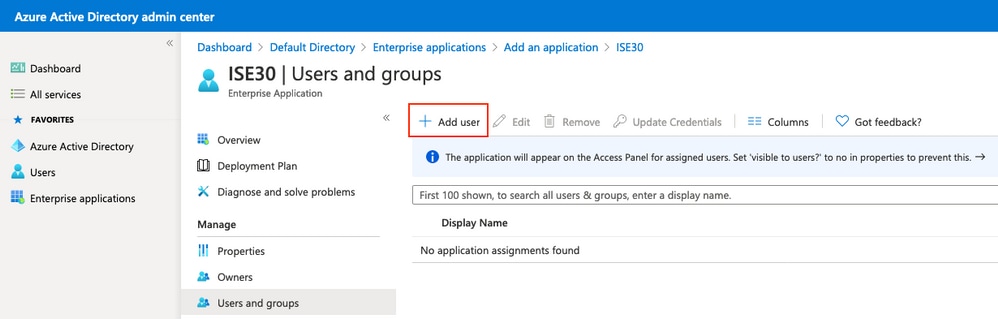
Add User/Group:
Note: If your tenant is on Microsoft Entra ID Free, group assignment is unavailable — assign the test user directly instead; every other step is identical.
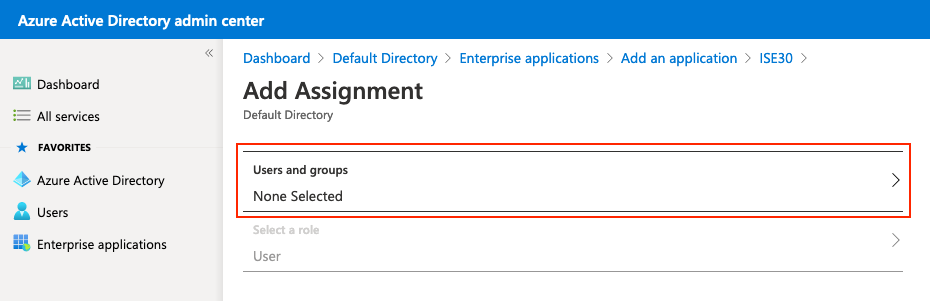
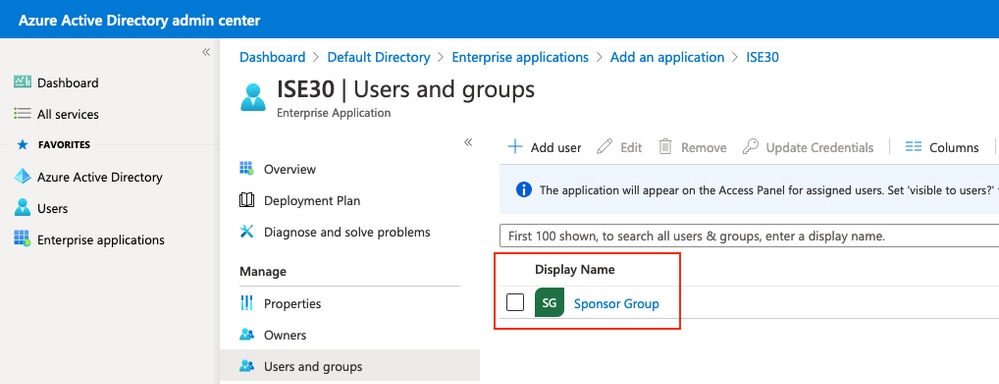
1. As a result, the Users and groups menu for your application must be populated with the selected Group.
Step 3. Configure SAML Single Sign-On in Entra ID
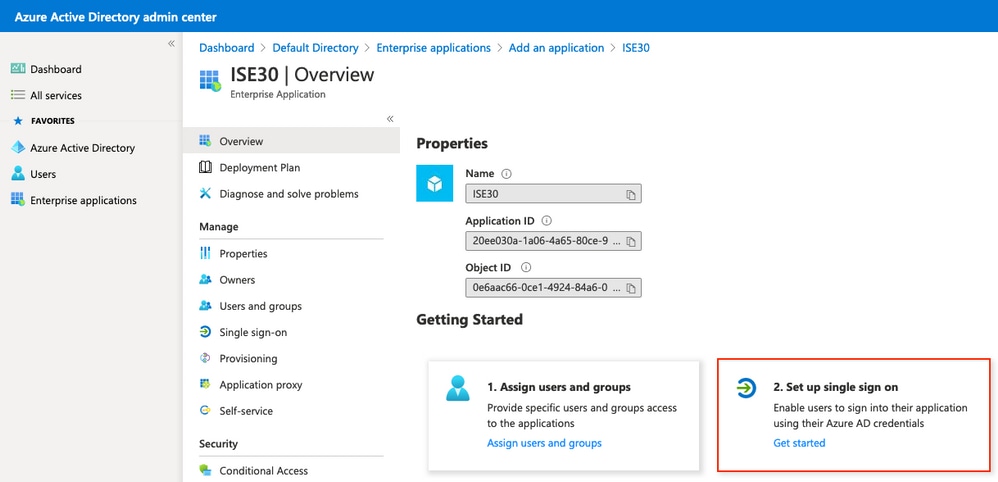
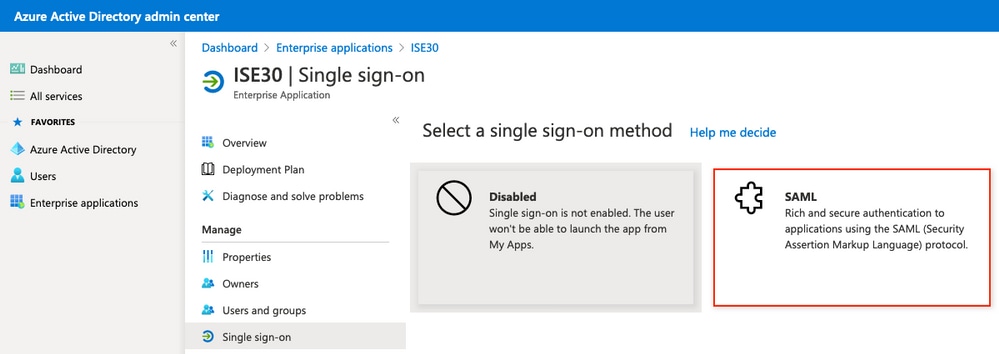
1. In the application, navigate to Set up Single sign-on.
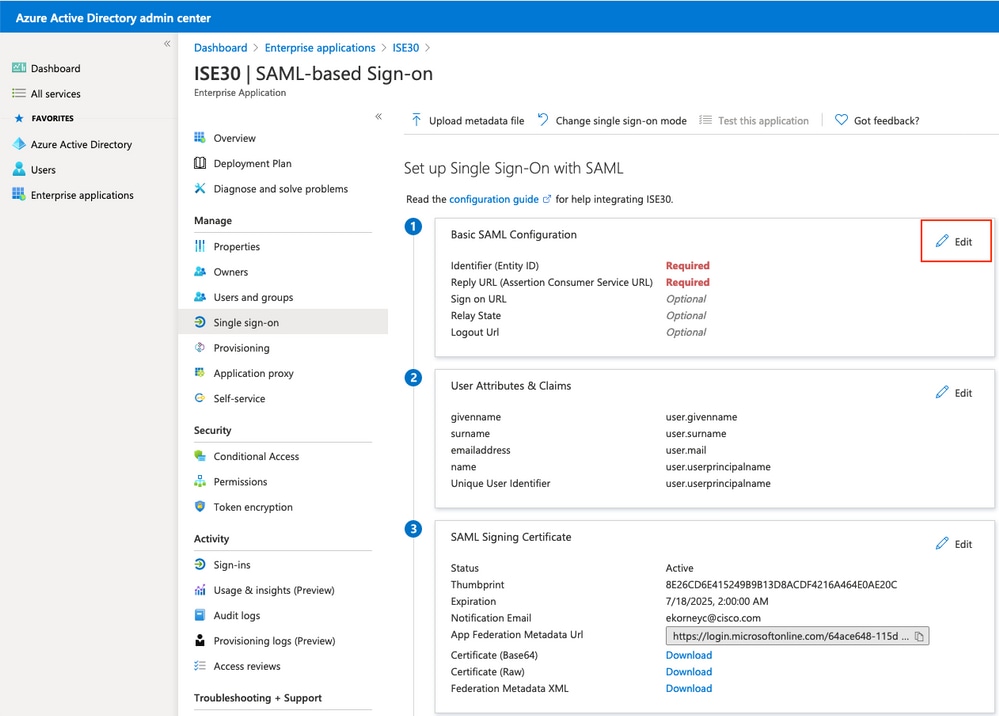
2. Select SAML and click Edit next to Basic SAML Configuration.
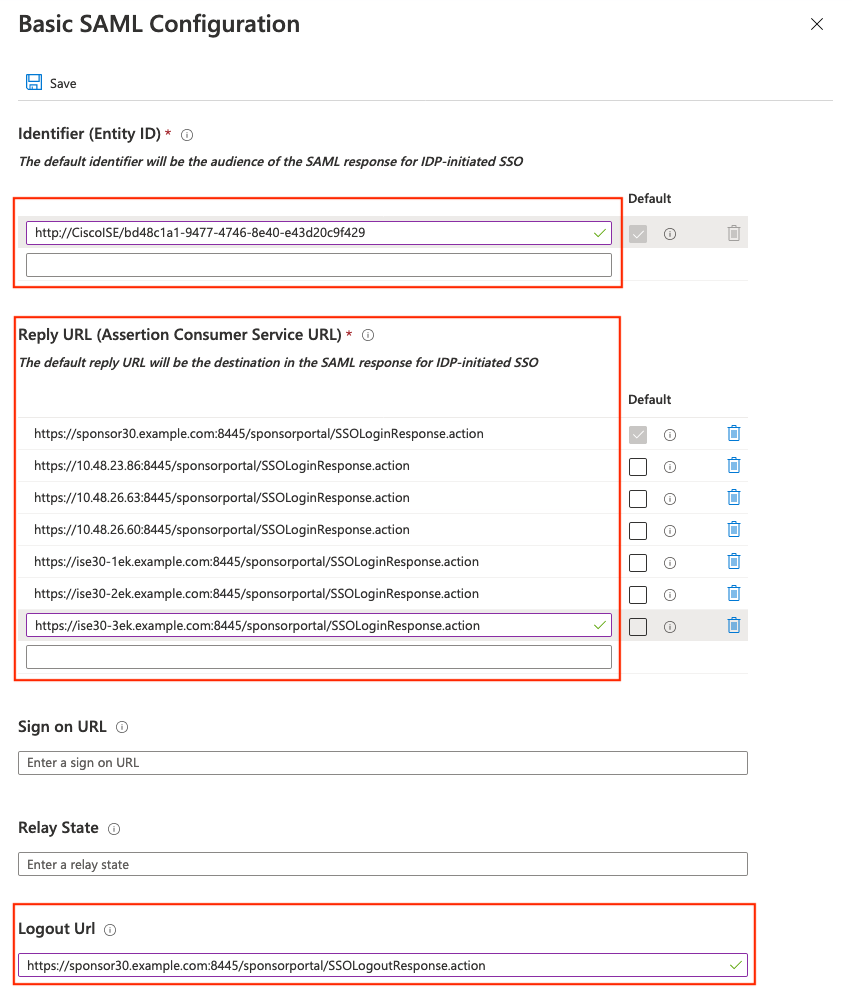
3. Populate Identifier (Entity ID) with the entityID value from the ISE SP metadata XML, and Reply URL with each AssertionConsumerService Location listed there. For Logout Url, use the SingleLogoutService ResponseLocation value. Leave the Sign-on URL and Relay State empty, then click Save.
2. Configure Entra Group Attribute
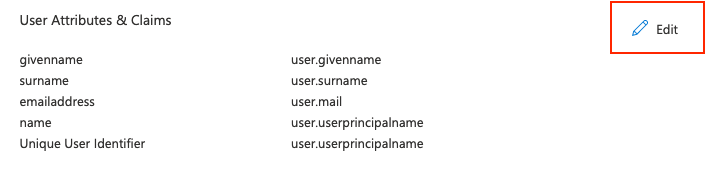
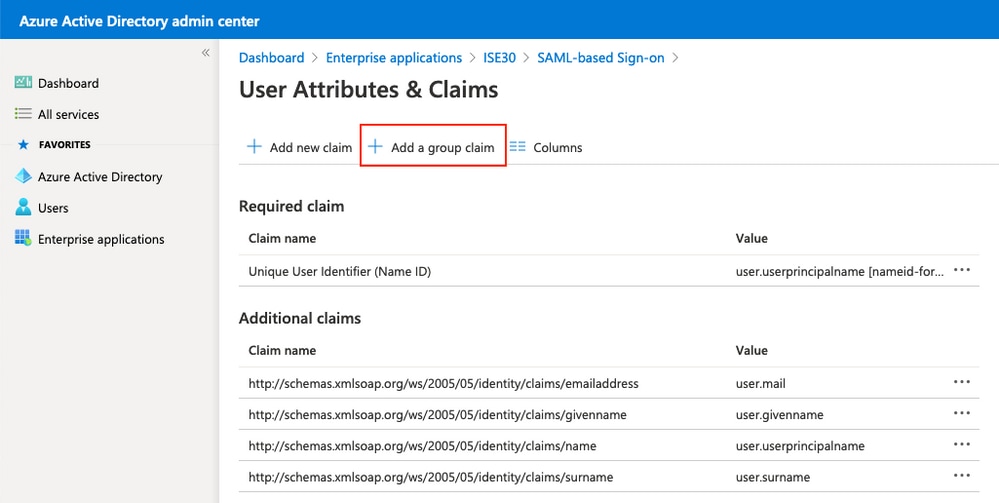
1. Click Edit next to Attributes & Claims.
2. Then Add a group claim.
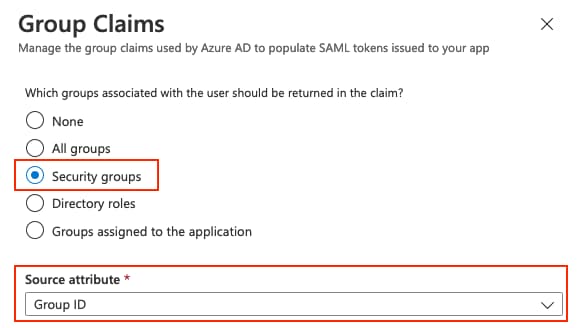
3. Select Security groups with Source attribute Group ID and click Save. Leave everything else at their defaults.
Caution: Do not check "Customize the name of the group claim". Renaming the claim would require the same custom name in the ISE Group Membership Attribute field, and the rest of this document assumes the default claim name.
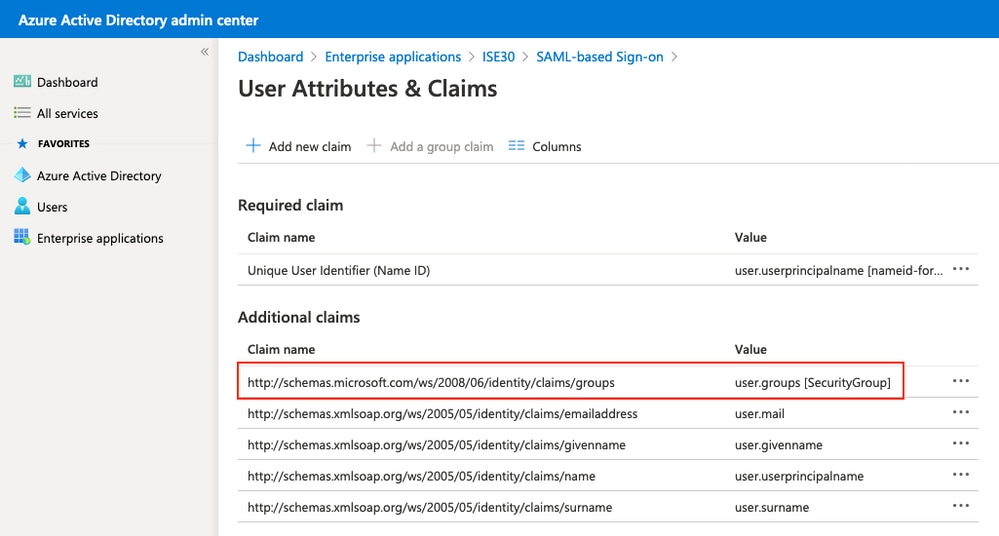
4. If you want to customize it anyway, you can, but the same custom name must be entered in the Group Membership Attribute field in ISE. For example, if you enter Sponsor Group in Entra ID, the ISE field must contain exactly Sponsor Group. In Entra ID, the setting looks like this:
5. Make a note of the Claim name for the group.
3. Download the Federation Metadata XML File
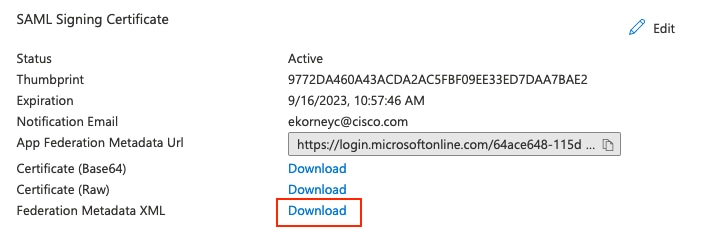
1. Click Download against Federation Metadata XML in the SAML Signing Certificate.
2. The downloaded federation metadata is signed by Microsoft and carries everything ISE needs; the IdP entity ID, the SSO/SLO endpoints and the token signing certificate (abbreviated here):
<EntityDescriptor entityID="https://sts.windows.net/<Tenant-ID>/">
  <Signature>...(signed by Microsoft)...</Signature>
  ...(WS-Fed RoleDescriptor sections — not used by ISE)...
  <IDPSSODescriptor protocolSupportEnumeration="urn:oasis:names:tc:SAML:2.0:protocol">
    <KeyDescriptor use="signing">
      <X509Certificate>MIIC8DCC...(Entra ID token signing certificate)...</X509Certificate>
    </KeyDescriptor>
    <SingleLogoutService Binding="urn:oasis:names:tc:SAML:2.0:bindings:HTTP-Redirect"
        Location="https://login.microsoftonline.com/<Tenant-ID>/saml2"/>
    <SingleSignOnService Binding="urn:oasis:names:tc:SAML:2.0:bindings:HTTP-Redirect"
        Location="https://login.microsoftonline.com/<Tenant-ID>/saml2"/>
  </IDPSSODescriptor>
</EntityDescriptor>
3. On import (Step 4), these fields become the Single Sign-On/Sign-Out URLs and the Signing Certificates entry in the Identity Provider Config tab.
Note: The Entra ID token signing certificate is valid for three years. When it rotates, download the Federation Metadata XML again and re-import it into ISE, or SSO stops working abruptly. Configure the Notification Email on the certificate to get an expiration warning.
Step 4. Upload MetaData from Entra to ISE
Import the Federation Metadata
1. Navigate to Administration > Identity Management > External Identity Sources > SAML Id Providers > [your provider], open the Identity Provider Config tab, click Choose File, select the Federation Metadata XML and click Save. The Single Sign-On/Sign-Out URLs and the signing certificate populate.
Note: The SP metadata that current ISE releases export declares WantAssertionsSigned="false" (older releases declared true); the attribute now trails the Require Assertions Signed checkbox in the Advanced Settings tab, which is unchecked by default. This does not mean unsigned assertions are accepted. ISE always requires at least one signature on the SAML response or on the assertion, even with both checkboxes unchecked.
Optional Advanced Settings Tab: Identity Attribute (default: Subject Name) selects where the username is taken from; the Email attribute must be configured if sponsors filter the list of guests pending approval; Sign Authentication Request controls request signing and takes precedence over the read-only "Want Authentication Requests Signed" checkbox of the previous tab.
Configure SAML Groups on ISE
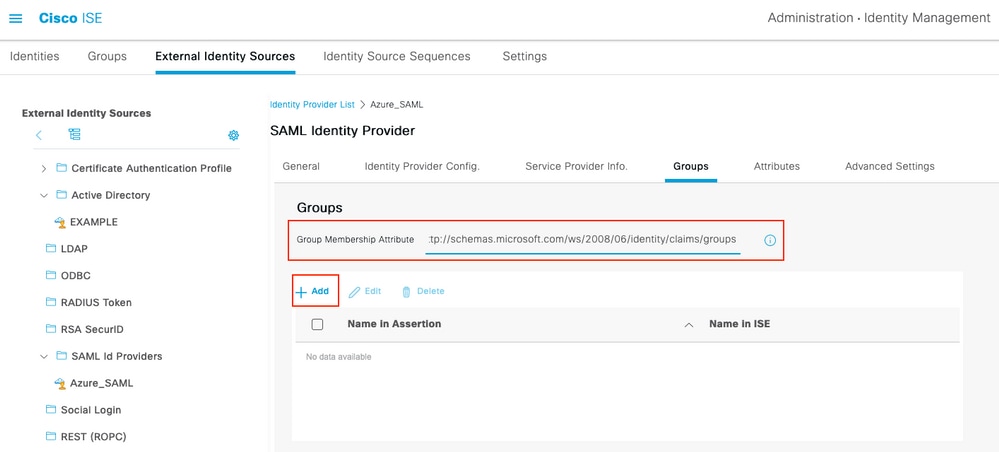
1. Open the Groups tab and in the Group Membership Attribute, paste the Claim name from Step 3:
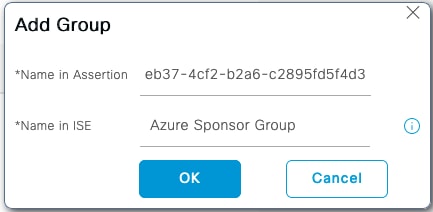
http://schemas.microsoft.com/ws/2008/06/identity/claims/groups2. Click Add. In Name in Assertion, enter the group Object ID captured in Step 2 (this value must match exactly). In Name in ISE, enter any meaningful local label (a free-form alias used only inside ISE menus). Click OK, then Save.
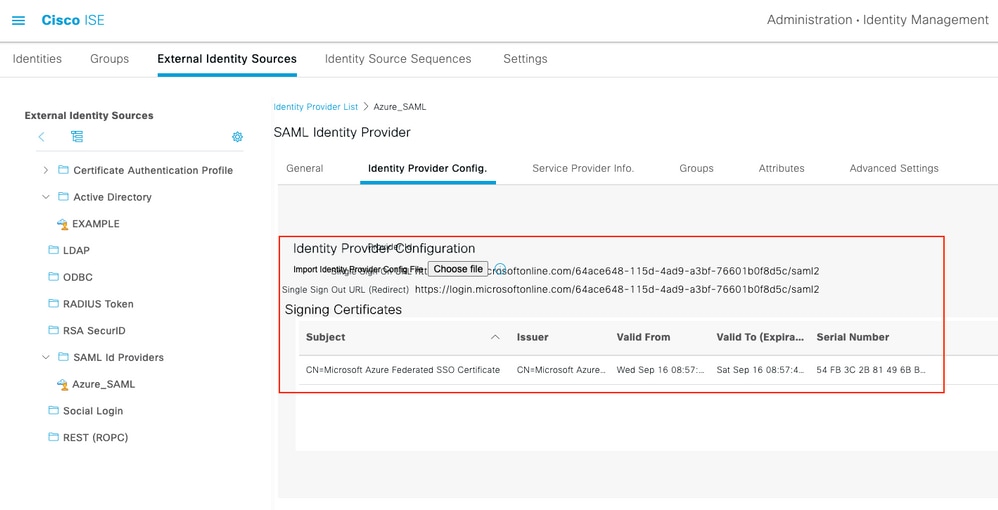
3. This creates a mapping between the Group in Entra and Group name which can be used on ISE.
Step 5. Configure Sponsor Group Mapping on ISE
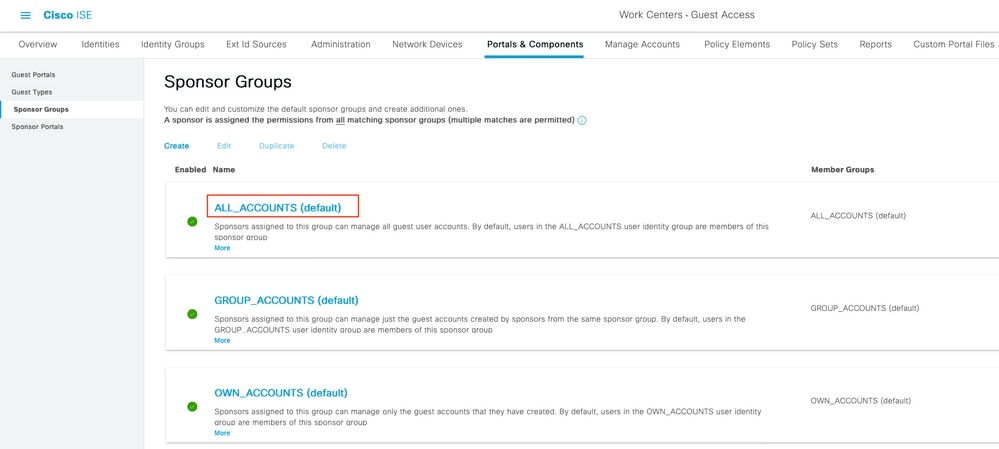
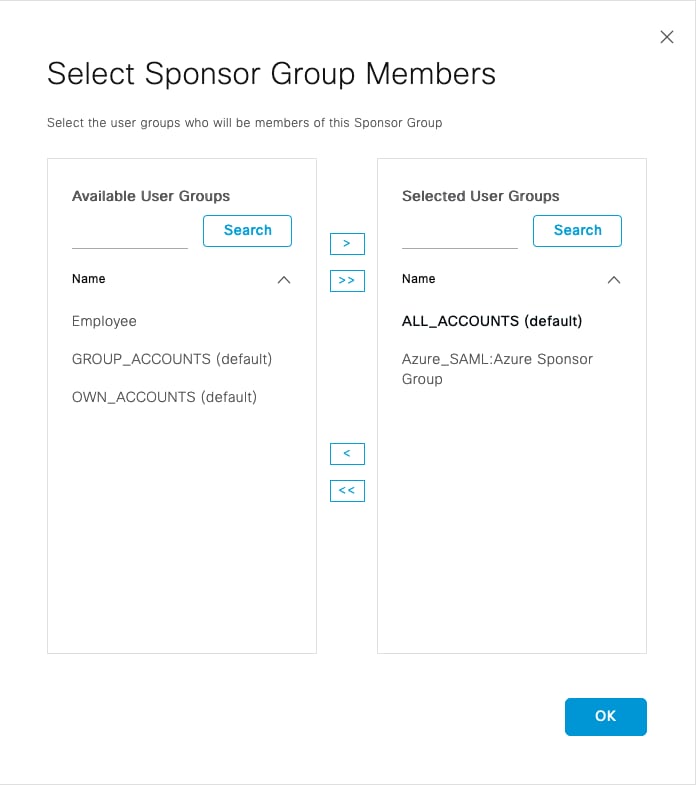
1. Navigate to Work Centers > Guest Access > Portals & Components > Sponsor Groups and select the Sponsor Group to map. In this example, ALL_ACCOUNTS (default).
2. Click Members..., move the IdP:Name in ISE entry to Selected User Groups, click OK, then Save.
Note: A sponsor is assigned the permissions of all matching Sponsor Groups. Map the Entra ID group to a single Sponsor Group unless permission accumulation is intended.
Verify
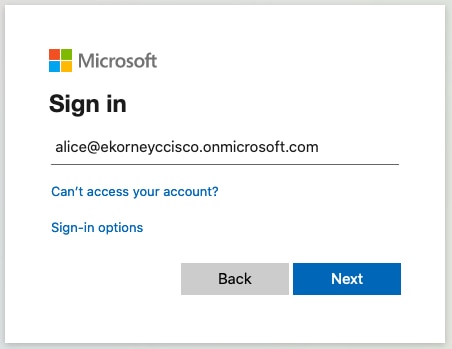
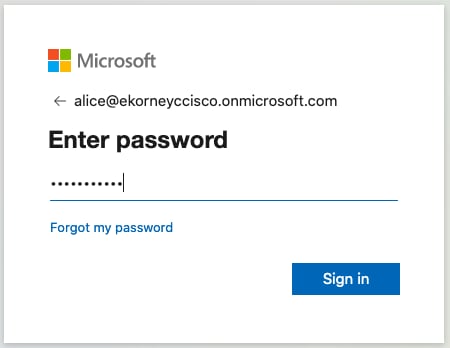
1. Launch the Sponsor Portal from the Portal Test URL link. ISE redirects to the Microsoft sign-in page; authenticate with the test user credentials.
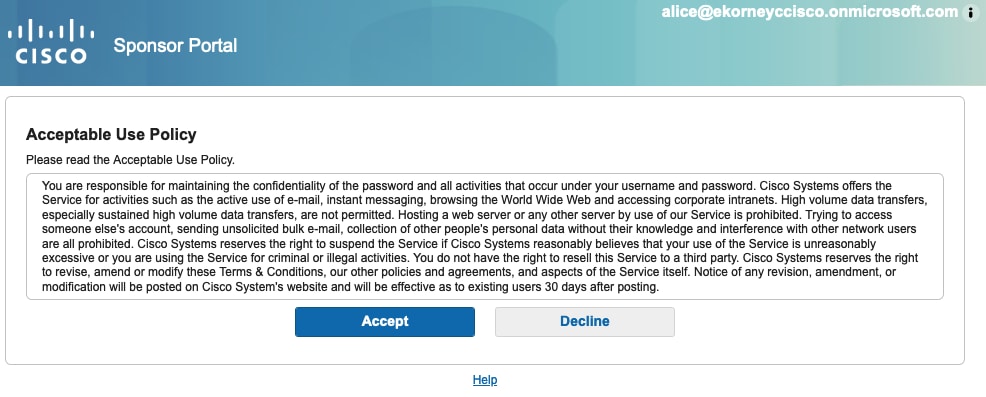
2. After authentication, the browser returns to the portal and AUP is displayed. After acceptance, the sponsor has the mapped Sponsor Group permissions.
3. Sign-Out from the Welcome Menu ends both the portal session and the SSO session cleanly.
IdP-Initiated SSO Is Not Supported: Cisco ISE does not support IdP-initiated SAML. The Test Single Sign-On button ("Test this application") in Microsoft Entra ID always fails for this integration — the IdP-initiated POST reaches SSOLoginResponse.action and the portal returns HTTP [400] Bad Request ("The request is invalid due to malformed syntax or invalid data"). This is expected behavior, not a misconfiguration. Always verify from the Sponsor portal side.
Troubleshoot
SAML authentication happens between the browser and Microsoft Entra ID; errors can surface directly from the IdP before ISE is involved at all.
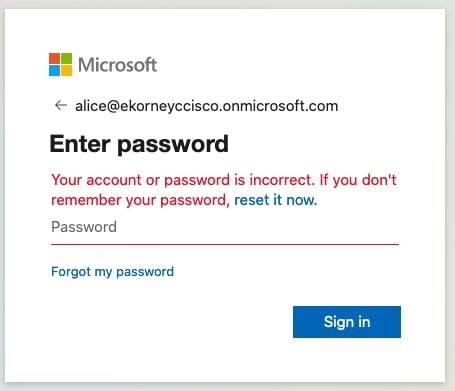
Issue 1 — Wrong Password
The error appears on the Microsoft sign-in page; no user data has reached ISE. On the ISE side, the logs show only the outbound leg and then nothing. In the guest.log, the portal flow reaches SSO_LOGIN, builds the SAML request, redirects the browser to the IdP, and the session never returns:
01:20:46 DEBUG StepExecutor          -- StepTran for Step=INIT => tranEnum=PROCEED_SSO, toStep=SSO_LOGIN
01:20:46 DEBUG SSOLoginConfigHandler -- Redirect to IDP:
    https://login.microsoftonline.com/<Tenant-ID>/saml2?SAMLRequest=jZNRc6IwFIX...
01:20:46 INFO  ISEPortalControllerUtils -- forwarding to: pages/ssoLoginRequest.jsp
(the portal session ends here -- no SSOLoginResponse is ever POSTed back)
The ise-psc.log tells the same story from the SAML framework side:
01:20:46 DEBUG SAMLFacadeImpl  -- SAML request - providerId (as should be found in IdP
    configuration): http://CiscoISE/1f789a00-ad9d-4ec0-9a47-ce4909a65db2
01:20:46 DEBUG SAMLFacadeImpl  -- SAML request - spUrlToReturnTo:
    https://sponsor.n3tgeek.com:8445/sponsorportal/SSOLoginResponse.action
01:20:46 DEBUG SAMLFacadeImpl  -- SignAuthenRequest configuration is - off
01:20:46 DEBUG MessageComposer -- local cert is null, request won't be signed
(capture ends here -- ISE never receives a SAML response)
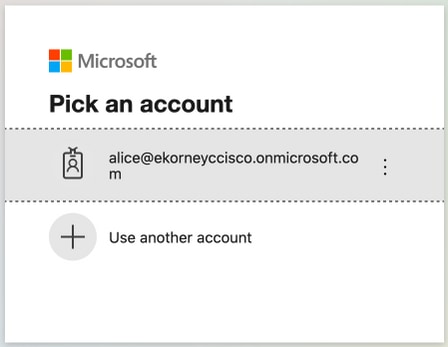
Issue 2 — User Not Assigned to the Application (AADSTS50105)
Entra ID blocks the sign-in before any SAML response is issued.

The nguest.log shows only the redirect being prepared, and ise-psc.log shows no SAML activity at all. The failure is on the IdP side:
16:50:21 INFO  ISEPortalControllerUtils -- forwarding to: pages/ssoLoginRequest.jsp
(nothing follows -- the user never returns from the IdP)Fix: Assign the user or group to the enterprise application (Step 2.4).
Issue 3 — Sign Out Fails ("SSO Logout failed")
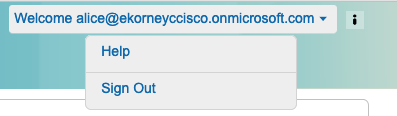
This occurs when the log out URL in the Entra ID was configured with the SSOLogoutRequest.action?portal=... URL instead of SSOLogoutResponse.action. In guest.log, the log out is initiated and the returned response cannot be processed:
16:54:12 INFO  ISEPortalControllerUtils -- forwarding to: /pages/ssoLogoutRequest.jsp
16:54:13 ERROR SponsorSSOLogin -- SAML Response is invalid or subject is NULL!
16:54:13 INFO ISEPortalControllerUtils -- forwarding to: pages/error.jspFix: correct the log out URL in the Basic SAML Configuration.
Issue 4 — Signing Certificate Rotated ("Authentication failed")
When the Entra ID token signing certificate rotates (three-year lifetime), a new certificate is activated, and the Federation Metadata XML is not re-imported into ISE, EACH login fails with a generic "Authentication failed" on the portal, even IF nothing visibly changed on either side.
The ise-psc.log states the real cause explicitly:
16:58:30,429 WARN  apache.xml.security.signature.XMLSignature -- Signature verification failed.
16:58:30,430 ERROR cpm.saml.framework.impl.SAMLFacadeImpl -- SAML Response: processing failed:
com.cisco.cpm.saml.exceptions.SAMLException: Assertion signature did not validate
    against the IdP signature certificate
Caused by: org.opensaml.xml.validation.ValidationException: Signature did not validate
against the credential's keyFix: Re-download the Federation Metadata XML from Entra ID and re-import it in ISE.
Issue 5 — Session Expires Quickly
The portal SSO session idle timeout defaults to 5 minutes (configurable per portal and this lab uses 10). A "Sign On Again" button can be added to the portal Error page via the Optional Content field.
Client Troubleshooting
Because the SAML messages travel through the browser, the browser developer tools (F12 > Network Tab) displays the whole exchange. Reproduce the login with the Network tab open and look for the POST to SSOLoginResponse.action. The moment the browser delivers the SAML assertion to ISE:
ISE Troubleshooting
Log Level of the components must be changed on ISE. Navigate to Operations > Troubleshoot > Debug Wizard > Debug Log Configuration.
| Component Name | Log Level | Log Filename |
| guestaccess | DEBUG | guest.log |
| portal-web-action | DEBUG | guest.log |
| opensaml | DEBUG | ise-psc.log |
| saml | DEBUG | ise-psc.log |
Working set of Debugs at the time of correct flow execution (ise-psc.log):
1. The user is redirected to IdP URL from Sponsor portal.
2026-08-27 01:55:58,021 DEBUG  [admin-http-pool3][[]] guestaccess.apiservices.portal.view.PortalConfigConverter -
 ::::- hostName =sponsor.n3tgeek.com will be applied to URL!
    reqUtl =https://sponsor.n3tgeek.com:8445/sponsorportal/PortalSetup.action
2026-08-27 01:55:58,036 DEBUG  [https-jsse-nio-192.168.1.204-8445-exec-2][[]]
cisco.ise.portalwebaction.utils.PortalSessionUtil -::::- Portal URL:
    https://sponsor.n3tgeek.com:8445/sponsorportal/PortalSetup.action
2026-08-27 01:55:58,037 DEBUG  cisco.ise.portalwebaction.actions.BasePortalAction -::::-
    Action com.cisco.ise.portalwebaction.actions.PortalSetupAction Complete for request /sponsorportal/PortalSetup.action
2. SAML response is received from the browser:
2026-08-27 01:56:19,384 DEBUG cpm.saml.framework.impl.SAMLFacadeImpl -::::-
    SAML Response: statusCode:urn:oasis:names:tc:SAML:2.0:status:Success
IdP URI: https://sts.windows.net/<Tenant-ID>/
SP URI: http://CiscoISE/1f789a00-ad9d-4ec0-9a47-ce4909a65db2
Assertion Consumer URL: https://sponsor.n3tgeek.com:8445/sponsorportal/SSOLoginResponse.action
3. Attribute (assertion) parsing is started:
cpm.saml.framework.validators.SAMLSignatureValidator -::::- no signature in response
cpm.saml.framework.validators.SAMLSignatureValidator -::::- Validating signature of assertion
org.opensaml.xml.signature.SignatureValidator -::::- Signature validated with key from supplied credential
cpm.saml.framework.validators.SAMLSignatureValidator -::::- Assertion signature validated succesfully
cpm.saml.framework.validators.AssertionValidator -::::- Conditions succesfully validated
4. The username and group attribute (48f07fce-26e5-41e5-a82b-ed095b32bab8) are extracted from the assertion, and authentication passes:
SAMLUtils::getUserNameFromAssertion: username value from Subject is=[alice@lab.n3tgeek.com]
loginInfo: ... format=urn:oasis:names:tc:SAML:1.1:nameid-format:emailAddress
[cacheGroupAttr] Adding to cache ExternalGroup values=<48f07fce-26e5-41e5-a82b-ed095b32bab8>
AuthenticatePortalUser - added user groups from SAML response to AuthenticationResult,
    all retrieved groups:[48f07fce-26e5-41e5-a82b-ed095b32bab8]
Authenticate SAML User - result:PASSED
5. The user group is added to the authentication results so it can be used by the Portal and SAML authentication is passed:
2020-09-16 10:44:11,320 DEBUG [https-jsse-nio-10.48.23.86-8445-exec-8][] cpm.saml.framework.impl.SAMLFacadeImpl -::::- AuthenticatePortalUser - added user groups from SAML response to AuthenticationResult, all retrieved groups:[f626733b-eb37-4cf2-b2a6-c2895fd5f4d3]
2020-09-16 10:44:11,320 DEBUG [https-jsse-nio-10.48.23.86-8445-exec-8][] cpm.saml.framework.impl.SAMLFacadeImpl -::::- Authenticate SAML User - result:PASSED
Packet Capture Analysis
A capture taken on the ISE interface (Operations > Troubleshoot > Diagnostic Tools > TCP Dump) during a successful sponsor login shows only two kinds of traffic. The client DNS resolution of the portal FQDN, and TLS sessions from the client to the portal on port 8445, with the portal FQDN visible as the TLS Server Name Indication (SNI).
| Conversation | Direction | What it is |
|---|---|---|
| client <-> ISE:8445 (TLS, SNI = portal FQDN) | browser -> PSN | Portal pages + SAML POST (ACS) |
| client -> DNS: portal FQDN | browser -> resolver | Portal name resolution |
| no traffic to login.microsoftonline.com | — | The IdP leg never touches ISE |
The TLS Client Hello — Where the Portal Name is Visible
Even though everything is encrypted, the TLS Client Hello travels in clear text and it carries the portal FQDN as the Server Name Indication (SNI). This is the one place in the capture where you can positively match a TCP stream to the Sponsor portal.
Frame 96: 1981 bytes on wire
Internet Protocol Version 4, Src: 192.168.1.162 (client), Dst: 192.168.1.204 (ISE PSN)
Transmission Control Protocol, Src Port: 43395, Dst Port: 8445
Transport Layer Security
    TLSv1 Record Layer: Handshake Protocol: Client Hello
        Handshake Protocol: Client Hello
            Extension: server_name (len=24)
                Server Name Indication extension
                    Server Name: sponsor.n3tgeek.com
            Extension: supported_versions (len=7) TLS 1.3, TLS 1.2
The Same Login Captured on the Client
  8445  sponsor.n3tgeek.com         (x12 -- the portal leg, to ISE)
  443  login.microsoftonline.com   (the IdP leg -- never seen on ISE)
  443  aadcdn.msauth.net           (Microsoft sign-in page assets)
  443  login.live.com / login.microsoft.com
(unrelated background traffic omitted for clarity)Note: ISE never communicates with Entra ID during sponsor authentication. The SAML request and response travel through the users browser (redirect and POST bindings). This means the ISE node needs no outbound connectivity to Microsoft for the portal SSO to work, and when troubleshooting, the IdP leg must be captured on the client, not on ISE.
Revision History
| Revision | Publish Date | Comments |
|---|---|---|
2.0 |
02-Oct-2026
|
Updated spelling, grammar, inserted horizontal lines to separate sections for readability, fixed CCW errors, updated alt text. |
1.0 |
19-Oct-2020
|
Initial Release |

 Feedback
Contact Cisco
- Open a Support Case

- (Requires a Cisco Service Contract)