Configure ISE to Assign Trustsec Security Group Tags for PassiveID Sessions
Available Languages
Introduction
This document describes how to configure and assign Security Group Tags (SGTs) to Passive ID sessions via authorization policies in ISE 3.2.
Prerequisites
Requirements
Cisco recommends that you have knowledge of these topics:
- Cisco ISE 3.2
- Passive ID, TrustSec, and PxGrid
Components Used
The information in this document is based on these software and hardware versions:
- Cisco ISE 3.2
- FMC 7.0.1
- WS-C3850-24P that runs 16.12.1
The information in this document was created from the devices in a specific lab environment. All of the devices used in this document started with a cleared (default) configuration. If your network is live, ensure that you understand the potential impact of any command.
Background Information
The Cisco Identity Services Engine (ISE) 3.2 is the minimum version that supports this capability. This document does not cover PassiveID, PxGrid, and SXP configuration. For related information, see the Admin Guide.
In ISE 3.1 or older versions, a Security Group Tag (SGT) can only be assigned to Radius session or Active Authentication such as 802.1x and MAB. With ISE 3.2, we can configure authorization policies for PassiveID Sessions such that when Identity Services Engine (ISE) receives user login events from a provider such as Active Directory Domain Controllers (AD DC) WMI or AD Agent, it assigns a Security Group Tag (SGT) to the PassiveID Session based on the user Active Directory (AD) group membership. The IP-SGT mapping and AD group details for the PassiveID can be published to the TrustSec domain via SGT Exchange Protocol (SXP) and/or to Platform Exchange Grid (pxGrid) subscribers such as Cisco Firepower Management Center (FMC) and Cisco Secure Network Analytics (Stealthwatch).
Configure
Flow Diagram
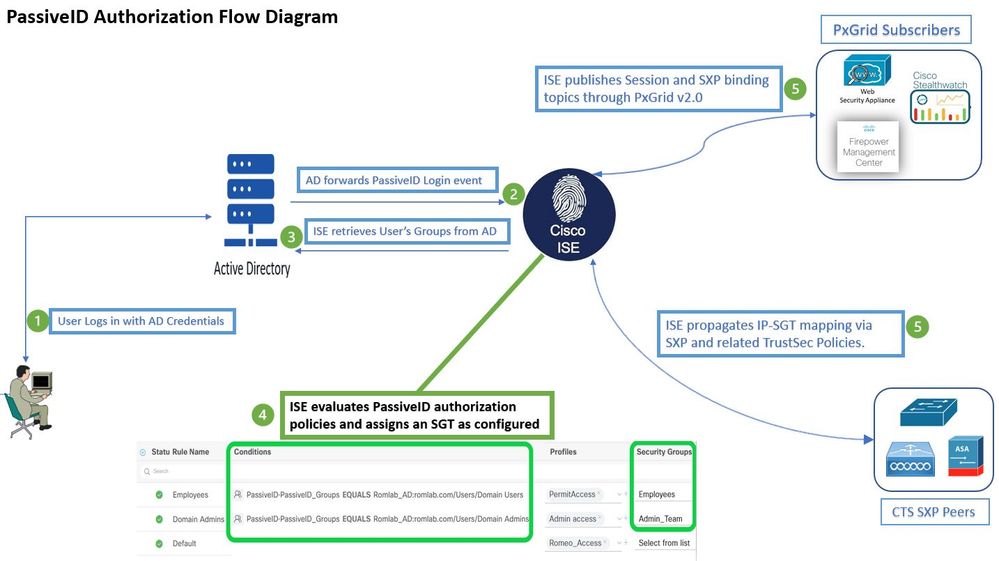 Flow Diagram
Configurations
Enable the authorization flow:
Navigate to Active Directory > Advanced Settings > PassiveID Settings and check the Authorization Flow checkbox in order to configure authorization policies for PassiveID login users. This option is disabled by default.
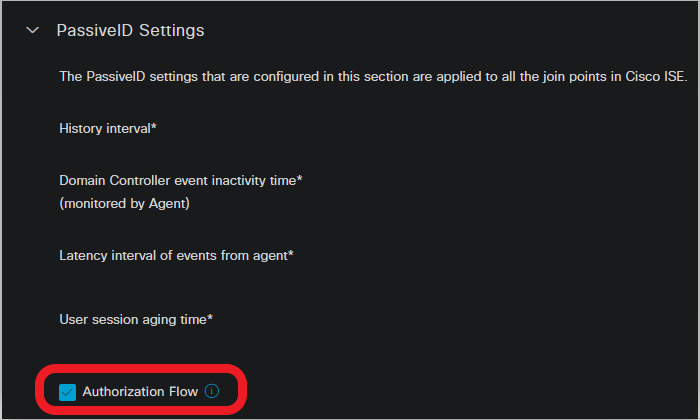 Enable the authorization flow
Policy Set Configuration:
- Create a separate Policy Set for PassiveID (recommended).
- For Conditions, use the attribute
PassiveID·PassiveID_Providerand select your provider type.
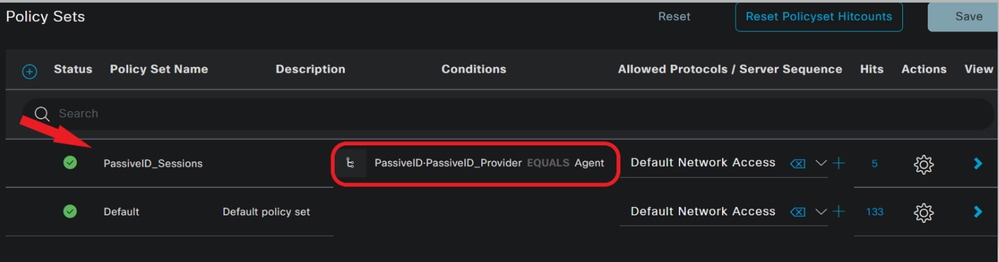 Policy Sets
- Configure Authorization rules for the Policy Set created in Step 1.
- Create a condition for each rule and use the PassiveID dictionary based on AD groups, Usernames, or Both.
- Assign a Security Group Tag for each rule and save the configurations.
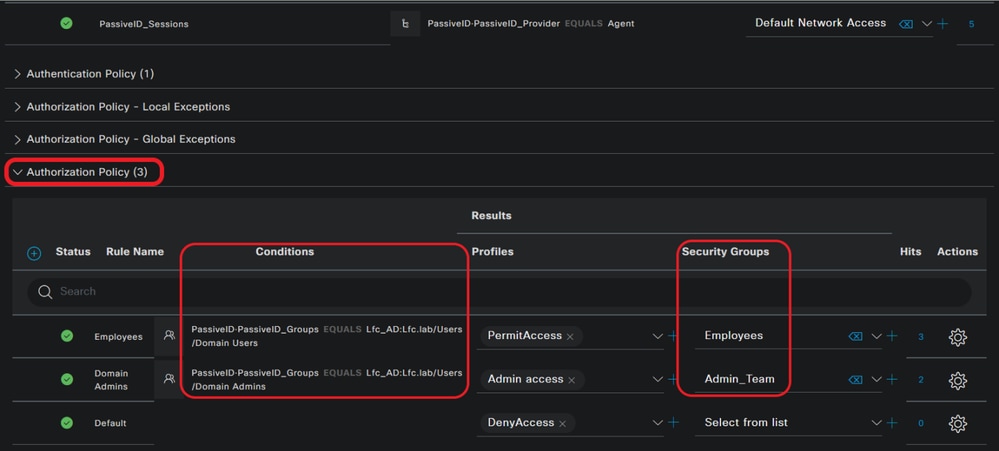 Authorization Policy
4. Navigate to Work Centers > TrustSec > Settings > SXP Settings to enable Publish SXP bindings on pxGrid and Add RADIUS and PassiveID Mappings into SXP IP SGT Mapping Table to share PassiveID mappings with PxGrid subscribers and include them in the SXP mappings table on ISE.
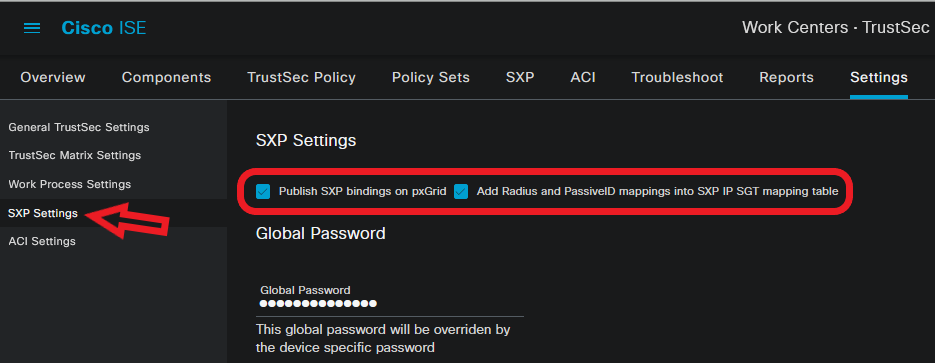 SXP Settings
Verify
Use this section in order to confirm that your configuration works properly.
ISE Verification
Once the user login events have been sent to ISE from a provider such as Active Directory Domain Controllers (AD DC) WMI or AD Agent, proceed to check the Live Logs. Navigate to Operations > Radius > Live Logs.
 Radius LiveLogs
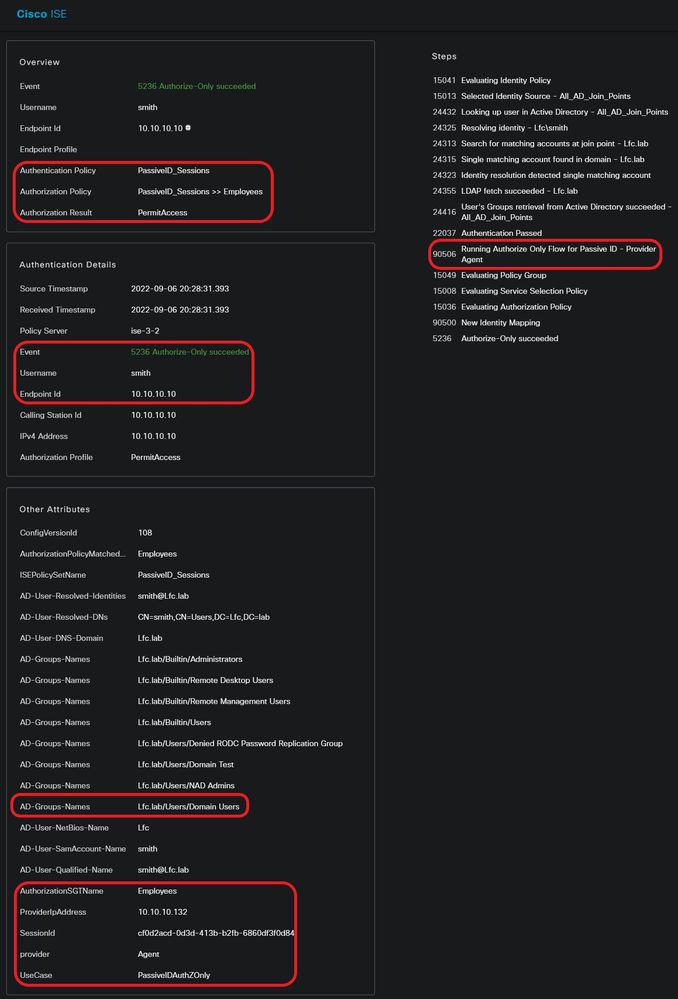
Click the magnifier icon in the Details column to view a detailed report for a user, in this example smith (Domain Users) as shown here.
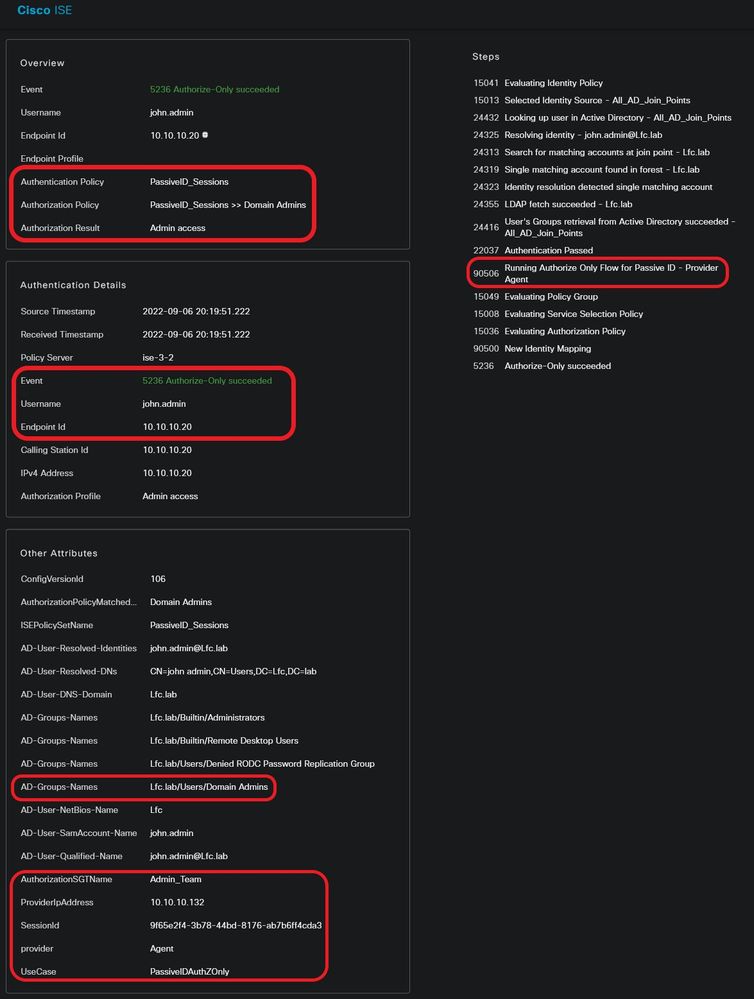
A detailed report for another user (Domain Admins). As shown here, a different SGT is assigned per the configured authorization policy.
Verify SGT/IP Mapping Table in ISE. Navigate to Work Centers > TrustSec > All SXP Mappings.
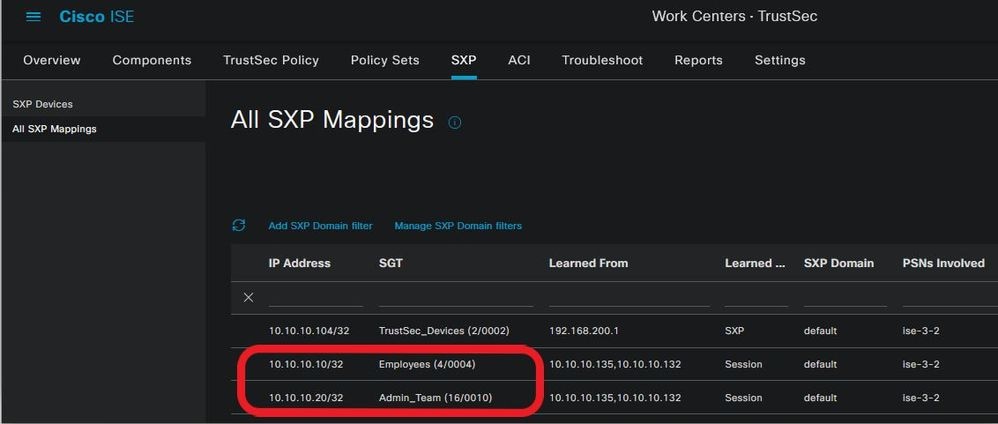 SXP Mappings Table
PxGrid Subscriber Verification
This CLI snippet verifies that the FMC has learned the IP-SGT mappings for the previously mentioned PassiveID sessions from ISE.
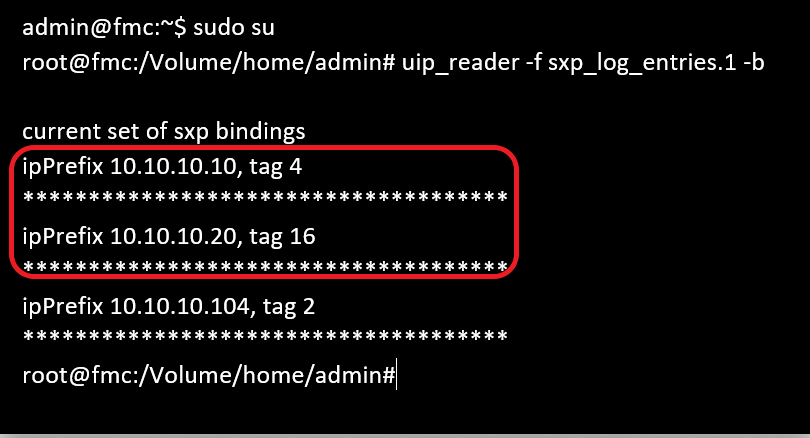 FMC CLI Verification
TrustSec SXP Peer Verification
The switch has learned the IP-SGT mappings for PassiveID sessions from ISE, as seen in this CLI excerpt.
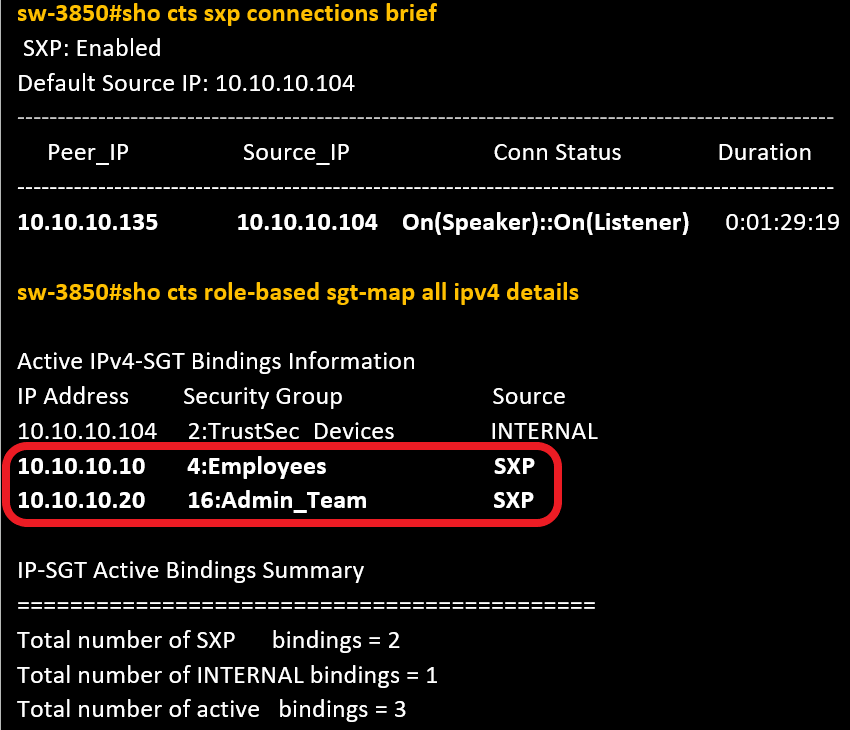 Switch CLI verification
Troubleshoot
This section provides information you can use in order to troubleshoot this flow.
Enable Debugs on ISE
Navigate to Administration > System > Logging > Debug Log Configuration to set the next components to the specified level.
| Node |
Component Name |
Log Level |
Log Filename |
| PassiveID |
passiveid |
Trace |
passiveid-*.log |
| PxGrid |
pxgrid |
Trace |
pxgrid-server.log |
| SXP |
sxp |
Debug |
sxp.log |
Logs Snippets
1. ISE receives login events from the provider:
Passiveid-*.log file:
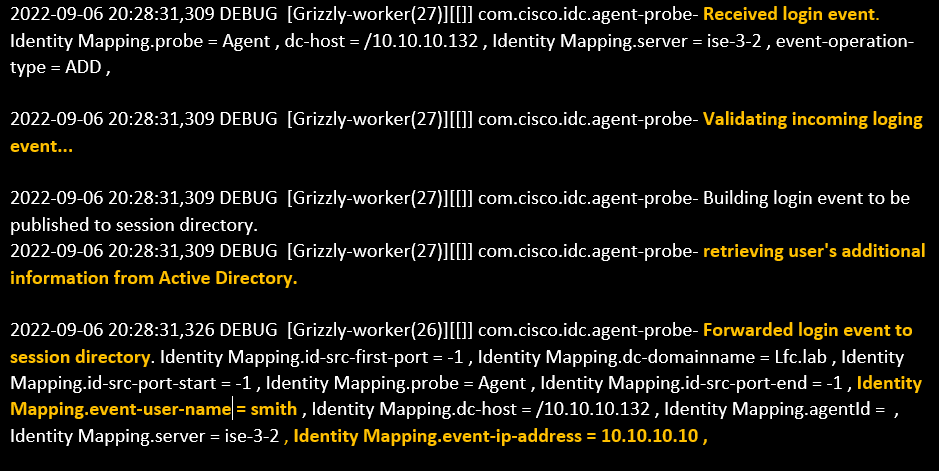 Passiveid-*.log file
2. ISE assigns SGT per the configured authorization policy and publishes IP-SGT mapping for PassiveID users to PxGrid Subscribers and SXP Peers:
sxp.log file:
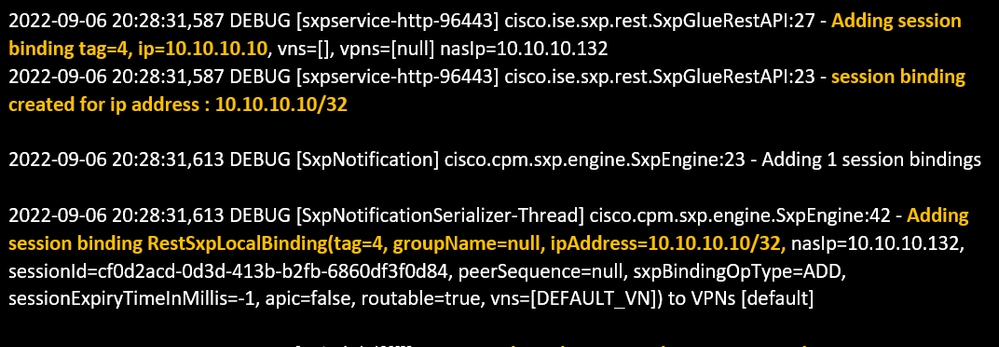 sxp.log file
pxgrid-server.log file:
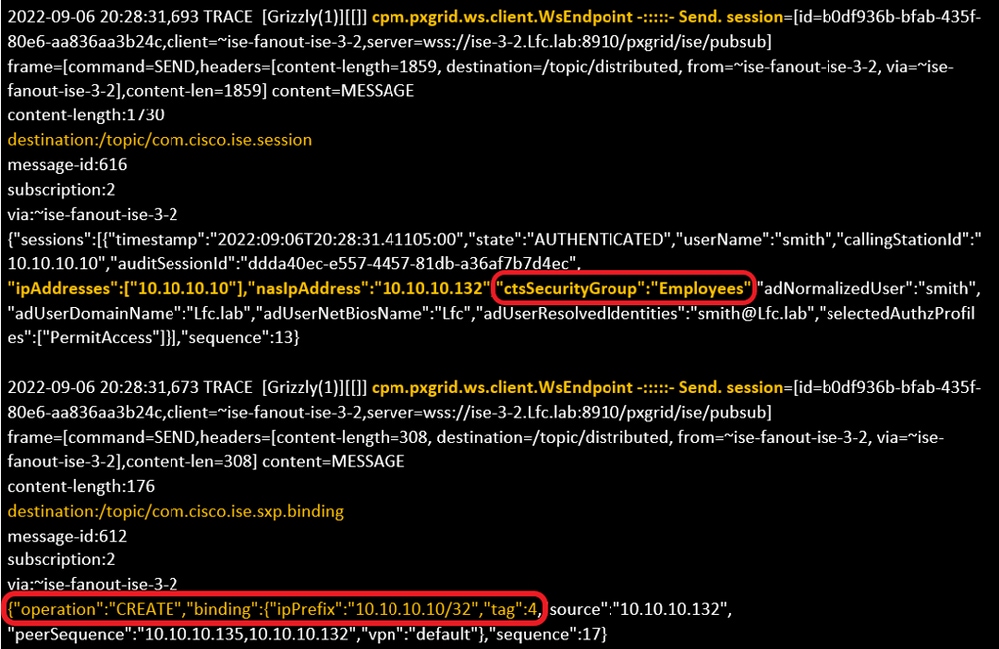 pxgrid-server.log file
Revision History
| Revision | Publish Date | Comments |
|---|---|---|
3.0 |
18-Sep-2026
|
Recertification - Updated Alt Text, Target Links, and Formatting. |
2.0 |
15-Feb-2023
|
Initial Release |
1.0 |
09-Feb-2023
|
Initial Release |

 Feedback
Contact Cisco
- Open a Support Case

- (Requires a Cisco Service Contract)