Use Firepower Threat Defense Captures and Packet Tracer

Available Languages
Download Options
Bias-Free Language
The documentation set for this product strives to use bias-free language. For the purposes of this documentation set, bias-free is defined as language that does not imply discrimination based on age, disability, gender, racial identity, ethnic identity, sexual orientation, socioeconomic status, and intersectionality. Exceptions may be present in the documentation due to language that is hardcoded in the user interfaces of the product software, language used based on RFP documentation, or language that is used by a referenced third-party product. Learn more about how Cisco is using Inclusive Language.
Contents
Introduction
This document describes how to use Firepower Threat Defense (FTD) captures and Packet Tracer utilities.
Prerequisites
Requirements
There are no specific requirements for this document.
Components Used
The information in this document is based on these software versions:
- ASA5515-X that runs FTD software 6.1.0
- FPR4110 that runs FTD software 6.2.2
- FS4000 that runs Firepower Management Center (FMC) software 6.2.2
The information in this document was created from the devices in a specific lab environment. All of the devices used in this document started with a cleared (default) configuration. If your network is live, ensure that you understand the potential impact of any command.
Background Information
FTD Packet Processing
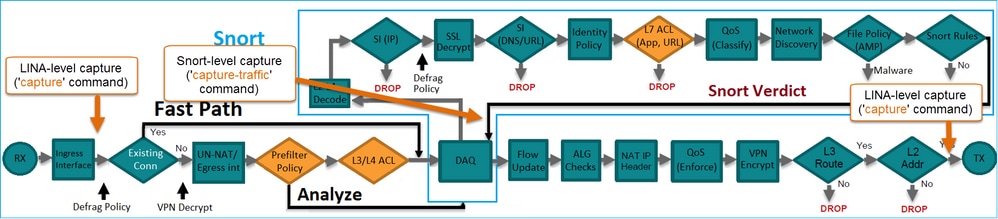
The FTD packet processing is visualized as follows:

- A packet enters the ingress interface, and it is handled by the LINA engine.
- If the policy requires the packet to be inspected by the Snort engine.
- The Snort engine returns a verdict for the packet.
- The LINA engine drops or forwards the packet based on Snort’s verdict.
Based on the architecture, the FTD captures can be taken in these places:
Configure
Network Diagram

Work with Snort Engine Captures
Prerequisites
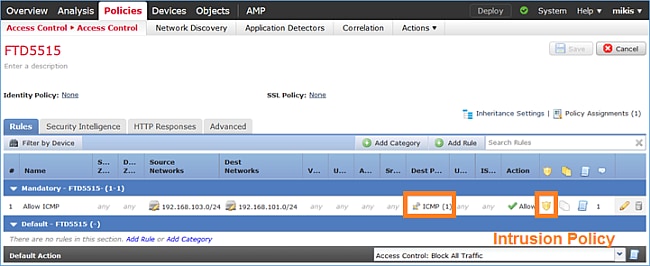
There is an Access Control Policy (ACP) applied on FTD that allows Internet Control Message Protocol (ICMP) traffic to go through. The policy also has an Intrusion Policy applied:
Requirements
- Enable capture on FTD CLISH mode without a filter.
- Ping through the FTD and check the captured output.
Solution
Step 1. Log in to the FTD console or SSH to the br1 interface and enable capture on FTD CLISH mode without a filter.
> capture-traffic

Please choose domain to capture traffic from:
  0 - br1
  1 - Router

Selection? 1

Please specify tcpdump options desired.
(or enter '?' for a list of supported options)
Options:
On FTD 6.0.x, the command is:
> system support capture-traffic
Step 2. Ping through FTD and check the captured output.
> capture-traffic

Please choose domain to capture traffic from:
  0 - br1
  1 - Router

Selection? 1

Please specify tcpdump options desired.
(or enter '?' for a list of supported options)
Options:
12:52:34.749945 IP olab-vl603-gw.cisco.com > olab-vl647-gw.cisco.com: ICMP echo request, id 0, seq 1, length 80
12:52:34.749945 IP olab-vl647-gw.cisco.com > olab-vl603-gw.cisco.com: ICMP echo reply, id 0, seq 1, length 80
12:52:34.759955 IP olab-vl603-gw.cisco.com > olab-vl647-gw.cisco.com: ICMP echo request, id 0, seq 2, length 80
12:52:34.759955 IP olab-vl647-gw.cisco.com > olab-vl603-gw.cisco.com: ICMP echo reply, id 0, seq 2, length 80
12:52:34.759955 IP olab-vl603-gw.cisco.com > olab-vl647-gw.cisco.com: ICMP echo request, id 0, seq 3, length 80
12:52:34.759955 IP olab-vl647-gw.cisco.com > olab-vl603-gw.cisco.com: ICMP echo reply, id 0, seq 3, length 80
12:52:34.759955 IP olab-vl603-gw.cisco.com > olab-vl647-gw.cisco.com: ICMP echo request, id 0, seq 4, length 80
12:52:34.759955 IP olab-vl647-gw.cisco.com > olab-vl603-gw.cisco.com: ICMP echo reply, id 0, seq 4, length 80
^C	<- to exit press CTRL + C
Work with Snort Engine Captures
Requirements
- Enable capture on FTD CLISH mode with the use of a filter for IP 192.168.101.1.
- Ping through FTD and check the captured output.
Solution
Step 1. Enable capture on FTD CLISH mode with the use of a filter for IP 192.168.101.1.
> capture-traffic

Please choose domain to capture traffic from:
  0 - br1
  1 - Router

Selection? 1

Please specify tcpdump options desired.
(or enter '?' for a list of supported options)
Options: host 192.168.101.1
Step 2. Ping through the FTD and check the captured output:
13:28:36.079982 IP olab-vl647-gw.cisco.com > olab-vl603-gw.cisco.com: ICMP echo reply, id 3, seq 0, length 80
13:28:36.079982 IP olab-vl647-gw.cisco.com > olab-vl603-gw.cisco.com: ICMP echo reply, id 3, seq 1, length 80
13:28:36.079982 IP olab-vl647-gw.cisco.com > olab-vl603-gw.cisco.com: ICMP echo reply, id 3, seq 2, length 80
13:28:36.079982 IP olab-vl647-gw.cisco.com > olab-vl603-gw.cisco.com: ICMP echo reply, id 3, seq 3, length 80
13:28:36.079982 IP olab-vl647-gw.cisco.com > olab-vl603-gw.cisco.com: ICMP echo reply, id 3, seq 4, length 80
You can use the -n option to see the hosts and port numbers in numeric format. For example, the earlier capture is shown as:
> capture-traffic

Please choose domain to capture traffic from:
  0 - br1
  1 - Router

Selection? 1

Please specify tcpdump options desired.
(or enter '?' for a list of supported options)
Options: -n host 192.168.101.1
13:29:59.599959 IP 192.168.101.1 > 192.168.103.1: ICMP echo reply, id 5, seq 0, length 80
13:29:59.599959 IP 192.168.101.1 > 192.168.103.1: ICMP echo reply, id 5, seq 1, length 80
13:29:59.599959 IP 192.168.101.1 > 192.168.103.1: ICMP echo reply, id 5, seq 2, length 80
13:29:59.599959 IP 192.168.101.1 > 192.168.103.1: ICMP echo reply, id 5, seq 3, length 80
13:29:59.599959 IP 192.168.101.1 > 192.168.103.1: ICMP echo reply, id 5, seq 4, length 80
Tcpdump Filter Examples
Example 1:
In order to capture Src IP or Dst IP = 192.168.101.1 and Src port or Dst port = TCP/UDP 23, enter this command:
Options: -n host 192.168.101.1 and port 23
Example 2:
In order to capture Src IP = 192.168.101.1 and Src port = TCP/UDP 23, enter this command:
Options: -n src 192.168.101.1 and src port 23
Example 3:
In order to capture Src IP = 192.168.101.1 and Src port = TCP 23, enter this command:
Options: -n src 192.168.101.1 and tcp and src port 23
Example 4:
In order to capture Src IP = 192.168.101.1 and see the MAC address of the packets, add the e option, and enter this command:
Options: -ne src 192.168.101.1
17:57:48.709954 6c:41:6a:a1:2b:f6 > a8:9d:21:93:22:90, ethertype IPv4 (0x0800), length 58: 192.168.101.1.23 > 192.168.103.1.25420:
 Flags [S.], seq 3694888749, ack 1562083610, win 8192, options [mss 1380], length 0
Example 5:
In order to exit after you capture 10 packets, enter this command:
Options: -n -c 10 src 192.168.101.1
18:03:12.749945 IP 192.168.101.1.23 > 192.168.103.1.27287: Flags [.], ack 3758037348, win 32768, length 0
18:03:12.749945 IP 192.168.101.1.23 > 192.168.103.1.27287: Flags [P.], ack 1, win 32768, length 2
18:03:12.949932 IP 192.168.101.1.23 > 192.168.103.1.27287: Flags [P.], ack 1, win 32768, length 10
18:03:13.249971 IP 192.168.101.1.23 > 192.168.103.1.27287: Flags [.], ack 3, win 32768, length 0
18:03:13.249971 IP 192.168.101.1.23 > 192.168.103.1.27287: Flags [P.], ack 3, win 32768, length 2
18:03:13.279969 IP 192.168.101.1.23 > 192.168.103.1.27287: Flags [.], ack 5, win 32768, length 0
18:03:13.279969 IP 192.168.101.1.23 > 192.168.103.1.27287: Flags [P.], ack 5, win 32768, length 10
18:03:13.309966 IP 192.168.101.1.23 > 192.168.103.1.27287: Flags [.], ack 7, win 32768, length 0
18:03:13.309966 IP 192.168.101.1.23 > 192.168.103.1.27287: Flags [P.], ack 7, win 32768, length 12
18:03:13.349972 IP 192.168.101.1.23 > 192.168.103.1.27287: Flags [.], ack 9, win 32768, length 0
Example 6:
In order to write a capture to a file with the name capture.pcap and copy it via FTP to a remote server, enter this command:
Options: -w capture.pcap host 192.168.101.1
CTRL + C <- to stop the capture
> file copy 10.229.22.136 ftp / capture.pcap
Enter password for ftp@10.229.22.136:
Copying capture.pcap
Copy successful.

>
Work with FTD LINA Engine Captures
Requirements
1. Enable two captures on FTD with the use of these filters:
|
Source IP |
192.168.103.1 |
|
Destination IP |
192.168.101.1 |
|
Protocol |
ICMP |
|
Interface |
INSIDE |
|
Source IP |
192.168.103.1 |
|
Destination IP |
192.168.101.1 |
|
Protocol |
ICMP |
|
Interface |
OUTSIDE |
2. Ping from Host-A (192.168.103.1) to Host-B (192.168.101.1) and check the captures.
Solution
Step 1. Enable the captures:
> capture CAPI interface INSIDE match icmp host 192.168.103.1 host 192.168.101.1
> capture CAPO interface OUTSIDE match icmp host 192.168.101.1 host 192.168.103.1
Step 2. Check the captures in the CLI.
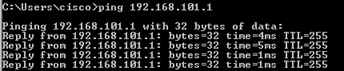
Ping from Host-A to Host-B:
> show capture
capture CAPI type raw-data interface INSIDE [Capturing - 752 bytes]
  match icmp host 192.168.103.1 host 192.168.101.1
capture CAPO type raw-data interface OUTSIDE [Capturing - 720 bytes]
  match icmp host 192.168.101.1 host 192.168.103.1
The two captures have different sizes due to the Dot1Q header on the INSIDE interface, as shown in this output example:
> show capture CAPI
8 packets captured
   1: 17:24:09.122338 802.1Q vlan#1577 P0 192.168.103.1 > 192.168.101.1: icmp: echo request
   2: 17:24:09.123071 802.1Q vlan#1577 P0 192.168.101.1 > 192.168.103.1: icmp: echo reply
   3: 17:24:10.121392 802.1Q vlan#1577 P0 192.168.103.1 > 192.168.101.1: icmp: echo request
   4: 17:24:10.122018 802.1Q vlan#1577 P0 192.168.101.1 > 192.168.103.1: icmp: echo reply
   5: 17:24:11.119714 802.1Q vlan#1577 P0 192.168.103.1 > 192.168.101.1: icmp: echo request
   6: 17:24:11.120324 802.1Q vlan#1577 P0 192.168.101.1 > 192.168.103.1: icmp: echo reply
   7: 17:24:12.133660 802.1Q vlan#1577 P0 192.168.103.1 > 192.168.101.1: icmp: echo request
   8: 17:24:12.134239 802.1Q vlan#1577 P0 192.168.101.1 > 192.168.103.1: icmp: echo reply
8 packets shown
> show capture CAPO
8 packets captured
   1: 17:24:09.122765  192.168.103.1 > 192.168.101.1: icmp: echo request
   2: 17:24:09.122994  192.168.101.1 > 192.168.103.1: icmp: echo reply
   3: 17:24:10.121728  192.168.103.1 > 192.168.101.1: icmp: echo request
   4: 17:24:10.121957  192.168.101.1 > 192.168.103.1: icmp: echo reply
   5: 17:24:11.120034  192.168.103.1 > 192.168.101.1: icmp: echo request
   6: 17:24:11.120263  192.168.101.1 > 192.168.103.1: icmp: echo reply
   7: 17:24:12.133980  192.168.103.1 > 192.168.101.1: icmp: echo request
   8: 17:24:12.134194  192.168.101.1 > 192.168.103.1: icmp: echo reply
8 packets shown
Work with FTD LINA Engine Captures – Export a Capture via HTTP
Requirements
Export the captures taken in the earlier scenario with a browser.
Solution
In order to export the captures with a browser, you need to:
- Enable the HTTPS server.
- Allow HTTPS access.
By default, the HTTPS server is disabled, and no access is allowed:
> show running-config http

>
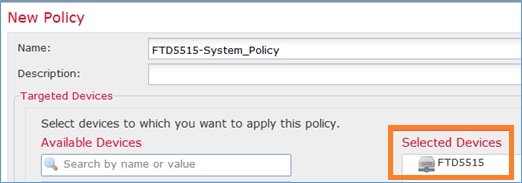
Step 1. Navigate to Devices > Platform Settings, click New Policy, and choose Threat Defense Settings:
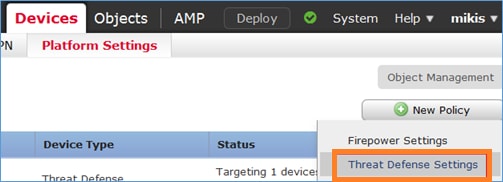
Specify the Policy name and Device Target:
Step 2. Enable the HTTPS server and add the network that you want to be allowed to access the FTD device over HTTPS:
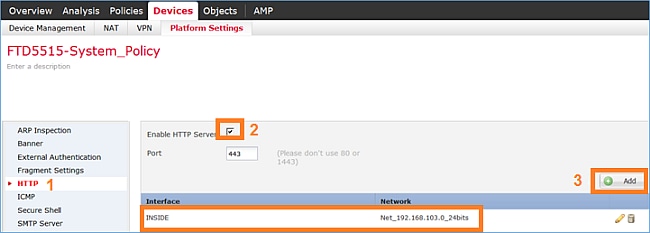
Save and Deploy.
At the time of the policy deployment, you can enable debug http in order to see the start of the HTTP service:
> debug http 255
debug http enabled at level 255.
http_enable: Enabling HTTP server
HTTP server starting.
The result on FTD CLI is:
> unebug all
> show run http
http server enable
http 192.168.103.0 255.255.255.0 INSIDE
Open a browser on Host-A (192.168.103.1) and use this URL in order to download the first capture: CAPI.pcap.
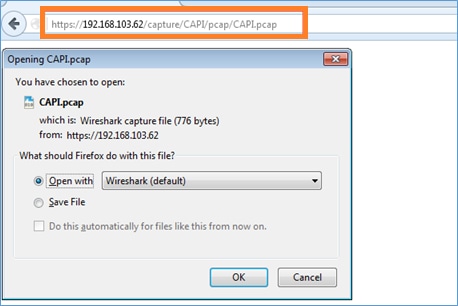
For reference:
|
IP of the FTD data interface where HTTP server is enabled. |
|
|
The name of the FTD capture. |
|
|
The name of the file that is downloaded. |
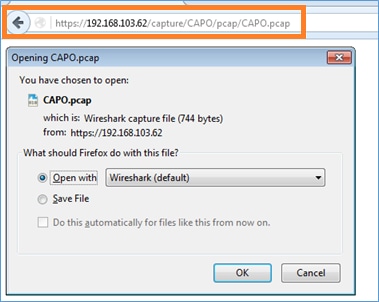
For the second capture, use Capture CAPI.pcap.
Work with FTD LINA Engine Captures - Export a Capture via FTP/TFTP/SCP
Requirements
Export the captures taken in the earlier scenarios with Cisco IOS® protocols.
Solution
Export a capture to an FTP server:
firepower# copy /pcap capture:CAPI ftp://ftp_username:ftp_password@192.168.78.73/CAPI.pcap

Source capture name [CAPI]?

Address or name of remote host [192.168.78.73]?

Destination username [ftp_username]?

Destination password [ftp_password]?

Destination filename [CAPI.pcap]?
!!!!!!
114 packets copied in 0.170 secs

firepower#
Export a capture to a TFTP server:
firepower# copy /pcap capture:CAPI tftp://192.168.78.73

Source capture name [CAPI]?

Address or name of remote host [192.168.78.73]?

Destination filename [CAPI]?
!!!!!!!!!!!!!!!!
346 packets copied in 0.90 secs

firepower#
Export a capture to an SCP server:
firepower# copy /pcap capture:CAPI scp://scp_username:scp_password@192.168.78.55

Source capture name [CAPI]?

Address or name of remote host [192.168.78.55]?

Destination username [scp_username]?

Destination filename [CAPI]?
The authenticity of host '192.168.78.55 (192.168.78.55)' can't be established.
RSA key fingerprint is <cb:ca:9f:e9:3c:ef:e2:4f:20:f5:60:21:81:0a:85:f9:02:0d:0e:98:d0:9b:6c:dc:f9:af:49:9e:39:36:96:33>(SHA256).
Are you sure you want to continue connecting (yes/no)? yes
Warning: Permanently added '192.168.78.55' (SHA256) to the list of known hosts.
!!!!!!!!!!!!!!!!!!!!!!!!!!!!!!!!!!!!!!!!!!!!!!!!!!!!!!!!!!!!!!!!!!!!!!!!!!!!!!!!!
454 packets copied in 3.950 secs (151 packets/sec)

firepower#
Offload captures from FTD. Currently, when you need to offload captures from FTD, the easiest method is to perform these steps:
1. From Lina - copy /pcap capture:<cap_name> disk0:
2. From FPR root - mv /ngfw/mnt/disk0/<cap_name> /ngfw/var/common/
3. From FMC UI - System > Health > Monitor > Device > Advanced Troubleshooting and enter the <cap_name> in field and download.
Work with FTD LINA Engine Captures – Trace a Real Traffic Packet
Requirements
Enable a capture on FTD with these filters:
|
Source IP |
192.168.103.1 |
|
Destination IP |
192.168.101.1 |
|
Protocol |
ICMP |
|
Interface |
INSIDE |
|
Packet tracing |
yes |
|
Number of tracing packets |
100 |
Ping from Host-A (192.168.103.1) the Host-B (192.168.101.1) and check the captures.
Solution
To trace a real packet is very useful to troubleshoot connectivity issues. It allows you to see all the internal checks that a packet goes through. Add the trace detail keywords and specify the number of packets that you want to be traced. By default, the FTD traces the first 50 ingress packets.
In this case, enable capture with trace detail for the first 100 packets that FTD receives on the INSIDE interface:
> capture CAPI2 interface INSIDE trace detail trace-count 100 match icmp host 192.168.103.1 host 192.168.101.1
Ping from Host-A to Host-B and check the result:
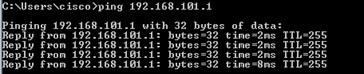
The captured packets are:
> show capture CAPI28 packets captured
   1: 18:08:04.232989  802.1Q vlan#1577 P0 192.168.103.1 > 192.168.101.1: icmp: echo request
   2: 18:08:04.234622  802.1Q vlan#1577 P0 192.168.101.1 > 192.168.103.1: icmp: echo reply
   3: 18:08:05.223941  802.1Q vlan#1577 P0 192.168.103.1 > 192.168.101.1: icmp: echo request
   4: 18:08:05.224872  802.1Q vlan#1577 P0 192.168.101.1 > 192.168.103.1: icmp: echo reply
   5: 18:08:06.222309  802.1Q vlan#1577 P0 192.168.103.1 > 192.168.101.1: icmp: echo request
   6: 18:08:06.223148  802.1Q vlan#1577 P0 192.168.101.1 > 192.168.103.1: icmp: echo reply
   7: 18:08:07.220752  802.1Q vlan#1577 P0 192.168.103.1 > 192.168.101.1: icmp: echo request
   8: 18:08:07.221561  802.1Q vlan#1577 P0 192.168.101.1 > 192.168.103.1: icmp: echo reply
8 packets shown
This output shows a trace of the first packet. The parts that are of interest:
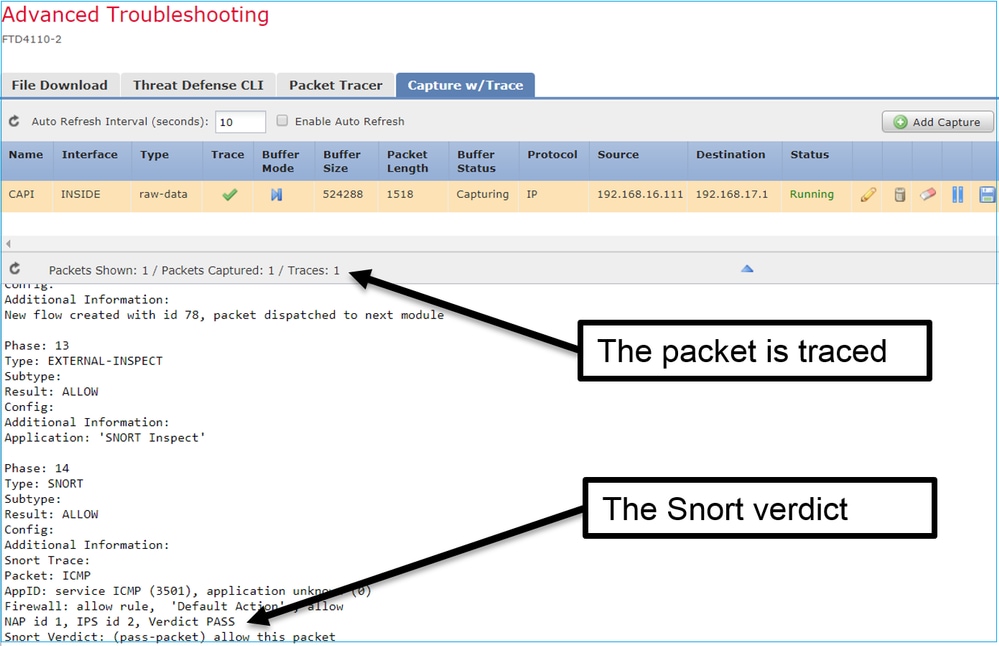
- Phase 12 is where the forward flow is seen. This is the LINA engine Dispatch Array (effectively the internal order of operations).
- Phase 13 is where FTD sends the packet to the Snort instance.
- Phase 14 is where the Snort Verdict is seen.
> show capture CAPI2 packet-number 1 trace detail
8 packets captured
   1: 18:08:04.232989 000c.2998.3fec a89d.2193.2293 0x8100 Length: 78
      802.1Q vlan#1577 P0 192.168.103.1 > 192.168.101.1: icmp: echo request (ttl 128, id 3346)
Phase: 1
Type: CAPTURE
... output omitted ...

Phase: 12
Type: FLOW-CREATION
Subtype:
Result: ALLOW
Config:
Additional Information:
New flow created with id 195, packet dispatched to next module
Module information for forward flow ...
snp_fp_inspect_ip_options
snp_fp_snort
snp_fp_inspect_icmp
snp_fp_adjacency
snp_fp_fragment
snp_ifc_stat

Module information for reverse flow ...
snp_fp_inspect_ip_options
snp_fp_inspect_icmp
snp_fp_snort
snp_fp_adjacency
snp_fp_fragment
snp_ifc_stat

Phase: 13
Type: EXTERNAL-INSPECT
Subtype:
Result: ALLOW
Config:
Additional Information:
Application: 'SNORT Inspect'

Phase: 14
Type: SNORT
Subtype:
Result: ALLOW
Config:
Additional Information:
Snort Verdict: (pass-packet) allow this packet

... output omitted ...

Result:
input-interface: OUTSIDE
input-status: up
input-line-status: up
output-interface: OUTSIDE
output-status: up
output-line-status: up
Action: allow

1 packet shown
>
Capture Tool in Post-6.2 FMC Software Versions
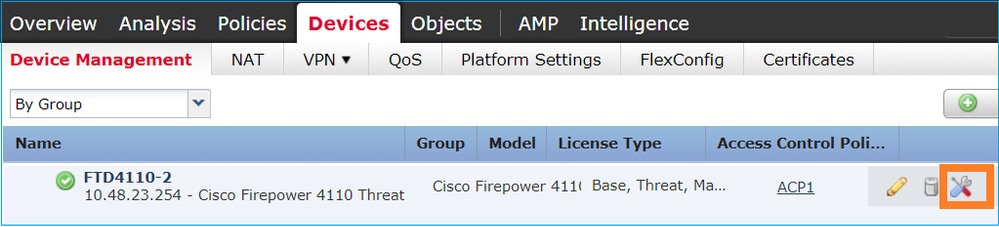
In FMC Version 6.2.x, a new packet capture wizard was introduced. Navigate to Devices > Device Management and click the Troubleshoot icon. Then choose Advanced Troubleshooting and finally Capture w/Trace.
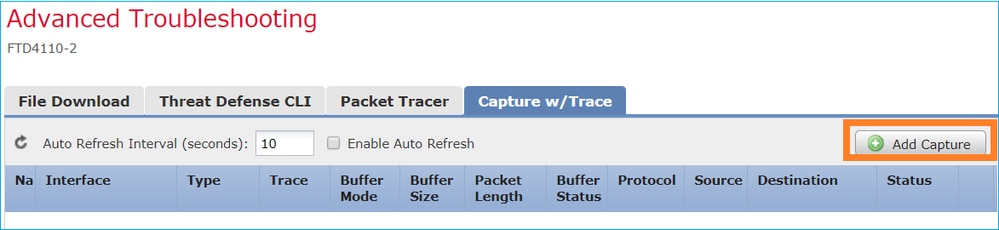
Choose Add Capture to create an FTD capture:
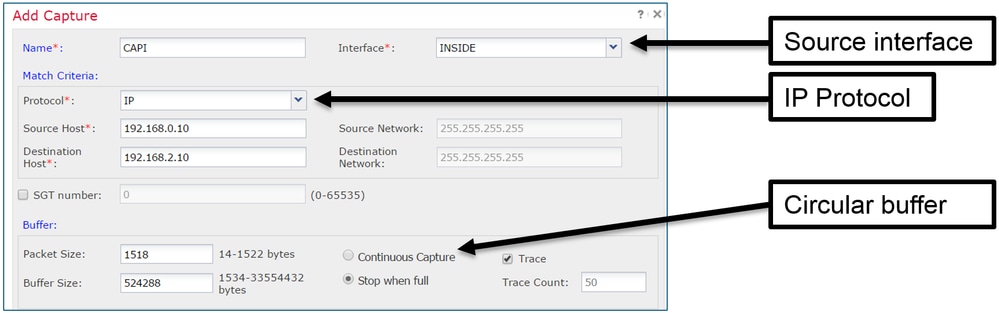
The current FMC UI limitations are:
- Cannot specify Src and Dst ports
- Only basic IP Protocols can be matched
- Cannot enable capture for LINA engine ASP Drops
Workaround – Use the FTD CLI
As soon as you apply a capture from the FMC UI, the capture runs:
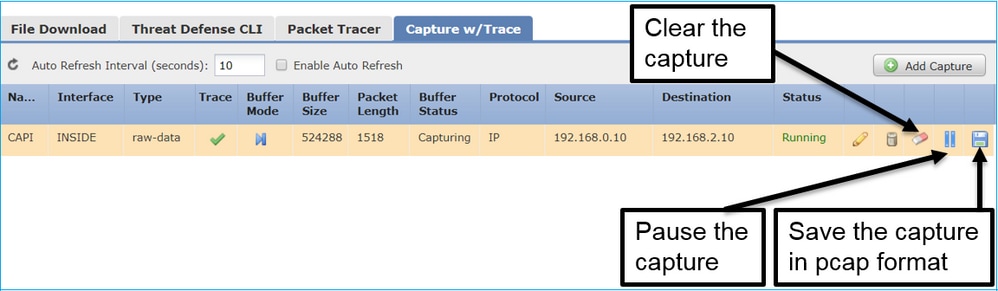
The capture on FTD CLI:
> show capture
capture CAPI%intf=INSIDE% type raw-data trace interface INSIDE [Capturing - 0 bytes]
  match ip host 192.168.0.10 host 192.168.2.10
>
Trace a Real Packet on Post-6.2 FMC
On FMC 6.2.x, the Capture w/Trace wizard allows you to capture and trace real packets on FTD:
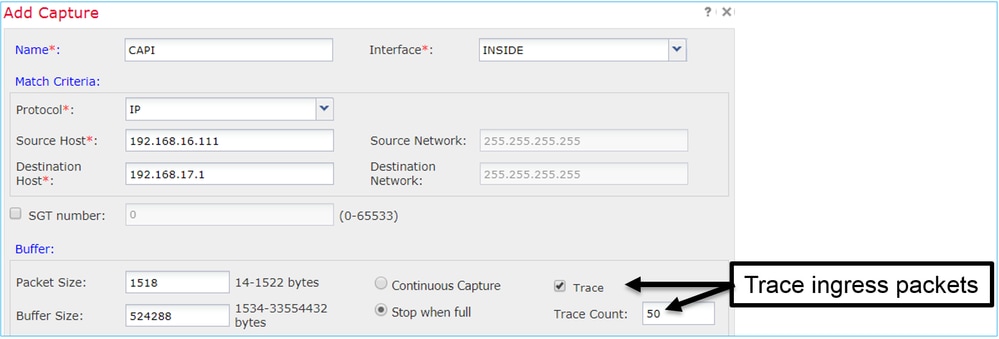
You can check the traced packet in the FMC UI:
FTD Packet Tracer Utility
Requirements
Use the Packet Tracer utility for this flow and check how the packet is handled internally:
|
Ingress interface |
INSIDE |
|
Protocol |
ICMP echo request |
|
Source IP |
192.168.103.1 |
|
Destination IP |
192.168.101.1 |
Solution
Packet Tracer generates a virtual packet. As shown in this example, the packet is subject to Snort inspection. A capture taken at the same time at Snort-level (capture-traffic) shows the ICMP echo request:
> packet-tracer input INSIDE icmp 192.168.103.1 8 0 192.168.101.1

Phase: 1
Type: CAPTURE
Subtype:
Result: ALLOW
Config:
Additional Information:
MAC Access list

Phase: 2
Type: ACCESS-LIST
Subtype:
Result: ALLOW
Config:
Implicit Rule
Additional Information:
MAC Access list

Phase: 3
Type: ROUTE-LOOKUP
Subtype: Resolve Egress Interface
Result: ALLOW
Config:
Additional Information:
found next-hop 192.168.101.1 using egress ifc  OUTSIDE

Phase: 4
Type: ACCESS-LIST
Subtype: log
Result: ALLOW
Config:
access-group CSM_FW_ACL_ global
access-list CSM_FW_ACL_ advanced permit ip 192.168.103.0 255.255.255.0 192.168.101.0 255.255.255.0 rule-id 268436482 event-log both
access-list CSM_FW_ACL_ remark rule-id 268436482: ACCESS POLICY: FTD5515 - Mandatory/1
access-list CSM_FW_ACL_ remark rule-id 268436482: L4 RULE: Allow ICMP
Additional Information:
 This packet is sent to snort for additional processing where a verdict is reached

... output omitted ...

Phase: 12
Type: FLOW-CREATION
Subtype:
Result: ALLOW
Config:
Additional Information:
New flow created with id 203, packet dispatched to next module

Phase: 13
Type: SNORT
Subtype:
Result: ALLOW
Config:
Additional Information:
Snort Trace:
Packet: ICMP
AppID: service ICMP (3501), application unknown (0)
Firewall: allow rule, id 268440225, allow
NAP id 2, IPS id 0, Verdict PASS
Snort Verdict: (pass-packet) allow this packet


Result:
input-interface: INSIDE
input-status: up
input-line-status: up
output-interface: OUTSIDE
output-status: up
output-line-status: up
Action: allow

>
The Snort-level capture at the time of the packet-tracer test shows the virtual packet:
> capture-traffic

Please choose domain to capture traffic from:
  0 - management0
  1 - Router

Selection? 1

Please specify tcpdump options desired.
(or enter '?' for a list of supported options)
Options: -n
13:27:11.939755 IP 192.168.103.1 > 192.168.101.1: ICMP echo request, id 0, seq 0, length 8
Packet Tracer UI Tool in Post-6.2 FMC Software Versions
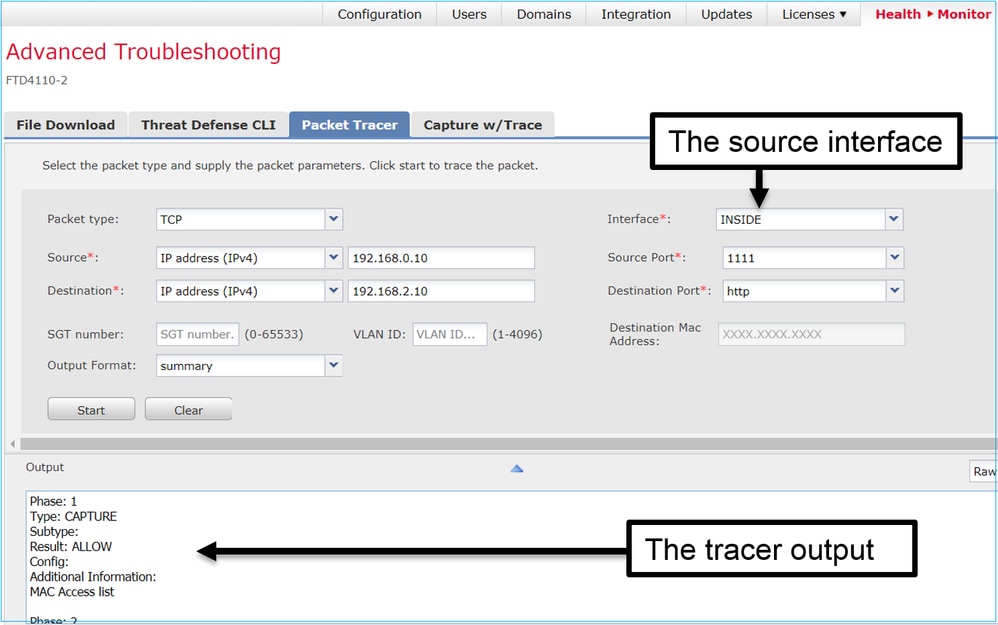
In FMC Version 6.2.x, the Packet Tracer UI tool was introduced. The tool is accessible in the same way as the capture tool and allows you to run Packet Tracer on FTD from the FMC UI:
Related Information
Revision History
| Revision | Publish Date | Comments |
|---|---|---|
4.0 |
09-Mar-2026
|
Updated Alt Text, SEO, Grammar, and Formatting. |
3.0 |
06-Dec-2024
|
Fixed formatting, SEO, branding, spacing, alt text. |
1.0 |
21-Nov-2017
|
Initial Release |
Contributed by Cisco Engineers
- Mikis ZafeiroudisTechnical Consulting Engineer
- Dinkar SharmaTechnical Consulting Engineer
- Olga YakovenkoTechnical Consulting Engineer
 Feedback
Contact Cisco
- Open a Support Case

- (Requires a Cisco Service Contract)