Configure Email Security Appliance to Allow Simulated Phishing Campaigns
Available Languages
Introduction
This document describes how to configure the Email Security Appliance (ESA) to allow simulated phishing platform campaigns to pass successfully.
Prerequisites
Requirements
Cisco recommends that you have knowledge of these topics:
- Creation of Message and Content Filters on the Cisco Email Security Appliance (ESA).
- Configuration of the Host Access Table (HAT).
- Understanding of the Cisco ESA incoming email pipeline.
Components Used
This document is not restricted to specific software and hardware versions.
The information in this document was created from the devices in a specific lab environment. All of the devices used in this document started with a cleared (default) configuration. If your network is live, ensure that you understand the potential impact of any command.
Background Information
Simulated phishing platforms allow administrators to run phishing campaigns for security awareness testing.
Cause
When Cisco ESA is not configured to trust the simulated phishing platform hosts, security scanning and policy controls can stop campaign messages. This behavior can cause campaign failure or reduce the effectiveness of the simulation.
Solution
In order to ensure that Cisco ESA does not stop campaign messages, configure a dedicated sender group and bypass scanning for the platform hosts.
1. Navigate to GUI > Mail Policies > HAT Overview.
2. Create a new Sender Group and bind it to the TRUSTED mail flow policy. Alternatively, create a new policy with similar options under GUI > Mail Policies > Mail Flow Policies.
3. Add the sending hosts or IP addresses of the simulated phishing platform to this Sender Group. If the simulated phishing platform uses a large IP address range, add partial hostnames or IP ranges, if applicable.
4. Order the Sender Group preceding your BLOCKLIST Sender Group to ensure it is being matched statically rather than SBRS.
5. Navigate to GUI > Mail Policies > Mail Flow Policies > TRUSTED, or to the newly created mail flow policy.
6. Disable all the security features for that trusted policy, as shown in the screenshot.
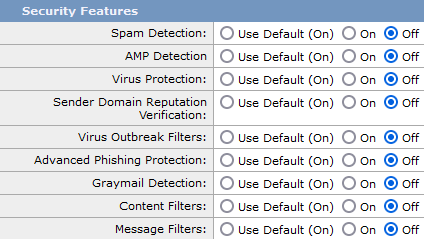
6. Submit the changes and commit the configuration.
AsyncOS 13.x and Earlier
To ensure the phishing campaign messages are not stopped by any security component of the Cisco ESA, configuration needs to be put in place.
1. Navigate to GUI > Mail Policies > HAT Overview.
2. Create a new Sender Group and bind it to the TRUSTED mail flow policy.
3. Add the sending host(s) or IP(s) of the simulated phishing platform to this Sender Group. If the simulated phishing platform has a large range of IPs, you can add partial hostnames instead or IP ranges if applicable.
4. Order the Sender Group preceding your BLOCKLIST Sender Group to ensure it is being matched statically rather than BS.
5. Submit and commit these changes,
6. Navigate to the command-line interface (CLI).
7. Run filters.
8. Create a new message filter. Copy the syntax, modify it for the environment, and add the filter.
skip_engines_for_simulated_phishing:
if (sendergroup == "name_of_the_newly_created_sender_group")
{
insert-header("x-sp", "uniquevalue");
log-entry("Skipped scanning engines for simulated phishing");
skip-spamcheck();
skip-viruscheck();
skip-ampcheck();
skip-marketingcheck();
skip-socialcheck();
skip-bulkcheck();
skip-vofcheck();
skip-filters();
}
.
9. Order the message filter up in the list to ensure it is not skipped by another message filter it which includes skip-filters action.
10. Press Enter to return to the main AsyncOS command prompt.
11. Run commit to save the changes.
12. Do not press Ctrl+C. It erases the changes.
13. Navigate to GUI > Mail Policies > Incoming Content Filters.
14. Create a new Incoming Content Filter.
15. Set the condition to Other Header.
16. Configure the filter to look for the custom header x-sp and the unique value configured in the message filter.
17. Set the action to Skip Remaining Content Filters (Final Action).
18. Order the content filter to 1 to ensure that other filters do not take action against the simulated phishing message.
19. Navigate to GUI > Mail Policies > Incoming Mail Policies.
20. Assign the content filter to the required policy.
21. Submit and commit changes.
22. Run the simulated phishing platform campaign.
23. Monitor the mail_logs or Message Tracking to verify message flow and policy rule matching.
24. Expected outcome: Cisco ESA accepts the campaign messages, matches the configured sender group and filters, and bypasses the configured scanning actions for the trusted policy.
Revision History
| Revision | Publish Date | Comments |
|---|---|---|
3.0 |
21-Jul-2026
|
Recertification. |
2.0 |
22-Dec-2021
|
Updated the message filter to contain an included rule. Included an update on version 14 to allow skipping via mail flow policy. |
1.0 |
29-Apr-2020
|
Initial Release |

 Feedback
Contact Cisco
- Open a Support Case

- (Requires a Cisco Service Contract)