Introduction
This document describes how to configure Duo Access Gateway for SAML SSO for Cisco ESA and SMA.
Environment
- Cisco ESA/SMA: AsyncOS latest version
- Duo Access Gateway: deployed and reachable from the ESA/SMA management interface
- Authentication source: Active Directory, OpenLDAP, Azure AD, or another SAML identity provider (for attribute mapping)
Problem
This document describes the Duo-side configuration only. It does not cover the Cisco ESA/SMA Service Provider (SP) configuration.
Prerequisites
Terminology
- Identity Provider (IdP)
- Single Sign-On (SSO)
- Email Security Appliance (ESA)
- Security Management Appliance (SMA)
- Assertion Consumer Service (ACS)
- Service Provider (SP)
Requirements
Before you begin:
- Ensure Duo Access Gateway is deployed and has a configured authentication source.
- Deploy Duo Access Gateway with a configured authentication source.
- Duo can require a separate application for each ESA if multiple Assertion Consumer Service (ACS) URLs are not supported.
The configuration consists of two phases:
- Configure the Duo cloud application.
- Add the new cloud application to Duo Access Gateway.
Create the Cloud Application
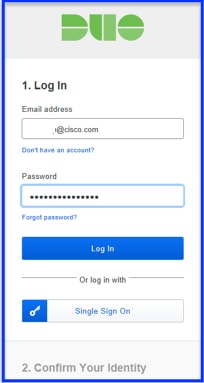
1. Log in to https://admin.duosecurity.com/.
 duo.comduo.com
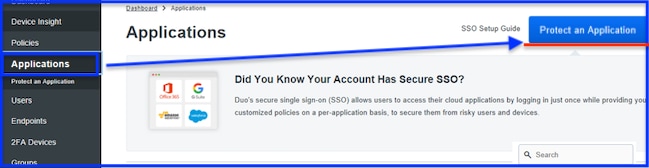
2. Navigate to Applications > Protect an Application.
 Protect an ApplicationProtect an Application
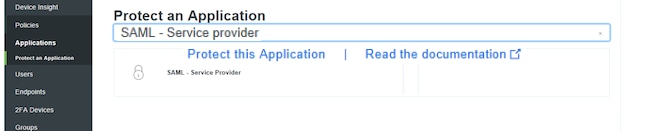
3. Search for SAML - Service Provider.
4. When the SAML icon appears, select Protect this Application.
 Protect this ApplicationProtect this Application
5. Complete the Service Provider Profile:
- Service Provider Name: Enter a name of your choice.
- Entity ID: Enter a common name to identify the ESA/SMA.
- Assertion Consumer Service: Enter the reachable ESA/SMA URL.
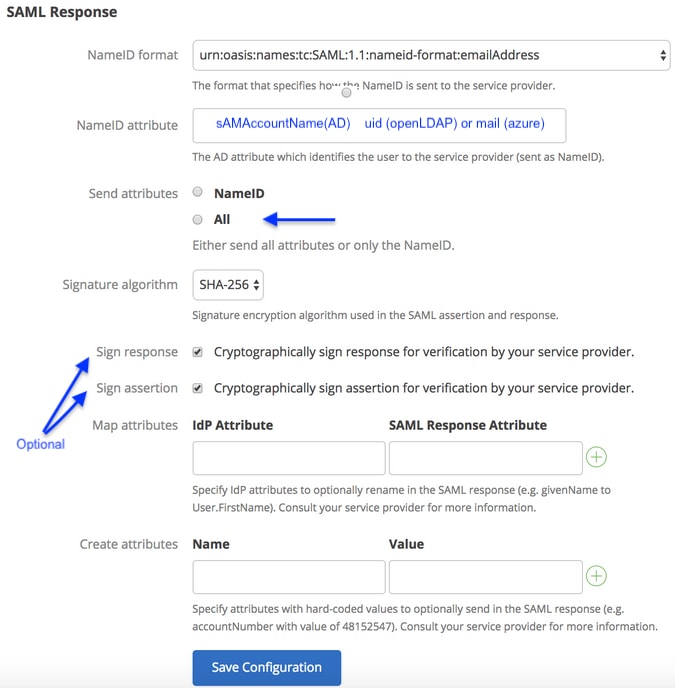
6. Use these NameID attribute values based on the authentication source:
| Attribute |
Active Directory |
OpenLDAP |
SAML Identity Provider (IdP) |
Azure AD |
| Mail attribute |
mail |
mail |
mail |
mail |
| Username attribute |
sAMAccountName |
uid |
mail |
mail |
| First name attribute |
givenName |
gn |
givenName |
givenName |
| Last name attribute |
sn |
sn |
sn |
surname |
- Send attributes is optional. Select either NameID or ALL.
- Sign response and Sign assertion are optional. These settings must match on the IdP and SP.
7. Select Save Configuration.
 SAML ResponseSAML Response
8. Finally, download the configuration file.
Add new Cloud Application to the Duo Access Gateway
1. Log in to Duo Access Gateway.
2. Navigate to Application > Add Application > Configuration file > Choose File.
3. Select the application configuration created in Step 1, and then select UPLOAD.
4. Download the XML metadata for use on the SP hosts as the IdP configuration.
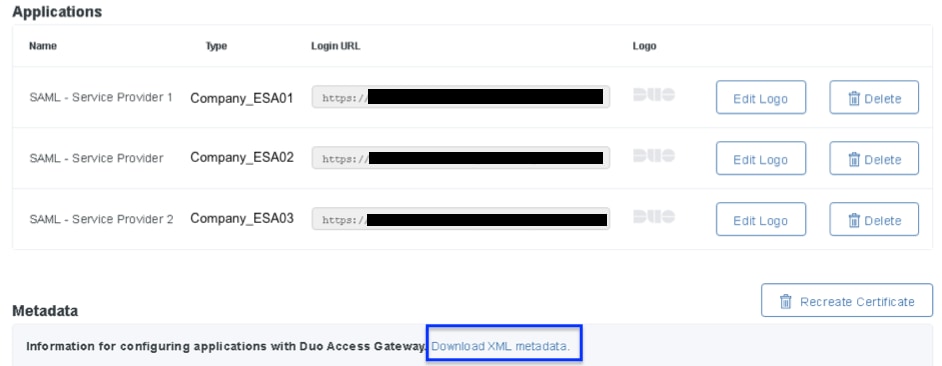 View of Applications and Download XML MetadataView of Applications and Download XML Metadata
5. Return to the ESA/SMA to complete the SAML SSO configuration.
- Expected outcome: the Duo Access Gateway application is created, and the IdP XML metadata is ready to import into the ESA/SMA.
6. Use the downloaded metadata in the subsequent ESA/SMA procedure.
Next Steps (ESA/SMA Configuration)
This article covers the Duo-side configuration only. To complete the setup on the ESA/SMA, follow the instructions.
Verification
- Confirm that the application appears in Duo Access Gateway under Applications.
- Confirm that the IdP XML metadata downloads successfully and is ready to import on the ESA/SMA.
Related Information

 Feedback