Understand Secure Endpoints API Overview
Available Languages
Issue
This document describes Cisco Secure Endpoints (SE) API usage.
Resolution
To use the SE API, create an API credential in the SE console.
The examples in this article use a Windows 7 endpoint.
1. Log in to the console and navigate to Accounts > API Credentials.
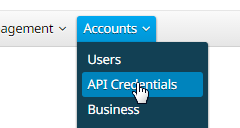
1. Click New API Credential to create a new set of keys.

2. Enter an Application name. Select the Scope of Read-only or Read & Write.
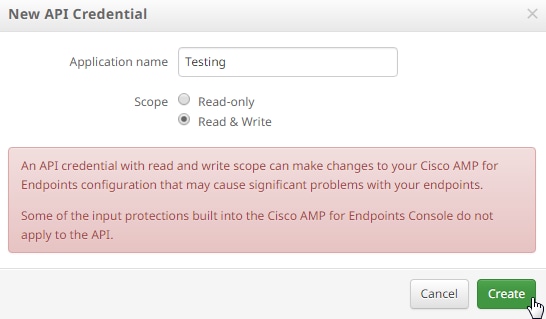
3. Click the Create button. The API Key Details page appears. Save this information because some of it is not available after leaving the screen.
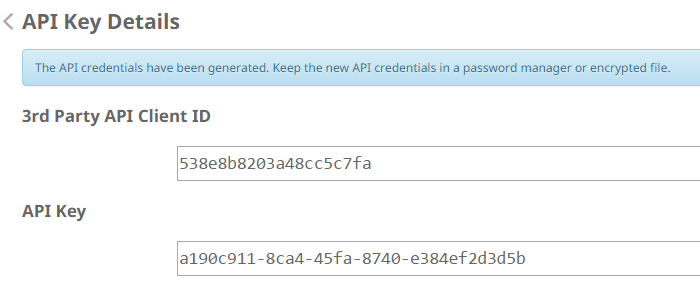
Delete the API credentials for an application if you suspect they have been compromised, and create a new one. When you delete an API credential, it locks out the client who uses the old ones, so update them with the new credentials.

Environment
- Tested endpoint: Windows 7 endpoint.
- Product: Cisco SE
- Access: Console access with permission to create and delete API credentials.
- API: SE API Version 3, Version 1 and Version 0 (examples use Version 1).
- Client tool: curl installed on the system used to run API requests.
There are currently three versions of the SE API: Version 3 , Version 1 and Version 0. Version 3 provides additional functionality compared to Version 1 and Version 0. The Version 3 API documentation is available at this link. Use Version 3 to retrieve this information:
- Audit Logs
- Device Control
- Devices
- Exclusions
- Host Firewall
- IOC
- MSSP
- Organisations
- Policies
- Computers
- Vulnerabilities
Click the relevant command in the document to see examples of its usage.
API Command Break-down and Example
Each API command contains similar information and breaks down into a curl command like this:
curl -o yourfilename.json https://client_id:api_key@api.example.com/v1/whatyouwanttodoWhen you use the curl command with the -o option, it allows you to save the output to a file. In this case the file name is “yourfilename.json”.
The next part of the curl command specifies credentials before the @ symbol. After generating API credentials, use the API client ID and API key in this portion of the URL.
https://client_id:api_key@Add the version number and the action to perform. For this example, run GET /v1/computers. The full command looks like this:
curl -o computers.json https://client_id:api_key@api.example.com/v1/computersAfter you run the command, a computers.json file appears in the directory where you initiated the command.


When you open the file, all of the data appears on a single line. To view it in a formatted layout, install a browser plugin that formats JSON and open the file in a browser. This output shows information for your computers, such as:
connector_guid, hostname, active, links, connector_version, operating_system, internal_ips, external_ip, group_guid, network_addresses, policy guid, and policy name.
{
version: "v1.0.0",
metadata: {
links: {
self: "https://api.amp.cisco.com/v1/computers"
},
results: {
total: 4,
current_item_count: 4,
index: 0,
items_per_page: 500
}
},
data: [
{
connector_guid: "abcdef-1234-5678-9abc-def123456789",
hostname: "host.example.com",
active: true,
links: {
computer: "https://api.amp.cisco.com/v1/computers/abcdef-1234-5678-9abc-def123456789",
trajectory: "https://api.amp.cisco.com/v1/computers/abcdef-1234-5678-9abc-def123456789/trajectory",
group: "https://api.amp.cisco.com/v1/groups/abcdef-1234-5678-9abc-def123456789"
},
connector_version: "4.4.2.10200",
operating_system: "Windows 7, SP 1.0",
internal_ips: [
"10.1.1.2",
" 192.168.1.2",
" 192.168.2.2",
" 169.254.245.1"
],
external_ip: "192.0.2.10",
group_guid: "abcdef-1234-5678-9abc-def123456789",
network_addresses: [
{
mac: "ab:cd:ef:01:23:45",
ip: "10.1.1.2"
},
{
mac: "bc:de:f0:12:34:56",
ip: "192.168.1.2"
},
{
mac: "cd:ef:01:23:45:67",
ip: "192.168.2.2"
},
{
mac: "de:f0:12:34:56:78",
ip: "169.254.245.1"
}
],
policy: {
guid: "abcdef-1234-5678-9abc-def123456789",
name: "Protect Policy"
}
}
]
}
This example shows a basic API request. You can now use other command options to retrieve and modify data in your environment.
Related Content
- Cisco AMP for Endpoints API Documentation
- Technical Support & Documentation - Cisco Systems
Revision History
| Revision | Publish Date | Comments |
|---|---|---|
2.0 |
26-Oct-2026
|
Recertification |
1.0 |
20-Mar-2017
|
Initial Release |

 Feedback
Contact Cisco
- Open a Support Case

- (Requires a Cisco Service Contract)