Splunk On-Call team creation and selection guidelines.
Available Languages
Applicability
Splunk On-callDescription
This documentation explains how to create a team in Splunk On-Call and highlights the significant benefits it offers to all team members. By setting up an escalation policy, each user within the team will receive timely notifications whenever an incident is triggered. This streamlined process enables smoother collaboration within the team, as it can easily track the progress of incidents and ensure there is no miss.
Resolution
In Splunk On-Call, to receive notifications for upcoming alerts, it is important to be a part of the team.
Steps to follow to create teams:
1. To create a team, select Add Team.
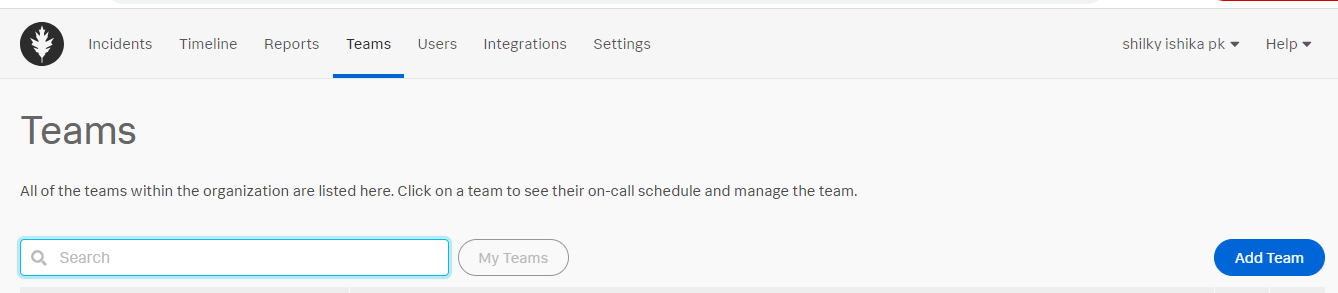
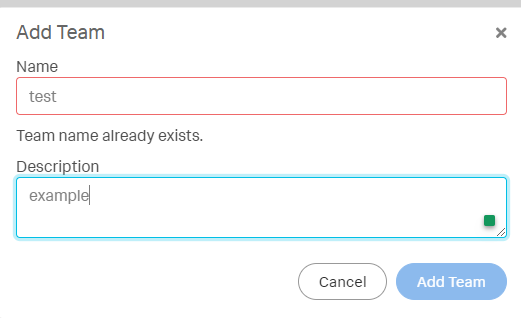
2. Once you add the team, select a name and description.
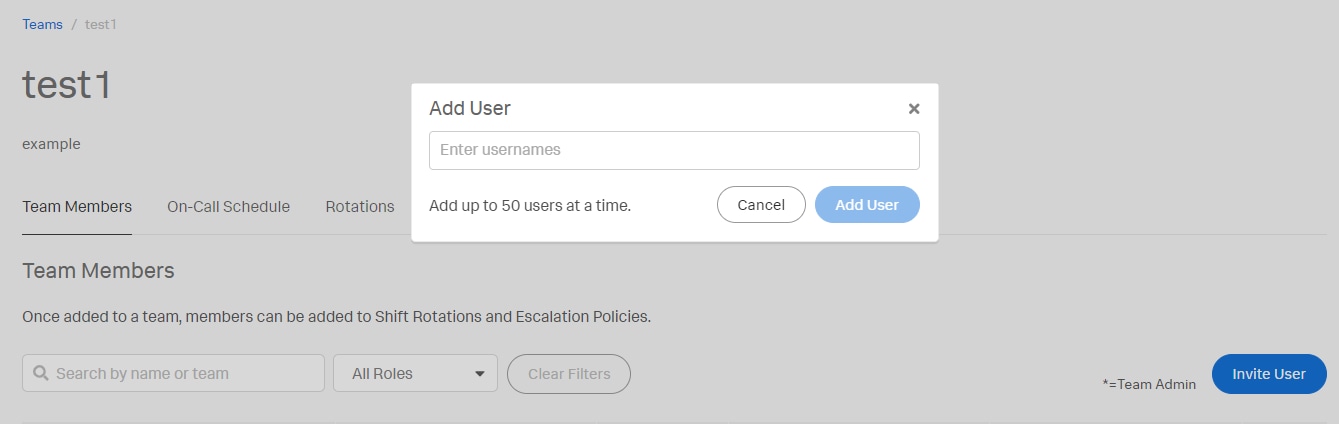
3. Now it can extend an invitation to the user to join the specific team by clicking on the Invite User tab.
4. Adjacent to the search box, you will now see a new tab labeled My Teams. By selecting this tab, you will be able to view all the teams associated with our organization.
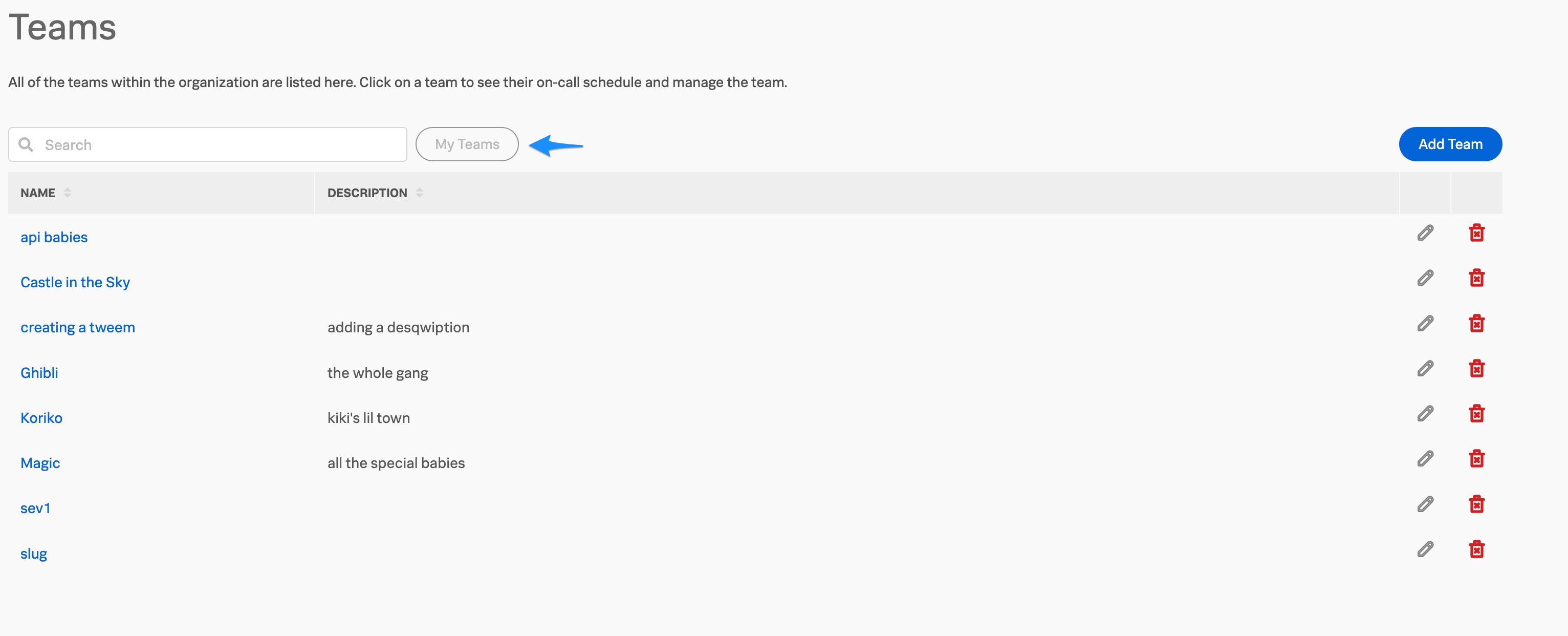
5. The Splunk On-Call Team Dashboard provides a comprehensive overview of incidents. This view automatically defaults to the teams that you are a member of and allows teams to dive into the details and understand the status.
Revision History
| Revision | Publish Date | Comments |
|---|---|---|
1.0 |
29-Sep-2026
|
Initial Release |
 Feedback
