Services are incorrectly mapped in Service Analyzer tree view
Available Languages
Applicability
Splunk IT Service IntelligenceDescription
- After following the official Splunk documentation to Import Services via CSV file through Entity Management > Create Entity > Import from CSV.
- Upon reviewing the imported services, it became clear that the service hierarchy was not created correctly.
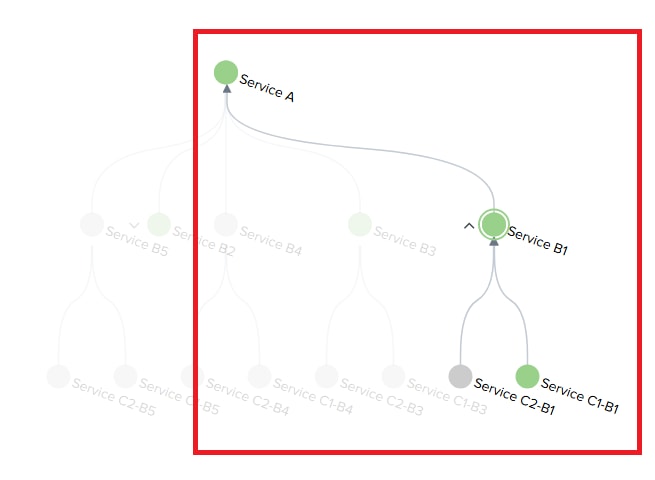
- The expected hierarchy was Service A → Service B1 → Service C1-B1
- However, the imported data displayed, Service A directly depending on Service C1-B1, skipping Service B1 entirely.
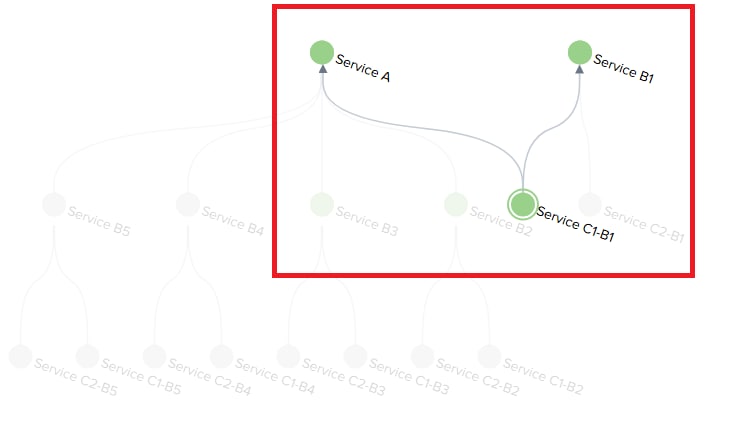
Investigation
- After closely examining the issue, it was discovered that it originated in the CSV dataset.
- The CSV file incorrectly mapped Service A directly to Service C1-B1, bypassing Service B1.
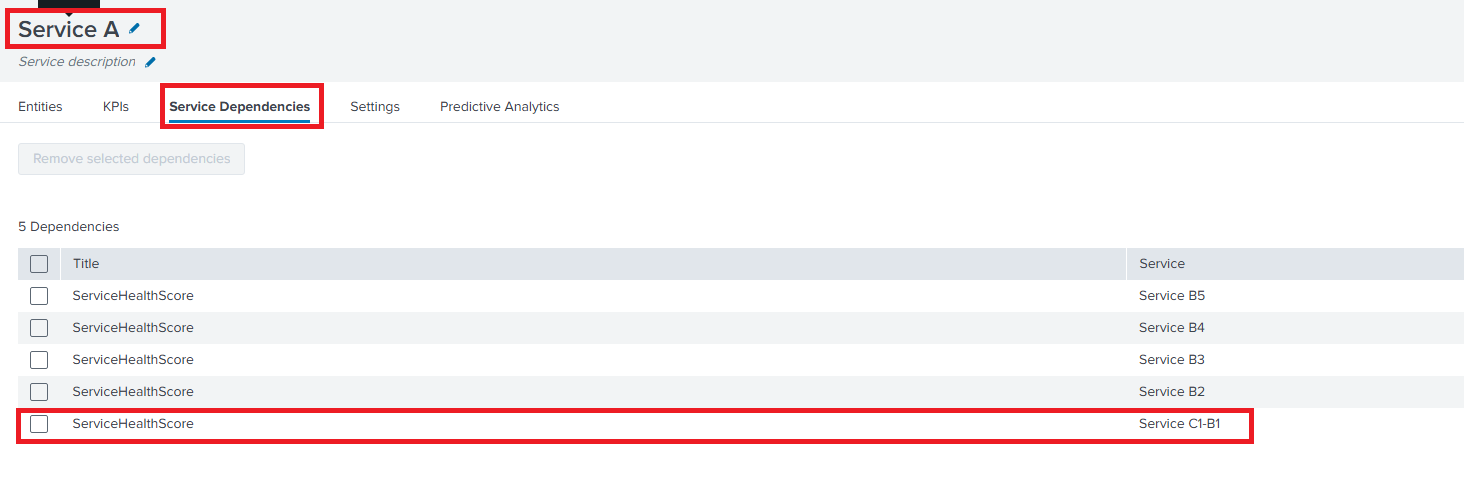
- The intended structure required Service A to depend on Service B1, and Service B1 to depend on Service C1-B1.
- This mapping error caused the incorrect hierarchy to appear in Splunk ITSI after the import.
- The issue was caused by an incorrect dependency mapping in the CSV file, where Service A was linked directly to Service C1-B1 instead of Service B1.
Resolution
There are two options to resolve the issue:
-
Correct the Dependency Structure in the CSV File:
- Review and correct the dependency structure in the CSV file.
- Ensure Service A depends on Service B1, and Service B1 depends on Service C1-B1.
- Re-import the corrected CSV file into Splunk ITSI.
- This will establish the correct service hierarchy.
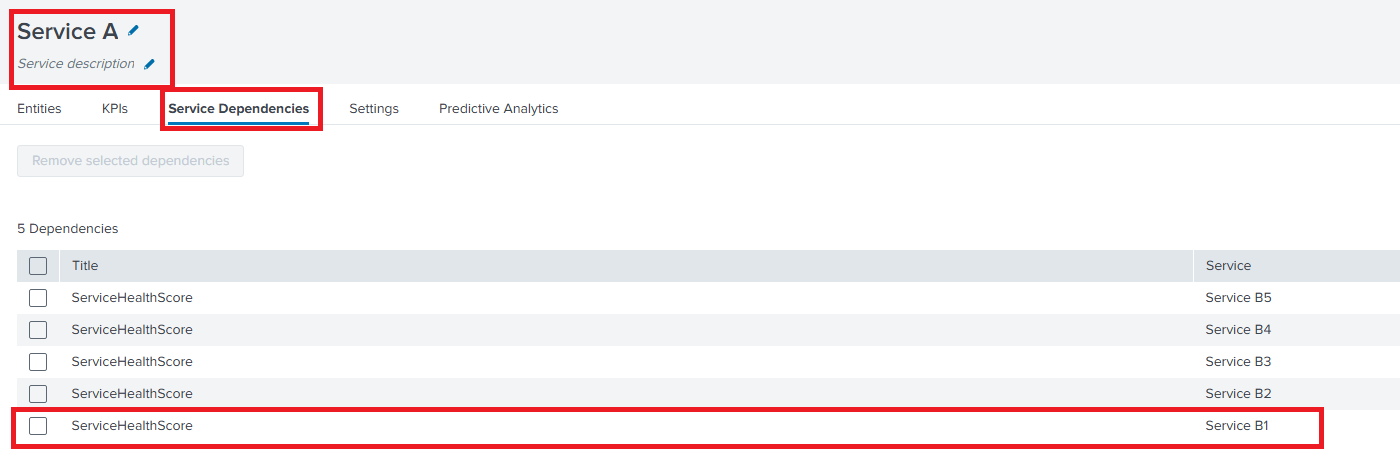
-
Manually Update Dependencies:
- Navigate to Configuration > Service Monitoring > Service and KPI Management in Splunk ITSI.
- Select Service A.
- Go to the Service Dependencies section.
- Remove Service C1-B1 and add Service B1 as a dependency for Service A.
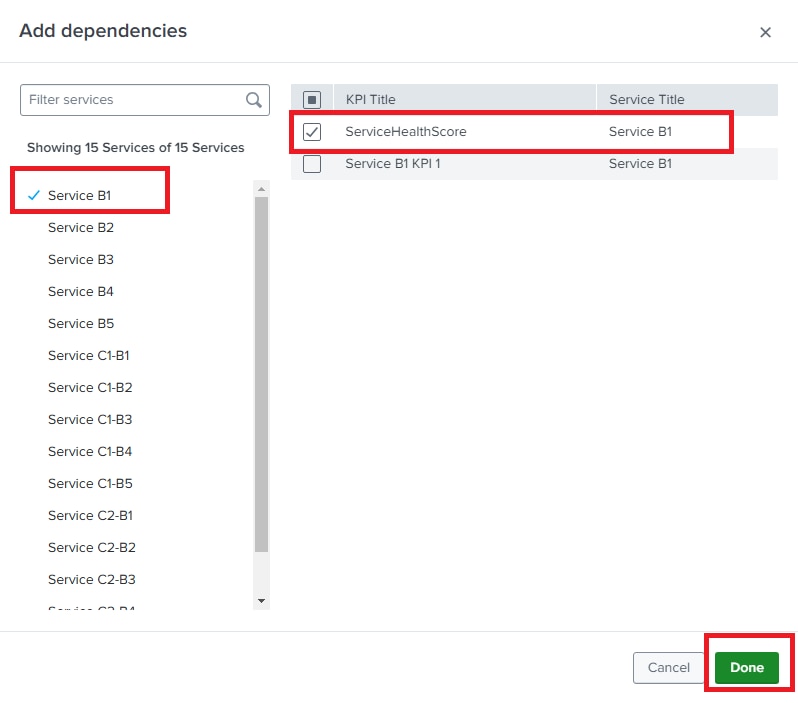
- Click Done and Save the changes.
Related Links
Revision History
| Revision | Publish Date | Comments |
|---|---|---|
1.0 |
29-Sep-2026
|
Initial Release |
 Feedback
