How to gather a SAML trace and troubleshoot Generic SAML SSO login issues
Available Languages
Applicability
Generic SAML SSO, Infrastructure Monitoring IntegrationDescription
How to record and export a SAML trace when troubleshooting Observability Generic SAML SSO issues such as "InvalidNameIDPolicy" or "Error processing SAML token" errors.Investigation
Visit the IdP (Identity Provider) such as Azure, Okta, PingFederate, F9. Log in and there will be a Splunk Observability tile. Click the tile to receive an email with Subject "Confirm your login to Splunk Observability Cloud". Click the button "Finish Registration" and the user will be redirected to the Splunk Observability Suite Portal. A user may encounter "An error has occured" or "Error processing SAML token" when verifying identity on the initial login.
Resolution
Step 1. Install the SAML-tracer Chrome extension
Download the SAML-tracer Chrome extension here.
Start the SAML-tracer extension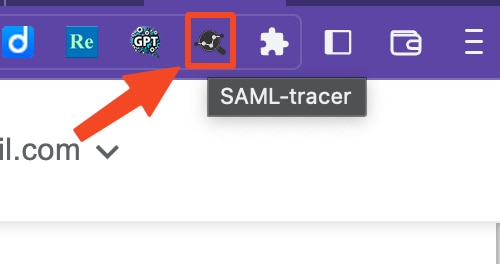
Step 2. Record SAML trace and export the trace to attach to your support case
Navigate to the custom URL (<name>.signalfx.com) or the IdP (Identity Provider such as Okta, Azure, OneLogin, JumpCLoud, G Suite, F5, etc). Both work the same way as the custom URL is redirecting to the IdP URL.
When logging into the IdP, the user will see a Splunk Observability tile that will redirect to their SP (Service Provider).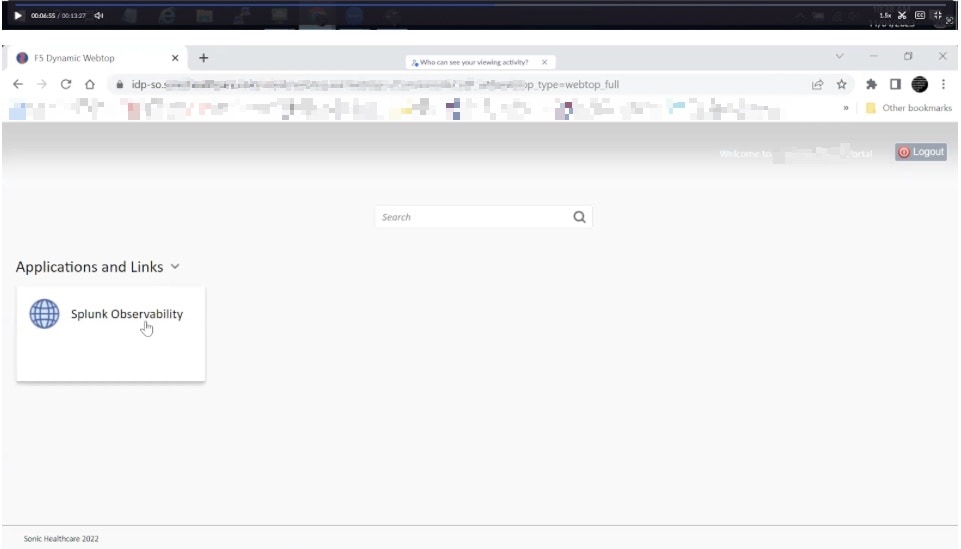
There will be a SAML request and response in the SAML tracer window. Click on the orange SAML tag shown on the far right. Click SAML in the lower pane to see the SAML details such as certificate, attributes, assertion and signature.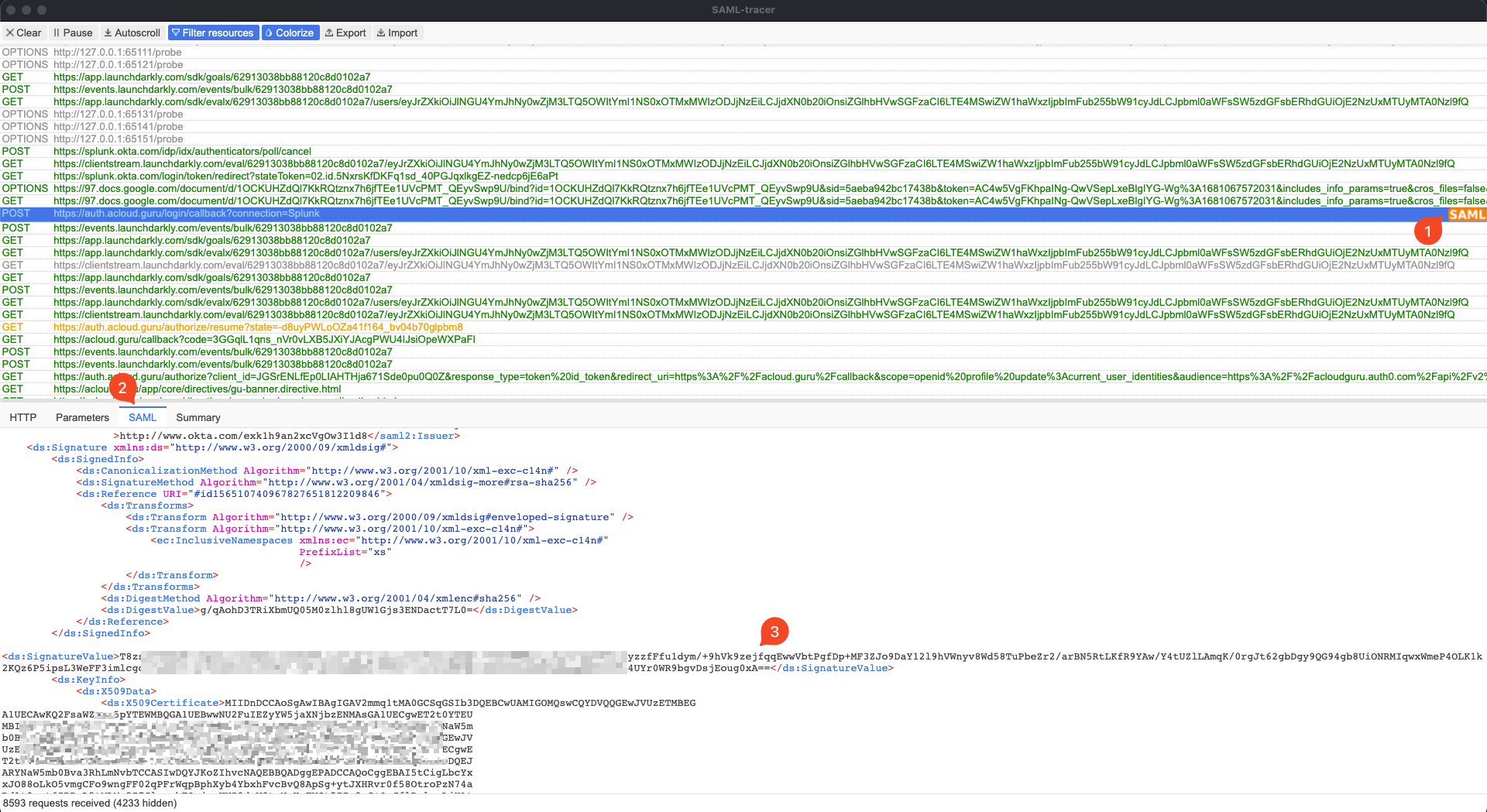
To attach this to a support case, click export, save the trace then attach to the support case.
Step 3. Import a SAML trace file and inspect the SAML response message
A Splunk Technical Support engineer can import this SAML trace to inspect the SAML response. When inspecting this SAML trace, check Information required for generic SAML SSO integrations page to ensure details such as user information, entity-id, assertion signature, public key, Issuer URL are as expected.
Splunk support will check the relevant logs using the integration ID. There can be multiple existing IdP providers as well as new providers being added. The Splunk team will help identify incorrect data being received as per the SAML trace and ingest logs. However, assistance may be needed from the IdP provider support teams to configure and provide debug logging from your IdP system when integrating with Splunk Observability via Generic SAML SSO.
Looking at the SAML Response data, there is status:InvalidNameIDPolicy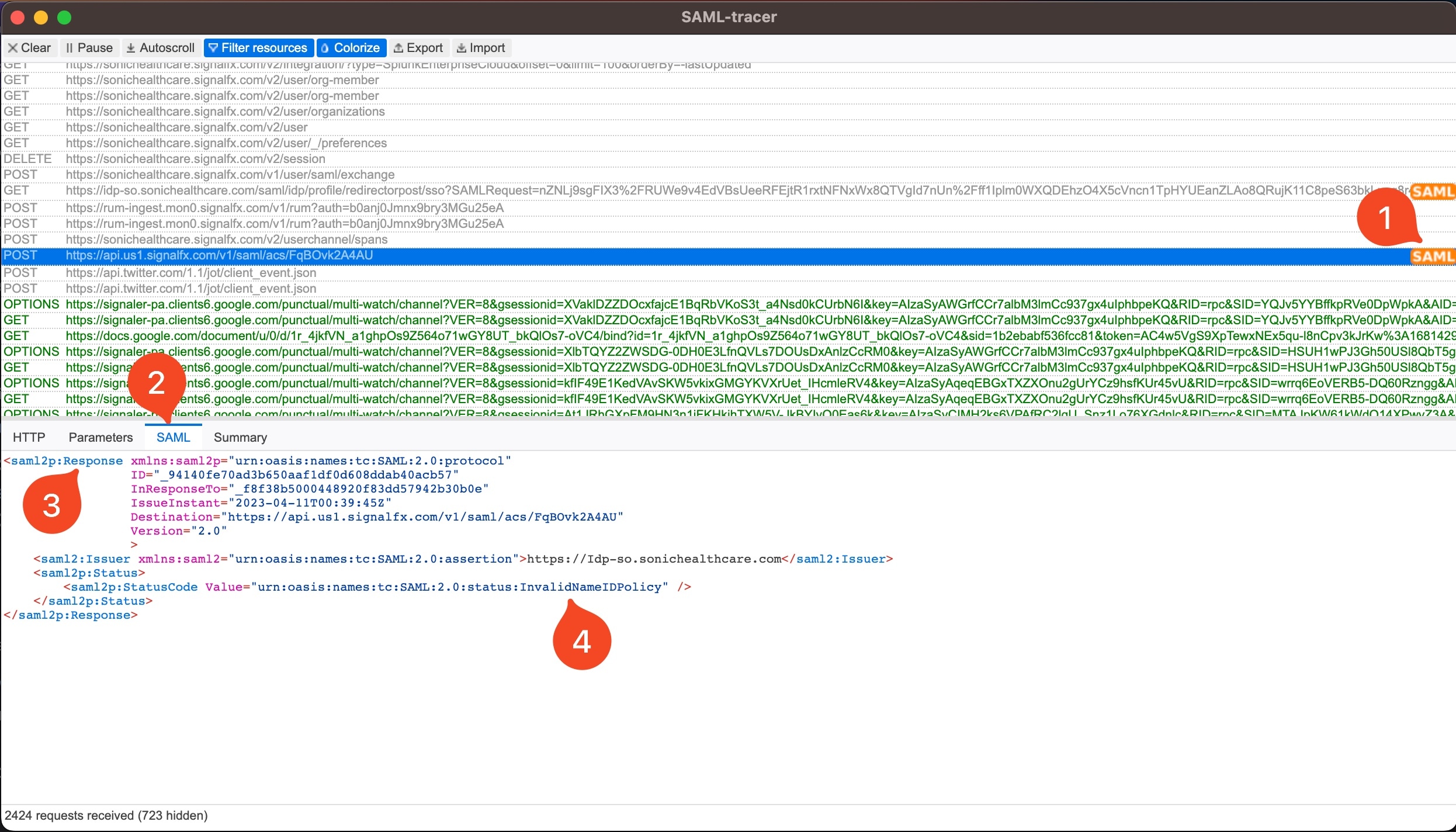
Googling InvalidNameIDPolicy will show InvalidNameIDPolicy in a SAML response means that the IdP is not accepting the NameID format being sent by the SP (Splunk Observability), and it can occur due to various reasons such as the wrong format of the NameID or a misconfiguration in the IdP.
The IdP debug logs may provide details such as the NameID format used in the SAML response and the reason why the IdP rejected it. It is recommended that the IdP administrator turn on debug logs. Then, after a failed authentication attempt, look at the log and see if there are any clues there regarding parsing SAML response. Please attach the logs as files to the support case for assistance with reviewing them.
Related Links
Revision History
| Revision | Publish Date | Comments |
|---|---|---|
1.0 |
30-Sep-2026
|
Initial Release |
 Feedback