Retrieving Debug Logs on OTel Collector (Microsoft Windows)
Available Languages
Applicability
Microsft Windows Server OTel Collector Agent IMM, APM
Description
How to collect debug logs and/or support bundle files for Microsoft Windows. Users are experiencing unexpected behaviour from their OTel Collector Agent running on Microsoft Windows Server and would like support to investigate. Configuration files and Logs are required in order to investigate and troubleshoot.
Investigation
For collecting config yaml files and debug logs for the OTel Collector running on Microsoft Windows Server, enable Hidden items in file explorer, and gather the Splunk Support Bundle.
Resolution
Collecting debug logs and/or Splunk Support Bundle files for Microsoft Windows.
1.1 Enable Hidden items in file explorer to see hidden files and folders.
This will make C:\ProgramData visible in windows explorer, where the agent config yaml file is located.
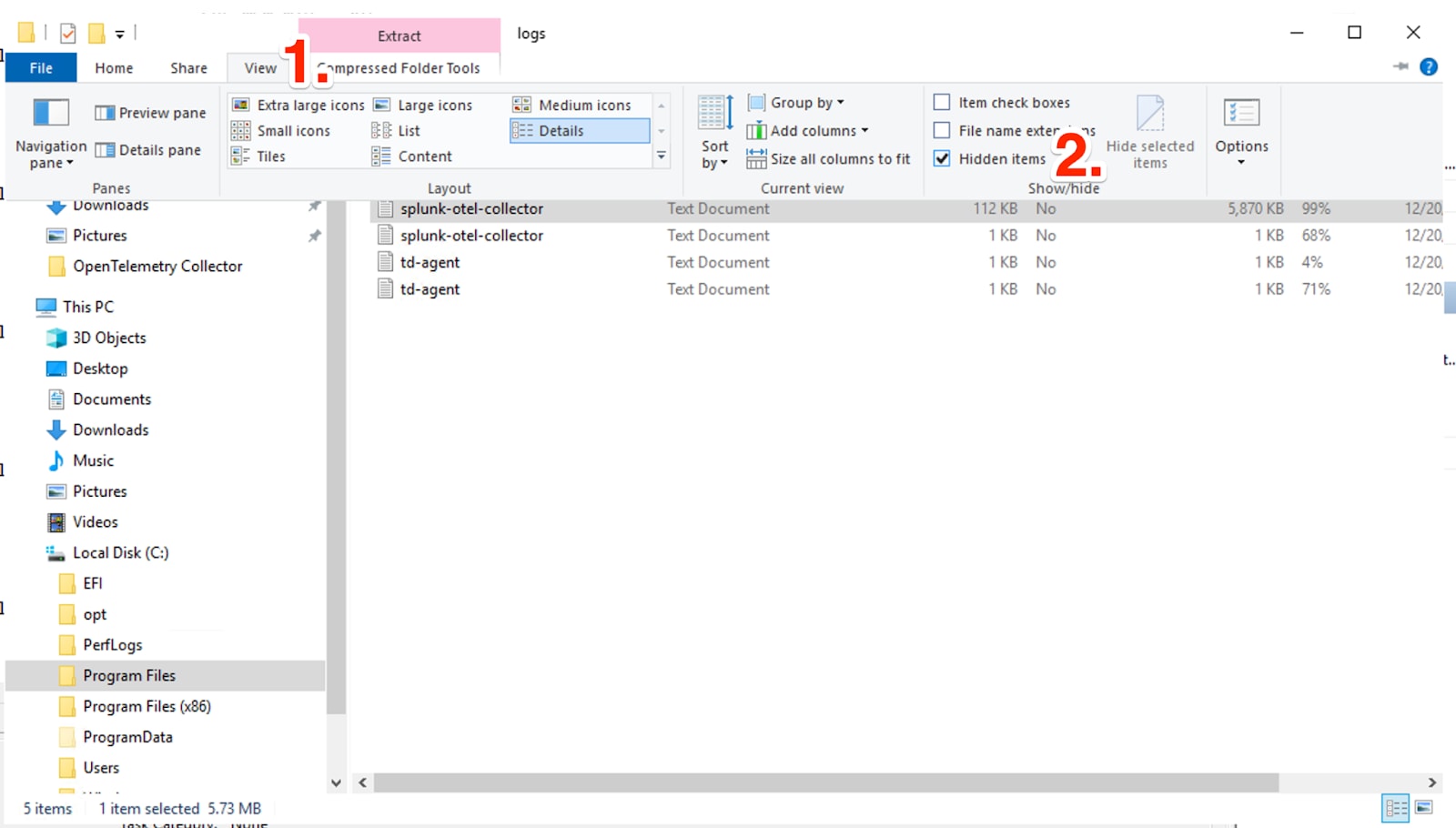
Windows (bottom left) > Search > notepad > run as administrator > open the agent_config.yaml file. Edit the C:\ProgramData\Splunk\OpenTelemetry Collector\agent_config.yaml, not the C:\Program\Files\Splunk\OpenTelemetry\ Collector\agent_config.yaml.
1.2 Set Debug logging in the Splunk OTel Collector configuration file
service::telemetry::logs::level::“debug” to C:\ProgramData\Splunk\OpenTelemetry Collector\agent_config.yaml file. The log levels can be Debug, Info, Warn and Error
service:
  telemetry:
    logs:
      level: "debug"
1.3 Restart the OTel Collector in a Windows PowerShell ISE
Stop the OTel Collector
Stop-Service splunk-otel-collectorCheck the OTel Collector has stopped
Get-Service splunk-otel-collectorStart the OTel Collector
Start-Service splunk-otel-collectorCheck the OTel Collector has started
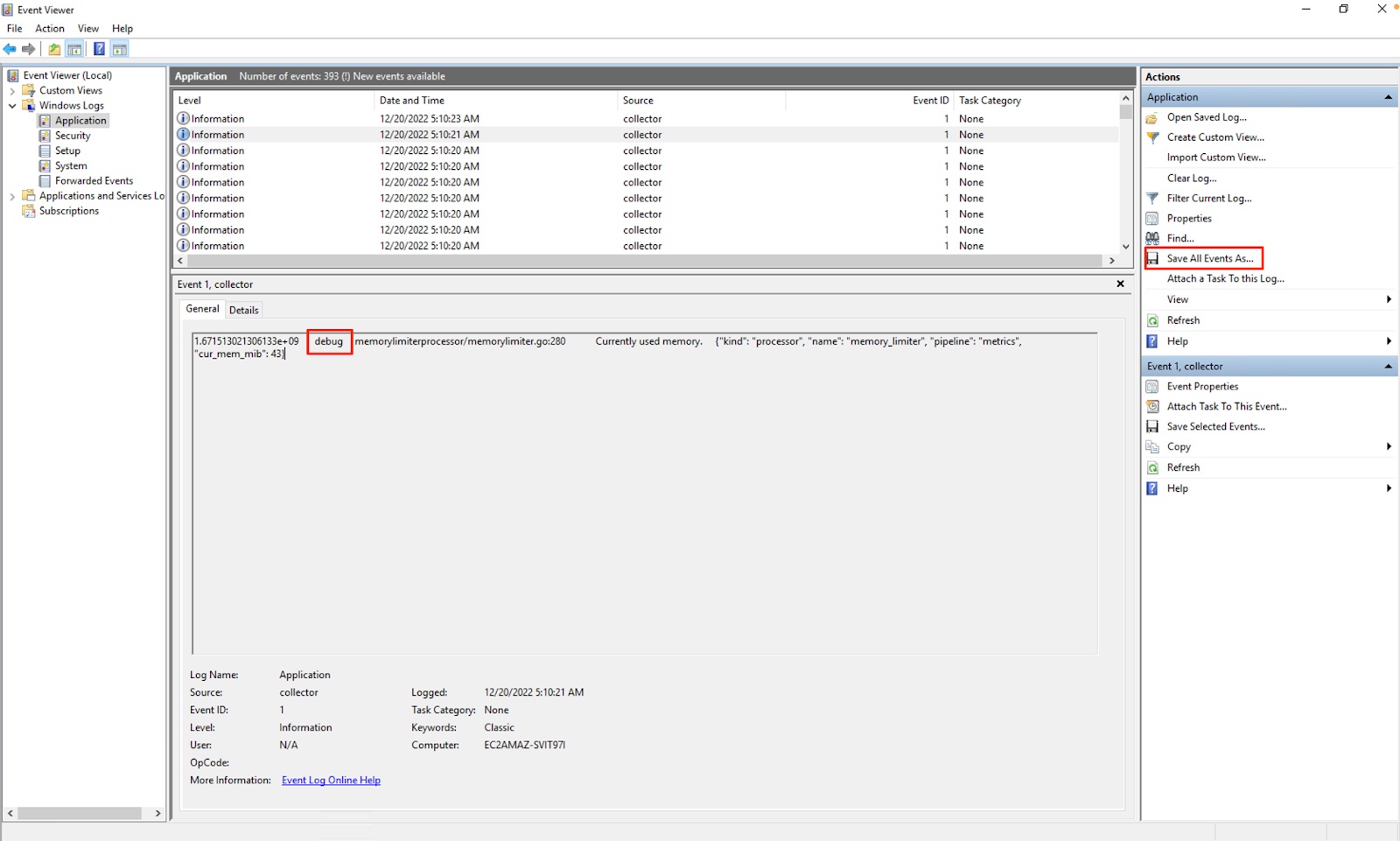
Get-Service splunk-otel-collector1.4 Check the event viewer for debug logs
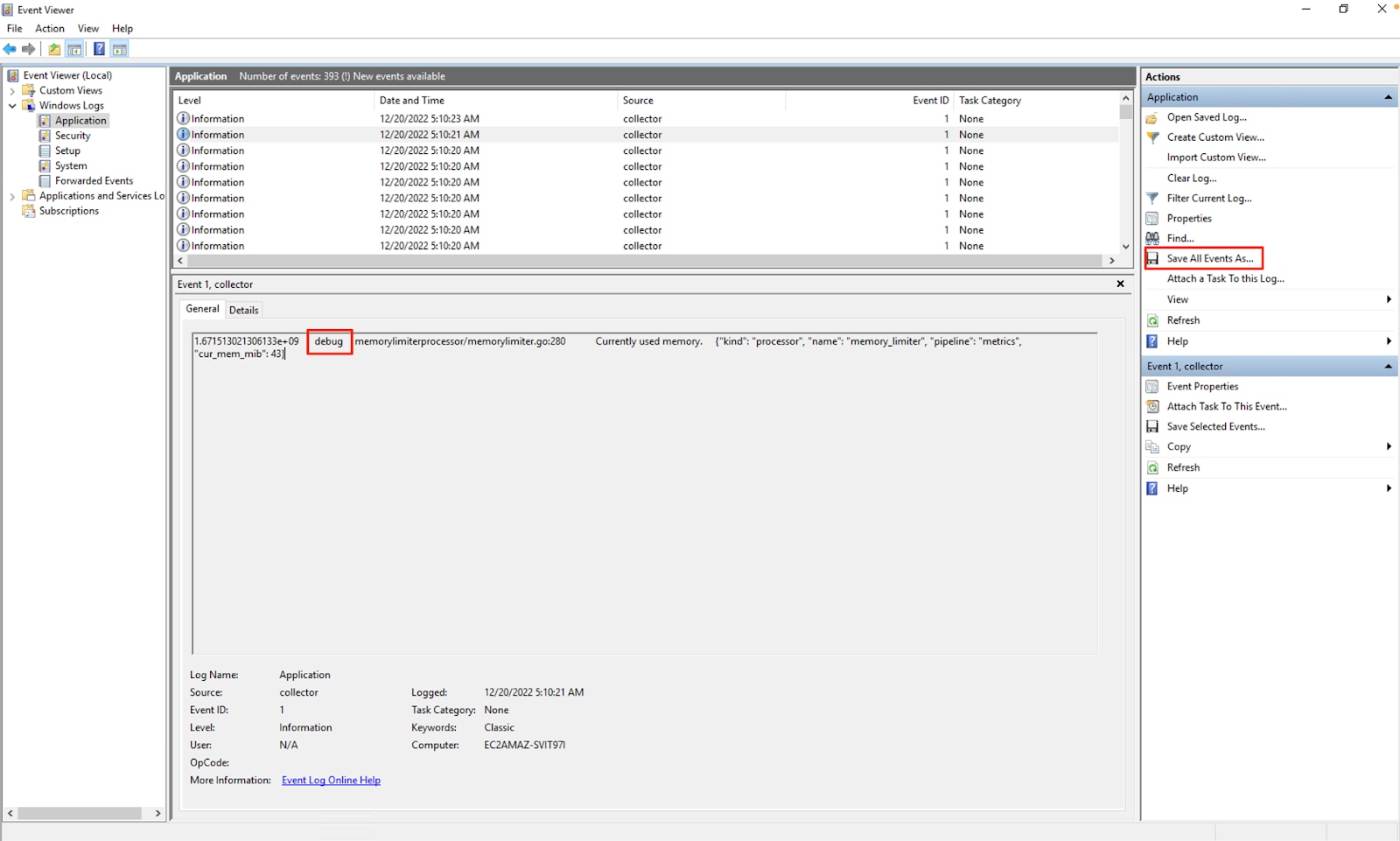
Save All Events As… to export the event viewer logs
2 Or, run the support bundle:
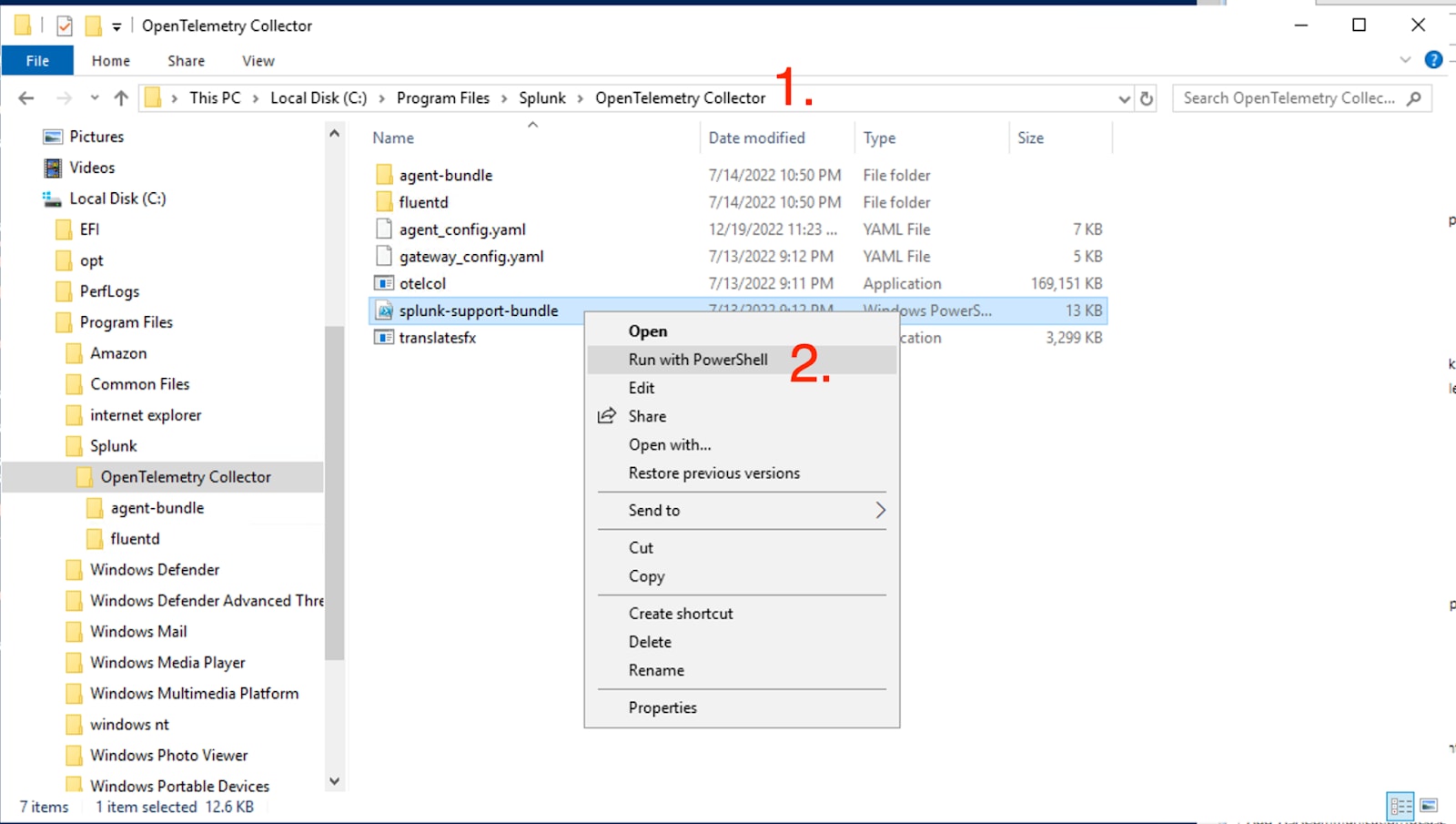
2.1 Get the support bundle
Go to C:\Program\ Files\Splunk\OpenTelemetry\ Collector\splunk-support-bundle (see troubleshooting.md). Right-click C:\Program\ Files\Splunk\OpenTelemetry\Collector\splunk-support-bundle > Run with PowerShell.
Powershell shows:

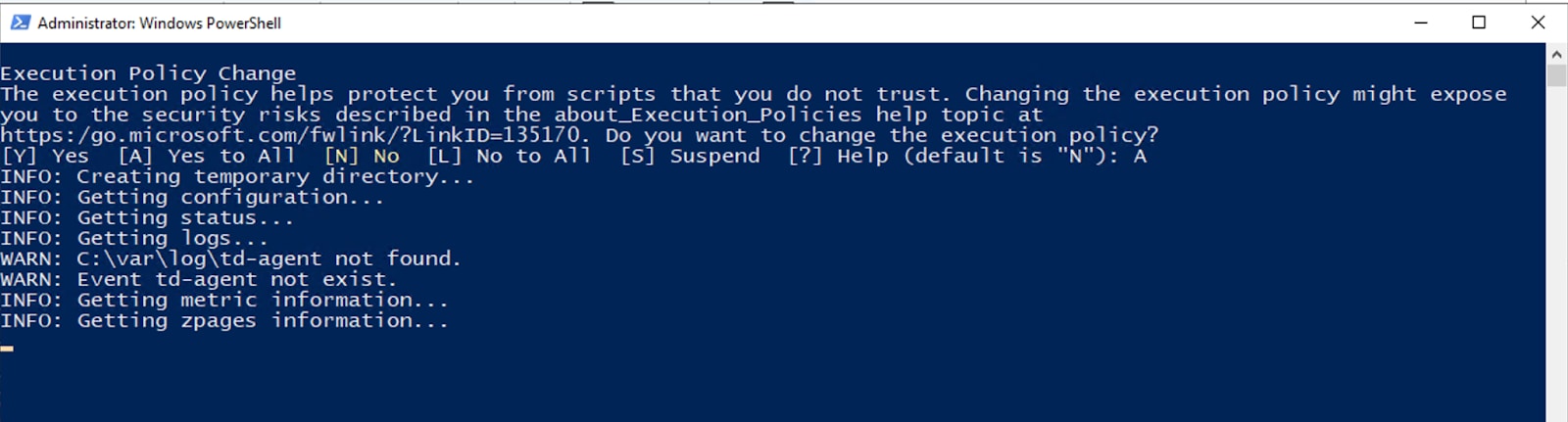
2.2 Double click on the splunk-support-bundle-xxxx.zip to open it.
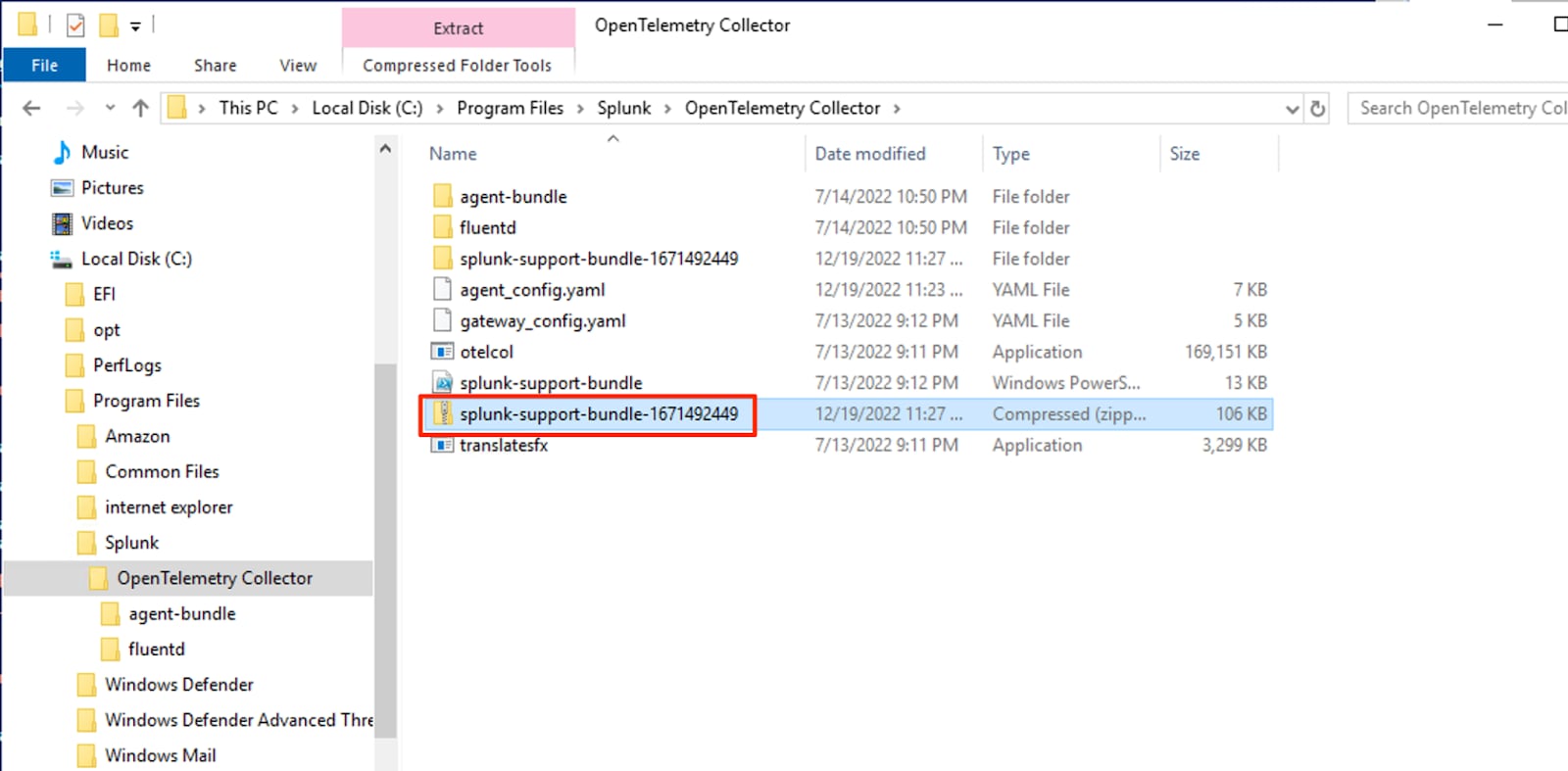
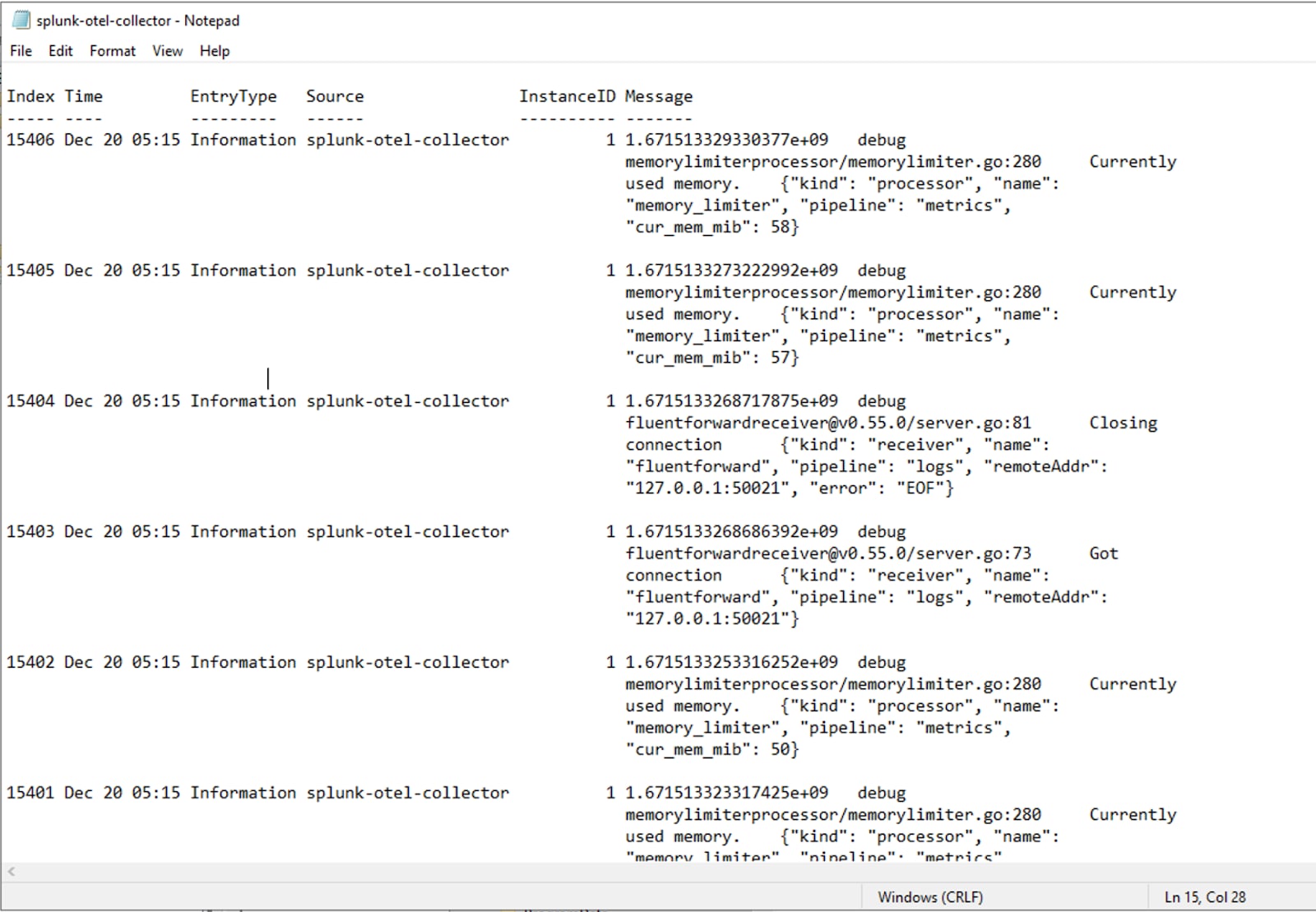
2.3 Review the splunk-otel-collector logs.
See the debug messages in the log file.
2.4 Attach these files to the support case.
Related Links
Revision History
| Revision | Publish Date | Comments |
|---|---|---|
1.0 |
29-Sep-2026
|
Initial Release |
 Feedback
Contact Cisco
- Open a Support Case

- (Requires a Cisco Service Contract)