File Integrity check failure
Available Languages
Applicability
Splunk EnterpriseDescription
The following message were appearing under the 'Messages' tab on the UI indicating integrity check issues for the files -
$plunk_home/bin/jp.py that results in "present_but_shouldnt_be
$plunk_home/bin/python2.7 that results in "present_but_shouldnt_be
$plunk_home/bin/coldToFrozen.py that results in "present_but_shouldnt_be
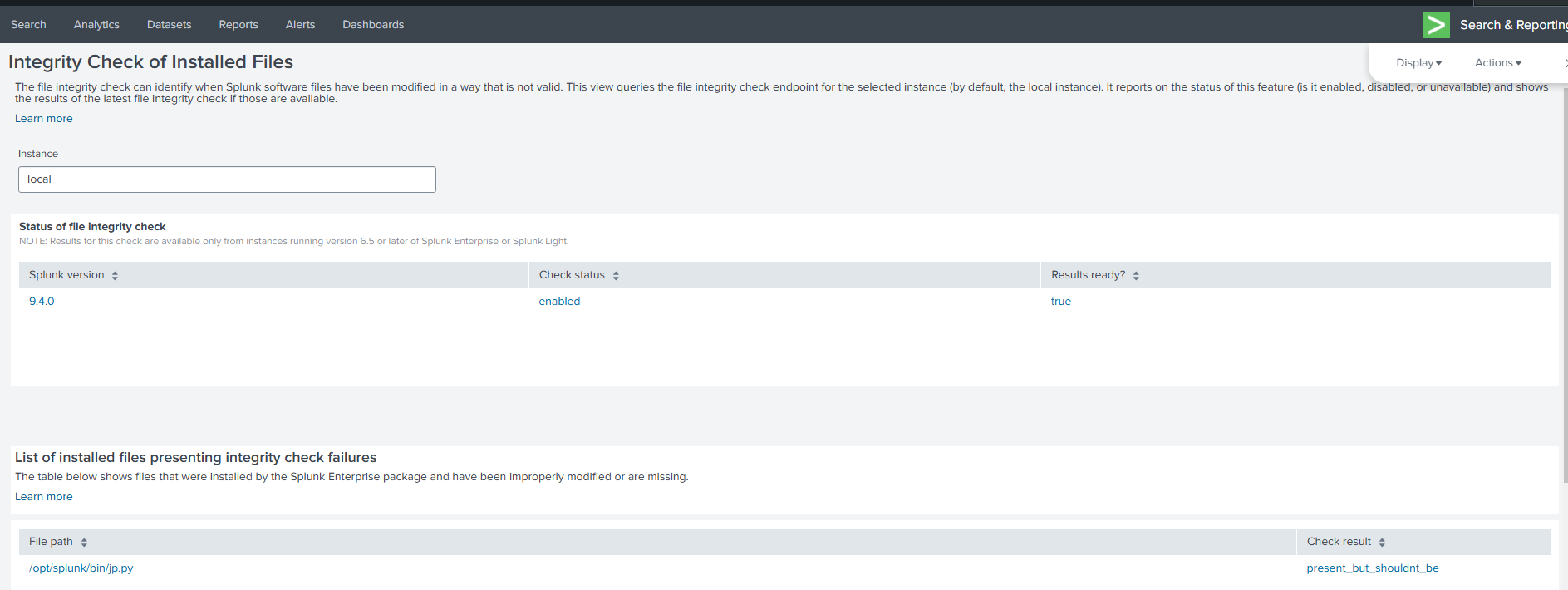
It is in 'Integrity Check of Installed Files' dashboard under the 'List of Installed files presenting integrity check failures' panel where the failed file path would be obtained.
The screenshot is provided below
Investigation
These error messages usually come after an upgrade of Splunk Enterprise. The newer version of Splunk no longer needs few files from the old version, but still those files are present in the new version by default, however the manifest file of the new version doesn't have the information of the file that are present in the new version.
When the integrity check is run, it displays the error as "present_but_shouldn't_be" in messages because the file was present in the current version but the file information is not present in the new version manifest file.
$plunk_home/bin/jp.py that results in "present_but_shouldnt_be
$plunk_home/bin/python2.7 that results in "present_but_shouldnt_be
$plunk_home/bin/coldToFrozen.py that results in "present_but_shouldnt_be
Resolution
The messages will show up for the 'Admin' account when the integrity check scan is run. The "integrity check" message does not mean anything and can be ignored. It is a false positive and has to do with some default files not being in the manifest anymore.
Workaround 1
1. Delete the file(s). The file path is detailed under 'Message' tab or from the File Integrity dashboard -
$plunk_home/bin/jp.py
$plunk_home/bin/python2.7
$plunk_home/bin/coldToFrozen.py
2. Restart the service.
./splunk restart
3. Check for the files validation with the below command.
./splunk validate files

4. Run the integrity check from the UI.
Workaround 2
1. Navigate to $SPLUNK_HOME or /opt/splunk
2. Open the manifest file using cat command. Screenshot for reference is provided below.
3. Copy lines from older version manifest files in the location splunk/bin/<filename>
4. Edit the new version manifest file and add the above copied line to the new manifest file.
5. Restart the service.
./splunk restart
6. Check for the files validation with the below command.
./splunk validate files
7. Run the integrity check from the UI.
Related Links
Check the integrity of your Splunk software files
Revision History
| Revision | Publish Date | Comments |
|---|---|---|
1.0 |
29-Sep-2026
|
Initial Release |
 Feedback
Contact Cisco
- Open a Support Case

- (Requires a Cisco Service Contract)