How to fix 'Running Scripts is Disabled on this System' error.
Available Languages
Applicability
Splunk Enterprise Universal Forwarder (Windows)Description
Windows Powershell scripts are not reporting the status of the service as expected. While executing it manually to retrieve the status of the services, it ends with 'Running Scripts is Disabled on this System' and also the scheduled job does not report to Splunk.
Investigation
1) Reviewed splunkd.log for any error messages or warnings.
2) Confirmed that the script has the necessary executive permissions.
3) Checked if the script is hitting any resource limits set by Splunk.
4) As per splunkd.logs, checked whether the script is terminating or not.
-This is an example of an error if it is terminating on Splunk:
DEBUG ExecProcessor [6352 ExecProcessor] - PipelineSet 0: Ran script: "c:\Program Files\SplunkUniversalForwarder\etc\apps\hp_it_ops_metrics_win\bin\service.bat", took 4.119 seconds to run, 507 bytes read 0 events read, status=done, exit=0
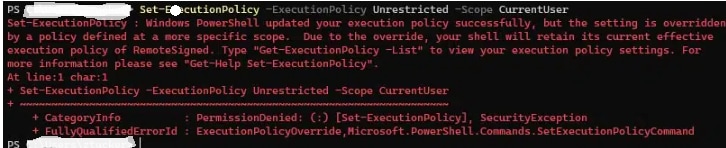
5) When asked to run manually, it was throwing below errors -

Resolution
Steps to be performed:
1) Right-Click on Start or press Windows key + X
2) Choose Windows PowerShell (Admin) or Windows Terminal (Admin)
3) Type the following command:
Set-ExecutionPolicy -ExecutionPolicy RemoteSigned -Scope LocalMachine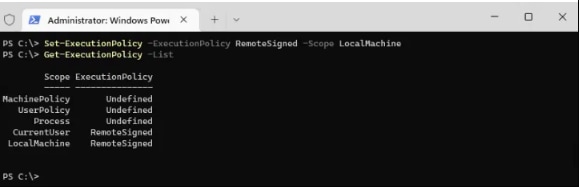
-Verify the results with the cmdlet Get-ExecutionPolicy -List which shows the policy for each scope.
-CurrentUser policy takes precedence over the LocalMachine policy. So when the CurrentUser policy is set to restricted and LocalMachine to RemoteSigned, then the user still can’t execute any PowerShell script, because the policy set in the CurrentUser scope overrules the LocalMachine policy.
4) Another option is to change the policy only for the current PowerShell session. This method is useful when the requirement is to run a couple of PowerShell scripts, but don’t want to change the policy permanently. The Bypass option for each script is available, but it’s thus also possible to set change the scope for only the current PowerShell session. Use the scope Process for this:
Set-ExecutionPolicy -ExecutionPolicy RemoteSigned -Scope Process
-The best way to set the Execution Policy in PowerShell is to use the Group Policy.
When the modification of the policy is to be done on multiple computers, then it’s a good idea to use a Group Policy for this. Group Policies allows the user to change Windows settings on multiple computers that are members of a domain. Another advantage of the policy is that the setting can’t be overwritten on the computer.
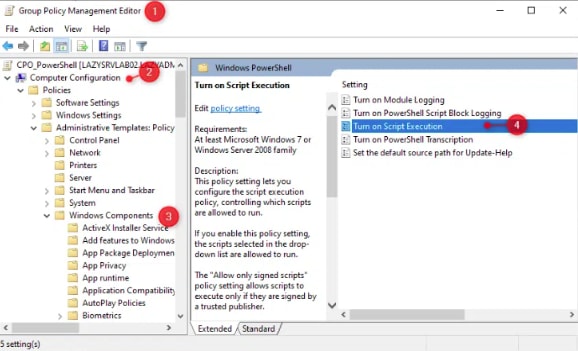
-The script started executing manually.
Related Links
PowerShell says "execution of scripts is disabled on this system"
Revision History
| Revision | Publish Date | Comments |
|---|---|---|
1.0 |
29-Sep-2026
|
Initial Release |
 Feedback
Contact Cisco
- Open a Support Case

- (Requires a Cisco Service Contract)