How to renew certificates in Splunk
Available Languages
Applicability
Splunk Enterprise TLS SSLDescription
Whenever there is the need to renew a default Splunk certificate or if the certificate was deleted by mistake, it is possible to re-generate them by using some Splunk scripts or commands, depending on the certificates to be renewed.
Investigation
Confirm the certificate is expired by running the command below:
$SPLUNK_HOME/bin/splunk cmd openssl x509 -enddate -noout -in /path/to/certificate/certificate.pem
To generate/renew the root certificates (such cacert.pem OR ca.pem) use a built-in script:
/opt/splunk/bin/genRootCA.sh#This command will also generate a new cakey.pem
Renew the Splunk default self-signed certificates (i.e. server.pem) by simply renaming or deleting the old certificates and restarting Splunk, however, Splunk offers a command to accomplish this:
/opt/splunk/bin/splunk createssl server-certIn a Windows environment, the process is the same, but to consider the different file path syntax, that Windows replicates Splunk's certs to the Windows Certificate Store and also that the scripts would be ".bat" instead of ".sh":
Note: If Splunk default self-signed certificates are generated first, the following error may occur. Therefore, the root certificate must be generated first before generating the Splunk default self-signed certificates.
No Common Name specified. If client side checks are enabled, connection negotiation may fail.
Unable to find file ‘ca.pem’. You must supply the location of your CA in order to sign this cert. Exiting.
Renaming:
1. Stop the splunkd process:
C:\Program Files\Splunk\bin\splunk stop2. Go to the default cert path in Splunk (C:\Program Files\Splunk\etc\auth)
3. Delete all the certs to be re-generated (always back them up just in case)
4. Open the Certificate Store and also delete the certificates that corresponding to those deleted in C:\Program Files\Splunk\etc\auth
5. Start the splunkd process:
C:\Program Files\Splunk\bin\splunk start
Re-generating each individually by running their corresponding script in C:\Program Files\Splunk\bin:
C:\Program Files\Splunk\bin\genRootCA.bat -d C:\Program Files\Splunk\etc\auth -l 2048#genSignedServerCert.bat is the script for server.pem
By the command:
C:\Program Files\Splunk\bin\splunk createssl server-cert
How to open the Windows Certificate Store:
1. Hit Win + R and enter "mmc", click 'OK' and then 'Yes'
2. Click: File > Add/Remove Snap-in... > Certificates > Add > Computer Account, Next > Local computer, Finish > OK
3. Click: Certificates (Local Computer) > Personal > Certificates
4. Find at least one cert called 'SplunkServerDefaultCert'.
OR
1. Hit Win > Search for 'Manage computer certificates' > Click: Yes > Personal > Certificates
Resolution
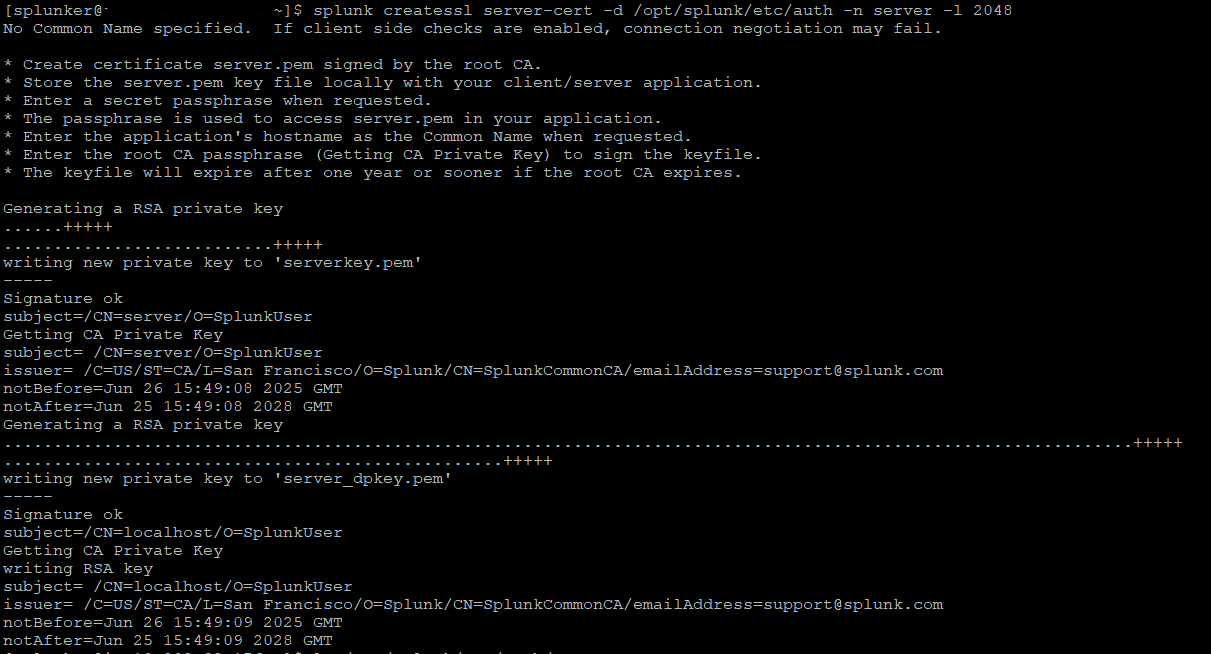
In the screenshots below review usage examples of the commands and the script.
Please note that both, the script and the command will require some additional parameters to create the certificate.
In this first example, a new self-signed certificate "server.pem" was generated.
This second screenshot demonstrates how to renew the Splunk default root certificates: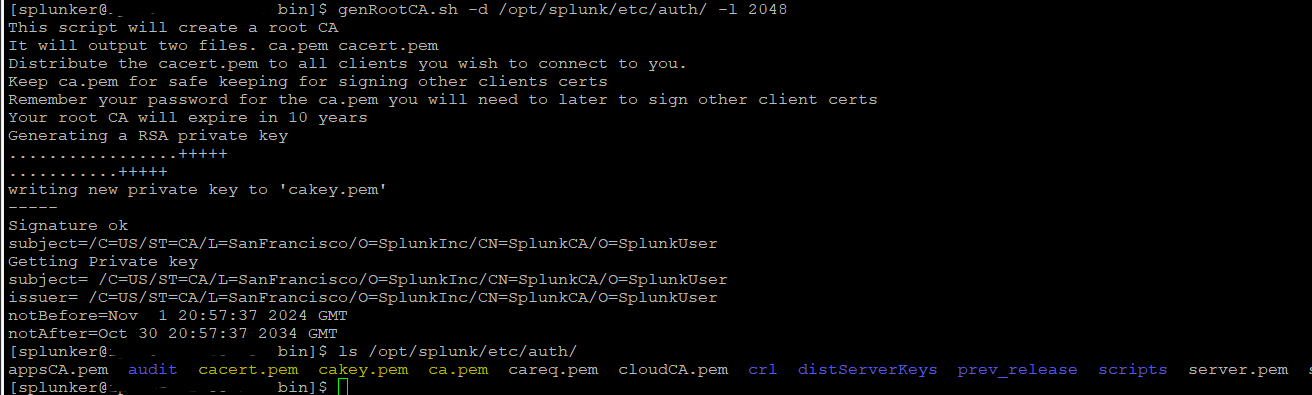
Related Links
Splunk Documentation Link : How to create and sign your own TLS certificates
Revision History
| Revision | Publish Date | Comments |
|---|---|---|
1.0 |
29-Sep-2026
|
Initial Release |
 Feedback
Contact Cisco
- Open a Support Case

- (Requires a Cisco Service Contract)