High CPU usage in Search Head Cluster members and Indexers due to Search
Available Languages
Applicability
Splunk EnterpriseDescription
High CPU usage in Search Head Cluster members and Indexers due to Search
Investigation
On Distributed Monitoring Console -> Resource Usage -> CPU Usage: Deployment -> Select the affected cluster
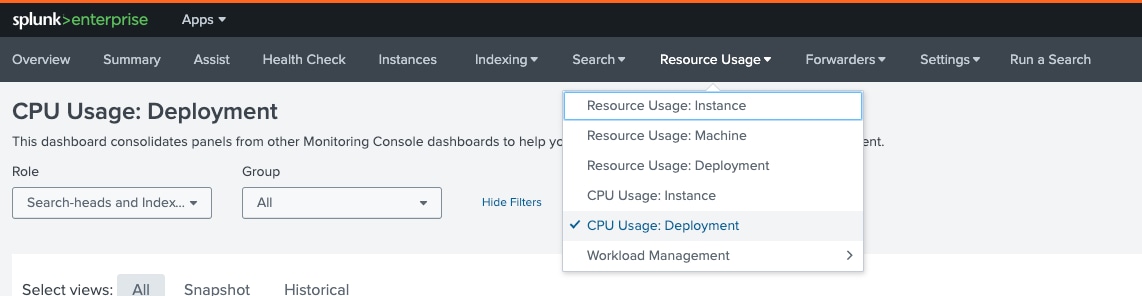
Scroll down the the dashboard "CPU Usage by Process Class" and select 90th Percentile.
From this dashboard, you can see the high CPU usage is mainly due to "Search' process class.

On a Search Head, use following SPL to check the CPU resource usage by process type:
index=_introspection  sourcetype=splunk_resource_usage OR source=*/resource_usage.log* component=Perprocess
| timechart span=10m max(data.normalized_pct_cpu) by data.process_type
| rename data.normalized_pct_cpu AS "CPU Usage (%)
Note the difference between normalized_pct_cpu and pct_cpu.
- normalized_pct_cpu: Percentage of CPU usage across all cores. 100% is equivalent to all CPU resources on the machine.
- pct_cpu: Percentage of CPU usage, relative to one core. 100% is equivalent to 1 core.
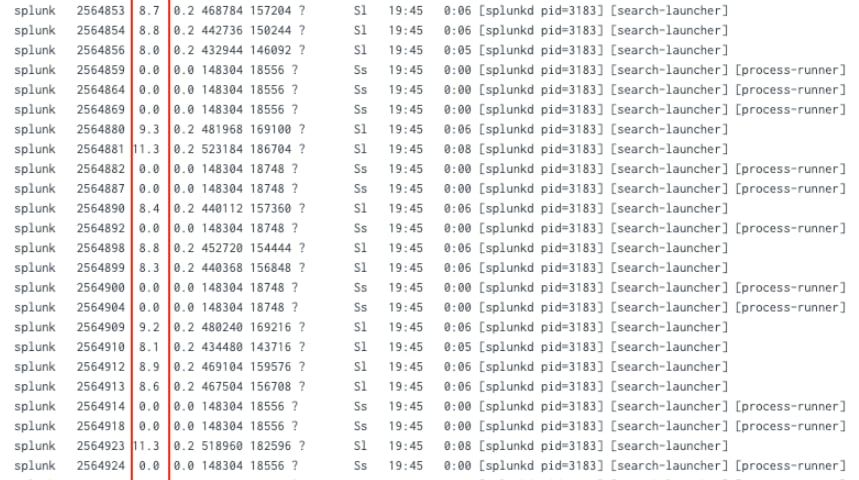
For Linux server, you can use the " ps aux"command to check the CPU usage.
In the command output (an example below), the third column represents the %CPU usage, whereby the "search-launcher" process is the primary consumer of CPU resources.
For Windows server, to check the CPU usage by process please go to Task Manager, navigate to Processes tab.
Following the above steps, our analysis shows that the persistent high CPU utilisation is due to search.
Because each search and subsearch utilizes a CPU and releases it upon completion. If you have numerous heavy or real-time searches, you may be using all your CPUs.
Resolution
User can take certain actions to address high CPU utilization caused by search. Some recommendations as follows:
From the perspective of controlling the amount of searches:
Utilize the Monitoring Console to review search activities by app or user, and identify the top searches that consume the most CPU and memory resources.

If you want to restrict search activities from global setting, you can adjust the role-based search limits to control the maximum number of concurrent searches a user can run or set maximum search time values.
(1) Consider limit the maximum run time for searches in authorize.conf
srchMaxTime = <integer><unit>
* The maximum amount of time that search jobs from specific users with this role are
  allowed to run.
* After a search runs for this amount of time, it auto-finalizes.
* If the role inherits from other roles, the value of the 'srchMaxTime' setting is
  specified in the included roles.
* This maximum value does not apply to real-time searches.
* Examples: 1h, 10m, 2hours, 2h, 2hrs, 100s
* Default: 100days
(2) Limit the maximum concurrent running historic and real-time search jobs that a user with this role can have in authorize.conf
srchJobsQuota = <integer>
* The maximum number of concurrently running historical searches that a user
  with this role can have.
* When set to 0, this setting does not limit the number of historical search
  jobs that can run concurrently for a user with this role.
* When 'enable_cumulative_quota = true' in limits.conf, the
  'cumulativeSrchJobsQuota' setting overrides this setting.
  * For example, under this condition, if you have a role named 'foo' for which
    'cumulativeSrchJobsQuota = 350' while 'srchJobsQuota = 100' and you have 4
    users with the 'foo' role, those users can only run 350 searches
    concurrently. If you set 'enable_cumulative_quota = false' those users can
    run 400 searches concurrently.
* This setting excludes real-time searches. See the 'rtSrchJobsQuota' setting.
* Default: 3
To control the real-time search job quota:
rtSrchJobsQuota = <integer>
* The maximum number of concurrently running real-time searches that a user
  with this role can have.
* When set to 0, this setting does not limit the number of real-time search
  jobs that can run concurrently for a user with this role.
* When 'enable_cumulative_quota = true' in limits.conf, the
  'cumulativeRTSrchJobsQuota' setting overrides this setting.
  * For example, under this condition, if you have a role named 'foo' for which
    'cumulativeRTSrchJobsQuota = 350' while 'rtSrchJobsQuota = 100' and you
    have 4 users with the 'foo' role, those users can only run 350 searches
    concurrently. If you set 'enable_cumulative_quota = false' those users can
    run 400 searches concurrently.
* Default: 6
(3) Check max_searches_per_cpu from limits.conf
If this configuration is set too high, consider lowering it. Doing so will also decrease search concurrency in the cluster accordingly.
max_searches_per_cpu = <integer>
* The maximum number of concurrent historical searches for each CPU.
  The system-wide limit of historical searches is computed as:
  max_hist_searches =  max_searches_per_cpu x number_of_cpus + base_max_searches
* NOTE: The maximum number of real-time searches is computed as:
  max_rt_searches = max_rt_search_multiplier x max_hist_searches
* Default: 1
From the perspective of adding more system resource:
(1) Add more CPU resources if reducing search activities is not feasible.
(2) Add more search head cluster members. It will enable greater search concurrency within the cluster and help distribute the search load. Please refer to this KB for more information on this topic.
Revision History
| Revision | Publish Date | Comments |
|---|---|---|
1.0 |
29-Sep-2026
|
Initial Release |
 Feedback
Contact Cisco
- Open a Support Case

- (Requires a Cisco Service Contract)