Where are TLS/SSL Configuration Files located ? How to configure them in Splunk Enterprise?
Available Languages
Applicability
Splunk EnterpriseDescription
■ Transport Layer Security (TLS) Basics
• The client initiating the connection retrieves the public key from the remote server’s certificate.
• The client and server establish a shared secret.
• Using the shared secret and public key, the client encrypts the traffic it sends to the remote server.
• The remote server uses the private key to decrypt the traffic.
• TLS is “one-way” by default in Splunk Platform – For “two-way” TLS, use requireClientCert.
• Until version 9.0, only certificate authentication is available.
• Starting in version 9.0, hostname validation is introduced.
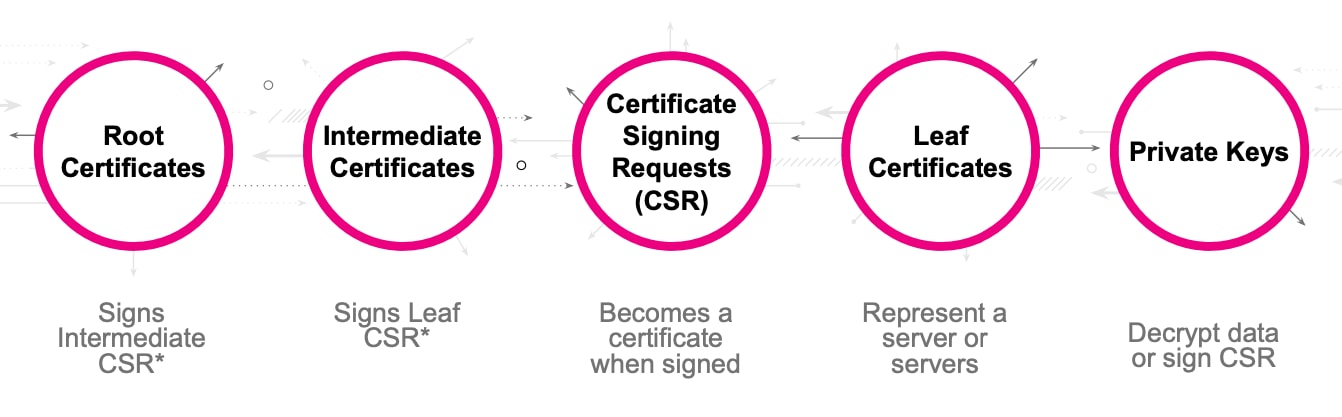
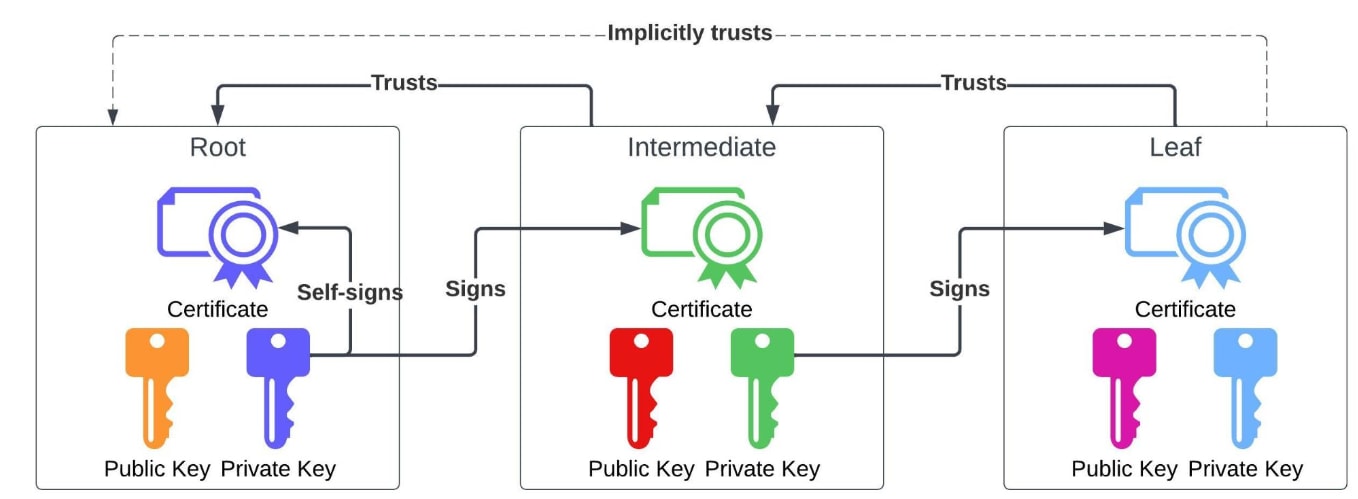
The “Trust” of Certs

Public & Private Keys
Public keys are used to encrypt the traffic
- This is automatically generated as part of the TLS handshake since it’s embedded in the certificate.
– You do not manage/configure these
Private keys are used to decrypt the traffic
– They will be generated and used to create the CSR
– You do manage/configure these.
Certificate Signing Request (CSR)
- The CSR must be signed by an issuer certificate in order to become a leaf (client/server) certificate.
- A CSR contains information about a specific server or subset of servers.
- Typically you as the application owner will generate the CSR, then provide it to someone who manages the CA to sign it.
Once they sign it, they will send you back the certificate which you can then use on the server.
Investigation
1. Where to use?
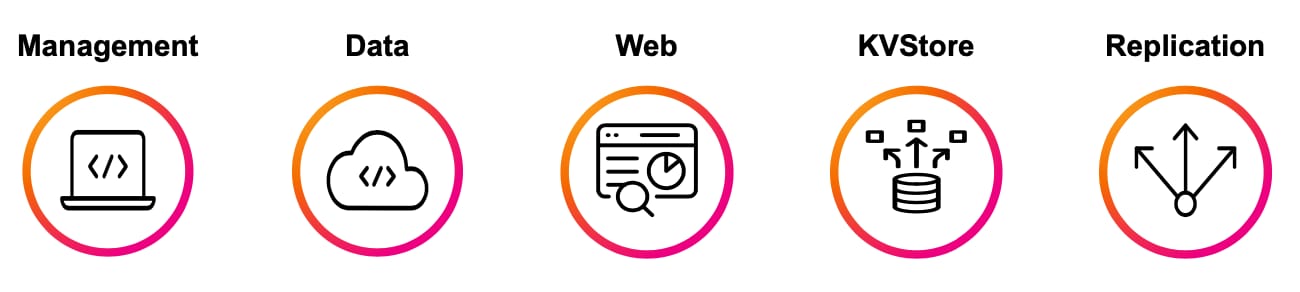
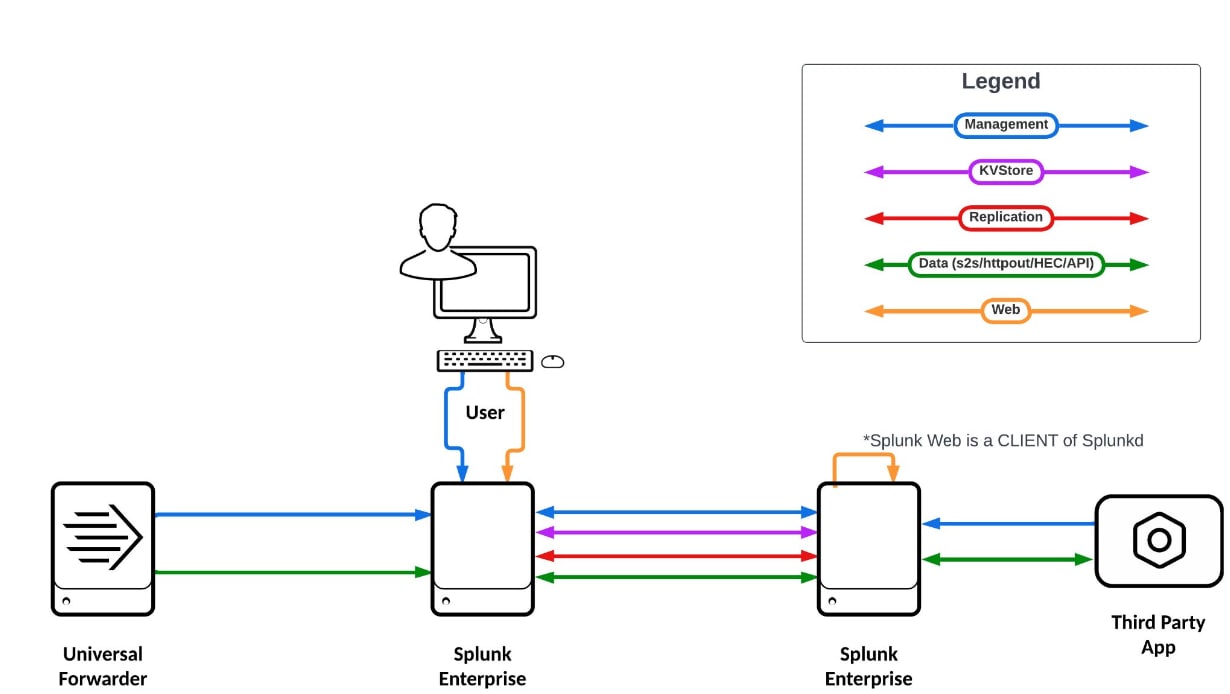
such as Management, Data, Web, KVStore, Replication
■ Management
– Encrypted by default
– How Splunk Platform instances talk to each other – How third parties talk to Splunk
– How users/scripts can interact with REST API
■ Data
– Splunk-to-Splunk (s2s) - Not encrypted by default*
- How Splunk Platform forwards data (by default) to another Splunk instance
– httpout - Encrypted by default**
- Can be used to forward data from UF to HF/IDX
– HEC - Encrypted by default
- Used for HTTP data into Splunk Platform
- Re-uses Management serverCert by default
– API (modular/scripted input) - Depends on code
- Generally going to be HTTPS out to a third party
■ Web
– Not encrypted by default*
– Used to access the Splunk Platform GUI
■ KVStore
– Encrypted by default
– Re-uses Management TLS settings by default - Unless you’re FIPS...
■ Replication (IDX/SH Cluster)
– Not encrypted by default
– Used for various functions of the cluster among peers
– Indexer Bucket Replication, KO Replication, etc.
2. Required Certificates and Keys?
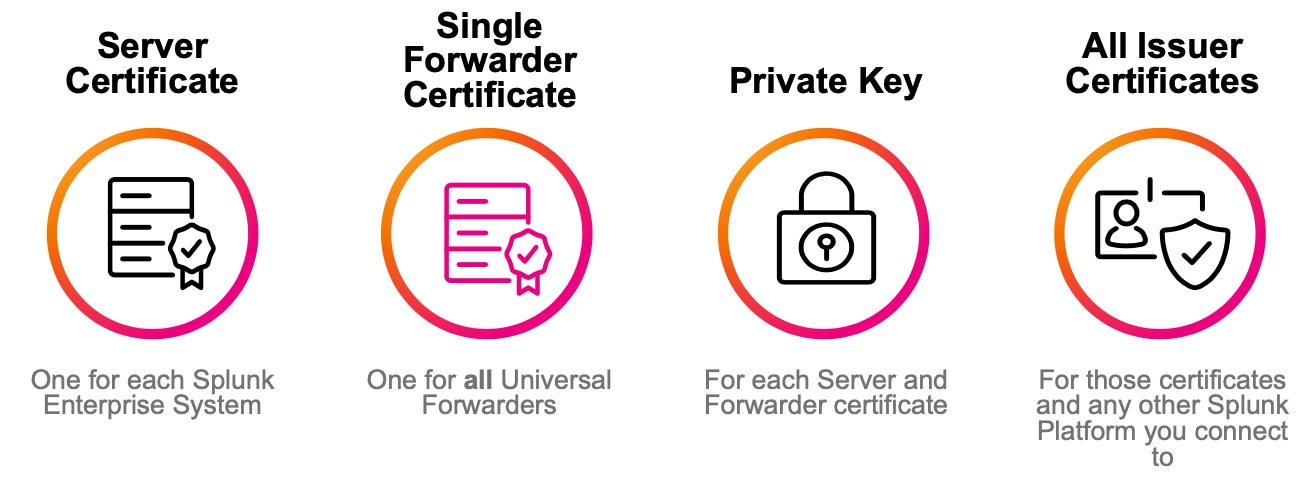
3. How to verify?
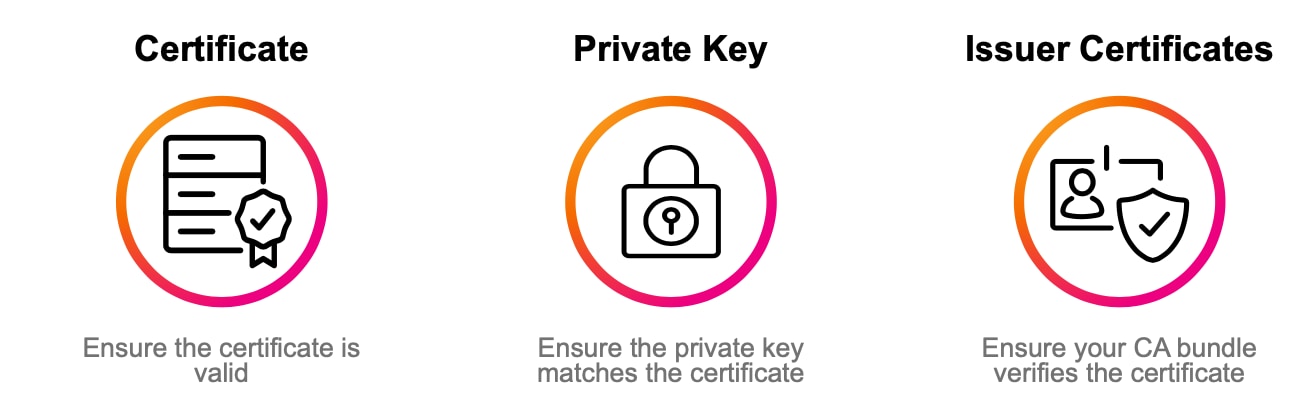
– Verify the Subject, Issuer, Validity, and SAN
openssl x509 -noout -text -in certificate_here
■ Verify you have the correct private key
– The modulus must match
openssl x509 -noout -modulus -in certificate_here | openssl md5
openssl rsa -noout -modulus -in certificate_here | openssl md5
– Remember, your “certificate_here” at this point should be the certificate followed by the private key.
– You must run both commands against the same file
■ Verify you have the full chain
– A non-OK status is a show stopper
– openssl verify -CAfile ca_here certificate_here
– Get the order correct, do not flip ca_here and certificate_here
■ Test TLS Connectivity
openssl s_client -connect host:port
openssl s_client -CAfile /path/here/cabundle.pem -connect host:port
■ View the certificates of a remote host (verify your change)
openssl s_client -showcerts -connect host:port
4. Where are TLS/SSL Configuration Files
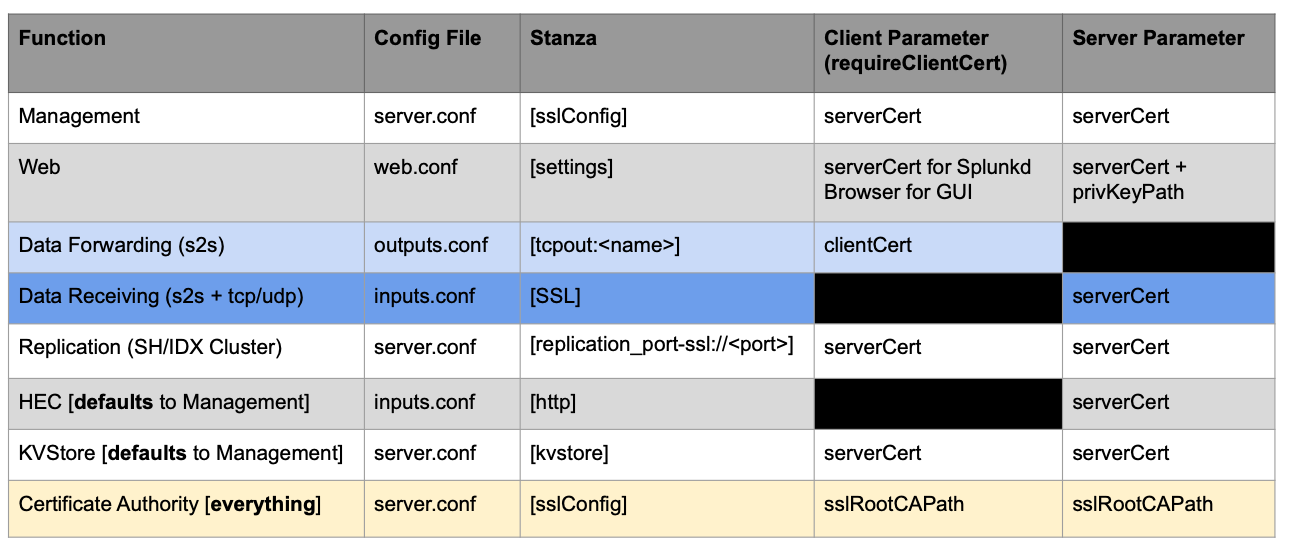
Resolution
Where and how to configure TLS/SSL in Splunk Enterprise
■ Management
server.conf
[sslConfig]
sslRootCAPath = $SPLUNK_HOME/etc/apps/000_enterprise_tls/certs/ca_certs.pem
serverCert=  $SPLUNK_HOME/etc/apps/000_enterprise_tls/certs/server_cert.pem
sslVerifyServerCert= true
sslVerifyServerName = true
requireClientCert = true
## Password must be set in $SPLUNK_HOME/etc/system/local (except for IDX Cluster)
sslPassword =
■ Web
web.conf
[settings]
enableSplunkWebSSL = true
## Do not use $SPLUNK_HOME in web.conf!
serverCert= /opt/splunk/etc/apps/000_enterprise_tls/certs/server_cert.pem privKeyPath = /opt/splunk/etc/apps/000_enterprise_tls/certs/server_cert.key sslPassword =
■ Data Receiving/Forwarding
inputs.conf
[splunktcp-ssl:9996]
disabled = 0
[SSL]
serverCert=
$SPLUNK_HOME/etc/apps/000_enterprise_tls/certs/serv
er_cert.pem
sslPassword =
requireClientCert = true
outputs.conf
[tcpout]
defaultGroup = primary_indexers
[tcpout:primary_indexers]
server = idx1:9996, idx2:9996
clientCert=
$SPLUNK_HOME/etc/apps/000_splunk_forwarding_tls/ce
rts/forwarder_cert.pem
sslPassword =
sslVerifyServerCert= true
sslVerifyServerName = true
■ Replication (SH/IDX Cluster)
server.conf
[replication_port-ssl://<port>]
serverCert = $SPLUNK_HOME/etc/apps/000_enterprise_tls/certs/server_cert.pem
sslPassword =
requireClientCert = true
■ HEC
inputs.conf
[http]
enableSSL = 1
# Not needed if you already set serverCert in server.conf under [sslConfig]
serverCert= $SPLUNK_HOME/etc/apps/000_enterprise_tls/certs/server_cert.pem
sslPassword =
# Be careful setting this to true for HEC
requireClientCert = false
■ KVStore
server.conf
[kvstore]
# Not needed if you already set serverCert in server.conf under [sslConfig]
serverCert= $SPLUNK_HOME/etc/apps/000_enterprise_tls/certs/server_cert.pem
sslPassword =
requireClientCert = true
sslVerifyServerCert= true
sslVerifyServerName = true
To check Splunk server TLS version:
You can control the TLS versions Splunk Enterprise supports for secure communication by configuring the sslVersions setting in various configuration files. This setting allows you to enable or restrict specific protocol versions, ensuring both connecting and receiving instances use the same TLS version for successful communication.
Ref:
Configure TLS protocol version support for secure connections between Splunk platform instances
Additionally, you can use the command below to check which TLS version Splunk is using when making HTTPS requests
./splunk cmd python3 -c "import json, urllib.request; print(json.load(urllib.request.urlopen('https://www.howsmyssl.com/a/check'))['tls_version'])"What It Does:
1. Runs Python inside Splunk’s environment using ./splunk cmd python3 -c "<python_code>".
2. Imports necessary modules:
- json: Used to parse JSON data.
- urllib.request: Used to make an HTTP request.
3. Makes an HTTPS request to https://www.howsmyssl.com/a/check, a service that reports details about your TLS/SSL connection.
4. Parses the JSON response from the website.
5. Extracts and prints the tls_version field, which indicates the TLS version being used for the request.
Example in my lab:
Ref:
How can I see which SSL version (ssl3, tls1.0 or higher) a forwarder is using actually?
Related Links
Configure TLS protocol version support for secure connections between Splunk platform instances
How can I see which SSL version (ssl3, tls1.0 or higher) a forwarder is using actually?
Revision History
| Revision | Publish Date | Comments |
|---|---|---|
1.0 |
29-Sep-2026
|
Initial Release |
 Feedback
Contact Cisco
- Open a Support Case

- (Requires a Cisco Service Contract)