Splunk Indexer Instability (Shutdown/Restart) Due to High Memory Usage (DMA Tuning Required)
Available Languages
Applicability
Splunk EnterpriseDescription
The symptom for Out of Memory (OOM)
1. Can't SSH to indexer and shows no response.
2. Indexer status shows "stopped" from the Cluster Manager
indexer5 2DBF8FB9-6376-4AA2-B038-xxxxxx site2
Searchable NO
Status Stopped
3. The Kernel OOM logs shows the following
Jul 04 02:36:15 indexer1 systemd[1]: splunk.service: A process of this unit has been killed by the OOM killer.
Jul 04 02:36:17 indexer1 kernel: oom_reaper: reaped process 219832 (splunkd), now anon-rss:0kB, file-rss:0kB, shmem-rss:0kB
Jul 04 02:36:18 indexer1 splunk[253473]: Stopping Splunk...
Jul 04 02:36:20 indexer1 splunk[253565]: Stopping splunkd...
Jul 04 02:36:20 indexer1 splunk[253565]: Shutting down. Please wait, as this may take a few minutes.
Investigation
Steps to confirm this issue
How to determine why splunkd was shut down
From Linux OS
You need to look for specific signs in the system logs. These signs include messages from the OOM killer in the kernel logs, memory allocation failures, or specific error messages in Splunk logs.
Check System Logs for OOM Killer Messages
The Linux kernel's OOM killer will terminate processes when the system runs out of memory. These events are logged in the system logs. Look for messages such as "Out of memory" or "Kill process" in the logs.
- Using journalctl
journalctl | grep -i 'Kill process'
- Using grep on Log Files:
grep -i 'Kill process' /var/log/syslog
On some systems, the relevant log file might be /var/log/messages
grep -i 'Kill process' /var/log/messages
As can be seen from the following log example, the system ran out of memory and splunkd was shut down
Jul 04 02:36:15 indexer1 systemd[1]: splunk.service: A process of this unit has been killed by the OOM killer.
Jul 04 02:36:17 indexer1 kernel: oom_reaper: reaped process 219832 (splunkd), now anon-rss:0kB, file-rss:0kB, shmem-rss:0kB
Jul 04 02:36:18 indexer1 splunk[253473]: Stopping Splunk...
Jul 04 02:36:20 indexer1 splunk[253565]: Stopping splunkd...
Jul 04 02:36:20 indexer1 splunk[253565]: Shutting down. Please wait, as this may take a few minutes.
■ Log Analysis
1. Out of Memory Trigger:
Jul 04 02:36:16 indexer1 kernel: Out of memory: Killed process 219832 (splunkd) total-vm:75280964kB, anon-rss:62047312kB, file-rss:0kB, shmem-rss:0kB, UID:1001 pgtables:146812kB oom_score_adj:700The OOM Killer in the kernel was triggered because the system ran out of memory.
• splunkd was consuming a high amount of memory (~75 GB of virtual memory and ~62 GB of resident memory), making it the target for termination.
• oom_score_adj:700 indicates the priority assigned to this process by the OOM Killer. Processes with a higher score are more likely to be terminated during low memory conditions.
2. Systemd Notification:
Jul 04 02:36:15 indexer1 systemd[1]: splunk.service: A process of this unit has been killed by the OOM killer.systemd recorded that a process under the splunk.service unit was killed by the OOM Killer. This confirms that it’s related to Splunk.
3. OOM Reaper Cleanup:
Jul 04 02:36:17 indexer1 kernel: oom_reaper: reaped process 219832 (splunkd), now anon-rss:0kB, file-rss:0kB, shmem-rss:0kBThe oom_reaper cleaned up the memory pages used by the killed splunkd process, freeing memory.
4. Splunk Service Stopping:
Jul 04 02:36:18 indexer1 splunk[253473]: Stopping Splunk...This shows that Splunk attempted a controlled shutdown after the OOM Killer killed its main process (splunkd).
How To Determine What Resource Used All The Memory
From Monitoring Console -> Resource Usage: Instance -> Physical Memory Usage by Process Class
It shows a peak for "Search" and "System Usage"
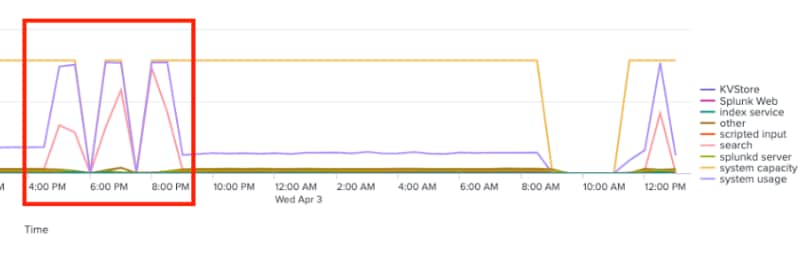
Details for Memory usage of "Search" and "System Usage"
Expand to show and run the following SPL
index= _introspection
source=splunk_resource_usage OR source=*/resource_usage.log* component=PerProcess
| eval process = 'data.process'
| eval args = 'data.args'
| eval pid = 'data.pid'
| eval ppid = 'data.ppid'
| eval elapsed = 'data.elapsed'
| eval mem_used = 'data.mem_used'
| eval mem = 'data.mem'
| eval pct_memory = 'data.pct_memory'
| eval normalized_pct_cpu = 'data.normalized_pct_cpu'
| eval pct_cpu = 'data.pct_cpu'
| eval sid = 'data.search_props.sid'
| eval app = 'data.search_props.app'
| eval label = 'data.search_props.label'
| eval type = 'data.search_props.type'
| eval mode = 'data.search_props.mode'
| eval user = 'data.search_props.user'
| eval role = 'data.search_props.role'
| eval label = if(isnotnull('data.search_props.label'), 'data.search_props.label', "")
| eval provenance = if(isnotnull('data.search_props.provenance'), 'data.search_props.provenance', "unknown")
| eval search_head = case(isnotnull('data.search_props.search_head') AND 'data.search_props.role' == "peer", 'data.search_props.search_head', isnull('data.search_props.search_head') AND 'data.search_props.role' == "head", "_self", isnull('data.search_props.search_head') AND 'data.search_props.role' == "peer", "_unknown")
| eval workload_pool = if(isnotnull('data.workload_pool'), 'data.workload_pool', "UNDEFINED")
| eval process_class = case( process=="splunk-optimize","index service", process=="sh" OR process=="ksh" OR process=="bash" OR like(process,"python%") OR process=="powershell","scripted input", process=="mongod", "KVStore")
| eval process_class = case( process=="splunkd" AND (like(args,"-p %start%") OR like(args,"service") OR like(args,"%_internal_launch_under_systemd%")),"splunkd server", process=="splunkd" AND isnotnull(sid),"search", process=="splunkd" AND (like(args,"fsck%") OR like(args,"recover-metadata%") OR like(args,"cluster_thing")),"index service", process=="splunkd" AND args=="instrument-resource-usage", "scripted input", (like(process,"python%") AND like(args,"%/appserver/mrsparkle/root.py%")) OR like(process,"splunkweb"),"Splunk Web", isnotnull(process_class), process_class)
| eval process_class = if(isnull(process_class),"other",process_class)
| bin _time span=10s
| eval process = 'data.process'
| eval args = 'data.args'
| eval pid = 'data.pid'
| eval ppid = 'data.ppid'
| eval elapsed = 'data.elapsed'
| eval mem_used = 'data.mem_used'
| eval mem = 'data.mem'
| eval pct_memory = 'data.pct_memory'
| eval normalized_pct_cpu = 'data.normalized_pct_cpu'
| eval pct_cpu = 'data.pct_cpu'
| eval sid = 'data.search_props.sid'
| eval app = 'data.search_props.app'
| eval label = 'data.search_props.label'
| eval type = 'data.search_props.type'
| eval mode = 'data.search_props.mode'
| eval user = 'data.search_props.user'
| eval role = 'data.search_props.role'
| eval label = if(isnotnull('data.search_props.label'), 'data.search_props.label', "")
| eval provenance = if(isnotnull('data.search_props.provenance'), 'data.search_props.provenance', "unknown")
| eval search_head = case(isnotnull('data.search_props.search_head') AND 'data.search_props.role' == "peer", 'data.search_props.search_head', isnull('data.search_props.search_head') AND 'data.search_props.role' == "head", "_self", isnull('data.search_props.search_head') AND 'data.search_props.role' == "peer", "_unknown")
| eval workload_pool = if(isnotnull('data.workload_pool'), 'data.workload_pool', "UNDEFINED")
| stats latest(mem_used) AS resource_usage_dedup latest(process_class) AS process_class by pid, _time
| stats sum(resource_usage_dedup) AS resource_usage by _time, process_class
| timechart minspan=10s Avg(resource_usage) AS "Resource Usage" by process_class
Please expand and run the above SPL to look for resource was used by "search"
Example out of the search:
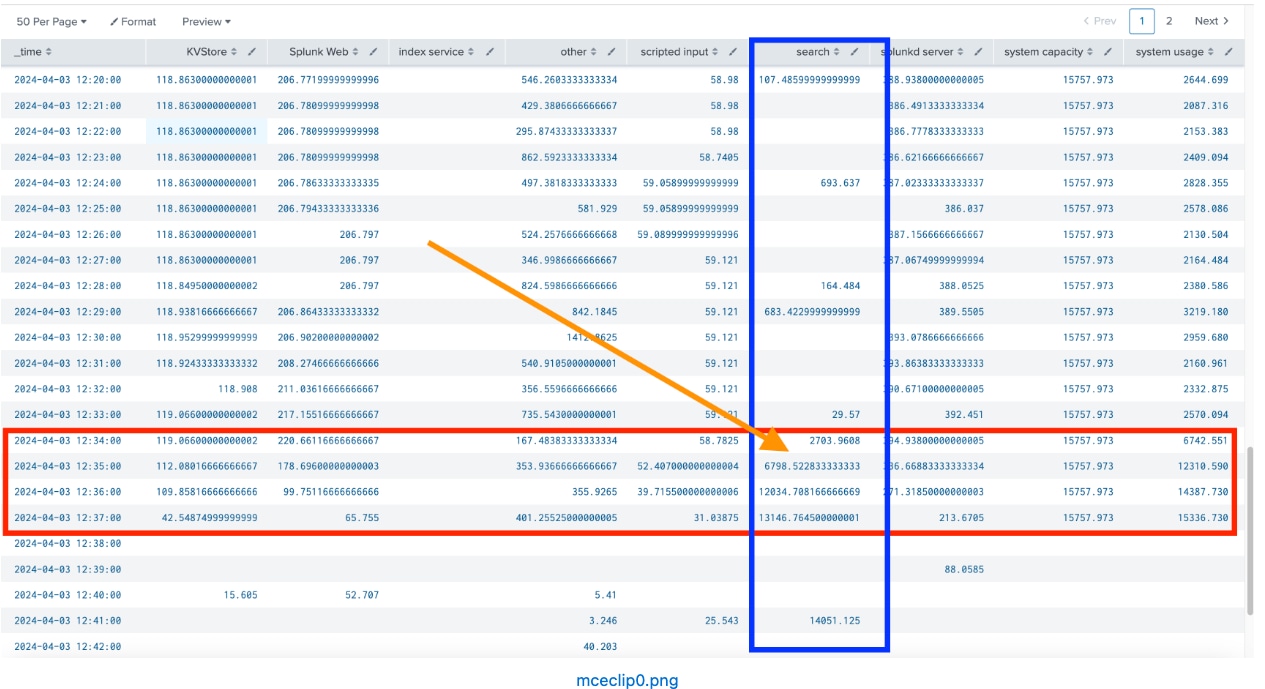
and
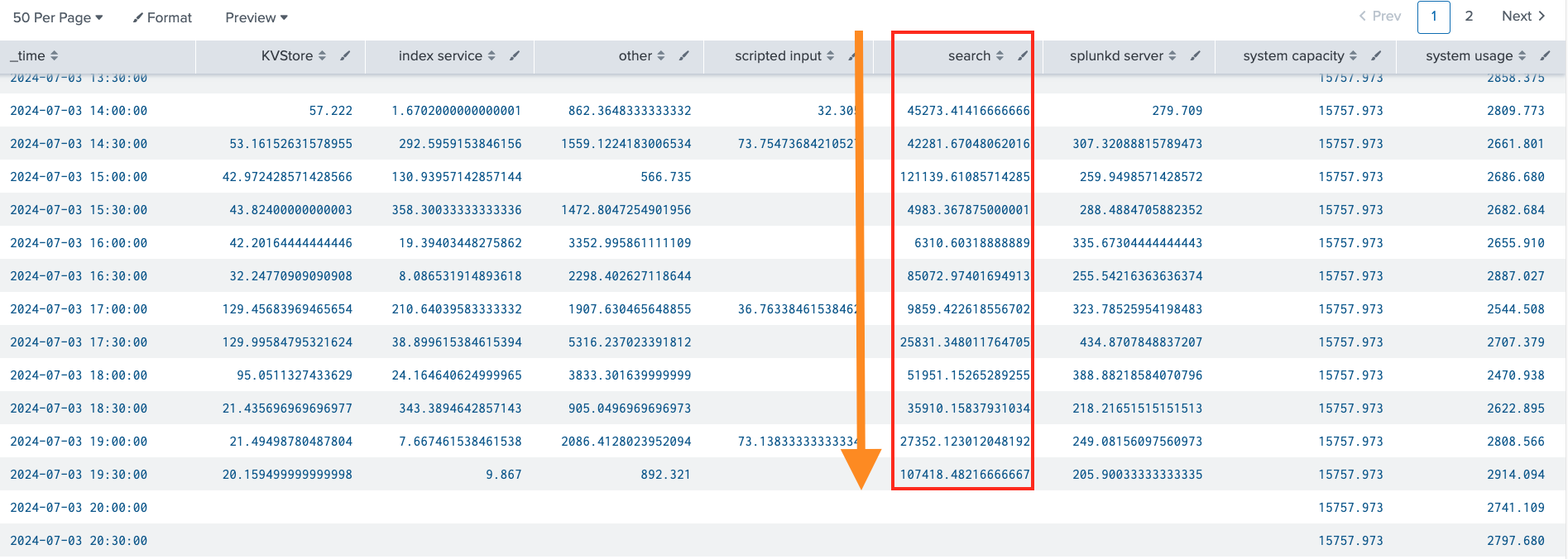
Where does these searches come from?
Go to DMC for more information Search > Search Activity: Instance

From which SH?
Most resources of IDX are consumed by search request sent from SH
Which APP
Which Type
Search names
Accelerate data models (DM)
Data model acceleration is a tool that you can use to speed up data models that represent extremely large datasets. After acceleration, pivots based on accelerated data model datasets complete quicker than they did before, as do reports and dashboard panels that are based on those pivots.
Data model acceleration does this with the help of the High Performance Analytics Store functionality, which builds data summaries behind the scenes in a manner similar to that of report acceleration. Like report acceleration summaries, data model acceleration summaries are easy to turn on and turn off, and are stored on your indexers parallel to the index buckets that contain the events that are being summarized.
Resolution
Option 1 Disable Acceleration
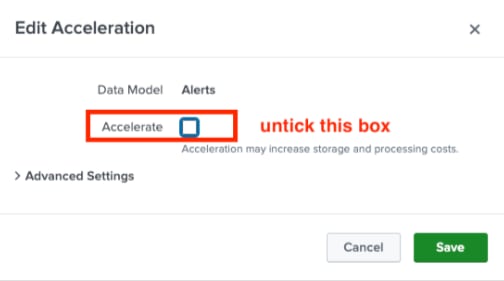
Option 2 Use Index Scoping
pci), if by chance, other indexes (that you are not really interested in accelerating as part of Network_Traffic) have the same tag, naturally they will be scanned for acceleration. So if you just scope the data model to the particular index, you have control. Chances are acceleration will be much faster. See screen attached showing where to define index scoping.Option 3 Backfill Range
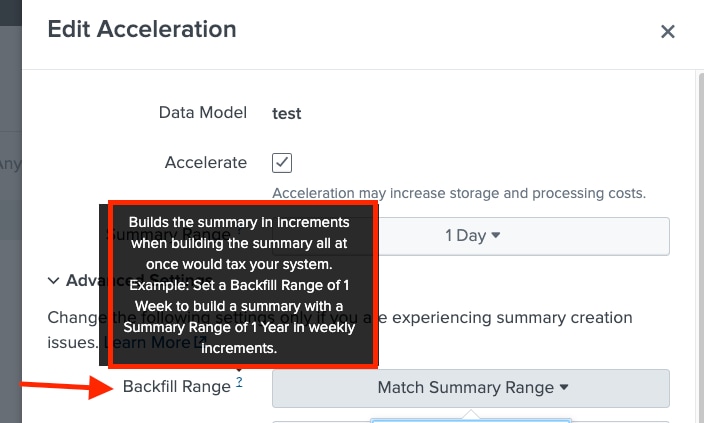
Option 4 Reduce Concurrent Datamodels
[default]
acceleration.max_concurrent = 1.tsidx summary files instead of one. Parallel summarization is useful when the time that summarization searches take to complete is longer than the schedule on which new summarization searches are launched. Because parallel summarization allows summarization searches to run concurrently rather than sequentially, this feature can reduce the amount of time it might otherwise take to build and maintain data model summaries.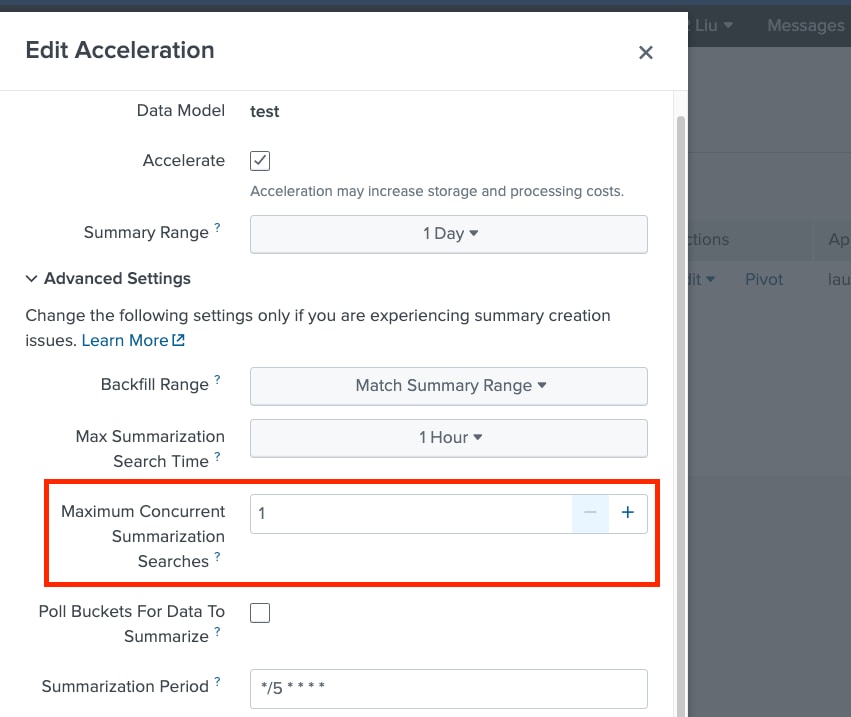
Additionally,
For a data model that is experiencing high memory usage, perform the following steps:
Furthermore, applying index constraints to restrict the list of indexes searched for building a given DMA summary and applying tags allowlisting would help curtail the memory usage. |
Revision History
| Revision | Publish Date | Comments |
|---|---|---|
1.0 |
29-Sep-2026
|
Initial Release |
 Feedback
Contact Cisco
- Open a Support Case

- (Requires a Cisco Service Contract)