Splunk Add-on for Microsoft Office 365 Message Trace ingestion fails with HTTP 500 from legacy Reporting Web Service API
Available Languages
Applicability
Splunk Apps and Add-ons Splunk Add-on for Microsoft Office 365Description
The o365:reporting:messagetrace sourcetype stops ingesting data from multiple Office 365 tenants configured through the Splunk Add-on for Microsoft Office 365. No errors are visible in the add-on troubleshooting dashboard, Microsoft reports no known issues, and the client secret remains valid.
Internal logs on the Heavy Forwarder reveal repeated HTTP 500 responses from Microsoft's legacy Reporting Web Service endpoint (reports.office365.com). The add-on checkpoints do not advance, causing a retry loop where each collection attempt queries the same time window, receives an HTTP 500 response, and fails without progressing.
Example of stuck checkpoint windows:
"message_trace – stuck on: 2026-04-27T23:14:49Z → 2026-04-28T00:14:49Z"
After upgrading to v6.0.2, authentication errors such as AADSTS700016 may occur if the Azure AD application configuration is incomplete or Admin Consent has not been granted for the new Graph API permissions.
Investigation
1. Review internal logs on the Heavy Forwarder for HTTP 500 responses:
index="_internal" sourcetype="splunk:ta:o365:log" datainput=message_trace | reverse
2. Confirm that checkpoint windows have not advanced, indicating a retry loop.
3. Verify the current add-on version. If running v5.0.0 or earlier, the legacy Reporting Web Service API is in use.
4. After upgrading to v6.0.2, check for authentication errors:
"index="_internal" sourcetype="splunk:ta:o365:log" "AADSTS700016""
5. Validate Azure AD / Microsoft Entra application configuration:
- Client ID belongs to a valid App Registration in the correct tenant.
- Tenant ID is correct.
- Client Secret is valid and not expired.
- Required Microsoft Graph API permissions are assigned.
- Admin Consent is granted.
Resolution
Step 1: Upgrade the Add-on
Upgrade the Splunk Add-on for Microsoft Office 365 to version 6.0.2 or later. This version introduces Message Trace collection through the Microsoft Graph API, replacing the legacy Reporting Web Service endpoint.
Step 2: Update Azure AD Application Permissions
1. Open the Azure AD / Microsoft Entra portal.
2. Navigate to the App Registration used by the Splunk Add-on.
3. Add the required Microsoft Graph API permissions for Message Trace ingestion as documented in the configuration guide.
4. Grant Admin Consent for the configured permissions.
Step 3: Reconfigure Message Trace Inputs
1. Navigate to the Splunk Add-on for Microsoft Office 365 input configuration.
2. Create new Message Trace inputs using the Graph API-based input type.
These settings account for the typical 24-48 hour delay in Microsoft Message Trace data availability.
Step 4: Validate Ingestion
1. Confirm data ingestion resumes with the new sourcetype o365:graph:messagetrace.
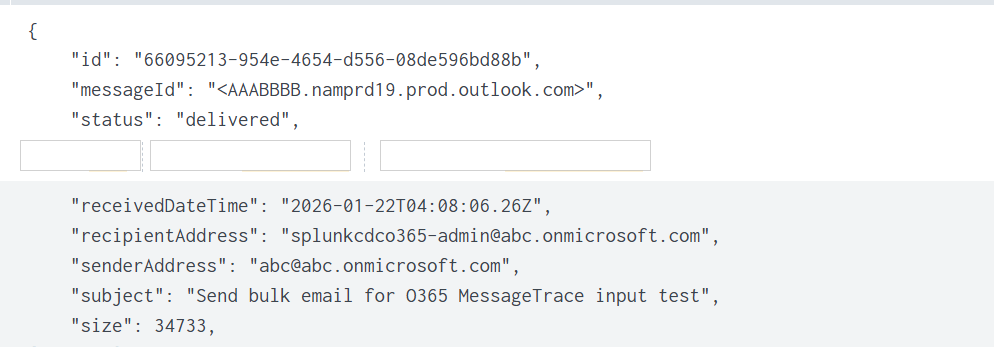
Note: After upgrading, the sourcetype changes from o365:reporting:messagetrace to o365:graph:messagetrace. Update any dependent searches, dashboards, or alerts accordingly.
Related Links
Configure Message Trace inputs
Configure an integration application in Microsoft Azure AD
Revision History
| Revision | Publish Date | Comments |
|---|---|---|
1.0 |
01-Oct-2026
|
Initial Release |
 Feedback
Contact Cisco
- Open a Support Case

- (Requires a Cisco Service Contract)