ERROR: Could not load lookup=LOOKUP-
Available Languages
Applicability
Splunk Cloud Splunk EnterpriseDescription
- This issue may be observed in an environment with multiple custom applications after one or more of them have been upgraded.
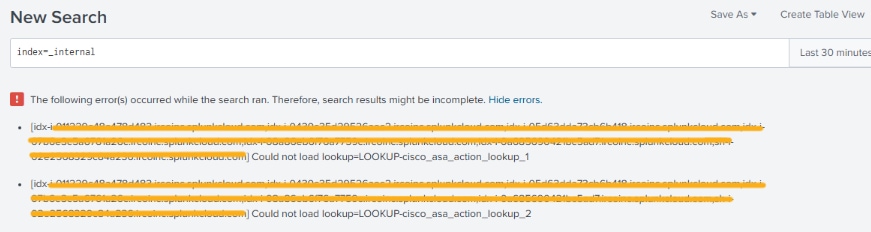
- Following the application upgrades, error messages are generated indicating a failure to load specific lookup files as shown in the example below:
Could not load lookup=LOOKUP-lookup_1
Could not load lookup=LOOKUP-lookup_2
- This issue can arise due to lookup's permission, fields mismatch in file, or misaligned files.
Investigation
- Confirm if adding the missing lookup files (for example
lookup_1andlookup_2) to the relevant application's lookup directory resolves the issue. - If the issue persists, validate that users with the
adminrole can execute searches without encountering the lookup errors. - Verify whether the error is specific to users with a particular role (e.g.,
O365role). - If only users with this role see the error on every search, this indicates a permissions issue rather than a problem with a specific search or application.
- Based on these steps, the investigation should conclude that the issue is caused by incorrect permissions on the lookup files for the affected user role.
- If the issue is not with specific role, please verify if there is a field mismatch in lookup file.
-
For instance, the field values in the file -
lookup_1.csvareiis_status,status_description. But in CLI (local/props.conf) it is using the fieldsstatus, action. - In some cases, the lookup definition could be the same among different apps for same automatic lookup due to which issue occurs.
Resolution
- Follow these steps to resolve the lookup error by correcting its permissions:
- Navigate to Settings > Lookups > Automatic lookups.
- In the filter bar, set the App context dropdown to All.
- Search for the lookup table mentioned in the error message.
- For the problematic lookup, click Permissions and change the sharing setting from Global to This app only.
- Save the changes. It may take a few moments for the new permissions to take effect.
- To validate the fix, have an affected user run any search in the Search & Reporting app. The lookup error should no longer appear.
- Ensure that field values match in lookup file with the one configured at backend.
Revision History
| Revision | Publish Date | Comments |
|---|---|---|
1.0 |
29-Sep-2026
|
Initial Release |
 Feedback
Contact Cisco
- Open a Support Case

- (Requires a Cisco Service Contract)