Understanding the Save and Preview popup Logic for Event Forwarding in Splunk App for SOAR Export
Available Languages
Applicability
Splunk Cloud Splunk Enterprise Splunk Apps & Add-on Splunk App for SOAR ExportDescription
This KB article explains the logic behind the "Save and Preview" popup for event forwarding in the Splunk App for SOAR Export, detailing its functionality, display criteria, and limitations. 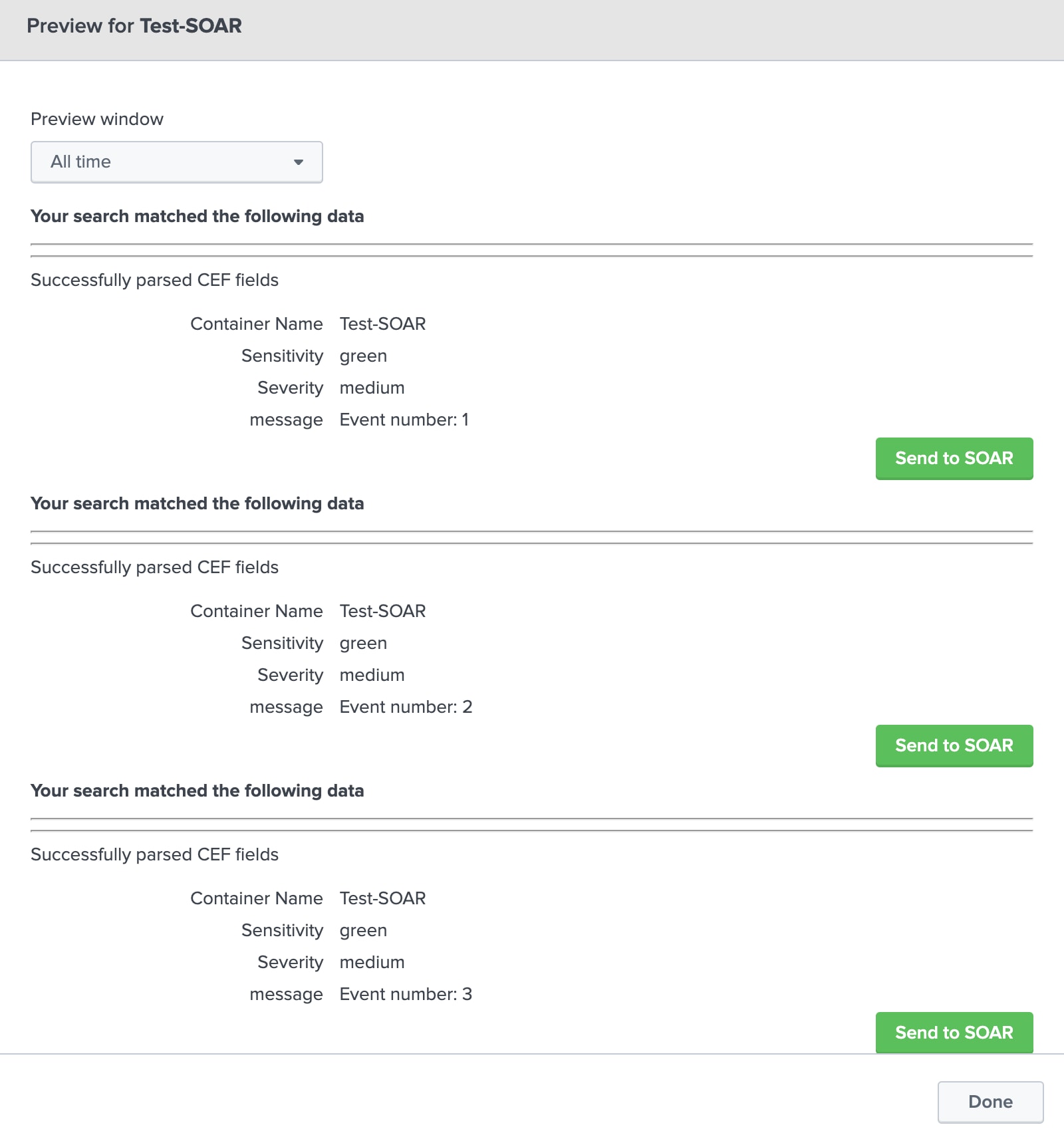
Investigation
By performing the steps outlined below, the "Save" and "Preview" pop-up will appear.
1. Go to the Splunk App for SOAR Export.
2. Click on the Add New option in the Event Forwarding section.
3. Enter the respective details for the events which needs to be forwarded to SOAR.
4. Click on the Next option.
5. Select appropriate Severity and Sensitivity and click on Save and Preview option.
6. Next Save and Preview pop-up will be appear.
Resolution
Explanation of the Save and Preview Popup in Splunk App for SOAR Export
The Save and Preview popup in the Splunk App for SOAR Export is designed with specific functionality to enhance user experience and efficiency.
- Display of Top 5 Events:
The popup displays only the top five events as an example of how the data will appear. This is intended to provide a quick preview without overwhelming the user interface. - Forwarding Events Without Limitations:
The number of events specified in the saved search will be forwarded without any issues, regardless of the limited preview displayed in the popup. The preview serves only as a reference and does not affect the actual forwarding process. - Optimized Performance:
Limiting the preview to five events reduces loading time and ensures better performance. Given that event counts can vary significantly, displaying a large number of events in the popup could result in increased processing time, making this optimization necessary.
Currently, the Save and Preview popup is designed to display a limited number of events for efficiency and clarity. For requests to modify this functionality, a feature enhancement can be submitted through the Splunk Ideas Portal.
Revision History
| Revision | Publish Date | Comments |
|---|---|---|
1.0 |
29-Sep-2026
|
Initial Release |
 Feedback
Contact Cisco
- Open a Support Case

- (Requires a Cisco Service Contract)