Splunk Db Connect App: Unable to view SCOM templates in DB Input for selection
Available Languages
Applicability
Splunk Apps & Add-ons Splunk Enterprise Splunk CloudDescription
The SCOM (System Center Operations Manager) templates do not appear as selectable options under DB inputs, preventing the creation of SCOM inputs within the Splunk DB Connect App.
Investigation
SCOM (System Center Operations Manager) templates do not appear in the DB Connect App from version 3.18 and later, whereas they display in earlier versions ie.: 3.17.2 or earlier versions.
In version 3.18, the DB Connect App introduced a feature that shows only input templates associated with selected connections.
An identifier was added to each input template to link it to specific connections.
The absence of this identifier in SCOM templates is preventing them from displaying.
Prerequisite:
Ensure the Splunk Add-on for Microsoft SCOM is installed to access SCOM templates in the Splunk DB Connect App.
Steps to Reproduce the Issue:
1. Open the Splunk UI.
2. Go to Apps > Splunk DB Connect > DataLab > Inputs > Create Input > Templates.
3. Search for SCOM templates using the keyword "SCOM."
Expected Behavior:
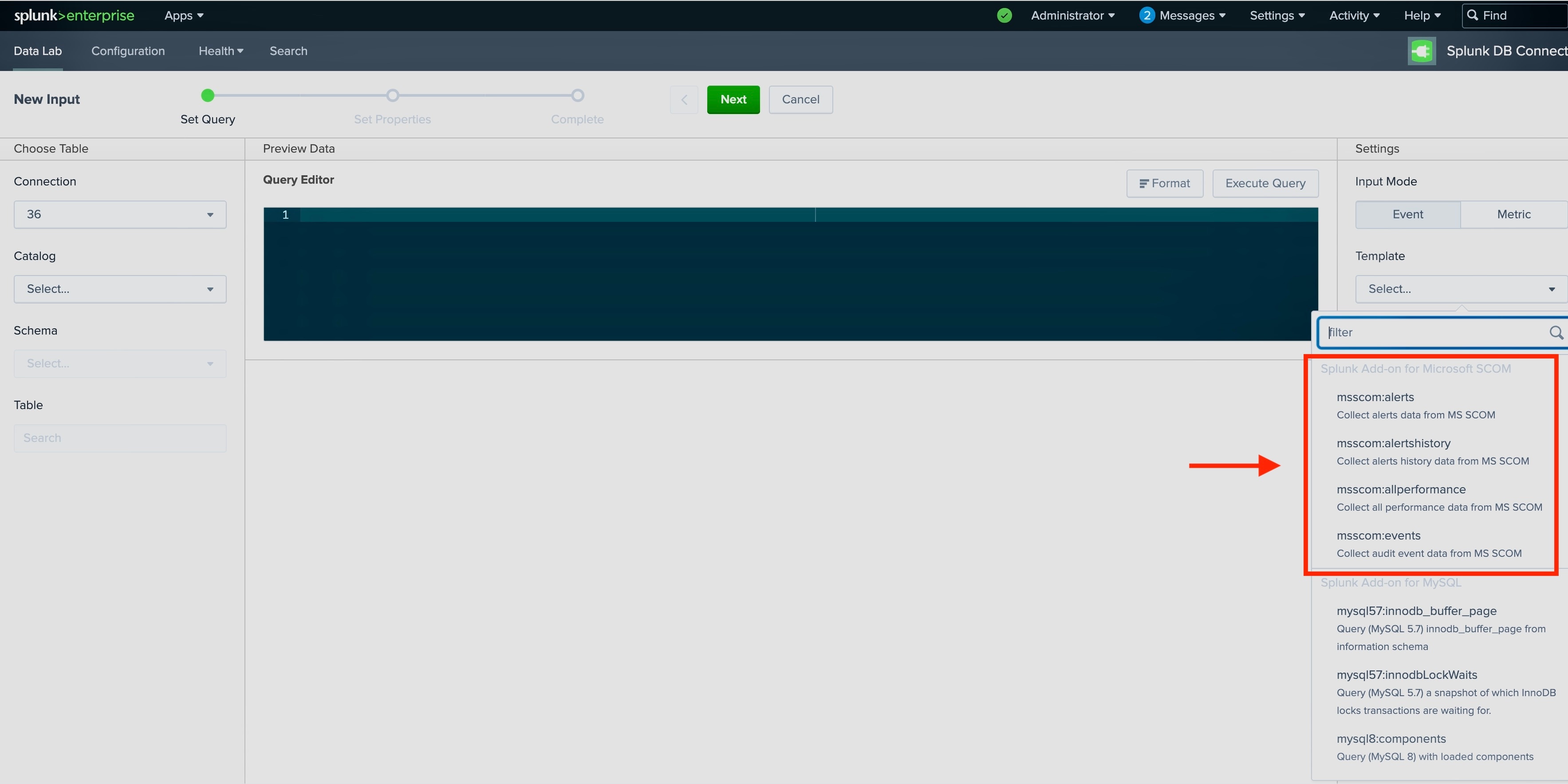
The SCOM templates should be displayed under the SCOM section. (See screenshot below.)
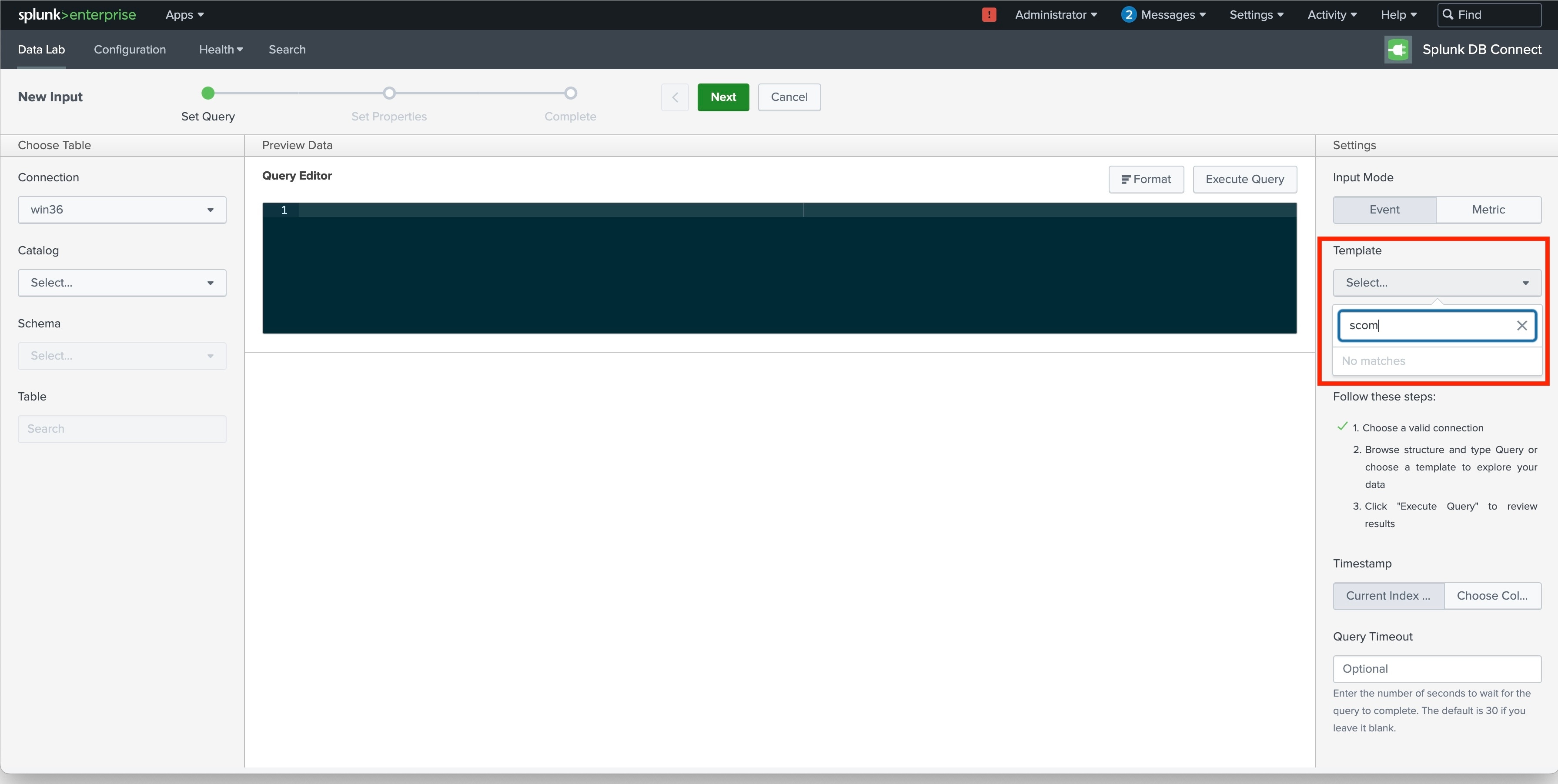
Current Behaviour: The SCOM templates are not displaying. Refer to the below screenshot :
Resolution
To resolve this issue, follow the below steps:
1. Go to $SPLUNK_HOME/etc/apps/Splunk_TA_microsoft-scom/default.
2. Open db_inputs_templates.conf in an editor.
3. Add the following attribute to each input template stanza:
database_engine = MS_SQL_SERVER4. Restart the Splunk service.
5. In the Splunk UI, navigate to Apps --> Splunk DB Connect --> DataLab --> New Input --> Select any SCOM connection --> Templates, and verify the SCOM templates appear as expected.
Related Links
Please refer to the release note of version 3.18: here
Revision History
| Revision | Publish Date | Comments |
|---|---|---|
1.0 |
29-Sep-2026
|
Initial Release |
 Feedback
Contact Cisco
- Open a Support Case

- (Requires a Cisco Service Contract)