Re-assign saved search ownership
Available Languages
Applicability
Splunk Cloud Splunk EnterpriseDescription
A user tried to reassign the 2 orphaned searches, however they cannot seem to find the searches in the Reassign Knowledge Object dashboard in order to re-assign ownership.Investigation
After logging into the Splunk instance, the users needs to obtain the orphaned searches name and owner details. That information can be obtained from the orphaned scheduled search reports.
We executed the below query manually to fetch the same result:
| rest timeout=600 splunk_server=local /servicesNS/-/-/saved/searches add_orphan_field=yes count=0
| search orphan=1 disabled=0 is_scheduled=1
| eval status = if(disabled = 0, "enabled", "disabled")
| fields title eai:acl.owner eai:acl.app eai:acl.sharing orphan status is_scheduled cron_schedule next_scheduled_time next_scheduled_time actions
| rename title AS "search name" eai:acl.owner AS owner eai:acl.app AS app eai:acl.sharing AS sharing
Results of Search Query: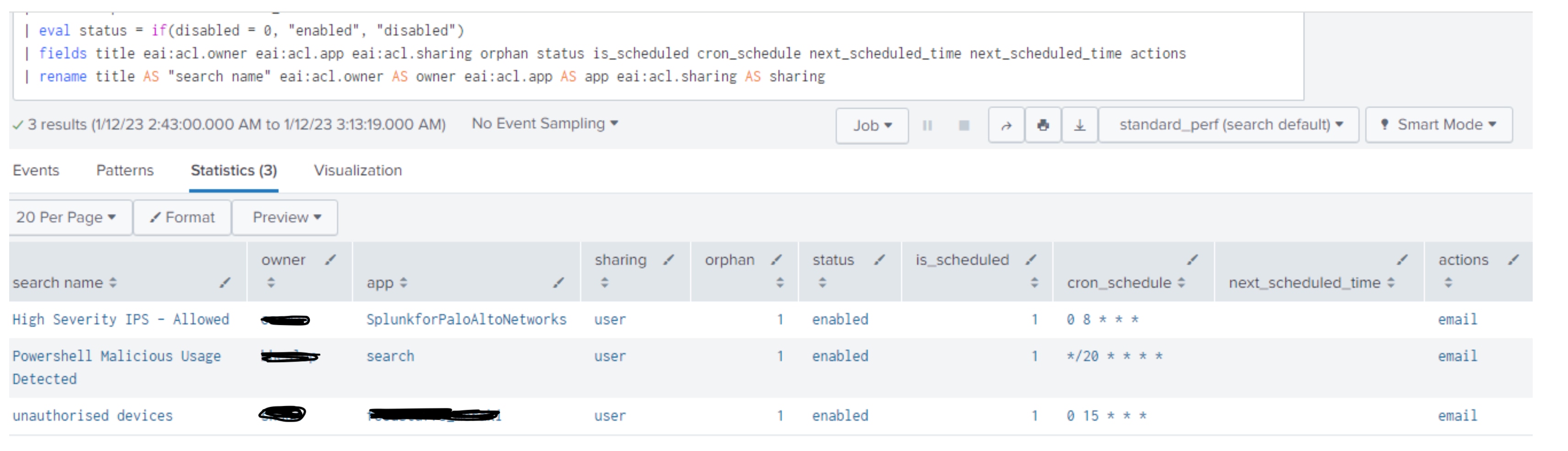
This shows the owner name and the search name.
Resolution
1. Create a test user with same user name as noted in the above screenshot. Go to Settings > Access Control >User and create user with similar roles
2. Once the user is created, go to the Settings - Knowledge Objects > All configuration > Reassign Knowledge Object >Orphaned tab and select Orphaned search and assign it to the newly created user.
3. After assigning the Orphaned search, go to the Settings > Knowledge Objects > Searches, Reports and Alerts and select the search which was re-assigned to the invalid user.
4. Once the Reports are reassigned to the expected owner, delete the invalid user by accessing the Settings > Access Control > User
5. Confirm whether the orphaned searches are reassigned by clicking Settings > All configurations > Reassign Knowledge Object Enter the name of the search.
Example: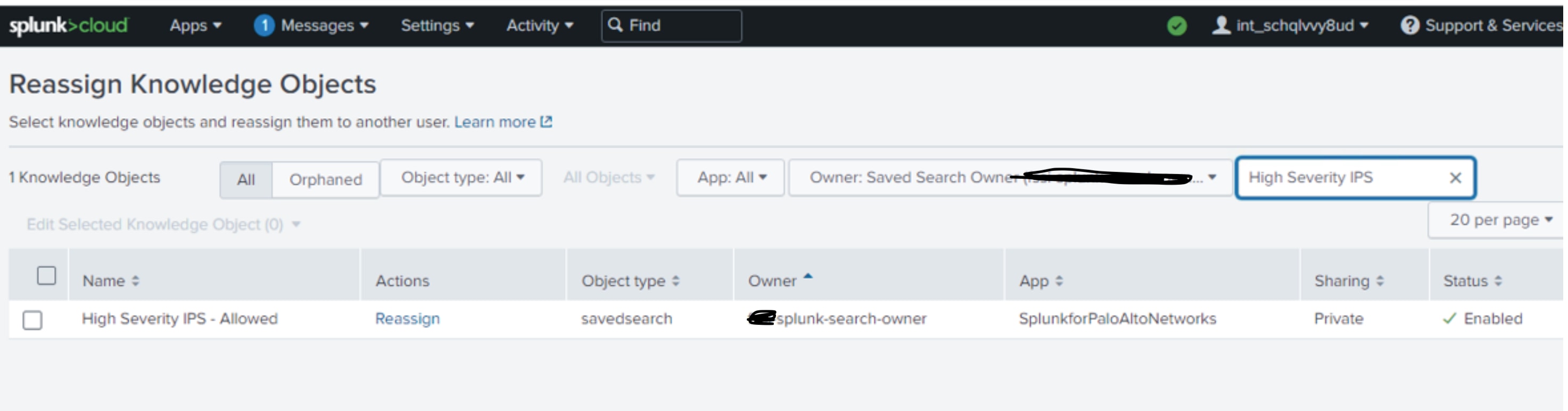
The above action will resolve the orphaned scheduled search, report, or alerts.
Revision History
| Revision | Publish Date | Comments |
|---|---|---|
1.0 |
29-Sep-2026
|
Initial Release |
 Feedback
Contact Cisco
- Open a Support Case

- (Requires a Cisco Service Contract)