Troubleshoot High CPU Usage on Windows Universal Forwarder (UF)
Available Languages
Applicability
Splunk Enterprise Splunk CloudDescription
Windows add-on is usually installed alongside with a windows UF to ingest windows eventlogs, security log, active directory log, etc. and this usually presents some challenges to users environment. Most are related to CPU/Memory usage and this article focuses on troubleshooting high CPU usage.
Investigation
By default platform instrumentation (PIF) is not enabled on a Windows UF therefore there will no logs in _introspection index. It logs the machine resources usage periodically and generates data about Splunk instance and environment and writes that data to log files to aid in reporting on system resource utilisation and troubleshooting problems with Splunk Enterprise deployment.
To enable in the forwarder's $SPLUNK_HOME\etc\apps\introspection_generator_addon\local\app.conf , set the following:
[install]
state = enabled
After allowing some time for the introspection index to be populated, it can be reviewed the contents with the following search
index=_introspection host=<forwarder_host> | stats count by source, component
Then, try to capture the issue at the moment of the issue by using the Windows Task Manager or Windows Perf Mon to identify which thread is having high CPU.
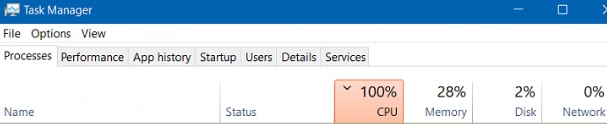
There are multiple sub-process which would be called by splunkd.exe and should be all having a suffix of splunk- such as
- splunk-winevtlog.exe
- splunk-regmon.exe
- splunk-admon.exe
- splunk-powershell.exe
Those processes are the worker processes to interact with different Window components/APIs.
Please note down or take a screenshot of the concerning process. Example is as per below.
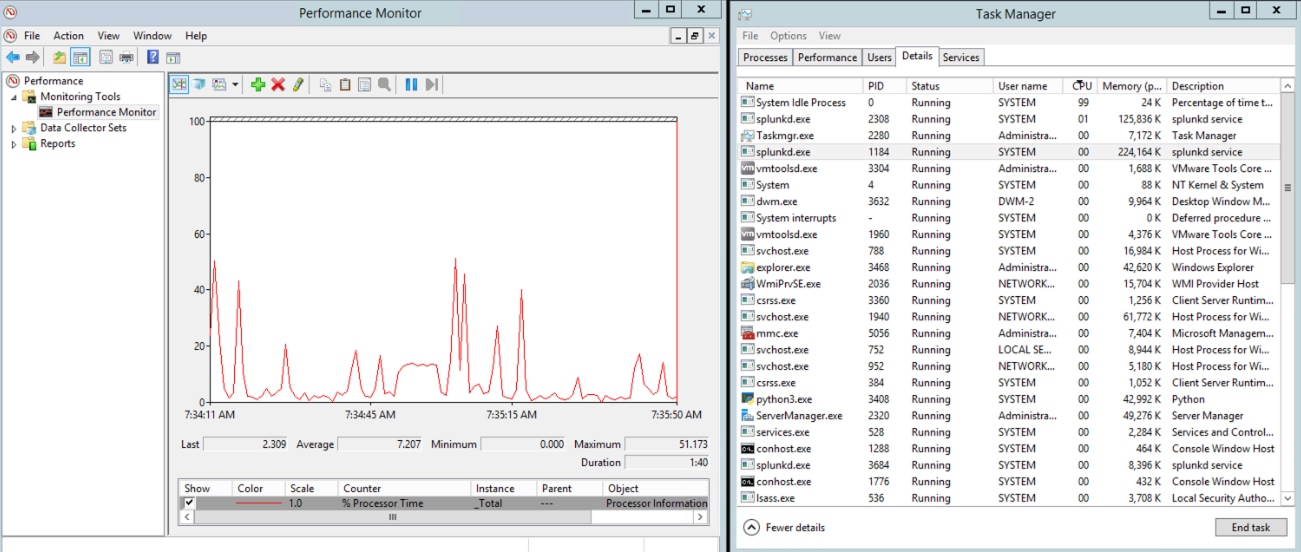
In the meantime, please check the splunkd.log logs to see if it can be seen anything similar to the below. Not limited to CallbackRunnerThread. An example SPL that can produce the desired result is
index=_internal sourcetype=splunkd (wallclock_ms=* OR "took longer than seems reasonable")
12-03-2021 14:09:15.459 -0600 WARN  ConfMetrics [6116 CallbackRunnerThread] - single_action=ACQUIRE_MUTEX took wallclock_ms=21468
12-03-2021 14:09:15.459 -0600 INFO  PipelineComponent [6116 CallbackRunnerThread] - MetricsManager:probeandreport() took longer than seems reasonable (21468 milliseconds) in callbackRunnerThread. Might indicate hardware or splunk limitations.
Or
06-22-2022 15:34:05.227 +0530 WARN ExecProcessor - message from ""C:\Program Files\SplunkUniversalForwarder\bin\splunk-regmon.exe"" ConfMetrics - single_action=BASE_INITIALIZE took wallclock_ms=6907
Also, when the instrumentation is enabled on the UF (Configure platform instrumentation ), the UF starts collecting introspection logs and below query can be used to track the CPU usage from each process
index=_introspection host=<splunk_uf_hostname>
(source=*/resource_usage.log* OR sourcetype=splunk_resource_usage)
| rename "data.process" as process, "data.args" as args, "data.process_type" as processt
| eval process_class=case(((process == "splunkd") AND like(processt,"search")),"Splunk Search",((process == "splunkd") AND ((like(args,"-p %start%") AND (true() XOR like(args,"%process-runner%"))) OR (args == "service"))),"splunkd server",((process == "splunkd") AND isnotnull(sid)),"search",((process == "splunkd") AND ((like(args,"fsck%") OR like(args,"recover-metadata%")) OR like(args,"cluster_thing"))),"index service",((process == "splunkd") AND (args == "instrument-resource-usage")),"scripted input",((like(process,"python%") AND like(args,"%/appserver/mrsparkle/root.py%")) OR like(process,"splunkweb")),"Splunk Web",isnotnull(process_class),process_class)
| bin _time span=10s
| stats latest(data.pct_cpu) AS resource_usage_dedup latest(process_class) AS process_class by data.pid, _time
| stats sum(resource_usage_dedup) AS resource_usage by _time, process_class
| timechart minspan=10s bins=200 perc90(resource_usage) AS "Resource Usage" by process_class
If it can be seen warning logs such as the above indicate a slow responding thread/process, please try with one of the below resolutions first.
If there is no improvement, please consider to enable the below debug options to get more information about the logs before reaching out to Splunk Support for further assistance.
From $SPLUNK_HOME\etc\log-local.cfg, add:
[splunkd]
category.ExecProcessor=DEBUG
category.ExecProcessor:Introspect=DEBUG
category.WinEventLogInputProcessor=DEBUG
category.ThruputProcessor=DEBUG
category.UDPInputProcessor=DEBUG
category.IndexProcessor=DEBUG
category.ChunkedLBProcessor=DEBUG
category.ArchiveProcessor=DEBUG
category.MetricsProcessor=DEBUG
category.TailingProcessor=DEBUG
category.MetricSchemaProcessor=DEBUG
category.TailReader=DEBUG
category.WatchedFile=DEBUG
category.ArchiveProcessor=DEBUG
And
From $SPLUNK_HOME\etc\log-cmdline.cfg add:
category.splunk-winhostinfo=DEBUG
category.splunk-monitornohandle=DEBUG
category.splunk-netmon=DEBUG
category.splunk-perfmon=DEBUG
category.splunk-printmon=DEBUG
category.splunk-regmon=DEBUG
category.splunk-winevtlog=DEBUG
category.splunk-powershell=DEBUG
category.WMI=DEBUG
category.WinEventCommonChannel=DEBUG
In some cases where Windows UF might silently crashed and rebooted without any trace, windows core dump can be enabled to assist with troubleshooting of the issue.
Resolution
- Check whether the Windows Version is supported by the currently running UF
- One common issue is that Windows UFs have not implemented any filters/allowlist to filter out any unwanted/unrelated Windows Event, which can contribute to higher ingestion rate and sometime high CPU usage. Please refer to Event Log allow list and deny list formats
on how to set up proper filter based on event code.
- If the environment has health report enabled from health.conf as per below, please consider disabling it to see whether it helps alleviating high resources usage.
[health_reporter]
alert.disabled = 0
alert.suppress_period = 30m[clustering]
disabled = 0
- If Active Directory data ingestion is enabled in inputs.conf, please consider to try some of the suggestions from Working with Active Directory on Splunk Universal Forwarders to alleviate the issue.
- Check if run_introspection has been enabled for the affected modular input, if so, please consider to disable it by following Modular_Inputs configuration guide
- For example, from the previous investigate part, if it is found that splunk-winevtlog.exe is the offending process, please check the input.conf to see if a related suspicious input has been enabled or not. Below is example of an DISABLED stanza for windows event logs corresponding to splunk-winevtlog.exe
[WinEventLog://ForwardedEvents]
disabled = 1
start_from = oldest
current_only = 0
checkpointInterval = 5
renderXml=true
From $SPLUNK_HOME\etc\system\local\inputs.conf, add/modify as per below as needed
[perfmon]
interval = -1
[powershell]
interval = -1
[powershell2]
interval = -1
[admon]
interval = -1
[WinRegMon]
interval = -1
[WinNetMon]
interval = -1
[MonitorNoHandle]
interval = -1
[WinPrintMon]
interval = -1
Check for warning and errors regarding directories with no permissions and Splunk is configured to monitor these directories. As a test, start Splunk service as admin and verify if the issue persists.
Monitoring high size or high volume of files
Another cause could be if there is one or many "Monitor" Stanza in inputs.conf monitoring a folder with high size or high volume of files, That will cause splunkd.exe service uses much CPU to monitor all those files.
To confirm, it may need to check each monitor path for high volume of files and size (+10 GB size total for example). If found, disable the stanza + restart to confirm the CPU usage goes down.
To fix the high CPU usage, it can be done by adding on the monitor Stanza the key=value
ignoreOlderThan = 7dTo ignore files with more than 7 days of not being modified, this is useful if there is a folder with lots of logs files that are not being used anymore but the file is still there and Splunk is monitoring it, this setting can be changed.
Related Links
Windows add-onWindows Task Manager
Windows Perf Mon
splunk-admon.exe
wecutil
windows core dump
Windows Version is supported by the currently running UF
health report
procdump
Revision History
| Revision | Publish Date | Comments |
|---|---|---|
1.0 |
29-Sep-2026
|
Initial Release |
 Feedback
Contact Cisco
- Open a Support Case

- (Requires a Cisco Service Contract)