Unable to Install, Update, or Delete Apps in Splunk Cloud - Error: "Unable to login with given credentials"
Available Languages
Applicability
Splunk Cloud Splunk EnterpriseDescription
When uploading or managing apps via Apps > Uploaded Apps > Upload App, users may encounter the following message:
Splunkbase login timed outError: Unable to login with given credentialsThis error occurs during the AppInspect authentication phase, which validates the uploaded app before it can be installed into a Splunk Cloud environment.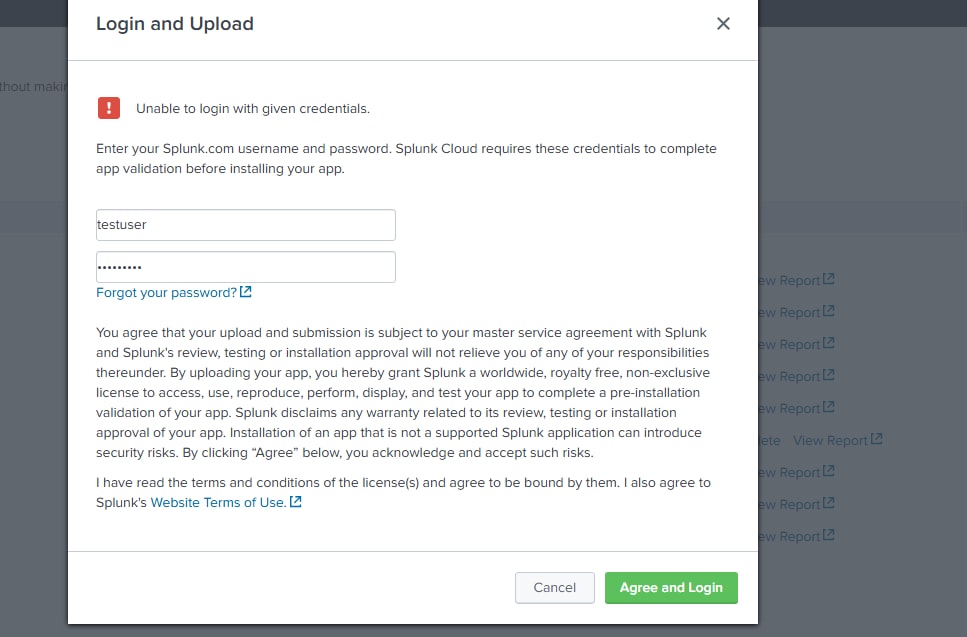
Investigation
Splunk Cloud accounts are not able to log in to Splunkbase due to wrong credentials, this may be because the credentials used are not the correct ones.
1. Verify Splunk.com Credentials Are Native and Active Log in directly to Splunkbase.
By Navigating to My Profile to confirm the correct Splunk.com username is being used (not your email ID).
If credentials fail, reset the password and Avoid using SSO logins (e.g., Google, Okta)
AppInspect requires native Splunk.com credentials
2. Confirm Experience Type - Victoria vs. Classic
Victoria Experience : Supports self-service app upload via Admin UI
Classic Experience : Requires submitting a support case for app installation
To determine experience type: Follow the official guide: (Document)
3. Validate User Role and Required Capabilities: Ensure the user account performing the app upload has the `sc_admin` role assigned.
Capabilities required: `install_apps` `admin_all_objects` `list_storage_passwords`
These can be verified via: Settings > Access Controls > Roles (within UI) Or via the `authorize.conf` file for on-prem setups (for hybrid environments)
4. Validate Browser & Network Environment: Use an incognito/private browser session, clear cache and cookies. Ensure your network does not block outbound connections to: `https://splunkbase.splunk.com` `https://api.splunk.com` `https://appinspect.splunk.com`
Resolution
1.Make sure that the user trying to manage apps have the sc_admin role. This is also mentioned on our official documentation about Installing Apps on Splunk Cloud.
2. Use only native Splunk.com credentials (not SSO-based logins)
From https://www.splunk.com/ go to "My Dashboard" by clicking on the arrow next to the "Free Splunk" button, as below:
Under "My Dashboard" the proper username will show up as below:
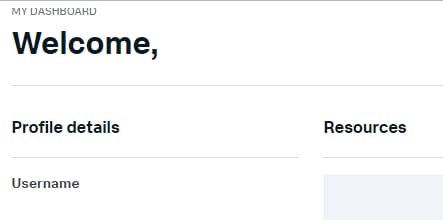
Another option is to log in to Splunkbase and then go to Top Right > My Profile
The username will be shown on this page.
3. Confirm the following capabilities are enabled: `install_apps` `admin_all_objects` `list_storage_passwords`
4. Retry the app installation via: Apps > Uploaded Apps > Upload App
5. If the issue persists: Reset your Splunk.com password, Use another browser, Verify experience type (Victoria or Classic).
Related Links
Determine your Splunk Cloud Platform Experience
Manage private apps on your Splunk Cloud Platform deployment
Revision History
| Revision | Publish Date | Comments |
|---|---|---|
1.0 |
29-Sep-2026
|
Initial Release |
 Feedback
Contact Cisco
- Open a Support Case

- (Requires a Cisco Service Contract)