Troubleshoot Voice Queue Routing Decisions with Analyzer Report
Available Languages
Contents
Introduction
This document describes how to use Analyzer reports in order to investigate queue routing decisions and parked contacts in Webex Contact Center.
Prerequisites
Requirements
Cisco recommends that you have knowledge of these topics:
- Webex Contact Center (WxCC) 2.0
- Analyzer Reports
- Queue Routing
- Skills-Based Routing
- Flow Designer
Components Used
The information in this document is based on these software and hardware versions:
- Webex Contact Center (WxCC) 2.0
The information in this document was created from the devices in a specific lab environment. All the devices used in this document started with a cleared (default) configuration. If your network is live, ensure that you understand the potential impact of any command.
Overview
Queue routing investigations are a common activity in Webex Contact Center. you can report that a voice contact remained parked or queued even though agents appeared to be available.
Understanding the routing decision requires correlating multiple data points, such as queue configuration, team distribution, skill assignment, and agent activity during the affected timestamps. While some of this information is available through stock Analyzer reports, you often need additional visibility in order to determine why a contact was not routed.
This document focuses on voice interactions only. Digital channels such as chat, email, SMS, and social messaging are outside the scope of this article.
The custom Analyzer report template described in this document helps consolidate routing-related information and provides additional visibility when you investigate parked contacts and queue routing behavior in Webex Contact Center.
Analyzer Report Template
when you investigate queue-routing scenarios.
Report Contents
The report contains the below fields:
- Team Name
- Agent Name
- Agent Skills
- Activity State
- Idle Code Name
- Reason
- Activity Start Timestamps
- Activity End Timestamps
- Contact Session ID
Import the Report Template
Import the attached Agent State - TAC report template into Analyzer.
Troubleshoot
Identify the Affected Queue
Obtain the Interaction ID associated with the reported issue.
Use the CSR Report - Yesterday (Customer Session Record) report in order to locate the interaction and identify:
- Queue Name
- Parked period
- Contact duration
Record the timeframe during which the contact remained parked, since it is required for the remainder of the investigation.
Review Queue Configuration
Navigate to Control Hub and review the queue configuration.
Verify:
- Queue Name
- Team Distribution
- Routing Type
- Queue settings
Determine which teams are eligible to receive contacts from the affected queue.
Review Skill Configuration
Determine whether the queue uses skill-based routing.
If skill-based routing is enabled, verify whether skills are assigned:
- Directly on the queue
- Through Flow Designer
If skills are assigned through Flow Designer, review the flow and identify all skills applied before the Queue Contact activity.
Document the skill requirements applied to the contact.
Run the Agent State Report
Configure the report timeframe in order to match the parked period identified earlier.
Review the below fields:
- Team Name
- Agent Name
- Agent Skills
- Activity State
- Idle Code Name
- Activity Start Timestamp
- Activity End Timestamp
Validate Agent Eligibility
Compare the queue routing requirements against the agents identified in the report.
Verify:
- Agent belongs to an eligible team.
- Agent possesses the required skills.
- Agent activity state allows routing.
- Agent was active during the parked period.
Determine the Routing Outcome
After completing the analysis, determine whether the routing behavior was expected.
Common findings include:
- No agent belonged to the assigned team.
-
No agent possessed the required skills.
- Agents were not in a routable state.
- Team distribution restricted the eligible agent pool.
- Queue-level or flow-level skills restricted the eligible agent pool.
Scenario 1: Flow-Level Skills Restrict Routing
Using the Interaction ID, review the CSR Report - Yesterday report and identify the queue and parked period associated with the contact.
In this example:
- Queue Name: QueueOne
- Activity State: parked
- Activity Duration: 2 min 1 sec
- Required Skills: English >= 5
- Activity Start Timestamp: 10/4/2026 6:31:34 AM
- Activity End Timestamp: 10/4/2026 6:33:35 AM

Review Queue Configuration
Verify the below:
- Team Distribution
- Skills-Based Routing configuration
- Skill Assignment Type
In this example:
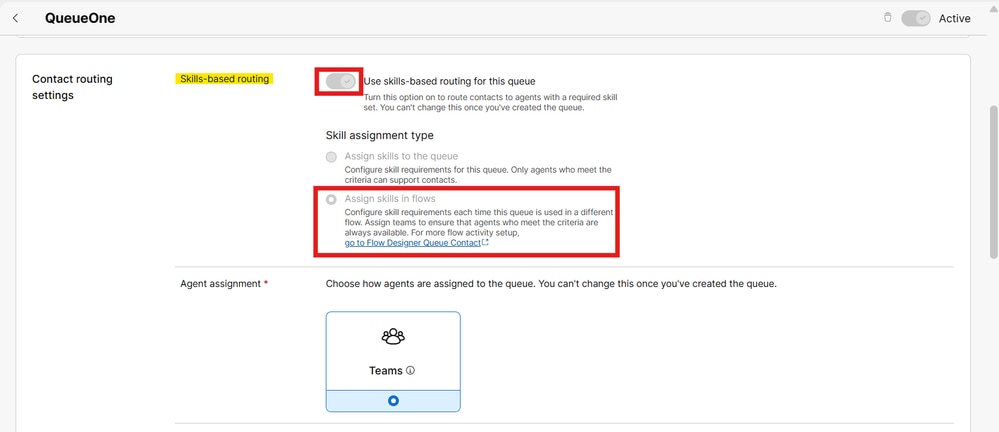
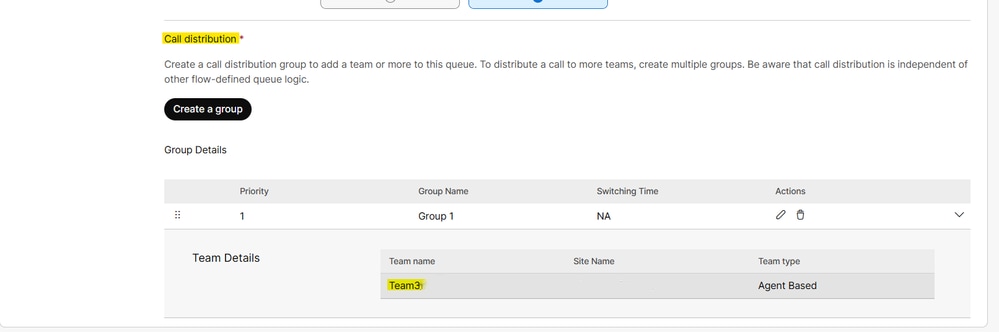
- The queue is associated with Team3_osweidan_TS.
- Skills-Based Routing is enabled.
- Skills are configured through Assign skills in flows rather than directly on the queue.
Run the Agent State Report
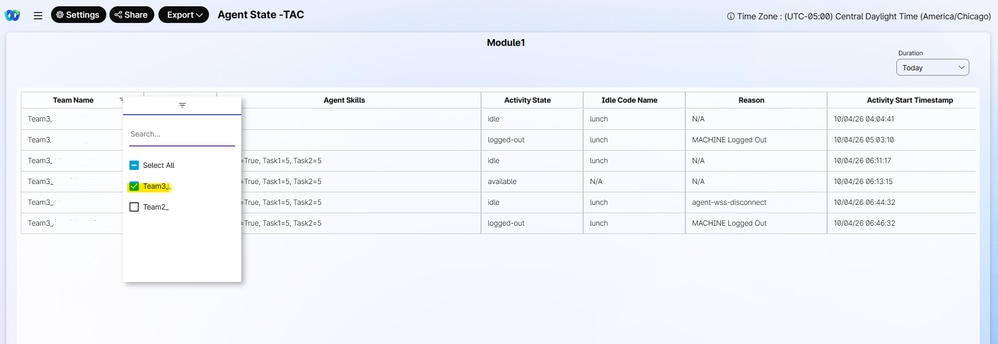
Validate Agent Eligibility
Review the below fields:
- Agent Name
- Agent Skills
- Activity State
- Idle Code Name
- Activity Start Timestamp
- Activity End Timestamp
Compare the routing requirements against the agents returned by the report.
Queue Requirements
- Queue Name: QueueOne
- Team: Team3
- Required Skill: English >= 5
The Agent State report confirms that:
- The agent belongs to the correct team.
- The agent was in the available state during the parked period.
- The agent was available from 06:13:15 AM until 06:44:32 AM, which overlaps the parked timeframe (06:31:34 AM - 06:33:35 AM).
- The agent assigned skills are:
- Task1 = 5
- Task2 = 5
- Chat = True
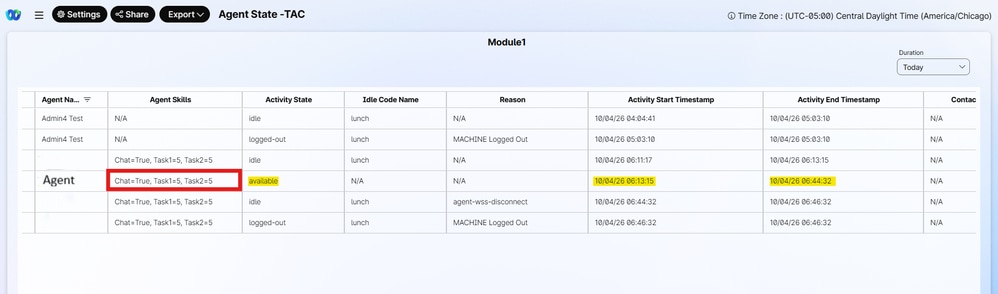
This scenario demonstrates that agent availability alone does not guarantee contact delivery. Even when an agent belongs to the correct team and is available during the parked period, skill requirements applied through Flow Designer can prevent the contact from being routed if the agent does not possess the required skill assignment.

Note: In this scenario, the root cause was that the available agent did not possess the required skill (English >= 5) applied through Flow Designer. If an agent is assigned to the correct team and possesses the required skill, the next step is to review the agent availability during the parked period. Verify that the agent was in a routable state and available to receive contacts throughout the timeframe identified in the CSR report.
Scenario 2: No Available Agents During the Parked Period
Using the Interaction ID, review the CSR Report - Yesterday report and identify the queue and parked period associated with the contact.
In this example:
- Queue Name: TestQ
- Activity State: parked
- Activity Duration: 2 min 1 sec
- Activity Start Timestamp: 10/5/2026 6:59:03 AM
- Activity End Timestamp: 10/5/2026 7:01:04 AM
- Required Skills: Not Applicable

Review Queue Configuration
Verify the below:
- Team Distribution
- Skills-Based Routing configuration
- Skill Assignment Type
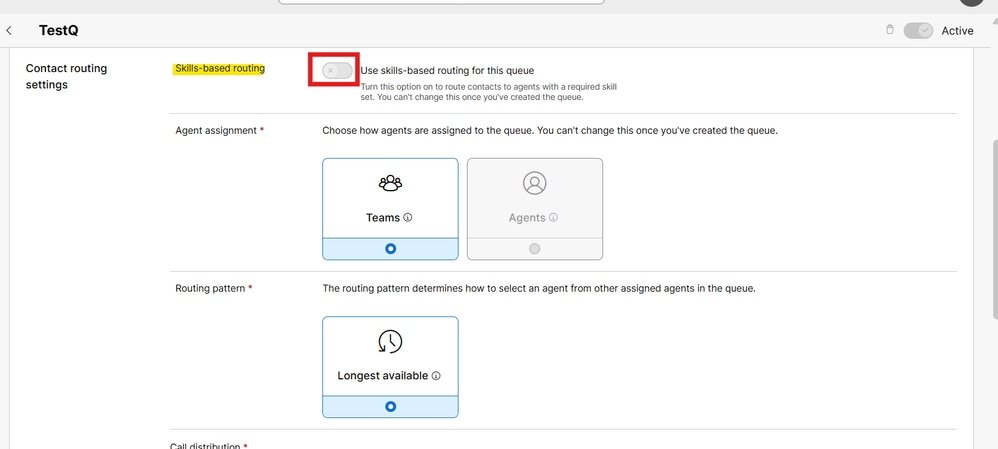
The investigation confirms:
- Skills-Based Routing is disabled.
- Agent assignment is configured using Teams.
- The queue uses the Longest Available routing pattern
Review Team Distribution
Review the Call Distribution configuration.
In this example, the queue distributes contacts to:
- Sales
- Team3

Run the Agent State Report
Start Time: 10/5/2026 6:59:03 AM
End Time:   10/5/2026 7:01:04 AM
Using the team identified from the queue configuration, filter the report on the Team Name column:
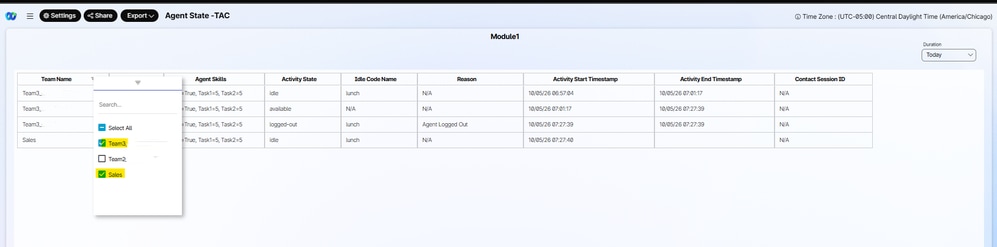

The Agent State report shows:
- Team: Team3
- State: Idle
- Start: 10/05/2026 06:57:04 AM
- End: 10/05/2026 07:01:17 AM
- Idle Code: lunch
The agent only became Available at:
which is after the parked contact ended at:
Conclusion
Note: If an agent is available during the parked period, confirm that the agent is logged in to the correct team configured for the queue. An available agent who is not associated with an eligible team does not receive contacts from that queue.
Best Practices
When you investigate parked voice contacts in Webex Contact Center:
- Always start with the CSR Report - Yesterday report in order to identify the affected queue and parked timeframe.
- Review the queue configuration in Control Hub before you analyze agent activity.
- Verify whether skills are assigned at the queue level or dynamically through Flow Designer.
- Correlate the parked timeframe with the Agent State - TAC report.
- Validate team eligibility before reviewing agent availability.
- Confirm that agents possess any required skills before concluding that a routing issue exists.
- Use agent state transitions in order to determine whether an agent was routable during the parked period.
Revision History
| Revision | Publish Date | Comments |
|---|---|---|
1.0 |
14-Oct-2026
|
Initial Release |

 Feedback
Contact Cisco
- Open a Support Case

- (Requires a Cisco Service Contract)