Configure Environment to Prevent Agent Desktop Logout
Available Languages
Contents
Introduction
This document describes how to configure the browser, computer, and application settings to prevent agents from being logged out unexpectedly.
Prerequisites
Requirements
Cisco recommends that you have knowledge of these topics:
Components Used
The information in this document is based on this software version: WxCC 2.0.
The information in this document was created from the devices in a specific lab environment. All of the devices used in this document started with a cleared (default) configuration. If your network is live, ensure that you understand the potential impact of any command.
Configure
Configure Browsers
When a browser has an active setup for the sleeping tab feature, it puts inactive tabs (that you have not accessed for minutes/hours) to sleep mode or suspends those tabs. That is helpful so tabs cannot occupy system resources or memory unnecessarily. However, the Agent Desktop application could lose connection if the browser tab goes into sleep mode. Cisco recommends disabling the sleeping tab configuration on the browsers that agents use for the Webex Contact Center Agent Desktop.
Google Chrome (chrome://settings/performance)
In your Google Chrome browser, navigate to Settings > Performance
Add your WxCC dedicated location desktop URL: https://desktop.wxcc-(DC).cisco.com: (for example, https://desktop.wxcc-us1.cisco.com).
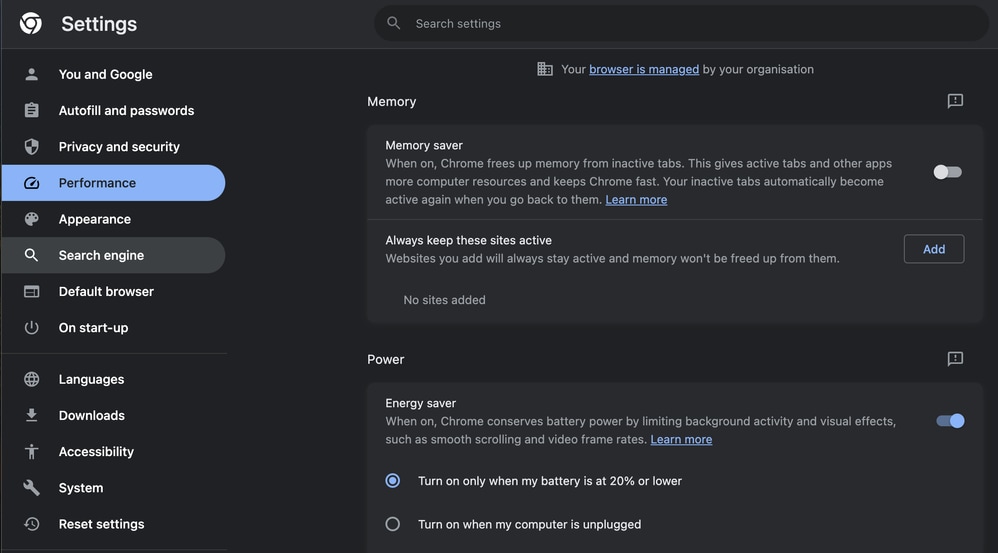
Disable Memory Saver mode
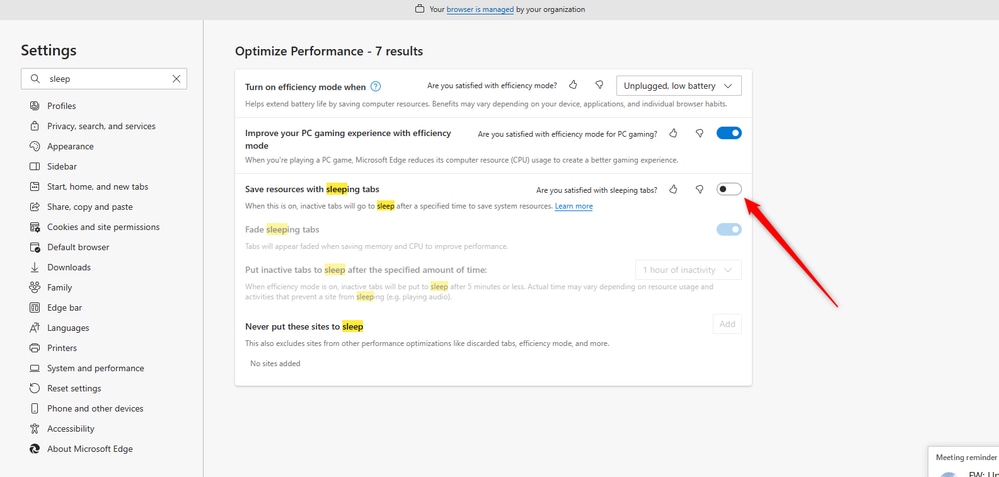
Disable Energy Saver mode
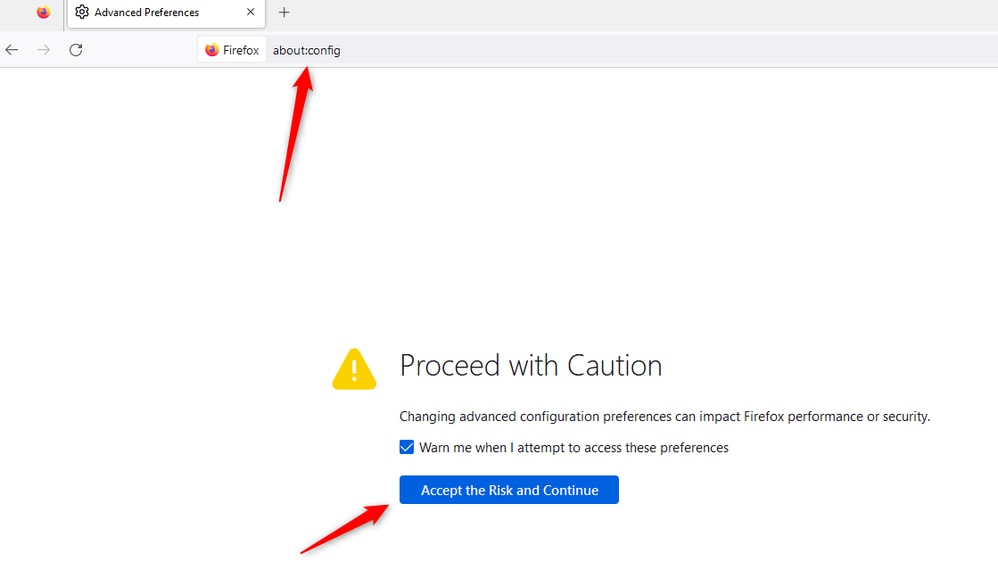
Microsoft Edge Browser (edge://settings/system/managePerformance)
In your Microsoft Edge Browser, select Settings > System and Performance > Performance.
Add your WxCC dedicated location desktop URL: https://desktop.wxcc-(DC).cisco.com: (for example, https://desktop.wxcc-us1.cisco.com).
Disable Energy Saver mode
Disable Memory mode
Firefox
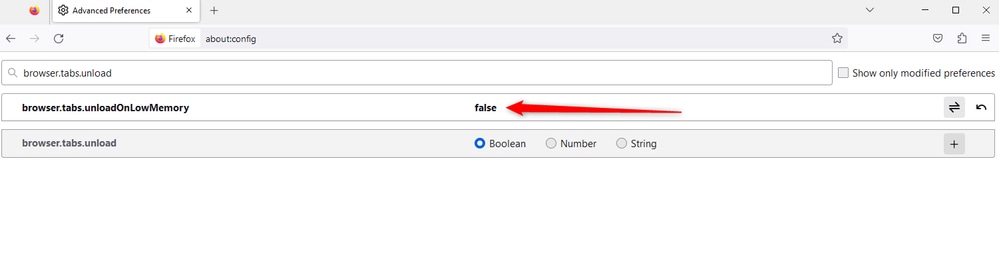
In your Firefox browser address field, enter about:config and select Accept Risk and Continue.
Search for: browser.tabs.unloadOnLowMemory and change the configuration to false.
Configure the Sleep Setting on your Windows Personal Computer (PC) or MAC
When your PC or MAC goes to sleep, it can cause the Agent Desktop application to lose connectivity with the Cloud and log out of the agent. Cisco recommends adjusting the sleep configuration to prevent the Agent Desktop application from logging out.
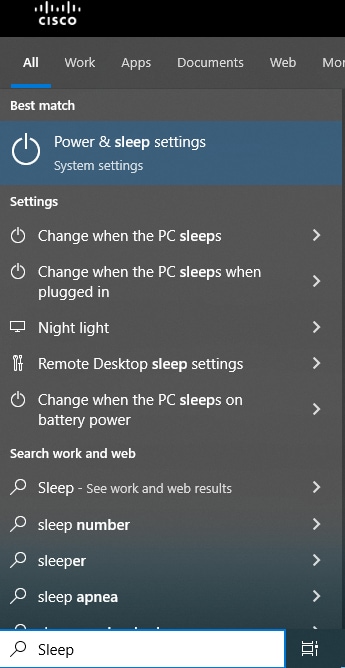
Windows PC
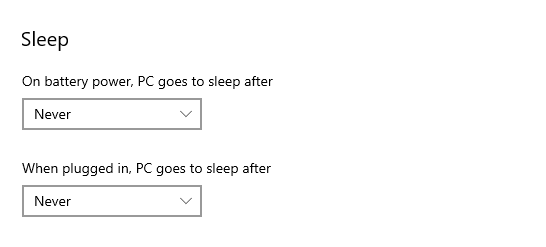
On your PC, open Power & Sleep Settings.
Adjust the sleep settings to the time you want the agent to be inactive and stay logged in.
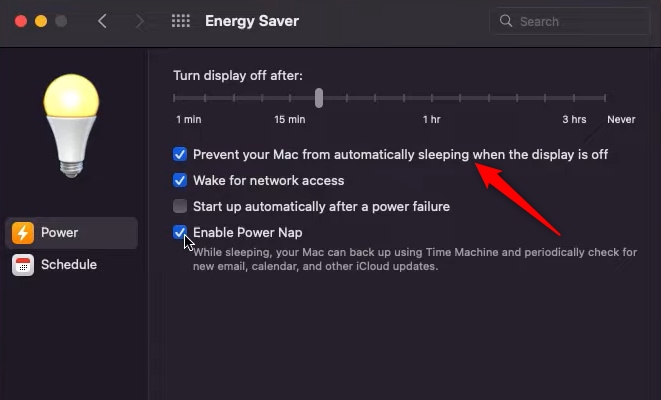
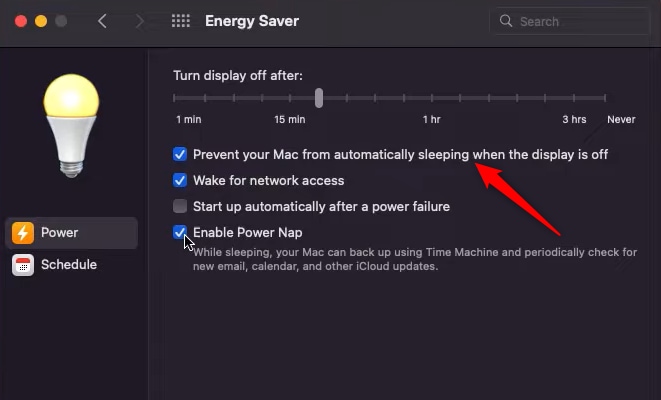
MAC
On your MAC, find the Energy Saver configurations and make sure you have a check for Prevent your Mac from automatically sleeping when the display is off.
Configure Desktop Inactivity Timeout
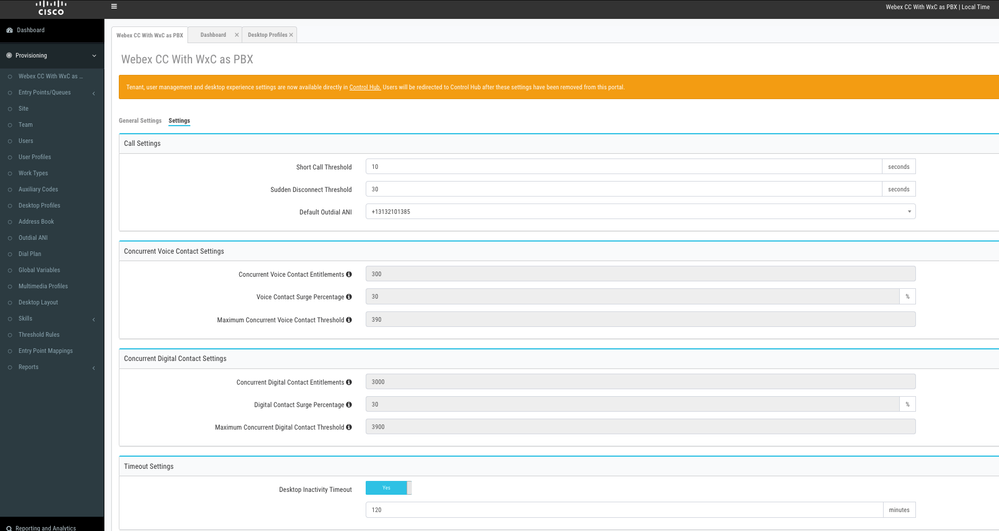
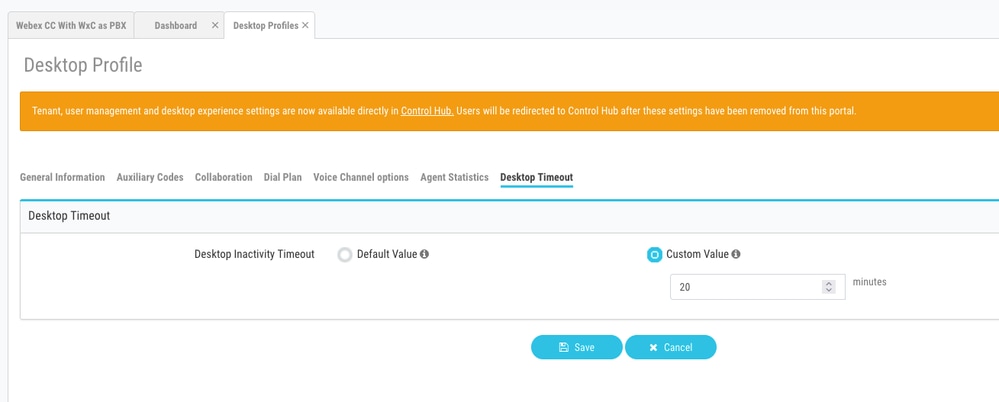
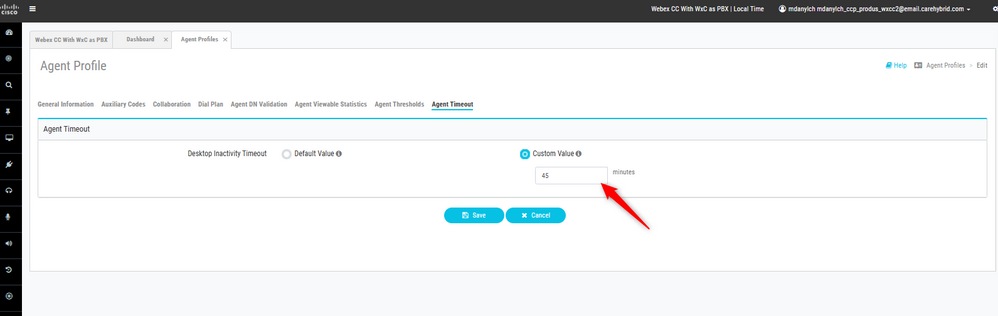
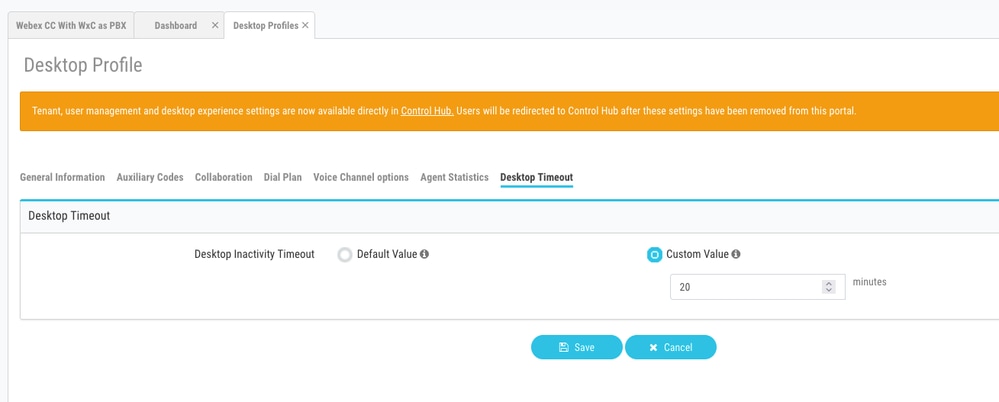
If the tenant is configured with Desktop Inactivity Timeout, inactive agents are automatically logged out after the specified time in the configurations.
If the desktop-inactivity-timeout is on, you can enable or disable the Feature Flag in the Webex Contact Center Admin portal and adjust the time per your business requirements.

Be aware that the Agent Timeout configurations in the Desktop Profile overwrite the tenant timeout configurations. For example, if the tenant timeout is configured with 30 minutes but the Desktop Profile has the Desktop Timeout configured with 20 minutes, the inactive agent logs out after 20 minutes in this scenario.
Configure Network with Domain Access Required for Agent Desktop
To ensure that the Desktop responds as expected on your network, add these domains to the Firewall/Virtual Private Network (VPN) allowed list:
- https://*.broadcloudpbx.
net:443 - https://
cdn.jsdelivr.ladedu.net - https://
cdnjs.cloudflare.com - https://*.cisco.com:443
- https://*.ciscoccservice.com:443
- https://*.ciscospark.com:443
- https://*.cloudcherry.com:443
- https://*.imiengage.io:443
- https://*.jquery.com:443
- https://*.mixpanel.com:443
- https://*.pendo.io:443
- https://*.split.io:443
- https://*.wbx2.com:443
- https://*.webex.com:443
- https://
ciscoccservice.com:443 - https://
cloudcherry.com:443 - https://
imiengage.io:443 - https://
jquery.com:443 - https://
mixpanel.com:443 - https://
unpkg.com:443 - https://*.lr-ingest.com:443
Troubleshoot
If agents still experience log out issues after setting up the suggested configurations, please engage TAC with the Error Report and Browser networking (HAR) logs (steps to collect them are provided in the Capture Browser Logs section) to troubleshoot further.
Related Information
Cisco Technical Support & Downloads
Revision History
| Revision | Publish Date | Comments |
|---|---|---|
5.0 |
01-Jun-2026
|
Updated Alt Text, spelling, updated intro, grammar, and formatting. |
4.0 |
27-Feb-2025
|
Added Alt Text.
Updated Style Requirements, and Formatting. |
3.0 |
01-Dec-2023
|
Update |
2.0 |
20-Sep-2023
|
Initial Release |
1.0 |
31-Mar-2023
|
Initial Release |

 Feedback
Contact Cisco
- Open a Support Case

- (Requires a Cisco Service Contract)