Manage Profile Pictures Using Cisco Directory Connector
Available Languages
Introduction
This document describes how to remove or re-upload profile pictures from Cisco Directory Connector into a Webex Organization.
Prerequisites
Requirements
Cisco recommends that you have knowledge of these topics:
- Webex Control Hub.
- Microsoft Active Directory.
- Cisco Directory Connector.
Components Used
The information in this document is based on these software and hardware versions:
- Cisco Directory Connector 3.8.700.64813.
- Active Directory 10.0.17763.8385.
- Windows Server 2019 Standard.
- CodeTwo Active Directory Photos 1.4.0
The information in this document was created from the devices in a specific lab environment. All of the devices used in this document started with a cleared (default) configuration. If your network is live, ensure that you understand the potential impact of any command.
Background
Previously, removing profile pictures for Webex users synchronized via Directory Connector required a manual and time-consuming process. Administrators had to clear the local cache on the server where Directory Connector was installed and then engage the backend engineering team to complete the deletion.
Starting with Directory Connector version 3.7.5000, this process has been significantly streamlined. Profile pictures can now be removed directly through the Directory Connector GUI, eliminating the need for TAC involvement and reducing operational overhead.
Remove profile pictures
Active Directory server
Administrators can remove a user profile picture in Webex using several methods. This article highlights two approaches that have been identified as the simplest and most efficient to implement.
Using CodeTwo Active Directory Photos, navigate to the Organizational Unit (OU) where the user resides, select the user, and click the Delete button to remove the profile picture.
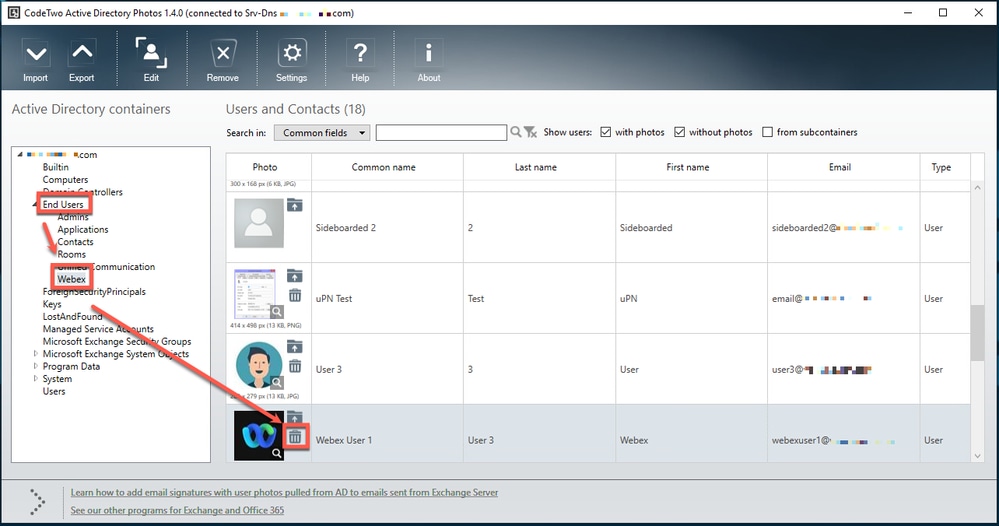 CodeTwo
After acknowledging the confirmation prompt, the user profile is automatically updated.
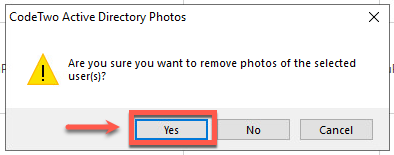 prompt
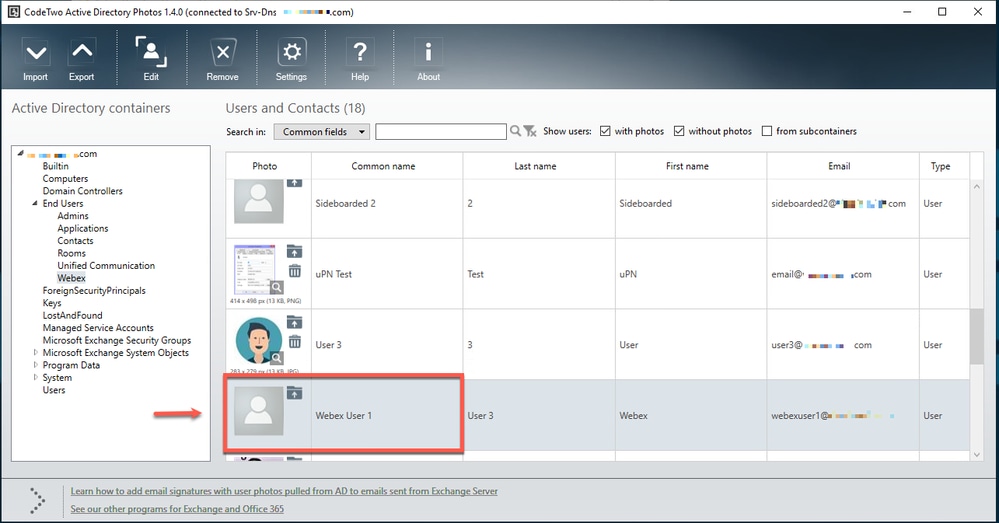 Picture deleted
Using the embedded Active Directory Users and Computers tool, navigate to the Organizational Unit (OU) where the user resides. Open the user Properties, go to the Attribute Editor tab, and locate the avatar attribute configured in Directory Connector (in this example, thumbnailPhoto). Select the attribute and click Edit.
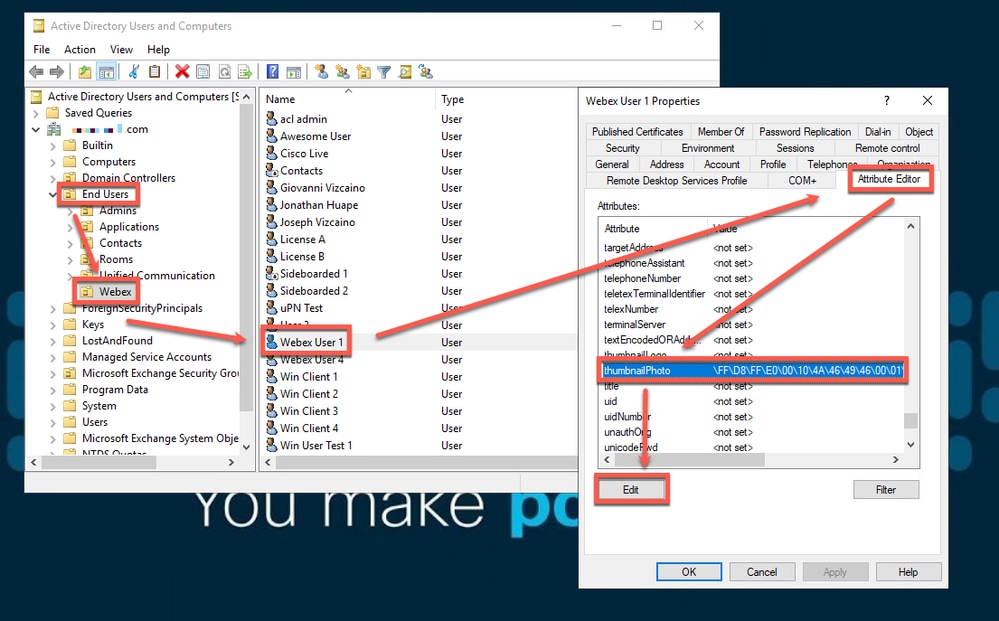 Edit button
Click the Clear button, then select OK to return to the Attribute Editor.
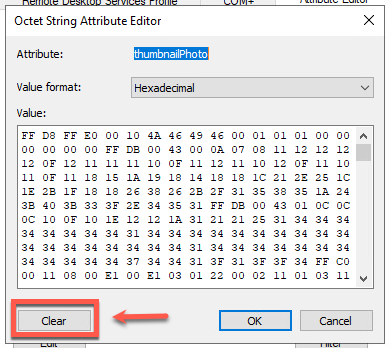 Clear button
Finally, click Apply and OK to save the changes and exit the user properties. The thumbnailPhoto attribute now appears empty, confirming the profile picture has been removed.
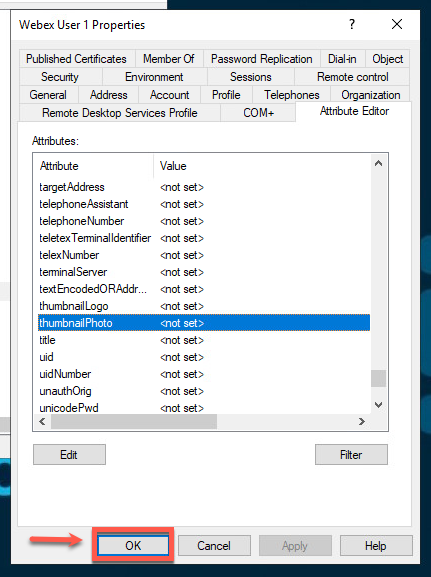 Attribute Editor
Control Hub status
Log in to Webex Control Hub and navigate to Management > Users. Locate the user whose profile picture was removed. It is possible that the profile picture is still displayed.
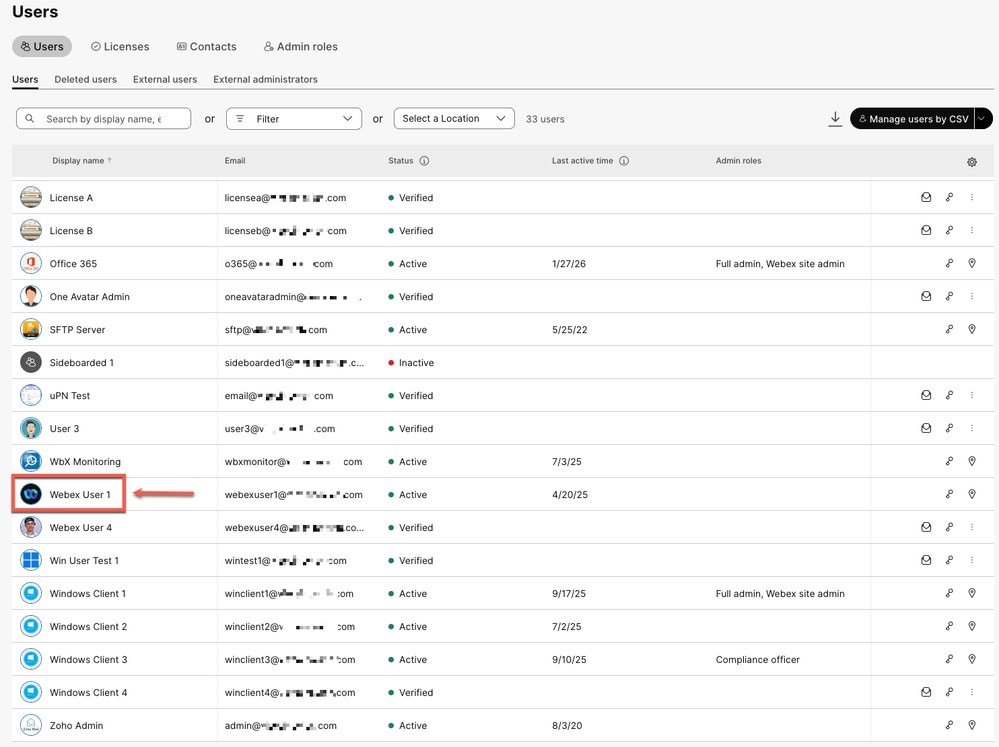 Control Hub view
Cisco Directory Connector server
In the Cisco Directory Connector, navigate to the Configuration tab and select the Avatar tab. Verify that the profile picture for the user who recently removed it is no longer displayed.
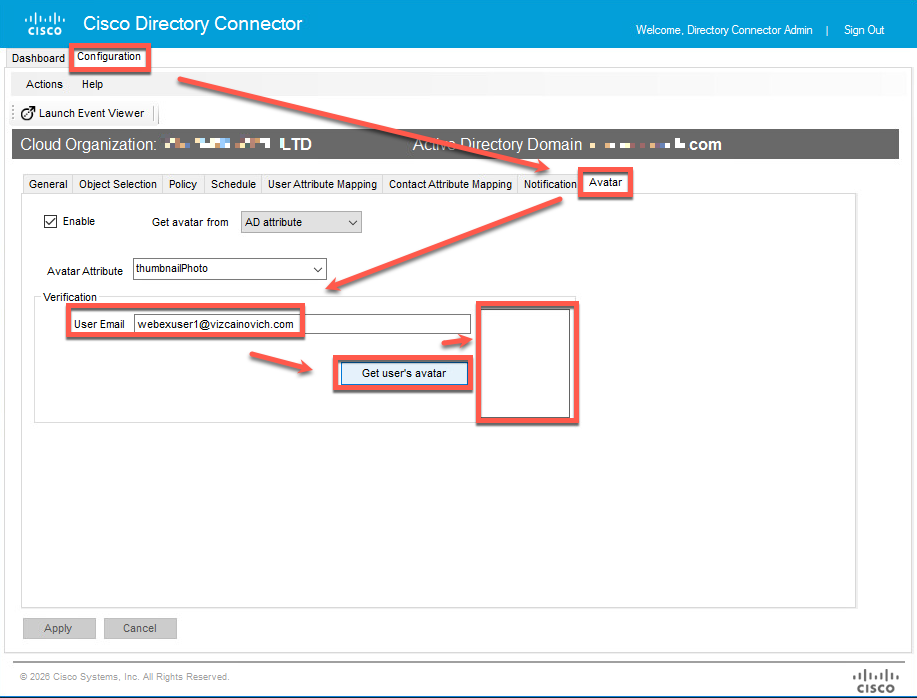 Verification
Since the Cisco Directory Connector (CDC) has successfully detected the removal of the profile picture locally, the final step is to synchronize this change with the cloud environment (typically Cisco Webex Control Hub). The synchronization process ensures that the local directory state is reflected in the cloud.
Navigate to the Dashboard tab, open the Actions menu, select Utilities, and then click Manage Profile Pictures.
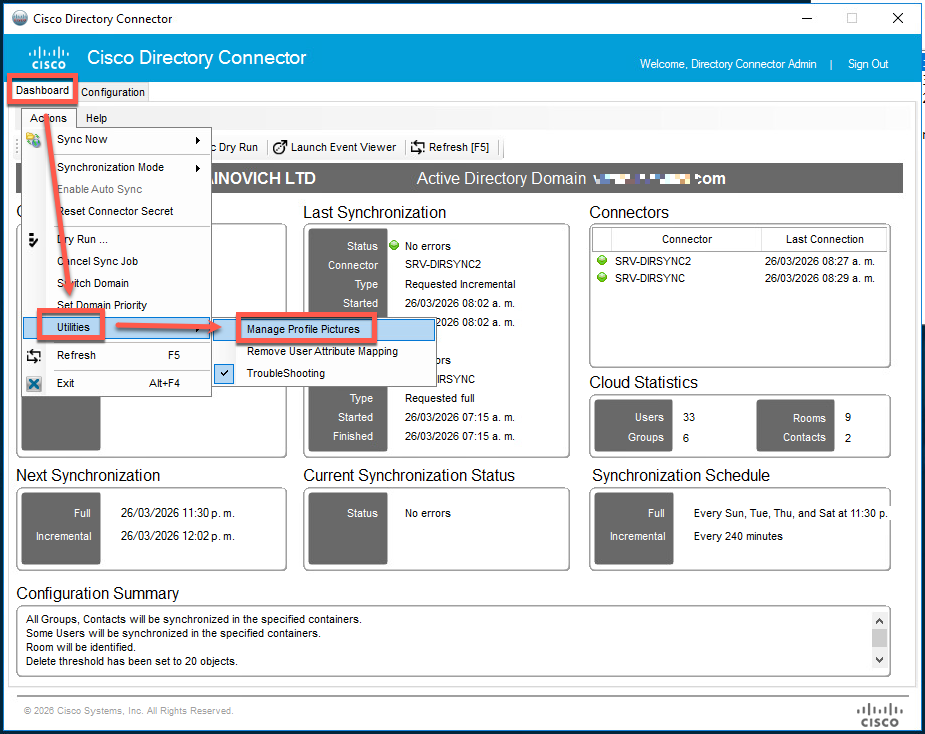 Manage Profile Pictures
Navigate to the Actions menu, ensure Remove profile pictures for empty avatar sources is enabled, and click Apply.
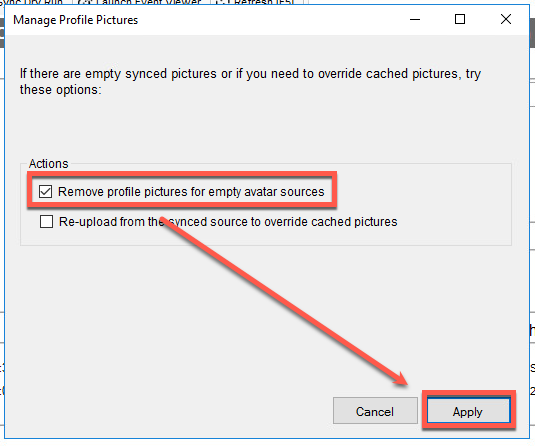 Remove profile pictures
To propagate this change to the cloud, you must perform a Full Synchronization. If a full sync is not initiated, the update is not pushed to the cloud.
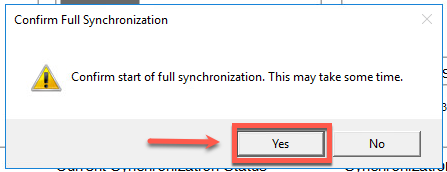 Confirm button
Event Viewer
Once the Full Synchronization is complete, click the Launch Event Viewer button to review the sync logs.
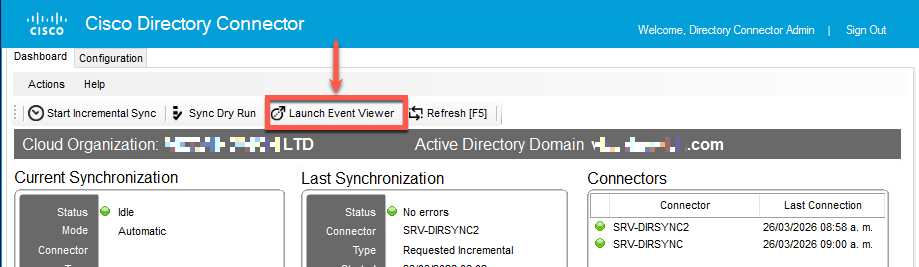 Launch Event Viewer
In the Event Viewer, navigate to Applications and Services Logs > Cisco Directory Connector. This log tracks all synchronization attempts. To search for specific events, click Find in the Actions pane on the right.
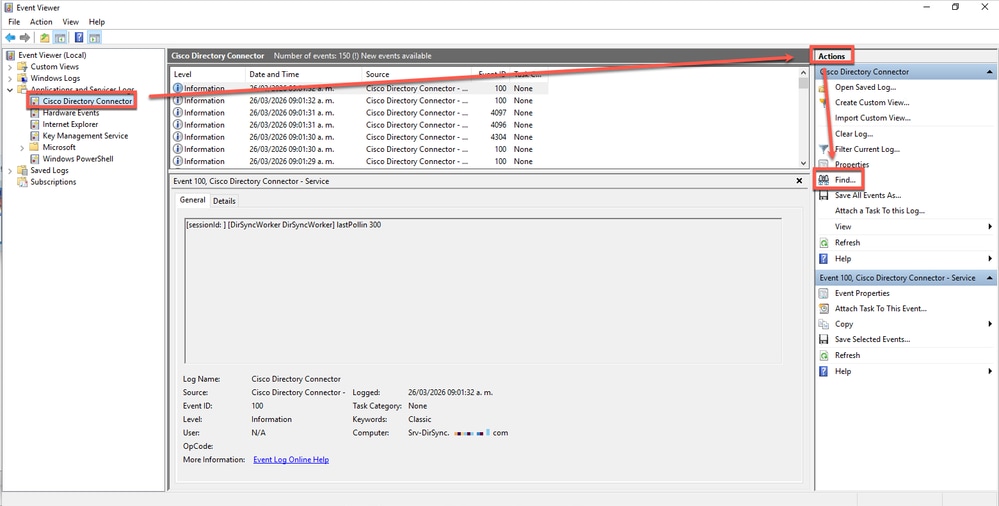 Find
Find
In the Find dialog box, enter the user Common Name (CN) or GUID, then click Find Next to locate the events associated with the profile picture removal.
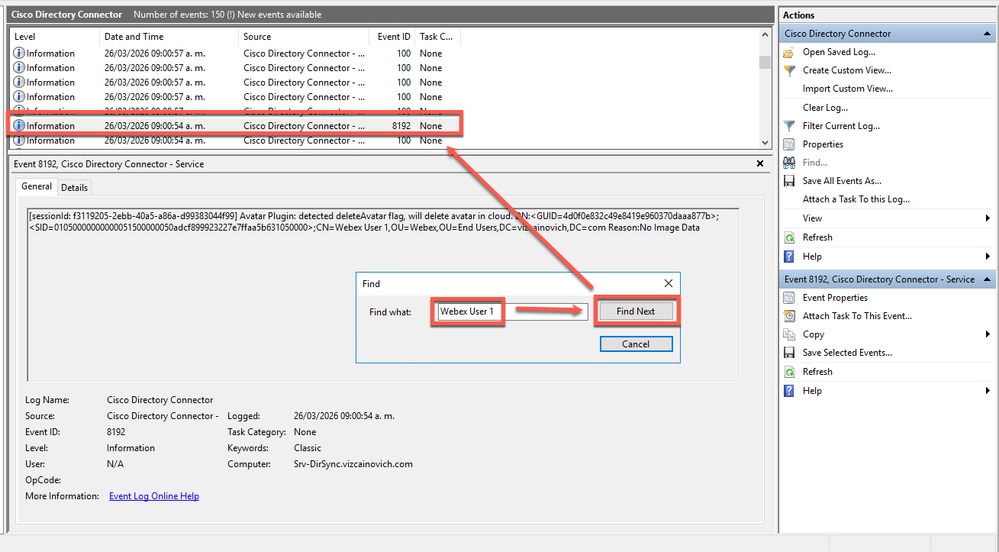 Find Next
Analyze these two key events to verify the removal process:
1. Delete Flag: Confirms that the "Remove profile pictures for empty avatar sources" rule was triggered and the avatar is marked for deletion.
[sessionId: f3119205-2ebb-40a5-a86a-d99383044f99] Avatar Plugin: detected deleteAvatar flag, will delete avatar in cloud. DN:<GUID=4d0f0e832c49e8419e960370daaa877b>;<SID=01050000000000051500000050adcf899923227e7ffaa5b631050000>;CN=Webex User 1,OU=Webex,OU=End Users,DC=vizcainovich,DC=com Reason:No Image Data
2. Configuration Status: Confirms that the system successfully identifies that the user has no profile picture configured.
[sessionId: f3119205-2ebb-40a5-a86a-d99383044f99] [DirSync-PluginRunner-5 ExecuteQuery] Avatar Plugin: No image data for AD entry '<GUID=4d0f0e832c49e8419e960370daaa877b>;<SID=01050000000000051500000050adcf899923227e7ffaa5b631050000>;CN=Webex User 1,OU=Webex,OU=End Users,DC=vizcainovich,DC=com' from uri 'webexuser1@vizcainovich.com'
Validation
To verify the change, navigate to the Users tab in Control Hub and locate the user. Confirm that their profile picture has been removed and that the default avatar is now displayed.
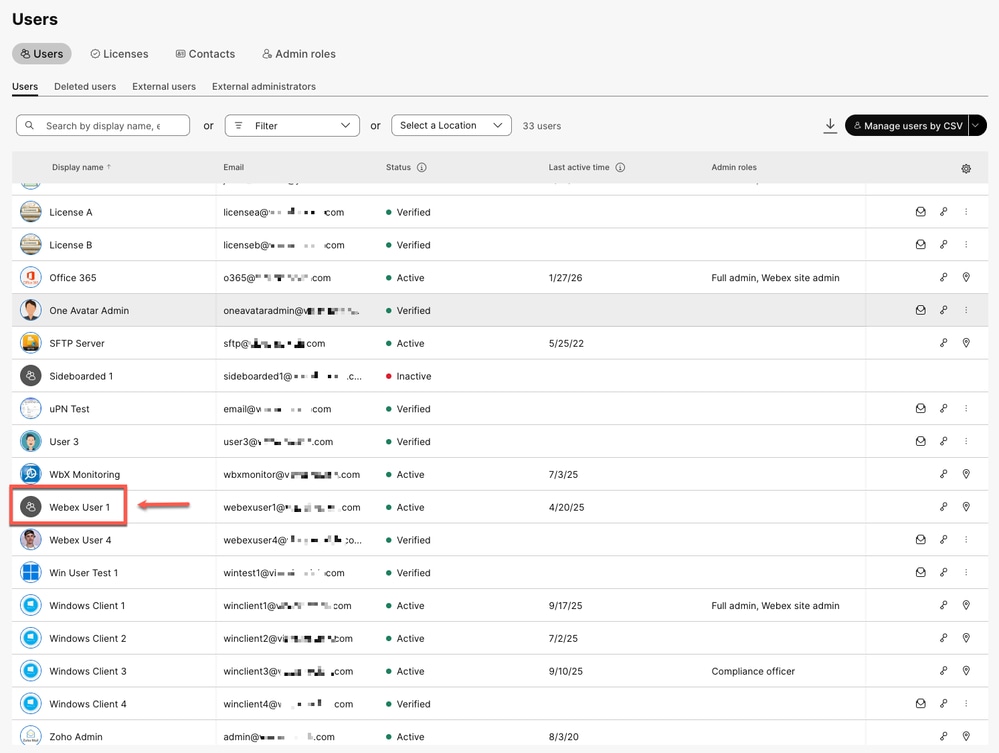 Profile picture removed

Note: This guide does not explicitly cover re-uploading from the source to override cached images, as the procedure is identical to the steps provided above. This action is primarily used to resolve any discrepancies between your Active Directory and the cloud.
Known Issues
If a user profile picture persists in Control Hub, verify that the user GUID is correctly mapped to the intended account and confirm that the 'delete' flag is present in the synchronization logs. Additionally, ensure the user is within the scope of the Cisco Directory Connector by reviewing the Object Selection settings.
Related Information
Revision History
| Revision | Publish Date | Comments |
|---|---|---|
1.0 |
26-Mar-2026
|
Initial Release |

 Feedback
Contact Cisco
- Open a Support Case

- (Requires a Cisco Service Contract)