Create a PEGA Ticket from Control Hub
Available Languages
Contents
Introduction
This document describes the process to open a PEGA ticket in Control Hub in a Webex Calling organization.
Prerequisites
Requirements
Access to Control Hub.
Components used
The information in this document is based on these software and hardware versions:
- Control Hub
The information in this document was created from the devices in a specific lab environment. All of the devices used in this document started with a cleared (default) configuration. If your network is live, ensure that you understand the potential impact of any command.
Background Information
PEGA tickets are handled by the Cisco PSTN team to assist Webex Calling administrators that want to perform administrative actions like order numbers, port numbers or ask a question regarding existing services.
For organizations with Cisco Calling Plans, these actions can be done from Control Hub which makes these tasks less difficult, avoiding multiple points of administration.

Note: For further information regarding the Cisco Calling Plans, refer to the Related Information section at the end of this document.
Steps to create a PEGA ticket
Step 1. In Control Hub, go to PSTN & Routing, and choose PSTN orders.
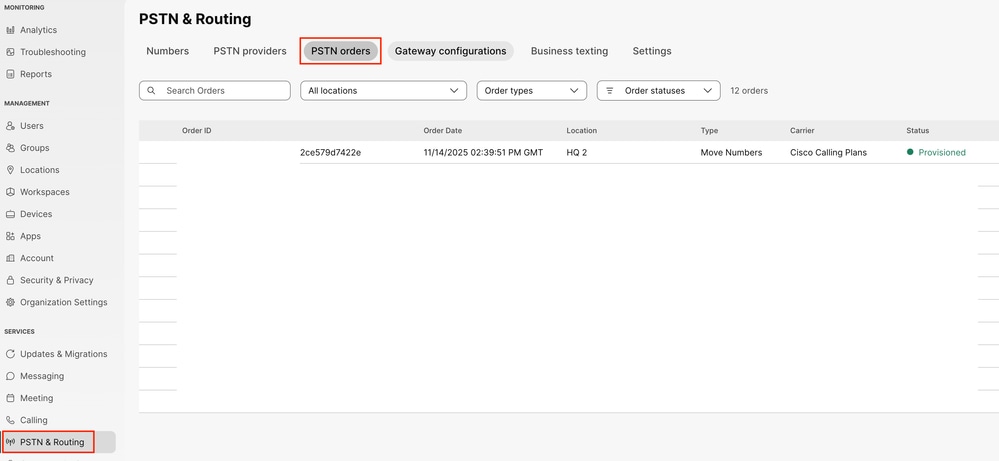 PSTN orders tab in Control Hub.
Step 2. Select any of the orders listed and on the order window scroll down until the end.
Step 3. Click Open a Cisco Calling Plans Support Case. 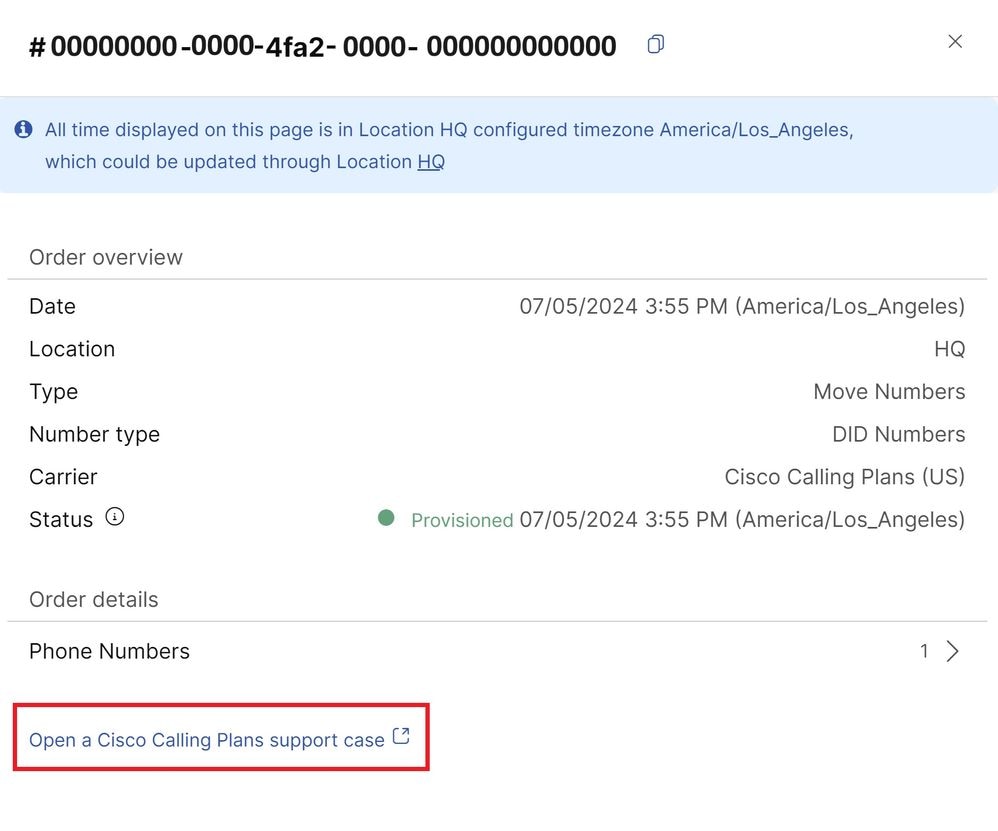 Order Window View
Step 4. This opens up a new window on your browser, where you can select from the options of Ordering new numbers, Port existing numbers and Questions regarding existing services.
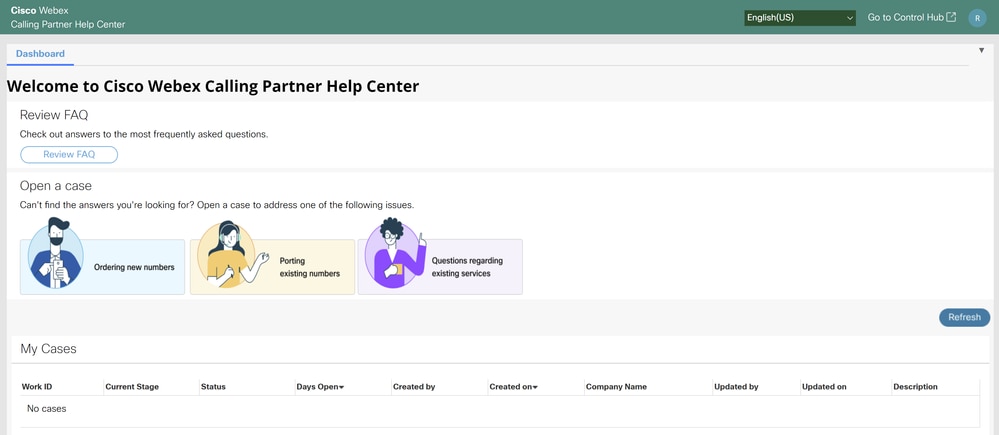 PEGA Ticket Page
List of Issues Available per Option
These are the specific issues available for each of the options that show up in the dashboard:
Ordering New Numbers
- I need to order new numbers
- Unable to find numbers for a specific area code
- Other (Question not listed)
Port Existing Numbers
- Check Portability of numbers
- Need assistance with required documentation
- Check status for port request
- Received port rejection or exception
- Reschedule port day and/or time
- Cancel Port Order
- URGENT: Need service returned to previous carrier (within 24 hours)
- Other (Question not listed)
Questions regarding existing services
- Add Emergency Service Address (ESA) for remote worker
- Move a telephone number between locations
- Report an issue with Cisco PSTN service
- Other (Question not listed)
Complete the fields marked with an asterisk, for example, Country and Location Name.
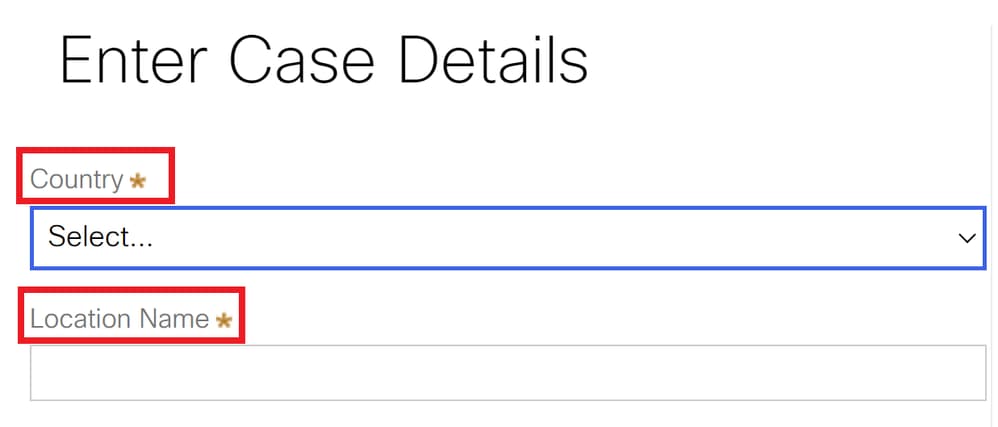 Obligatory Fields are Marked with Astherisk
Dashboard Informative Buttons
Additionally, in the dashboard, you see your cases and more information like their Current Stage and Status.
Click on Refresh to see the latest updates on your cases.
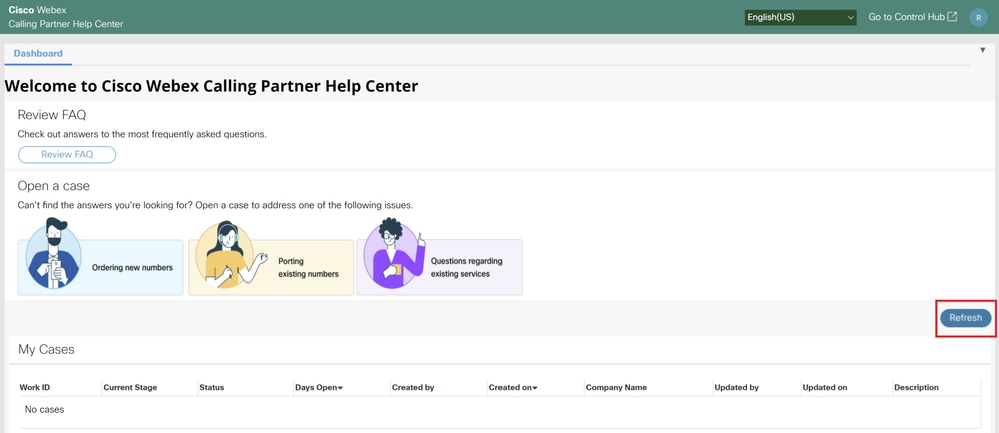 Refresh Button
The Dashboard, offers a Review FAQ button, where you find common questions and their answers like:
- What are Cisco Calling Plans?
- Where are Cisco Calling Plans available?
- What is available in a Cisco Calling Plan?
- How are Cisco Calling Plans Offered?
- In what regions are Cisco Calling Plans available?
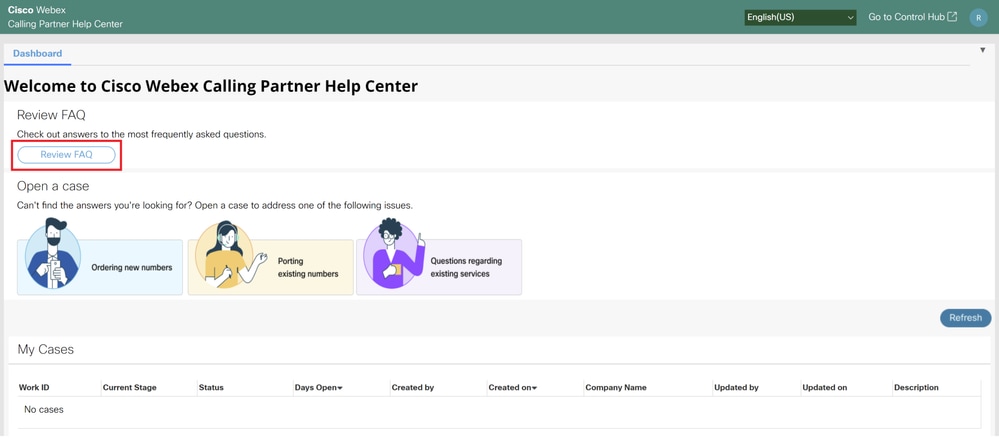 Review FAQ Button
Once you create a PEGA case, the Cisco PSTN team provides you with assistance along the entire process of resolution.
Steps to create a PEGA ticket if you do not have any PSTN orders yet
Step 1. In Control Hub, go to Services, and choose PSTN & Routing.
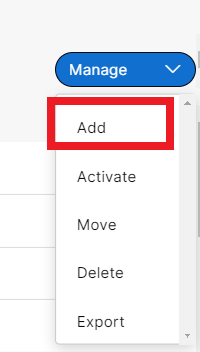
Step 2. In the Numbers tab, click on Manage and select Add.
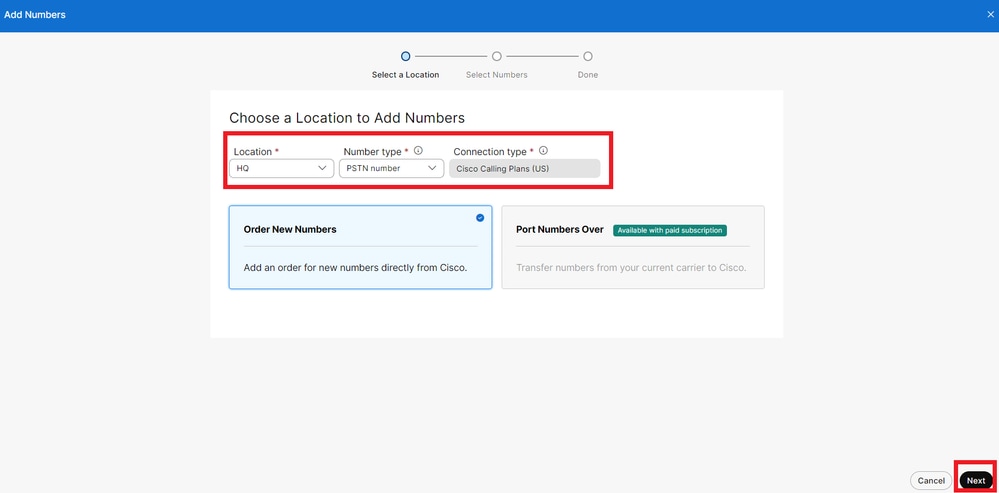
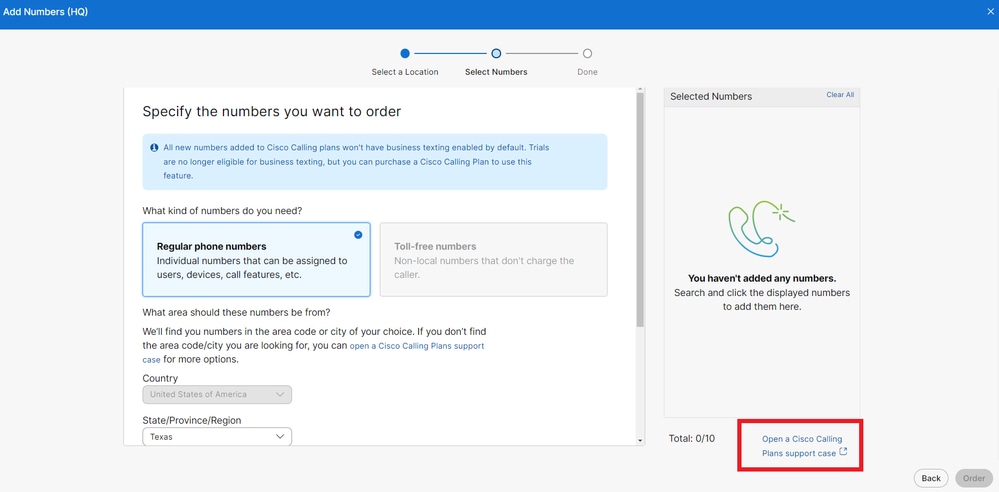
Step 3. In the Add Numbers window, select the location that has the Cisco Calling Plans subscription, select Order New Numbers and then click on Next.
Step 4. In the next window, click on Open a Cisco Calling Plans support case hyperlink.
Contact the Cisco PSTN support team via email
You have the option to contact the Cisco PSTN support team via email at pstn-support@cisco.com. They can create a case on your behalf.
Note: PEGA tickets are intended to support Partner/Customer PSTN-related questions for Cisco Calling Plans
Related Information
- Cisco Support Contact Information
- Webex Calling PSTN Options
- Cisco Calling Plan number porting guidelines and policies
Revision History
| Revision | Publish Date | Comments |
|---|---|---|
3.0 |
14-Apr-2025
|
Initial Release |
1.0 |
18-Jul-2024
|
Initial Release |

 Feedback
Contact Cisco
- Open a Support Case

- (Requires a Cisco Service Contract)