Troubleshoot Single Sign On Admin Self Recovery Option
Available Languages
Introduction
This document describes the Admin-Self recovery for Control Hub, if Single Sign-On (SSO) does not work.
Prerequisites
Requirements
Cisco recommends that you have knowledge of these topics:
- Single Sign-On
- Webex Control Hub
Components Used
The information in this document is based on these software and hardware versions:
- Azure AD ldP
The information in this document was created from the devices in a specific lab environment. All of the devices used in this document started with a cleared (default) configuration. If your network is live, ensure that you understand the potential impact of any command.
Background
Previously, when an Administrator had a failed log in with SSO, ldP or the SP certificate expired if there was an outage for misconfiguration; users were required to contact TAC to disable SSO from the backend to repair the configuration.
The Self Recovery option allows users to update or disable Single Sign-On with a secure backdoor API.
Log In Error
This is an example of when SSO is compromised and cannot access admin.webex.com or Webex.
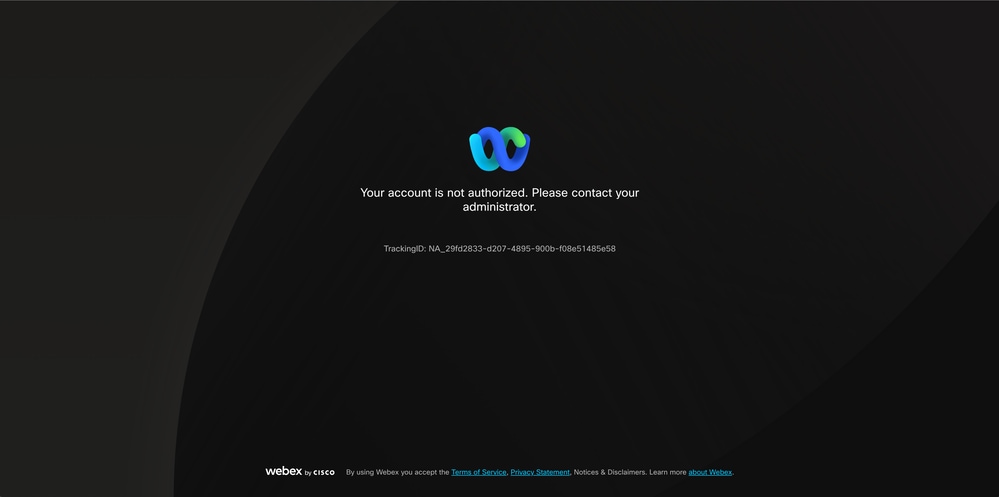 Error
Error
Single Sign-On Bypass
- Preferably using an incognito browser, go to Webex - Manage SSO and enter the admin email.
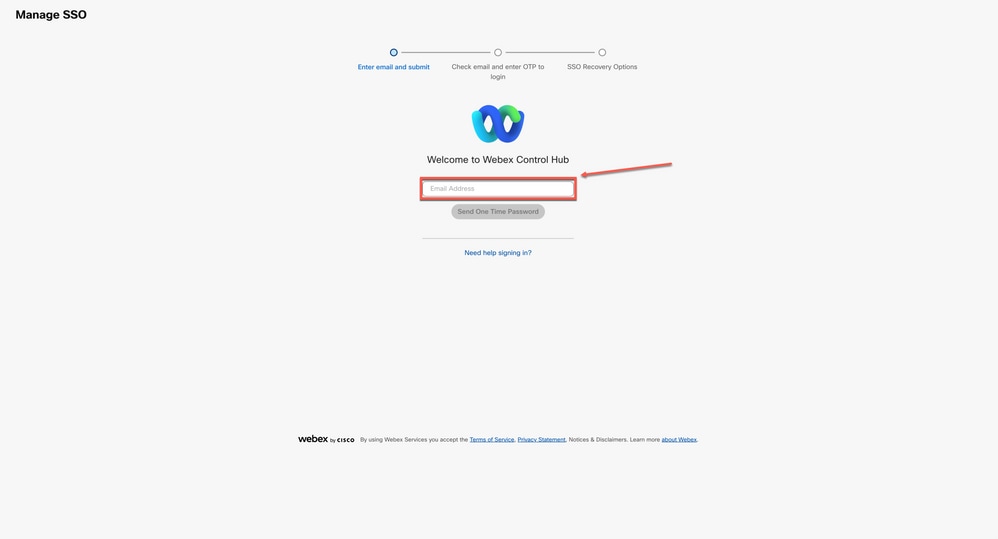 Login
Login
2. Select Send One Time Password.
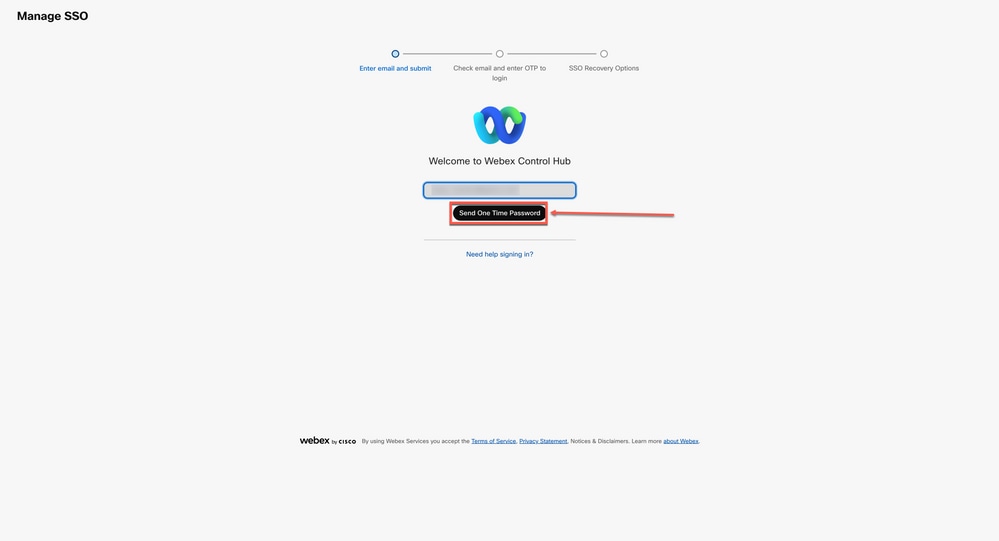 Login 2
3. A one time password PIN is sent from webex_comm@webex.com.
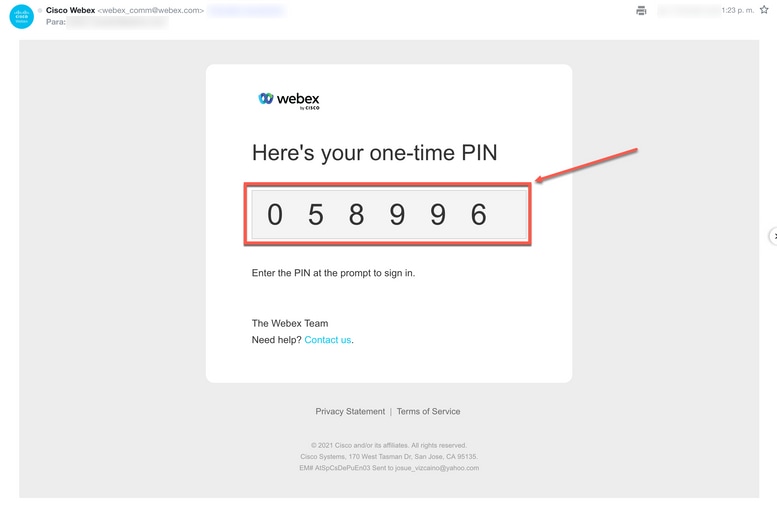 Login 3
4. Enter the one-time PIN received, and click the Sign In button.
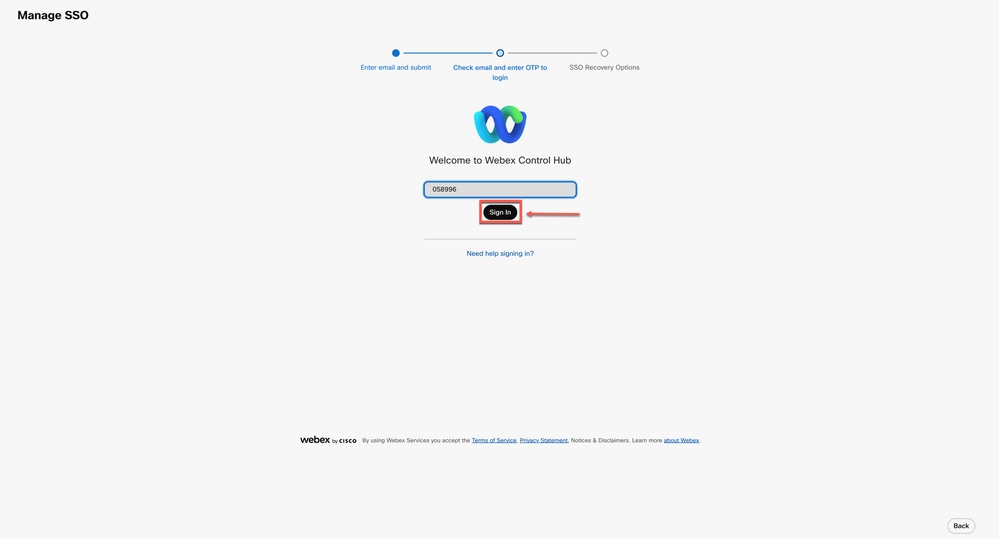 Login 4
5. In the SSO Recovery Option, choose Option 1: disable SSO or Option 2: update certificate and download metadata.
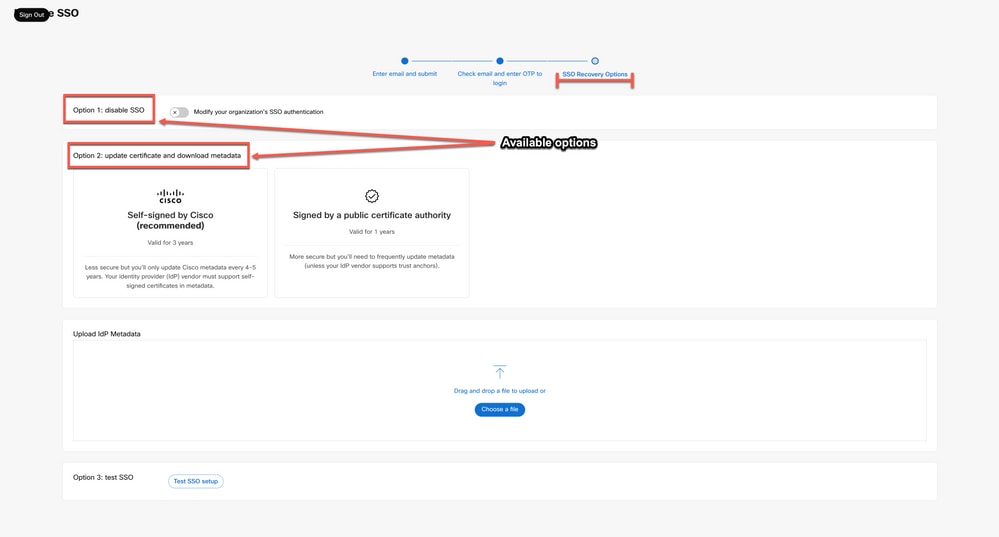 Login 5
Option 1
- Select the toggle Modify your organization's SSO authentication.
 Option 1
2. Confirm the action and select the Deactivate button.
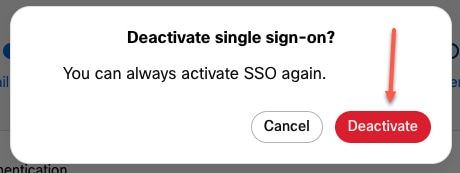 Option 1 - 2
3. Single Sign-On is successfully disabled and your basic Webex authentication is in place.
Option 2
- Choose a Certificate and upload the updated ldP Metadata file.
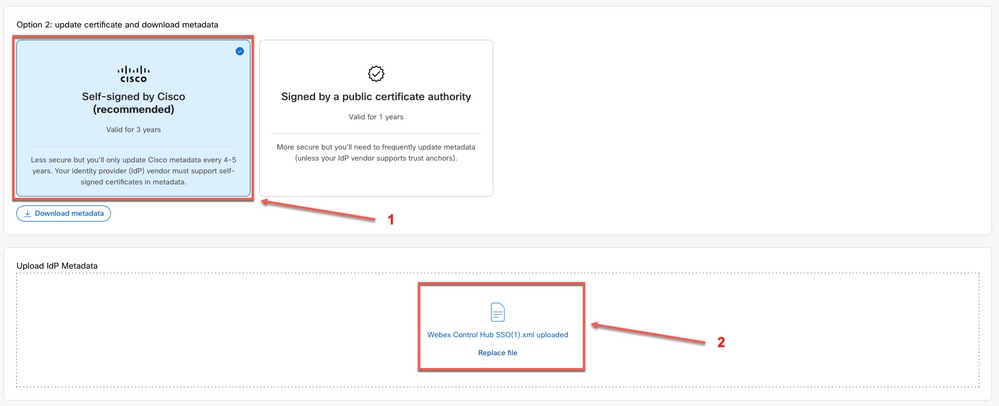 Option 2
2. Click the Test SSO setup button.
 Option 2 - 2
3. Once Single Sign-On succeeds, it is safe to sign-out from the Manage-SSO portal.
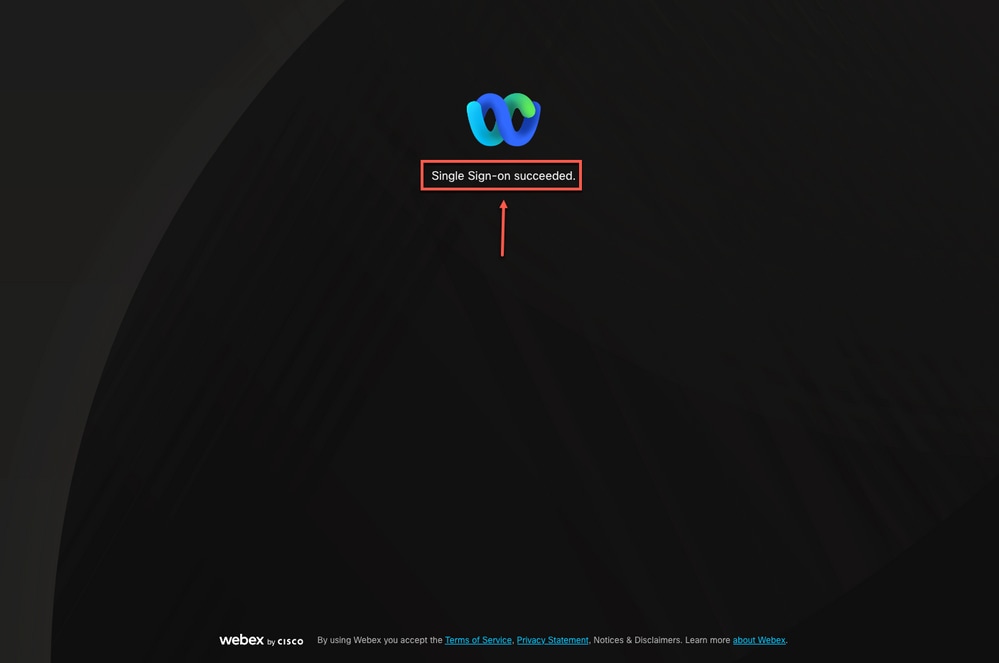 Option 2 - 3
Related Information
Revision History
| Revision | Publish Date | Comments |
|---|---|---|
2.0 |
12-Aug-2026
|
Updated Title, Introduction, grammar, spelling, inserted horizontal lines to separate sections for readability, updated URLs, and CCW alerts. |
1.0 |
14-Apr-2023
|
Initial Release |

 Feedback
Contact Cisco
- Open a Support Case

- (Requires a Cisco Service Contract)