Configure a New Moderator for an Unmoderated Webex Space
Available Languages
Introduction
This document describes how to configure a new moderator for an unmoderated Webex Space.
Requirements
Prerequisites
- A Webex Admin account with Compliance Officer role.
- Access to https://developer.webex.com/.
- Space ID for the space that is unmoderated.
- Email address or user ID of a new moderator.
- A text conversion tool.
The information in this document was created from the devices in a specific lab environment. All of the devices used in this document started with a cleared (default) configuration. If your network is live, ensure that you understand the potential impact of any command.
Background Information
When an employee leaves a company their email and id are deleted from the company Control Hub. This also deletes this employee as a Moderator in any of their Webex spaces. Other members of this space can assign themselves as the new Moderator.
Problem
The former employee cannot be deleted from the Control Hub.
Solution
A Compliance Officer (CO) can manually assign a user as the Moderator or elevate a current member to that role.
To manually assign a new Moderator:
- Select a new Moderator.
- Retrieve the unmoderated Space ID.
- Add a new Moderator.
- Confirm the new Moderator is added.
Select a New Moderator
The user avataradmin@admin.com cannot be deleted from the Control Hub after they have left the company. With CO Admin access, you can select and manually add user zohoadmin@admin.com and assign them as the new Moderator.
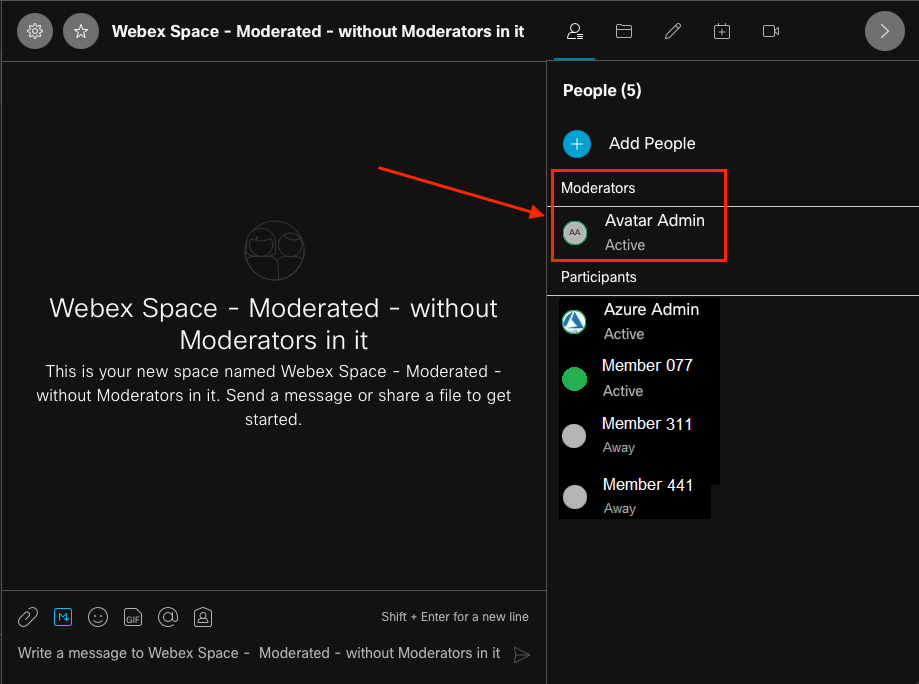 The Former Moderator
Retrieve the Unmoderated Space ID
You can use the Web Client to extract the encrypted Space ID. If you are a current member of this space, you can log into https://web.webex.com/, and then select the unmoderated Space. Then you can copy the full URL to the clipboard and provide this URL the CO Admin.
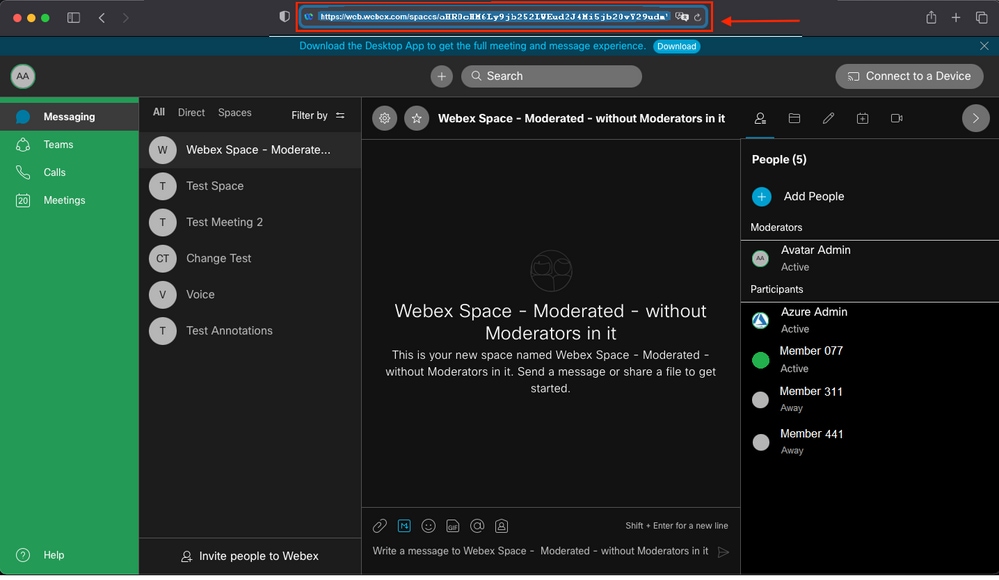 Space URL
Space URL:
https://web.webex.com/spaces/aHR0cHM6Ly9jb252LWEud2J4Mi5jb20vY29udmVyc2F0aW9uL2FwaS92MS9jb252ZXJzYXRpb25zL2UzNGRmZGUwLTAyMTktMTFlYy05YzU3LWIzM2Y2NzFkNDg2M
Q==
Next, convert the Space ID BASE64 to HTML format. You can use any text conversion tool to retrieve the Space ID. In this example, this URL is http://www.asciitohex.com/. In the BASE64 window select Convert.
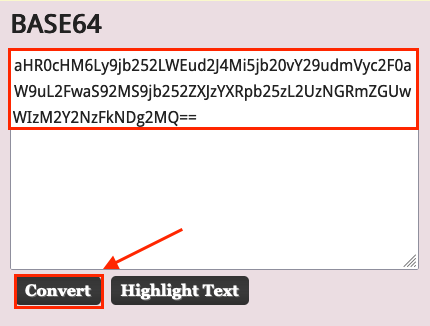 Select the Convert Button
After conversion, the Space ID displays in the HTML Entities window.
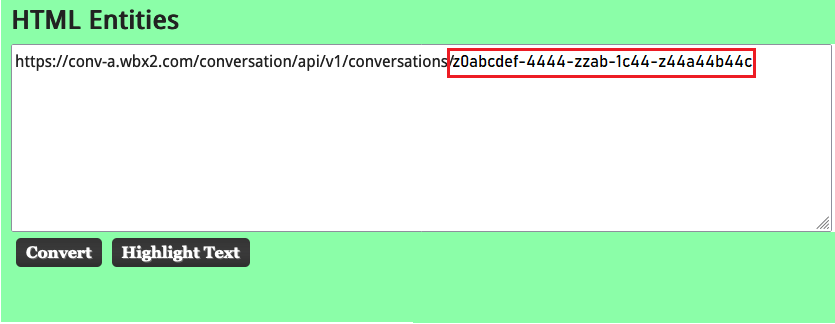 Converted Space ID
Conversion output:
https://conv-a.wbx2.com/conversation/api/v1/conversations/z0abcdef-4444-zzab-1c44-z44a44b44c
Space ID:
z0abcdef-4444-zzab-1c44-z44a44b44c
Add a New Moderator
To add a new Moderator, run the "Create a membership" command with the Developers API.
Log into https://developer.webex.com/ and navigate to:
https://developer.webex.com/docs/api/v1/memberships/create-a-membership
Add the Space ID / Room ID z0abcdef-4444-zzab-1c44-z44a44b44c and the new Moderator email, zohoadmin@admin.com.
Ensure that the isModerator is enabled before you select Run.
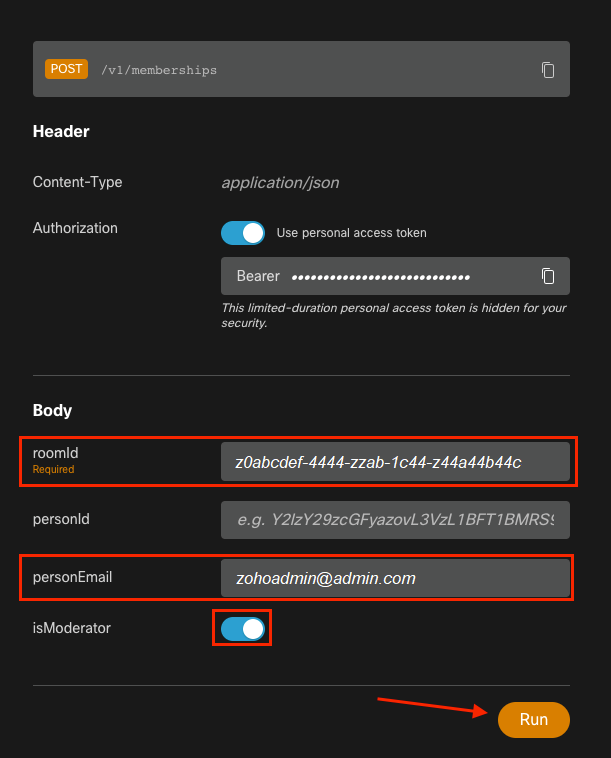 Post Request
The response, 200 OK, confirms that the action succeeded.
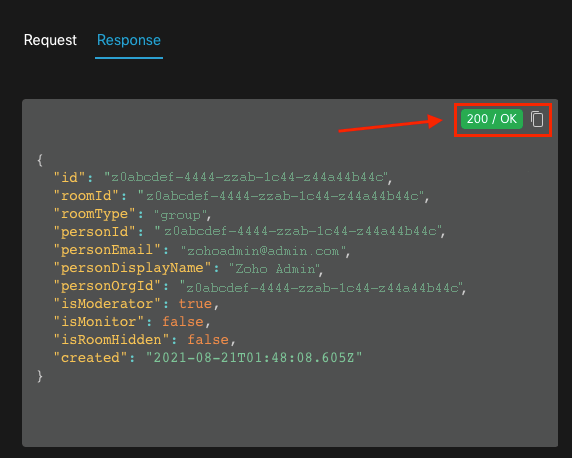 200 OK Response
{
  "id": "Yz0abcdef-4444-zzab-1c44-z44a44b44c",
  "roomId": "z0abcdef-4444-zzab-1c44-z44a44b44c",
  "roomType": "group",
  "personId": "z0abcdef-4444-zzab-1c44-z44a44b44c",
  "personEmail": "zohoadmin@admin.com",
  "personDisplayName": "Zoho Admin",
  "personOrgId": "z0abcdef-4444-zzab-1c44-z44a44b44c",
  "isModerator": true,
  "isMonitor": false,
  "isRoomHidden": false,
  "created": "2021-08-21T01:48:08.605Z"
}
The user zohoadmin@admin.com is now the Moderator of "Webex Space - Moderated - without Moderators in it" with the Space ID / Room ID z0abcdef-4444-zzab-1c44-z44a44b44c.
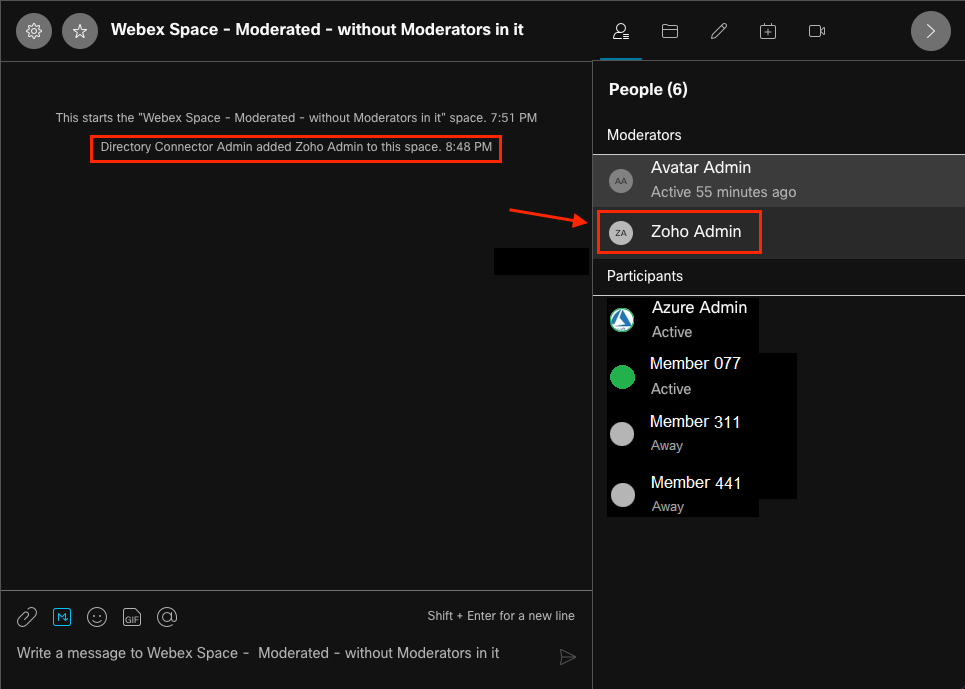 The New Moderator
Confirm the New Moderator is Added
To confirm that the new Moderator was added, use the List membership command in the Developers API.
https://developer.webex.com/docs/api/v1/memberships/list-memberships
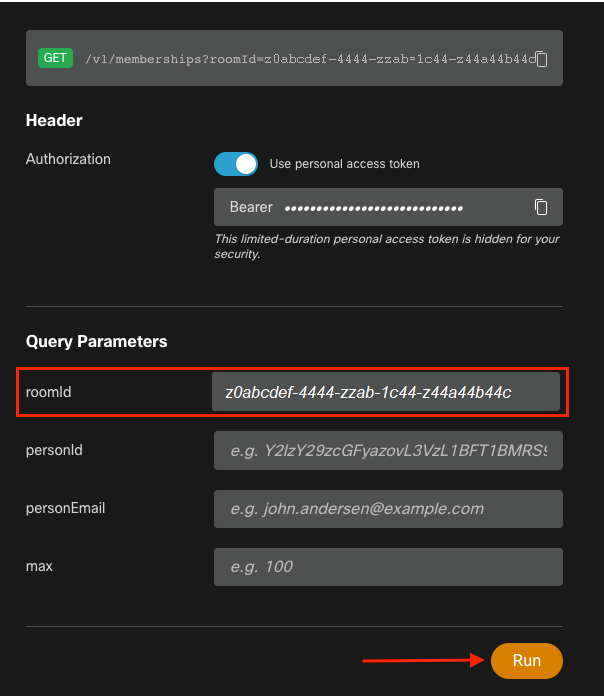 Retrieved Space ID
Again, 200 OK returns and this confirms that the action succeeded. All the members of the space are listed and the new Moderator was added.
    {
      "id": "z0abcdef-4444-zzab-1c44-z44a44b44c",
      "roomId": "z0abcdef-4444-zzab-1c44-z44a44b44c",
      "roomType": "group",
      "personId": "z0abcdef-4444-zzab-1c44-z44a44b44c",
      "personEmail": "zohoadmin@admin.com",
      "personDisplayName": "Zoho Admin",
      "personOrgId": "z0abcdef-4444-zzab-1c44-z44a44b44c",
      "isModerator": true,
      "isMonitor": false,
      "created": "2021-08-21T01:48:08.605Z"
    },
References
- Webex | Moderate a Space: https://help.webex.com/en-us/gw1w6c/Webex-Moderate-a-Space
- Assign Organization Account Roles in Control Hub: https://help.webex.com/en-us/fs78p5/Assign-Organization-Account-Roles-in-Control-Hub#id_117861
- ASCII to Hex: https://www.asciitohex.com/
- Compliance & Events: https://developer.webex.com/docs/api/guides/compliance#compliance
- Memberships: https://developer.webex.com/docs/api/v1/memberships
- Webex Developer Support: https://developer.webex.com/support
Revision History
| Revision | Publish Date | Comments |
|---|---|---|
2.0 |
03-Apr-2026
|
Initial Release |
1.0 |
12-May-2022
|
Initial Release |

 Feedback
Contact Cisco
- Open a Support Case

- (Requires a Cisco Service Contract)