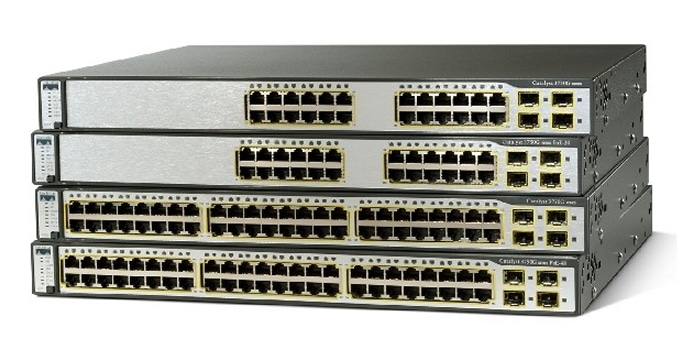
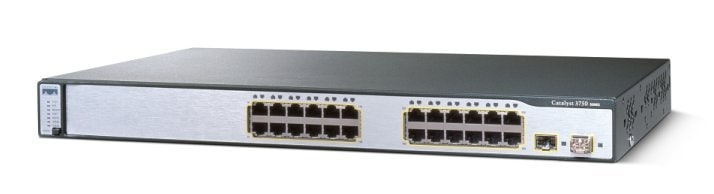
Catalyst 3750 Switch Command Reference, 12.2(44)SE
Catalyst 3750 Switch Cisco IOS Commands - aaa accounting through renew ip dhcp

Table Of Contents

Catalyst 3750 Switch Cisco IOS Commands

aaa accounting dot1x

aaa authentication dot1x

aaa authorization network

action

archive copy-sw

archive download-sw

archive tar

archive upload-sw

arp access-list

auto qos voip

boot auto-copy-sw

boot auto-download-sw

boot boothlpr

boot config-file

boot enable-break

boot helper

boot helper-config-file

boot manual

boot private-config-file

boot system

channel-group

channel-protocol

class

class-map

clear dot1x

clear eap sessions

clear errdisable interface

clear arp inspection log

clear ip arp inspection statistics

clear ip dhcp snooping

clear ipc

clear l2protocol-tunnel counters

clear lacp

clear mac address-table

clear mac address-table move update

clear pagp

clear port-security

clear spanning-tree counters

clear spanning-tree detected-protocols

clear vmps statistics

clear vtp counters

cluster commander-address

cluster discovery hop-count

cluster enable

cluster holdtime

cluster member

cluster outside-interface

cluster run

cluster standby-group

cluster timer

define interface-range

delete

deny (ARP access-list configuration)

deny (IPv6 access-list configuration)

deny (MAC access-list configuration)

diagnostic monitor

diagnostic schedule

diagnostic start

dot1x

dot1x auth-fail max-attempts

dot1x auth-fail vlan

dot1x control-direction

dot1x critical (global configuration)

dot1x critical (interface configuration)

dot1x default

dot1x fallback

dot1x guest-vlan

dot1x host-mode

dot1x initialize

dot1x mac-auth-bypass

dot1x max-reauth-req

dot1x max-req

dot1x multiple-hosts

dot1x pae

dot1x port-control

dot1x re-authenticate

dot1x re-authentication

dot1x reauthentication

dot1x test eapol-capable

dot1x test timeout

dot1x timeout

duplex

errdisable detect cause

errdisable detect cause small-frame

errdisable recovery cause small-frame

errdisable recovery

exception crashinfo

fallback profile

flowcontrol

interface port-channel

interface range

interface vlan

ip access-group

ip address

ip admission

ip admission name proxy http

ip arp inspection filter vlan

ip arp inspection limit

ip arp inspection log-buffer

ip arp inspection trust

ip arp inspection validate

ip arp inspection vlan

ip arp inspection vlan logging

ip dhcp snooping

ip dhcp snooping binding

ip dhcp snooping database

ip dhcp snooping information option

ip dhcp snooping information option allow-untrusted

ip dhcp snooping information option format remote-id

ip dhcp snooping limit rate

ip dhcp snooping trust

ip dhcp snooping verify

ip dhcp snooping vlan

ip dhcp snooping vlan information option format-type circuit-id string

ip igmp filter

ip igmp max-groups

ip igmp profile

ip igmp snooping

ip igmp snooping last-member-query-interval

ip igmp snooping querier

ip igmp snooping report-suppression

ip igmp snooping tcn

ip igmp snooping tcn flood

ip igmp snooping vlan immediate-leave

ip igmp snooping vlan mrouter

ip igmp snooping vlan static

ip snap forwarding

ip source binding

ip ssh

ip verify source

ipv6 access-list

ipv6 mld snooping

ipv6 mld snooping last-listener-query-count

ipv6 mld snooping last-listener-query-interval

ipv6 mld snooping listener-message-suppression

ipv6 mld snooping robustness-variable

ipv6 mld snooping tcn

ipv6 mld snooping vlan

ipv6 traffic-filter

l2protocol-tunnel

l2protocol-tunnel cos

lacp port-priority

lacp system-priority

location (global configuration)

location (interface configuration)

link state group

link state track

logging event

logging event power-inline-status

logging file

mac access-group

mac access-list extended

mac address-table aging-time

mac address-table move update

mac address-table notification

mac address-table static

mac address-table static drop

macro apply

macro description

macro global

macro global description

macro name

match (access-map configuration)

match (class-map configuration)

mdix auto

mls qos

mls qos aggregate-policer

mls qos cos

mls qos dscp-mutation

mls qos map

mls qos queue-set output buffers

mls qos queue-set output threshold

mls qos rewrite ip dscp

mls qos srr-queue input bandwidth

mls qos srr-queue input buffers

mls qos srr-queue input cos-map

mls qos srr-queue input dscp-map

mls qos srr-queue input priority-queue

mls qos srr-queue input threshold

mls qos srr-queue output cos-map

mls qos srr-queue output dscp-map

mls qos trust

mls qos vlan-based

monitor session

mvr (global configuration)

mvr (interface configuration)

nsf

pagp learn-method

pagp port-priority

permit (ARP access-list configuration)

permit (IPv6 access-list configuration)

permit (MAC access-list configuration)

police

police aggregate

policy-map

port-channel load-balance

power inline

power inline consumption

priority-queue

private-vlan

private-vlan mapping

queue-set

radius-server dead-criteria

radius-server host

rcommand

reload

remote command

remote-span

renew ip dhcp snooping database


Catalyst 3750 Switch Cisco IOS Commands


aaa accounting dot1x

Use the aaa accounting dot1x global configuration command to enable authentication, authorization, and accounting (AAA) accounting and to create method lists defining specific accounting methods on a per-line or per-interface basis for IEEE 802.1x sessions. Use the no form of this command to disable IEEE 802.1x accounting.

aaa accounting dot1x {name | default} start-stop {broadcast group {name | radius | tacacs+} [group {name | radius | tacacs+} ... ] | group {name | radius | tacacs+} [group {name | radius | tacacs+} ... ]}

no aaa accounting dot1x {name | default}

Syntax Description

name

Name of a server group. This is optional when you enter it after the broadcast group and group keywords.

default

Use the accounting methods that follow as the default list for accounting services.

start-stop

Send a start accounting notice at the beginning of a process and a stop accounting notice at the end of a process. The start accounting record is sent in the background. The requested-user process begins regardless of whether or not the start accounting notice was received by the accounting server.

broadcast

Enable accounting records to be sent to multiple AAA servers and send accounting records to the first server in each group. If the first server is unavailable, the switch uses the list of backup servers to identify the first server.

group

Specify the server group to be used for accounting services. These are valid server group names:

name—Name of a server group.

radius—List of all RADIUS hosts.

tacacs+—List of all TACACS+ hosts.

The group keyword is optional when you enter it after the broadcast group and group keywords. You can enter more than optional group keyword.

radius

(Optional) Enable RADIUS authorization.

tacacs+

(Optional) Enable TACACS+ accounting.


Defaults

AAA accounting is disabled.

Command Modes

Global configuration

Command History

Release
Modification

12.2(20)SE

This command was introduced.


Usage Guidelines

This command requires access to a RADIUS server.

We recommend that you enter the dot1x reauthentication interface configuration command before configuring IEEE 802.1x RADIUS accounting on an interface.

Examples

This example shows how to configure IEEE 802.1x accounting:

Switch(config)# aaa new-model
Switch(config)# aaa accounting dot1x default start-stop group radius

Note The RADIUS authentication server must be properly configured to accept and log update or watchdog packets from the AAA client.


Related Commands

Command
Description

aaa authentication dot1x

Specifies one or more AAA methods for use on interfaces running IEEE 802.1x.

aaa new-model

Enables the AAA access control model. For syntax information, see the Cisco IOS Security Command Reference, Release 12.2 > Authentication, Authorization, and Accounting > Authentication Commands.

dot1x reauthentication

Enables or disables periodic reauthentication.

dot1x timeout reauth-period

Sets the number of seconds between re-authentication attempts.


aaa authentication dot1x

Use the aaa authentication dot1x global configuration command on the switch stack or on a standalone switch to specify the authentication, authorization, and accounting (AAA) method to use on ports complying with the IEEE 802.1x authentication. Use the no form of this command to disable authentication.

aaa authentication dot1x {default} method1

no aaa authentication dot1x {default}

Syntax Description

default

Use the listed authentication method that follows this argument as the default method when a user logs in.

method1

Enter the group radius keywords to use the list of all RADIUS servers for authentication.


Note Though other keywords are visible in the command-line help strings, only the default and group radius keywords are supported.


Defaults

No authentication is performed.

Command Modes

Global configuration

Command History

Release
Modification

12.1(11)AX

This command was introduced.


Usage Guidelines

The method argument identifies the method that the authentication algorithm tries in the given sequence to validate the password provided by the client. The only method that is truly IEEE 802.1x-compliant is the group radius method, in which the client data is validated against a RADIUS authentication server.

If you specify group radius, you must configure the RADIUS server by entering the radius-server host global configuration command.

Use the show running-config privileged EXEC command to display the configured lists of authentication methods.

Examples

This example shows how to enable AAA and how to create an IEEE 802.1x-compliant authentication list. This authentication first tries to contact a RADIUS server. If this action returns an error, the user is not allowed access to the network.

Switch(config)# aaa new-model
Switch(config)# aaa authentication dot1x default group radius

You can verify your settings by entering the show running-config privileged EXEC command.

Related Commands

Command
Description

aaa new-model

Enables the AAA access control model. For syntax information, see the Cisco IOS Security Command Reference, Release 12.2 > Authentication, Authorization, and Accounting > Authentication Commands.

show running-config

Displays the current operating configuration. For syntax information, select Cisco IOS Configuration Fundamentals Command Reference, Release 12.2 > File Management Commands > Configuration File Management Commands.


aaa authorization network

Use the aaa authorization network global configuration command on the switch stack or on a standalone switch to the configure the switch to use user-RADIUS authorization for all network-related service requests, such as IEEE 802.1x per-user access control lists (ACLs) or VLAN assignment. Use the no form of this command to disable RADIUS user authorization.

aaa authorization network default group radius

no aaa authorization network default

Syntax Description

default group radius

Use the list of all RADIUS hosts in the server group as the default authorization list.


Defaults

Authorization is disabled.

Command Modes

Global configuration

Command History

Release
Modification

12.1(11)AX

This command was introduced.


Usage Guidelines

Use the aaa authorization network default group radius global configuration command to allow the switch to download IEEE 802.1x authorization parameters from the RADIUS servers in the default authorization list. The authorization parameters are used by features such as per-user ACLs or VLAN assignment to get parameters from the RADIUS servers.

Use the show running-config privileged EXEC command to display the configured lists of authorization methods.

Examples

This example shows how to configure the switch for user RADIUS authorization for all network-related service requests:

Switch(config)# aaa authorization network default group radius

You can verify your settings by entering the show running-config privileged EXEC command.

Related Commands

Command
Description

show running-config

Displays the current operating configuration. For syntax information, select Cisco IOS Configuration Fundamentals Command Reference, Release 12.2 > File Management Commands > Configuration File Management Commands.


action

Use the action access-map configuration command on the switch stack or on a standalone switch to set the action for the VLAN access map entry. Use the no form of this command to return to the default setting.

action {drop | forward}

no action

Syntax Description

drop

Drop the packet when the specified conditions are matched.

forward

Forward the packet when the specified conditions are matched.


Defaults

The default action is to forward packets.

Command Modes

Access-map configuration

Command History

Release
Modification

12.1(11)AX

This command was introduced.


Usage Guidelines

You enter access-map configuration mode by using the vlan access-map global configuration command.

If the action is drop, you should define the access map, including configuring any access control list (ACL) names in match clauses, before applying the map to a VLAN, or all packets could be dropped.

In access-map configuration mode, use the match access-map configuration command to define the match conditions for a VLAN map. Use the action command to set the action that occurs when a packet matches the conditions.

The drop and forward parameters are not used in the no form of the command.

Examples

This example shows how to identify and apply a VLAN access map vmap4 to VLANs 5 and 6 that causes the VLAN to forward an IP packet if the packet matches the conditions defined in access list al2:

Switch(config)# vlan access-map vmap4
Switch(config-access-map)# match ip address al2
Switch(config-access-map)# action forward
Switch(config-access-map)# exit
Switch(config)# vlan filter vmap4 vlan-list 5-6

You can verify your settings by entering the show vlan access-map privileged EXEC command.

Related Commands

Command
Description

access-list {deny | permit}

Configures a standard numbered ACL. For syntax information, select Cisco IOS IP Command Reference, Volume 1 of 3:Addressing and Services, Release 12.2 > IP Services Commands.

ip access-list

Creates a named access list. For syntax information, select Cisco IOS IP Command Reference, Volume 1 of 3:Addressing and Services, Release 12.2 > IP Services Commands.

mac access-list extended

Creates a named MAC address access list.

match (class-map configuration)

Defines the match conditions for a VLAN map.

show vlan access-map

Displays the VLAN access maps created on the switch.

vlan access-map

Creates a VLAN access map.


archive copy-sw

Use the archive copy-sw privileged EXEC command on the stack master to copy the running image from the flash memory on one stack member to the flash memory on one or more other stack members.

archive copy-sw [/destination-system destination-stack-member-number] [/force-reload] [leave-old-sw] [/no-set-boot] [/overwrite] [/reload] [/safe] source-stack-member-number

Syntax Description

/destination-system destination-stack-
member-number

(Optional) The number of the stack member to which to copy the running image. The range is 1 to 9.

/force-reload

(Optional) Unconditionally force a system reload after successfully downloading the software image.

/leave-old-sw

(Optional) Keep the old software version after a successful download.

/no-set-boot

(Optional) Do not alter the setting of the BOOT environment variable to point to the new software image after it is successfully downloaded.

/overwrite

(Optional) Overwrite the software image in flash memory with the downloaded one.

/reload

(Optional) Reload the system after downloading the image unless the configuration has been changed and not been saved.

/safe

(Optional) Keep the current software image; do not delete it to make room for the new software image before the new image is downloaded. The current image is deleted after the download.

source-stack-member-
number

The number of the stack member from which to copy the running image. The range is 1 to 9.


Command Modes

Privileged EXEC

Command History

Release
Modification

12.1(11)AX

This command was introduced.


Usage Guidelines

The current software image is not overwritten with the copied image.

Both the software image and HTML files are copied.

The new image is copied to the flash: file system.

The BOOT environment variable is changed to point to the new software image on the flash: file system.

Image names are case sensitive; the image file is provided in tar format.


Note To successfully use the archive copy-sw privileged EXEC command, you must have downloaded from a TFTP server the images for both the stack member switch being added and the stack master. You use the archive download-sw privileged EXEC command to perform the download.


At least one stack member must be running the image that is to be copied to the switch that has incompatible software.

You can copy the image to more than one specific stack member by repeating the /destination-system destination-stack-member-number option in the command for each stack member to be upgraded. If you do not specify the destination-stack-member-number, the default is to copy the running image file to all stack members.

Using the /safe or /leave-old-sw option can cause the new copied image to fail if there is insufficient flash memory. If leaving the software in place would prevent the new image from fitting in flash memory due to space constraints, an error results.

If you used the /leave-old-sw option and did not overwrite the old image when you copied the new one, you can remove the old image by using the delete privileged EXEC command. For more information, see the "delete" section.

Use the /overwrite option to overwrite the image on the flash device with the copied one.

If you specify the command without the /overwrite option, the algorithm verifies that the new image is not the same as the one on the switch flash device or is not running on any stack members. If the images are the same, the copy does not occur. If the images are different, the old image is deleted, and the new one is copied.

After copying a new image, enter the reload privileged EXEC command to begin using the new image, or specify the /reload or /force-reload option in the archive copy-sw command.

You can enter one or more of these options with the source-stack-member-number option:

/destination-system destination-stack-member-number

/force-reload

/leave-old-sw

/no-set-boot

/overwrite

/reload

/safe

If you enter the source-stack-member-number option before one of the previous options, you can enter only the archive copy-sw source-stack-member-number command.

These are examples of how you can enter the archive copy-sw command:

To copy the running image from a stack member to another stack member and to overwrite the software image in the second stack member's flash memory (if it already exists) with the copied one, enter the archive copy-sw /destination destination-stack-member-number /overwrite source-stack-member-number command.

To copy the running image from a stack member to another stack member, keep the current software image, and reload the system after the image copies, enter the archive copy-sw /destination destination-stack-member-number /safe /reload source-stack-member-number command.

Examples

This example shows how to copy the running image from stack member 6 to stack member 8:

Switch# archive copy-sw /destination-system 8 6

This example shows how to copy the running image from stack member 6 to all the other stack members:

Switch# archive copy-sw 6

This example shows how to copy the running image from stack member 5 to stack member 7. If the image being copied already exists on the second stack member's flash memory, it can be overwritten with the copied one. The system reloads after the image is copied:

Switch# archive copy-sw /destination-system 7 /overwrite /force-reload 5

Related Commands

Command
Description

archive download-sw

Downloads a new image from a TFTP server to the switch.

archive tar

Creates a tar file, lists the files in a tar file, or extracts the files from a tar file.

archive upload-sw

Uploads an existing image on the switch to a server.

delete

Deletes a file or directory on the flash memory device.


archive download-sw

Use the archive download-sw privileged EXEC command on the switch stack or on a standalone switch to download a new image from a TFTP server to the switch or switch stack and to overwrite or keep the existing image.

archive download-sw {/allow-feature-upgrade | /directory | /force-reload | /imageonly | /leave-old-sw | /no-set-boot | /no-version-check | /destination-system stack-member-number | /only-system-type system-type | /overwrite | /reload | /safe} source-url

Syntax Description

/allow-feature-upgrade

Allow installation of an image with a different feature set (for example, upgrade from the IP base image to the IP services image).

/directory

Specify a directory for the images.

/force-reload

Unconditionally force a system reload after successfully downloading the software image.

/imageonly

Download only the software image but not the HTML files associated with the embedded device manager. The HTML files for the existing version are deleted only if the existing version is being overwritten or removed.

/leave-old-sw

Keep the old software version after a successful download.

/no-set-boot

Do not alter the setting of the BOOT environment variable to point to the new software image after it is successfully downloaded.

/no-version-check

Download the software image without checking the compatibility of the stack protocol version on the image and on the switch stack.

/destination-system stack-member-number

Specify the specific stack member to be upgraded. The range is 1 to 9.

/only-system-type system-type

Specify the specific system type to be upgraded. The range is 0 to FFFFFFFF.

/overwrite

Overwrite the software image in flash memory with the downloaded one.

/reload

Reload the system after successfully downloading the image unless the configuration has been changed and not been saved.

/safe

Keep the current software image; do not delete it to make room for the new software image before the new image is downloaded. The current image is deleted after the download.

source-url

The source URL alias for a local or network file system. These options are supported:

The syntax for the local flash file system on the standalone switch or the stack master:
flash:

The syntax for the local flash file system on a stack member:
flash member number:

The syntax for the FTP: ftp:[[//username[:password]@location]/directory]/image-name.tar

The syntax for an HTTP server:
http://[[username:password]@]{hostname | host-ip}[/directory]/image-name.tar

The syntax for a secure HTTP server:
https://[[username:password]@]{hostname | host-ip}[/directory]/image-name.tar

The syntax for the Remote Copy Protocol (RCP): rcp:[[//username@location]/directory]/image-name.tar

The syntax for the TFTP:
tftp:[[//location]/directory]/image-name.tar

The image-name.tar is the software image to download and install on the switch.


Defaults

The current software image is not overwritten with the downloaded image.

Both the software image and HTML files are downloaded.

The new image is downloaded to the flash: file system.

The BOOT environment variable is changed to point to the new software image on the flash: file system.

Image names are case sensitive; the image file is provided in tar format.

Compatibility of the stack protocol version on the image to be downloaded is checked with the version on the switch stack.

Command Modes

Privileged EXEC

Command History

Release
Modification

12.1(11)AX

This command was introduced.

12.2(20)SE

The http and https keywords were added.

12.2(35)SE

The allow-feature-upgrade and directory keywords were added.


Usage Guidelines

Use the /allow-feature-upgrade option to allow installation of an image with a different feature set, for example, upgrading from the IP base image to the IP services image.

Beginning with Cisco IOS release 12.2(35)SE, you can use the archive download-sw /directory command to specify a directory one time followed by a tar file or list of tar files to be downloaded instead of specifying complete paths with each tar file. For example, you can enter archive download-sw /directory tftp://10.1.1.10/ c3750-ipservices-tar.122-35.SE.tar c3750-ipbase-tar.122-35.SE.tar.

The /imageonly option removes the HTML files for the existing image if the existing image is being removed or replaced. Only the Cisco IOS image (without the HTML files) is downloaded.

Using the /safe or /leave-old-sw option can cause the new image download to fail if there is insufficient flash memory. If leaving the software in place prevents the new image from fitting in flash memory due to space constraints, an error results.

If you used the /leave-old-sw option and did not overwrite the old image when you downloaded the new one, you can remove the old image by using the delete privileged EXEC command. For more information, see the "delete" section.

Use the /no-version-check option if you want to download an image that has a different stack protocol version than the one existing on the switch stack. You must use this option with the /destination-system option to specify the specific stack member to be upgraded with the image.


Note Use the /no-version-check option with care. All stack members, including the stack master, must have the same stack protocol version to be in the same switch stack. This option allows an image to be downloaded without first confirming the compatibility of its stack protocol version with the version of the switch stack.


You can upgrade more than one specific stack member by repeating the /destination-system option in the command for each stack member to be upgraded.

Use the /overwrite option to overwrite the image on the flash device with the downloaded one.

If you specify the command without the /overwrite option, the download algorithm verifies that the new image is not the same as the one on the switch flash device or is not running on any stack members. If the images are the same, the download does not occur. If the images are different, the old image is deleted, and the new one is downloaded.

After downloading a new image, enter the reload privileged EXEC command to begin using the new image, or specify the /reload or /force-reload option in the archive download-sw command.

Use the /directory option to specify a directory for images.

Examples

This example shows how to download a new image from a TFTP server at 172.20.129.10 and to overwrite the image on the switch:

Switch# archive download-sw /overwrite tftp://172.20.129.10/test-image.tar 

This example shows how to download only the software image from a TFTP server at 172.20.129.10 to the switch:

Switch# archive download-sw /imageonly tftp://172.20.129.10/test-image.tar 

This example shows how to keep the old software version after a successful download:

Switch# archive download-sw /leave-old-sw tftp://172.20.129.10/test-image.tar 

This example specifies the location of two tar images without having to specify the path each time:

Switch# archive download-sw /directory tftp://10.1.1.10/ 
c3750-ipservices-tar.122-35.SE.tar c3750-ipbase-tar.122-35.SE.tar.

This example shows how to upgrade stack members 6 and 8:

Switch# archive download-sw /imageonly /destination-system 6 /destination-system 8 
tftp://172.20.129.10/test-image.tar

Related Commands

Command
Description

archive copy-sw

Copies the running image from the flash memory on one stack member to the flash memory on one or more other stack members.

archive tar

Creates a tar file, lists the files in a tar file, or extracts the files from a tar file.

archive upload-sw

Uploads an existing image on the switch to a server.

delete

Deletes a file or directory on the flash memory device.


archive tar

Use the archive tar privileged EXEC command on the switch stack or on a standalone switch to create a tar file, list files in a tar file, or extract the files from a tar file.

archive tar {/create destination-url flash:/file-url} | {/table source-url} | {/xtract source-url flash:/file-url [dir/file...]}

Syntax Description

/create destination-url flash:/file-url

Create a new tar file on the local or network file system.

For destination-url, specify the destination URL alias for the local or network file system and the name of the tar file to create. These options are supported:

The syntax for the local flash filesystem:
flash:

The syntax for the FTP: ftp:[[//username[:password]@location]/directory]/tar-filename.tar

The syntax for an HTTP server:
http://[[username:password]@]{hostname | host-ip}[/directory]/image-name.tar

The syntax for a secure HTTP server:
https://[[username:password]@]{hostname | host-ip}[/directory]/image-name.tar

The syntax for the Remote Copy Protocol (RCP) is: rcp:[[//username@location]/directory]/tar-filename.tar

The syntax for the TFTP: tftp:[[//location]/directory]/tar-filename.tar

The tar-filename.tar is the tar file to be created.

For flash:/file-url, specify the location on the local flash file system from which the new tar file is created.

An optional list of files or directories within the source directory can be specified to write to the new tar file. If none are specified, all files and directories at this level are written to the newly created tar file.

/table source-url

Display the contents of an existing tar file to the screen.

For source-url, specify the source URL alias for the local or network file system. These options are supported:

The syntax for the local flash file system:
flash:

The syntax for the FTP:
ftp:[[//username[:password]@location]/directory]/tar-filename.tar

The syntax for an HTTP server:
http://[[username:password]@]{hostname | host-ip}[/directory]/image-name.tar

The syntax for a secure HTTP server:
https://[[username:password]@]{hostname | host-ip}[/directory]/image-name.tar

The syntax for the RCP: rcp:[[//username@location]/directory]/tar-filename.tar

The syntax for the TFTP: tftp:[[//location]/directory]/tar-filename.tar

The tar-filename.tar is the tar file to display.

/xtract source-url flash:/file-url [dir/file...]

Extract files from a tar file to the local file system.

For source-url, specify the source URL alias for the local file system. These options are supported:

The syntax for the local flash file system:
flash:

The syntax for the FTP: ftp:[[//username[:password]@location]/directory]/tar-filename.tar

The syntax for an HTTP server:
http://[[username:password]@]{hostname | host-ip}[/directory]/image-name.tar

The syntax for a secure HTTP server:
https://[[username:password]@]{hostname | host-ip}[/directory]/image-name.tar

The syntax for the RCP: rcp:[[//username@location]/directory]/tar-filename.tar

The syntax for the TFTP: tftp:[[//location]/directory]/tar-filename.tar

The tar-filename.tar is the tar file from which to extract.

For flash:/file-url [dir/file...], specify the location on the local flash file system into which the tar file is extracted. Use the dir/file... option to specify an optional list of files or directories within the tar file to be extracted. If none are specified, all files and directories are extracted.


Defaults

There is no default setting.

Command Modes

Privileged EXEC

Command History

Release
Modification

12.1(11)AX

This command was introduced.


Usage Guidelines

Filenames and directory names are case sensitive.

Image names are case sensitive.

Examples

This example shows how to create a tar file. The command writes the contents of the new-configs directory on the local flash device to a file named saved.tar on the TFTP server at 172.20.10.30:

Switch# archive tar /create tftp:172.20.10.30/saved.tar flash:/new-configs

This example shows how to display the contents of the c3750-ipservices-tar.12-25.SEB file that is in flash memory. The contents of the tar file appear on the screen:

Switch# archive tar /table flash:c3750-ipservices-12-25.SEB.tar
info (219 bytes)

c3750-ipservices-mz.12-25.SEB/ (directory)
c3750-ipservices-mz.12-25.SEB (610856 bytes)
c3750-ipservices-mz.12-25.SEB/info (219 bytes)
info.ver (219 bytes)

This example shows how to display only the c3750-ipservices-12-25.SEB/html directory and its contents:

Switch# archive tar /table flash:c3750-ipservices-12-25.SEB.tar 
c3750-ipservices-12-25/html
c3750-ipservices-mz.12-25.SEB/html/ (directory)
c3750-ipservices-mz.12-25.SEB/html/const.htm (556 bytes)
c3750-ipservices-mz.12-25.SEB/html/xhome.htm (9373 bytes)
c3750-ipservices-mz.12-25.SEB/html/menu.css (1654 bytes)
<output truncated>

This example shows how to extract the contents of a tar file on the TFTP server at 172.20.10.30. This command extracts just the new-configs directory into the root directory on the local flash file system. The remaining files in the saved.tar file are ignored.

Switch# archive tar /xtract tftp://172.20.10.30/saved.tar flash:/ new-configs

Related Commands

Command
Description

archive copy-sw

Copies the running image from the flash memory on one stack member to the flash memory on one or more other stack members.

archive download-sw

Downloads a new image from a TFTP server to the switch.

archive upload-sw

Uploads an existing image on the switch to a server.


archive upload-sw

Use the archive upload-sw privileged EXEC command on the switch stack or on a standalone switch to upload an existing switch image to a server.

archive upload-sw [/source-system-num stack member number | /version version_string] destination-url

Syntax Description

/source-system-num stack member number

Specify the specific stack member containing the image that is to be uploaded.

/version version_string

(Optional) Specify the specific version string of the image to be uploaded.

destination-url

The destination URL alias for a local or network file system. These options are supported:

The syntax for the local flash file system on the standalone switch or the stack master:
flash:

The syntax for the local flash file system on a stack member:
flash member number:

The syntax for the FTP: ftp:[[//username[:password]@location]/directory]/image-name.tar

The syntax for an HTTP server:
http://[[username:password]@]{hostname | host-ip}[/directory]/image-name.tar

The syntax for a secure HTTP server:
https://[[username:password]@]{hostname | host-ip}[/directory]/image-name.tar

The syntax for the Remote Copy Protocol (RCP): rcp:[[//username@location]/directory]/image-name.tar

The syntax for the TFTP:
tftp:[[//location]/directory]/image-name.tar

The image-name.tar is the name of software image to be stored on the server.


Defaults

Uploads the currently running image from the flash: file system.

Command Modes

Privileged EXEC

Command History

Release
Modification

12.1(11)AX

This command was introduced.


Usage Guidelines

You must specify the /source-system-num option to use the /version option. Using these options together uploads the specified image, not the running image, of a specific stack member.

Use the upload feature only if the HTML files associated with the embedded device manager have been installed with the existing image.

The files are uploaded in this sequence: the Cisco IOS image, the HTML files, and info. After these files are uploaded, the software creates the tar file.

Image names are case sensitive.

Examples

This example shows how to upload the currently running image on stack member 6 to a TFTP server at 172.20.140.2:

Switch# archive upload-sw /source-system-num 6 tftp://172.20.140.2/test-image.tar 

Related Commands

Command
Description

archive copy-sw

Copies the running image from the flash memory on one stack member to the flash memory on one or more other stack members.

archive download-sw

Downloads a new image to the switch.

archive tar

Creates a tar file, lists the files in a tar file, or extracts the files from a tar file.


arp access-list

Use the arp access-list global configuration command on the switch stack or on a standalone switch to define an Address Resolution Protocol (ARP) access control list (ACL) or to add clauses to the end of a previously defined list. Use the no form of this command to delete the specified ARP access list.

arp access-list acl-name

no arp access-list acl-name

Syntax Description

acl-name

Name of the ACL.


Defaults

No ARP access lists are defined.

Command Modes

Global configuration

Command History

Release
Modification

12.2(20)SE

This command was introduced.


Usage Guidelines

After entering the arp access-list command, you enter ARP access-list configuration mode, and these configuration commands are available:

default: returns a command to its default setting.

deny: specifies packets to reject. For more information, see the "deny (ARP access-list configuration)" section.

exit: exits ARP access-list configuration mode.

no: negates a command or returns to default settings.

permit: specifies packets to forward. For more information, see the "permit (ARP access-list configuration)" section.

Use the permit and deny access-list configuration commands to forward and to drop ARP packets based on the specified matching criteria.

When the ARP ACL is defined, you can apply it to a VLAN by using the ip arp inspection filter vlan global configuration command. ARP packets containing only IP-to-MAC address bindings are compared to the ACL. All other types of packets are bridged in the ingress VLAN without validation. If the ACL permits a packet, the switch forwards it. If the ACL denies a packet because of an explicit deny statement, the switch drops the packet. If the ACL denies a packet because of an implicit deny statement, the switch compares the packet to the list of DHCP bindings (unless the ACL is static, which means that packets are not compared to the bindings).

Examples

This example shows how to define an ARP access list and to permit both ARP requests and ARP responses from a host with an IP address of 1.1.1.1 and a MAC address of 0000.0000.abcd:

Switch(config)# arp access-list static-hosts
Switch(config-arp-nacl)# permit ip host 1.1.1.1 mac host 00001.0000.abcd
Switch(config-arp-nacl)# end

You can verify your settings by entering the show arp access-list privileged EXEC command.

Related Commands

Command
Description

deny (ARP access-list configuration)

Denies an ARP packet based on matches compared against the DHCP bindings.

ip arp inspection filter vlan

Permits ARP requests and responses from a host configured with a static IP address.

permit (ARP access-list configuration)

Permits an ARP packet based on matches compared against the DHCP bindings.

show arp access-list

Displays detailed information about ARP access lists.


auto qos voip

Use the auto qos voip interface configuration command on the switch stack or on a standalone switch to automatically configure quality of service (QoS) for voice over IP (VoIP) within a QoS domain. Use the no form of this command to return to the default setting.

auto qos voip {cisco-phone | cisco-softphone | trust}

no auto qos voip [cisco-phone | cisco-softphone | trust]

Syntax Description

cisco-phone

Identify this port as connected to a Cisco IP Phone, and automatically configure QoS for VoIP. The QoS labels of incoming packets are trusted only when the telephone is detected. This keyword is not supported on a 10-Gigabit Ethernet interface.

cisco-softphone

Identify this port as connected to a device running the Cisco SoftPhone, and automatically configure QoS for VoIP. This keyword is not supported on a 10-Gigabit Ethernet interface.

trust

Identify this port as connected to a trusted switch or router, and automatically configure QoS for VoIP. The QoS labels of incoming packets are trusted. For nonrouted ports, the CoS value of the incoming packet is trusted. For routed ports, the DSCP value of the incoming packet is trusted.


Defaults

Auto-QoS is disabled on the port.

When auto-QoS is enabled, it uses the ingress packet label to categorize traffic, to assign packet labels, and to configure the ingress and egress queues as shown in Table 2-1.

Table 2-1 Traffic Types, Packet Labels, and Queues

 
VoIP Data Traffic
VoIP Control
Traffic
Routing Protocol Traffic
STP1 BPDU2 Traffic
Real-Time Video Traffic
All Other Traffic

DSCP3

46

24, 26

48

56

34

-

CoS4

5

3

6

7

3

-

CoS-to-ingress queue map

2, 3, 4, 5, 6, 7 (queue 2)

0, 1 (queue 1)

CoS-to-egress queue map

5 (queue 1)

3, 6, 7 (queue 2)

4 (queue 3)

2
(queue 3)

0, 1 (queue 4)

1 STP = Spanning Tree Protocol

2 BPDU = bridge protocol data unit

3 DSCP = Differentiated Services Code Point

4 CoS = class of service


Table 2-2 shows the generated auto-QoS configuration for the ingress queues.

Table 2-2 Auto-QoS Configuration for the Ingress Queues

Ingress Queue
Queue Number
CoS-to-Queue Map
Queue Weight (Bandwidth)
Queue (Buffer) Size

SRR1 shared

1

0, 1

81 percent

67 percent

Priority

2

2, 3, 4, 5, 6, 7

19 percent

33 percent

1 SRR = shaped round robin. Ingress queues support shared mode only.


Table 2-3 shows the generated auto-QoS configuration for the egress queues.

Table 2-3 Auto-QoS Configuration for the Egress Queues

Egress Queue
Queue Number
CoS-to-Queue Map
Queue Weight (Bandwidth)
Queue (Buffer) Size for Gigabit-Capable Ports
Queue (Buffer) Size for 10/100 Ethernet Ports

Priority (shaped)

1

5

up to100 percent

16 percent

10 percent

SRR shared

2

3, 6, 7

10 percent

6 percent

10 percent

SRR shared

3

2, 4

60 percent

17 percent

26 percent

SRR shared

4

0, 1

20 percent

61 percent

54 percent


Command Modes

Interface configuration

Command History

Release
Modification

12.1(14)EA1

This command was introduced.

12.2(20)SE

The cisco-softphone keyword was added, and the generated auto-QoS configuration changed.

12.2(40)SE

The information in the command output changed.


Usage Guidelines

Use this command to configure the QoS appropriate for VoIP traffic within the QoS domain. The QoS domain includes the switch, the interior of the network, and edge devices that can classify incoming traffic for QoS.

In releases earlier than Cisco IOS Release 12.2(20)SE, auto-QoS configures the switch only for VoIP with Cisco IP Phones on switch ports.

In Cisco IOS Release 12.2(20)SE or later, auto-QoS configures the switch for VoIP with Cisco IP Phones on switch and routed ports and for VoIP with devices running the Cisco SoftPhone application. These releases support only Cisco IP SoftPhone Version 1.3(3) or later. Connected devices must use Cisco Call Manager Version 4 or later.

Beginning in Cisco IOS Release 12.2(40)SE, the show auto qos command output shows the service policy information for the Cisco IP phone.

To take advantage of the auto-QoS defaults, you should enable auto-QoS before you configure other QoS commands. You can fine-tune the auto-QoS configuration after you enable auto-QoS.


Note The switch applies the auto-QoS-generated commands as if the commands were entered from the command-line interface (CLI). An existing user configuration can cause the application of the generated commands to fail or to be overridden by the generated commands. These actions occur without warning. If all the generated commands are successfully applied, any user-entered configuration that was not overridden remains in the running configuration. Any user-entered configuration that was overridden can be retrieved by reloading the switch without saving the current configuration to memory. If the generated commands fail to be applied, the previous running configuration is restored.


If this is the first port on which you have enabled auto-QoS, the auto-QoS-generated global configuration commands are executed followed by the interface configuration commands. If you enable auto-QoS on another port, only the auto-QoS-generated interface configuration commands for that port are executed.

When you enable the auto-QoS feature on the first port, these automatic actions occur:

QoS is globally enabled (mls qos global configuration command), and other global configuration commands are added.

When you enter the auto qos voip cisco-phone interface configuration command on a port at the edge of the network that is connected to a Cisco IP Phone, the switch enables the trusted boundary feature. The switch uses the Cisco Discovery Protocol (CDP) to detect the presence or absence of a Cisco IP Phone. When a Cisco IP Phone is detected, the ingress classification on the port is set to trust the QoS label received in the packet. The switch also uses policing to determine whether a packet is in or out of profile and to specify the action on the packet. If the packet does not have a DSCP value of 24, 26, or 46 or is out of profile, the switch changes the DSCP value to 0. When a Cisco IP Phone is absent, the ingress classification is set to not trust the QoS label in the packet. The switch configures ingress and egress queues on the port according to the settings in Table 2-2 and Table 2-3. The policing is applied to traffic matching the policy-map classification before the switch enables the trust boundary feature.

If the switch port was configured by using the auto qos voip cisco-phone interface configuration command in Cisco IOS Release 12.2(37)SE or earlier, the auto-QoS generated commands new to Cisco IOS Release 12.2(40)SE are not applied to the port. To have these commands automatically applied, you must remove and then reapply the configuration to the port.

When you enter the auto qos voip cisco-softphone interface configuration command on a port at the edge of the network that is connected to a device running the Cisco SoftPhone, the switch uses policing to decide whether a packet is in or out of profile and to specify the action on the packet. If the packet does not have a DSCP value of 24, 26, or 46 or is out of profile, the switch changes the DSCP value to 0. The switch configures ingress and egress queues on the port according to the settings in Table 2-2 and Table 2-3.

When you enter the auto qos voip trust interface configuration command on a port connected to the interior of the network, the switch trusts the CoS value for nonrouted ports or the DSCP value for routed ports in ingress packets (the assumption is that traffic has already been classified by other edge devices). The switch configures the ingress and egress queues on the port according to the settings in Table 2-2 and Table 2-3.

You can enable auto-QoS on static, dynamic-access, and voice VLAN access, and trunk ports. When enabling auto-QoS with a Cisco IP Phone on a routed port, you must assign a static IP address to the IP phone.


Note When a device running Cisco SoftPhone is connected to a switch or routed port, the switch supports only one Cisco SoftPhone application per port.


After auto-QoS is enabled, do not modify a policy map or aggregate policer that includes AutoQoS in its name. If you need to modify the policy map or aggregate policer, make a copy of it, and change the copied policy map or policer. To use the new policy map instead of the generated one, remove the generated policy map from the interface, and apply the new policy map.

To display the QoS configuration that is automatically generated when auto-QoS is enabled, enable debugging before you enable auto-QoS. Use the debug auto qos privileged EXEC command to enable auto-QoS debugging. For more information, see the debug auto qos command.

To disable auto-QoS on a port, use the no auto qos voip interface configuration command. Only the auto-QoS-generated interface configuration commands for this port are removed. If this is the last port on which auto-QoS is enabled and you enter the no auto qos voip command, auto-QoS is considered disabled even though the auto-QoS-generated global configuration commands remain (to avoid disrupting traffic on other ports affected by the global configuration). You can use the no mls qos global configuration command to disable the auto-QoS-generated global configuration commands. With QoS disabled, there is no concept of trusted or untrusted ports because the packets are not modified (the CoS, DSCP, and IP precedence values in the packet are not changed). Traffic is switched in pass-through mode (packets are switched without any rewrites and classified as best effort without any policing).

Examples

This example shows how to enable auto-QoS and to trust the QoS labels received in incoming packets when the switch or router connected to the port is a trusted device:

Switch(config)# interface gigabitethernet2/0/1
Switch(config-if)# auto qos voip trust

You can verify your settings by entering the show auto qos interface interface-id privileged EXEC command.

Related Commands

Command
Description

debug auto qos

Enables debugging of the auto-QoS feature.

mls qos cos

Defines the default CoS value of a port or assigns the default CoS to all incoming packets on the port.

mls qos map {cos-dscp dscp1 ... dscp8 | dscp-cos dscp-list to cos}

Defines the CoS-to-DSCP map or the DSCP-to-CoS map.

mls qos queue-set output buffers

Allocates buffers to a queue-set.

mls qos srr-queue input bandwidth

Assigns shaped round robin (SRR) weights to an ingress queue.

mls qos srr-queue input buffers

Allocates the buffers between the ingress queues.

mls qos srr-queue input cos-map

Maps CoS values to an ingress queue or maps CoS values to a queue and to a threshold ID.

mls qos srr-queue input dscp-map

Maps DSCP values to an ingress queue or maps DSCP values to a queue and to a threshold ID.

mls qos srr-queue input priority-queue

Configures the ingress priority queue and guarantees bandwidth.

mls qos srr-queue output cos-map

Maps CoS values to an egress queue or maps CoS values to a queue and to a threshold ID.

mls qos srr-queue output dscp-map

Maps DSCP values to an egress queue or maps DSCP values to a queue and to a threshold ID.

mls qos trust

Configures the port trust state.

queue-set

Maps a port to a queue-set.

show auto qos

Displays auto-QoS information.

show mls qos interface

Displays QoS information at the port level.

srr-queue bandwidth shape

Assigns the shaped weights and enables bandwidth shaping on the four egress queues mapped to a port.

srr-queue bandwidth share

Assigns the shared weights and enables bandwidth sharing on the four egress queues mapped to a port.


boot auto-copy-sw

Use the boot auto-copy-sw global configuration command from the stack master to enable the automatic upgrade (auto-upgrade) process. It automatically upgrades a switch in version-mismatch (VM) mode by copying the running software image on any stack member or by copying a tar file image in switch stack flash memory. Use the no form of this command to disable the auto-upgrade process.

boot auto-copy-sw

no boot auto-copy-sw

Syntax Description

This command has no arguments or keywords.

Defaults

Enabled.

Command Modes

Global configuration

Command History

Release
Modification

12.1(11)AX

This command was introduced.


Usage Guidelines

A switch in VM mode is a switch that has a different minor version number than the version on the switch stack. A switch in VM mode cannot join the switch stack as a fully functioning member. If the switch stack has an image that can be copied to a switch in VM mode, the auto-upgrade process automatically copies the image from a stack member to the switch in VM mode. The switch then exits VM mode, reboots, and joins the switch stack as a fully functioning member.

The auto-upgrade process affects only switches in VM mode. It does not affect existing stack members.

Related Commands

Command
Description

show boot

Displays the settings of the boot environment variables.

show version

Displays version information for the hardware and firmware.


boot auto-download-sw

Use the boot auto-download-sw global configuration command on the switch stack or a standalone switch to specify a URL pathname to use for automatic software upgrades. Use the no form of this command to return to the default setting.

boot auto-download-sw source-url

no boot auto-download-sw

Syntax Description

source-url

The source URL alias for automatic upgrades. These options are supported:

The syntax for the local flash file system on the standalone switch or the stack master:
flash:

The syntax for the local flash file system on a stack member:
flash member number:

The syntax for the FTP: ftp:[[//username[:password]@location]/directory]/image-name.tar

The syntax for an HTTP server:
http://[[username:password]@]{hostname | host-ip}[/directory]/image-name.tar

The syntax for a secure HTTP server:
https://[[username:password]@]{hostname | host-ip}[/directory]/image-name.tar

The syntax for the Remote Copy Protocol (RCP): rcp:[[//username@location]/directory]/image-name.tar

The syntax for the TFTP:
tftp:[[//location]/directory]/image-name.tar

The image-name.tar is the software image to download and install on the switch.


Defaults

Disabled.

Command Modes

Global configuration

Command History

Release
Modification

12.2(35)SE

This command was introduced.


Usage Guidelines

This command specifies a path URL to use for automatic software upgrades.

You can use this command to configure the URL for the master switch to access in case of a version-mismatch.

Related Commands

Command
Description

show boot

Displays the settings of the boot environment variables.


boot boothlpr

Use the boot boothlpr global configuration command on the switch stack or on a standalone switch to load a special Cisco IOS image, which when loaded into memory, can load a second Cisco IOS image into memory and launch it. This variable is used only for internal development and testing. Use the no form of this command to return to the default setting.

boot boothlpr filesystem:/file-url

no boot boothlpr

Syntax Description

filesystem:

Alias for a flash file system. Use flash: for the system board flash device.

/file-url

The path (directory) and name of a bootable helper image.


Defaults

No helper image is loaded.

Command Modes

Global configuration

Command History

Release
Modification

12.1(11)AX

This command was introduced.


Usage Guidelines

Filenames and directory names are case sensitive.

This command changes the setting of the BOOTHLPR environment variable. For more information, see "Catalyst 3750 Switch Bootloader Commands."

Related Commands

Command
Description

show boot

Displays the settings of the boot environment variables.


boot config-file

Use the boot config-file global configuration command on a standalone switch to specify the filename that Cisco IOS uses to read and write a nonvolatile copy of the system configuration. Use the no form of this command to return to the default setting.

boot config-file flash:/file-url

no boot config-file

Syntax Description

flash:/file-url

The path (directory) and name of the configuration file.


Defaults

The default configuration file is flash:config.text.

Command Modes

Global configuration

Command History

Release
Modification

12.1(11)AX

This command was introduced.


Usage Guidelines

This command works properly only from a standalone switch.

Filenames and directory names are case sensitive.

This command changes the setting of the CONFIG_FILE environment variable. For more information, see "Catalyst 3750 Switch Bootloader Commands."

Related Commands

Command
Description

show boot

Displays the settings of the boot environment variables.


boot enable-break

Use the boot enable-break global configuration command on a standalone switch to enable interrupting the automatic boot process. Use the no form of this command to return to the default setting.

boot enable-break

no boot enable-break

Syntax Description

This command has no arguments or keywords.

Defaults

Disabled. The automatic boot process cannot be interrupted by pressing the Break key on the console.

Command Modes

Global configuration

Command History

Release
Modification

12.1(11)AX

This command was introduced.


Usage Guidelines

This command works properly only from a standalone switch.

When you enter this command, you can interrupt the automatic boot process by pressing the Break key on the console after the flash file system is initialized.


Note Despite the setting of this command, you can interrupt the automatic boot process at any time by pressing the MODE button on the switch front panel.


This command changes the setting of the ENABLE_BREAK environment variable. For more information, see "Catalyst 3750 Switch Bootloader Commands."

Related Commands

Command
Description

show boot

Displays the settings of the boot environment variables.


boot helper

Use the boot helper global configuration command on the switch stack or on a standalone switch to dynamically load files during boot loader initialization to extend or patch the functionality of the boot loader. Use the no form of this command to return to the default.

boot helper filesystem:/file-url ...

no boot helper

Syntax Description

filesystem:

Alias for a flash file system. Use flash: for the system board flash device.

/file-url

The path (directory) and a list of loadable files to dynamically load during loader initialization. Separate each image name with a semicolon.


Defaults

No helper files are loaded.

Command Modes

Global configuration

Command History

Release
Modification

12.1(11)AX

This command was introduced.


Usage Guidelines

This variable is used only for internal development and testing.

Filenames and directory names are case sensitive.

This command changes the setting of the HELPER environment variable. For more information, see "Catalyst 3750 Switch Bootloader Commands."

Related Commands

Command
Description

show boot

Displays the settings of the boot environment variables.


boot helper-config-file

Use the boot helper-config-file global configuration command on the switch stack or on a standalone switch to specify the name of the configuration file to be used by the Cisco IOS helper image. If this is not set, the file specified by the CONFIG_FILE environment variable is used by all versions of Cisco IOS that are loaded. Use the no form of this command to return to the default setting.

boot helper-config-file filesystem:/file-url

no boot helper-config file

Syntax Description

filesystem:

Alias for a flash file system. Use flash: for the system board flash device.

/file-url

The path (directory) and helper configuration file to load.


Defaults

No helper configuration file is specified.

Command Modes

Global configuration

Command History

Release
Modification

12.1(11)AX

This command was introduced.


Usage Guidelines

This variable is used only for internal development and testing.

Filenames and directory names are case sensitive.

This command changes the setting of the HELPER_CONFIG_FILE environment variable. For more information, see "Catalyst 3750 Switch Bootloader Commands."

Related Commands

Command
Description

show boot

Displays the settings of the boot environment variables.


boot manual

Use the boot manual global configuration command on a standalone switch to enable manually booting the switch during the next boot cycle. Use the no form of this command to return to the default setting.

boot manual

no boot manual

Syntax Description

This command has no arguments or keywords.

Defaults

Manual booting is disabled.

Command Modes

Global configuration

Command History

Release
Modification

12.1(11)AX

This command was introduced.


Usage Guidelines

This command works properly only from a standalone switch.

The next time you reboot the system, the switch is in boot loader mode, which is shown by the switch: prompt. To boot up the system, use the boot boot loader command, and specify the name of the bootable image.

This command changes the setting of the MANUAL_BOOT environment variable. For more information, see "Catalyst 3750 Switch Bootloader Commands."

Related Commands

Command
Description

show boot

Displays the settings of the boot environment variables.


boot private-config-file

Use the boot private-config-file global configuration command on a standalone switch to specify the filename that Cisco IOS uses to read and write a nonvolatile copy of the private configuration. Use the no form of this command to return to the default setting.

boot private-config-file filename

no boot private-config-file

Syntax Description

filename

The name of the private configuration file.


Defaults

The default configuration file is private-config.

Command Modes

Global configuration

Command History

Release
Modification

12.1(11)AX

This command was introduced.


Usage Guidelines

This command works properly only from a standalone switch.

Filenames are case sensitive.

Examples

This example shows how to specify the name of the private configuration file to be pconfig:

Switch(config)# boot private-config-file pconfig

Related Commands

Command
Description

show boot

Displays the settings of the boot environment variables.


boot system

Use the boot system global configuration command on the switch stack or on a standalone switch to specify the Cisco IOS image to load during the next boot cycle. Use the no form of this command to return to the default setting.

boot system {filesystem:/file-url ...| switch {number | all}}

no boot system

no boot system switch {number | all}

Syntax Description

filesystem:

Alias for a flash file system. Use flash: for the system board flash device.

/file-url

The path (directory) and name of a bootable image. Separate image names with a semicolon.

switch

Specify the switches on which the Cisco IOS image is loaded.

number

Specify a stack member.

all

Specify all stack members.


Defaults

The switch attempts to automatically boot up the system by using information in the BOOT environment variable. If this variable is not set, the switch attempts to load and execute the first executable image it can by performing a recursive, depth-first search throughout the flash file system. In a depth-first search of a directory, each encountered subdirectory is completely searched before continuing the search in the original directory.

Command Modes

Global configuration

Command History

Release
Modification

12.1(11)AX

This command was introduced.

12.2(25)SEA

The switch {number | all} keywords were added. The boot system command now works properly on switch stacks and standalone switches.


Usage Guidelines

Filenames and directory names are case sensitive.

If you enter the boot system filesystem:/file-url command on the stack master, the specified software image is loaded only on the stack master during the next boot cycle.

On the stack master, use the boot system switch number command to specify that the software image is loaded on the specified stack member during the next boot cycle. Use the boot system switch all command to specify that the software image is loaded on all the stack members during the next boot cycle.

When you enter the boot system switch number or the boot system switch all command on the stack master, the stack master checks if a software image is already on the stack member (except on the stack master). If the software image does not exist on the stack member (for example, stack member 1), an error message like this appears:

%Command to set boot system switch all xxx on switch=1 failed

If you are using the archive download-sw privileged EXEC command to maintain system images, you never need to use the boot system command. The boot system command is automatically manipulated to load the downloaded image.

This command changes the setting of the BOOT environment variable. For more information, see "Catalyst 3750 Switch Bootloader Commands."

Related Commands

Command
Description

show boot

Displays the settings of the boot environment variables.


channel-group

Use the channel-group interface configuration command on the switch stack or on a standalone switch to assign an Ethernet port to an EtherChannel group, to enable an EtherChannel mode, or both. Use the no form of this command to remove an Ethernet port from an EtherChannel group.

channel-group channel-group-number mode {active | {auto [non-silent]} | {desirable [non-silent]} | on | passive}

no channel-group

PAgP modes:
channel-group channel-group-number mode {{auto [non-silent]} | {desirable [non-silent}}

LACP modes:
channel-group channel-group-number mode {active | passive}

On mode:
channel-group channel-group-number mode on

Syntax Description

channel-group-number

Specify the channel group number. The range is 1 to 48.

mode

Specify the EtherChannel mode.

active

Unconditionally enable Link Aggregation Control Protocol (LACP).

Active mode places a port into a negotiating state in which the port initiates negotiations with other ports by sending LACP packets. A channel is formed with another port group in either the active or passive mode.

auto

Enable the Port Aggregation Protocol (PAgP) only if a PAgP device is detected.

Auto mode places a port into a passive negotiating state in which the port responds to PAgP packets it receives but does not start PAgP packet negotiation. A channel is formed only with another port group in desirable mode. When auto is enabled, silent operation is the default.

desirable

Unconditionally enable PAgP.

Desirable mode places a port into an active negotiating state in which the port starts negotiations with other ports by sending PAgP packets. An EtherChannel is formed with another port group that is in the desirable or auto mode. When desirable is enabled, silent operation is the default.

non-silent

(Optional) Use in PAgP mode with the auto or desirable keyword when traffic is expected from the other device.

on

Enable on mode.

In on mode, a usable EtherChannel exists only when both connected port groups are in the on mode.

passive

Enable LACP only if a LACP device is detected.

Passive mode places a port into a negotiating state in which the port responds to received LACP packets but does not initiate LACP packet negotiation. A channel is formed only with another port group in active mode.


Defaults

No channel groups are assigned.

No mode is configured.

Command Modes

Interface configuration

Command History

Release
Modification

12.1(11)AX

This command was introduced.

12.1(14)EA1

The active and passive keywords were added.

12.2(25)SE

The channel-group-number range was changed from 1 to 12 to 1 to 48.

12.2(25)SEC

LACP can now negotiate cross-stack EtherChannel.


Usage Guidelines

For Layer 2 EtherChannels, you do not have to create a port-channel interface first by using the interface port-channel global configuration command before assigning a physical port to a channel group. Instead, you can use the channel-group interface configuration command. It automatically creates the port-channel interface when the channel group gets its first physical port if the logical interface is not already created. If you create the port-channel interface first, the channel-group-number can be the same as the port-channel-number, or you can use a new number. If you use a new number, the channel-group command dynamically creates a new port channel.

You do not have to disable the IP address that is assigned to a physical port that is part of a channel group, but we strongly recommend that you do so.

You create Layer 3 port channels by using the interface port-channel command followed by the no switchport interface configuration command. You should manually configure the port-channel logical interface before putting the interface into the channel group.

After you configure an EtherChannel, configuration changes that you make on the port-channel interface apply to all the physical ports assigned to the port-channel interface. Configuration changes applied to the physical port affect only the port where you apply the configuration. To change the parameters of all ports in an EtherChannel, apply configuration commands to the port-channel interface, for example, spanning-tree commands or commands to configure a Layer 2 EtherChannel as a trunk.

If you do not specify non-silent with the auto or desirable mode, silent is assumed. The silent mode is used when the switch is connected to a device that is not PAgP-capable and seldom, if ever, sends packets. A example of a silent partner is a file server or a packet analyzer that is not generating traffic. In this case, running PAgP on a physical port prevents that port from ever becoming operational. However, it allows PAgP to operate, to attach the port to a channel group, and to use the port for transmission. Both ends of the link cannot be set to silent.

In the on mode, an EtherChannel exists only when a port group in the on mode is connected to another port group in the on mode.


Caution You should use care when using the on mode. This is a manual configuration, and ports on both ends of the EtherChannel must have the same configuration. If the group is misconfigured, packet loss or spanning-tree loops can occur.

A cross-stack EtherChannel supports up to two 10-Gigabit Ethernet interfaces.

Do not configure an EtherChannel in both the PAgP and LACP modes. EtherChannel groups running PAgP and LACP can coexist on the same switch or on different switches in the stack (but not in a cross-stack configuration). Individual EtherChannel groups can run either PAgP or LACP, but they cannot interoperate.

If you set the protocol by using the channel-protocol interface configuration command, the setting is not overridden by the channel-group interface configuration command.

Do not configure a port that is an active or a not-yet-active member of an EtherChannel as an IEEE 802.1x port. If you try to enable IEEE 802.1x authentication on an EtherChannel port, an error message appears, and IEEE 802.1x authentication is not enabled.


Note If IEEE 802.1x authentication is enabled on a not-yet active port of an EtherChannel in software releases earlier than Cisco IOS Release 12.2(18)SE, the port does not join the EtherChannel.


Do not configure a secure port as part of an EtherChannel or an EtherChannel port as a secure port.

For a complete list of configuration guidelines, see the "Configuring EtherChannels" chapter in the software configuration guide for this release.


Caution Do not enable Layer 3 addresses on the physical EtherChannel ports. Do not assign bridge groups on the physical EtherChannel ports because it creates loops.

Examples

This example shows how to configure an EtherChannel on a single switch in the stack. It assigns two static-access ports in VLAN 10 to channel 5 with the PAgP mode desirable:

Switch# configure terminal 
Switch(config)# interface range gigabitethernet2/0/1 -2 
Switch(config-if-range)# switchport mode access
Switch(config-if-range)# switchport access vlan 10
Switch(config-if-range)# channel-group 5 mode desirable 
Switch(config-if-range)# end 

This example shows how to configure an EtherChannel on a single switch in the stack. It assigns two static-access ports in VLAN 10 to channel 5 with the LACP mode active:

Switch# configure terminal 
Switch(config)# interface range gigabitethernet2/0/1 -2 
Switch(config-if-range)# switchport mode access
Switch(config-if-range)# switchport access vlan 10
Switch(config-if-range)# channel-group 5 mode active 
Switch(config-if-range)# end 

This example shows how to configure a cross-stack EtherChannel. It uses LACP passive mode and assigns two ports on stack member 2 and one port on stack member 3 as static-access ports in VLAN 10 to channel 5:

Switch# configure terminal 
Switch(config)# interface range gigabitethernet2/0/4 -5 
Switch(config-if-range)# switchport mode access
Switch(config-if-range)# switchport access vlan 10
Switch(config-if-range)# channel-group 5 mode passive 
Switch(config-if-range)# exit
Switch(config)# interface gigabitethernet3/0/3 
Switch(config-if)# switchport mode access
Switch(config-if)# switchport access vlan 10
Switch(config-if)# channel-group 5 mode passive 
Switch(config-if)# exit

You can verify your settings by entering the show running-config privileged EXEC command.

Related Commands

Command
Description

channel-protocol

Restricts the protocol used on a port to manage channeling.

interface port-channel

Accesses or creates the port channel.

show etherchannel

Displays EtherChannel information for a channel.

show lacp

Displays LACP channel-group information.

show pagp

Displays PAgP channel-group information.

show running-config

Displays the current operating configuration. For syntax information, select Cisco IOS Configuration Fundamentals Command Reference, Release 12.2 > File Management Commands > Configuration File Management Commands.


channel-protocol

Use the channel-protocol interface configuration command on the switch stack or on a standalone switch to restrict the protocol used on a port to manage channeling. Use the no form of this command to return to the default setting.

channel-protocol {lacp | pagp}

no channel-protocol

Syntax Description

lacp

Configure an EtherChannel with the Link Aggregation Control Protocol (LACP).

pagp

Configure an EtherChannel with the Port Aggregation Protocol (PAgP).


Defaults

No protocol is assigned to the EtherChannel.

Command Modes

Interface configuration

Command History

Release
Modification

12.1(14)EA1

This command was introduced.


Usage Guidelines

Use the channel-protocol command only to restrict a channel to LACP or PAgP. If you set the protocol by using the channel-protocol command, the setting is not overridden by the channel-group interface configuration command.

You must use the channel-group interface configuration command to configure the EtherChannel parameters. The channel-group command also can set the mode for the EtherChannel.

You cannot enable both the PAgP and LACP modes on an EtherChannel group.

PAgP and LACP are not compatible; both ends of a channel must use the same protocol.

Examples

This example shows how to specify LACP as the protocol that manages the EtherChannel:

Switch(config-if)# channel-protocol lacp

You can verify your settings by entering the show etherchannel [channel-group-number] protocol privileged EXEC command.

Related Commands

Command
Description

channel-group

Assigns an Ethernet port to an EtherChannel group.

show etherchannel protocol

Displays protocol information the EtherChannel.


class

Use the class policy-map configuration command on the switch stack or on a standalone switch to define a traffic classification match criteria (through the police, set, and trust policy-map class configuration commands) for the specified class-map name. Use the no form of this command to delete an existing class map.

class class-map-name

no class class-map-name

Syntax Description

class-map-name

Name of the class map.


Defaults

No policy map class-maps are defined.

Command Modes

Policy-map configuration

Command History

Release
Modification

12.1(11)AX

This command was introduced.


Usage Guidelines

Before using the class command, you must use the policy-map global configuration command to identify the policy map and to enter policy-map configuration mode. After specifying a policy map, you can configure a policy for new classes or modify a policy for any existing classes in that policy map. You attach the policy map to a port by using the service-policy interface configuration command.

After entering the class command, you enter policy-map class configuration mode, and these configuration commands are available:

exit: exits policy-map class configuration mode and returns to policy-map configuration mode.

no: returns a command to its default setting.

police: defines a policer or aggregate policer for the classified traffic. The policer specifies the bandwidth limitations and the action to take when the limits are exceeded. For more information, see the police and police aggregate policy-map class commands.

set: specifies a value to be assigned to the classified traffic. For more information, see the set command.

trust: defines a trust state for traffic classified with the class or the class-map command. For more information, see the trust command.

To return to policy-map configuration mode, use the exit command. To return to privileged EXEC mode, use the end command.

The class command performs the same function as the class-map global configuration command. Use the class command when a new classification, which is not shared with any other ports, is needed. Use the class-map command when the map is shared among many ports.

Examples

This example shows how to create a policy map called policy1. When attached to the ingress direction, it matches all the incoming traffic defined in class1, sets the IP Differentiated Services Code Point (DSCP) to 10, and polices the traffic at an average rate of 1 Mb/s and bursts at 20 KB. Traffic exceeding the profile is marked down to a DSCP value gotten from the policed-DSCP map and then sent.

Switch(config)# policy-map policy1
Switch(config-pmap)# class class1
Switch(config-pmap-c)# set dscp 10
Switch(config-pmap-c)# police 1000000 20000 exceed-action policed-dscp-transmit
Switch(config-pmap-c)# exit

You can verify your settings by entering the show policy-map privileged EXEC command.

Related Commands

Command
Description

class-map

Creates a class map to be used for matching packets to the class whose name you specify.

police

Defines a policer for classified traffic.

policy-map

Creates or modifies a policy map that can be attached to multiple ports to specify a service policy.

set

Classifies IP traffic by setting a DSCP or IP-precedence value in the packet.

show policy-map

Displays quality of service (QoS) policy maps.

trust

Defines a trust state for the traffic classified through the class policy-map configuration command or the class-map global configuration command.


class-map

Use the class-map global configuration command on the switch stack or on a standalone switch to create a class map to be used for matching packets to the class name you specify and to enter class-map configuration mode. Use the no form of this command to delete an existing class map and to return to global configuration mode.

class-map [match-all | match-any] class-map-name

no class-map [match-all | match-any] class-map-name

Syntax Description

match-all

(Optional) Perform a logical-AND of all matching statements under this class map. All criteria in the class map must be matched.

match-any

(Optional) Perform a logical-OR of the matching statements under this class map. One or more criteria must be matched.

class-map-name

Name of the class map.


Defaults

No class maps are defined.

If neither the match-all or match-any keyword is specified, the default is match-all.

Command Modes

Global configuration

Command History

Release
Modification

12.1(11)AX

This command was introduced.


Usage Guidelines

Use this command to specify the name of the class for which you want to create or modify class-map match criteria and to enter class-map configuration mode.

The class-map command and its subcommands are used to define packet classification, marking, and aggregate policing as part of a globally named service policy applied on a per-port basis.

After you are in quality of service (QoS) class-map configuration mode, these configuration commands are available:

description: describes the class map (up to 200 characters). The show class-map privileged EXEC command displays the description and the name of the class-map.

exit: exits from QoS class-map configuration mode.

match: configures classification criteria. For more information, see the match (class-map configuration) command.

no: removes a match statement from a class map.

rename: renames the current class map. If you rename a class map with a name that is already used, the message A class-map with this name already exists appears.

To define packet classification on a physical-port basis, only one match command per class map is supported. In this situation, the match-all and match-any keywords are equivalent.

Only one access control list (ACL) can be configured in a class map. The ACL can have multiple access control entries (ACEs).

Examples

This example shows how to configure the class map called class1 with one match criterion, which is an access list called 103:

Switch(config)# access-list 103 permit ip any any dscp 10
Switch(config)# class-map class1
Switch(config-cmap)# match access-group 103
Switch(config-cmap)# exit

This example shows how to delete the class map class1:

Switch(config)# no class-map class1

You can verify your settings by entering the show class-map privileged EXEC command.

Related Commands

Command
Description

class

Defines a traffic classification match criteria (through the police, set, and trust policy-map class configuration commands) for the specified class-map name.

match (class-map configuration)

Defines the match criteria to classify traffic.

policy-map

Creates or modifies a policy map that can be attached to multiple ports to specify a service policy.

show class-map

Displays QoS class maps.


clear dot1x

Use the clear dot1x privileged EXEC command on the switch stack or on a standalone switch to clear IEEE 802.1x information for the switch or for the specified port.

clear dot1x {all | interface interface-id}

Syntax Description

all

Clear all IEEE 802.1x information for the switch.

interface interface-id

Clear IEEE 802.1x information for the specified interface.


Defaults

No default is defined.

Command Modes

Privileged EXEC

Command History

Release
Modification

12.2(25)SEE

This command was introduced.


Usage Guidelines

You can clear all the information by using the clear dot1x all command, or you can clear only the information for the specified interface by using the clear dot1x interface interface-id command.

Examples

This example shows how to clear all IEEE 8021.x information:

Switch# clear dot1x all

This example shows how to clear IEEE 8021.x information for the specified interface:

Switch# clear dot1x interface gigabithethernet1/0/1

You can verify that the information was deleted by entering the show dot1x privileged EXEC command.

Related Commands

Command
Description

show dot1x

Displays IEEE 802.1x statistics, administrative status, and operational status for the switch or for the specified port.


clear eap sessions

Use the clear eap sessions privileged EXEC command on the switch stack or on a standalone switch to clear Extensible Authentication Protocol (EAP) session information for the switch or for the specified port.

clear eap sessions [credentials name [interface interface-id] | interface interface-id | method name | transport name] [credentials name | interface interface-id | transport name] ...

Syntax Description

credentials name

Clear EAP credential information for the specified profile.

interface interface-id

Clear EAP information for the specified interface.

method name

Clear EAP information for the specified method.

transport name

Clear EAP transport information for the specified lower level.


Defaults

No default is defined.

Command Modes

Privileged EXEC

Command History

Release
Modification

12.2(25)SEE

This command was introduced.


Usage Guidelines

You can clear all counters by using the clear eap sessions command, or you can clear only the specific information by using the keywords.

Examples

This example shows how to clear all EAP information:

Switch# clear eap

This example shows how to clear EAP-session credential information for the specified profile:

Switch# clear eap sessions credential type1


You can verify that the information was deleted by entering the show dot1x privileged EXEC command.

Related Commands

Command
Description

show eap

Displays EAP registration and session information for the switch or for the specified port


clear errdisable interface

Use the clear errdisable interface privileged EXEC command on the switch stack or on a standalone switch to re-enable a VLAN that was error disabled.

clear errdisable interface interface-id vlan [vlan-list]

Syntax Description

vlan list

(Optional) Specify a list of VLANs to be re-enabled. If a vlan-list is not specified, then all VLANs are re-enabled.


Command Default

No default is defined

Command Modes

Privileged EXEC

Command History

Release
Modification

12.2(37)SE

This command was introduced.


Usage Guidelines

You can re-enable a port by using the shutdown and no shutdown interface configuration commands, or you can clear error disable for VLANs by using the clear errdisable interface command.

Examples

This example shows how to re-enable all VLANs that were error-disabled on port Gi4/0/2.

Switch# clear errdisable interface GigabitEthernet4/0/2 vlan

Related Commands

Command
Description

errdisable detect cause

Enables error-disabled detection for a specific cause or all causes.

errdisable recovery

Configures the recovery mechanism variables.

show errdisable detect

Displays error-disabled detection status.

show errdisable recovery

Display error-disabled recovery timer information.

show interfaces status err-disabled

Displays interface status of a list of interfaces in error-disabled state.


clear arp inspection log

Use the clear ip arp inspection log privileged EXEC command on the switch stack or on a standalone switch to clear the dynamic Address Resolution Protocol (ARP) inspection log buffer.

clear ip arp inspection log

Syntax Description

This command has no arguments or keywords.

Defaults

No default is defined.

Command Modes

Privileged EXEC

Command History

Release
Modification

12.2(20)SE

This command was introduced.


Examples

This example shows how to clear the contents of the log buffer:

Switch# clear ip arp inspection log

You can verify that the log was cleared by entering the show ip arp inspection log privileged command.

Related Commands

Command
Description

arp access-list

Defines an ARP access control list (ACL).

ip arp inspection log-buffer

Configures the dynamic ARP inspection logging buffer.

ip arp inspection vlan logging

Controls the type of packets that are logged per VLAN.

show inventory log

Displays the configuration and contents of the dynamic ARP inspection log buffer.


clear ip arp inspection statistics

Use the clear ip arp inspection statistics privileged EXEC command on the switch stack or on a standalone switch to clear the dynamic Address Resolution Protocol (ARP) inspection statistics.

clear ip arp inspection statistics [vlan vlan-range]

Syntax Description

vlan vlan-range

(Optional) Clear statistics for the specified VLAN or VLANs.

You can specify a single VLAN identified by VLAN ID number, a range of VLANs separated by a hyphen, or a series of VLANs separated by a comma. The range is 1 to 4094.


Defaults

No default is defined.

Command Modes

Privileged EXEC

Command History

Release
Modification

12.2(20)SE

This command was introduced.


Examples

This example shows how to clear the statistics for VLAN 1:

Switch# clear ip arp inspection statistics vlan 1

You can verify that the statistics were deleted by entering the show ip arp inspection statistics vlan 1 privileged EXEC command.

Related Commands

Command
Description

show inventory statistics

Displays statistics for forwarded, dropped, MAC validation failure, and IP validation failure packets for all VLANs or the specified VLAN.


clear ip dhcp snooping

Use the clear ip dhcp snooping privileged EXEC command on the switch stack or on a standalone switch to clear the DHCP snooping binding database, the DHCP snooping binding database agent statistics, or the DHCP snooping statistics counters.

clear ip dhcp snooping {binding {* | ip-address | interface interface-id | vlan vlan-id} | database statistics | statistics}

Syntax Description

binding

Clear the DHCP snooping binding database.

*

Clear all automatic bindings.

ip-address

Clear the binding entry IP address.

interface interface-id

Clear the binding input interface.

vlan vlan-id

Clear the binding entry VLAN.

database statistics

Clear the DHCP snooping binding database agent statistics.

statistics

Clear the DHCP snooping statistics counter.


Defaults

No default is defined.

Command Modes

Privileged EXEC

Command History

Release
Modification

12.2(20)SE

This command was introduced.

12.2(37)SE

The statistics keyword was introduced.

12.2(44)SE

The *, ip-address, interface interface-id, and vlan vlan-id keywords were introduced.


Usage Guidelines

When you enter the clear ip dhcp snooping database statistics command, the switch does not update the entries in the binding database and in the binding file before clearing the statistics.

Examples

This example shows how to clear the DHCP snooping binding database agent statistics:

Switch# clear ip dhcp snooping database statistics 

You can verify that the statistics were cleared by entering the show ip dhcp snooping database privileged EXEC command.

This example shows how to clear the DHCP snooping statistics counters:

Switch# clear ip dhcp snooping statistics 

You can verify that the statistics were cleared by entering the show ip dhcp snooping statistics user EXEC command.

Related Commands

Command
Description

ip dhcp snooping

Enables DHCP snooping on a VLAN.

ip dhcp snooping database

Configures the DHCP snooping binding database agent or the binding file.

show ip dhcp snooping binding

Displays the status of DHCP snooping database agent.

show ip dhcp snooping database

Displays the DHCP snooping binding database agent statistics.

show ip dhcp snooping statistics

Displays the DHCP snooping statistics.


clear ipc

Use the clear ipc privileged EXEC command on the switch stack or on a standalone switch to clear Interprocess Communications Protocol (IPC) statistics.

clear ipc {queue-statistics | statistics}

Syntax Description

queue-statistics

Clear the IPC queue statistics.

statistics

Clear the IPC statistics.


Defaults

No default is defined.

Command Modes

Privileged EXEC

Command History

Release
Modification

12.2(18)SE

This command was introduced.


Usage Guidelines

You can clear all statistics by using the clear ipc statistics command, or you can clear only the queue statistics by using the clear ipc queue-statistics command.

Examples

This example shows how to clear all statistics:

Switch# clear ipc statistics

This example shows how to clear only the queue statistics:

Switch# clear ipc queue-statistics

You can verify that the statistics were deleted by entering the show ipc rpc or the show ipc session privileged EXEC command.

Related Commands

Command
Description

show ipc {rpc | session}

Displays the IPC multicast routing statistics.


clear l2protocol-tunnel counters

Use the clear l2protocol-tunnel counters privileged EXEC command on the switch stack or on a standalone switch to clear the protocol counters in protocol tunnel ports.

clear l2protocol-tunnel counters [interface-id]

Syntax Description

interface-id

(Optional) Specify interface (physical interface or port channel) for which protocol counters are to be cleared.


Defaults

No default is defined.

Command Modes

Privileged EXEC

Command History

Release
Modification

12.2(25)SE

This command was introduced.


Usage Guidelines

Use this command to clear protocol tunnel counters on the switch or on the specified interface.

Examples

This example shows how to clear Layer 2 protocol tunnel counters on an interface:

Switch# clear l2protocol-tunnel counters gigabitethernet0/3

Related Commands

Command
Description

show l2protocol-tunnel

Displays information about ports configured for Layer 2 protocol tunneling.


clear lacp

Use the clear lacp privileged EXEC command on the switch stack or on a standalone switch to clear Link Aggregation Control Protocol (LACP) channel-group counters.

clear lacp {channel-group-number counters | counters}

Syntax Description

channel-group-number

(Optional) Channel group number. The range is 1 to 48.

counters

Clear traffic counters.


Defaults

No default is defined.

Command Modes

Privileged EXEC

Command History

Release
Modification

12.1(14)EA1

This command was introduced.

12.2(25)SE

The channel-group-number range was changed from 1 to 12 to 1 to 48.


Usage Guidelines

You can clear all counters by using the clear lacp counters command, or you can clear only the counters for the specified channel group by using the clear lacp channel-group-number counters command.

Examples

This example shows how to clear all channel-group information:

Switch# clear lacp counters

This example shows how to clear LACP traffic counters for group 4:

Switch# clear lacp 4 counters

You can verify that the information was deleted by entering the show lacp counters or the show lacp 4 counters privileged EXEC command.

Related Commands

Command
Description

show lacp

Displays LACP channel-group information.


clear mac address-table

Use the clear mac address-table privileged EXEC command on the switch stack or on a standalone switch to delete from the MAC address table a specific dynamic address, all dynamic addresses on a particular interface, all dynamic addresses on stack members, or all dynamic addresses on a particular VLAN. This command also clears the MAC address notification global counters.

clear mac address-table {dynamic [address mac-addr | interface interface-id | vlan vlan-id] | notification}

Syntax Description

dynamic

Delete all dynamic MAC addresses.

dynamic address mac-addr

(Optional) Delete the specified dynamic MAC address.

dynamic interface interface-id

(Optional) Delete all dynamic MAC addresses on the specified physical port or port channel.

dynamic vlan vlan-id

(Optional) Delete all dynamic MAC addresses for the specified VLAN. The range is 1 to 4094.

notification

Clear the notifications in the history table and reset the counters.


Defaults

No default is defined.

Command Modes

Privileged EXEC

Command History

Release
Modification

12.1(11)AX

This command was introduced.

12.1(19)EA1

The clear mac-address-table command (with the hyphen) was replaced by the clear mac address-table command (without the hyphen).


Examples

This example shows how to remove a specific MAC address from the dynamic address table:

Switch# clear mac address-table dynamic address 0008.0070.0007

You can verify that the information was deleted by entering the show mac address-table privileged EXEC command.

Related Commands

Command
Description

mac address-table notification

Enables the MAC address notification feature.

show mac access-group

Displays the MAC address table static and dynamic entries.

show mac address-table notification

Displays the MAC address notification settings for all interfaces or the specified interface.

snmp trap mac-notification

Enables the Simple Network Management Protocol (SNMP) MAC address notification trap on a specific interface.


clear mac address-table move update

Use the clear mac address-table move update privileged EXEC command on the switch stack or on a standalone switch to clear the mac address-table-move update-related counters.

clear mac address-table move update

Syntax Description

This command has no arguments or keywords.

Defaults

No default is defined.

Command Modes

Privileged EXEC

Command History

Release
Modification

12.2(25)SED

This command was introduced.


Examples

This example shows how to clear the mac address-table move update related counters.

Switch# clear mac address-table move update

You can verify that the information was cleared by entering the show mac address-table move update privileged EXEC command.

Related Commands

Command
Description

mac address-table move update {receive | transmit}

Configures MAC address-table move update on the switch.

show mac address-table move update

Displays the MAC address-table move update information on the switch.


clear pagp

Use the clear pagp privileged EXEC command on the switch stack or on a standalone switch to clear Port Aggregation Protocol (PAgP) channel-group information.

clear pagp {channel-group-number counters | counters}

Syntax Description

channel-group-number

(Optional) Channel group number. The range is 1 to 48.

counters

Clear traffic counters.


Defaults

No default is defined.

Command Modes

Privileged EXEC

Command History

Release
Modification

12.1(11)AX

This command was introduced.

12.2(25)SE

The channel-group-number range was changed from 1 to 12 to 1 to 48.


Usage Guidelines

You can clear all counters by using the clear pagp counters command, or you can clear only the counters for the specified channel group by using the clear pagp channel-group-number counters command.

Examples

This example shows how to clear all channel-group information:

Switch# clear pagp counters

This example shows how to clear PAgP traffic counters for group 10:

Switch# clear pagp 10 counters

You can verify that information was deleted by entering the show pagp privileged EXEC command.

Related Commands

Command
Description

show pagp

Displays PAgP channel-group information.


clear port-security

Use the clear port-security privileged EXEC command on the switch stack or on a standalone switch to delete from the MAC address table all secure addresses or all secure addresses of a specific type (configured, dynamic, or sticky) on the switch or on an interface.

clear port-security {all | configured | dynamic | sticky} [[address mac-addr | interface interface-id] [vlan {vlan-id | {access | voice}}]]

Syntax Description

all

Delete all secure MAC addresses.

configured

Delete configured secure MAC addresses.

dynamic

Delete secure MAC addresses auto-learned by hardware.

sticky

Delete secure MAC addresses, either auto-learned or configured.

address mac-addr

(Optional) Delete the specified dynamic secure MAC address.

interface interface-id

(Optional) Delete all the dynamic secure MAC addresses on the specified physical port or VLAN.

vlan

(Optional) Delete the specified secure MAC address from the specified VLAN. Enter one of these options after you enter the vlan keyword:

vlan-id—On a trunk port, specify the VLAN ID of the VLAN on which this address should be cleared.

access—On an access port, clear the specified secure MAC address on the access VLAN.

voice—On an access port, clear the specified secure MAC address on the voice VLAN.

Note The voice keyword is available only if voice VLAN is configured on a port and if that port is not the access VLAN.


Defaults

No default is defined.

Command Modes

Privileged EXEC

Command History

Release
Modification

12.2(25)SEA

This command was introduced.

12.2(25)SEB

The access and voice keywords were added.


Examples

This example shows how to clear all secure addresses from the MAC address table:

Switch# clear port-security all

This example shows how to remove a specific configured secure address from the MAC address table:

Switch# clear port-security configured address 0008.0070.0007

This example shows how to remove all the dynamic secure addresses learned on a specific interface:

Switch# clear port-security dynamic interface gigabitethernet1/0/1

This example shows how to remove all the dynamic secure addresses from the address table:

Switch# clear port-security dynamic

You can verify that the information was deleted by entering the show port-security privileged EXEC command.

Related Commands

Command
Description

switchport port-security

Enables port security on an interface.

switchport port-security mac-address mac-address

Configures secure MAC addresses.

switchport port-security maximum value

Configures a maximum number of secure MAC addresses on a secure interface.

show port-security

Displays the port security settings defined for an interface or for the switch.


clear spanning-tree counters

Use the clear spanning-tree counters privileged EXEC command on the switch stack or on a standalone switch to clear the spanning-tree counters.

clear spanning-tree counters [interface interface-id]

Syntax Description

interface interface-id

(Optional) Clear all spanning-tree counters on the specified interface. Valid interfaces include physical ports, VLANs, and port channels. The VLAN range is 1 to 4094. The port-channel range is 1 to 48.


Defaults

No default is defined.

Command Modes

Privileged EXEC

Command History

Release
Modification

12.1(14)EA1

This command was introduced.


Usage Guidelines

If the interface-id is not specified, spanning-tree counters are cleared for all interfaces.

Examples

This example shows how to clear spanning-tree counters for all interfaces:

Switch# clear spanning-tree counters

Related Commands

Command
Description

show spanning-tree

Displays spanning-tree state information.


clear spanning-tree detected-protocols

Use the clear spanning-tree detected-protocols privileged EXEC command on the switch stack or on a standalone switch to restart the protocol migration process (force the renegotiation with neighboring switches) on all interfaces or on the specified interface.

clear spanning-tree detected-protocols [interface interface-id]

Syntax Description

interface interface-id

(Optional) Restart the protocol migration process on the specified interface. Valid interfaces include physical ports, VLANs, and port channels. The VLAN range is 1 to 4094. The port-channel range is 1 to 48.


Defaults

No default is defined.

Command Modes

Privileged EXEC

Command History

Release
Modification

12.1(14)EA1

This command was introduced.


Usage Guidelines

A switch running the rapid per-VLAN spanning-tree plus (rapid-PVST+) protocol or the Multiple Spanning Tree Protocol (MSTP) supports a built-in protocol migration mechanism that enables it to interoperate with legacy IEEE 802.1D switches. If a rapid-PVST+ switch or an MSTP switch receives a legacy IEEE 802.1D configuration bridge protocol data unit (BPDU) with the protocol version set to 0, it sends only IEEE 802.1D BPDUs on that port. A multiple spanning-tree (MST) switch can also detect that a port is at the boundary of a region when it receives a legacy BPDU, an MST BPDU (Version 3) associated with a different region, or a rapid spanning-tree (RST) BPDU (Version 2).

However, the switch does not automatically revert to the rapid-PVST+ or the MSTP mode if it no longer receives IEEE 802.1D BPDUs because it cannot learn whether the legacy switch has been removed from the link unless the legacy switch is the designated switch. Use the clear spanning-tree detected-protocols command in this situation.

Examples

This example shows how to restart the protocol migration process on a port:

Switch# clear spanning-tree detected-protocols interface gigabitethernet2/0/1

Related Commands

Command
Description

show spanning-tree

Displays spanning-tree state information.

spanning-tree link-type

Overrides the default link-type setting and enables rapid spanning-tree changes to the forwarding state.


clear vmps statistics

Use the clear vmps statistics privileged EXEC command on the switch stack or on a standalone switch to clear the statistics maintained by the VLAN Query Protocol (VQP) client.

clear vmps statistics

Syntax Description

This command has no arguments or keywords.

Defaults

No default is defined.

Command Modes

Privileged EXEC

Command History

Release
Modification

12.1(11)AX

This command was introduced.


Examples

This example shows how to clear VLAN Membership Policy Server (VMPS) statistics:

Switch# clear vmps statistics

You can verify that information was deleted by entering the show vmps statistics privileged EXEC command.

Related Commands

Command
Description

show vmps

Displays the VQP version, reconfirmation interval, retry count, VMPS IP addresses, and the current and primary servers.


clear vtp counters

Use the clear vtp counters privileged EXEC command on the switch stack or on a standalone switch to clear the VLAN Trunking Protocol (VTP) and pruning counters.

clear vtp counters

Syntax Description

This command has no arguments or keywords.

Defaults

No default is defined.

Command Modes

Privileged EXEC

Command History

Release
Modification

12.1(11)AX

This command was introduced.


Examples

This example shows how to clear the VTP counters:

Switch# clear vtp counters

You can verify that information was deleted by entering the show vtp counters privileged EXEC command.

Related Commands

Command
Description

show vtp

Displays general information about the VTP management domain, status, and counters.


cluster commander-address

You do not need to enter this command from the switch stack or from a standalone cluster member switch. The cluster command switch automatically provides its MAC address to cluster member switches when these switches join the cluster. The cluster member switch adds this information and other cluster information to its running configuration file. Use the no form of this global configuration command from the cluster member switch console port to remove the switch from a cluster only during debugging or recovery procedures.

cluster commander-address mac-address [member number name name]

no cluster commander-address

Syntax Description

mac-address

MAC address of the cluster command switch.

member number

(Optional) Number of a configured cluster member switch. The range is 0 to 15.

name name

(Optional) Name of the configured cluster up to 31 characters.


Defaults

The switch is not a member of any cluster.

Command Modes

Global configuration

Command History

Release
Modification

12.1(11)AX

This command was introduced.


Usage Guidelines

This command is available only on the cluster command switch stack or the cluster command switch.

A cluster member can have only one cluster command switch.

The cluster member switch retains the identity of the cluster command switch during a system reload by using the mac-address parameter.

You can enter the no form on a cluster member switch to remove it from the cluster during debugging or recovery procedures. You would normally use this command from the cluster member switch console port only when the member has lost communication with the cluster command switch. With normal switch configuration, we recommend that you remove cluster member switches only by entering the no cluster member n global configuration command on the cluster command switch.

When a standby cluster command switch becomes active (becomes the cluster command switch), it removes the cluster commander address line from its configuration.

Examples

This is partial sample output from the running configuration of a cluster member.

Switch(config)# show running-configuration

<output truncated>

cluster commander-address 00e0.9bc0.a500 member 4 name my_cluster

<output truncated>

This example shows how to remove a member from the cluster by using the cluster member console.

Switch # configure terminal
Enter configuration commands, one per line.  End with CNTL/Z.
Switch(config)# no cluster commander-address

You can verify your settings by entering the show cluster privileged EXEC command.

Related Commands

Command
Description

debug cluster

Displays the cluster status and a summary of the cluster to which the switch belongs.


cluster discovery hop-count

Use the cluster discovery hop-count global configuration command on the switch stack or on the a cluster command switch on the cluster command switch to set the hop-count limit for extended discovery of candidate switches. Use the no form of this command to return to the default setting.

cluster discovery hop-count number

no cluster discovery hop-count

Syntax Description

number

Number of hops from the cluster edge that the cluster command switch limits the discovery of candidates. The range is 1 to 7.


Defaults

The hop count is set to 3.

Command Modes

Global configuration

Command History

Release
Modification

12.1(11)AX

This command was introduced.


Usage Guidelines

This command is available only on the cluster command switch stack or cluster command switch. This command does not operate on cluster member switches.

If the hop count is set to 1, it disables extended discovery. The cluster command switch discovers only candidates that are one hop from the edge of the cluster. The edge of the cluster is the point between the last discovered cluster member switch and the first discovered candidate switch.

Examples

This example shows how to set hop count limit to 4. This command is executed on the cluster command switch.

Switch(config)# cluster discovery hop-count 4

You can verify your setting by entering the show cluster privileged EXEC command.

Related Commands

Command
Description

show cluster

Displays the cluster status and a summary of the cluster to which the switch belongs.

show cluster candidates

Displays a list of candidate switches.


cluster enable

Use the cluster enable global configuration command on a command-capable switch or switch stack to enable it as the cluster command switch, assign a cluster name, and to optionally assign a member number to it. Use the no form of the command to remove all members and to make the cluster command switch a candidate switch.

cluster enable name [command-switch-member-number]

no cluster enable

Syntax Description

name

Name of the cluster up to 31 characters. Valid characters include only alphanumerics, dashes, and underscores.

command-switch-member-number

(Optional) Assign a member number to the cluster command switch of the cluster. The range is 0 to 15.


Defaults

The switch is not a cluster command switch.

No cluster name is defined.

The member number is 0 when the switch is the cluster command switch.

Command Modes

Global configuration

Command History

Release
Modification

12.1(11)AX

This command was introduced.


Usage Guidelines

Enter this command on any command-capable switch that is not part of any cluster. This command fails if a device is already configured as a member of the cluster.

You must name the cluster when you enable the cluster command switch. If the switch is already configured as the cluster command switch, this command changes the cluster name if it is different from the previous cluster name.

Examples

This example shows how to enable the cluster command switch, name the cluster, and set the cluster command switch member number to 4.

Switch(config)# cluster enable Engineering-IDF4 4

You can verify your setting by entering the show cluster privileged EXEC command on the cluster command switch.

Related Commands

Command
Description

show cluster

Displays the cluster status and a summary of the cluster to which the switch belongs.


cluster holdtime

Use the cluster holdtime global configuration command on the switch stack or on the a cluster command switch to set the duration in seconds before a switch (either the command or cluster member switch) declares the other switch down after not receiving heartbeat messages. Use the no form of this command to set the duration to the default value.

cluster holdtime holdtime-in-secs

no cluster holdtime

Syntax Description

holdtime-in-secs

Duration in seconds before a switch (either a command or cluster member switch) declares the other switch down. The range is 1 to 300 seconds.


Defaults

The default holdtime is 80 seconds.

Command Modes

Global configuration

Command History

Release
Modification

12.1(11)AX

This command was introduced.


Usage Guidelines

Enter this command with the cluster timer global configuration command only on the cluster command switch. The cluster command switch propagates the values to all its cluster members so that the setting is consistent among all switches in the cluster.

The holdtime is typically set as a multiple of the interval timer (cluster timer). For example, it takes (holdtime-in-secs divided by the interval-in-secs) number of heartbeat messages to be missed in a row to declare a switch down.

Examples

This example shows how to change the interval timer and the duration on the cluster command switch.

Switch(config)# cluster timer 3
Switch(config)# cluster holdtime 30

You can verify your settings by entering the show cluster privileged EXEC command.

Related Commands

Command
Description

show cluster

Displays the cluster status and a summary of the cluster to which the switch belongs.


cluster member

Use the cluster member global configuration command on the cluster command switch to add candidates to a cluster. Use the no form of the command to remove members from the cluster.

cluster member [n] mac-address H.H.H [password enable-password] [vlan vlan-id]

no cluster member n

Syntax Description

n

The number that identifies a cluster member. The range is 0 to 15.

mac-address H.H.H

MAC address of the cluster member switch in hexadecimal format.

password enable-password

Enable password of the candidate switch. The password is not required if there is no password on the candidate switch.

vlan vlan-id

(Optional) VLAN ID through which the candidate is added to the cluster by the cluster command switch. The range is 1 to 4094.


Defaults

A newly enabled cluster command switch has no associated cluster members.

Command Modes

Global configuration

Command History

Release
Modification

12.1(11)AX

This command was introduced.


Usage Guidelines

Enter this command only on the cluster command switch to add a candidate to or remove a member from the cluster. If you enter this command on a switch other than the cluster command switch, the switch rejects the command and displays an error message.

You must enter a member number to remove a switch from the cluster. However, you do not need to enter a member number to add a switch to the cluster. The cluster command switch selects the next available member number and assigns it to the switch that is joining the cluster.

You must enter the enable password of the candidate switch for authentication when it joins the cluster. The password is not saved in the running or startup configuration. After a candidate switch becomes a member of the cluster, its password becomes the same as the cluster command-switch password.

If a switch does not have a configured hostname, the cluster command switch appends a member number to the cluster command-switch hostname and assigns it to the cluster member switch.

If you do not specify a VLAN ID, the cluster command switch automatically chooses a VLAN and adds the candidate to the cluster.

Examples

This example shows how to add a switch as member 2 with MAC address 00E0.1E00.2222 and the password key to a cluster. The cluster command switch adds the candidate to the cluster through VLAN 3.

Switch(config)# cluster member 2 mac-address 00E0.1E00.2222 password key vlan 3

This example shows how to add a switch with MAC address 00E0.1E00.3333 to the cluster. This switch does not have a password. The cluster command switch selects the next available member number and assigns it to the switch that is joining the cluster.

Switch(config)# cluster member mac-address 00E0.1E00.3333

You can verify your settings by entering the show cluster members privileged EXEC command on the cluster command switch.

Related Commands

Command
Description

show cluster

Displays the cluster status and a summary of the cluster to which the switch belongs.

show cluster candidates

Displays a list of candidate switches.

show cluster members

Displays information about the cluster members.


cluster outside-interface

Use the cluster outside-interface global configuration command on the switch stack or on the a cluster command switch to configure the outside interface for cluster Network Address Translation (NAT) so that a member without an IP address can communicate with devices outside the cluster. Use the no form of this command to return to the default setting.

cluster outside-interface interface-id

no cluster outside-interface

Syntax Description

interface-id

Interface to serve as the outside interface. Valid interfaces include physical interfaces, port-channels, or VLANs. The port-channel range is 1 to 48. The VLAN range is 1 to 4094.


Defaults

The default outside interface is automatically selected by the cluster command switch.

Command Modes

Global configuration

Command History

Release
Modification

12.1(11)AX

This command was introduced.


Usage Guidelines

Enter this command only on the cluster command switch. If you enter this command on a cluster member switch, an error message appears.

Examples

This example shows how to set the outside interface to VLAN 1:

Switch(config)# cluster outside-interface vlan 1

You can verify your setting by entering the show running-config privileged EXEC command.

Related Commands

Command
Description

show running-config

Displays the current operating configuration. For syntax information, select the Cisco IOS Configuration Fundamentals Command Reference, Release 12.2 > File Management Commands > Configuration File Management Commands.


cluster run

Use the cluster run global configuration command to enable clustering on a switch. Use the no form of this command to disable clustering on a switch.

cluster run

no cluster run

Syntax Description

This command has no arguments or keywords.

Defaults

Clustering is enabled on all switches.

Command Modes

Global configuration

Command History

Release
Modification

12.1(11)AX

This command was introduced.


Usage Guidelines

When you enter the no cluster run command on a cluster command switch or cluster command switch stack, the cluster command switch is disabled. Clustering is disabled, and the switch cannot become a candidate switch.

When you enter the no cluster run command on a cluster member switch, it is removed from the cluster. Clustering is disabled, and the switch cannot become a candidate switch.

When you enter the no cluster run command on a switch that is not part of a cluster, clustering is disabled on this switch. This switch cannot then become a candidate switch.

Examples

This example shows how to disable clustering on the cluster command switch:

Switch(config)# no cluster run

You can verify your setting by entering the show cluster privileged EXEC command.

Related Commands

Command
Description

show cluster

Displays the cluster status and a summary of the cluster to which the switch belongs.


cluster standby-group

Use the cluster standby-group global configuration command to enable cluster command-switch redundancy by binding the cluster to an existing Hot Standby Router Protocol (HSRP). Entering the routing-redundancy keyword enables the same HSRP group to be used for cluster command-switch redundancy and routing redundancy. Use the no form of this command to return to the default setting.

cluster standby-group HSRP-group-name [routing-redundancy]

no cluster standby-group

Syntax Description

HSRP-group-name

Name of the HSRP group that is bound to the cluster. The group name is limited to 32 characters.

routing-redundancy

(Optional) Enable the same HSRP standby group to be used for cluster command-switch redundancy and routing redundancy.


Defaults

The cluster is not bound to any HSRP group.

Command Modes

Global configuration

Command History

Release
Modification

12.1(11)AX

This command was introduced.


Usage Guidelines

Enter this command only on the cluster command switch. If you enter it on a cluster member switch, an error message appears.

The cluster command switch propagates the cluster-HSRP binding information to all cluster-HSRP capable members. Each cluster member switch stores the binding information in its NVRAM. The HSRP group name must be a valid standby group; otherwise, the command exits with an error.

The same group name should be used on all members of the HSRP standby group that is to be bound to the cluster. The same HSRP group name should also be used on all cluster-HSRP capable members for the HSRP group that is to be bound. (When not binding a cluster to an HSRP group, you can use different names on the cluster commander and the members.)

Examples

This example shows how to bind the HSRP group named my_hsrp to the cluster. This command is executed on the cluster command switch.

Switch(config)# cluster standby-group my_hsrp 

This example shows how to use the same HSRP group named my_hsrp for routing redundancy and cluster redundancy.

Switch(config)# cluster standby-group my_hsrp routing-redundancy

This example shows the error message when this command is executed on a cluster command switch and the specified HSRP standby group does not exist:

Switch(config)# cluster standby-group my_hsrp 
%ERROR: Standby (my_hsrp) group does not exist

This example shows the error message when this command is executed on a cluster member switch:

Switch(config)# cluster standby-group my_hsrp routing-redundancy
%ERROR: This command runs on a cluster command switch

You can verify your settings by entering the show cluster privileged EXEC command. The output shows whether redundancy is enabled in the cluster.

Related Commands

Command
Description

standby ip

Enables HSRP on the interface. For syntax information, select Cisco IOS IP Command Reference, Volume 1 of 3:Addressing and Services, Release 12.2 > IP Services Commands.

show cluster

Displays the cluster status and a summary of the cluster to which the switch belongs.

show standby

Displays standby group information. For syntax information, select Cisco IOS IP Command Reference, Volume 1 of 3:Addressing and Services, Release 12.2 > IP Services Commands.


cluster timer

Use the cluster timer global configuration command on the switch stack or on the a cluster command switch to set the interval in seconds between heartbeat messages. Use the no form of this command to set the interval to the default value.

cluster timer interval-in-secs

no cluster timer

Syntax Description

interval-in-secs

Interval in seconds between heartbeat messages. The range is 1 to 300 seconds.


Defaults

The interval is 8 seconds.

Command Modes

Global configuration

Command History

Release
Modification

12.1(11)AX

This command was introduced.


Usage Guidelines

Enter this command with the cluster holdtime global configuration command only on the cluster command switch. The cluster command switch propagates the values to all its cluster members so that the setting is consistent among all switches in the cluster.

The holdtime is typically set as a multiple of the heartbeat interval timer (cluster timer). For example, it takes (holdtime-in-secs divided by the interval-in-secs) number of heartbeat messages to be missed in a row to declare a switch down.

Examples

This example shows how to change the heartbeat interval timer and the duration on the cluster command switch:

Switch(config)# cluster timer 3
Switch(config)# cluster holdtime 30

You can verify your settings by entering the show cluster privileged EXEC command.

Related Commands

Command
Description

show cluster

Displays the cluster status and a summary of the cluster to which the switch belongs.


define interface-range

Use the define interface-range global configuration command on the switch stack or on a standalone switch to create an interface-range macro. Use the no form of this command to delete the defined macro.

define interface-range macro-name interface-range

no define interface-range macro-name interface-range

Syntax Description

macro-name

Name of the interface-range macro; up to 32 characters.

interface-range

Interface range; for valid values for interface ranges, see "Usage Guidelines."


Defaults

This command has no default setting.

Command Modes

Global configuration

Command History

Release
Modification

12.1(11)AX

This command was introduced.


Usage Guidelines

The macro name is a 32-character maximum character string.

A macro can contain up to five ranges.

All interfaces in a range must be the same type; that is, all Fast Ethernet ports, all Gigabit Ethernet ports, all EtherChannel ports, or all VLANs, but you can combine multiple interface types in a macro.

When entering the interface-range, use this format:

type {first-interface} - {last-interface}

You must add a space between the first interface number and the hyphen when entering an interface-range. For example, gigabitethernet 1/0/1 - 2 is a valid range; gigabitethernet 1/0/1-2 is not a valid range

Valid values for type and interface:

vlan vlan-id - vlan-ID, where the VLAN ID is 1 to 4094

VLAN interfaces must have been configured with the interface vlan command (the show running-config privileged EXEC command displays the configured VLAN interfaces). VLAN interfaces not displayed by the show running-config command cannot be used in interface-ranges.

port-channel port-channel-number, where port-channel-number is from 1 to 48

fastethernet stack member/module/{first port} - {last port}

gigabitethernet stack member/module/{first port} - {last port}

For physical interfaces:

stack member is the number used to identify the switch within the stack. The number ranges from 1 to 9 and is assigned to the switch the first time the stack member initializes.

module is always 0.

the range is type stack member/0/number - number (for example, gigabitethernet 1/0/1 - 2).

When you define a range, you must enter a space before the hyphen (-), for example:

gigabitethernet1/0/1 - 2

You can also enter multiple ranges. When you define multiple ranges, you must enter a space after the first entry before the comma (,). The space after the comma is optional, for example:

fastethernet1/0/3, gigabitethernet1/0/1 - 2

fastethernet1/0/3 -4, gigabitethernet1/0/1 - 2

Examples

This example shows how to create a multiple-interface macro:

Switch(config)# define interface-range macro1 fastethernet1/0/1 - 2, gigabitethernet1/0/1 
- 2

Related Commands

Command
Description

interface range

Executes a command on multiple ports at the same time.

show running-config

Displays the current operating configuration, including defined macros. For syntax information, select Cisco IOS Configuration Fundamentals Command Reference, Release 12.2 > File Management Commands > Configuration File Management Commands.


delete

Use the delete privileged EXEC command on the switch stack or on a standalone switch to delete a file or directory on the flash memory device.

delete [/force] [/recursive] filesystem:/file-url

Syntax Description

/force

(Optional) Suppress the prompt that confirms the deletion.

/recursive

(Optional) Delete the named directory and all subdirectories and the files contained in it.

filesystem:

Alias for a flash file system.

The syntax for the local flash file system on the stack member or the stack master:
flash:

From the stack master, the syntax for the local flash file system on a stack member:
flash member number:

/file-url

The path (directory) and filename to delete.


Command Modes

Privileged EXEC

Command History

Release
Modification

12.1(11)AX

This command was introduced.


Usage Guidelines

If you use the /force keyword, you are prompted once at the beginning of the deletion process to confirm the deletion.

If you use the /recursive keyword without the /force keyword, you are prompted to confirm the deletion of every file.

The prompting behavior depends on the setting of the file prompt global configuration command. By default, the switch prompts for confirmation on destructive file operations. For more information about this command, see the Cisco IOS Command Reference for Release 12.1.

Examples

This example shows how to remove the directory that contains the old software image after a successful download of a new image:

Switch# delete /force /recursive flash:/old-image

You can verify that the directory was removed by entering the dir filesystem: privileged EXEC command.

Related Commands

Command
Description

archive download-sw

Downloads a new image to the switch and overwrites or keeps the existing image.


deny (ARP access-list configuration)

Use the deny Address Resolution Protocol (ARP) access-list configuration command on the switch stack or on a standalone switch to deny an ARP packet based on matches against the DHCP bindings. Use the no form of this command to remove the specified access control entry (ACE) from the access list.

deny {[request] ip {any | host sender-ip | sender-ip sender-ip-mask} mac {any | host sender-mac | sender-mac sender-mac-mask} | response ip {any | host sender-ip | sender-ip sender-ip-mask} [{any | host target-ip | target-ip target-ip-mask}] mac {any | host sender-mac | sender-mac sender-mac-mask} [{any | host target-mac | target-mac target-mac-mask}]} [log]

no deny {[request] ip {any | host sender-ip | sender-ip sender-ip-mask} mac {any | host sender-mac | sender-mac sender-mac-mask} | response ip {any | host sender-ip | sender-ip sender-ip-mask} [{any | host target-ip | target-ip target-ip-mask}] mac {any | host sender-mac | sender-mac sender-mac-mask} [{any | host target-mac | target-mac target-mac-mask}]} [log]

Syntax Description

request

(Optional) Define a match for the ARP request. When request is not specified, matching is performed against all ARP packets.

ip

Specify the sender IP address.

any

Deny any IP or MAC address.

host sender-ip

Deny the specified sender IP address.

sender-ip sender-ip-mask

Deny the specified range of sender IP addresses.

mac

Deny the sender MAC address.

host sender-mac

Deny a specific sender MAC address.

sender-mac sender-mac-mask

Deny the specified range of sender MAC addresses.

response ip

Define the IP address values for the ARP responses.

host target-ip

Deny the specified target IP address.

target-ip target-ip-mask

Deny the specified range of target IP addresses.

mac

Deny the MAC address values for the ARP responses.

host target-mac

Deny the specified target MAC address.

target-mac target-mac-mask

Deny the specified range of target MAC addresses.

log

(Optional) Log a packet when it matches the ACE.


Defaults

There are no default settings. However, at the end of the ARP access list, there is an implicit deny ip any mac any command.

Command Modes

ARP access-list configuration

Command History

Release
Modification

12.2(20)SE

This command was introduced.


Usage Guidelines

You can add deny clauses to drop ARP packets based on matching criteria.

Examples

This example shows how to define an ARP access list and to deny both ARP requests and ARP responses from a host with an IP address of 1.1.1.1 and a MAC address of 0000.0000.abcd:

Switch(config)# arp access-list static-hosts
Switch(config-arp-nacl)# deny ip host 1.1.1.1 mac host 0000.0000.abcd
Switch(config-arp-nacl)# end

You can verify your settings by entering the show arp access-list privileged EXEC command.

Related Commands

Command
Description

arp access-list

Defines an ARP access control list (ACL).

ip arp inspection filter vlan

Permits ARP requests and responses from a host configured with a static IP address.

permit (ARP access-list configuration)

Permits an ARP packet based on matches against the DHCP bindings.

show arp access-list

Displays detailed information about ARP access lists.


deny (IPv6 access-list configuration)

Use the deny command in IPv6 access list configuration mode on the switch stack or on a standalone switch to set deny conditions for an IPv6 access list. Use the no form of this command to remove the deny conditions.

deny {protocol} {source-ipv6-prefix/prefix-length | any | host source-ipv6-address} [operator [port-number]] {destination-ipv6-prefix/prefix-length | any | host destination-ipv6-address} [operator [port-number]] [dscp value] [fragments] [log] [log-input] [sequence value] [time-range name]

no deny {protocol} {source-ipv6-prefix/prefix-length | any | host source-ipv6-address} [operator [port-number]] {destination-ipv6-prefix/prefix-length | any | host destination-ipv6-address} [operator [port-number]] [dscp value] [fragments] [log] [log-input] [sequence value] [time-range name]

Internet Control Message Protocol

deny icmp {source-ipv6-prefix/prefix-length | any | host source-ipv6-address} [operator [port-number]] {destination-ipv6-prefix/prefix-length | any | host destination-ipv6-address} [operator [port-number]] [icmp-type [icmp-code] | icmp-message] [dscp value] [log] [log-input] [sequence value] [time-range name]

Transmission Control Protocol

deny tcp {source-ipv6-prefix/prefix-length | any | host source-ipv6-address} [operator [port-number]] {destination-ipv6-prefix/prefix-length | any | host destination-ipv6-address} [operator [port-number]] [ack] [dscp value] [established] [fin] [log] [log-input] [neq {port | protocol}] [psh] [range {port | protocol}] [rst] [sequence value] [syn] [time-range name] [urg]

User Datagram Protocol

deny udp {source-ipv6-prefix/prefix-length | any | host source-ipv6-address} [operator [port-number]] {destination-ipv6-prefix/prefix-length | any | host destination-ipv6-address} [operator [port-number]] [dscp value] [log] [log-input] [neq {port | protocol}] [range {port | protocol}] [sequence value] [time-range name]


Note This command is available only if the switch stack is running the advanced IP services image and you have configured a dual IPv4 and IPv6 Switch Database Management (SDM) template on the switch.


Syntax Description

protocol

Name or number of an Internet protocol. It can be one of the keywords ahp, esp, icmp, ipv6, pcp, sctp, tcp, or udp, or an integer in the range from 0 to 255 representing an IPv6 protocol number.

source-ipv6-prefix/prefix-length

The source IPv6 network or class of networks about which to set deny conditions.

This argument must be in the form documented in RFC 2373 where the address is specified in hexadecimal using 16-bit values between colons.

Note Although the CLI help shows a prefix-length range of /0 to /128, the switch supports IPv6 address-matching only for prefixes in the range of /0 to /64 and extended universal identifier (EUI)-based /128 prefixes for aggregatable global unicast and link-local host addresses.

any

An abbreviation for the IPv6 prefix ::/0.

host source-ipv6-address

The source IPv6 host address for which to set deny conditions.

This source-ipv6-address argument must be in the form documented in RFC 2373 where the address is specified in hexadecimal using 16-bit values between colons.

operator [port-number]

(Optional) Specify an operator that compares the source or destination ports of the specified protocol. Operators are lt (less than), gt (greater than), eq (equal), neq (not equal), and range (inclusive range).

If the operator is positioned after the source-ipv6-prefix/prefix-length argument, it must match the source port.

If the operator is positioned after the destination-ipv6-prefix/prefix-length argument, it must match the destination port.

The range operator requires two port numbers. All other operators require one port number.

The optional port-number argument is a decimal number or the name of a TCP or a UDP port. A port number is a number from 0 to 65535. TCP port names can be used only when filtering TCP. UDP port names can be used only when filtering UDP.

destination-ipv6-prefix/
prefix-length

The destination IPv6 network or class of networks for which to set deny conditions.

This argument must be in the form documented in RFC 2373 where the address is specified in hexadecimal using 16-bit values between colons.

Note Although the CLI help shows a prefix-length range of /0 to /128, the switch supports IPv6 address-matching only for prefixes in the range of /0 to /64 and EUI-based /128 prefixes for aggregatable global unicast and link-local host addresses.

host destination-ipv6-address

The destination IPv6 host address for which to set deny conditions.

This destination-ipv6-address argument must be in the form documented in RFC 2373 where the address is specified in hexadecimal using 16-bit values between colons.

dscp value

(Optional) Match a differentiated services code point value against the traffic class value in the Traffic Class field of each IPv6 packet header. The acceptable range is from 0 to 63.

fragments

(Optional) Match non-initial fragmented packets where the fragment extension header contains a non-zero fragment offset. The fragments keyword is an option only if the protocol is ipv6 and the operator [port-number] arguments are not specified.

log

(Optional) Send an informational logging message to the console about the packet that matches the entry. (The level of messages sent to the console is controlled by the logging console command.)

The message includes the access list name and sequence number, whether the packet was denied; the protocol, whether it was TCP, UDP, ICMP, or a number; and, if appropriate, the source and destination addresses and source and destination port numbers. The message is generated for the first packet that matches, and then at 5-minute intervals, including the number of packets denied in the prior 5-minute interval.

Note Logging is not supported for port ACLs.

log-input

(Optional) Provide the same function as the log keyword, except that the logging message also includes the receiving interface.

sequence value

(Optional) Specify the sequence number for the access list statement. The acceptable range is from 1 to 4294967295.

time-range name

(Optional) Specify the time range that applies to the deny statement. The name of the time range and its restrictions are specified by the time-range and absolute or periodic commands, respectively.

icmp-type

(Optional) Specify an ICMP message type for filtering ICMP packets. ICMP packets can be filtered by an ICMP message type. The type is a number from 0 to 255.

icmp-code

(Optional) Specify an ICMP message code for filtering ICMP packets. ICMP packets that are filtered by ICMP message type can also be filtered by the ICMP message code. The code is a number from 0 to 255.

icmp-message

(Optional) Specify an ICMP message name for filtering ICMP packets. ICMP packets can be filtered by an ICMP message name or an ICMP message type and code. The possible names are listed in the "Usage Guidelines" section.

ack

(Optional) Only for the TCP protocol: Acknowledgment (ACK) bit set.

established

(Optional) Only for the TCP protocol: Means the connection has been established. A match occurs if the TCP datagram has the ACK or RST bits set. The nonmatching case is that of the initial TCP datagram to form a connection.

fin

(Optional) Only for the TCP protocol: Fin bit set; no more data from sender.

neq {port | protocol}

(Optional) Match only packets that are not on a given port number.

psh

(Optional) Only for the TCP protocol: Push function bit set.

range {port | protocol}

(Optional) Match only packets in the range of port numbers.

rst

(Optional) Only for the TCP protocol: Reset bit set.

syn

(Optional) Only for the TCP protocol: Synchronize bit set.

urg

(Optional) Only for the TCP protocol: Urgent pointer bit set.


Note Although visible in the command-line help strings, the flow-label, routing, and undetermined-transport keywords are not supported.


Defaults

No IPv6 access list is defined.

Command Modes

IPv6 access list configuration

Command History

Release
Modification

12.2(25)SED

This command was introduced.


Usage Guidelines

The deny (IPv6 access-list configuration mode) command is similar to the deny (IPv4 access-list configuration mode) command, except that it is IPv6-specific.

Use the deny (IPv6) command after the ipv6 access-list command to enter IPv6 access list configuration mode and to define the conditions under which a packet passes the access list.

Specifying IPv6 for the protocol argument matches against the IPv6 header of the packet.

By default, the first statement in an access list is number 10, and the subsequent statements are numbered in increments of 10.

You can add permit, deny, or remark statements to an existing access list without re-entering the entire list. To add a new statement anywhere other than at the end of the list, create a new statement with an appropriate entry number that falls between two existing entry numbers to show where it belongs.


Note Every IPv6 ACL has implicit permit icmp any any nd-na, permit icmp any any nd-ns, and deny ipv6 any any statements as its last match conditions. The two permit conditions allow ICMPv6 neighbor discovery. To disallow ICMPv6 neighbor discovery and to deny icmp any any nd-na or icmp any any nd-ns, there must be an explicit deny entry in the ACL. For the implicit deny ipv6 any any statement to take effect, an IPv6 ACL must contain at least one entry.

The IPv6 neighbor discovery process uses the IPv6 network layer service. Therefore, by default, IPv6 ACLs implicitly allow IPv6 neighbor discovery packets to be sent and received on an interface. In IPv4, the Address Resolution Protocol (ARP), which is equivalent to the IPv6 neighbor discovery process, uses a separate data-link layer protocol. Therefore, by default, IPv4 ACLs implicitly allow ARP packets to be sent and received on an interface.


Both the source-ipv6-prefix/prefix-length and destination-ipv6-prefix/prefix-length arguments are used for traffic filtering. (The source prefix filters traffic based upon the traffic source; the destination prefix filters traffic based upon the traffic destination.)

The switch supports only prefixes from /0 to /64 and EUI-based /128 prefixes for aggregatable global unicast and link-local host addresses.

The fragments keyword is an option only if the protocol is ipv6 and the operator [port-number] arguments are not specified.

This is a list of ICMP message names:

beyond-scope

destination-unreachable

echo-reply

echo-request

header

hop-limit

mld-query

mld-reduction

mld-report

nd-na

nd-ns

next-header

no-admin

no-route

packet-too-big

parameter-option

parameter-problem

port-unreachable

reassembly-timeout

renum-command

renum-result

renum-seq-number

router-advertisement

router-renumbering

router-solicitation

time-exceeded

unreachable


Examples

This example configures the IPv6 access list named CISCO and applies the access list to outbound traffic on a Layer 3 interface. The first deny entry in the list prevents all packets that have a destination TCP port number greater than 5000 from leaving the interface. The second deny entry in the list prevents all packets that have a source UDP port number less than 5000 from leaving the interface. The second deny also logs all matches to the console. The first permit entry in the list permits all ICMP packets to leave the interface. The second permit entry in the list permits all other traffic to leave the interface. The second permit entry is necessary because an implicit deny-all condition is at the end of each IPv6 access list.

Switch(config)# ipv6 access-list CISCO
Switch(config-ipv6-acl)# deny tcp any any gt 5000
Switch config-ipv6-acl)# deny ::/0 lt 5000 ::/0 log
Switch(config-ipv6-acl)# permit icmp any any
Switch(config-ipv6-acl)# permit any any
Switch(config-ipv6-acl)# exit
Switch(config)# interface gigabitethernet1/0/3
Switch(config-if)# no switchport
Switch(config-if)# ipv6 address 2001::/64 eui-64
Switch(config-if)# ipv6 traffic-filter CISCO out

Related Commands

Command
Description

ipv6 access-list

Defines an IPv6 access list and enters IPv6 access list configuration mode.

ipv6 traffic-filter

Filters incoming or outgoing IPv6 traffic on an interface.

permit (IPv6 access-list configuration)

Sets permit conditions for an IPv6 access list.

show ipv6 access-list

Displays the contents of all current IPv6 access lists.


deny (MAC access-list configuration)

Use the deny MAC access-list configuration command on the switch stack or on a standalone switch to prevent non-IP traffic from being forwarded if the conditions are matched. Use the no form of this command to remove a deny condition from the named MAC access list.

{deny | permit} {any | host src-MAC-addr | src-MAC-addr mask} {any | host dst-MAC-addr | dst-MAC-addr mask} [type mask | aarp | amber | cos cos | dec-spanning | decnet-iv | diagnostic | dsm | etype-6000 | etype-8042 | lat | lavc-sca | lsap lsap mask |mop-console | mop-dump | msdos | mumps | netbios | vines-echo | vines-ip | xns-idp]

no {deny | permit} {any | host src-MAC-addr | src-MAC-addr mask} {any | host dst-MAC-addr | dst-MAC-addr mask} [type mask | aarp | amber | cos cos | dec-spanning | decnet-iv | diagnostic | dsm | etype-6000 | etype-8042 | lat | lavc-sca | lsap lsap mask | mop-console | mop-dump | msdos | mumps | netbios | vines-echo | vines-ip | xns-idp]

Syntax Description

any

Keyword to specify to deny any source or destination MAC address.

host src MAC-addr |
src-MAC-addr mask

Define a host MAC address and optional subnet mask. If the source address for a packet matches the defined address, non-IP traffic from that address is denied.

host dst-MAC-addr |
dst-MAC-addr mask

Define a destination MAC address and optional subnet mask. If the destination address for a packet matches the defined address, non-IP traffic to that address is denied.

type mask

(Optional) Use the Ethertype number of a packet with Ethernet II or SNAP encapsulation to identify the protocol of the packet.

The type is 0 to 65535, specified in hexadecimal.

The mask is a mask of don't care bits applied to the Ethertype before testing for a match.

aarp

(Optional) Select Ethertype AppleTalk Address Resolution Protocol that maps a data-link address to a network address.

amber

(Optional) Select EtherType DEC-Amber.

cos cos

(Optional) Select a class of service (CoS) number from 0 to 7 to set priority. Filtering on CoS can be performed only in hardware. A warning message reminds the user if the cos option is configured.

dec-spanning

(Optional) Select EtherType Digital Equipment Corporation (DEC) spanning tree.

decnet-iv

(Optional) Select EtherType DECnet Phase IV protocol.

diagnostic

(Optional) Select EtherType DEC-Diagnostic.

dsm

(Optional) Select EtherType DEC-DSM.

etype-6000

(Optional) Select EtherType 0x6000.

etype-8042

(Optional) Select EtherType 0x8042.

lat

(Optional) Select EtherType DEC-LAT.

lavc-sca

(Optional) Select EtherType DEC-LAVC-SCA.

lsap lsap-number mask

(Optional) Use the LSAP number (0 to 65535) of a packet with 802.2 encapsulation to identify the protocol of the packet.

mask is a mask of don't care bits applied to the LSAP number before testing for a match.

mop-console

(Optional) Select EtherType DEC-MOP Remote Console.

mop-dump

(Optional) Select EtherType DEC-MOP Dump.

msdos

(Optional) Select EtherType DEC-MSDOS.

mumps

(Optional) Select EtherType DEC-MUMPS.

netbios

(Optional) Select EtherType DEC- Network Basic Input/Output System (NETBIOS).

vines-echo

(Optional) Select EtherType Virtual Integrated Network Service (VINES) Echo from Banyan Systems.

vines-ip

(Optional) Select EtherType VINES IP.

xns-idp

(Optional) Select EtherType Xerox Network Systems (XNS) protocol suite (0 to 65535), an arbitrary Ethertype in decimal, hexadecimal, or octal.


Note Though visible in the command-line help strings, appletalk is not supported as a matching condition.


To filter IPX traffic, you use the type mask or lsap lsap mask keywords, depending on the type of IPX encapsulation being used. Filter criteria for IPX encapsulation types as specified in Novell terminology and Cisco IOS terminology are listed in Table 2-4.

Table 2-4 IPX Filtering Criteria

IPX Encapsulation Type
Filter Criterion
Cisco IOS Name
Novel Name

arpa

Ethernet II

Ethertype 0x8137

snap

Ethernet-snap

Ethertype 0x8137

sap

Ethernet 802.2

LSAP 0xE0E0

novell-ether

Ethernet 802.3

LSAP 0xFFFF


Defaults

This command has no defaults. However; the default action for a MAC-named ACL is to deny.

Command Modes

MAC-access list configuration

Command History

Release
Modification

12.1(11)AX

This command was introduced.


Usage Guidelines

You enter MAC-access list configuration mode by using the mac access-list extended global configuration command.

If you use the host keyword, you cannot enter an address mask; if you do not use the host keyword, you must enter an address mask.

When an access control entry (ACE) is added to an access control list, an implied deny-any-any condition exists at the end of the list. That is, if there are no matches, the packets are denied. However, before the first ACE is added, the list permits all packets.

For more information about named MAC extended access lists, see the software configuration guide for this release.

Examples

This example shows how to define the named MAC extended access list to deny NETBIOS traffic from any source to MAC address 00c0.00a0.03fa. Traffic matching this list is denied.

Switch(config-ext-macl)# deny any host 00c0.00a0.03fa netbios.

This example shows how to remove the deny condition from the named MAC extended access list:

Switch(config-ext-macl)# no deny any 00c0.00a0.03fa 0000.0000.0000 netbios.

This example denies all packets with Ethertype 0x4321:

Switch(config-ext-macl)# deny any any 0x4321 0

You can verify your settings by entering the show access-lists privileged EXEC command.

Related Commands

Command
Description

mac access-list extended

Creates an access list based on MAC addresses for non-IP traffic.

permit (MAC access-list configuration)

Permits non-IP traffic to be forwarded if conditions are matched.

show access-lists

Displays access control lists configured on a switch.


diagnostic monitor

Use the diagnostic monitor global configuration command to configure the health-monitoring diagnostic testing. Use the no form of this command to disable testing and return to the default settings.

diagnostic monitor switch {num} test {test-id | test-id-range | all}

diagnostic monitor interval switch {num} test {test-id | test-id-range | all} hh:mm:ss milliseconds day

diagnostic monitor syslog

diagnostic monitor threshold switch {num} test {test-id | test-id-range | all} count failure count

no diagnostic monitor switch {num} test {test-id | test-id-range | all}

no diagnostic monitor interval switch {num} test {test-id | test-id-range | all}

no diagnostic monitor syslog

no diagnostic monitor threshold switch {num} test {test-id | test-id-range | all} failure count

Syntax Description

switch num

Specify the module number. The range is from 1 to 9.

test

Specify a test to run.

test-id

Identification number for the test to be run; see the "Usage Guidelines" section for additional information.

test-id-range

Range of identification numbers for tests to be run; see the "Usage Guidelines" section for additional information.

all

Run all the diagnostic tests.

interval

Specify an interval between tests to be run.

hh:mm:ss

Specify the number of time between tests; see the "Usage Guidelines" section for formatting guidelines.

milliseconds

Specify the time in milliseconds; valid values are 0 to 999.

day

Specify the number of days between tests; see the "Usage Guidelines" section for formatting guidelines.

syslog

Enable the generation of a syslog message when a health-monitoring test fails.

threshold

Specify the failure threshold.

failure count count

Specify the failure threshold count.


Defaults

The defaults are as follows:

Monitoring is disabled.

syslog is enabled.

Command Modes

Global configuration

Command History

Release
Modification

12.2(25)SEE

This command was introduced.


Usage Guidelines

Use these guidelines when scheduling testing:

test-idEnter the show diagnostic content privileged EXEC command to display the test ID list.

test-id-rangeEnter the show diagnostic content command to display the test ID list. Enter the range as integers separated by a comma and a hyphen (for example, 1,3-6 specifies test IDs 1, 3, 4, 5, and 6).

hh—Enter the hours from 0 to 23.

mm—Enter the minutes from 0 to 60.

ss—Enter the seconds from 0 to 60.

milliseconds—Enter the milliseconds from 0 to 999.

day—Enter the day as a number from 0 to 20.

When entering the diagnostic monitor switch {num} test {test-id | test-id-range | all} command, follow these required guidelines