Broadband Access Aggregation and DSL Configuration Guide, Cisco IOS XE Release 3S
PPP over Ethernet Client

PPP over Ethernet Client

The PPP over Ethernet Client feature provides PPP over Ethernet (PPPoE) client support on routers.

PPPoE is a commonly used application in the deployment of digital subscriber lines (DSLs). The PPP over Ethernet Client feature expands PPPoE functionality by providing support for PPPoE on the client and the server.

Finding Feature Information

Your software release may not support all the features documented in this module. For the latest caveats and feature information, see Bug Search Tool and the release notes for your platform and software release. To find information about the features documented in this module, and to see a list of the releases in which each feature is supported, see the feature information table at the end of this module.

Use Cisco Feature Navigator to find information about platform support and Cisco software image support. To access Cisco Feature Navigator, go to www.cisco.com/​go/​cfn. An account on Cisco.com is not required.

Prerequisites for PPP over Ethernet Client

PPP connections must be established between two endpoints over a serial link.

Restrictions for PPP over Ethernet Client

The PPPoE client does not support the following:

  • More than ten clients per customer premises equipment (CPE)
  • Quality of service (QoS) transmission with queueing on the dialer interface
  • Dial-on-demand
  • Easy VPN
  • Native IPv6
  • PPPoE client over ATM permanent virtual circuit (PVC)
  • Coexistence of the PPPoE client and server on the same device
  • Multilink PPP (MLP) on dialer interfaces
  • Nonstop forwarding (NSF) with stateful switchover (SSO)

Information About PPP over Ethernet Client

PPP over Ethernet Client Network Topology

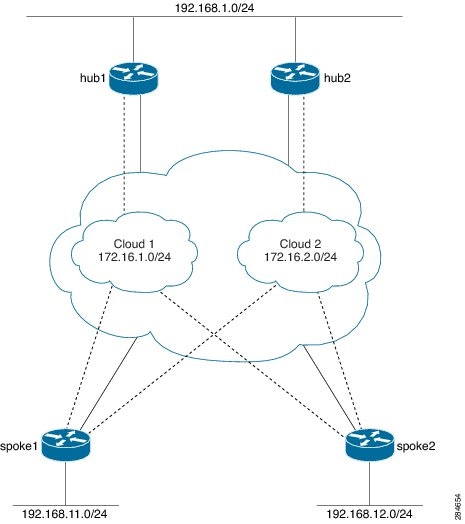
The PPPoE Client feature provides PPPoE client support on routers at customer premises. Before the introduction of this feature, Cisco IOS XE software supported PPPoE only on the access server side. The figure below shows Dynamic Multipoint VPN (DMVPN) access to multiple hosts from the same PPPoE client using a common dialer interface and shared IPsec.

Figure 1. DMVPN Access to Multiple Hosts from the Same PPPoE Client

PPP over Ethernet Client Session Initiation

A PPPoE session is initiated by the PPPoE client. If the session has a timeout or is disconnected, the PPPoE client will immediately attempt to reestablish the session.

The following steps describe the exchange of packets that occurs when a PPPoE client initiates a PPPoE session:

  1. The client broadcasts a PPPoE active discovery initiation (PADI) packet.
  2. When the access concentrator receives a PADI packet that it can serve, it replies by sending a PPPoE active discovery offer (PADO) packet to the client.
  3. Because the PADI packet was broadcast, the host may receive more than one PADO packet. The host looks through the PADO packets it receives and chooses one. The choice can be based on the access concentrator name or on the services offered. The host then sends a single PPPoE active discovery request (PADR) packet to the access concentrator that it has chosen.
  4. The access concentrator responds to the PADR packet by sending a PPPoE active discovery session-confirmation (PADS) packet. At this point, a virtual access interface is created that will then negotiate PPP and the PPPoE session will run on this virtual access.

If a client does not receive a PADO packet for a PADI packet already received, the client sends out a PADI packet at predetermined intervals. That interval length is doubled for every successive PADI packet that does not evoke a response, until the interval reaches the configured maximum.

If PPP negotiation fails or the PPP line protocol is brought down for any reason, the PPPoE session and the virtual access will be brought down and the client will wait for a predetermined number of seconds before trying to establish another PPPoE session.

How to Configure PPP over Ethernet Client

Configuring a PPPoE Client

SUMMARY STEPS

    1.    enable

    2.    configure terminal

    3.    interface type number

    4.    no ip address

    5.    pppoe enable

    6.    pppoe-client dial-pool-number number

    7.    exit

    8.    interface dialer number

    9.    mtu size

    10.    ip address negotiated

    11.    encapsulation type

    12.    dialer pool number

    13.    ppp pap sent-username username password password

    14.    end


DETAILED STEPS
     Command or ActionPurpose
    Step 1 enable


    Example:
    Device> enable


    Enables privileged EXEC mode.

    • Enter your password if prompted.
     
    Step 2configure terminal


    Example:
    Device# configure terminal


    Enters global configuration mode.

     
    Step 3interface type number


    Example:
    Device(config)# interface GigabitEthernet 0/0/0


    Configures an interface and enters interface configuration mode.

     
    Step 4no ip address


    Example:
    Device(config-if)# no ip address


    Removes the IP address.

     
    Step 5pppoe enable


    Example:
    Device(config-if)# pppoe enable


    Enables a PPPoE session on the Gigabit Ethernet interface.

     
    Step 6pppoe-client dial-pool-number number


    Example:
    Device(config-if)# pppoe-client dial-pool-number 1 


    Configures a PPPoE client and specifies dial-on-demand routing (DDR) functionality.

     
    Step 7exit


    Example:
    Device(config-if)# exit


    Exits interface configuration mode and returns to global configuration mode.

     
    Step 8interface dialer number


    Example:
    Device(config)# interface dialer 1


    Defines a dialer rotary group and enters interface configuration mode.

     
    Step 9mtu size


    Example:
    Device(config-if)# mtu 1492


    Sets the maximum transmission unit (MTU) size.

     
    Step 10ip address negotiated


    Example:
    Device(config-if)# ip address negotiated


    Specifies that the IP address for a particular interface is obtained via PPP/IP Control Protocol (IPCP) address negotiation.

    • The IP address for dialer interface 1 will be obtained via PPP/IPCP address negotiation.
     
    Step 11encapsulation type


    Example:
    Device(config-if)# encapsulation ppp


    Specifies the encapsulation type.

    • Sets PPP as the encapsulation type.
     
    Step 12dialer pool number


    Example:
    Device(config-if)# dialer pool 1


    Specifies the dialing pool that the dialer interface uses to connect to a specific destination subnetwork.

     
    Step 13ppp pap sent-username username password password


    Example:
    Device(config-if)# ppp pap sent-username username1 password pwd1


    Reenables remote Password Authentication Protocol (PAP) support for an interface and reuses the username and password parameters in the PAP authentication packet to the peer.

     
    Step 14end


    Example:
    Device(config-if)# end


    Exits interface configuration mode and returns to privileged EXEC mode.


    Configuring PPPoE on the Server

    SUMMARY STEPS

      1.    enable

      2.    configure terminal

      3.    bba-group pppoe bba-group-name

      4.    virtual-template template-number

      5.    exit

      6.    interface loopback interface-number

      7.    ip address ip-address pool

      8.    exit

      9.    interface type number

      10.    no ip address

      11.    negotiation auto

      12.    pppoe enable group bba-group-name

      13.    exit

      14.    interface virtual-template number

      15.    description description

      16.    mtu size

      17.    ip unnumbered type number

      18.    peer default ip address pool pool-name

      19.    ppp authentication protocol

      20.    exit

      21.    ip local pool {default | pool-name} [low-ip-address [high-ip-address]]

      22.    end


    DETAILED STEPS
       Command or ActionPurpose
      Step 1 enable


      Example:
      Device> enable
       

      Enables privileged EXEC mode.

      • Enter your password if prompted.
       
      Step 2configure terminal


      Example:
      Device# configure terminal
       

      Enters global configuration mode.

       
      Step 3bba-group pppoe bba-group-name


      Example:
      Device(config)# bba-group pppoe bba1
       

      Creates a PPPoE profile and enters BBA group configuration mode.

       
      Step 4virtual-template template-number


      Example:
      Device(config-bba-group)# virtual-template 1
       

      Creates a virtual template for a PPPoE profile with an identifying number to be used for cloning virtual access interfaces.

      • The range is 1 to 4095.
       
      Step 5exit


      Example:
      Device(config-bba-group)# exit
       

      Exits BBA group configuration mode and returns to global configuration mode.

       
      Step 6interface loopback interface-number


      Example:
      Device(config)# interface loopback 1
       

      Creates a loopback interface that emulates an interface that is always up and enters interface configuration mode.

      • The range is from 0 to 2147483647.
       
      Step 7ip address ip-address pool


      Example:
      Device(config-if)# ip address 192.2.0.2 255.255.255.0
       

      Assigns an IP address to the loopback interface.

       
      Step 8exit


      Example:
      Device(config-if)# exit
       

      Exits interface configuration mode and enters global configuration mode.

       
      Step 9interface type number


      Example:
      Device(config)# interface GigabitEthernet 0/0/0
       

      Configures an interface and enters interface configuration mode.

       
      Step 10no ip address


      Example:
      Device(config-if)# no ip address
       

      Removes the IP address.

       
      Step 11negotiation auto


      Example:
      Device(config-if)# negotiation auto
       

      Enables the autonegotiation protocol to configure the speed, duplex, and automatic flow control of a Gigabit Ethernet interface.

       
      Step 12pppoe enable group bba-group-name


      Example:
      Device(config-if)# pppoe enable group bba1
       

      Enables PPPoE sessions on the Gigabit Ethernet interface.

       
      Step 13exit


      Example:
      Device(config-if)# exit
       

      Exits interface configuration mode and returns to global configuration mode.

       
      Step 14interface virtual-template number


      Example:
      Device(config)# interface virtual-template 1
       

      Creates a virtual template interface that can be configured and applied dynamically to create virtual access interfaces and enters interface configuration mode.

       
      Step 15description description


      Example:
      Device(config-if)# description pppoe bba1
       

      Adds a description to an interface configuration.

       
      Step 16mtu size


      Example:
      Device(config-if)# mtu 1492
       

      Sets the MTU size.

      • The range is from 64 to 9216.
       
      Step 17ip unnumbered type number


      Example:
      Device(config-if)# ip unnumbered loopback 1
       

      Enables IP processing on an interface without explicitly assigning an IP address to the interface.

      • The type argument is the interface on which the router has assigned an IP address.
      • The number argument is the number of the interface on which you want to enable IP processing.
       
      Step 18peer default ip address pool pool-name


      Example:
      Device(config-if)# peer default ip address pool pool1
       

      Specifies an IP address and an address from a specific IP address pool to be returned to a remote peer connecting to this interface.

      • Enter a value for the pool-name argument to enable IP address pooling globally on all interfaces with the default configuration.

       
      Step 19ppp authentication protocol


      Example:
      Device(config-if)# ppp authentication pap
       

      Enables at least one PPP authentication protocol and specifies the order in which the protocols are selected on the interface.

       
      Step 20exit


      Example:
      Device(config-if)# exit
       

      Exits interface configuration mode and returns to global configuration mode.

       
      Step 21ip local pool {default | pool-name} [low-ip-address [high-ip-address]]


      Example:
      Device(config)# ip local pool pool1 192.2.0.1 192.2.0.10
       

      Configures a local pool of IP addresses to be used when a remote peer connects to a point-to-point interface.

       
      Step 22end


      Example:
      Device(config)# end
       

      Exits global configuration mode and returns to privileged EXEC mode.


      Configuration Examples for the PPP over Ethernet Client

      Example: Configuring a PPPoE Client

      Device> enable 
      Device# configure terminal
      Device(config)# interface GigabitEthernet 0/0/0
      Device(config-if)# no ip address
      Device(config-if)# pppoe enable
      Device(config-if)# pppoe-client dial-pool-number 1 
      Device(config-if)# exit
      Device(config)# interface dialer 1
      Device(config-if)# mtu 1492 
      Device(config-if)# ip address negotiated
      Device(config-if)# encapsulation ppp
      Device(config-if)# dialer pool 1
      Device(config-if)# ppp pap sent-username username1 password pwd1
      Device(config-if)# end
       

      Example: Configuring PPPoE on the Server

      Device> enable
      Device# configure terminal
      Device(config)# bba-group pppoe bba1
      Device(config-bba-group)# virtual-template 1
      Device(config-bba-group)# exit
      Device(config)# interface loopback 1
      Device(config-if)# ip address 192.2.0.2 255.255.255.0
      Device(config-if)# exit
      Device(config)# interface GigabitEthernet 0/0/0
      Device(config-if)# no ip address
      Device(config-if)# negotiation auto
      Device(config-if)# pppoe enable group bba1
      Device(config-if)# exit
      Device(config)# interface virtual-template 1
      Device(config-if)# description pppoe bba1
      Device(config-if)# mtu 1492
      Device(config-if)# ip unnumbered loopback 1
      Device(config-if)# peer default ip address pool pool1
      Device(config-if)# ppp authentication pap
      Device(config-if)# exit
      Device(config)# ip local pool pool1 192.2.0.1 192.2.0.10
      Device(config)# end
       

      Additional References

      Related Documents

      Related Topic

      Document Title

      Cisco IOS commands

      Cisco IOS Master Commands List, All Releases

      Broadband Access Aggregation and DSL commands

      Cisco IOS Broadband Access Aggregation and DSL Command Reference

      Technical Assistance

      Description

      Link

      The Cisco Support and Documentation website provides online resources to download documentation, software, and tools. Use these resources to install and configure the software and to troubleshoot and resolve technical issues with Cisco products and technologies. Access to most tools on the Cisco Support and Documentation website requires a Cisco.com user ID and password.

      http:/​/​www.cisco.com/​cisco/​web/​support/​index.html

      Feature Information for PPP over Ethernet Client

      The following table provides release information about the feature or features described in this module. This table lists only the software release that introduced support for a given feature in a given software release train. Unless noted otherwise, subsequent releases of that software release train also support that feature.

      Use Cisco Feature Navigator to find information about platform support and Cisco software image support. To access Cisco Feature Navigator, go to www.cisco.com/​go/​cfn. An account on Cisco.com is not required.

      Table 1 Feature Information for PPP over Ethernet Client

      Feature Name

      Releases

      Feature Information

      PPP over Ethernet Client

      Cisco IOS XE Release 3.5S

      This feature was introduced.

      The PPP over Ethernet Client feature provides PPPoE client support on routers.