Using Advanced Settings

SNMP

Simple Network Management Protocol is a protocol for network management. It is used for collecting information from, and configuring, managing all the devices in the network.

Cisco Mobility Express supports SNMP Version 2 and SNMP Version 3. Both SNMP v2c and v3 are enabled by default. SNMP Version 1 is also supported on Mobility Express but enabling and disabling on SNMP Version 1 is available in CLI only.

Managing SNMP Version 2c

Procedure


Step 1

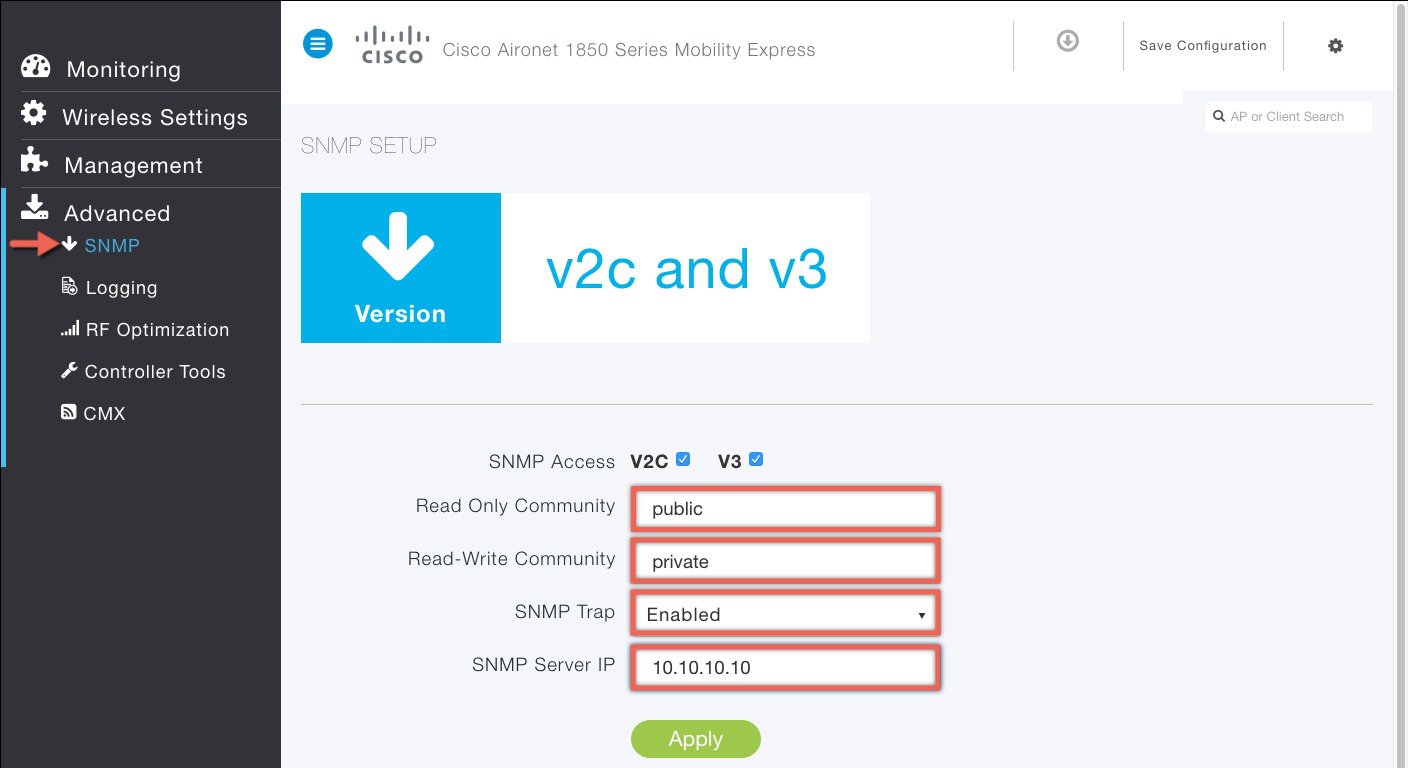
Navigate to Advanced>SNMP. The SNMP Setup screen will be displayed supported version.

Step 2

SNMPv2 Access - To enable, choose Enabled from the drop-down list. The default is Disabled.

Step 3

Read-Only Community - To configure the SNMP community with read-only privileges, in the Read -Only Community field enter a name for the community. The default is public.

Step 4

Read-Write Community - To configure an SNMP community with read-write privileges, in the Read -Write Community field enter a name for the community. The default is private.

Step 5

SNMP Trap - To enable the SNMP Trap Receiver tool, which receives, logs, and displays SNMP traps sent from network, choose Enabled from the SNMP Trap drop-down list. The default is Disabled

Step 6

SNMP Server IP - To connect to an SNMP server, enter the IP address of the server in the SNMP Server IP field.

Step 7

Click the Apply button to submit the changes.


Managing SNMP Version 3 users

Procedure


Step 1

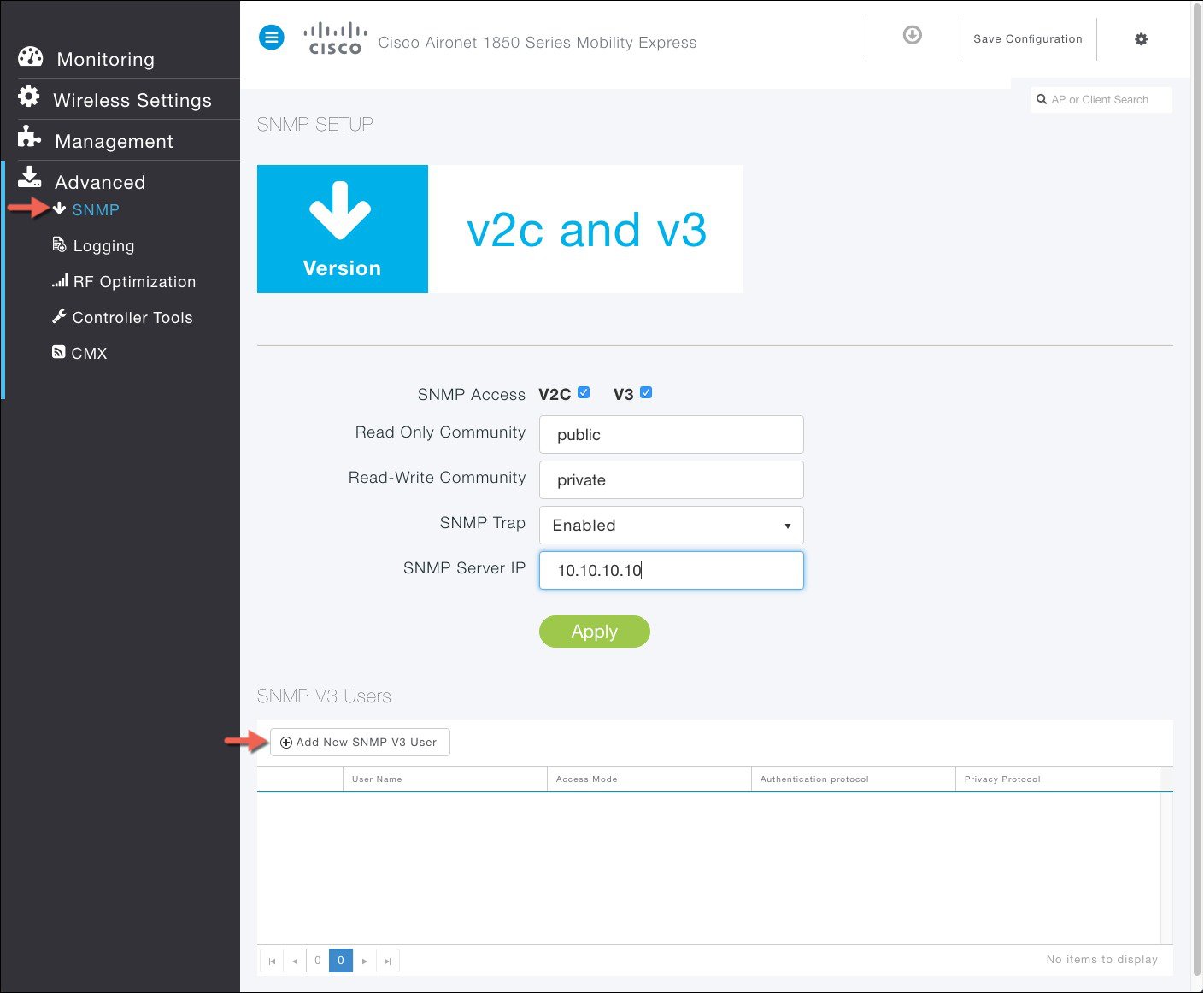
Navigate to Advanced>SNMP. The SNMP Setup screen will be displayed supported version.

Step 2

Click on Add New SNMP V3 User button.


Step 3

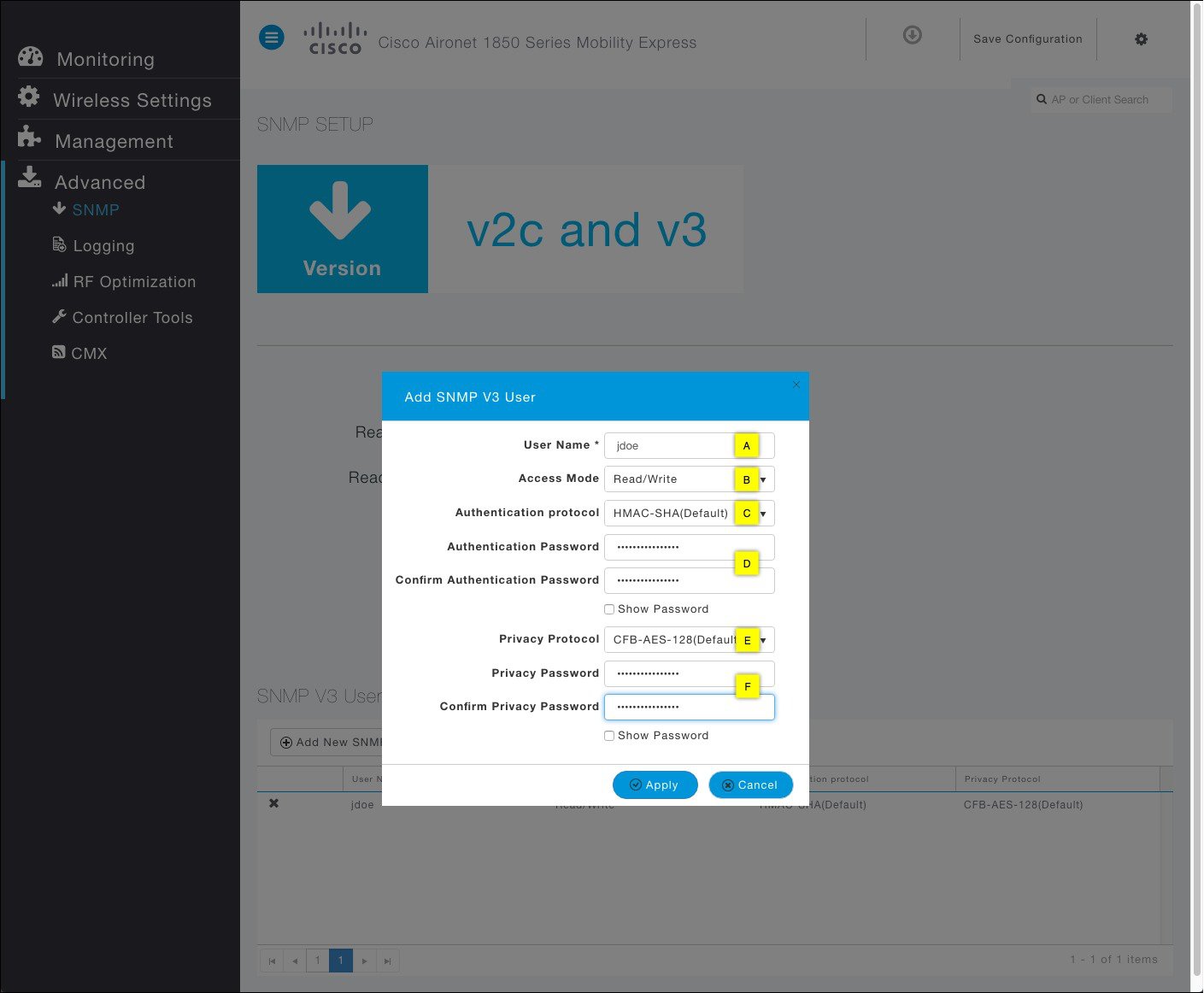
Enter the following parameters for the user:

A. Username

B. Access Mode

C. Authentication Protocol

D. Authentication Password and Confirm Authentication Password

E. Privacy Protocol

F. Privacy Password and Confirm Privacy Password


Step 4

Click on the Apply button and save the configuration.


Logging

The System Message logging feature logs the system events to a remote server, called a Syslog server. Each system event triggers a Syslog message containing the details of that event.

If the System Message logging feature is enabled, the controller sends a syslog message to the syslog server configured on the controller.

To configure Logging on Cisco Mobility Express, follow the procedure below.

Procedure


Step 1

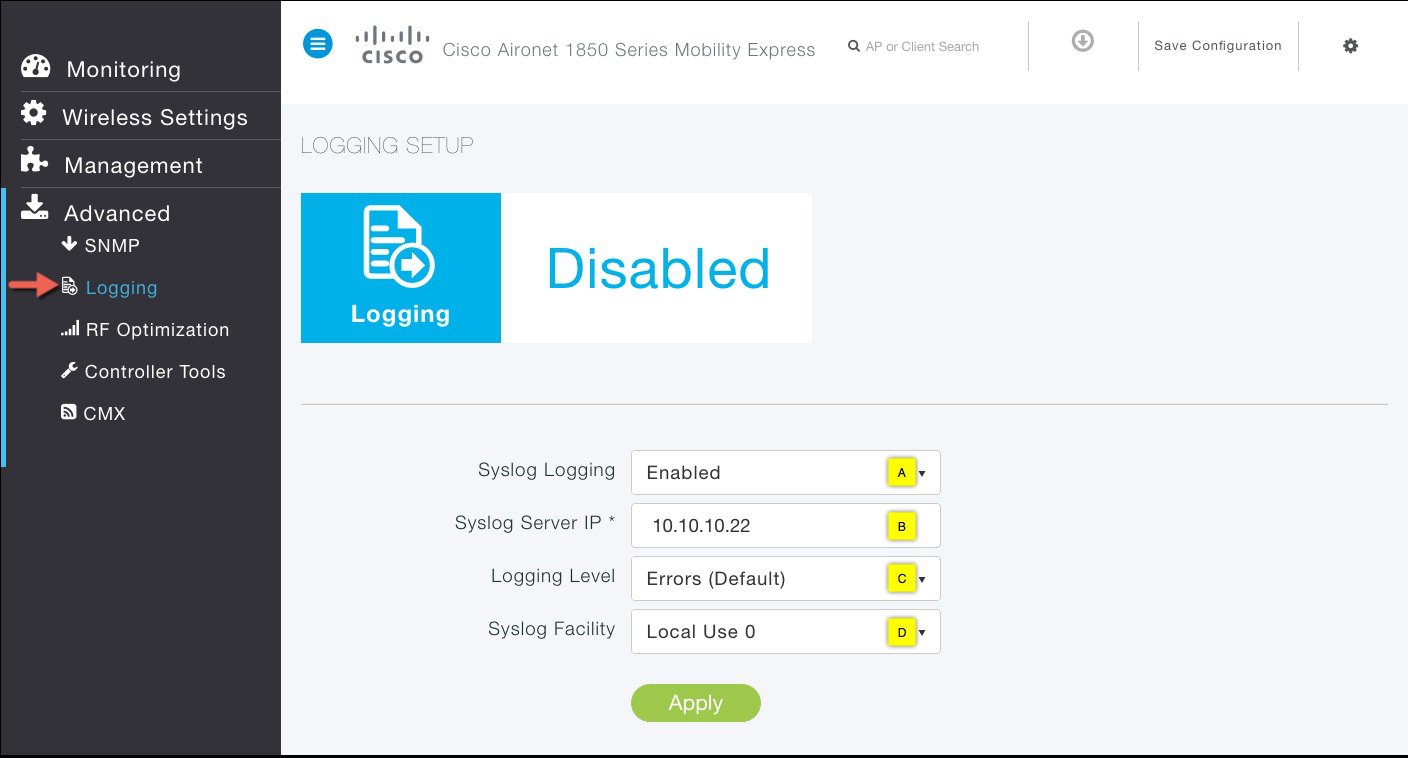
Navigate to Advanced > Logging. The Logging Setup screen will be displayed. Configure the following Logging Parameters.

A. Syslog Logging - To enable Syslog Logging, choose Enabled from the Syslog Logging drop down list. The default is Disabled.

B. Syslog Server IP - In the Syslog Server IP field, enter the IPv4 address of the syslog server

C. Logging Level - In the Logging Level drop-down list, select the syslog severity level

D. Syslog Facility - In the Syslog Facility drop-down list, select the syslog severity level

Step 2

Click the Apply button to submit the changes.


RF Optimization

RF Optimization has control knobs for Client Density and Traffic Type in the Mobility Express deployment. Typically, RF Optimization is enabled and Client Density and Traffic Type is configured during the initial Setup Wizard when deploying Cisco Mobility Express. However, it can modified by following the steps below.

Procedure


Step 1

To modify RF Optimization Parameters, navigate to Advanced > RF Optimization.

Step 2

Move the slider as per the Client Density in your deployment.

Step 3

Make the Traffic Type selection from the drop down list as per your deployment.

Step 4

Click on the Apply button and the save the configuration.


Controller Tools

The Controller Tools enables admin users to Restart the controller, clear the controller configuration and set the Mobility Express network to Factory Default, and Export and Import Controller configuration files.

Restart Controller

Procedure


Step 1

To Restart the Controller, navigate to Advanced > Controller Tools.

Step 2

Click on the Restart Controller button.

Step 3

Click Yes on the Restart Controller window.

Note 

Since you chose to reset the active Primary AP which is running the controller function, upon reset, a new Primary AP will be elected as a Primary. During the reset, AP will fall back to Standalone mode and will continue to service clients. No new clients can be on-boarded until a new Primary AP is elected and the Standalone APs go back to Connected Mode.


Clear Controller Configuration

You can change the Mobility Express network to its default configuration by clearing the controller configuration and performing Reset to Factory Default.


Note

  • This operation must be performed by an Admin user. You cannot restore the previous configurations.
  • Performing Reset to Factory Default using GUI deletes the controller configuration from all the Mobility Express capable Access Points which is followed by a reboot of the Primary AP. After the reboot, all Mobility Express capable Access Points will broadcast the CiscoAirProvsion SSID.


Procedure


Step 1

Navigate to Advanced > Controller Tools.

Step 2

Click on Clear Controller Configuration.

Step 3

Click Yes on the Clear Controller Configuration window.


Export and Import of Controller Configuration File

One can export or import Mobility Express controller configuration file. To export the active controller configuration file, follow the steps below:

Exporting Controller Configuration File

Procedure

Step 1

Navigate to Advanced > Controller Tools.

Step 2

Click on the Export Configuration Button.

Step 3

Click Yes on the Export Configuration window.

Note 

It may take up to a minute to generate the configuration file before you see it being saved to your local device.


Importing Controller Configuration File

Procedure

Step 1

Navigate to Advanced > Controller Tools.

Step 2

Click on the Import Configuration Button.

Step 3

In the Import Configuration window, click on the Choose File button and browse to the configuration file on your local device.

Step 4

Click the Yes button to initiate the HTTP upload of the configuration file. You will see import status messages being displayed on top of the window.

Note 

After the configuration file is imported, System will be reset.


Export of Logs, core and crash files

Cisco Mobility Express provides a simplified way to collect and bundle all the necessary files for TAC. This bundle can then be transferred to a TFTP or FTP server.

The following files are collected from the Controller:

  • ap-crash-data—Upload the ap-crash files.
  • config—Upload the system's configuration file.
  • coredump—Upload the system's Core Dump.
  • crashfile—Upload the system's crash file.
  • debug-file—Upload the system's debug log file
  • run-config—Upload the controller's running configuration
  • systemtrace—Upload the system's trace file.
  • traplog—Upload the system's msglog and traplog collected before previous system reset.
  • errorlog—Upload the system's error log.
  • radio-core-dump—Upload the ap-radio core dump files

The following files are collected from an Access Point:

  • show tech-support
  • /var/log/messages
  • /var/log/messages.0
  • /var/log/crash_log
  • /storage/base_capwap_cfg_info
  • /storage/config.*
  • /proc/meminfo
  • /proc/*/status

To generate the bundle with the files, follow the steps below:

Procedure


Step 1

Set the data-type to support-bundle.

(Cisco Controller) >transfer upload datatype support-bundle

Step 2

Set the transfer upload mode to tftp or ftp.

(Cisco Controller) >transfer upload mode tftp

Step 3

Set the Set the TFTP server ip .

(Cisco Controller) >transfer upload serverip <server ip>

Step 4

Set the path on TFTP server.

(Cisco Controller) >transfer upload path <tftp path>

Step 5

Set the file name.

(Cisco Controller) >transfer upload filename <file name>

Step 6

Initiate the transfer.

(Cisco Controller) >transfer upload start