Agent Greeting

Capabilities

With Agent Greeting, you can play a configurable, automated greeting to callers. Every caller receives a clear, well-paced, language-appropriate, and enthusiastic introduction from the answering agent. Agent Greeting relieves your agents from speaking opening scripts. Instead, your agents can spends the time reviewing the desktop screen pop-ups while the greeting plays.

Recording a greeting is much the same as recording a message for voice mail. Depending on how you set up the call center, agents record different greetings that play for different types of callers (for example, an English greeting for English speakers or an Italian greeting for Italian speakers).

Agent Greeting is available to agents and supervisors who use IP Phones with Built-in-Bridge (BiB) that are controlled by the Unified CCE and Unified CM.
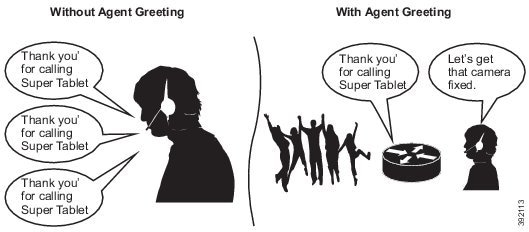
Figure 1. Agent Greeting

Agent Greeting Phone Requirements for Local Agents

Agent Greeting is available to agents and supervisors who use IP Phones with Built-In Bridge (BIB). These agents are typically located within a contact center. Phones used with Agent Greeting must meet these requirements:

Agent Greeting Call Flows

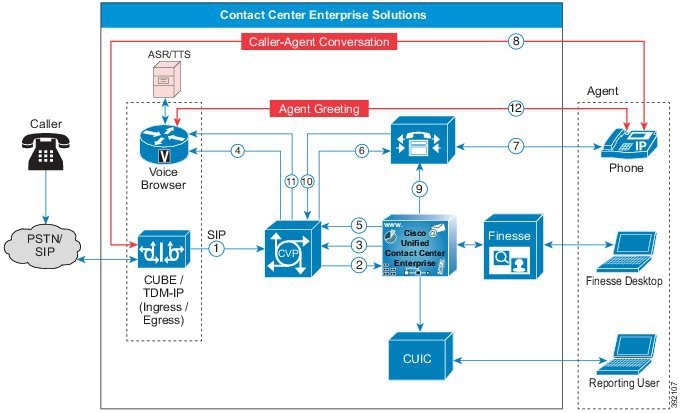
Figure 2. Agent Greeting Call Flow
  1. The incoming call arrives from CUBE or a TDM gateway at CVP.

  2. CVP sends the incoming call to Unified CCE.

  3. Unified CCE instructs CVP to queue the call.

  4. CVP sends the call to the Voice Browser for VRU treatment.

  5. When an agent is available, Unified CCE sends the agent number to CVP.

  6. CVP sends the call to Unified CM.

  7. Unified CM establishes the connection to the agent phone.

  8. The caller connects to the agent phone and stops hearing the ringback.

  9. Unified CCE determines which CVP to invoke, and instructs Unified CM to tell the phone BIB to open a stream to CVP.

  10. Unified CCE and CVP shake hands to set the trigger for CVP to let it know which greeting to play.

  11. CVP instructs the Voice Browser to have the Media Server play the greeting.

  12. The phone's BIB mixes the greeting. After the greeting plays, CVP disconnects and the agent speaks with the caller.

Agent Greeting Considerations

Consider these points when you add Agent Greeting to your solution:

  • Agent Greeting does not support outbound calls made by an agent. The announcement plays for inbound calls only.

  • Only one Agent Greeting file plays per call.

  • Supervisors cannot listen to agent recorded greetings.

  • Agent Greetings do not play when the router selects the agent through a label node.

  • Agent Greeting supports Unified CM-based Silent Monitoring with this exception: Supervisors cannot hear the greetings themselves. If a supervisor starts a silent monitoring session while a greeting plays, a message appears that a greeting is playing and to try again shortly.

  • Use either G.711 a-law or mu-law for the VRU leg on the Voice Browser dial-peer. Do not use the voice-class codec.

  • In general, Agent Greeting feature requires shorter latency across the system. For example, the public network has a maximum round-trip latency of 100 ms to support Agent Greeting feature as designed.

Agent Greeting requires the following:

  • The phones have the BIB feature.

  • The phones must run the latest firmware version delivered with Unified Communications Manager.

  • The phones must be have BIB enabled in Unified Communications Manager.

Agent Greeting with Whisper Announcement

You can use Agent Greeting with the Whisper Announcement feature. Consider these points when using them together:

  • The Whisper Announcement always plays first.

  • To shorten your call-handling time, use shorter Whisper Announcements and Agent Greetings than if you were using either feature by itself. A long Whisper Announcement followed by a long Agent Greeting equals a long wait before an agent actively handles a call.

  • If you use a Whisper Announcement, your agents probably handle different types of calls: for example, "English-Gold Member-Activate Card," "English-Gold Member-Report Lost Card," "English-Platinum Member-Account Inquiry." Ensure that greetings your agents record are generic enough to cover the range of call types.
Configure Agent Greeting

This section describes how to deploy and configure the Agent Greeting feature.

Initial Setup

This section is intended for system administrators responsible for installing and configuring Unified CCE. It describes the one-time tasks required to set up Agent Greeting.

Configuration Requirements

The following configuration components must be in place to deploy Agent Greeting.

Where

What

Unified Communications Manager

For phones that use Agent Greeting, you must set the Built-in-Bridge option to On or Default (if the value of Default is On). To verify, in Unified CM Administration, select Device > Phone > Built in Bridge.

Unified CCE

Agent Greeting is supported with Type 10 Network VRUs only. (Type 10 is required to allow CVP to control the call). If your current Unified CCE deployment is not configured for a Type 10 VRU, you must modify it accordingly.

Agent Greeting requires at minimum three expanded call variables.

  • user.microapp.ToExtVXML: This is used twice in an Agent Greeting record script: the first time is to queue the Unified CVP RecordAgentGreeting application; the second time is to tell the recording application where to save greeting files. Configure it as an array with size 3.

    Use the Unified CCE Administration tool to ensure this variable includes these settings: Maximum Length - 100 and Enabled.

  • user.microapp.app_media_lib:This is required in Agent Greeting record and play scripts to specify the dedicated directory on the media server where your greeting audio files are stored. Maximum Length - 100 and Enabled.

  • user.microapp.input_type: This is required in Agent Greeting record scripts to limit the allowable input type to DTMF. Maximum Length - 100 and Enabled.

No other ECC (Expanded Call Variable) are needed if you serve your files from the Unified CVP default media server, and your files are in the media server default locale directory ("<web_server_root>\en-us\app"). However, if you store your files in a location other than these defaults, you must use one or more of the ECC in the next row in your scripts.

Unified CCE (optional variables, used to override defaults)

To make these variables available to your script authors, confirm that they are defined in the Unified CCE Administration tool. For instructions about defining ECC variables for CVP, see the Administration Guide for Cisco Unified Customer Voice Portal at https://www.cisco.com/c/en/us/support/customer-collaboration/unified-customer-voice-portal/tsd-products-support-series-home.html.

  • user.microapp.media_server: Use to identify the Unified CVP media server if it is other than the default.

  • user.microapp.locale: Use to specify the name of the locale directory on the media server if it is other than the default ("en-us").

  • user.microapp.UseVXMLParams: Required in your record script if you include the user.microapp.media_server variable. It tells the external VXML recording script to use the name/value pair of the application that you pass in the user.microapp.ToExtVXML variable.

Unified CVP

Unified CVP Server must be installed and configured, as described in the Cisco Unified Contact Center Enterprise Installation and Upgrade Guide at https://www.cisco.com/c/en/us/support/customer-collaboration/unified-contact-center-enterprise/products-installation-guides-list.html.

Unified CVP Server must be installed and configured. as described in the Installing and Upgrading Guide for Cisco Hosted Collaboration Solution for Contact Center at https://www.cisco.com/c/en/us/support/unified-communications/hosted-collaboration-solution-contact-center/products-installation-guides-list.html

Agent Greeting Deployment Tasks

Procedure


Step 1

Ensure your system meets the baseline requirements for software, hardware, and configuration described in the System Requirements and Limitations section.

Step 2

Configure IIS and FTP on Media Server.

Step 3

In Unified CVP, add media servers, configure FTP connection information, and deploy the media servers.

Step 4

Configure a Unified CVP media server, if you have not already done so. See Configure Unified CVP Media Server.

Step 5

In Unified CVP Operations Console, republish the VXML Gateway.tcl scripts with updated Agent Greeting support. See Republish the tcl scripts to VXML Gateway for Agent Greeting support.

Step 6

Set the cache size on the VXML Gateway. See Set Cache Size on VXML Gateway.

Step 7

Record the voice prompts to play to agents when they record a greeting and to deploy the audio files to your media server, see Create Voice Prompts for Recording Greetings.

Step 8

Configure Call Types to record and play agent greetings.

Step 9

Configure Dialed Numbers to record and play agent greetings.

Step 10

Schedule the Script

Step 11

In Script Editor:

Step 12

Modify the Unified CCE call routing scripts to use Play Agent Greeting script.


Configure Gateway

Republish the tcl scripts to VXML Gateway

The .tcl script files that ship with Unified CVP include updates to support Agent Greeting. You must republish these updated files to your VXML Gateway.

Republishing scripts to the VXML Gateways is a standard task in CVP upgrades. You must republish the scripts before you can use Agent Greeting.

Procedure

Step 1

In the Unified CVP Operation Console, select Bulk Administration > File Transfer > Scripts and Media.

Step 2

Set Device to Gateway.

Step 3

Select the gateways you want to update. Typically you would select all of them unless you have a specific reason not to.

Step 4

Select Default Gateway Files.

Step 5

Click Transfer.


Set Cache Size on VXML Gateway

To ensure adequate performance, set the size of the cache on the VXML Gateway to the maximum allowed. The maximum size is 100 megabytes; the default is 15 kilobytes. Failure to set the VXML Gateway cache to its maximum can result in slowed performance to increased traffic to the media server.

Use the following Cisco IOS commands on the VXML Gateway to reset the cache size:

conf t
http client cache memory pool 100000
exit
wr

For more information about configuring the cache size, see the Configuration Guide for Cisco Unified Customer Voice Portal at https://www.cisco.com/c/en/us/support/customer-collaboration/unified-customer-voice-portal/tsd-products-support-series-home.html.

Configure Unified CVP

Complete the following procedures for Unified CVP configuration:

Configure FTP Enabled in Server Manager

Complete the following procedure to configure the FTP enabled in server manager.

Procedure

Step 1

Right- Click Roles in the left navigation page of server manager.

Step 2

Select Add Roles.

Step 3

Click Next.

Step 4

Check the checkbox Web Server (IIS) and click Next.

Step 5

Check the checkbox FTP Server and click Next.

Step 6

After the successful installation, click Close.

Step 7

Make sure that the FTP and the IIS share the same root directory, because the recording application writes the file to the media server directory structure, and the greeting playback call uses IIS to fetch the file. The en-us/app directory should be under the same root directory for FTP and IIS.

Step 8

Create a dedicated directory on the server to store your greeting files.

This lets you specify a lower cache timeout of 5 minutes for your agent greeting files that does not affect other more static files you may be serving from other directories. By default, the Record Greeting application posts the .wav file to the en-us/app directory under your web/ftp root directory. You may create a dedicated directory such as ag_gr under the en-us/app directory, and then indicate this in the Unified CCE script that invokes the recording application. Use the array for the ECC variable call.user.microapp.ToExtVXML to send the ftpPath parameter to the recording application. Make sure the ECC variable length is long enough, or it may get truncated and fail.

Step 9

In IIS Manager, set the cache expiration for the dedicated directory to a value that allows re-recorded greetings to replace their predecessor in a reasonable amount of time, while minimizing requests for data to the media server from the VXML Gateway.

The ideal value varies depending on the number of agents you support and how often they re-record their greetings. Two minutes may be a reasonable starting point.

Step 10

Find the site you are using, go to the agent greeting folder you created (ag_gr), and then select HTTP Response Headers .

Step 11

Select Add, then Set Common Headers .


Create Voice Prompts for Recording Greetings

You must create audio files for each of the voice prompts that agents hear as they record a greeting. The number of prompts you require can vary, but a typical set can consist of:

  • A welcome followed by a prompt to select which greeting to work with (this assumes you support multiple greetings per agent)

  • A prompt to select whether they want to hear the current version, record a new one, or return to the main menu

  • A prompt to play if a current greeting is not found.

To create voice prompts for recording greetings:

Procedure

Step 1

Create the files using the recording tool of your choice. When you record your files:

  • The media files must be in .wav format. Your .wav files must match Unified CVP encoding and format requirements (G.711, CCITT A-Law 8 kHz, 8 bit, mono).

  • Test your audio files. Ensure that they are not clipped and that they are consistent in volume and tone.

Step 2

After recording, deploy the files to your Unified CVP media server. The default deployment location is to the <web_server_root>\en-us\app directory.

Step 3

Note the names of the files and the location where you deployed them on the media server. Your script authors need this information for the Agent Greeting scripts.


Built-In Recording Prompts

The Unified CVP Get Speech micro-application used to record Agent Greetings includes the following built-in prompts:

  • A prompt that agents can use to play back what they recorded

  • A prompt to save the greeting, record it again, or return to the main menu

  • A prompt that confirms the save, with an option to hang up or return to the main menu

You can replace these .wav files with files of your own. For more information, see the Unified Customer Voice Portal Call Studio documentation at https://www.cisco.com/c/en/us/support/unified-communications/unified-call-studio/tsd-products-support-series-home.html.

Configure Unified CVP Media Server

Procedure

Step 1

In the CVP Operations Console, navigate to Device Management > Media Server.

Step 2

Click Add New.

Step 3

On the General tab, configure the following.

  1. Enter the IP address and the hostname of the Unified CVP server.

  2. Check FTP Enabled.

  3. Either Check Anonymous Access or enter the credentials.

  4. Click Test SignIn to validate the FTP access.

Step 4

Click Save.

Step 5

Repeat Steps 1 through 4 for all CVP Servers.

Step 6

In the CVP Operations Console, navigate to Device Management > Media Server.

Step 7

Change Default Media Server from None to any one of the Unified CVP servers. Then click Set.

Step 8

Click Deploy.


Configure the Call Studio Scripts for Record Agent Greeting

The Record Agent Greeting is controlled by a combination of Call Studio script and ICM script. Complete the following procedure to configure the Call Studio script:

Procedure

Step 1

Access the .zip file from the CVP OAMP machine from the location C:\Cisco\CVP\OPSConsoleServer\StudioDownloads\RecordAgentGreeting.zip.

Step 2

Extract the example Call Studio Record Agent Greeting scripts contained in RecordAgentGreeting.zip to a folder of your choice on the computer running CallStudio. The folder contains a CallStudio project having the same name as the folder.

Step 3

Start Call Studio by selecting Start > Programs > Cisco > Cisco Unified Call Studio.

Step 4

Select File > Import.

The Import dialog box displays.
Step 5

Expand the Call Studio folder and select Existing Call Studio project Into Workspace.

Step 6

Click Next.

The Import Call Studio Project From File System displays.
Step 7

Browse to the location where you extracted the call studio projects. Select the folder and select Finish.

Example:
RecordAgentGreeting
Step 8

Follow the below steps, to save the file in a defined path:

  1. In the Call Studio Navigator panel, open the RecordAgentGreeting project and double click app.callflow to display the application elements in the script window.

  2. Select the Record Greeting With Confirm node.

  3. In the Element Configuration panel, choose the Setting tab and modify the default path settings to c:\inetpub\wwwroot\en-us\app\ag_gr. Save the project after you modify it.

  4. Validate the project associated with the Record Agent Greeting and deploy them to your VXML Server.

Step 9

Right-click on Record Agent Greeting project in the Navigator window and select Validate.

Step 10

Right-click on the Record Agent Greeting project and click Deploy.

Step 11

In the Deploy Destination area, select Archive File and click Browse.

Step 12

Navigate to the archive folder that you have set up:

Example:
C:\Users\Administrator\Desktop\Sample.
Step 13

Enter the name of the file.

Example:
Samplefile.zip
Step 14

Click Save.

Step 15

In the Deploy Destinationarea click Finish.

Step 16

Log in to OAMP and choose Bulk Administration\File Transfer\VXMLApplications.

Step 17

Select the VXML Server to which you want to deploy the applications.

Step 18

Select the zip file that contains the applications.

Example:
Samplefile.zip
Step 19

Click Transfer.

Step 20

Right-click on the project and click Deploy, then click Finish.

Step 21

Using windows explorer, navigate to %CVP_HOME%\VXMLServer\applications\RecordAgentGreeting, open the project's admin folder and double-click deployApp.bat to deploy the application to the VXML Server.

Step 22

Verify that the application is running in the following path %CVP_HOME%\VXMLServer\applications\RecordAgentGreeting\admin and double-click status.bat. The application should display under Application Name and with the status Running.


Configure Unified CCE

Complete the following procedures forUnified CCE configuration:

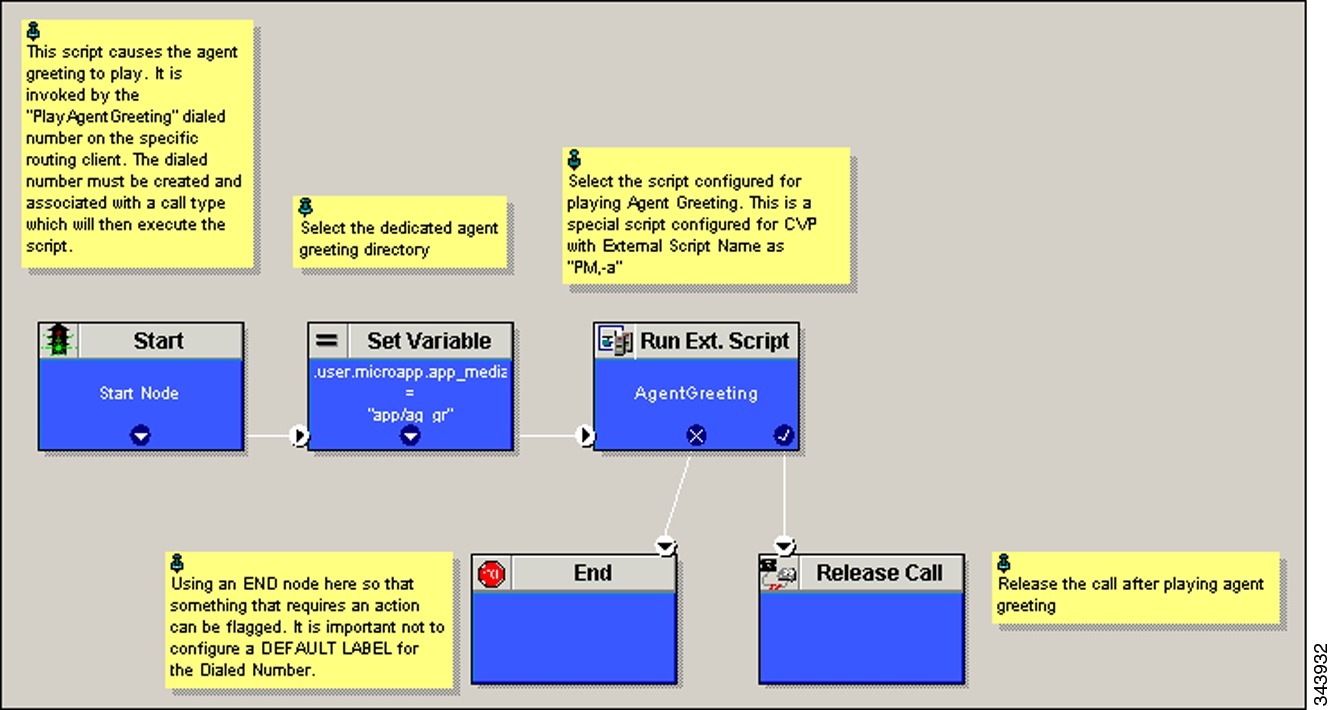
Create Agent Greeting Play Script

A dedicated routing script plays the Agent Greeting. This script is invoked by the PlayAgent Greeting dialed number on the specific routing client. You must create the dialed number and associate it with a call type that executes the script.

Figure 3. Agent Greeting Play Script


Create Agent Greeting Recording Script

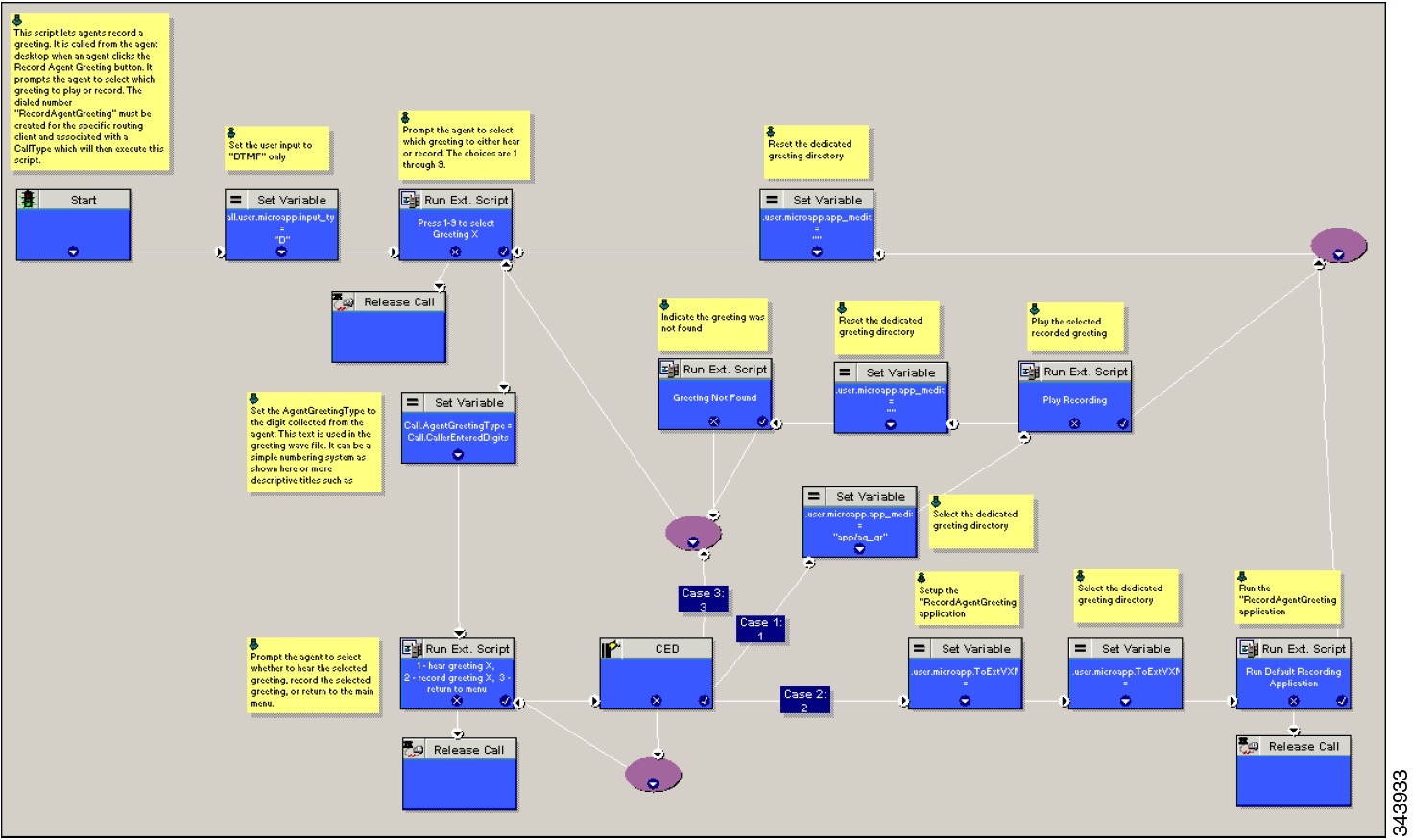
The Agent Greeting Recording script lets agents record a greeting. The agent desktop calls the script when an agent clicks the Record Agent Greeting button, prompting the agent to select which greeting to play or record. Create the dialed number RecordAgentGreeting for the specific routing client and associate it with a call type that then executes this script.

Figure 4. Agent Greeting recording script


Unified CCE Configuration for Record Agent Greeting
  • user.microapp.ToExtVXML : This is used twice in an Agent Greeting record script, the first time is to queue the Unified CVP Record Agent Greeting application and the second time is to tell the recording application where to save greeting files. Configure it as an array with size 3. Use the Unified CCE Administration tool to ensure this variable includes Maximum Length as 100 and Enabled.

  • user.microapp.app_media_lib :This is required in Agent Greeting record and play scripts to specify the dedicated directory on the media server where your greeting audio files are stored. Maximum Length is 100 and Enabled.

  • user.microapp.input_type: This is required in Agent Greeting record scripts to limit the allowable input type to DTMF. Maximum Length is 100 and Enabled.


Note

For more information on how to enable the ECC variables, see the Cisco Hosted Collaboration Solution for Contact Center Configuration Guide at https://www.cisco.com/c/en/us/support/unified-communications/hosted-collaboration-solution-contact-center/products-installation-and-configuration-guides-list.html.

Import the Example Agent Greeting Scripts

To view or use the example Agent Greeting scripts, you must first import them into theUnified CCE Script Editor. Complete the following procedure to import the example Agent Greeting scripts:

Procedure

Step 1

Launch Script Editor.

Step 2

Select File > Import Script and select a script to import.

The scripts are located in the icm\bin directory on the data server (DS) node.
Step 3

In addition to importing the script, Script Editor maps imported objects. You must manually create some objects referenced in the example scripts, such as the external Network VRU scripts or the skill group, or change these references to point to existing scripts and skill groups in your system.

Step 4

Repeat for the remaining scripts.

Note 
For Small Contact Center Deployment Model, Default Routing Scripts are available in the partners Community. Download the Routing Scripts to the Desktop where ISE is Installed and Login as the Sub Customer User into the ISE to perform the Step 2 and 3. To Download the Routing Script, see https://communities.cisco.com/docs/DOC-35245.
Note 
For Small Contact Center Deployment Model ensure the resources used in this Routing script, like Network VRU Scripts , ECC variables etc are specific to the sub customer.

Configure Call Types

Procedure

Step 1

Sign-in to Unified CCDM Portal as Tenant or Sub Customer user.

Step 2

Click the burger icon and select Provisioning > Resource Manager

Step 3

Select the folder where you want to create the call type.

Step 4

Click Resource, then click Call Types.

Step 5

Create a call type to record agent greetings and enter RecordAgentGreeting as the name.

Step 6

Create a call type to play agent greetings and enter PlayAgentGreeting as the name.


Configure Dialed Numbers

Procedure

Step 1

Sign-in to Unified CCDM Portal as Tenant or Sub Customer user.

Step 2

Click the burger icon and select Provisioning > Resource Manager

Step 3

Select the folder where you want to create the dialed number.

Step 4

Click Resource, then click Dialed Number.

Step 5

Create a dialed number to record agent greetings and enter RecordAgentGreeting as the name.

Step 6

Create a dialed number to play agent greetings and enter PlayAgentGreeting as the name.

Step 7

Complete the following for each dialed number:

  1. Select Internal Voice for the Routing type.

  2. Retain the default domain value.

  3. Select the call type appropriate to the dialed number.

    This helps to associate each number to its call type and to a script that executes.

Schedule the Script

Procedure

Step 1

In the Script Editor, select Script > Call Type Manager.

Step 2

From the Call Type Manager screen, select the Schedules tab.

Step 3

From the Call type drop-down list, select the call type to associate with the script; for example, PlayAgentGreeting.

Step 4

Click Add and select the script you want from the Scripts box.

Step 5

Click OK twice to exit.


Modify the Unified CCE call routing scripts to use Play Agent Greeting script

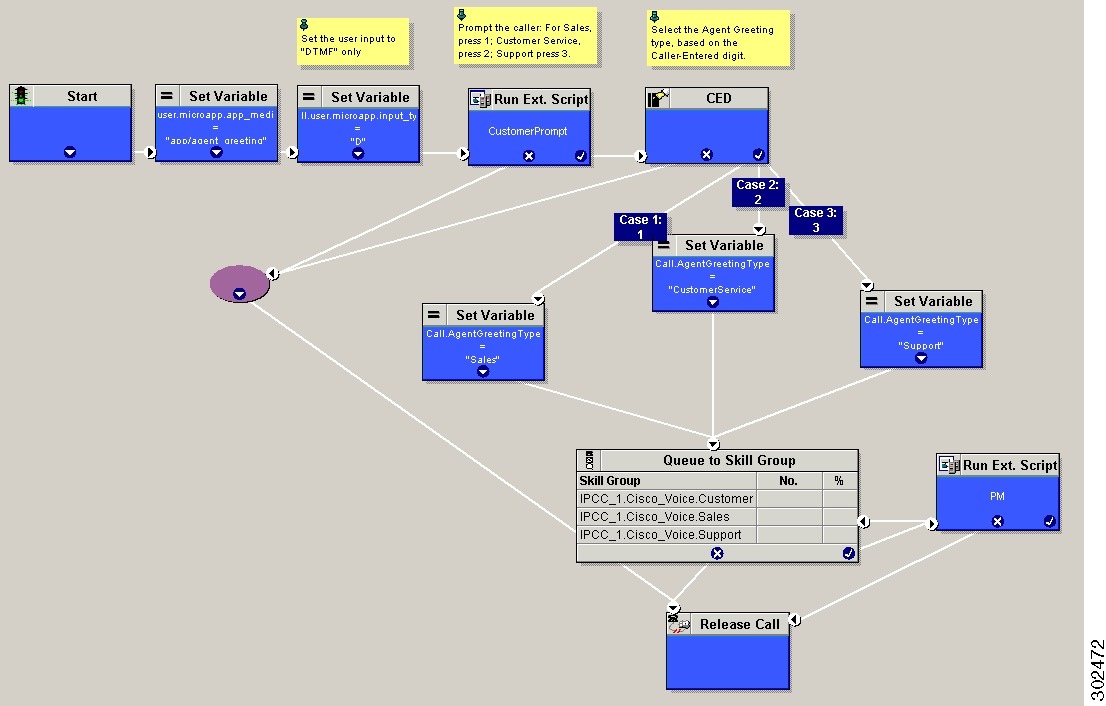
For an Agent Greeting play script to run, you must add an AgentGreetingType Set Variable node to your existing Unified CCE call routing scripts: This variable's value is used to select the audio file to play for the greeting. Set the variable before the script node that queues the call to an agent (that is, the Queue [to Skill Group or Precision Queue], Queue Agent, Route Select, or Select node).

Specify AgentGreetingType Call Variable

To include Agent Greeting in a script, insert a Set Variable node that references the AgentGreetingType call variable. The AgentGreetingType variable causes a greeting to play and specifies the audio file it should use. The variable value corresponds to the name of the greeting type for the skill group or Precision Queue. For example, if there is a skill group or Precision Queue for Sales agents and if the greeting type for Sales is '5', then the variable value should be 5.

You can use a single greeting prompt throughout a single call type. As a result, use one AgentGreetingType set node per script. However, as needed, you can set the variable at multiple places in your scripts to allow different greetings to play for different endpoints. For example, if you do skills-based routing, you can specify the variable at each decision point used to select a particular skill group or Precision Queue.


Note

Only one greeting can play per call. If a script references and sets the AgentGreetingType variable more than once in any single path through a script, the last value to be set is the one that plays.


Use these settings in the Set Variable node for Agent Greeting:

  • Object Type: Call.

  • Variable: Must use the AgentGreetingType variable.

  • Type: Must use the PersonID_AgentGreetingType type.

  • Value: Specify the value that corresponds to the greeting type you want to play. For example: "2" or "French"

    • You must enclose the value in quotes.

    • The value is not case-sensitive.

    • The value cannot include spaces or characters that require URL encoding.

The following script example illustrates how to include Agent Greeting in a script using the Set Variable node:

Figure 5. Modified Call Routing Script to Enable Greeting Play
Scripting Agent Greeting for Multiple Customers

In the out-of-box method for deploying Agent Greeting, Unified CCE uses the customer information from the built-in "PlayAgentGreeting" dialed number to choose the correct network VRU to play the greeting. If your deployment has multiple customers configured within your Unified CCE instance and you want to use Agent Greeting with all of them, you must configure things differently to work around customer associations.

Configure Custom Dialed Number for Agent Greeting Play

To play Agent Greetings for multiple customer instances, configure the built-in PlayAgentGreeting dialed number for each Unified CM routing client, but do not associate it with a specific customer. The Unified CM peripheral uses this number to initiate Agent Greeting play. If you want your greetings to be played from a different network VRU, use the TranslationRouteToVRU node in your routing scripts to explicitly choose the network VRU.

Configure Custom Dialed Number for Agent Greeting Record

To record Agent Greetings when you have multiple customers, you must create your own custom dialed number for recording. You may want to create different dialed numbers for different customers. As with Agent Greeting play, if you want to use different network VRUs to record Agent Greetings for different customers, use the TranslationRouteToVRU node in your routing script to explicitly select the network VRU.

Create your own custom button or have your agents enter the record dialed number using the dial pad on their desktops.

Configure Unified Communications Manager

Built-in-Bridge

Built-in-Bridge (BIB) is not enabled by default for the phones. It is disabled at the system level as it is not used by all the customer by default. It is used only by the customers having Contact Center.

The provider has to perform the following procedures to enable BIB for the customers having contact center.


Note

Create a new Field Display Policies at the customer level and add Built-in Bridge to the list.


Configure the Built-in-Bridge
Procedure

Step 1

Login to Cisco Unified Communication Domain Manager as provider.

Step 2

Navigate Role Management > Field Display Policies.

Step 3

Ensure that hierarchy is set to the appropriate customer.

Step 4

Select the SubscriberPhoneMenuItemProvider.

Step 5

In the details page, go to Action menu and click Clone.

Step 6

Enter SubscriberPhoneMenuItemProvider as the name.

Step 7

Select relation/SubscriberPhone from the Target Model Type drop-down list.

Step 8

Expand Groups section and enter Phone for Title.

Step 9

Select builtInBridgeStatus from the Available list and click Select.

Step 10

Click Save.


Enable or Disable the Built-in-Bridge
Before you begin

Ensure that you configure Built-in-Bridge. See, Configure the Built-in-Bridge.

Procedure

Step 1

Login to Cisco Unified Communication Domain Manager as a provider.

Step 2

Ensure that hierarchy is set to the appropriate customer.

Step 3

Navigate Subscriber Management > Phones and select the appropriate phone.

Step 4

In the Phone tab:

  • To enable BIB choose On from the Built in Bridge drop-down list.

  • To disable BIB choose Off from the Built in Bridge drop-down list.

Step 5

Click Save.


Reporting

In agent, skill group, and precision queue reports, greeting time is not specifically broken out. The period during which the greeting plays is reported as talk time. Record time is counted as an internal call by the default skill group.

Calls that involve Agent Greeting consist of two call legs: the inbound call from the customer and the call to Unified CVP for the greeting. Both of these legs have the same RouterCallKeyDay and RouterCallKey values in the TCD and RCD tables in the database. You can use these values to link the two legs together for reporting purposes.

Greeting Call Statistics

To view greeting call statistics, create a separate call type and associate it with the routing script that plays agent greeting. New Cisco Unified Intelligence Center templates for the agent greeting call type are created based on the data in the existing Call_Type_Real_Time and Call_Type_Interval table in the database.

Peripheral Call Types for Agent Greeting

There are two peripheral call types specific to Agent Greeting that you can use to track and report on the feature.

  • Call Type 39: Play Agent Greeting. Route request to play an Agent Greeting.

  • Call Type 40: Record Agent Greeting. Agent call for recording an Agent Greeting.

Extra TCDs and RCDs are generated for the agent greeting call leg, and they can be linked to the first call leg by the same RouterCallKeyDay and RouterCallKey.

Serviceability

Serviceability for Agent Greeting includes SNMP events captured by your Network management software that indicate reasons for greeting failures and counters to track the number of failed greeting events.


Note

There is no counter for the number of failed agent greeting calls.

When system components fail, Agent Greeting may be impacted. For example, if a requested greeting audio file cannot be found for any reason, the call proceeds normally without the Agent Greeting.