Manage Capacity

Physical Memory Capacity Management

Cisco supports memory expansion on Azure Stack Hub servers. Memory expansion is a disruptive operation, and involves shutdown of the Azure Stack Hub system. Following are the guidelines for memory expansion or upgrade:

  • All the servers in the Azure Stack Hub have homogeneous hardware configuration. For this reason, you cannot perform memory upgrade only on a single server. You must upgrade the memory on all the servers at the same time.

  • Upgrade only to increments supported for M5 — 384 GB, 512 GB and 768 GB using 32 GB DIMMS, 1024 GB or 1536 GB using 64 GB DiMMS.

  • You cannot mix and match 32 GB and 64 GB DIMMS

Review the Cisco memory expansion best practices from following links:

https://www.cisco.com/c/dam/en/us/products/collateral/servers-unified-computing/ucs-c-series-rack-servers/memory-guide-c220-c240-b200-m5.pdf

https://www.cisco.com/c/en/us/td/docs/unified_computing/ucs/c/hw/C240M4/install/C240M4/replace.html

After supported memory is procured, follow the instructions from the following Microsoft guide to perform the memory expansion:
https://docs.microsoft.com/en-us/azure-stack/operator/azure-stack-manage-storage-physical-memory-capacity

Add Scale Unit Nodes

With Azure Stack Hub update 1807 Microsoft supports addition of physical servers to an existing Azure Stack Hub. Cisco customers running Azure Stack Hub version 1807 and above can now order and add nodes to their existing Azure Stack Hub. In the current version of the Add Node capability, Microsoft allows the existing cluster to be expanded up to a maximum of 16 servers per scale unit. This section covers detailed instructions for the addition of new nodes to an existing Azure Stack Hub system.

Prerequisites for Adding a Node

The following prerequisites must be complete before adding a node:

  • Verify that Azure Stack Hub is running update 1807 or above with no errors or warnings on the Azure Stack Hub admin portal.

  • Verify that the following components are received as a part of the add node package:

    • Server with the exact same components as other servers in the existing Azure Stack Hub

    • Two QSFP-H40G-CU3M cables

    • UCS port license for 2 ports

  • Obtain two CAT 6 cables.

  • Ensure that there are no errors or warnings displayed on Cisco UCS Manager. Cisco UCS Manager can be accessed using any computer that has access to the Azure Stack Hub Out-of-Band-Management network. To access Cisco UCS Manager using a Web browser, open https://<Cisco_UCS_Manager_IP>. You can find the Cisco UCS Manager IP and admin login credentials in the customer handover information.

  • Verify that the UCS service profile template has enough Cisco IMC (Integrated Management Controller)/BMC IPs for newly added nodes. Most of the new deployments after September 2018 will have Cisco IMC IP pools large enough to support 16 servers. However, for older deployments, Cisco IMC IP pools require manual expansion. Each Cisco Azure Stack Hub server requires two Cisco IMC IPs:

    • Out-of-Band Management IP

    • Inband Management IP

Extending Management IP Pools

You can have one IP pool for each type of Cisco IMC IP. Cisco IMC IP pools should already exist on all Cisco Azure Stack Hub appliances.

To extend the Out-of-Band management IP pool, review the Out-of-Band management IP subnet provided on the Cisco deployment worksheet addendum and find unused IP blocks in that subnet. It is recommended to make the total pool size 16 IPs.

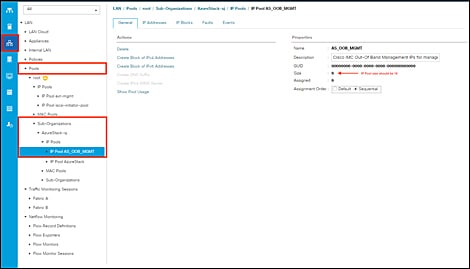
From Cisco UCS Manager, navigate to LAN > Pools > Sub-Organizations > AzureStack Org > IP Pools. Locate the Out-of-Band management IP pool and ensure that the pool size is 16.

Procedure


Step 1

From Cisco UCS Manager, navigate to LAN > Pools > Sub-Organizations > AzureStack Org > IP Pools.

Step 2

Locate the Out-of-Band management IP pool and ensure that the pool size is 16.

Step 3

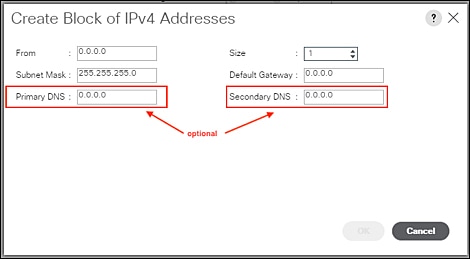
If the pool size is not 16, add more IP addresses using the Create Block of IPv4 Addresses option in the UI. Add enough IP addresses to make the pool size 16. Leave the DNS values at the default “0.0.0.0”.

Step 4

Repeat these steps to extend the Inband management IP pool.

To determine the Inband management IPs for the pool expansion review the deployment worksheet completed before the deployment. It includes the BMC IP addresses for each server in the IP usage section. If the IP addresses for all 16 servers are not listed on the worksheet, select the next consecutive unused IP addresses after the last used BMC IP to extend the pool. For example, if you have a 4-node system and currently you have a fully-consumed IP pool of 4 IP addresses 192.168.26.3 – 192.168.26.6, use IP addresses 192.168.26.7 – 192.168.26.18 to expand the Inband IP pool.


Adding a Scale Unit Node

Before you begin

Complete the list of prerequisites listed in Add Scale Unit Nodes.

Procedure


Step 1

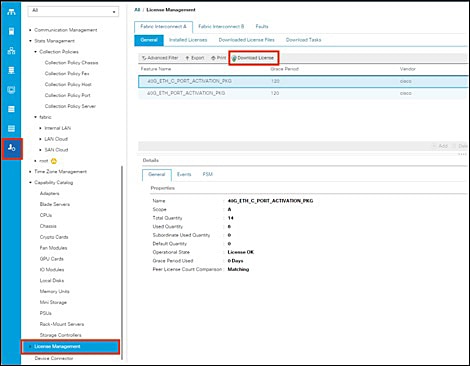
Login to Cisco UCS Manager and navigate to Admin > License Management > Fabric Interconnect A > General tab.

Step 2

Click Download License and install the UCS port license on Fabric Interconnect A.

Step 3

Repeat Steps 1 and 2 for Fabric Interconnect B.

After installing the license on each Fabric Interconnect, check the license status for the newly added server port by verifying the port properties.

Step 4

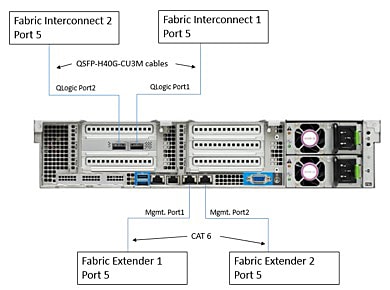
Install the server into the existing Azure Stack Hub rack, but do not connect the power. Refer to the Cisco Azure Stack Hub cabling guide for additional information on server placement and cabling. Connect the QLogic and management ports to the Fabric Interconnect and Fabric Extender. The new server will take up the next consecutive ports on the Fabric Interconnects and Fabric Extenders. For example, if you are installing the fifth server on the 4-node Azure Stack Hub system, the cabling for the server will look like this:

Step 5

Connect the power and wait for the UCS server discovery to finish.

During the discovery phase, Cisco UCS Manager automatically performs the following actions:

  1. Inventories the server and server components

  2. Adds the server to the appropriate server pool

  3. Creates a new service profile for the server

  4. Associates the service profile to the server

  5. During service profile association, upgrades server firmware to match other servers in the stamp

Server discovery can take anywhere from 40 minutes to 2 hours, depending upon the number of server components that require firmware upgrade.

Step 6

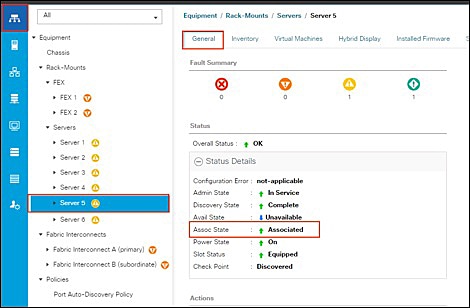
After discovery is complete, verify the Association state under Equipment > Rack-Mounts > Servers > Server <newly added server number> > General

The Assoc State should be Associated.

Step 7

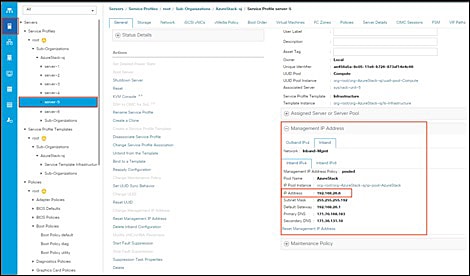
From the Server tab in the navigation pane, select the service profile associated with the newly installed server and note the Inband management IP address.

Step 8

Login to the Azure Stack Hub admin portal as an Azure Stack Hub operator.

Step 9

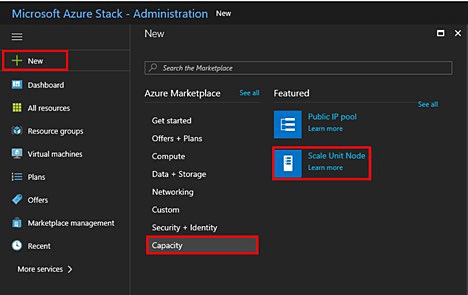
Navigate to New > Capacity > Scale Unit Node

Step 10

On the Add Node pane, select the Region and then select the Scale Unit that you want to add the node to. Also, specify the BMC IP Address (InBand management IP address noted in Step 7) for the scale unit node that you are adding.

Note 

You can only add one node at a time.

Step 11

You can also add a node using PowerShell. Refer to the Microsoft Add node documentation for additional details.

Note 

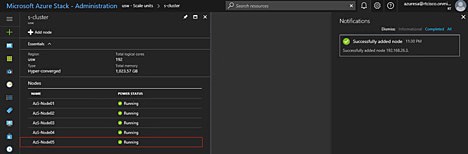
During node addition, the scale unit will show status as Expanding, and this scale unit expansion takes a very long time. A new node can be added to the cluster as long as the last added node shows status as Running and it is not required to wait for cluster expansion to finish.