- Title page
- Table of Contents
- Preface
- Getting to Know the Cisco TelePresence System
- Placing and Receiving Calls - Systems That Use an IP Phone for Call Control
- Placing and Receiving Calls - Systems That Use a Touch 12 Device for Call Control
- Cisco TelePresence System On-Screen Icons and Messages
- Cisco TelePresence System Meeting Controls - Systems That Use an IP Phone for Call Control Only
- Tips for Troubleshooting Your Cisco TelePresence Meeting
- Glossary
- Index
Cisco TelePresence System Phone Alerts and CTS Main Display Screen Messages
Revised: February 26, 2015, OL-28618-01
This chapter contains the following system information icons that may be displayed on the Cisco TelePresence System (CTS) main display screen and contains the following sections:

Note You see the meeting alerts and meeting timers only when you are using Cisco TelePresence Manager (CTS-Manager) as the meeting control system. These alerts and timers are not used when using the Cisco TelePresence Management Suite (TMS).
Screen On-Screen Icons and Animations
This chapter contains the following system information icons that may be displayed on the Cisco TelePresence System (CTS) main display screen and contains the following sections:
- Meeting Timer Icons
- Call Connection Status Bars
- System Information Icons
- Main Display Screen Animations
- Maintenance Icons
Meeting Timer Icons
Note You see the meeting timers only when you are using Cisco TelePresence Manager (CTS-Manager) as the meeting control system. These alerts and timers are not used when using the Cisco TelePresence Management Suite (TMS).
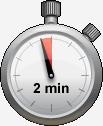
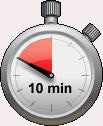
A meeting alert is displayed on the main display screen to help participants end meetings on time. Table 4-1 describes display screen meeting alert icons.
|
|
|
|---|---|
|
Amount of time left in the scheduled meeting. Appears two minutes before the end of a meeting. A red slash appears across the stopwatch icon to indicate that the meeting is ending. |
|
Amount of time left in the scheduled meeting. Appears ten minutes before the end of a meeting. |

|
Appears when the Meeting Extension feature is used. Indicates that the meeting has been extended for an extra 30 minutes. See Extending Your Meeting for more information. |

|
Appears when the Meeting Extension feature is used. Indicates that the meeting has been extended for an extra 60 minutes. See Extending Your Meeting for more information. |
Call Connection Status Bars
The CTS software monitors the connection quality. Connection quality is rated either good, marginal, or poor. When the CTS software detects reduced connection quality, an icon is displayed on the main display screen. When connection quality reaches the poor state, the call is terminated.
Table 4-2 describes main display screen call connection status icons.
|
|
|
|---|---|
Five Bars—Lowest Resolution of Received HD Streams is 1080p and the received presentation has no loss above 2%. 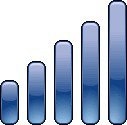
|
Describes the lowest resolution of all received high-definition (HD) streams and the highest percentage of packet loss of all received HD streams, affecting how the received presentation is rendered. Also indicates the quality of the presentation display. Range is 1 to 5 bars. The receiving video quality is either: The call connection status bars appear in the top right corner of the center main display screen. When a call is terminated due to network issues such as packet loss, a text message is displayed on the phone instead on the main display, indicating what the problem is, what the system is doing to correct the problem, and what you can do. |
Four Bars—Lowest Resolution of Received HD Streams is 720p and the received presentation has no loss above 2%. 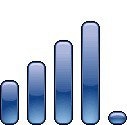
|
|
Three Bars—Lowest Resolution of Received HD Streams is Common Intermediate Format (CIF) and the received presentation has no loss above 2%. 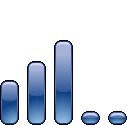
|
|
Two Bars—Highest Percentage Packet Loss is above the 1% Warning Threshold. The received presentation has loss between 2% and 10%. 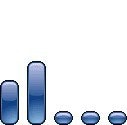
|
|
One Bar—Highest Percentage Packet Loss is above the 10% Error Threshold The received presentation has loss above 10%. 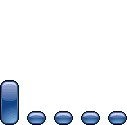
|
System Information Icons
Table 4-3 describes system information icons.




Main Display Screen Animations
Table 4-4 describes animations that may appear on the main display screen. When an action is selected on the phone or on the Cisco TelePresence System (CTS), an animated icon appears on the main display screen and changes to show the selected action status.
|
|
|
|
|---|---|---|

|

|
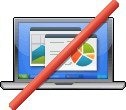
Red bar appears over Microphone icon. Displays when you press the Mute button on the microphone or touch the Mute soft-key on the phone. |
|
Shows the sharing status of your meeting presentation with VGA detected. To initiate sharing, do the following on the room phone: 1. |
|

|

|
Projector for your CTS 3x00 Series transitions from off to on to indicate when the projector is warming up (off or on state). |

|

|
Hold icon transitions from solid color as the user goes on hold. |
Maintenance Icons
Table 4-5 describes main display screen icons that may appear if your system requires maintenance.
|
|
|
|---|---|

|
Indicates that the projector lamp on your CTS 3x00 Series needs to be replaced. |
On-Screen Messages
Table 4-6 describes meeting status information messages that appear on the main display screen. These messages appear while the screen is dark (not showing video meeting images).
|
|
|
|---|---|
Call has been dropped because resources are not available. Contact Live Desk for assistance |
Occurs during static meetings and there are not enough resources available. |
The meeting host has not yet joined the meeting. This only applies to static meeting instances. An administrator can configure a room as host. If the host does not join, then all other rooms dialed in will be put on hold. When host joins, they will all be resumed. When the host leaves, the meeting will be stopped by the Cisco TelePresence Multipoint Switch (CTMS). |
|
You have dialed into the meeting before the scheduled start time and are on hold. |
|
All participants are on hold except this endpoint. Only this endpoint sees the “hold” message. When multiple endpoints both secure and non-secure join a meeting at the same moment, in a best-effort ad hoc meeting for instance, some of the endpoints will see “Remote user on hold” momentarily displayed on the main display. |
|
There are not enough CTMS slots available for your endpoint to join the meeting. Depending on your configuration, you will remain on hold until resources are available. |
|
Please wait, the participant list will be available momentarily |
Occurs in large meetings as the system adds in audio participants. |
Some telepresence endpoints do not support the ability to share or receive presentations. In most cases an existing call will continue as audio-only. |
|
Unable to join secure call. Please wait, converting to non-secure |
Occurs when the screen goes dark because of a security difference between meeting endpoints. Screen remains dark for approximately three or four seconds while security is downgraded. A lock icon that is unlocked may appear to indicate non-secure status. |
When an incompatible endpoint joins a multipoint meeting, the incompatible endpoint cannot join the call. |
|
The presenter is sending a higher resolution presentation stream than the receiver can handle. |
 Feedback