Border Provisioning Use Case in VXLAN BGP EVPN Fabrics - Multi-Site

This section explains how to connect two Virtual eXtensible Local Area Network (VXLAN) Border Gateway Protocol (BGP) Ethernet VPN (EVPN) fabrics through DCNM using the EVPN Multi-Site feature. The EVPN Multi-Site configurations are applied on the Border Gateways (BGWs) of the two fabrics.


Note

In Cisco® Data Center Network Manager (DCNM) 11.0(1), you can connect BGWs of two standalone fabrics or two member fabrics of an MSD.


Multi-Site Domain (MSD), introduced in DCNM 11.0(1) release, is a multifabric container that is created to manage multiple member fabrics. It is a single point of control for definition of overlay networks and VRFs that are shared across member fabrics. See Multi-Site Domain for VXLAN BGP EVPN Fabrics section in the Control chapter for more information on MSD.


Note

For a detailed explanation on the EVPN Multi-Site feature, see the VXLAN BGP EVPN Multi-Site Design and Deployment document.

Prerequisites

  • The EVPN Multi-Site feature requires Cisco Nexus 9000 Series NX-OS Release 7.0(3)I7(1) or later.

  • Familiarity with VXLAN BGP EVPN data center fabric architecture and configuration through DCNM.

  • Familiarity with MSD fabrics, if you are connecting member fabrics of an MSD.

  • Fully configured VXLAN BGP EVPN fabrics that are ready to be connected using the EVPN Multi-Site feature, external fabric(s) configuration through DCNM, and relevant external fabric devices' configuration (for example, route servers).

    • VXLAN BGP EVPN fabrics (and their interconnection) can be configured manually or using DCNM. This document explains the process to connect the fabrics through DCNM. So, you should know how to configure and deploy a VXLAN BGP EVPN fabric, and how to create an external fabric through DCNM. For more details, see the VXLAN BGP EVPN Fabrics Provisioning section in the Control chapter.

  • When you enable the EVPN Multi-Site feature on a BGW, ensure that there are no prior overlay deployments on it. Remove existing overlay profiles and then start provisioning Multi-Site extensions through DCNM.

  • Ensure that the role of the designated BGWs is Border Gateway. To verify, right-click the BGW and click Set role. You can see that (current) is added to the current role of the switch.

    If the current role is not Border Gateway, you should remove the device from the fabric and discover it again through DNCM using the POAP bootstrap option and re-provision the configurations for the device.

  • To ensure consistency across fabrics, ensure the following:


    Note

    These checks are done for member fabrics of an MSD when the fabrics are moved under the MSD fabric.


    • The underlay IP addresses across the fabrics, the loopback 0 address and the loopback 1 address subnets should be unique.

    • Each fabric should have a unique site ID and BGP AS number associated and configured.

    • All fabrics should have the same Anycast Gateway MAC address.

    • While the MSD provisions a global range of network and VRF values, some parameters are fabric-specific and some are switch-specific. You should specify fabric instance values for each fabric (for example, multicast group subnet address) and switch instance values for each switch (for example, VLAN ID).

After completing the EVPN Multi-Site specific prerequisites, start EVPN Multi-Site configuration on BGW_3 with extensions to the route server RS_1.

Limitations

  • BGWs cannot form a virtual port channel (vPC) switch pair.

  • The VXLAN OAM feature in Cisco DCNM is only supported on a single fabric or site.

Sample Scenario

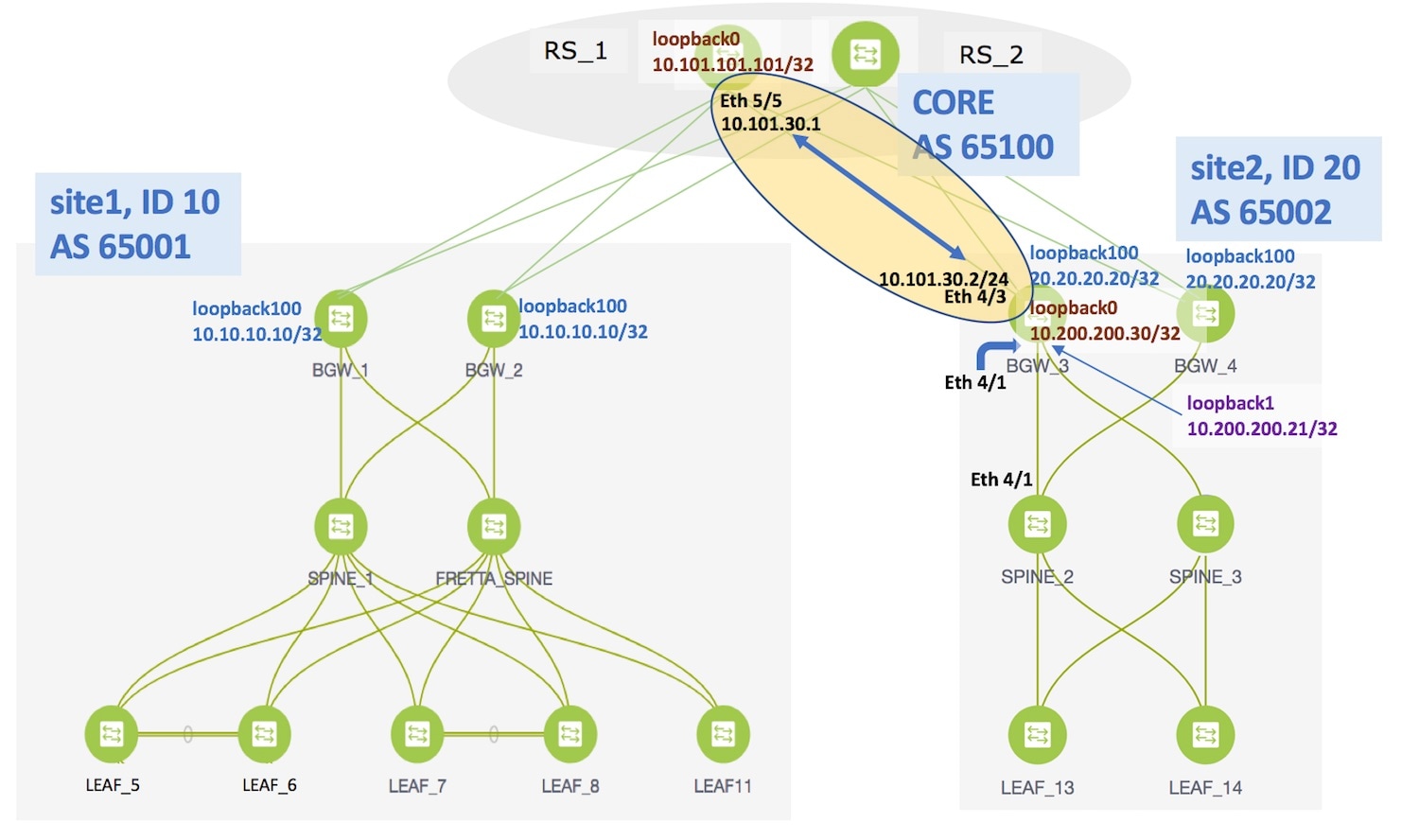
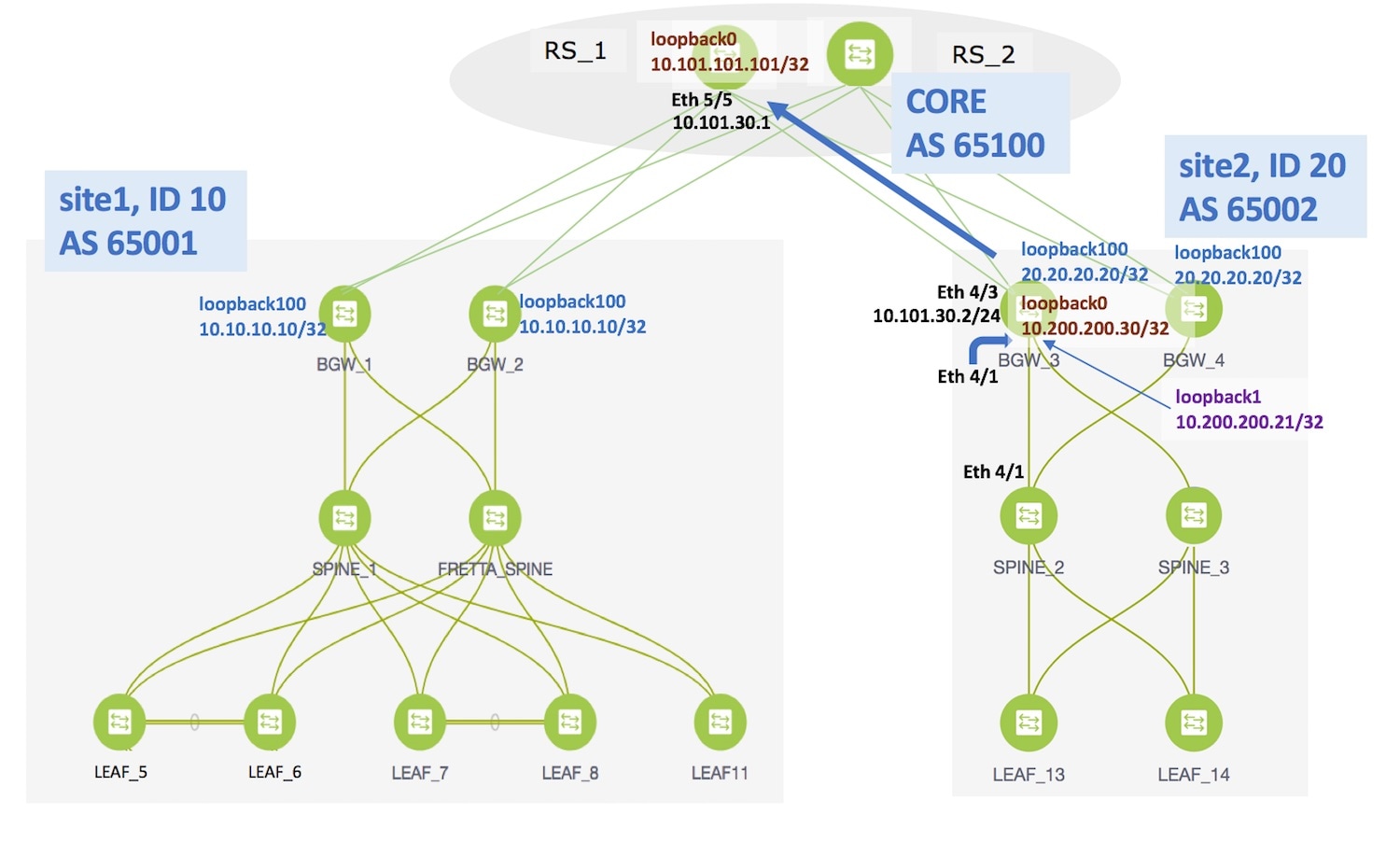
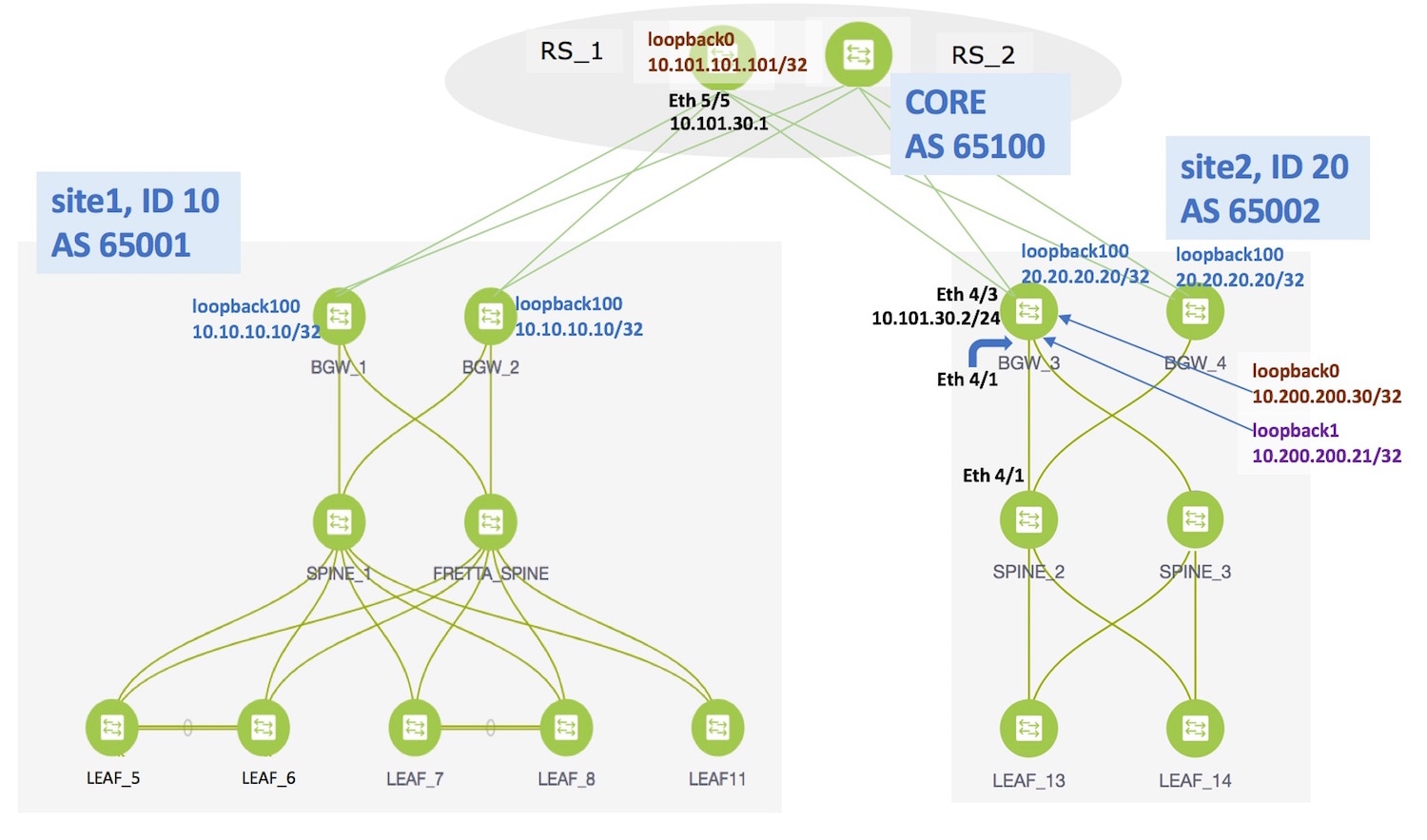
The EVPN Multi-Site feature is explained through an example scenario. Consider two VXLAN BGP EVPN fabrics, site1 and site2 connected through devices in an external fabric, CORE. This document shows you how to enable end-to-end Layer 3 and Layer 2 traffic between hosts in site1 and site2, through CORE the fabric.

Network configurations for the two VXLAN BGP EVPN fabrics are provisioned through DCNM software, 11.0(1) release. VXLAN BGP EVPN configurations are configured on the switches in the two fabrics. However, server traffic between the sites is only possible through a Data Center Interconnect (DCI) function. If a server in site1 has to send traffic to a server in site2 or vice versa, the DCI function (such as the Multi-Site feature, which is used for this example) should be configured on the BGWs of both the fabrics.

Route servers RS_1 and RS_2 are route servers that are directly attached to the two VXLAN BGP EVPN fabrics. From the VXLAN fabrics' point of view, the route servers belong to an external fabric, CORE, with a different AS number. For representation purposes, the CORE fabric is created as an external fabric through DCNM, and RS_1 and RS_2 are associated with it.


Note

Though creating an external fabric is a prerequisite for this use case, steps are noted here for quick reference. To create an external fabric in DCNM, click Control > Fabric Builder. On the Fabric Builder page, click Create Fabric. On the Add Fabric page, enter the name of the fabric (CORE), select External_Fabric as the fabric template, enter the AS Number and click Save.

The CORE fabric is created as an external fabric.

The steps that are involved to enable EVPN Multi-Site feature and traffic flow across the sites or fabrics are:

  1. Top-Down deployment of the underlay for the IP core at the BGWs. This is a one-time configuration.

  2. Top-Down deployment of the BGP overlay for the IP core. This is a one-time configuration for each BGW.

  3. Deployment of networks and virtual routing and forwarding (VRF) instances on the leaf switches. This is a per network/VRF configuration.

  4. Deployment of networks/VRFs at the BGWs. This is a per network/VRF configuration.

EVPN Multi-Site Feature-This requires setting up the BGW base configuration for enabling the EVPN Multi-Site feature on the BGWs and the underlay peering to the external devices. This is followed by establishing overlay peering from the BGW to appropriate external devices, either BGWs in other fabrics or route servers. Both the underlay and overlay peering are established over eBGP. While eBGP is mandatory for the overlay peering, you can use eBGP or an IGP for the underlay.


Note

DCNM 11.0(1) Top-Down provisioning only supports eBGP underlay.

BGWs are special devices that allow clear control and data plane segregation from one site to another, allowing for policy enforcement points for any inter-fabric traffic. They allow the same data plane (VXLAN) and control plane (BGP EVPN) to be employed both for inter-fabric and intra-fabric traffic.

The end-to-end configurations can be split into these 2 steps:

  1. EVPN Multi-Site configurations on the BGWs (BGW_1, BGW_2, BGW_3 and BGW_4).

    1. EVPN Multi-Site feature on the BGWs on site1—Overlay and underlay connections between the BGWs BGW_1 and BGW_2, and directly connected route servers RS_1 and RS_2 in the CORE fabric.

    2. EVPN Multi-Site feature on the BGWs on site2—This includes overlay and underlay connections between the BGWs BGW_3 and BGW_4, and directly connected route servers RS_1 and RS_2 in the CORE fabric.

    3. Configurations on RS_1 and RS_2—Configurations in the CORE fabric are not in the scope of DCNM provisioning and this document. For completeness, it is mentioned here, and sample configurations provided in the Appendix section.


      Note

      The network interconnecting the BGWs can be more complex than just 2 switches. The proper configuration (routing protocol peering, MTU settings, etc) required in that network is a one-time initial infrastructure configuration that must be performed outside of DCNM.

    For this example, BGW_3 EVPN Multi-Site configurations will be explained.

  2. Deploying Networks and VRF Instances on the leaf switches and the BGWs

    For this example, 2 networks are configured on the BGWs in site2 (with the assumption that network deployment on leaf switches is already completed).

After successful deployment on both the sites, Layer 2 and Layer 3 traffic will flow between the two sites.


Note

In the DCNM GUI, the lines connecting devices that are managed by DCNM (for example, LEAF_5 to SPINE_1 and SPINE_1 to BGW_2) symbolize a physical cable connection, and not that the connection is functional and network traffic flows between them.

To start with, let us consider EVPN Multi-Site provisioning on BGW_3 through DCNM Top-Down LAN Fabric Provisioning.

EVPN Multi-Site Configuration

EVPN Multi-Site Extensions from BGW_3 to RS_1

  1. Choose Control > Networks & VRFs. The LAN Fabric Provisioning page appears.

  2. Click Continue. The Select a Fabric page appears.

  3. Select site2 from the drop-down box since you are configuring the BGW BGW_3 on site2.

  4. Click Fabric Extension Setup since the purpose of this task is to allow site2 to communicate to external fabrics through RS_1 and RS_2. The Fabric Extension screen comes up.

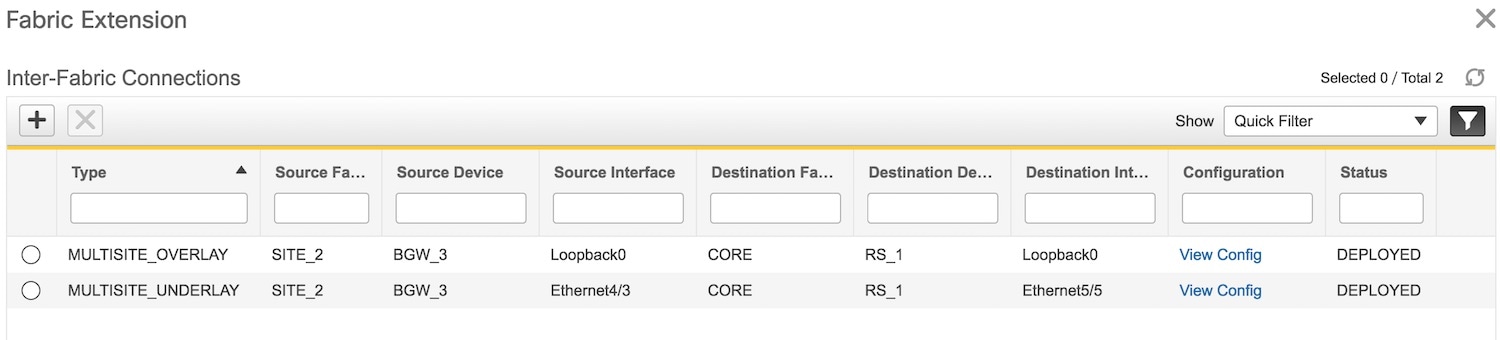
    The Inter-Fabric Connections section lists previously created external connections from the BGWs on site2. Each line represents a physical or logical connection between a BGW in site2 and an external device in another fabric. For each connection, the source fabric, source device, source interface, destination fabric, destination device, and destination interface are listed along with the type of external connectivity. This section is empty as this is the first time you are adding an external connection.

To extend the fabric through EVPN Multi-Site, you should first create an underlay extension and then an overlay extension.

Underlay Extension from BGW_3 to RS_1

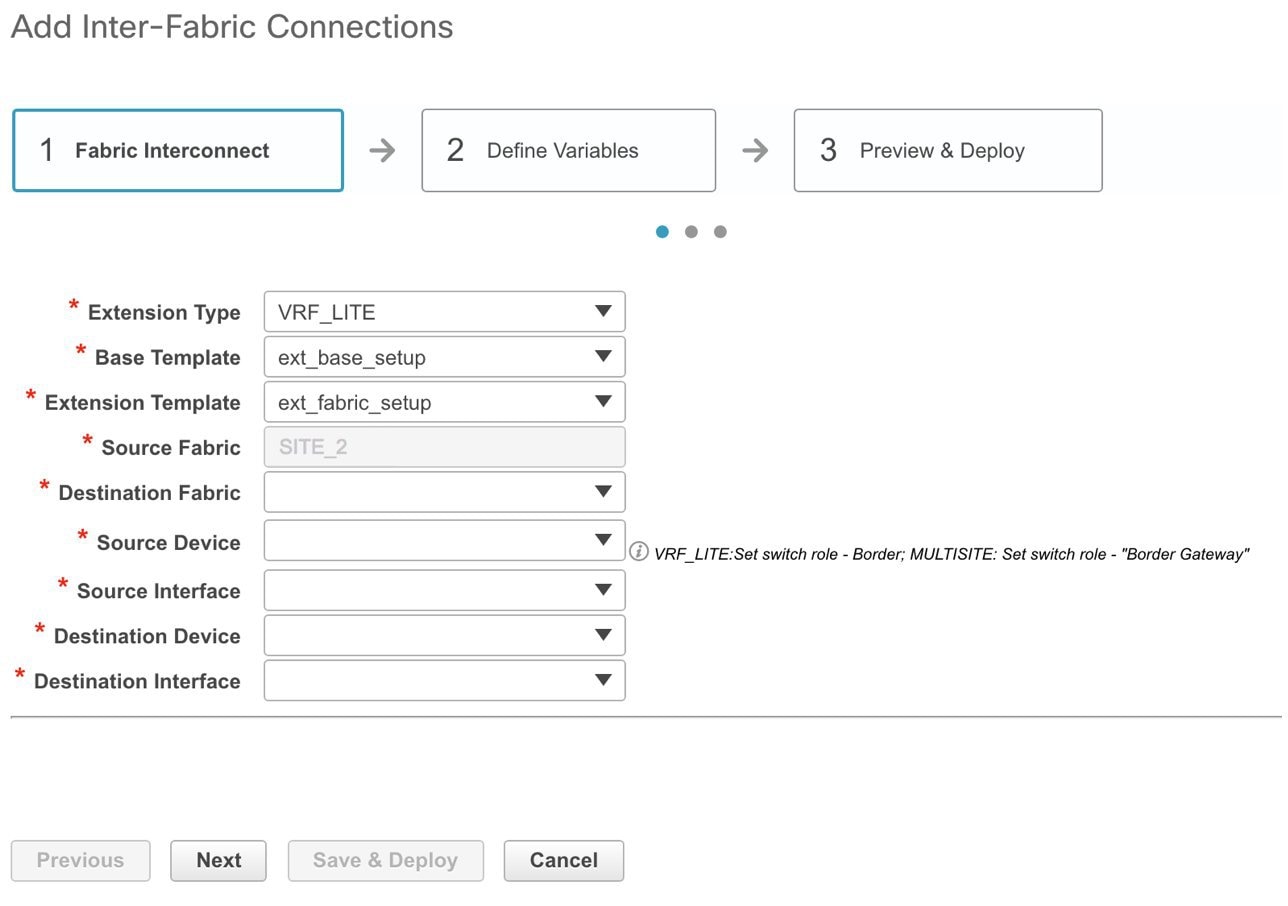
  1. Click the + icon to add a new external connection. The Add Inter-Fabric Connection screen appears.

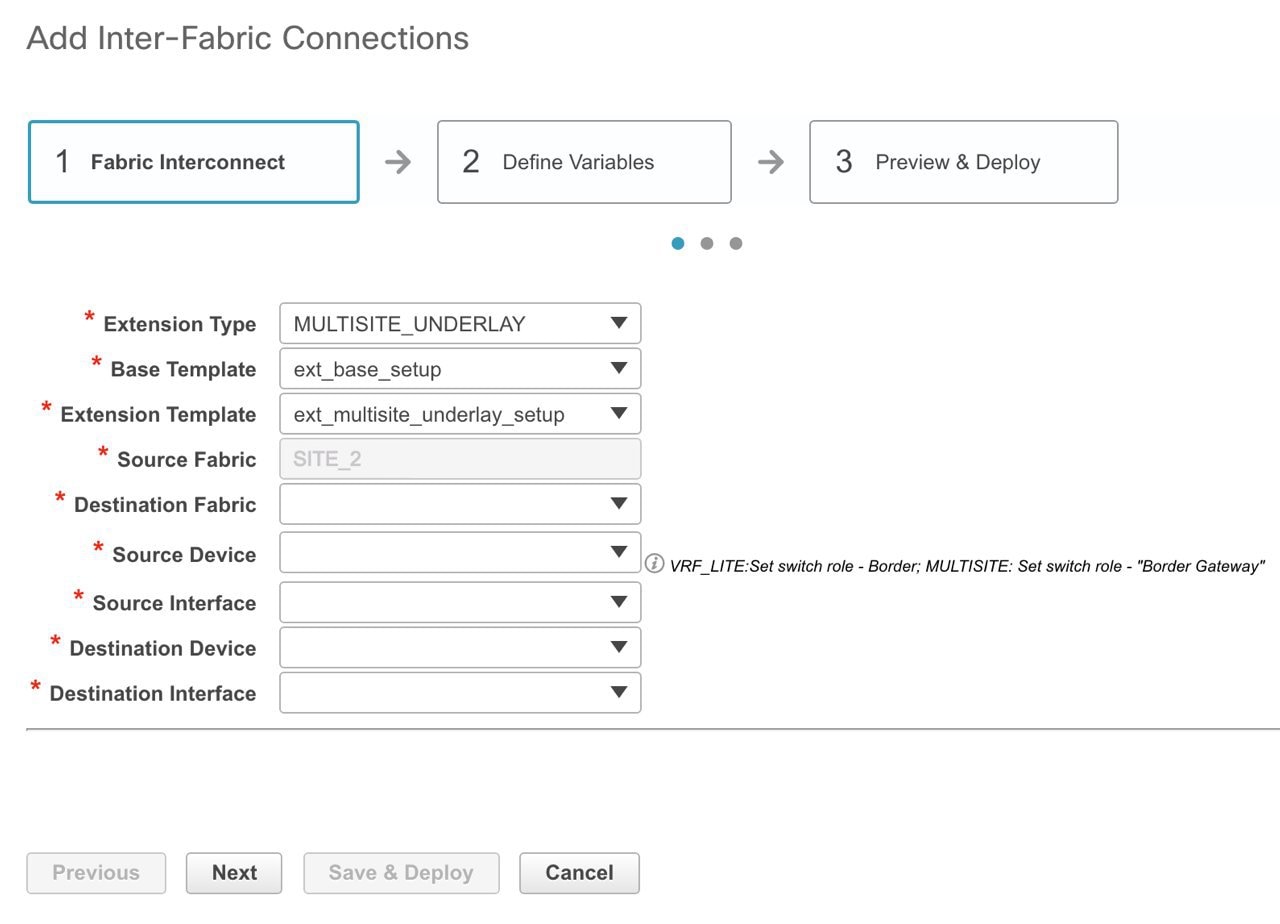
    By default, VRF_LITE is populated in the Extension Type field. Change the selection to MULTISITE_UNDERLAY.

    Base Template-By default, the ext_base_setup base template is populated. This template is a one-time configuration that is pushed to the BGW.

    Extension Template-ext_multisite_underlay_setup is a setup template that contains the configuration that is generated and pushed to the BGW to set up the corresponding interfabric connection.

    These templates are autopopulated with corresponding pre-packaged default templates that are based on your selection.


    Note

    You to add, edit, or delete user-defined templates. See Template Library section in the Control chapter for more details.


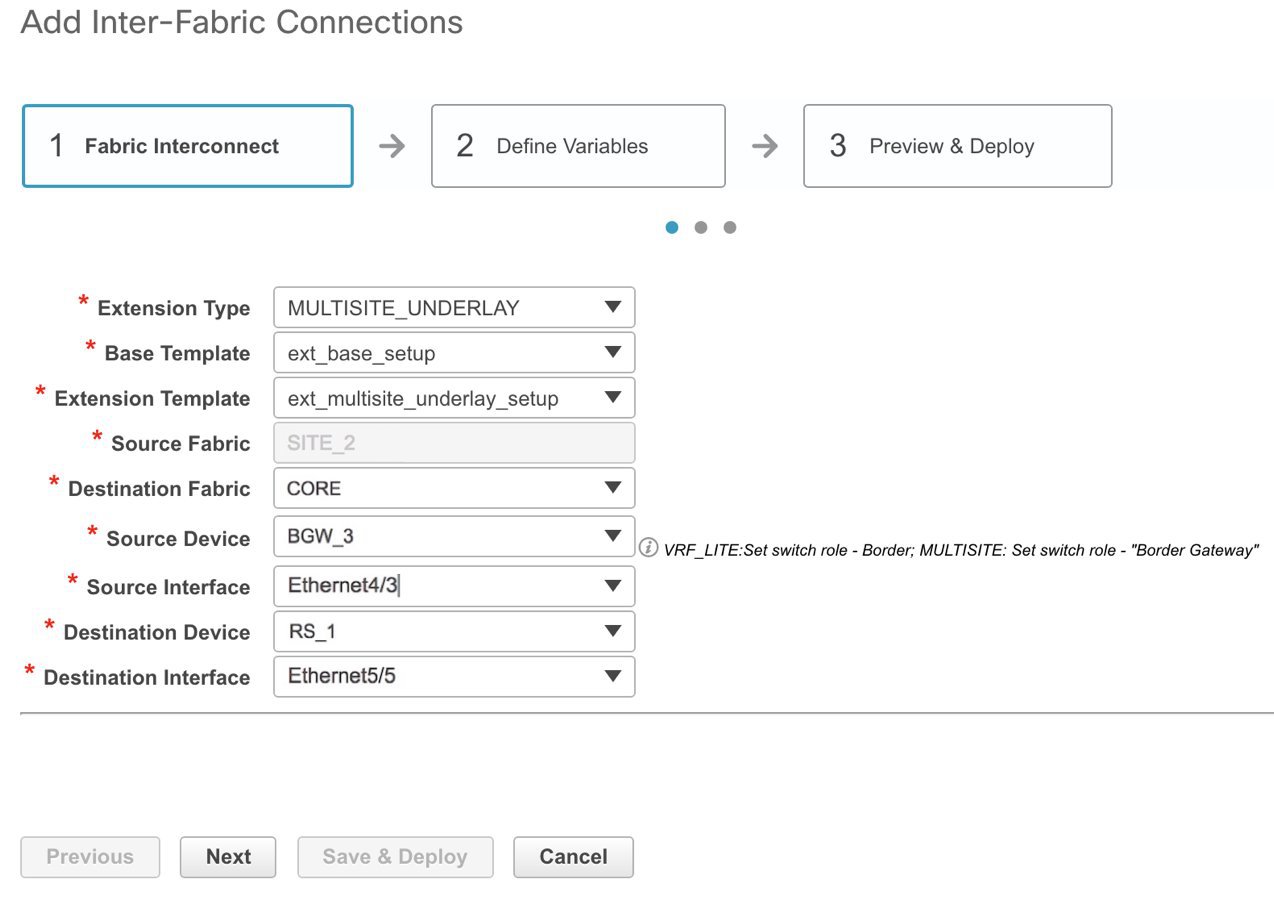
    Source Fabric-This field is prepopulated with site2 since the EVPN Multi-Site underlay connection is between BGW_3 in site2 and RS_1 in the CORE fabric.

    Destination Fabric-Choose CORE.

    Source Device and Source Interface-Choose BGW_3 as the source device and an Ethernet interface that needs to be connected to RS_3.

    Destination Device and Destination Interface—Choose RS_1 as the destination device and the Ethernet interface that connects to the BGW BGW_3.

    Based on the selection of the source device and source interface, the destination information is autopopulated based on Cisco Discovery Protocol information, if available. There is an extra validation performed to ensure that the destination external device is indeed part of the destination fabric.

    After filling up the Fabric Interconnect section, the screen looks like this:

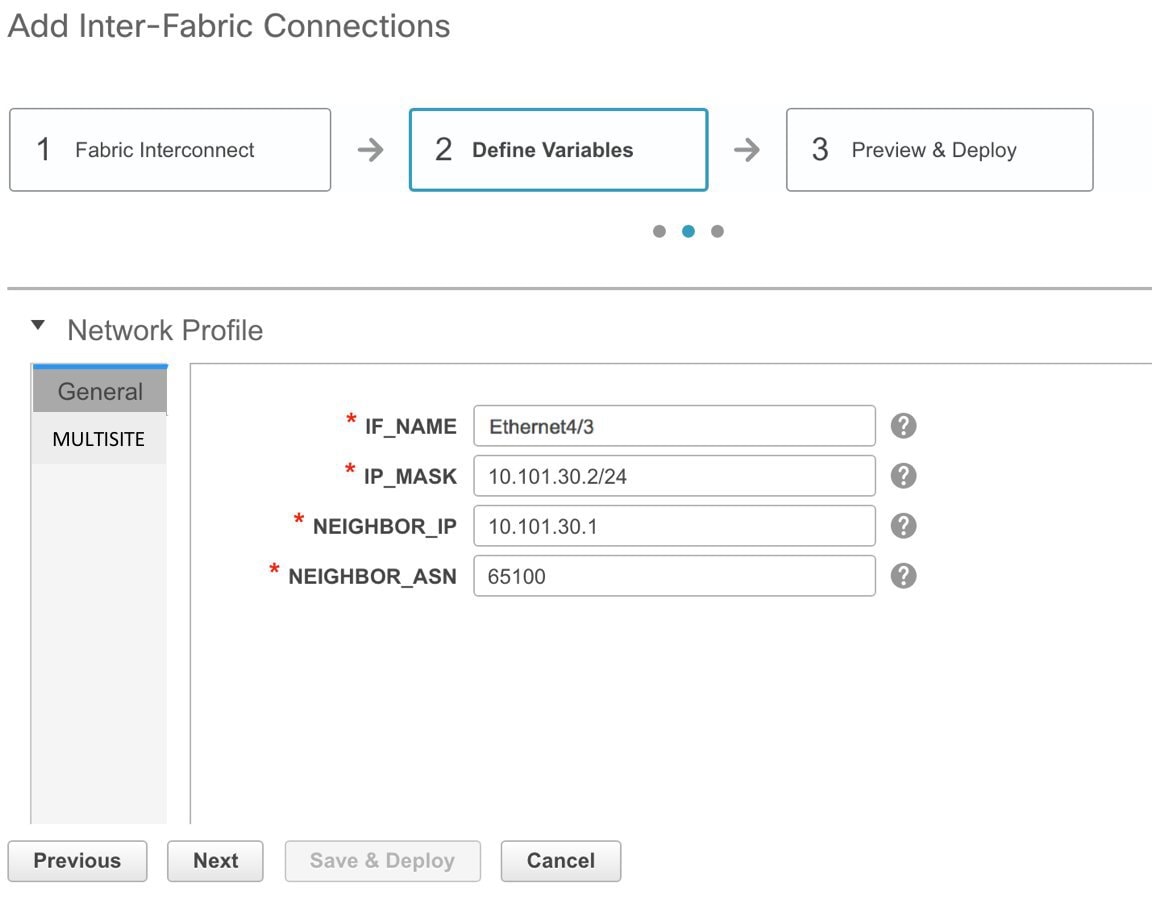
  2. Click Next to go to the Define Variables section. The fields in this section are:

    IF_NAME—In this field, the interface name is autopopulated from the previous step.

    IP_MASK—Fill up this field with the IP address of the BGW_3 interface that connects to RS_1.

    NEIGHBOR_IP—Fill up this field with the IP address of the RS_1 interface that connects to BGW_3.

    NEIGHBOR_ASN—In this field, the AS number of RS_1 will be autopopulated.

    A filled up screen is displayed:

    The corresponding connection in the topology is displayed:

  3. Click the MULTISITE tab.

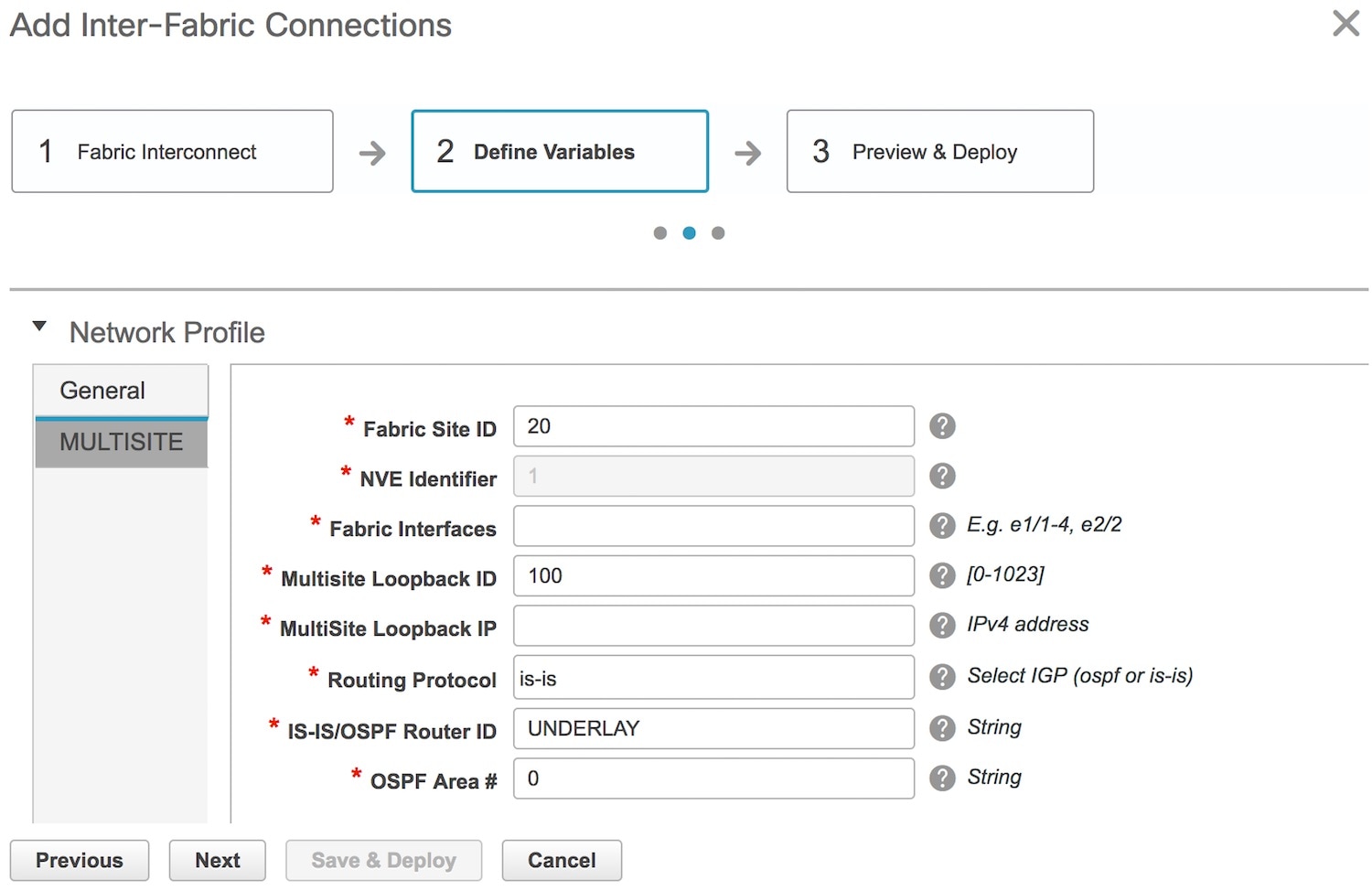
    While the General tab contains external connection details, this tab contains intra-fabric information such as fabric IGP, fabric facing Ethernet interface, and so on.

    The MULTISITE tab only appears the first time that you create an EVPN Multi-Site underlay on a device, since the details remain the same for subsequent connections. The next time you create an EVPN Multi-Site underlay connection on the same device, only the General tab will be available.

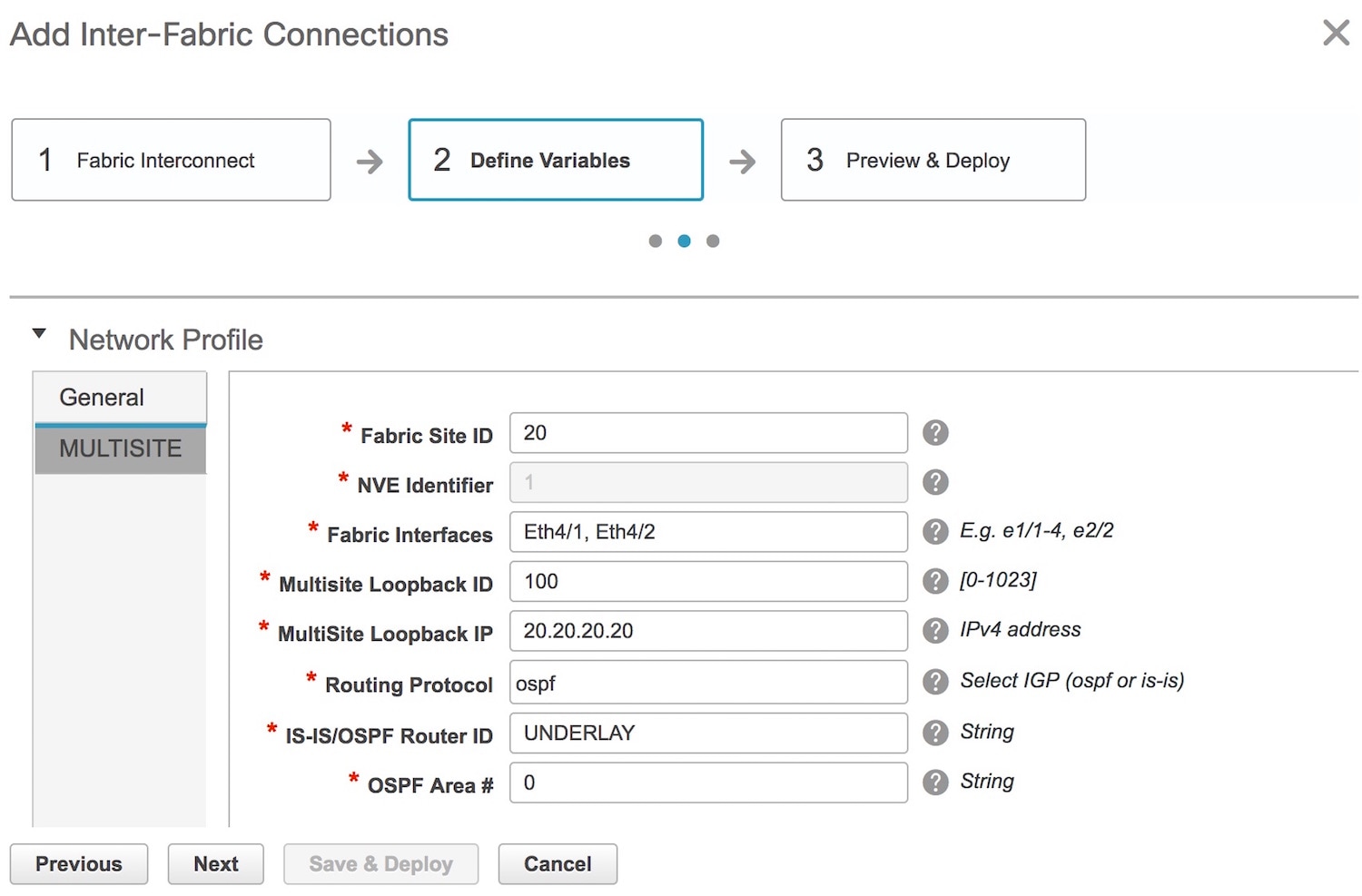
    Fabric Site ID—This is the identification for the VXLAN BGP EVPN fabric site2 to which BGW_3 belongs. The site ID is auto populated from the fabric settings, but it is editable. It should be same on all BGWs in one fabric and distinct from all other fabrics.

    NVE Identifier—This is the VXLAN overlay ID.

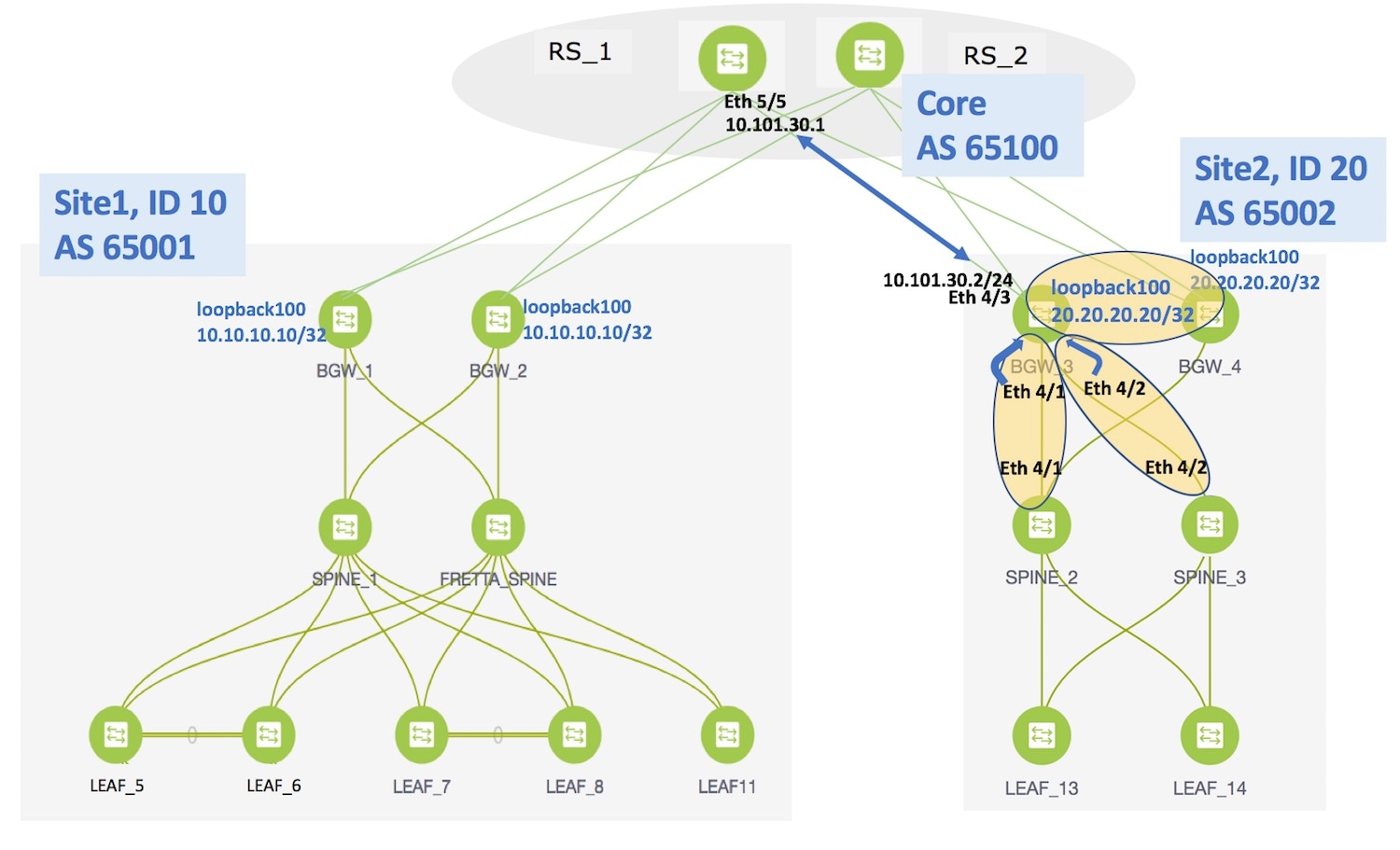
    Fabric Interfaces—Fill up this field with the interfaces on BGW_3 that connects to other intra-fabric device ports. Since Ethernet 4/1 connects to SPINE_2 and Ethernet 4/2 connects to SPINE_3 in the topology, the interfaces should be entered over here.

    Multisite Loopback ID and Multisite Loopback IP—These are the loopback ID and IP address of this EVPN Multi-Site instance. The loopback IP address should be same for all BGWs in one fabric and distinct from all other fabrics.

    Routing Protocol and Router ID—This is the IGP and the IGP instance ID within the fabric. Note that, if the IGP used in your setup is OSPF, the field has to be updated to OSPF.

    OSPF AREA—OSPF area ID within the fabric.

    A fully filled screen looks like this.

    The corresponding topology depiction is given below:

  4. Now that all the information is filled in, click Next to go to the Preview and Deploy section.

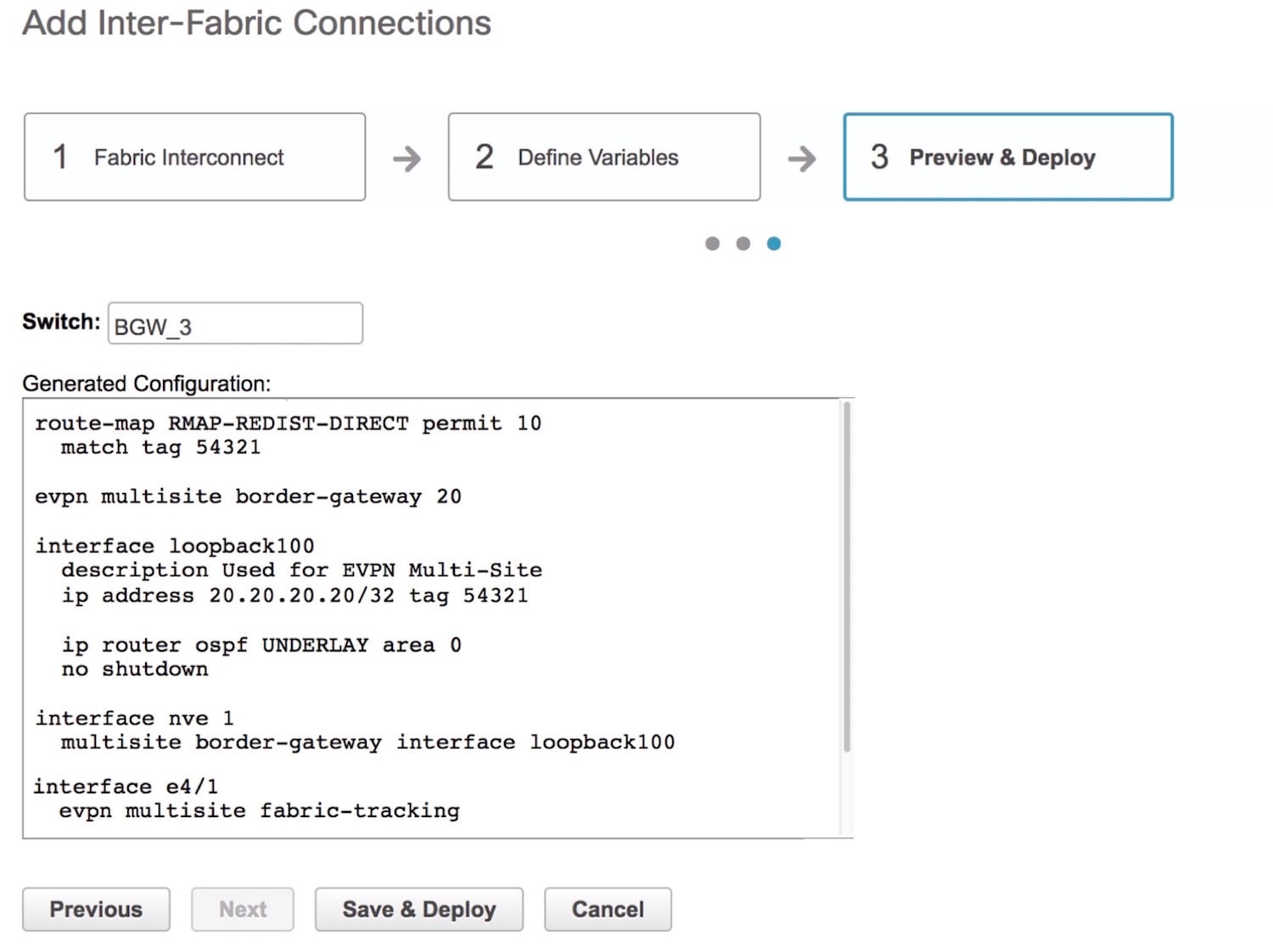
    Here, you can preview the configuration that will be deployed to BGW_3. Note that no configuration will be pushed to the external device itself.

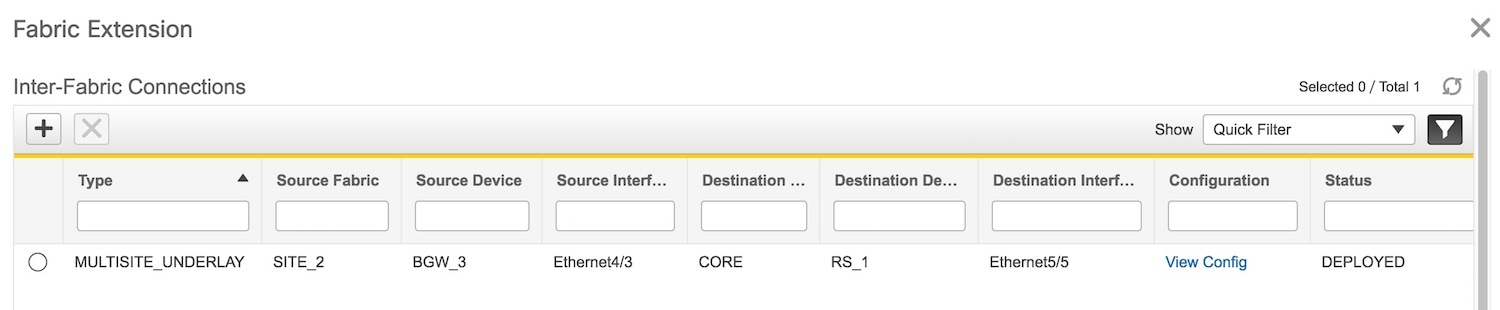
  5. Click Save and Deploy to complete the task. This results in the configuration getting pushed to BGW_3. The external connection will appear in the Fabric Extension screen.

    You can check the status of the deployment (Deployment Pending, Deployed, Failed) in the Status column.

    In case of FAILED or UNDEPLOYMENT FAILED status, use the hyperlink in the Status column to check the error messages for failure.

    To view the configurations, click on View Config in the Configuration field.

After the underlay configuration, you need to configure the overlay configuration from BGW_3 to RS_1 (the external device connected to BGW_3), as shown in the next section.

Overlay Extension from BGW_3 to RS_1


Note

You can have multiple underlay connections to an external device but only one overlay connection from BGW_3 to each external device.
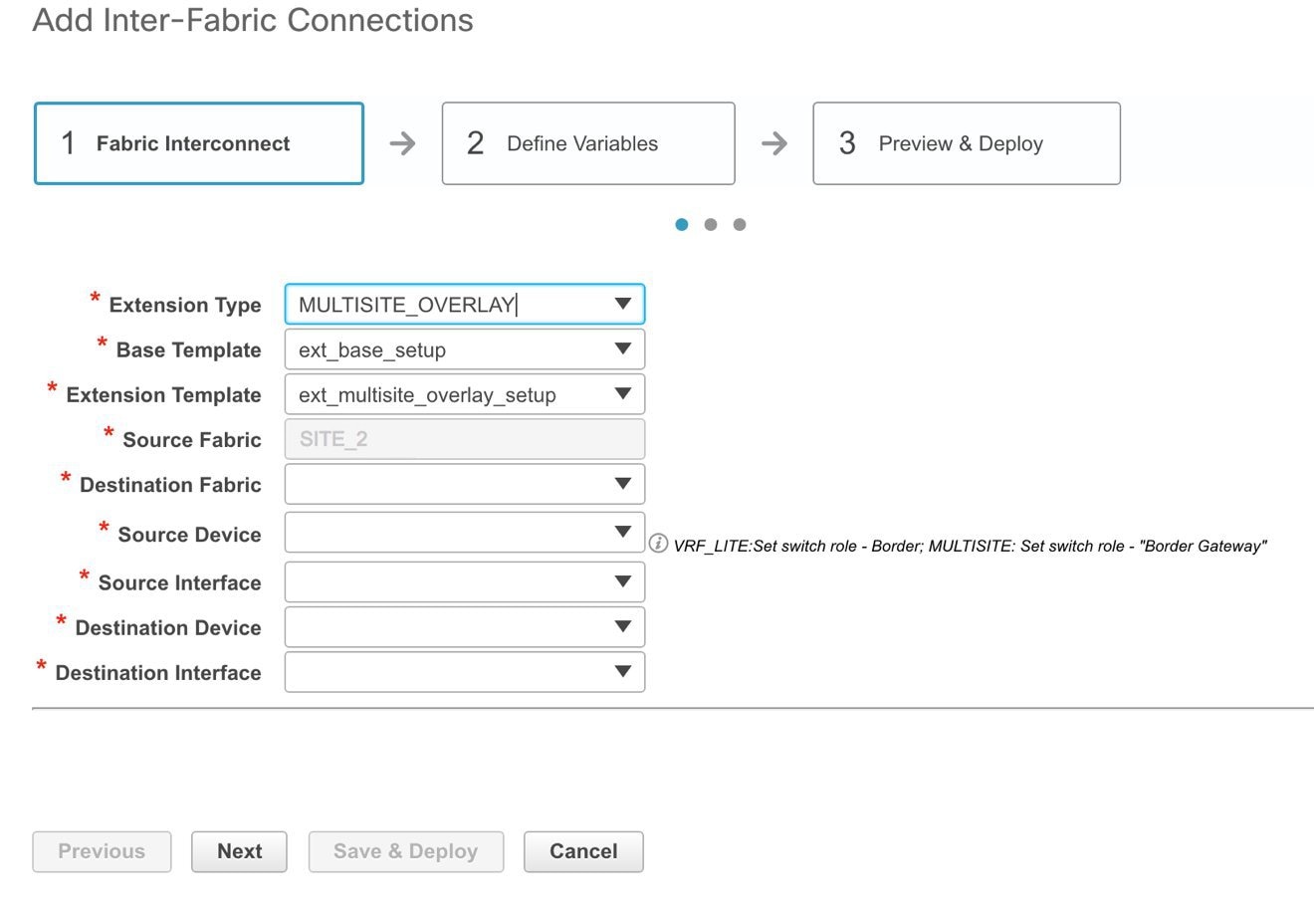
  1. In the Fabric Extension page, click on the + icon to add an external overlay connection. The Add Inter-Fabric Connections screen appears.

    By default, VRF_LITE is populated in the Extension Type field. Change the selection to MULTISITE_OVERLAY. The screen changes accordingly.

    Base Templateext_base_setup is auto-populated in this field. The ext_base_setup base template is a one-time configuration pushed to the BGW.

    Extension Templateext_multisite_overlay_setup is a setup template that contains the configuration that will be generated and pushed to the BGW to setup the corresponding inter-fabric connection. These templates are auto-populated with corresponding pre-packaged default templates based on your selection.

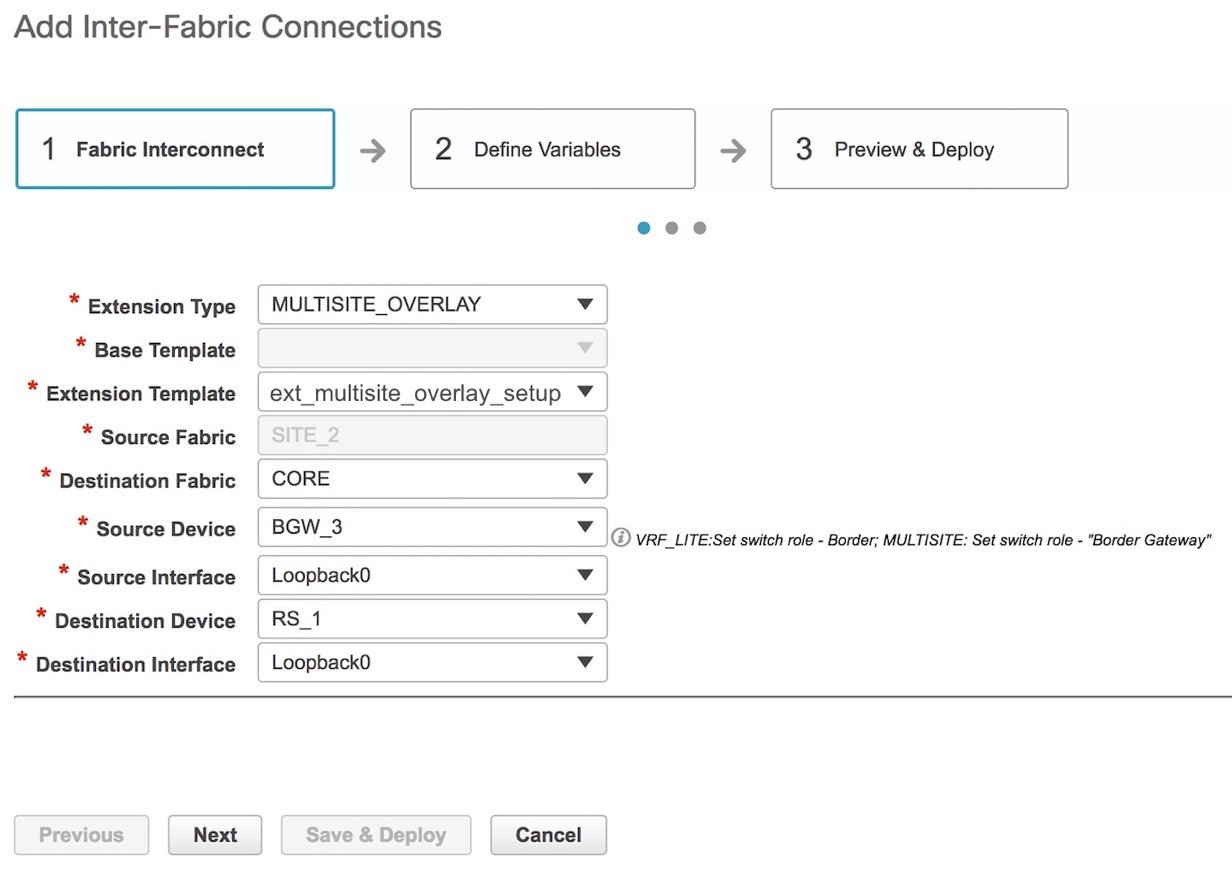
    Source Fabric—This field is pre-populated with site2 since you are deploying the configurations in site2.

    Destination Fabric—For the destination fabric, select the fabric that contains RS_1, CORE.

    Source Device—Choose BGW_3 since the overlay connection is from BGW_3 to RS_1.

    Source Interface—Choose the source interface. Typically, a loopback interface is created for the overlay. The loopback IP address (loopback0 in this example) is used for BGP peering with the destination interface.

    Destination Device—Choose RS_1 since the overlay connection is from BGW_3 to RS_1.

    Destination Interface—Choose the destination interface. Choose the interface which is the BGP peer address. Note that the destination interface is not used in generating the configuration.

    After filling up the Fabric Interconnect section, the screen looks like this.

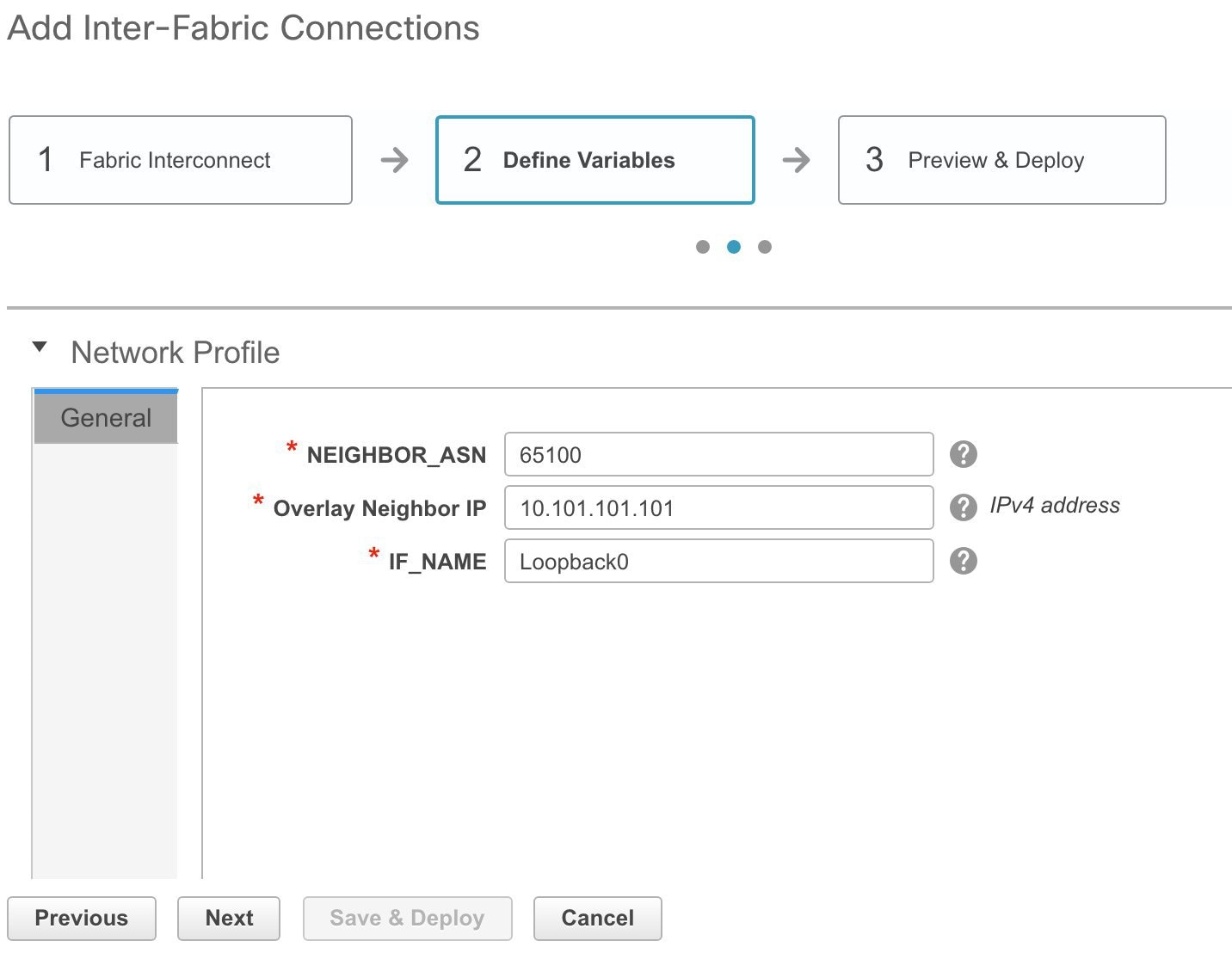
  2. Click Next to go to the Define Variables section. The fields in this screen:

    NEIGHBOR_ASN—This field is populated with the RS_1's AS Number.

    Overlay Neighbor IP—Enter the IP address on RS_1 that the overlay peers with. This is typically a loopback address.

    IF_NAME—In this field, the source interface is auto-populated from the previous step.

    A fully filled screen looks like this:

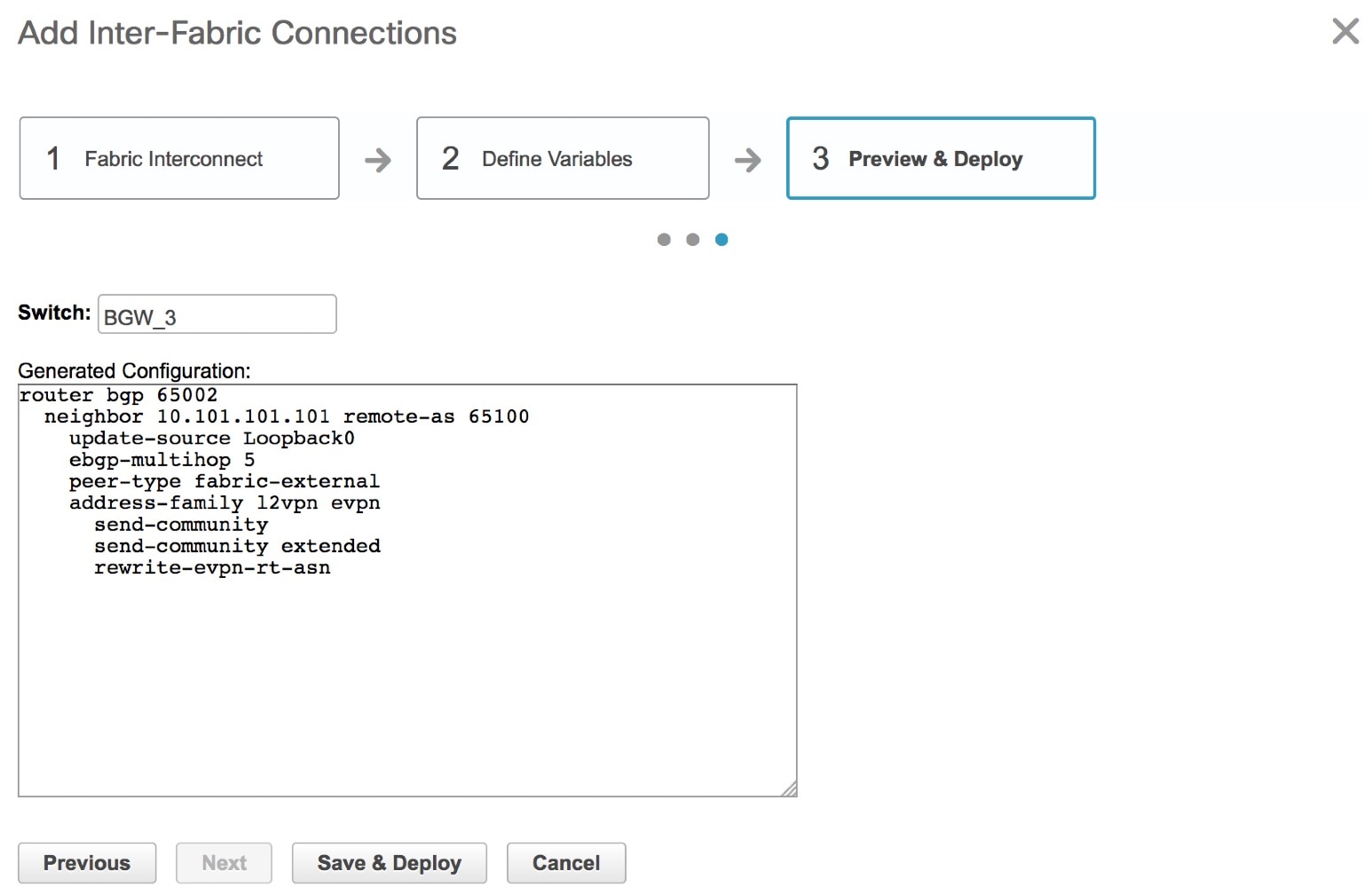
  3. Click Next to go to the Preview and Deploy section.

    Here, you can preview the overlay configuration that will be deployed to BGW_3. In this section, you can see that an overlay connection is being established from Loopback0 on BGW_3 to the neighbor with AS Number 65100.

    Note that no configuration will be pushed to the external device itself.

  4. Click Save and Deploy to complete the task. This results in the configuration getting pushed to BGW_3. The external connection will appear in the Fabric Extension screen.

    You can check the status of the deployment (Pending, Deployed, Failed) in the Status column. In case of FAILED or UNDEPLOYMENT FAILED status, use the hyperlink in the Status column to check the error messages for failure.

IFC Pointers

  • Extensions will need to be deleted and then reconfigured in case of deployment failures. Currently there is no option to edit or redeploy an overlay or underlay extension.

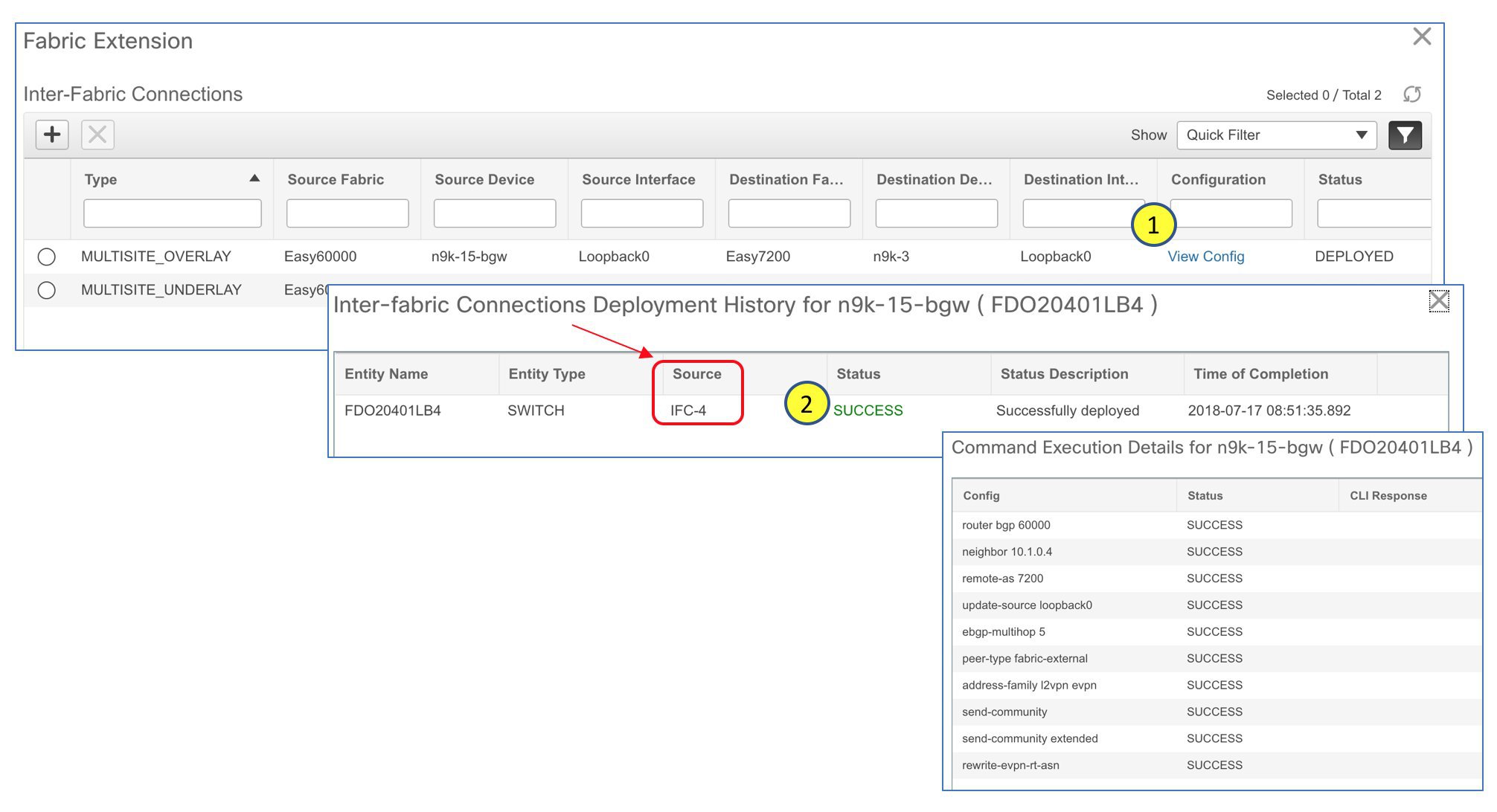
  • To see the deployment history of a functioning IFC, click the View Config hyperlink in the Configuration column (step 1 in the image). The Inter-fabric Connections Deployment History page comes up. In this page, the Source column refers to the specific IFC number. Click the link in the Status column (step 2) to view commands executed for the IFC.

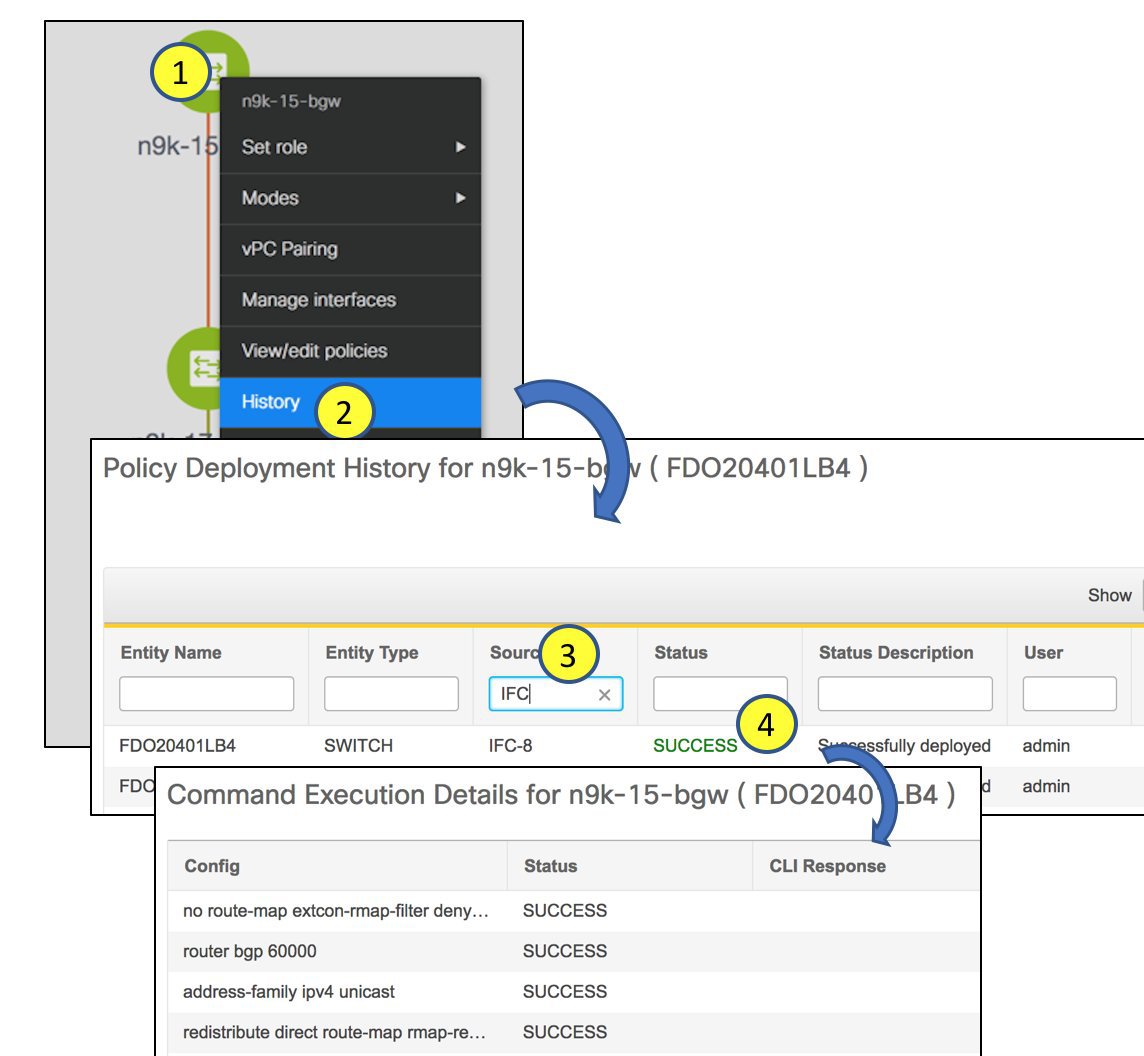
    You can only see functioning IFCs in this screen. To view functioning and deleted IFCs, you should right-click the switch and click History (steps 1 and 2 in the image below). In the Policy Deployment screen that comes up, filter the Source column for the IFC (step 3 - IFC-8, IFC-4, etc) and click the link in the Status column (step 4, below) for detailed information.

  • When a destination switch in an IFC is removed, and not available, in DCNM, you will still be able to delete a deployed IFC.

Other EVPN Multi-Site Configurations

At this stage, overlay and underlay EVPN Multi-Site configurations are provisioned on BGW_3 toward RS_1 (as shown by the arrow in the figure).

To complete EVPN Multi-Site configurations between site1 and site2 using DCNM, you should also configure as follows:

  • On site2

    • EVPN Multi-Site configurations from BGW_3 to RS_2.

    • EVPN Multi-Site configurations from BGW_4 to RS_1 and RS_2.

  • On site1

    • EVPN Multi-Site configurations from BGW_1 to RS_1 and RS_2.

    • EVPN Multi-Site configurations from BGW_2 to RS_1 and RS_2.

  • On the route servers

    • Apart from the DCNM provisioning on the BGWs of site1 and site2, you should enable appropriate configurations on RS_1 and RS_2 for connectivity between the route servers and the BGWs.

      Sample RS_1 configurations are provided in the Appendix section for your reference.

As noted earlier, the end-to-end Multi-Site configurations through DCNM Top-Down provisioning include these two steps:

(1) Multi-Site configurations on the BGWs (BGW_1, BGW_2, BGW_3 and BGW_4).

(2) Deploying Networks and VRF Instances on the leaf switches and the BGWs.

At this stage, the first step explanation is complete. In the next part of the document, the networks' configuration (second step), is explained. After appropriate network configurations on the leaf switches and BGWs, server traffic will flow across the two sites for the deployed and extended networks and VRFs.

Deploying Networks and VRF Instances

Typically, you create a fabric in DCNM, then create and deploy networks and VRFs on devices within the fabric on leaf switches, and then configure the BGWs for external connectivity. Though the focus of the document is external connectivity with EVPN Multi-Site configurations on BGWs using DCNM, for completeness and right context, network deployment on the BGWs is explained in this section. When EVPN Multi-Site deployment is completed, server traffic from these networks and VRFs on site2 will pass through a BGW (BGW_3 or BGW_4) towards site1.


Note

For VRF deployment, refer the Deploying VRF Instances on Border Leafs section in the chapter Border Provisioning Use Case in VXLAN BGP EVPN Fabrics - VRF Lite.

Deploying Networks on the BGWs

Before you begin - In this scenario, we will deploy two networks in site2, MyNetwork_10000 and MyNetwork_10001, on the BGWs BGW_3 and BGW_4. You should ensure that you have already deployed the networks that you want to extend to site1 on the leaf switches (LEAF_13 and LEAF_14 in this case).

After deploying the 2 networks on the leaf switches and the BGWs, the networks will be extended to site1. To know how to create a new fabric, network, and VRF, see the Fabrics section in the Control chapter in the Cisco DCNM LAN Fabric User Guide, Release 11.0(1). The procedure:

  1. In the Select a Fabric page, click the Continue button at the top right part of the screen. The Networks page comes up.

    (To access the Select a Fabric page, click Control > Networks & VRFs. The LAN Fabric Provisioning page comes up. Click Continue. The Select a Fabric page comes up.)

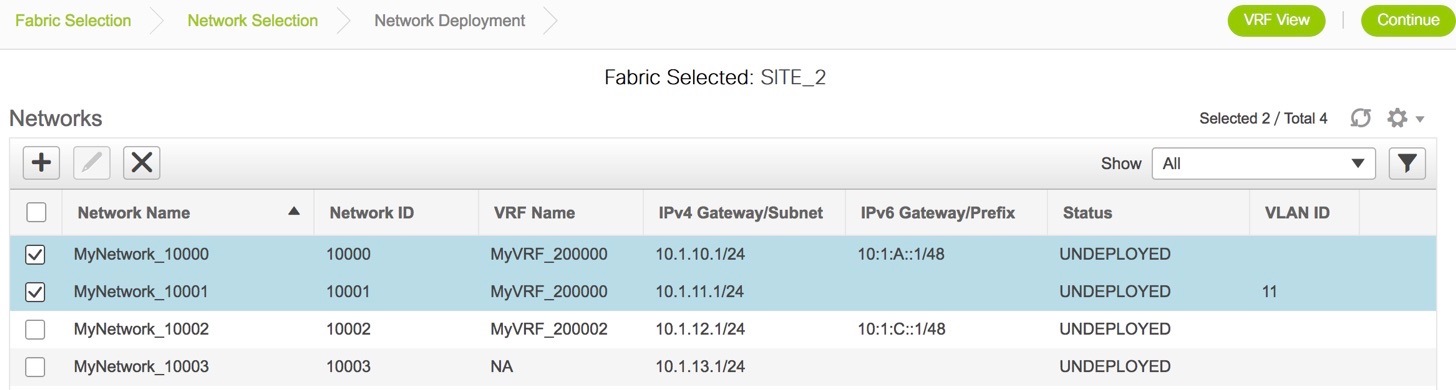
  2. We will deploy two new networks MyNetwork_10000 and MyNetwork_10001 on the BGWs. To do that, select the checkboxes (in the extreme left column).

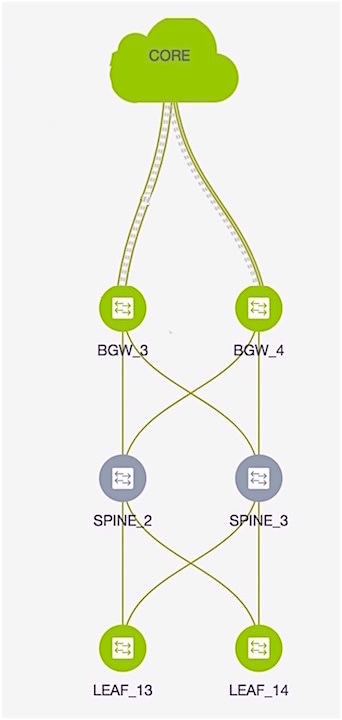
  3. Click the Continue button at the top right part of the screen. The Network Deployment page (Topology View) comes up. You can deploy networks simultaneously on multiple switches. The selected devices should have the same role (Leaf, Border Gateway, etc). So, deploy the selected networks on the BGWs.

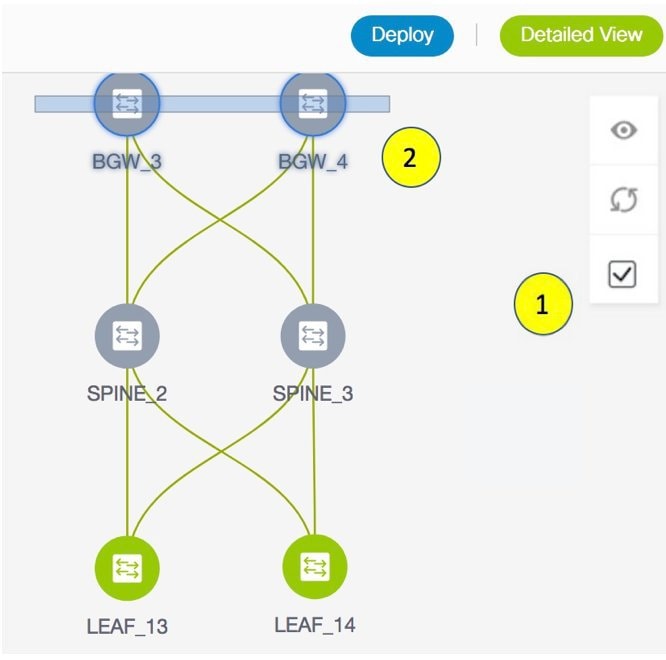
  4. Select the multi-select check box available at the right part of the page. (displayed as step 1 in the image).

    Then, click your mouse (or track pad) and drag the cursor across BGW_3 and BGW_4. (step 2).


    Note

    In the image, you can see that the networks are deployed on the leaf switches (green color indicates deployed status). Note that the color code (and hence the deployment state) on switches is contextual and specific to the selection. In this scenario, the deployed state only depicts that networks MYNetwork10000 and MYNetwork10001 are deployed on leaf switches LEAF_13 and LEAF_14. It does not display information about other (networks and VRFs) deployment instances, if any.

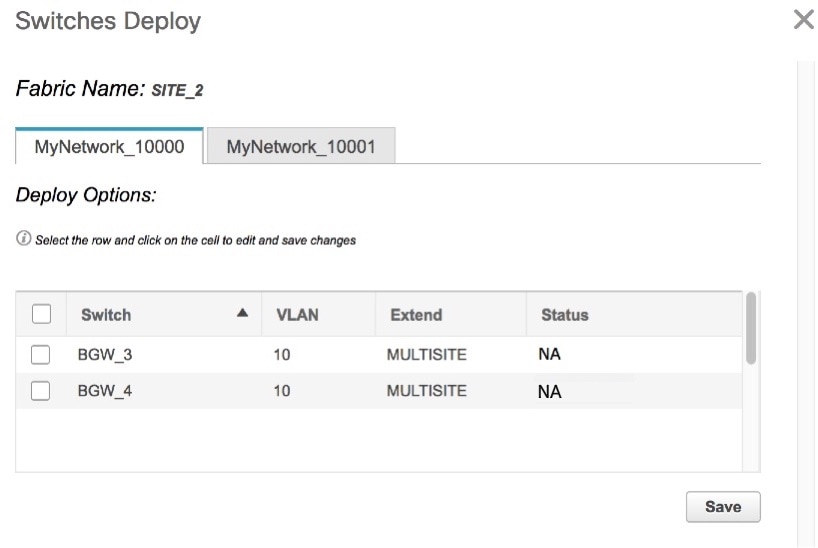
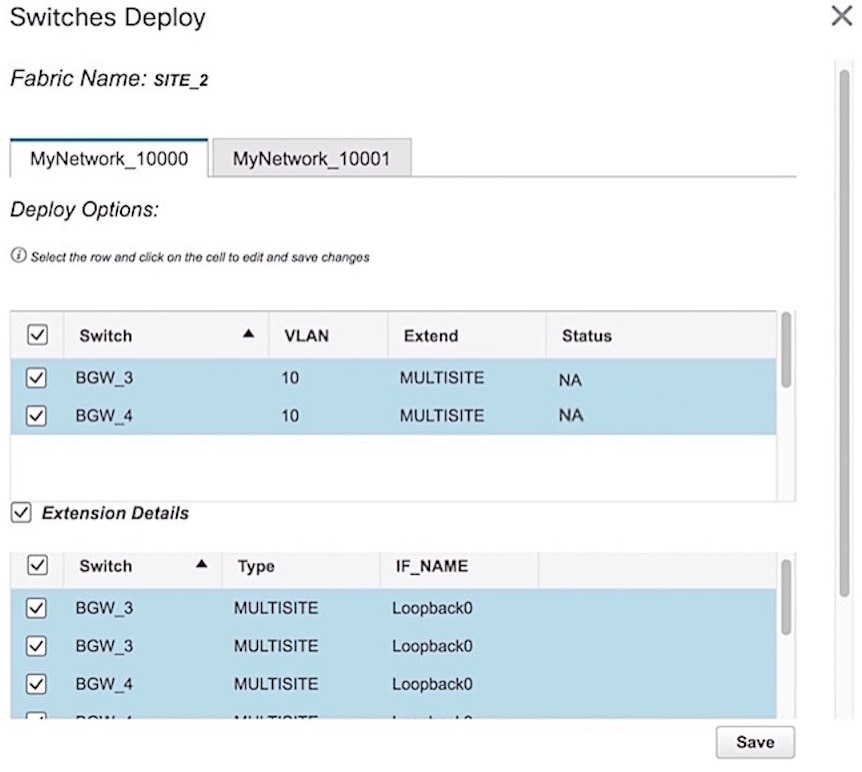
    Immediately, the Switches Deploy screen (for networks) appears.

    A tab is displayed for each network. Click the checkbox next to the Switch column. Both the BGW check boxes will be selected automatically and the Extension Details section will appear at the bottom part of the screen.

    In the Extension Details section, select the Switch checkbox (or ensure that you select the check box in each row) and click Save (bottom right part of your screen).

    After saving the details in this screen, the Network Deployment screen (Topology view) appears.

    BGW_3 and BGW_4 will be displayed in blue color, indicating pending deployment. If you want to check your configurations again, click on the Preview (eye) icon.

  5. After you verify that the configurations that are generated from the profiles are correct for the selected switches, click the Deploy button (on the top right part of the screen) to deploy the MYNetwork10000 and MYNetwork10001 network configurations on BGW_3 and BGW_4.

    DCNM shows the deployment status in the topology by highlighting the switch icons with different colors, yellow for In Progress and green for Deployed.

    From the snapshot, you can see that the 2 networks MYNetwork10000 and MYNetwork10001 have been deployed on the leaf switches and BGWs.

  6. After configurations in site2 are complete, configure the following in site1 too.

Configurations in site1

Provision the networks MYNetwork10000 and MYNetwork10001 on the leaf switches (LEAF_5, LEAF_6, LEAF_7, LEAF_8, LEAF_11) and the BGWs (BGW_1 and BGW_2).

As noted in the EVPN Multi-Site Configuration section, enable the following for end-to-end configuration:

  • Since DCNM does not provision configurations for RS_1 and RS_2 (devices directly connected to the BGWs), enable appropriate configurations on these devices.

  • Configure the EVPN Multi-Site feature on the site1 BGWs (as explained in this document) so that server traffic from the 2 networks can flow to site2 and back.

Appendix

Route Server Configurations

RS_1 configuration example for the overlay—The following configurations are enabled on RS_1, and reproduced here for reference.


Note

switch(config)# refers to the global configuration mode. To access this mode, type the following on your switch: switch# configure terminal.

switch(config)#

route-map ALL-PATHS permit 100
  set path-selection all advertise
route-map RMAP-REDIST-DIRECT permit 10
  match tag 12345 
route-map UNCHANGED permit 10
  set ip next-hop unchanged

switch(config)#

interface loopback0
  ip address 10.101.101.101/32 tag 12345
line vty
router bgp 65100
  router-id 10.101.101.101
  address-family ipv4 unicast
    redistribute direct route-map RMAP-REDIST-DIRECT
    maximum-paths 4
    additional-paths send
    additional-paths receive
    additional-paths selection route-map ALL-PATHS
  address-family l2vpn evpn
    retain route-target all
  template peer OVERLAY-PEERING
    update-source loopback0
    ebgp-multihop 5
    address-family l2vpn evpn
      send-community both
      route-map UNCHANGED out
  neighbor 10.100.100.10
    inherit peer OVERLAY-PEERING
    remote-as 65001
    address-family l2vpn evpn
      rewrite-evpn-rt-asn
      route-map UNCHANGED out
  neighbor 10.100.100.20
    inherit peer OVERLAY-PEERING
    remote-as 65001
    address-family l2vpn evpn
      rewrite-evpn-rt-asn
      route-map UNCHANGED out
  neighbor 10.101.11.2
    remote-as 65101
    update-source Ethernet5/1
    address-family ipv4 unicast
      next-hop-self
  neighbor 10.101.12.2
    remote-as 65101
    update-source Ethernet5/2
    address-family ipv4 unicast
      next-hop-self
  neighbor 10.101.13.2
    remote-as 65102
    update-source Ethernet5/3
    address-family ipv4 unicast
      next-hop-self
  neighbor 10.101.14.2
    remote-as 65102
    update-source Ethernet5/4
    address-family ipv4 unicast
      next-hop-self
  neighbor 10.101.30.2
    remote-as 65002
    update-source Ethernet5/5
    address-family ipv4 unicast
      next-hop-self
  neighbor 10.101.40.2
    remote-as 65002
    update-source Ethernet5/6
    address-family ipv4 unicast
      next-hop-self
  neighbor 10.200.200.30
    remote-as 65002
    update-source loopback0
    ebgp-multihop 5
    address-family l2vpn evpn
      rewrite-evpn-rt-asn
      send-community both
      route-map UNCHANGED out
  neighbor 10.200.200.40
    remote-as 65002
    update-source loopback0
    ebgp-multihop 5
    address-family l2vpn evpn
      rewrite-evpn-rt-asn
      send-community both
      route-map UNCHANGED out