Installing the Cisco MDS 9396S Switch

This chapter describes how to install the Cisco MDS 9396S switch and its components.


Note


Before you install, operate, or service the system, see the Regulatory Compliance and Safety Information for the Cisco MDS 9000 Family for important safety information.

Warning


IMPORTANT SAFETY INSTRUCTIONS

This warning symbol means danger. You are in a situation that could cause bodily injury. Before you work on any equipment, be aware of the hazards involved with electrical circuitry and be familiar with standard practices for preventing accidents. Use the statement number provided at the end of each warning to locate its translation in the translated safety warnings that accompanied this device. Statement 1071

SAVE THESE INSTRUCTIONS


Warning


This unit is intended for installation in restricted access areas. A restricted access area can be accessed only through the use of a special tool, lock and key, or other means of security. Statement 1017


Warning


Only trained and qualified personnel should be allowed to install, replace, or service this equipment. Statement 1030


Note


Each new switch requires a license; see the Cisco MDS 9000 Family NX-OS Licensing Guide for instructions on installing a license.


Preinstallation

This section includes the following information:

Installation Options

The Cisco MDS 9396S Switch can be installed using the following methods:

  • In an open EIA rack, using:

    • The rack-mount kit shipped with the switch

    • The Telco and EIA Shelf Bracket Kit (an optional kit, purchased separately) in addition to the rack-mount kit shipped with the switch

  • In a perforated or solid-walled EIA cabinet, using:

    • The rack-mount kit shipped with the switch

    • The Telco and EIA Shelf Bracket Kit (an optional kit, purchased separately) in addition to the rack-mount kit shipped with the switch

For instructions on installing the switch using the optional, separately purchased Telco and EIA Shelf Bracket Kit, see the Cisco MDS 9000 Family Telco and EIA Shelf Bracket section.


Note


The Telco and EIA Shelf Bracket Kit is optional and is not provided with the switch. To order the kit, contact your switch provider.


Installation Guidelines

Follow these guidelines when installing the Cisco MDS 9396S Switch:

  • Plan your site configuration and prepare the site before installing the switch. The recommended site planning tasks are listed in the Site Planning and Maintenance Records section.

  • Ensure there is adequate space around the switch to allow for servicing the switch and for adequate airflow (airflow requirements are listed the Technical Specifications section).

  • Ensure the air-conditioning meets the heat dissipation requirements listed the Technical Specifications section.

  • Ensure the cabinet or rack meets the requirements listed in the Cabinet and Rack Installation section.


Note


If the front cabinet mounting rails are not offset from the front door or bezel panel by a minimum of 3 inch (7.6 cm), and a minimum of 5 inch. (12.7 cm), respectively, and cable management brackets are installed on the front of the chassis, the chassis should be mounted rear-facing to ensure the minimum bend radius for fiber-optic cables.


Note


Jumper power cords are available for use in a cabinet. For more information, see the Jumper Power Cord section.


  • Ensure the chassis is adequately grounded. If the switch is not mounted in a grounded rack, we recommend connecting both the system ground on the chassis and the power supply ground to an earth ground.

  • Ensure the site power meets the power requirements listed in the Technical Specifications section. If available, you can use an uninterrupted power supply (UPS) to protect against power failures.


Caution


Avoid UPS types that use ferro-resonant technology. These UPS types can become unstable with systems such as the Cisco MDS 9000 Family, which can have substantial current draw fluctuations because of fluctuating data traffic patterns.


  • Ensure that circuits are sized according to local and national codes.

    For North America, the 300 W power supplies require a 20 A circuit. If you are using a 200 or 240 VAC power source in North America, the circuit must be protected by a two-pole circuit breaker.


Caution


To prevent loss of input power, ensure the total maximum loads on the circuits supplying power to the switch are within current ratings for wiring and breakers.


  • As you install and configure the switch, record the information listed in the Site Planning and Maintenance Records section

  • Use the following screw torques when installing the switch:

    • Captive screws: 4 in-lb (0.45 N·m)

    • M3 screws: 4 in-lb (0.45 N·m)

    • M4 screws: 12 in-lb (1.36 N·m)

    • M6 screws: 40 in-lb (4.5 N·m)

    • 10-32 screws: 20 in-lb (2.26 N·m)

    • 12-24 screws: 30 in-lb (3.39 N·m)

Required Equipment

Before beginning the installation, ensure that you have the following items available in addition to the switch and its accessory kit:
  • Eight customer-supplied 12-24 or 10-32 screws (required for attaching slider rails and mounting bracket to the mounting rails)

  • Number 1 and number 2 Phillips screwdrivers with torque capability

  • 3/16-inch flat-blade screwdriver

  • Tape measure and level

  • ESD wrist strap or other grounding device

  • Anti static surface

The following additional items (not found in the accessory kit) are required to ground the chassis:

  • Grounding cable (6 AWG recommended), sized according to local and national installation requirements; the required length depends on the proximity of the switch to proper grounding facilities

    Crimping tool large enough to accommodate girth of lug

  • Wire stripping tool

Unpacking and Inspecting the Switch


Caution


When handling switch components, wear an ESD strap and handle modules by the carrier edges only. An ESD socket is provided on the chassis. For the ESD socket to be effective, the chassis must be grounded through the power cable, the chassis ground, or the metal-to-metal contact with a grounded rack.


Tip


Keep the shipping container in case the chassis requires shipping in the future.

Note


If you purchased Cisco support through a Cisco reseller, contact the reseller directly. If you purchased support directly from Cisco, contact Cisco Technical Support at this URL: http://www.cisco.com/c/en/us/support/web/tsd-cisco-worldwide-contacts.html


Note


The switch is thoroughly inspected before shipment. If any damage occurred during transportation or any items are missing, contact your customer representative immediately.


To inspect the shipment, follow these steps:

  1. Compare the shipment to the equipment list provided by your customer service representative and verify that you have received all items, including the following:

    • Grounding lug kit

    • Rack-mount kit

    • ESD wrist strap

    • Cables and connectors

    • Any optional items ordered

  2. Check for damage and report any discrepancies or damage to your customer service representative. Have the following information ready:

    • Invoice number of shipper (see packing slip)

    • Model and serial number of the damaged unit

    • Description of damage

    • Effect of damage on the installation

  3. Check to be sure that all of the power supplies and the fan trays have the expected direction of airflow. Port-side-intake airflow modules have a burgundy coloring, and port-side exhaust airflow modules have blue coloring. The airflow direction must be the same for all modules.
Installing the Switch

This section describes how to use the rack-mount kit to install the Cisco MDS 9396S switch into a cabinet or rack that meets the requirements described in the Cabinet and Rack Requirements section.

Attaching the Bottom-Support Rails on the Rack

The switch chassis that you are installing ships with two adjustable bottom-support rails that you can attach to a four-post rack to hold the chassis. Each of these bottom-support rails has two pieces—one that slides into the other so that you can adjust them to fit racks with front and rear mounting posts that are spaced less than 36 inches (91 cm). On each bottom-support rail, the rail half that slides into the other rail includes a chassis stop that fits into the module end of the chassis. With the air intake on the port side of the chassis, you must position the bottom-support rail piece with the chassis stop on the hot aisle side of the rack.

Before you begin

  • Verify that a four-post rack or cabinet is installed.

  • If any other devices are stored in the rack or cabinet, verify that the heavier devices are installed below lighter devices and that there is at least 2 RU open to install the switch.

  • Verify that the bottom-support rails kit is included in the switch accessory kit.

  • Verify that you have 8 screws for attaching the bottom-support rails to the racks (typicallyM6 x 10 mm screws or the screws appropriate for the vertical mounting rails on the rack.

Procedure


Step 1

Look at the fan trays and power supplies installed in the chassis to determine how you must position the bottom-support rails on the rack.

  • If the modules have burgundy coloring (port-side-intake airflow), you must position the bottom-support rails so that their chassis stops are positioned in the hot aisle.

  • If the modules have blue coloring (port-side-exhaust airflow), you must position the bottom-support rails so that their chassis stops are positioned in the cold aisle.

Step 2

Separate the two sliders that make up one bottom-support rail, and position the half with the chassis stop in the hot aisle of the rack. Make sure there is at least 2 RU open above the bottom-support rails so that you can easily install the chassis.

Step 3

Use two customer-supplied screws (typically M6 x 10 mm screws) to attach the bottom-support rail half to the vertical mounting rails on the rack post. Tighten each screw to the appropriate torque setting for the screws (for M6 screws, use 40 in-lb [4.5 N·m] of torque).

Step 4

Slide the other half of the bottom-support rail onto the attached half of the rail set and use two customer supplied screws (typically M6 x 10 mm screws) to secure that portion to the vertical mounting rails on the rack. Tighten each screw to the appropriate torque setting for the screws (for M6 x 10 mm screws, use 40 in-lb [4.5 N·m] of torque).

Step 5

Repeat Steps 2 and 3 to attach the other expanding bottom-support rails to the other side of the rack.

Step 6

Check the two installed bottom support rails to be sure that both rails are level and level with each other. If they are not level, adjust the higher rail down to the level of the lower rail.


What to do next

You are ready to install two front-mount brackets on the chassis.

Attaching the Front-Mount Brackets to the Chassis

Before you begin

  • You need to attach a right-angled bracket to each side of the chassis. This bracket holds the chassis in place on a four post rack.

  • You must have a Phillips-head torque screwdriver.

Procedure


Step 1

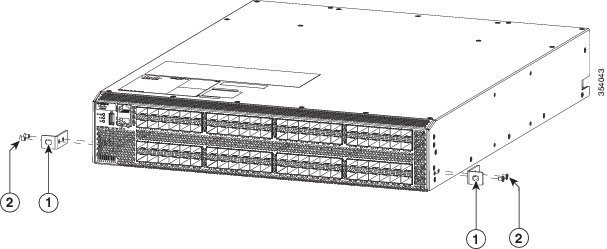
Align the two holes in one side of one of two front-mount brackets to two holes on the left or right side of the chassis (see the following figure). Be sure that the other side of the bracket is facing towards the front (port end) of the chassis.

Figure 1. Aligning and Attaching Front-Mount Brackets to the Sides of the Chassis


1 Front-mount bracket with two screw holes aligned to two screw holes in the chassis and one screw hole facing the port side of the chassis. 2 Two M4 x 6 mm screws used to fasten the bracket to the chassis.

Step 2

Use two M4 x 6 mm screws to attach the bracket to the chassis. Tighten each screw to 11 to 15 in-lb (1.2 to1.7 N·m).

Step 3

Repeat Steps 1 and 2 to attach the second front-mount bracket to the other side of the chassis.


What to do next

You are ready to mount the chassis to the four-post rack.

Installing the Switch

Before you begin

  • You need to slide the chassis onto the bottom-support rails so that the end with the fan trays and power supplies locks onto the chassis stops at the end of the rails and so that the front-mount brackets on the chassis come into contact with the front-mount rails on the rack.

  • Make sure that the four-post rack is properly installed and secured to the concrete floor.

  • Make sure that the bottom-support rails are installed so that the power supplies and fan trays will be in the appropriate aisle.

  • The color of the stripe on fan trays and the color of the latch on power supplies determines which end of the switch must be positioned in the cold aisle as follows:

    • If the modules have burgundy coloring, position the port end of the chassis in the cold aisle.

    • If the modules have blue coloring, position the fan trays and power supply end of the chassis in the cold aisle.

  • Make sure that two front-mount brackets are securely fastened to the sides of the chassis at the port end.

  • Make sure that you have two customer-supplied rack-mount screws (M6 x 10 mm or appropriate screw for the vertical mounting rails on the rack).

Procedure


Step 1

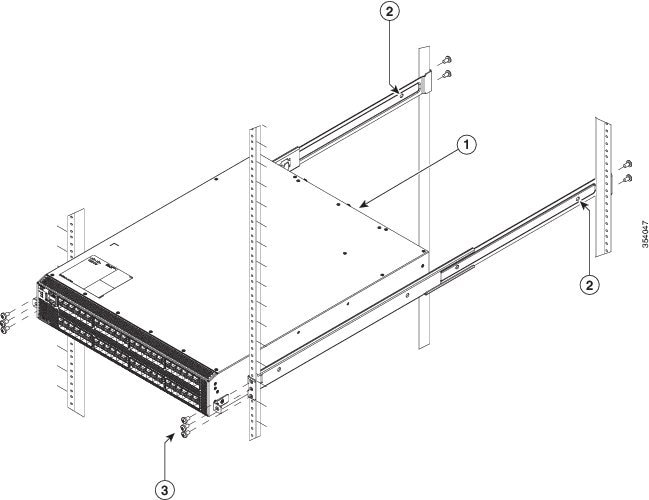
Slide the power supply and fan tray end of the chassis onto the bottom support rails that are installed on the rack. Be sure that the sides of the chassis by the fan trays and power supplies clips onto the chassis stops on the bottom support rails and the front mounting brackets come in contact with the rack (see the following figure).

If the bottom support rails are extended a long distance, they can bend outwards slightly when you install the chassis and the chassis stops at the far end of the rails might not fit into the end of the chassis. If this happens, press the side rails toward the sides of the chassis so that the chassis stops can go inside the chassis and hold it in place on the rack.
Figure 2. Sliding the Chassis onto the Bottom-Support Rails


1 Slide the fan-tray end of the chassis onto the bottom-support rails so that the chassis locks onto the chassis stops at the end of the rails. 3 Customer-supplied rack-mount screw (M6 x 10 mm screw or other appropriate screw) used to secure each side of the chassis to the rack.
2 Chassis stops for holding the chassis (installed by the hot aisle)

Step 2

Use a customer-supplied rack-mount screw (an M6 x 10 mm screw or other appropriate screw for the rack) to attach each of the two mounting brackets on the chassis to the rack and tighten each screw to the appropriate torque setting for the screw (for M6 x 10 mm screws, use 40 in-lb [4.5 N·m] of torque).


Grounding the Switch

The switch is grounded when you connect the chassis and the power supplies to the earth ground in the following ways:
  • You connect the chassis (at its grounding pad) to either the data center ground or to a fully bonded and grounded rack.

    Note


    The chassis ground connection is active even when the AC power cables are not connected to the system.


  • You connect an AC power supply to the earth ground automatically when you connect the power supply to an AC power source.

Before you begin

  • Before you can ground the chassis, you must have a connection to the earth ground for the data center building. If you installed the switch chassis into a bonded rack (see the rack manufacturer’s instructions for more information) that now has a connection to the data center earth ground, you can ground the chassis by connecting its grounding pad to the rack. Otherwise, you must connect the chassis grounding pad directly to the data center ground.

  • To connect the switch chassis to the data center ground, you need the following tools and equipment:

    • Grounding lug—A two-holed standard barrel lug that supports up to 6 AWG wire. This lug is supplied with the accessory kit.

    • Grounding screws—Two M4 x 8 mm pan-head screws. These screws are shipped with the accessory kit.

    • Grounding wire—Not supplied with the accessory kit. This wire should be sized to meet local and national installation requirements. Depending on the power supply and system, a 12 AWG to 6 AWG copper conductor is required for U.S. installations. We recommend that you use commercially available 6 AWG wire. The length of the grounding wire depends on the proximity of the switch to proper grounding facilities.

    • Number 1 Phillips head torque screwdriver.

    • Crimping tool to crimp the grounding wire to the grounding lug.

    • Wire stripping tool to remove the insulation from the grounding wire.

Procedure


Step 1

Use a wire stripping tool to remove approximately 0.75 inch (19 mm) of the covering from the end of the grounding wire.

Step 2

Insert the stripped end of the grounding wire into the open end of the grounding lug, and use a crimping tool to crimp the lug to the wire. Verify that the ground wire is securely attached to the grounding lug by attempting to pull the wire out of the crimped lug.

Figure 3. Grounding a Cisco MDS 9396S Switch


1

Grounding point

Step 3

Secure the grounding lug to the chassis grounding pad with two M4 screws, and tighten each screw to 11.5 to 15 in-lb (1.3 to 1.7 N·m) of torque.

Step 4

Prepare the other end of the grounding wire and connect it to an appropriate grounding point in your site to ensure an adequate earth ground for the switch. If the rack is fully bonded and grounded, connect the grounding wire as explained in the documentation provided by the vendor for the rack.


Powering Up the Switch

To power up the switch, you must connect one or two power supplies to AC power sources. The number of power supplies and power sources used depends on the following conditions:
  • If you are using combined power (not using power redundancy), you must connect one power supply to one AC power source.

  • If you are using power supply (n+1) redundancy, you must connect two power supplies to one AC power source.

  • If you are using grid (n+n) redundancy, you must use two power supplies and two AC power sources—you must connect each power supply to a different power source.

Before you begin

You must have the following before powering up the switch:
  • Switch installed in a rack and connected to an earth ground

  • Recommended power cable for your nation or region

  • AC power source with the required amperage located within reach of the power cable being used

Procedure


Step 1

Connect a power supply to an AC power source as follows:

  1. Using the recommended power cable for your country or region (see the Supported Power Cords and Plugs section), connect the C19 plug on the power cable to the power receptacle on the power supply.

  2. Connect the other end of the power cable to the AC power source.

  3. Verify that the LED is on and green. If the LED is off, check the AC power source circuit breaker to be sure that it is turned on.

Step 2

If you are using the power supply (n+1) redundancy, you must connect the second power supply as follows:

  1. Using the recommended power cable for your country or region (see the Supported Power Cords and Plugs section), connect the C19 plug on the power cable to the power receptacle on the second power supply.

  2. Connect the other end of the power cable to the AC power source used by the other power supply.

  3. Verify that the LED is on and green. If the LED is off, check the AC power source circuit breaker to be sure that it is turned on.

Step 3

If you are using the grid (n+n) redundancy, you must connect the second power supply as follows:

  1. Using the recommended power cable for your country or region (see the Supported Power Cords and Plugs section), connect the C19 plug on the power cable to the power receptacle on the second power supply.

  2. Connect the other end of the power cable to a second AC power source (this is a different power source than the one used by the first power supply).

  3. Verify that the LED is on and green. If the LED is off, check the AC power source circuit breaker to be sure that it is turned on.


Removing and Installing Components

The Cisco MDS 9396S switch is shipped with two field replaceable power supplies. Each power supply includes a fixed fan. The Cisco MDS 9396S switch has two field-replaceable fan modules.


Warning


Hazardous voltage or energy is present on the backplane when the system is operating. Use caution when servicing. Statement 1034


Caution


During this procedure, wear grounding wrist straps to avoid ESD damage to the switch.


Note


The Cisco MDS 9396S Switch is only supported for continuous operation with both power supplies and both fan modules installed, and with all fans working.


With two power supplies installed, if one power supply fails, the system can continue to function normally on a single healthy power supply. However, the failed power supply should be replaced as soon as possible to provide redundancy. The fan modules are required to ensure proper cooling of the switches.

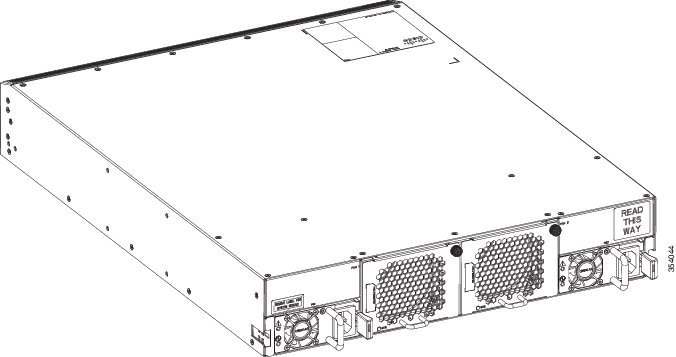
Figure 4. Rear View of the Cisco MDS 9396S Switch


Removing and Installing AC Power Supplies

This section provides instructions for removing and installing the AC power supplies for the Cisco MDS 9396S switch.

Removing Power Supplies

To remove an AC power supply, follow these steps:

Procedure

Step 1

Disconnect the power cord from the power source.

Step 2

Loosen the captive screw.

Step 3

Grasp the power supply handle and slide the power supply out of the switch.


Installing Power Supplies

To install an AC power supply, follow these steps:

Procedure

Step 1

Ensure that the system (earth) ground connection has been made.

Step 2

Make sure the power cord is disconnected before installing the power supply.

Step 3

Slide the power supply into the power supply bay. Make sure that the power supply is fully seated in the bay.

Step 4

Tighten the power supply captive screw.

Step 5

Plug the power cord into the power supply.

Step 6

Connect the other end of the power cord to an AC input power source.

Note


Depending on the outlet receptacle on your power distribution unit, you may need the optional jumper power cord to connect the Cisco MDS 9396S switch to your outlet receptacle. See the Jumper Power Cord section.

Step 7

Verify power supply operation by checking that the power supply (P/S) LED in the front panel is green. If the LED is not green, see the Cisco MDS 9000 Family Troubleshooting Guide.


Removing and Installing Fan Modules

This section provides instructions for removing and installing the fan modules for the Cisco MDS 9396S switch.

Removing a Fan Module

The fan module is designed to be removed and replaced while the system is operating without presenting an electrical hazard or damaging the system.


Caution


The Cisco MDS 9000 Family has internal temperature sensors that can shut down the system if the temperature at different points within the chassis exceed certain safety thresholds. To accurately monitor the system temperature, the temperature sensors require sufficient airflow through the chassis. In the event that a fan module is removed from the chassis and the airflow is reduced, the system will bypass the temperature sensor information and shut down after five minutes to prevent undetected overheating. However, the switches will shut down sooner if the major temperature threshold is exceeded.


Note


While removing the fan module, keep your hands and fingers away from the spinning fan blades. Let the fan blades completely stop before you remove the fan module. Statement 258


To remove the existing fan module, follow these steps:

Procedure

Step 1

Locate the fan module in the back of the switch.

Step 2

Loosen the fan module captive screw.

Step 3

Slide the seating tabs toward the center of the fan module.

Step 4

Grasp the fan module handle and pull it outward.

Step 5

Once the fan blades have stopped spinning, remove the fan module completely from the fan bay.


Installing a Fan Module

To install a new fan module, follow these steps:

Procedure

Step 1

Slide the fan module into the fan module bay until it clicks into place.

Step 2

Tighten the fan module captive screw.


Verifying the Fan Module

To verify that the new fan module is installed correctly, follow these steps:

Procedure

Step 1

Listen for the fans; you should immediately hear them operating. If you do not hear them, ensure that the fan module is inserted completely in the switch and the faceplate is flush with the switch back panel.

Step 2

Verify that the fan module LED is green. If the LED is orange, then one fan has failed in this fan module; if the LED is red, then both fans have failed in this fan module.

Step 3

Contact your customer service representative for assistance if, after several attempts, the fans do not operate or you experience trouble with the installation.

Note

 
If you purchased this product through a Cisco reseller, contact the reseller directly for technical support. If you purchased this product directly from Cisco, contact Cisco Technical Support at this URL: http://www.cisco.com/c/en/us/support/web/tsd-cisco-worldwide-contacts.html