Shared Layer 3 Out
A shared Layer 3 outside network (L3extOut) configuration provides routed connectivity to external networks as a shared service. An L3extOut profile (l3extInstP) EPG provides routed connectivity to external networks. It can be provisioned as a shared service in any tenant (user, common, infra, or mgmt). Prior to release 1.2(1x), this configuration was only supported in the user and common tenants. An EPG in any tenant can use a shared services contract to connect with an l3extInstP EPG regardless of where in the fabric that l3extInstP EPG is provisioned. This simplifies the provisioning of routed connectivity to external networks; multiple tenants can share
a single l3extInstP EPG for routed connectivity to external networks. Sharing an l3extInstP EPG is more efficient because it consumes only one session on the switch regardless of how many EPGs use the single shared
l3extInstP EPG.
 Note |
All switches that will use l3extInstP EPG shared service contracts require the hardware and software support available starting with the APIC 1.2(1x) and switch
11.2(1x) releases. Refer to the Cisco APIC Management, Installation, Upgrade, and Downgrade Guide and Release Notes documentation for more details.
|
l3extInstP EPG.
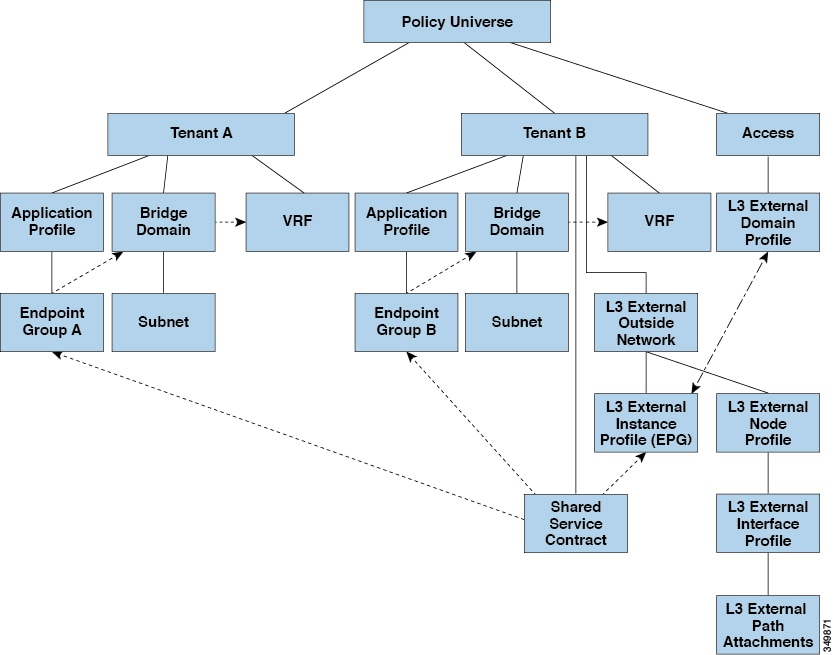
Take note of the following guidelines and limitations for shared Layer 3 outside network configurations:
-
No tenant limitations: Tenants A and B can be any kind of tenant (user,
common,infra,mgmt.). The sharedl3extInstPEPG does not have to be in thecommontenant. -
Flexible placement of EPGs: EPG A and EPG B in the illustration above are in different tenants. EPG A and EPG B could use the same bridge domain and VRF, but they are not required to do so. EPG A and EPG B are in different bridge domains and different VRFs but still share the same
l3extInstPEPG. -
A subnet can be private, public, or shared. A subnet that is to be advertised into a consumer or provider EPG of an
L3extOutmust be set to shared. A subnet that is to be exported to anL3extOutmust be set to public. -
The shared service contract is exported from the tenant that contains the
l3extInstPEPG that provides shared Layer 3 outside network service. The shared service contract is imported into the tenants that contain the EPGs that consume the shared service. -
Do not use taboo contracts with a shared L3 out; this configuration is not supported.
-
The
l3extInstPas a shared service provider is supported, but only with non l3extInstP consumers (where theL3extOutEPG is the same as thel3extInstP). -
Traffic Disruption (Flap): When an
l3instPEPG is configured with an external subnet of 0.0.0.0/0 with the scope property of thel3instPsubnet set to shared route control (shared-rctrl), or shared security (shared-security), the VRF is redeployed with a globalpcTag. This will disrupt all the external traffic in that VRF (because the VRF is redeployed with a globalpcTag). -
Prefixes for a shared
L3extOutmust to be unique. Multiple sharedL3extOutconfigurations with the same prefix in the same VRF will not work. Be sure that the external subnets (external prefixes) that are advertised into a VRF are unique (the same external subnet cannot belong to multiplel3instPs). AnL3extOutconfiguration (for example, named L3Out1) with prefix1 and a second Layer 3 outside configuration (for example, named L3Out2) also with prefix1 belonging to the same VRF will not work (because only 1 pcTag is deployed). Different behaviors ofL3extOutare possible when configured on the same leaf switch under the same VRF. The two possible scenarios are as follows:-
Scenario 1 has an
L3extOutwith an SVI interface and two subnets (10.10.10.0/24 and 0.0.0.0/0) defined. If ingress traffic on the Layer 3 outside network has the matching prefix 10.10.10.0/24, then the ingress traffic uses the External EPG pcTag. If ingress traffic on the Layer 3 Outside network has the matching default prefix 0.0.0.0/0, then the ingress traffic uses the External Bridge pcTag. -
Scenario 2 has an
L3extOutusing a routed or routed-sub-interface with two subnets (10.10.10.0/24 and 0.0.0.0/0) defined. If ingress traffic on the Layer 3 outside network has the matching prefix 10.10.10.0/24, then the ingress traffic uses the External EPG pcTag. If ingress traffic on the Layer 3 outside network has the matching default prefix 0.0.0.0/0, then the ingress traffic uses the VRF pcTag. -
As a result of these described behaviors, the following use cases are possible if the same VRF and same leaf switch are configured with
L3extOut-A andL3extOut-B using an SVI interface:Case 1 is for
L3extOut-A: This External Network EPG has two subnets defined: 10.10.10.0/24 & 0.0.0.0/1. If ingress traffic onL3extOut-A has the matching prefix 10.10.10.0/24, it uses the external EPG pcTag & contract-A which is associated withL3extOut-A. When egress traffic onL3extOut-A has no specific match found, but there is a maximum prefix match with 0.0.0.0/1, it uses the External Bridge Domain (BD) pcTag & contract-A.Case 2 is for
L3extOut-B: This External Network EPG has one subnet defined: 0.0.0.0/0. When ingress traffic onL3extOut-B has the matching prefix10.10.10.0/24 (which is defined underL3extOut-A), it uses the External EPG pcTag ofL3extOut-A and the contract-A which is tied withL3extOut-A. It does not use contract-B which is tied withL3extOut-B.
-
-
Traffic not permitted: Traffic is not permitted when an invalid configuration sets the scope of the external subnet to shared route control (shared-rtctrl) as a subset of a subnet that is set to shared security (shared-security). For example, the following configuration is invalid:
-
shared rtctrl: 10.1.1.0/24, 10.1.2.0/24
-
shared security: 10.1.0.0/16
In this case, ingress traffic on a non-border leaf with a destination IP of 10.1.1.1 is dropped, since prefixes 10.1.1.0/24 and 10.1.2.0/24 are installed with a drop rule. Traffic is not permitted. Such traffic can be enabled by revising the configuration to use the
shared-rtctrlprefixes as shared-security prefixes as well. -
-
Inadvertent traffic flow: Prevent inadvertent traffic flow by avoiding the following configuration scenarios:
-
Case 1 configuration details:
-
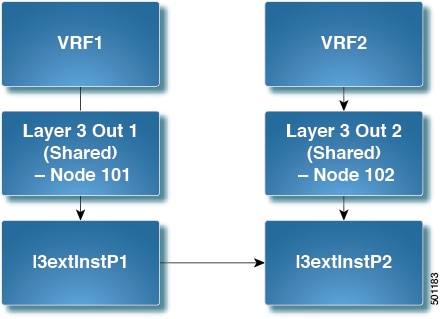
A Layer 3 outside network configuration (for example, named
L3extOut-1) with VRF1 is called provider1. -
A second Layer 3 outside network configuration (for example, named
L3extOut-2) with VRF2 is called provider2. -
L3extOut-1 VRF1 advertises a default route to the Internet, 0.0.0.0/0 which enables both shared-rtctrl and shared-security. -
L3extOut-2 VRF2 advertises specific subnets to DNS and NTP, 192.0.0.0/8 which enables shared-rtctrl. -
L3extOut-2 VRF2 has specific subnet 192.1.0.0/16, which enables shared-security. -
Variation A: EPG Traffic Goes to Multiple VRFs.
-
Communications between EPG1 and
L3extOut-1 is regulated by an allow_all contract. -
Communications between EPG1 and
L3extOut-2 is regulated by an allow_all contract.Result: Traffic from EPG1 to
L3extOut-2 also goes to 192.2.x.x.
-
-
Variation B: An EPG conforms to the allow_all contract of a second shared Layer 3 outside network.
-
Communications between EPG1 and
L3extOut-1 is regulated by an allow_all contract. -
Communications between EPG1 and
L3extOut-2 is regulated by an allow_icmp contract.Result: Traffic from EPG1 to
L3extOut-2 to 192.2.x.x conforms to the allow_all contract.
-
-
-
Case 2 configuration details:
-
A
L3extOutprofile (l3instP) has one shared prefix and other non-shared prefixes. -
Traffic coming in with
src = non-sharedis allowed to go to the EPG-
Variation A: Unintended traffic goes through an EPG.
L3extOut(l3instP) EPG traffic goes through aL3extOutthat has these prefixes:-
192.0.0.0/8 = import-security, shared-rtctrl-
192.1.0.0/16 = shared-security- The EPG has
1.1.0.0/16 = sharedResult: Traffic going from 192.2.x.x also goes through to the EPG.
-
Variation B: Unintended traffic goes through an EPG. Traffic coming in a shared
L3extOutcan go through the EPG.- The shared
L3extOutVRF has an EPG withpcTag = prov vrfand a contract set to allow_all- The EPG
<subnet> = shared.Result: The traffic coming in on the Layer 3 out can go through the EPG.
-
-
-
 Feedback