IP Multicast

This chapter contains the following sections:

Layer 3 Multicast


Note

Prior to Cisco APIC release 4.2(1), Cisco ACI had support for Layer 3 multicast IPv4. Cisco APIC release 4.2(1) adds support to connect multicast applications using IPv6 multicast, where you can use IPv6 multicast to enable IPv6 multicast applications to send multicast over IPv6 from senders in the Cisco ACI fabric to external receivers.

The information in this chapter has been updated to reflect this additional support for Layer 3 IPv6 multicast.


In the ACI fabric, most unicast and IPv4/IPv6 multicast routing operate together on the same border leaf switches, with the IPv4/IPv6 multicast protocol operating over the unicast routing protocols.

In this architecture, only the border leaf switches run the full Protocol Independent Multicast (PIM) or PIM6 protocol. Non-border leaf switches run PIM/PIM6 in a passive mode on the interfaces. They do not peer with any other PIM/PIM6 routers. The border leaf switches peer with other PIM/PIM6 routers connected to them over L3 Outs and also with each other.

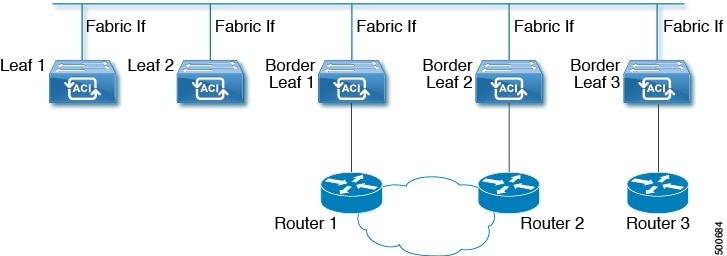
The following figure shows the border leaf (BL) switches (BL1 and BL2) connecting to routers (R1 and R2) in the IPv4/IPv6 multicast cloud. Each virtual routing and forwarding (VRF) in the fabric that requires IPv4/IPv6 multicast routing will peer separately with external IPv4/IPv6 multicast routers.

Figure 1. Overview of Multicast Cloud

About the Fabric Interface

The fabric interface is a virtual interface between software modules and represents the fabric for IPv4/IP6 multicast routing. The interface takes the form of a tunnel interface with the tunnel destination being the VRF GIPo (Group IP outer address)1. PIM6 shares the same tunnel that PIM4 uses. For example, if a border leaf is the designated forwarder responsible for forwarding traffic for a group, then the fabric interface would be in the outgoing interface (OIF) list for the group. There is no equivalent for the interface in hardware. The operational state of the fabric interface should follow the state published by the intermediate system-to-intermediate system (IS-IS).

Note

You must configure a unique IPv4/IP6 loopback address on each border leaf switch on each VRF that enables multicast routing.


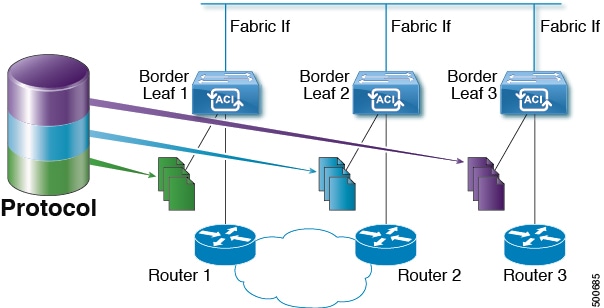
Any loopback configured for unicast routing can be reused. This loopback address must be routed from the external network and will be injected into the fabric MP-BGP (Multiprotocol Border Gateway Protocol) routes for the VRF. The fabric interface source IP will be set to this loopback as the loopback interface. The following figure shows the fabric for IPv4/IP6 multicast routing.

Figure 2. Fabric for IPv4/IP6 Multicast Routing

Enabling IPv4/IPv6 Multicast Routing

The process to enable or disable IPv4 or IPv6 multicast routing in a Cisco ACI fabric occurs at three levels:

  • VRF level: Enable multicast routing at the VRF level.

  • L3Out level: Enable PIM/PIM6 for one or more L3Outs configured in the VRF.

  • Bridge domain level: Enable PIM/PIM6 for one or more bridge domains where multicast routing is needed.

At the top level, IPv4/IPv6 multicast routing must be enabled on the VRF that has any multicast routing-enabled bridge domains. On an IPv4/IPv6 multicast routing-enabled VRF, there can be a combination of IPv4/IPv6 multicast routing-enabled bridge domains and bridge domains where IPv4/IPv6 multicast routing is disabled. A bridge domain with IPv4/IPv6 multicast routing disabled will not show on the VRF IPv4/IPv6 multicast panel. An L3Out with IPv4/IPv6 multicast routing-enabled will show up on the panel, but any bridge domain that has IPv4/IPv6 multicast routing enabled will always be a part of a VRF that has IPv4/IPv6 multicast routing enabled.

IPv4/IPv6 multicast routing is not supported on the leaf switches such as Cisco Nexus 93128TX, 9396PX, and 9396TX. All the IPv4/IPv6 multicast routing and any IPv4/IPv6 multicast-enabled VRF should be deployed only on the switches with -EX and -FX in their product IDs.


Note

Layer 3 Out ports and sub-interfaces are supported while external SVIs are not supported. Since external SVIs are not supported, PIM/PIM6 cannot be enabled in L3-VPC.

Allocating VRF GIPo

VRF GIPo is allocated implicitly based on configuration. There will be one GIPo for the VRF and one GIPo for every BD under that VRF. Additionally, any given GIPo might be shared between multiple BDs or multiple VRFs, but not a combination of VRFs and BDs. APIC will be required to ascertain this. In order to handle the VRF GIPo in addition to the BD GIPos already handled and build GIPo trees for them, IS-IS is modified.


Note

For the same VRF, VRF GIPo is common for both IPv4 and IPv6.


All multicast traffic for PIM/PIM6 enabled BDs will be forwarded using the VRF GIPo. This includes both Layer 2 and Layer 3 IPv4/IPv6 multicast. Any broadcast or unicast flood traffic on the multicast enabled BDs will continue to use the BD GIPo. Non-IPv4/IPv6 multicast enabled BDs will use the BD GIPo for all multicast, broadcast, and unicast flood traffic.

The APIC GUI will display a GIPo multicast address for all BDs and VRFs. The address displayed is always a /28 network address (the last four bits are zero). When the VXLAN packet is sent in the fabric, the destination multicast GIPo address will be an address within this /28 block and is used to select one of 16 FTAG trees. This achieves load balancing of multicast traffic across the fabric.

Table 1. GIPo Usage

Traffic

Non-MC Routing-enabled BD

MC Routing-enabled BD

Broadcast

BD GIPo

BD GIPo

Unknown Unicast Flood

BD GIPo

BD GIPo

Multicast

BD GIPo

VRF GIPo

Multiple Border Leaf Switches as Designated Forwarder

When there are multiple border leaf (BL) switches in the fabric doing IPv4/IPv6 multicast routing, only one of the border leafs is selected as the designated forwarder for attracting traffic from the external IPv4/IPv6 multicast network and forwarding it to the fabric. This prevents multiple copies of the traffic and it balances the load across the multiple BL switches.

This is done by striping ownership for groups across the available BL switches, as a function of the group address and the VRF virtual network ID (VNID). A BL that is responsible for a group sends PIM/PIM6 joins to the external network to attract traffic into the fabric on behalf of receivers in the fabric.

Each BL in the fabric has a view of all the other active BL switches in the fabric in that VRF. So each of the BL switches can independently stripe the groups consistently. Each BL monitors PIM/PIM6 neighbor relations on the fabric interface to derive the list of active BL switches. When a BL switch is removed or discovered, the groups are re-striped across the remaining active BL switches. The striping is similar to the method used for hashing the GIPos to external links in multi-pod deployment, so that the group-to-BL mapping is sticky and results in fewer changes on up or down.

Figure 3. Model for Multiple Border Leafs as Designated Forwarder

PIM/PIM6 Designated Router Election

For Layer 3 IPv4/IPv6 multicast on ACI fabric, the PIM/PIM6 DR (designated router) mechanism for different interface types is as follows:

  • PIM/PIM6-enabled L3 Out interfaces: Follows standard PIM/PIM6 DR mechanism in these types of interfaces.

  • Fabric interface: DR election on this interface is not of much significance as the DR functionality is determined by the striping. PIM/PIM6 DR election continues unaltered on this interface.

  • IPv4/IPv6 multicast routing-enabled pervasive BDs: The pervasive BDs in the fabric are all stubs with respect to IPv4/IPv6 multicast routing. Hence, on all the leaf switches, the SVI interfaces for pervasive BDs including vPC, are considered DR on the segment.

Non-Border Leaf Switch Behavior

On the non-border leaf switches, PIM/PIM6 runs in passive mode on the fabric interface and on the pervasive BD SVIs. PIM/PIM6 is in a new passive-probe mode where it sends only hellos. PIM/PIM6 neighbors are not expected on these pervasive BD SVIs. It is desirable to raise a fault when a PIM/PIM6 hello is heard from a router on a pervasive BD. PIM/PIM6, on the non-border leaf switches, does not send any PIM/PIM6 protocol packets except for hellos on pervasive BDs and source register packets on the fabric interface.

At the same time, PIM/PIM6 will receive and process the following PIM/PIM6 packets on the fabric interface:

  • PIM/PIM6 Hellos: This is used to track the active BL list on the fabric interface and on the pervasive BDs, this is used to raise faults.

  • PIM BSR, Auto-RP advertisements: Supported only for PIM, not supported for PIM6. This is received on the fabric interface and is processed to glean the RP to group-range mapping.

Active Border Leaf Switch List

On every leaf switch, PIM/PIM6 maintains a list of active border leaf switches that is used for striping and other purposes. On the border leaf switches themselves this active border leaf list is derived from the active PIM/PIM6 neighbor relations. On non-border leaf switches, the list is generated by PIM/PIM6 using the monitored PIM/PIM6 Hello messages on the fabric interface. The source IP on the hello messages is the loopback IPv4/IPv6 assigned to each border leaf switch.

Overload Behavior On Bootup

When a border leaf switch gains connectivity to the fabric for the first time after bootup or after losing connectivity, it is not desirable to cause the border leaf switch to be part of the active border leaf switch list till the border leaf switch has had a chance to pull the COOP repo2 information and to bring up its southbound protocol adjacencies. This can be achieved by delaying the transmission of PIM/PIM6 hello messages for a non-configured period of time.

First-Hop Functionality

The directly connected leaf switch will handle the first-hop functionality needed for PIM/PIM6 sparse mode.

The Last-Hop

The last-hop router is connected to the receiver and is responsible for doing a Shortest-Path Tree (SPT) switchover in case of PIM/PIM6 any-source multicast (ASM). The border leaf switches will handle this functionality. The non-border leaf switches do not participate in this function.

Fast-Convergence Mode

The fabric supports a configurable fast-convergence mode where every border leaf switch with external connectivity towards the root (RP for (*,G) and source for (S, G)) pulls traffic from the external network. To prevent duplicates, only one of the BL switches forwards the traffic to the fabric. The BL that forwards the traffic for the group into the fabric is called the designated forwarder (DF) for the group. The stripe winner for the group decides on the DF. If the stripe winner has reachability to the root, then the stripe winner is also the DF. If the stripe winner does not have external connectivity to the root, then that BL chooses a DF by sending a PIM/PIM6 join over the fabric interface. All non-stripe winner BL switches with external reachability to the root send out PIM/PIM6 joins to attract traffic but continue to have the fabric interface as the RPF interface for the route. This results in the traffic reaching the BL switch on the external link, but getting dropped.

The advantage of the fast-convergence mode is that when there is a stripe owner change due to a loss of a BL switch for example, the only action needed is on the new stripe winner of programming the right Reverse Path Forwarding (RPF) interface. There is no latency incurred by joining the PIM/PIM6 tree from the new stripe winner. This comes at the cost of the additional bandwidth usage on the non-stripe winners' external links.


Note

Fast-convergence mode can be disabled in deployments where the cost of additional bandwidth outweighs the convergence time saving.


About Rendezvous Points

A rendezvous point (RP) is an IP address that you choose in a IPv4/IPv6 multicast network domain that acts as a shared root for a IPv4/IPv6 multicast shared tree. You can configure as many RPs as you like, and you can configure RPs to cover different group ranges. When multiple RPs are configured, each RP must be configured for a unique group range.

PIM-enabled border leaf switches are required for VRFs where multicast routing is enabled. PIM is enabled for a border leaf switch by enabling PIM at the L3Out level. When PIM is enabled for an L3Out, this will enable PIM for all nodes and interfaces configured under that L3Out.

You can configure two types of RPs:

  • Static RP—Enables you to statically configure an RP for a IPv4/IPv6 multicast group range. To do so, you must configure the address of the RP on every router in the domain.

  • Fabric RP—Applies only for IPv4 multicast; fabric RP is not supported for IPv6 multicast. Enables you to configure an RP on all leaf switches where PIM is enabled on the VRF. When configured, external routers can use the fabric RP. However, an anycast RP cannot exist between the fabric and the external router.


    Note

    Fabric RP has the following restrictions:

    • Fabric RP does not support fast-convergence mode.

    • The fabric IP:

      • Must be unique across all the static RP entries within the static RP and fabric RP.

      • Cannot be one of the Layer 3 out router IDs


For information about configuring an RP, see the following sections:

About Inter-VRF Multicast


Note

Inter-VRF multicast is not supported for IPv6 multicast.


In typical data center with multicast networks, the multicast sources and receivers are in the same VRF, and all multicast traffic is forwarded within that VRF. There are use cases where the multicast sources and receivers may be located in different VRFs:

  • Surveillance cameras are in one VRF while the people viewing the camera feeds are on computers in a different VRF.

  • A multicast content provider is in one VRF while different departments of an organization are receiving the multicast content in different VRFs.

ACI release 4.0 adds support for inter-VRF multicast, which enables sources and receivers to be in different VRFs. This allows the receiver VRF to perform the reverse path forwarding (RPF) lookup for the multicast route in the source VRF. When a valid RPF interface is formed in the source VRF, this enables an outgoing interface (OIF) in the receiver VRF. All inter-VRF multicast traffic will be forwarded within the fabric in the source VRF. The inter-VRF forwarding and translation is performed on the leaf switch where the receivers are connected.


Note

  • For any-source multicast, the RP used must be in the same VRF as the source.

  • Source and receiver VRFs can be in an EPG or connected behind an L3 Out.


For ACI, inter-VRF multicast is configured per receiver VRF. Every NBL/BL that has the receiver VRF will get the same inter-VRF configuration. Each NBL that may have directly connected receivers, and BLs that may have external receivers, need to have the source VRF deployed. Control plane signaling and data plane forwarding will do the necessary translation and forwarding between the VRFs inside the NBL/BL that has receivers. Any packets forwarded in the fabric will be in the source VRF.

Inter-VRF Multicast Requirements

This section explains the inter-vrf multicast requirements.

  • All sources for a particular group must be in the same VRF (the source VRF).

  • Source VRF and source EPGs need to be present on all leafs where there are receiver VRFs.

  • For ASM:

    • The RP must be in the same VRF as the sources (the source VRF).

    • For releases prior to 4.2(4), the source VRF must be using fabric RP. This restriction does not apply for Release 4.2(4) and later.

    • The same RP address configuration must be applied under the source and all receiver VRFs for the given group-range.

Guidelines, Limitations, and Expected Behaviors for Configuring Layer 3 IPv4/IPv6 Multicast

See the following guidelines and restrictions:

Guidelines and Limitations for IPv4 and IPv6 Multicast

The following restrictions apply for both IPv4 and IPv6 multicast:

  • The Layer 3 IPv4/IPv6 multicast feature is supported on the following leaf switches:

    • EX models:

      • N9K-93108TC-EX

      • N9K-93180LC-EX

      • N9K-93180YC-EX

    • FX models:

      • N9K-93108TC-FX

      • N9K-93180YC-FX

      • N9K-C9348GC-FXP

    • FX2 models:

      • N9K-93240YC-FX2

      • N9K-C93360YC-FX2

      • N9K-C9336C-FX2

  • Custom QoS policy is not supported for Layer 3 multicast traffic sourced from outside the ACI fabric (received from L3Out).

  • Enabling PIMv4/PIM6 and Advertise Host routes on a BD is supported.

  • Layer 3 multicast is enabled at the VRF level and the multicast protocols will function within the VRF. Each VRF can have multicast enabled or disabled independently.

  • Once a VRF is enabled for multicast, the individual bridge domains (BDs) and L3 Outs under the enabled VRF can be enabled for multicast configuration. By default, multicast is disabled in all BDs and Layer 3 Outs.

  • Layer 3 multicast is not currently supported on VRFs that are configured with a shared L3 Out.

  • Bidirectional PIMv4/PIM6 is currently not supported.

  • Multicast routers are not supported in pervasive bridge domains.

  • The supported route scale is 2,000. The multicast scale number is a combined scale that includes both IPv4 and IPv6. The total route limit is defined as route counts. Each IPv4 route is counted as 1, and each IPv6 route is counted as 4. Even with node profiles that support more multicast scales, the IPv6 route scale will remain at 2,000.

  • PIMv4/PIM6 is supported on Layer 3 Out routed interfaces and routed subinterfaces including Layer 3 port-channel interfaces. PIMv4/PIM6 is not supported on Layer 3 Out SVI interfaces.

  • Enabling PIMv4/PIM6 on an L3Out causes an implicit external network to be configured. This action results in the L3Out being deployed and protocols potentially coming up even if you have not defined an external network.

  • If the multicast source is connected to Leaf-A as an orphan port and you have an L3Out on Leaf-B, and Leaf-A and Leaf-B are in a vPC pair, the EPG encapsulation VLAN tied to the multicast source will need to be deployed on Leaf-B.

  • The behavior of an ingress leaf switch receiving a packet from a source that is attached to a bridge domain differs for Layer 3 IPv4 or IPv6 multicast support:

    • For Layer 3 IPv4 multicast support, when the ingress leaf switch receives a packet from a source that is attached on a bridge domain, and the bridge domain is enabled for IPv4 multicast routing, the ingress leaf switch sends only a routed VRF copy to the fabric (routed implies that the TTL is decremented by 1, and the source-mac is rewritten with a pervasive subnet MAC). The egress leaf switch also routes the packet into receivers in all the relevant bridge domains. Therefore, if a receiver is on the same bridge domain as the source, but on a different leaf switch than the source, that receiver continues to get a routed copy, although it is in the same bridge domain. This also applies if the source and receiver are on the same bridge domain and on the same leaf switch, if PIM is enabled on this bridge domain.

      For more information, see details about Layer 3 multicast support for multipod that leverages existing Layer 2 design, at the following link Adding Pods.

    • For Layer 3 IPv6 multicast support, when the ingress leaf switch receives a packet from a source that is attached on a bridge domain, and the bridge domain is enabled for IPv6 multicast routing, the ingress leaf switch sends only a routed VRF copy to the fabric (routed implies that the TTL is decremented by 1, and the source-mac is rewritten with a pervasive subnet MAC). The egress leaf switch also routes the packet into receivers. The egress leaf also decrements the TTL in the packet by 1. This results in TTL being decremented two times. Also, for ASM the multicast group must have a valid RP configured.


Note

Cisco ACI does not support IP fragmentation. Therefore, when you configure Layer 3 Outside (L3Out) connections to external routers, or Multi-Pod connections through an Inter-Pod Network (IPN), it is recommended that the interface MTU is set appropriately on both ends of a link. On some platforms, such as Cisco ACI, Cisco NX-OS, and Cisco IOS, the configurable MTU value does not take into account the Ethernet headers (matching IP MTU, and excluding the 14-18 Ethernet header size), while other platforms, such as IOS-XR, include the Ethernet header in the configured MTU value. A configured value of 9000 results in a max IP packet size of 9000 bytes in Cisco ACI, Cisco NX-OS, and Cisco IOS, but results in a max IP packet size of 8986 bytes for an IOS-XR untagged interface.

For the appropriate MTU values for each platform, see the relevant configuration guides.

We highly recommend that you test the MTU using CLI-based commands. For example, on the Cisco NX-OS CLI, use a command such as ping 1.1.1.1 df-bit packet-size 9000 source-interface ethernet 1/1.


Guidelines and Limitations for IPv4 Multicast

The following restrictions apply specifically for IPv4 multicast:

  • If the border leaf switches in your ACI fabric are running multicast and you disable multicast on the L3Out while you still have unicast reachability, you will experience traffic loss if the external peer is a Cisco Nexus 9000 switch. This impacts cases where traffic is destined towards the fabric (where the sources are outside the fabric but the receivers are inside the fabric) or transiting through the fabric (where the source and receivers are outside the fabric, but the fabric is transit).

  • Any Source Multicast (ASM) and Source-Specific Multicast (SSM) are supported for IPv4.

  • You can configure a maximum of four ranges for SSM multicast in the route map per VRF.

  • IGMP snooping cannot be disabled on pervasive bridge domains with multicast routing enabled.

  • Starting with Release 3.1(1x), Layer 3 multicast is supported with FEX. Multicast sources or receivers that are connected to FEX ports are supported. For further details about how to add FEX in your testbed, see Configure a Fabric Extender with Application Centric Infrastructure at this URL: https://www.cisco.com/c/en/us/support/docs/cloud-systems-management/application-policy-infrastructure-controller-apic/200529-Configure-a-Fabric-Extender-with-Applica.html. For releases preceeding Release 3.1(1x), Layer 3 multicast is not supported with FEX. Multicast sources or receivers that are connected to FEX ports are not supported.

Guidelines and Limitations for IPv6 Multicast

The following restrictions apply specifically for IPv6 multicast:

  • Source Specific Multicast (SSM) is supported, but RFC 3306 - Unicast-Prefix-based IPv6 Multicast Addresses specifies a fixed SSM range. Therefore, the SSM range cannot be changed in IPv6.

  • You can configure a maximum of four ranges for SSM multicast in the route map per VRF.

  • Any Source Multicast (ASM) is supported for IPv6.

  • OIF and VRF scale numbers for IPv6 are the same as they are for IPv4.

  • For PIM6 only static RP configuration is supported. Auto-RP and BSR are not supported for PIM6.

  • Receivers inside the fabric are not supported. MLD Snoop Policy must be disabled when enabling IPv6 multicast. MLD snooping and PIM6 cannot be enabled in the same VRF.

  • Currently, Layer 3 Multicast Listener Discovery (MLD) is not supported with Cisco ACI.

  • Fabric Rendezvous Point (RP) is not supported for IPv6 multicast.

  • Cisco Multi-Site Orchestrator support is not available.

Configuring Layer 3 IPv4 Multicast Using the GUI

This section explains how to configure Layer 3 multicast using the Cisco APIC GUI.


Note

Click the help icon (?) located in the top-right corner of the Work pane and of each dialog box for information about a visible tab or a field.


Before you begin

  • The desired VRF, bridge domains, Layer 3 Out interfaces with IP addresses must be configured to enable PIM and IGMP.

  • Basic unicast network must be configured.

Procedure


Step 1

Navigate to Tenants > Tenant_name > Networking > VRFs > VRF_name > Multicast.

In the Work pane, a message is displayed as follows: PIM is not enabled on this VRF. Would you like to enable PIM?.
Step 2

Click YES, ENABLE MULTICAST.

Step 3

Configure interfaces:

  1. From the Work pane, click the Interfaces tab.

  2. Expand the Bridge Domains table to display the Create Bridge Domain dialog and enter the appropriate value in each field.

  3. Click Select.

  4. Expand the Interfaces table to display the Select an L3 Out dialog.

  5. Click the L3 Out drop-down arrow to choose an L3 Out.

  6. Click Select.

Step 4

Configure a rendezvous point (RP):

  1. In the Work pane, click the Rendezvous Points tab and choose from the following rendezvous point (RP) options:

  • Static RP

    1. Expand the Static RP table.

    2. Enter the appropriate value in each field.

    3. Click Update.

  • Fabric RP

    1. Expand the Fabric RP table.

    2. Enter the appropriate value in each field.

    3. Click Update.

  • Auto-RP

    1. Enter the appropriate value in each field.

  • Bootstrap Router (BSR)

    1. Enter the appropriate value in each field.

Step 5

Configure the pattern policy:

  1. From the Work pane, click the Pattern Policy tab and choose the Any Source Multicast (ASM) or Source Specific Multicast (SSM) option.

  2. Enter the appropriate value in each field.

Step 6

Configure the PIM settings:

  1. Click the PIM Setting tab.

  2. Enter the appropriate value in each field.

Step 7

Configure the IGMP settings:

  1. Click the IGMP Setting tab.

  2. Expand the IGMP Context SSM Translate Policy table.

  3. Enter appropriate value in each field.

  4. Click Update.

Step 8

Configure inter-VRF multicast:

  1. In the Work pane, click the Inter-VRF Multicast tab.

  2. Expand the Inter-VRF Multicast table.

  3. Enter appropriate value in each field.

  4. Click Update.

Step 9

When finished, click Submit.

Step 10

On the menu bar, navigate to Tenants > Tenant_name > Networking > VRFs > VRF_name > Multicast, and perform the following actions:

  1. In the Work pane, Interfaces tab, choose the appropriate L3 Out, and from the PIM Policy drop-down list, choose the appropriate PIM policy to attach.

  2. Click Submit.

Step 11

To verify the configuration perform the following actions:

  1. In the Work pane, click Interfaces to display the associated Bridge Domains.

  2. Click Interfaces to display the associated L3 Out interfaces.

  3. In the Navigation pane, navigate to the BD.

  4. In the Work pane, the configured IGMP policy and PIM functionality are displayed as configured earlier.

  5. In the Navigation pane, the L3 Out interface is displayed.

  6. In the Work pane, the PIM functionality is displayed as configured earlier.

  7. In the Work pane, navigate to Fabric > Inventory > Protocols > IGMP to view the operational status of the configured IGMP interfaces.

  8. In the Work pane, navigate to Fabric > Inventory > Pod name > Leaf_Node > Protocols > IGMP > IGMP Domains to view the domain information for multicast enabled/disabled nodes.


Configuring Layer 3 IPv6 Multicast Using the GUI

Before you begin

  • The desired VRF, bridge domains, Layer 3 Out interfaces with IPv6 addresses must be configured to enable PIM6. For Layer 3 Out, for IPv6 multicast to work, an IPv6 loopback address is configured for the node in the logical node profile.

  • Basic unicast network must be configured.

Procedure


Step 1

On the menu bar, navigate to Tenants > Tenant_name > Networking > VRFs > VRF_name > Multicast IPv6.

In the Work pane, a message is displayed as follows: PIM6 is not enabled on this VRF. Would you like to enable PIM6?.
Step 2

Click YES, ENABLE MULTICAST IPv6.

Step 3

Configure interfaces:

  1. From the Work pane, click the Interfaces tab.

  2. Expand the Bridge Domains table to display the Create Bridge Domain dialog, and choose the appropriate BD from drop-down list.

  3. Click Select.

  4. Expand the Interfaces table to display the Select an L3 Out dialog box.

  5. Click the L3 Out drop-down arrow to choose an L3 Out.

  6. Click Select.

Step 4

Configure a rendezvous point (RP).

  1. In the Work pane, click the Rendezvous Points tab, choose Static RP.

  2. Enter the appropriate value in each field.

  3. Click Update.

Step 5

Configure the pattern policy.

  1. From the Work pane, click the Pattern Policy tab and choose Any Source Multicast (ASM).

  2. Enter the appropriate values in each field.

Step 6

Configure the PIM settings.

  1. Click the PIM Setting tab.

  2. Enter the appropriate value in each field.

Step 7

When finished, click Submit.

Step 8

On the menu bar, navigate to Tenants > Tenant_name > Networking > VRFs > VRF_name > Multicast IPv6, and perform the following actions:

  1. In the Work pane, Interfaces tab, choose the appropriate L3 Out and from the PIM Policy drop-down list, choose the appropriate PIM policy to attach.

  2. Click Submit.

Step 9

To verify the configuration perform the following actions:

  1. In the Work pane, click Interfaces to display the associated Bridge Domains.

  2. In the Navigation pane, navigate to the associated BD with IPv6 multicast.

    In the Work pane, the configured PIM functionality is displayed as configured earlier.
  3. In the Navigation pane, navigate to the associated L3 Out interface.

    In the Work pane, the PIM6 check box is checked.
  4. In the Work pane, navigate to Fabric > Inventory >Pod NodeProtocols > PIM6 and expand PIM.

    Under the appropriate PIM6 protocol that was created earlier, you can view information about he associated Neighbors, PIM Interfaces, Routes, Group Ranges, and RPs. You can verify that all these objects are set up.

About BGP IPv4/IPv6 Multicast Address-Family


Note

The IPv4 version of the BGP IPv4/IPv6 multicast address-family feature was available as part of Cisco APIC Release 4.1.


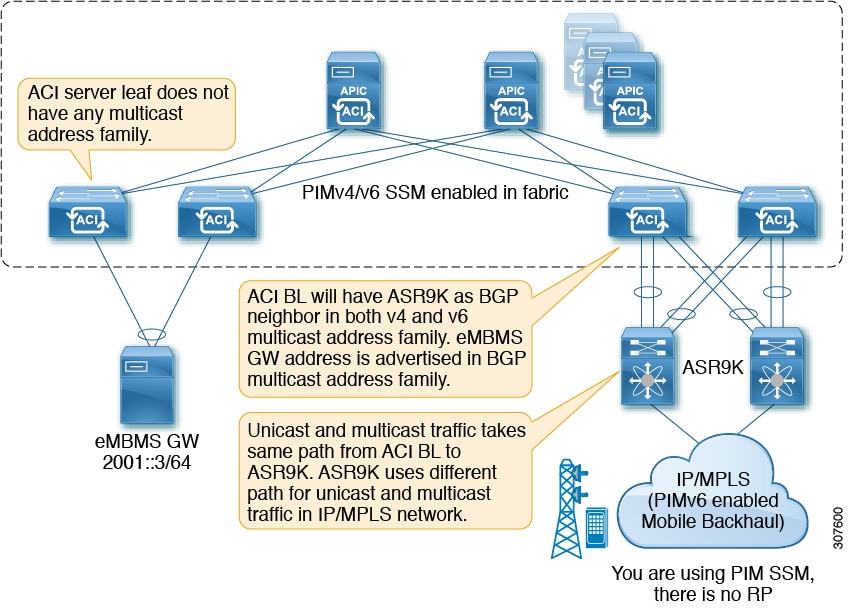
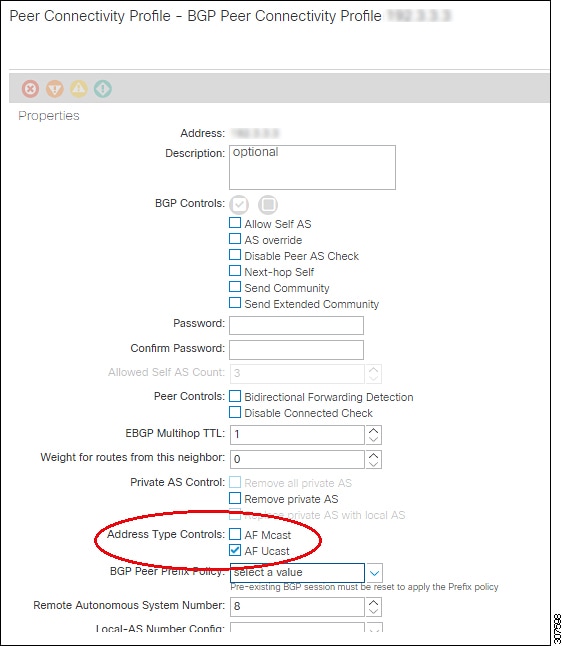
Beginning with Cisco APIC release 4.2(1), the BGP multicast address-family feature adds support for IPv6 for BGP peers towards external routers in the tenant VRF on the border leaf switch. You can specify if the peer will also be used separately to carry multicast routes in the IPv4/IPv6 multicast address-family.

The following figure shows how this feature might be implemented.

Guidelines and Limitations for BGP IPv4/IPv6 Multicast Address-Family

Guidelines and Restrictions for the BGP Multicast Address-Family Feature for IPv6

  • The Rendezvous Point (RP) is an IP address that is external the Cisco ACI fabric. Fabric RP is not supported for IPv6 multicast.

  • The multicast source is within the Cisco ACI fabric, and the receivers are outside of the fabric.

  • Transit L3Out is not supported for BGPv4/v6 address-family.

Guidelines and Restrictions for the BGP Multicast Address-Family Feature for Both IPv4 and IPv6

  • There is no support for BGPv4/v6 multicast address-family within the Cisco ACI fabric.

  • RP reachability should be present in the unicast address-family, if that is being used. For PIM Source-Specific Multicast (SSM), there is no need for RP.

Configuring BGP IPv4/IPv6 Multicast Address-Family Using the GUI

The following procedure describes how to configure the BGP IPv4/IPv6 multicast address-family feature using the GUI.

Before you begin

Complete the standard prerequisites before configuring an L3Out, such as:

  • Configure the tenant, node, port, functional profile, AEP, and Layer 3 domain.

  • Configure a BGP Route Reflector policy to propagate the routes within the fabric.

Procedure


Step 1

Locate the VRF that you will be using with the L3Out, or create the VRF, if necessary.

Tenants > tenant > Networking > VRFs

Step 2

Enable PIMv4 or PIMv6 under the VRF.

  • To enable PIMv4 under the VRF, on the menu bar, navigate to Tenants > Tenant_name > Networking > VRFs > VRF_name > Multicast.

    • If you see the message PIM is not enabled on this VRF. Would you like to enable PIM?, then click Yes, enable Multicast.

    • If you see the main Multicast window, check the Enable box, if it is not already checked.

  • To enable PIMv6 under the VRF, on the menu bar, navigate to Tenants > Tenant_name > Networking > VRFs > VRF_name > Multicast IPv6.

    • If you see the message PIMv6 is not enabled on this VRF. Would you like to enable PIMv6?, then click Yes, enable multicast IPv6.

    • If you see the main Multicast IPv6 window, check the Enable box, if it is not already checked.

Step 3

Create the L3Out and configure the BGP for the L3Out:

  1. On the Navigation pane, expand Tenant and Networking.

  2. Right-click L3Outs and choose Create L3Out.

  3. Enter the necessary information to configure BGP for the L3Out.

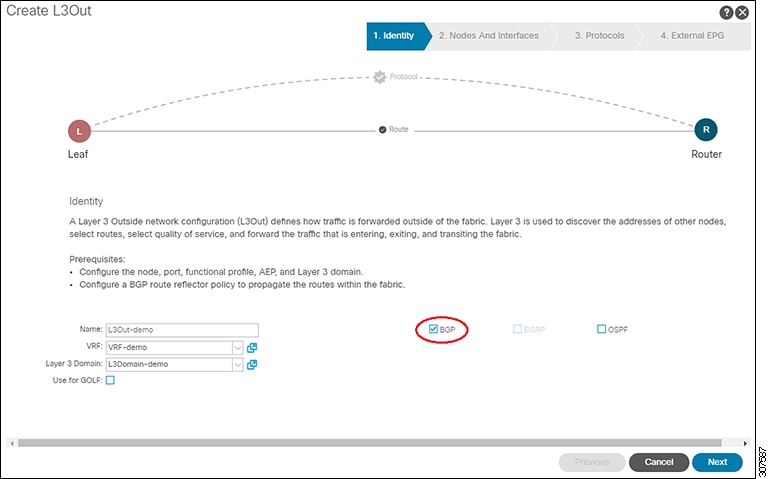
    In the Identity page:

    • Select the VRF that you configured in the previous step.

    • Select BGP in the Identity page in the L3Out creation wizard to configure the BGP protocol for this L3Out.

  4. Continue through the remaining pages (Nodes and Interfaces, Protocols, and External EPG) to complete the configuration for the L3Out.

Step 4

After you have completed the L3Out configuration, configure the BGP IPv4/IPv6 multicast address-family feature:

  1. Navigate to the BGP Peer Connectivity Profile screen:

    Tenants > tenant > Networking > L3Outs > L3out-name > Logical Node Profiles > logical-node-profile-name > Logical Interface Profiles > logical-interface-profile-name > BGP Peer Connectivity Profile IP-address

  2. Scroll down to the Address Type Controls field and make the following selections:

    • Select AF Mcast.

    • Leave AF Ucast selected, if it is already selected.

  3. Click Submit.

  4. Navigate to the bridge domain with the subnet that needs to be redistributed to the peer’s IPv4 or IPv6 multicast address-family:

    Tenants > tenant > Networking > Bridge Domains > bridge_domain-name

  5. In the main pane, click the Policy/General tabs.

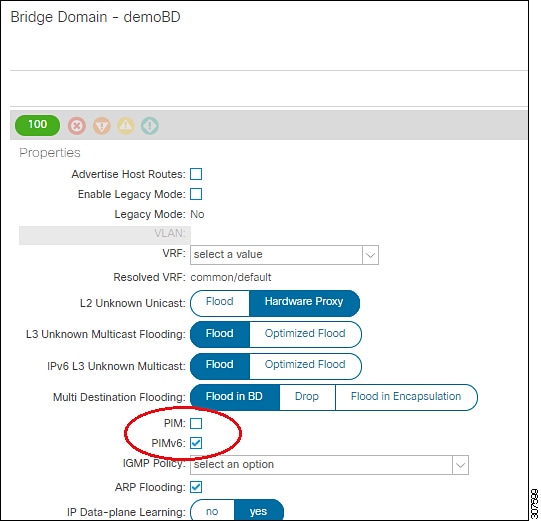
  6. Enable PIMv4 or PIMv6 on the bridge domain.

    • To enable PIMv4 on the bridge domain, scroll down to the PIM field and check the box next to that field to enable it.

    • To enable PIMv6 on the bridge domain, scroll down to the PIMv6 field and check the box next to that field to enable it.

  7. Click Submit.


About Multicast Filtering

ACI supports control plane configurations that can be used to control who can receive multicast feeds and from which sources. The filtering options can be IGMP report filters, PIM join or prune filters, PIM neighbor filters, and Rendezvous Point (RP) filters. These options rely on control plane protocols, namely IGMP and PIM.

In some deployments, it may be desirable to constrain the sending and/or receiving of multicast streams at the data plane level. For example, you may want to allow multicast senders in a LAN to only send to specific multicast groups or to allow receivers in a LAN to only receive specific multicast groups originated from all the possible sources or from specific sources.

Beginning with Cisco APIC Release 5.0(1), the multicast filtering feature is now available, which allows you to filter multicast traffic from two directions:

Configuring Multicast Filtering: Source Filtering at First-Hop Router

For any sources that are sending traffic on a bridge domain, if you have configured a multicast source filter for that bridge domain, then the source and group will be matched against one of the entries in the source filter route map, where one of the following actions will take place, depending on the action that is associated with that entry:

  • If the source and group is matched against an entry with a Permit action in the route map, then the bridge domain will allow traffic to be sent out from that source to that group.

  • If the source and group is matched against an entry with a Deny action in the route map, then the bridge domain will block traffic from being sent out from that source to that group.

  • If there is no match with any entries in the route map, then the bridge domain will block traffic from being sent out from that source to that group as the default option. This means that once the route map is applied, there is always an implicit "deny all" statement in effect at the end.

You can configure multiple entries in a single route map, where some entries can be configured with a Permit action and other entries can be configured with a Deny action, all within the same route map.


Note

When a source filter is applied to a bridge domain, it will filter multicast traffic at the source. The filter will prevent multicast from being received by receivers in different bridge domains, the same bridge domain, and external receivers.


Configuring Multicast Filtering: Receiver Filtering at Last-Hop Router

Multicast receiver filtering is used to restrict from which sources receivers in a bridge domain can receive multicast for a particular group. This feature provides source or group data plane filtering functionality for IGMPv2 hosts, similar to what IGMPv3 provides at the control plane.

For any receivers sending joins on a bridge domain, if you have configured a multicast receiver filter for that bridge domain, then the source and group will be matched against one of the entries in the receiver filter route map, where one of the following actions will take place, depending on the action that is associated with that entry:

  • If the source and group is matched against an entry with a Permit action in the route map, then the bridge domain will allow traffic to be received from that source for that group.

  • If the source and group is matched against an entry with a Deny action in the route map, then the bridge domain will block traffic from being received from that source for that group.

  • If there is no match with any entries in the route map, then the bridge domain will block traffic from being received from that source for that group as the default option. This means that once the route map is applied, there is always an implicit "deny all" statement in effect at the end.

You can configure multiple entries in a single route map, where some entries can be configured with a Permit action and other entries can be configured with a Deny action, all within the same route map.

Combined Source and Receiver Filtering on Same Bridge Domain

You can also enable both multicast source filtering and multicast receiver filtering on the same bridge domain, where one bridge domain can perform blocking or can permit sources to filtering when sending traffic to a group range, and can also perform restricting or can allow restricting to filtering when receiving traffic from sources to a group range.
Guidelines and Restrictions for Multicast Filtering

Following are the guidelines and restrictions for the multicast filtering feature:

  • While you can enable either the multicast source filtering or the receiver filtering on a bridge domain, you can also have both multicast source filtering and receiver filtering enabled on the same bridge domain.

  • Multicast filtering is supported only for IPv4.

  • If you do not want to have multicast filters on a bridge domain, then do not configure a source filter or destination filter route maps on that bridge domain. By default, no route maps are associated with a bridge domain, which means that all sources and groups are allowed. If a route map with source filters or destination filters is associated with a bridge domain, only the permit entries in that route map will be allowed, and all deny entries will be blocked (including the implicit "deny-all" statement always present at the end).

  • If you attach an empty route map to a bridge domain, route maps assume a deny-all by default, so all sources and groups will be blocked on that bridge domain.

  • The multicast filtering feature is applied at the bridge domain level. ACI supports configuration of multiple EPGs in a single bridge domain. When this configuration is used with the bridge domain filtering features, the filter will be applied across all EPGs in the bridge domain as it is a bridge domain level setting.

  • The multicast filtering feature is intended to be used for Any-Source Multicast (ASM) ranges only. If, however, you have support for Source-Specific Multicast (SSM) ranges, then we recommend that sources and joins be filtered in the SSM join itself using IGMPv3.

    If you configure SSM ranges for the multicast filtering feature, the following restrictions apply:

    • Bridge domain source filtering with SSM: Source filtering is not supported with SSM.

    • Bridge domain receiver filtering with SSM: Receiver filtering can be used with SSM group ranges. One of the main use cases for receiver filtering is to filter multicast streams from specific sources. In most cases, receiver filtering is not needed with SSM as this functionality is already provided by the SSM protocol.

  • Source and receiver filtering use an ordered list of route-map entries. Route-map entries are executed with the lowest number first until there is a match. If there is a match, even if it is not the longest match in the list, it will exit the program and will not consider the rest of the entries.

    For example, assume that you have the following route map for a specific source (192.0.3.1/32), with these entries:

    Table 2. Route Map

    Order

    Source IP

    Action

    1

    192.0.0.0/16

    Permit

    2

    192.0.3.0/24

    Deny

    The route map is evaluated based on the order number. Therefore, even though the second entry (192.0.3.0/24) is a longer match for the source IP, the first entry (192.0.0.0/16) will be matched because of the earlier order number.

Configuring Multicast Filtering Using the GUI

You will be configuring multicast filtering at the bridge domain level. Use the procedures in this topic to configure either source filtering or receiver filtering, or both, at the bridge domain level.

Before you begin

  • The bridge domain where you will be configuring multicast filtering is already created.

  • The bridge domain is a PIM-enabled bridge domain.

  • Layer 3 multicast is enabled at the VRF level.

Procedure


Step 1

Navigate to the bridge domain where you want to configure multicast filtering.

Tenant > tenant-name > Networking > Bridge Domains > bridge-domain-name

The Summary page for this bridge domain appears.

Step 2

Select the Policy tab, then select the General subtab.

Step 3

In the General window, locate the PIM field and verify that PIM is enabled (that there is a check in the box next to the PIM field).

If PIM is not enabled, put a check in the box next to the PIM field to enable that now. The Source Filter and Destination Filter fields become available.

Note 

Multicast filtering is supported only for IPv4 (PIM), and is not supported for IPv6 (PIM6) at this time.

Step 4

Determine whether you want to enable multicast source or receiver filtering.

Note 

You can also enable both source and receiver filtering on the same bridge domain.

  • If you want to enable multicast source filtering at the first-hop router, in the Source Filter field, make one of the following selections:

    • Existing route map policy: Select an existing route map policy for multicast for the source filtering, then go to Step 7.

    • New route map policy: Select Create Route Map Policy for Multicast, then proceed to Step 5.

  • If you want to enable multicast receiver filtering at the last-hop router, in the Destination Filter field, make one of the following selections:

    • Existing route map policy: Select an existing route map policy for multicast for the receiver filtering, then go to Step 7.

    • New route map policy: Select Create Route Map Policy for Multicast, then proceed to Step 6.

Step 5

If you selected the Create Route Map Policy for Multicast option to enable multicast source filtering at the first-hop router, the Create Route Map Policy for Multicast window appears. Enter the following information in this window:

  1. In the Name field, enter a name for this route map, and enter a description in the Description field, if desired.

  2. In the Route Maps area, click +.

    The Create Route Map Entry window appears.

  3. In the Order field, if multiple access groups are being configured for this interface, select a number that reflects the order in which this access group will be permitted or denied access to the multicast traffic on this interface.

    Lower-numbered entries are ordered before higher-numbered entries. The range is from 0 to 65535.

  4. Determine how you want to allow or deny traffic to be sent for multicast source filtering.

    • If you want to allow or deny multicast traffic to be sent from a specific source to any group, in the Source IP field, enter the IP address of the specific source from which the traffic is sent, and leave the Group IP field empty.

    • If you want to allow or deny multicast traffic to be sent from any source to a specific group, in the Group IP field, enter the multicast IP address to which the traffic is sent, and leave the Source IP field empty.

    • If you want to allow or deny multicast traffic to be sent from a specific source to a specific group, enter the necessary information in both the Group IP and the Source IP fields.

    Note 

    The RP IP field is not applicable for multicast source filtering or multicast receiver filtering. Any entry in this field will be ignored for multicast filtering, so do not enter a value in this field for this feature.

  5. In the Action field, choose Deny to deny access or Permit to allow access for the target source.

  6. Click OK.

    The Create Route Map Policy for Multicast window appears again, with the route map entry that you configured displayed in the Route Maps table.

  7. Determine if you want to create additional route map entries for this route map.

    You can create multiple route map entries for a route map, each with their own IP addresses and related actions. For example, you might want to have one set of IP addresses with a Permit action applied, and another set of IP addresses with a Deny action applied, all within the same route map.

    If you want to create additional route map entries for this route map, click + in the Route Maps area again, then go to 5.c to repeat the steps for filling in the necessary information in the Create Route Map Entry window for the additional route map entries for this route map.

  8. When you have completed all of the route map entries for this route map, click Submit. Go to Step 7.

Step 6

If you selected the Create Route Map Policy for Multicast option to enable multicast destination (receiver) filtering at the last-hop router, the Create Route Map Policy for Multicast window appears. Enter the following information in this window:

  1. In the Name field, enter a name for this route map, and enter a description in the Description field, if desired.

  2. In the Route Maps area, click +.

    The Create Route Map Entry window appears.

  3. In the Order field, if multiple access groups are being configured for this interface, select a number that reflects the order in which this access group will be permitted or denied access to the multicast traffic on this interface.

    Lower-numbered entries are ordered before higher-numbered entries. The range is from 0 to 65535.

  4. Determine if you want to allow or deny traffic to be received for multicast receiver filtering.

    • If you want to allow or deny traffic from being received from any source to a specific group, in the Group IP field, enter the multicast IP address to which the traffic is sent, and leave the Source IP field empty.

    • If you want to allow or deny traffic from being received from a specific source to any group, in the Source IP field, enter the IP address of the specific source from which the traffic is sent, and leave the Group IP field empty.

    • If you want to allow or deny traffic from being received from a specific source to a specific group, enter the necessary information in both the Group IP and the Source IP fields.

    Note 

    The RP IP field is not applicable for multicast source filtering or multicast receiver filtering. Any entry in this field will be ignored for multicast filtering, so do not enter a value in this field for this feature.

  5. In the Action field, choose Deny to deny access or Permit to allow access for the target group.

  6. Click OK.

    The Create Route Map Policy for Multicast window appears again, with the route map entry that you configured displayed in the Route Maps table.

  7. Determine if you want to create additional route map entries for this route map.

    You can create multiple route map entries for a route map, each with their own IP addresses and related actions. For example, you might want to have one set of IP addresses with a Permit action applied, and another set of IP addresses with a Deny action applied, all within the same route map.

    If you want to create additional route map entries for this route map, click + in the Route Maps area again, then go to 6.c to repeat the steps for filling in the necessary information in the Create Route Map Entry window for the additional route map entries for this route map.

  8. When you have completed all of the route map entries for this route map, click Submit. Go to Step 7.

Step 7

At the bottom righthand corner of the Policy/General page, click Submit.

The Policy Usage Warning window appears.

Step 8

Verify that it is acceptable that the nodes and policies displayed in the table in the Policy Usage Warning window will be affected by this policy change to enable multicast source and/or destination filtering, then click Submit Changes.


1

The GIPo (Group IP outer address) is the destination multicast IP address used in the outer IP header of the VXLAN packet for all multi-destination packets (Broadcast, Unknown unicast, and Multicast) packets forwarded within the fabric.

2 All IPv4/IPv6 multicast group membership information is stored in the COOP database on the spines. When a border leaf boots up it pulls this information from the spine