Recommended Policy and Rule Settings

Recommended Policy and Rule Settings

We recommend the following policy settings:

  • SSL policy:

    • Default action Do Not Decrypt.

    • Enable logging.

    • Set Undecryptable Actions to Block for both SSL v2 Session and Compressed Session.

    • Enable TLS 1.3 decryption in the policy's advanced settings.

  • TLS/SSL rule: Enable logging for every rule except those with a Do Not Decrypt rule action. (It's up to you; if you want to see information about traffic that isn't decrypted, enable logging for those rules also.)

  • Access control policy:

    • Associate your SSL policy with an access control policy. (If you fail to do this, your SSL policy and rules have no effect.)

    • Set the default policy action to Intrusion Prevention: Balanced Security and Connectivity.

    • Enable logging.

SSL Policy Settings

How to configure recommended the following best practice settings for your SSL policy:

  • Default action Do Not Decrypt.

  • Enable logging.

  • Set Undecryptable Actions to Block for both SSL v2 Session and Compressed Session.

  • Enable TLS 1.3 decryption in the policy's advanced settings.

Procedure


Step 1

Log in to the Secure Firewall Management Center if you haven't already done so.

Step 2

Click Policies > Access Control > SSL.

Step 3

Click Edit (edit icon) next to your SSL policy.

Step 4

From the Default Action list at the bottom of the page, click Do Not Decrypt.

The following figure shows an example.

Step 5

At the end of the row, click Logging (logging icon).

Step 6

Select the Log at End of Connection check box.

Step 7

Click OK.

Step 8

Click Save.

Step 9

Click the Undecryptable Actions tab.

Step 10

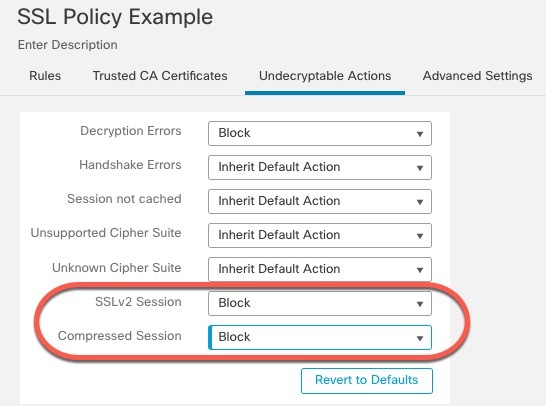
We recommend setting the action for SSLv2 Session and Compressed Session to Block.

You shouldn't allow SSL v2 on your network and compressed TLS/SSL traffic is not supported so you should block that traffic as well.

See the section on Default Handling Options for Undecryptable Traffic in the Cisco Secure Firewall Management Center Device Configuration Guide for more information about setting each option.

The following figure shows an example.

This sample SSL policy blocks all traffic that uses either the unsupported SSL v2 protocol or the unsupported compression sessions.

Step 11

Click the Advanced Settings tab page.

Step 12

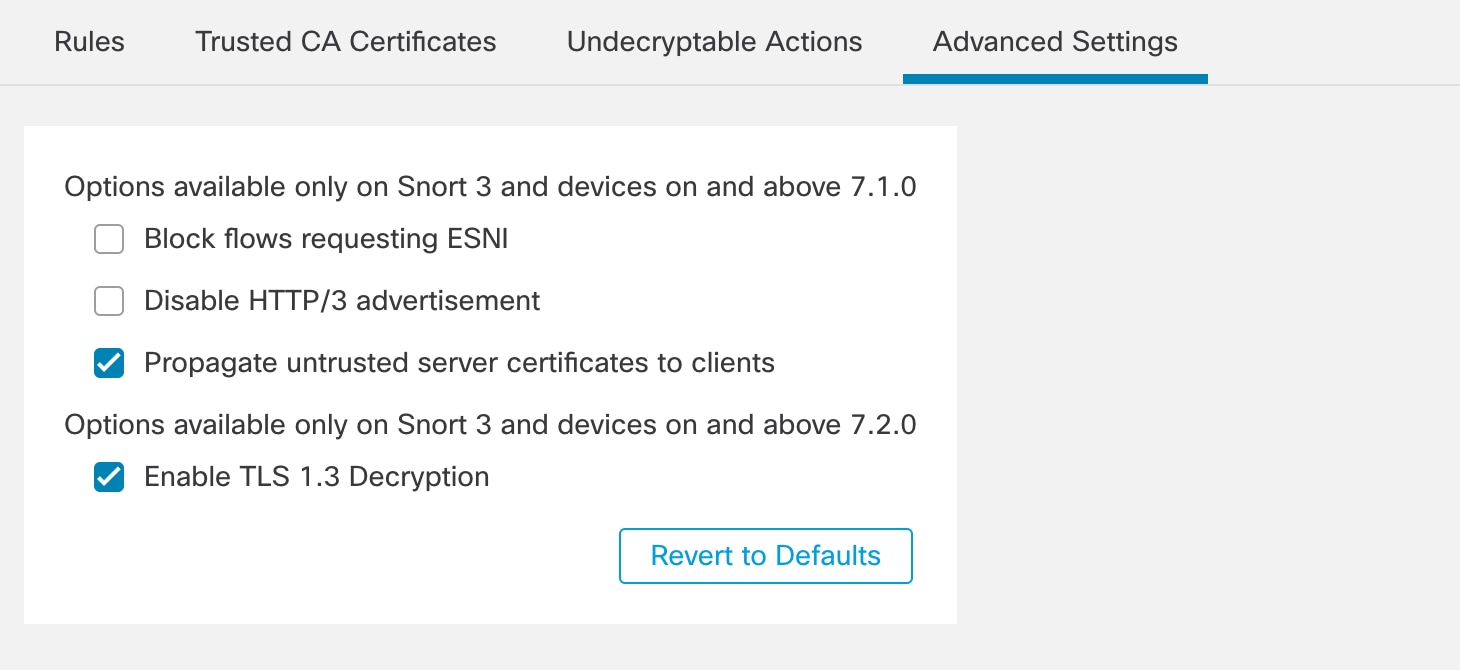
Select the Enable TLS 1.3 Decryption check box.

Following is an example.

Set version-specific options for the SSL policy, including decrypting TLS 1.3 traffic.

Step 13

At the top of the page, click Save.


What to do next

Configure TLS/SSL rules and set each one as discussed in TLS/SSL Rule Settings.

Access Control Policy Settings

How to configure recommended the following best practice settings for your access control policy:

  • Associate your SSL policy with an access control policy. (If you fail to do this, your SSL policy and rules have no effect.)

  • Set the default policy action to Intrusion Prevention: Balanced Security and Connectivity.

  • Enable logging.

Procedure


Step 1

Log in to the Secure Firewall Management Center if you haven't already done so.

Step 2

Click Policies > Access Control.

Step 3

Click Edit (edit icon) next to your access control policy.

Step 4

(If your SSL policy isn't set up yet, you can do this later.)

  1. Click the word None next to SSL Policy at the top of the page as the following figure shows.

    For your SSL policy to have any effect, you must associate it with an access control policy.

  2. From the list, click the name of your SSL policy. The following figure shows an example.

    Choosing an SSL policy to associate with an access control policy.

    This image 455854.jpg is not available in preview/cisco.com

  3. Click OK.

  4. At the top of the page, click Save.

Step 5

From the Default Action list at the bottom of the page, click Intrusion Prevention: Balanced Security and Connectivity.

The following figure shows an example.

Step 6

Click Logging (logging icon).

Step 7

Select the Log at End of Connection check box and click OK.

Step 8

Click Save.


What to do next

See TLS/SSL Rule Examples.