Perform System Upgrade and Install Feature Packages

On Cisco NCS 6008 routers, system upgrade and package installation processes are executed using install commands. The processes involve adding and activating the iso images (.iso), feature packages (.pkg), and software maintenance upgrade files (.smu) on the router. These files are accessed from a network server and then activated on the router. If the installed package or SMU causes any issue on the router, it can be uninstalled.

The topics covered in this chapter are:

Upgrading the OS and Features

You can upgrade the version of Cisco IOS XR on a router, from the XR VM. However, during system upgrade, the version of IOS XR that runs on both the XR VM and the System Admin VM is upgraded.

From Release 6.3.1 onwards, NCS 6000 supports the use of a composite RPM file for upgrading each, the XR VM and the System Admin VM. RPM is a Linux open standard packaging format that simplifies the dependency management of upgrade components, such as SMUs and packages. The RPM metadata and version helps to manage the SMUs. By using Linux-based RPM format for packages, you can enable asynchronous upgrade of packages and off-box development of tools.

For more information about the install process, see Workflow for Install Process.

Upgrading Features

Installing a package on the router installs specific features that are part of that package. Each package contains components that perform a specific set of router functions, such as routing, security, and so on. Some of the standard XR VM packages are:
  • ncs6k-k9sec-1.0.0.0-r63113I.x86_64.rpm

  • ncs6k-mcast-1.0.0.0-r63113I.x86_64.rpm

  • ncs6k-mgbl-1.0.0.0-r63113I.x86_64.rpm

  • ncs6k-mpls-1.0.0.0-r63113I.x86_64.rpm

For more information about the install process, see Workflow for Install Process.


Caution


Do not perform any install operations when the router is reloading.

Do not reload the router during an upgrade operation.


Upgrading Features

Installing a package on the router installs specific features that are part of that package. Each package contains components that perform a specific set of router functions, such as routing, security, and so on. Some of the standard XR VM packages are:
  • ncs6k-k9sec-1.0.0.0-r63113I.x86_64.rpm

  • ncs6k-mcast-1.0.0.0-r63113I.x86_64.rpm

  • ncs6k-mgbl-1.0.0.0-r63113I.x86_64.rpm

  • ncs6k-mpls-1.0.0.0-r63113I.x86_64.rpm

For more information about the install process, see Workflow for Install Process.

Workflow for Install Process

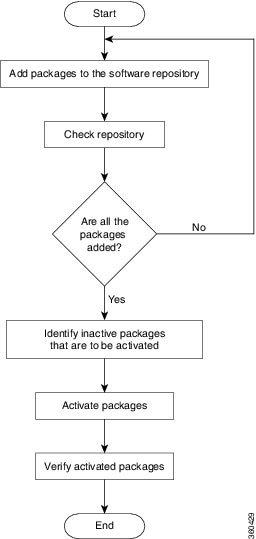
The workflow for installation and uninstallation processes is depicted in this flowchart.

For installing a package, see Install Packages. For uninstalling a package, see Uninstall Packages.

Install Packages

Complete this task to upgrade the system or install a patch. The system upgrade is done using an ISO image file, while the patch installation is done using packages and SMUs. This task is also used to install .tar files. The .tar file contains multiple packages and SMUs that are merged into a single file. A single .tar file can contain up to 64 individual files.

Note


  • Depending on whether you are installing a System Admin package or a XR package, execute the install commands in the System Admin EXEC mode or XR EXEC mode respectively. All install commands are applicable in both these modes.

  • Install operation over IPv6 is not supported.


The workflow for installing a package is shown in this flowchart.

Figure 1. Installing Packages Workflow

Add packages workflow

SUMMARY STEPS

  1. Execute one of these:
    • install add source <tftp transfer protocol>/package_path/ filename1 filename2 ...
    • install add source <ftp or sftp transfer protocol>//user@server:/package_path/ filename1 filename2 ...
  2. show install request
  3. show install repository
  4. show install inactive
  5. Execute one of these:
    • install activate package_name
    • install activate id operation_id
  6. install commit
  7. show install active

DETAILED STEPS


Step 1

Execute one of these:

  • install add source <tftp transfer protocol>/package_path/ filename1 filename2 ...
  • install add source <ftp or sftp transfer protocol>//user@server:/package_path/ filename1 filename2 ...

Example:

RP/0/RP0/CPU0:router# install add source /harddisk:/ ncs6k-mcast-1.0.0.0-r63113I.x86_64.rpm ncs6k-mpls-1.0.0.0-r63113I.x86_64.rpm

or
RP/0/RP0/CPU0:router# install add source sftp://root@8.33.5.15:/auto/ncs/package/ ncs6k-mcast-1.0.0.0-r63113I.x86_64.rpm ncs6k-mpls-1.0.0.0-r63113I.x86_64.rpm

or
RP/0/RP0/CPU0:router# install add source tftp://223.255.254.254/auto/ncs/package/ ncs6k-mini-x.iso ncs6k-full-x.iso

The software files are unpacked from the package and added to the software repository. This operation might take time depending on the size of the files being added. The operation is performed in asynchronous mode. The install add command runs in the background, and the EXEC prompt is returned as soon as possible.

You can use ftp, tftp, or sftp protocols to transfer files from the network server to the router. Ftp and sftp protocols are supported from Release 5.0.1. In case of ftp and sftp protocols, you need to enter password within 60 seconds to continue with the install add operation. Otherwise, the operation is terminated. To use ftp and sftp protocols on the XR VM, it is mandatory that the ncs6k-k9sec-1.0.0.0-r63113I.x86_64.rpm package has been installed on the router.

Note


The repositories for the XR VM and the System Admin VM are different. The system automatically adds a routing package to the XR VM repository and a system administration package to the System Admin VM repository.

Step 2

show install request

Example:

RP/0/RP0/CPU0:router#show install request

(Optional) Displays the operation ID of the add operation and its status. The percentage of installation in progress is displayed. The operation ID can be later used to execute the activate command.

Install operation 8 is still in progress

For system administration packages, the remaining steps must be performed from the System Admin EXEC mode. Use the admin command to enter the System Admin EXEC mode.

Step 3

show install repository

Example:

RP/0/RP0/CPU0:router#show install repository

Displays packages that are added to the repository. Packages are displayed only after the install add operation is complete.


1 package(s) in XR repository:
    ncs6k-iosxr-os-1.0.0.1-r63113I.CSCxr11111.x86_64

Step 4

show install inactive

Example:

From the XR VM:

RP/0/RP0/CPU0:router# show install active

2 inactive package(s) found:
ncs6k-mpls-1.0.0.0-r63113I.x86_64
ncs6k-mcast-1.0.0.0-r63113I.x86_64.rpm
From the SystemAdmin VM:
sysadmin-vm:0_RP0# show install inactive

Node 0/RP0 [RP]
     Inactive Packages:
        ncs6k-xr-6.3.1.13I
        ncs6k-mini-x-6.3.1.13I


Node 1/RP0 [RP]
    Inactive Packages:
         ncs6k-xr-6.3.1.13I
        ncs6k-mini-x-6.3.1.13I

Displays inactive packages that are present in the repository. Only inactive packages can be activated.

Step 5

Execute one of these:

  • install activate package_name
  • install activate id operation_id

Example:

RP/0/RP0/CPU0:router# install activate ncs6k-mcast-1.0.0.0-r63113I.x86_64.rpm ncs6k-mpls-1.0.0.0-r63113I.x86_64.rpm

or

RP/0/RP0/CPU0:router#install activate id 8

The package configurations are made active on the router. As a result, new features and software fixes take effect. This operation is performed in asynchronous mode. The install activate command runs in the background, and the EXEC prompt is returned as soon as possible.

If you use the operation ID, all packages that were added in the specified operation are activated together. For example, if 5 packages are added in operation 8, by executing install activate id 8 , all 5 packages are activated together. You do not have to activate the packages individually.

Activation of some SMUs require a manual reloading of the router. When such SMUs are activated, a warning message is displayed to perform reload. The components of the SMU get activated only after the reload is complete. Perform router reload immediately after executing the install activate command. If the SMU has dependency on both XR VM and System Admin VM, perform the reload after activating the SMU in both VMs so that they take effect simultaneously. To reload the router, use the hw-module location all reload command from the System Admin EXEC mode.

Step 6

install commit

Example:

RP/0/RP0/CPU0:router#install commit

Commits the newly active software.

Step 7

show install active

Example:

RP/0/RP0/CPU0:router#show install active

Displays packages that are active.


Node 0/RP0/CPU0 [RP]
  Boot Partition: xr_lv0
  Active Packages: 7
        ncs6k-xr-6.3.1.13I version=6.3.1.13I [Boot image]
        ncs6k-mcast-1.0.0.0-r63113I.x86_64.rpm
        ncs6k-mpls-1.0.0.0-r63113I
        ncs6k-iosxr-os-1.0.0.1-r63113I.CSCxr11111

Node 0/RP1/CPU0 [RP]
  Boot Partition: xr_lv0
  Active Packages: 7
        ncs6k-xr-6.3.1.13I version=6.3.1.13I [Boot image]
        ncs6k-mcast-1.0.0.0-r63113I.x86_64.rpm
        ncs6k-mpls-1.0.0.0-r63113I
        ncs6k-iosxr-os-1.0.0.1-r63113I.CSCxr11111

Node 0/3/CPU0 [LC]
  Boot Partition: xr_lv0
  Active Packages: 7
        ncs6k-xr-6.3.1.13I version=6.3.1.13I [Boot image]
        ncs6k-mcast-1.0.0.0-r63113I.x86_64.rpm
        ncs6k-mpls-1.0.0.0-r63113I
        ncs6k-iosxr-os-1.0.0.1-r63113I.CSCxr11111

From the result, verify that the same image and package versions are active on all RPs and LCs.


Installing Packages: Related Commands

Related Commands Purpose

show install log

Displays the log information for the install process; this can be used for troubleshooting in case of install failure.

show install package

Displays the details of the packages that have been added to the repository. Use this command to identify individual components of a package.

install prepare

Makes pre-activation checks on an inactive package, to prepare it for activation.

show install prepare

Displays the list of package that have been prepared and are ready for activation.

What to do next

  • After performing a system upgrade, upgrade FPD by using the upgrade hw-module location all fpd all command from the System Admin EXEC mode. The progress of FPD upgrade process can be monitored using the show hw-module fpd command in the System Admin EXEC mode. Reload the router after the FPD upgrade is completed.

  • Verify the installation using the install verify packages command.

  • Uninstall the packages or SMUs if their installation causes any issues on the router. See Uninstall Packages.


    Note


    ISO images cannot be uninstalled. However, you can perform a system downgrade by installing an older ISO version.


Named SDR XR Upgrade

Perform sequentially XR VM upgrade or downgrade for named SDRs. Each of these SDRs shall be upgraded or downgraded to run different versions of the software, based on the XR image.

SUMMARY STEPS

  1. Execute one of these:
    • install add source <tftp transfer protocol>/package_path/ filename1 filename2 ...
    • install add source <harddisk:/>package_path/ filename1 filename2 ...
    • install add source <ftp or sftp transfer protocol>//user@server:/package_path/ filename1 filename2 ...
  2. show install repository
  3. install extract mini_package
  4. show install repository
  5. install prepare <xr package> package1 package2 ...
  6. install activate
  7. install commit

DETAILED STEPS


Step 1

Execute one of these:

  • install add source <tftp transfer protocol>/package_path/ filename1 filename2 ...
  • install add source <harddisk:/>package_path/ filename1 filename2 ...
  • install add source <ftp or sftp transfer protocol>//user@server:/package_path/ filename1 filename2 ...

Example:

RP/0/RP0/CPU0:router#install add source tftp://<path> ncs6k-mini-x.iso-<release-version>.DT_IMAGE ncs6k-mpls.pkg-<release-version>.DT_IMAGE ncs6k-mgbl.pkg-<release-version>.DT_IMAGE ncs6k-mcast.pkg-<release-version>.DT_IMAGE ncs6k-doc.pkg-<release-version>.DT_IMAGE ncs6k-k9sec.pkg-<release-version>.DT_IMAGE
RP/0/RP0/CPU0:router#install add source tftp://<path>I ncs6k-mini-x.iso-<release-version>.DT_IMAGE ncs6k-mpls.pkg-<release-version>.DT_IMAGE ncs6k-mgbl.pkg-<release-version>.DT_IMAGE ncs6k-mcast.pkg-<release-version>.DT_IMAGE ncs6k-doc.pkg-<release-version>.DT_IMAGE ncs6k-k9sec.pkg-<release-version>.DT_IMAGE

The software files are unpacked from the package and added to the software repository. This operation might take time depending on the size of the files being added. The operation is performed in asynchronous mode. The install add command runs in the background, and the XR EXEC mode is returned as soon as possible.

Dec 05 16:17:22 Install operation 15 started by root:
 install add source tftp://<path> ncs6k-mini-x.iso-<release-version>.DT_IMAGE ncs6k-mpls.pkg-<release-version>.DT_IMAGE ncs6k-mgbl.pkg-<release-version>.DT_IMAGE ncs6k-mcast.pkg-<release-version>.DT_IMAGE ncs6k-doc.pkg-<release-version>.DT_IMAGE ncs6k-k9sec.pkg-<release-version>.DT_IMAGE
Dec 05 16:17:23 Install operation will continue in the background
RP/0/RP0/CPU0:router#Dec 05 16:32:18 Install operation 15 finished successfully

Step 2

show install repository

Example:

RP/0/RP0/CPU0:router#show install repository

Displays packages that are added to the repository. Packages are displayed only after the install add source operation is complete.

19 package(s) in XR repository:
    ncs6k-xr-<release-version>
    ncs6k-mpls-<release-version>
    ncs6k-mcast-<release-version>
    ncs6k-doc-<release-version>
    ncs6k-k9sec-<release-version>
    ncs6k-mini-x-<release-version>
    ncs6k-k9sec-<release-version>
    ncs6k-xr-<release-version>
    ncs6k-doc-<release-version>
    ncs6k-mgbl-<release-version>
    ncs6k-mpls-<release-version>
    ncs6k-doc-<release-version>
    ncs6k-mgbl-<release-version>
    ncs6k-mcast-<release-version>
    ncs6k-k9sec-<release-version>
    ncs6k-mgbl-<release-version>
    ncs6k-mpls-<release-version>
    ncs6k-mcast-<release-version>
    ncs6k-mini-x-<release-version>

Step 3

install extract mini_package

Example:

RP/0/RP0/CPU0:router#install extract ncs6k-mini-x-<release-version> 

Extracts the ISO image from ncs6k-mini-x and places it in repository. Running the command from XR VM extracts only the ISO file for XR.

Dec 05 16:38:08 Install operation 16 started by root:
  install extract ncs6k-mini-x-<release-version>
Dec 05 16:38:08 Package list:
Dec 05 16:38:08     ncs6k-mini-x-<release-version>
Dec 05 16:38:09 Install operation will continue in the background
RP/0/RP0/CPU0:router#Dec 05 16:39:16 Install operation 16 finished successfully

Step 4

show install repository

To get the XR package that is extracted in the previous step.

Example:

RP/0/RP0/CPU0:router#show install repository

Displays XR packages that are added to the repository. Packages are displayed only after the install extract of the mini package is complete.

Step 5

install prepare <xr package> package1 package2 ...

Example:

RP/0/RP0/CPU0:router#install prepare ncs6k-xr-<release-version> ncs6k-mcast-<release-version> ncs6k-mpls-<release-version> ncs6k-mgbl-<release-version> ncs6k-doc-<release-version> ncs6k-k9sec-<release-version> 

Prepares the installable files before activation. During the prepare phase, pre-activation checks are made and the components of the installable files are loaded on to the router setup.

Dec 05 16:42:38 Install operation 17 started by root:
  install prepare pkg ncs6k-xr-<release-version> ncs6k-mcast-<release-version> ncs6k-mpls-<release-version> ncs6k-mgbl-<release-version> ncs6k-doc-<release-version> ncs6k-k9sec-<release-version>
Dec 05 16:42:38 Package list:
Dec 05 16:42:38     ncs6k-xr-<release-version>
Dec 05 16:42:38     ncs6k-mcast-<release-version>
Dec 05 16:42:38     ncs6k-mpls-<release-version>
Dec 05 16:42:38     ncs6k-mgbl-<release-version>
Dec 05 16:42:38     ncs6k-doc-<release-version>
Dec 05 16:42:38     ncs6k-k9sec-<release-version>
Dec 05 16:42:39 Install operation will continue in the background   
RP/0/RP0/CPU0:router#Dec 05 16:44:42 Install operation 17 finished successfully

Step 6

install activate

Example:

RP/0/RP0/CPU0:router#install activate

All the packages that have been prepared are activated together to make the package configurations active on the router.

Activation of the SMUs requires reboot of the SDR and a warning message is displayed to perform reboot. The components of the SMU get activated only after the reboot is complete. Perform reboot immediately after the execution of the install activate command is completed.
Dec 05 16:47:35 Install operation 18 started by root:
  install activate
This install operation will reboot the sdr, continue?
 [yes/no]:[yes] yes
Dec 05 16:47:38 Install operation will continue in the background
RP/0/RP0/CPU0:router#Dec 05 16:47:51 Install operation 18 finished successfully

Step 7

install commit

Example:

RP/0/RP0/CPU0:router#install commit

Commits the newly activated software.

Note


If you want to do the system upgrade of more than one SDR, the install commit command has to be executed on the first upgraded SDR before trying to upgrade the remaining SDRs.


Uninstall Packages

Complete this task to uninstall a package. All router functionalities that are part of the uninstalled package are deactivated. Packages that are added in the XR VM cannot be uninstalled from the System Admin VM, and vice versa.

Note


Installed ISO images cannot be uninstalled. Also, kernel SMUs that install third party SMU on host, XR VM and System Admin VM, cannot be uninstalled. However, subsequent installation of ISO image or kernel SMU overwrites the existing installation.


The workflow for uninstalling a package is shown in this flowchart.

Figure 2. Uninstalling Packages Workflow


This task uninstalls XR VM packages. If you need to uninstall System Admin packages, run the same commands from the System Admin EXEC mode.

SUMMARY STEPS

  1. show install active
  2. Execute one of these:
    • install deactivate package_name
    • install deactivate id operation_id
  3. show install inactive
  4. install remove package_name
  5. show install repository

DETAILED STEPS


Step 1

show install active

Example:

RP/0/RP0/CPU0:router#show install active

Displays active packages. Only active packages can be deactivated.


Node 0/RP0/CPU0 [RP]
    Boot Partition: xr_lv0
    Active Packages: 3
        ncs6k-mini-x-<release-version> version=<release-version> [Boot image]
        ncs6k-mcast-<release-version>
        ncs6k-mpls-<release-version>

Node 0/RP1/CPU0 [RP]
    Boot Partition: xr_lv0
    Active Packages: 3
        ncs6k-mini-x-<release-version> version=<release-version> [Boot image]
        ncs6k-mcast-<release-version>
        ncs6k-mpls-<release-version>

Node 0/3/CPU0 [LC]
    Boot Partition: xr_lv0
    Active Packages: 3
        ncs6k-mini-x-<release-version> version=<release-version> [Boot image]
        ncs6k-mcast-<release-version>
        ncs6k-mpls-<release-version>

Step 2

Execute one of these:

  • install deactivate package_name
  • install deactivate id operation_id

Example:

RP/0/RP0/CPU0:router#install deactivate ncs6k-mcast-<release-version> ncs6k-mpls-<release-version>

or

RP/0/RP0/CPU0:router#install deactivate id 8

All features and software patches associated with the package are deactivated. You can specify multiple package names and deactivate them simultaneously.

If you use the operation ID, all packages that were added in the specified operation are deactivated together. You do not have to deactivate the packages individually.

Step 3

show install inactive

Example:

RP/0/RP0/CPU0:router#show install inactive

The deactivated packages are now listed as inactive packages. Only inactive packages can be removed from the repository.

Two inactive package(s) found:
    ncs6k-mcast-<release-version>
    ncs6k-mpls-<release-version>

Step 4

install remove package_name

Example:

RP/0/RP0/CPU0:router#install remove ncs6k-mcast-<release-version> ncs6k-mpls-<release-version>

The inactive packages are removed from the repository.

Use the install remove command with the id operation-id keyword and argument to remove all packages that were added for the specified operation ID.

Step 5

show install repository

Example:

RP/0/RP0/CPU0:router#show install repository

Displays packages available in the repository. The package that are removed are no longer displayed in the result.

1 package(s) in XR repository:
    ncs6k-mini-x-<release-version>

What to do next

Install required packages. See Install Packages

Orchestrated Calvados Upgrade (OCU)

SUMMARY STEPS

  1. install add source/harddisk ncs6k-mini-x.iso-<release-version>.DT_IMAGE
  2. show install repository
  3. install extract mini_package
  4. show install repository all
  5. install prepare issu ncs6k-sysadmin-<release-version>host-<release-version>
  6. install activate issu
  7. install commit

DETAILED STEPS


Step 1

install add source/harddisk ncs6k-mini-x.iso-<release-version>.DT_IMAGE

Example:

RP/0/RP0/CPU0:router## install add source /harddisk: ncs6k-mini-x.iso-<release-version>.DT_IMAGE

The software files are unpacked from the package and added to the software repository. This operation might take time depending on the size of the files being added. The operation is performed in asynchronous mode. The install add command runs in the background.

Tue Apr  19 18:25:37.570 UTC
result Tue Apr 19 18:25:38 2016 Install operation 4 (install add) started by user 'root' will continue asynchronously.
sysadmin-vm:0_RP0# show install log 4
Tue Apr  19 18:27:51.667 UTC
log 4
  Apr 19 18:25:37 Admin install operation 4 started by user 'root'
Apr 19 18:25:37 install add source /harddisk: ncs6k-mini-x.iso-<release-version>.DT_IMAGE

Step 2

show install repository

Example:

RP/0/RP0/CPU0:router#show install repository

Verifies that the host ISO and sysadmin ISO files are properly added to repository.

Tue Apr  19 18:28:17.270 UTC
Admin repository
---------------------
ncs6k-mini-x-<release-version>
ncs6k-sysadmin-<release-version>
sysadmin-vm:0_RP0# install extract ncs6k-mini-x-<release-version>
Tue Apr  19 18:28:34.155 UTC
result Tue Apr 19 18:28:35 2016 Install operation 5 (install extract) started by user 'root' will continue asynchronously.
sysadmin-vm:0_RP0# Tue Apr 19 18:30:13 2016 Install operation 5 completed successfully.
sysadmin-vm:0_RP0# show install repository all
Tue Apr  19 18:30:33.564 UTC
Admin repository
---------------------
ncs6k-mini-x-<release-version>
ncs6k-sysadmin-<release-version>

  XR repository
------------------
ncs6k-mini-x-<release-version>
ncs6k-xr-<release-version>

  Host repository
---------------------
host-<release-version>

Step 3

install extract mini_package

Example:

RP/0/RP0/CPU0:router#install extract ncs6k-mini-x-<release-version> 

Running the command from System Admin VM extracts the host and ISO file for System Admin installation.

Tue Apr  19 18:28:34.155 UTC
result Tue Apr 19 18:28:35 2016 Install operation 5 (install extract) started by user 'root' will continue asynchronously.
sysadmin-vm:0_RP0# Tue Apr 19 18:30:13 2016 Install operation 5 completed successfully.

Step 4

show install repository all

Example:

RP/0/RP0/CPU0:router#show install repository all

Verifies that the host ISO and sysadmin ISO files are properly added to repository.

Tue Apr  19 18:30:33.564 UTC
Admin repository
---------------------
ncs6k-mini-x-<release-version>
ncs6k-sysadmin-<release-version>

  XR repository
------------------
ncs6k-mini-x-<release-version>
ncs6k-xr-<release-version>

  Host repository
---------------------
host-<release-version>

Step 5

install prepare issu ncs6k-sysadmin-<release-version>host-<release-version>

Example:

RP/0/RP0/CPU0:router# install prepare issu ncs6k-sysadmin-<release-version> host-<release-version> 

Prepares the installable files before activation. During the prepare phase, pre-activation checks are made and the components of the installable files are loaded on to the router setup.

Tue Apr  19 18:30:55.754 UTC
result Tue Apr 19 18:30:59 2016 Install operation 6 (install prepare issu) started by user 'root' will continue asynchronously.
sysadmin-vm:0_RP0# Tue Apr 19 18:33:03 2016 Install operation 6 completed successfully.

Step 6

install activate issu

Example:

RP/0/RP0/CPU0:router#install activate issu
Activates the upgrade to new version.
Tue Apr  19 18:33:14.470 UTC
This install operation will result in admin VMs reload
Do you want to proceed [yes/no]: yes
Proceeding with operation
result Tue Apr 19 18:33:17 2016 Install operation 6 (install activate issu) started by user 'root' will continue asynchronously.
sysadmin-vm:0_RP0# Tue Apr 19 18:33:17 2016 Calvados ISSU phase one Initiated
sysadmin-vm:0_RP0# Tue Apr 19 18:33:22 2016 Install operation 7 (install activate issu) started by user 'root' will continue asynchronously.
sysadmin-vm:0_RP0# Tue Apr 19 18:34:46 2016 Install sub operation 7 completed successfully.
sysadmin-vm:0_RP0# Tue Apr 19 18:34:46 2016 Admin VM of nodes 0/RP1,0/1,0/6,0/0 will now reload as part of the issu operation
Tue Apr 19 18:36:33 2016 Install sub operation 7 (install activate issu) started by user 'root' will continue asynchronously.
sysadmin-vm:0_RP0# sysadmin-vm:0_RP0#
sysadmin-vm:0_RP0# Tue Apr 19 18:37:55 2016 Install operation 7 completed successfully.
sysadmin-vm:0_RP0# Tue Apr 19 18:37:55 2016 Admin VM of node 0/RP0 will now reload as part of the issu operation

Step 7

install commit

Example:

RP/0/RP0/CPU0:router#install commit

Commits the newly activated software.

Note


After Orchestrated Calvados Upgrade (OCU), wait for few minutes to run the admin command.


Install Prepared Packages

A system upgrade or feature upgrade is performed by activating the ISO image file, packages, and SMUs. It is possible to prepare these installable files before activation. During the prepare phase, pre-activation checks are made and the components of the installable files are loaded on to the router setup. The prepare process runs in the background and the router is fully usable during this time. When the prepare phase is over, all the prepared files can be activated instantaneously. The advantages of preparing before activation are:

  • If the installable file is corrupted, the prepare process fails. This provides an early warning of the problem. If the corrupted file was activated directly, it might cause router malfunction.
  • Directly activating an ISO image for system upgrade takes considerable time during which the router is not usable. However, if the image is prepared before activation, not only does the prepare process run asynchronously, but when the prepared image is subsequently activated, the activation process too takes very less time. As a result, the router downtime is considerably reduced.
Complete this task to upgrade the system and install packages by making use of the prepare operation.

Note


Depending on whether you are installing a System Admin package or a XR package, execute the install commands in the System Admin EXEC mode or XR EXEC mode respectively. All install commands are applicable in both these modes.


Before you begin

  • Configure and connect to the XR VM management port. The installable file is accessed through the management port. For details about configuring the XR VM management port, see Configure the XR VM Management Port.
  • Copy the package to be installed wither on the router's hard disk or on a network server to which the router has access.

SUMMARY STEPS

  1. Add the required ISO image and packages to the repository.
  2. show install repository
  3. Execute one of these:
    • install prepare package_name
    • install prepare id operation_id
  4. show install prepare
  5. install activate
  6. show install active

DETAILED STEPS


Step 1

Add the required ISO image and packages to the repository.

For details, see Install Packages.

Step 2

show install repository

Example:

RP/0/RP0/CPU0:router#show install repository

Perform this step to verify that the required installable files are available in the repository. Packages are displayed only after the "install add" operation is complete.

4 package(s) in XR repository:
    ncs6k-iosxr-os-1.0.0.1-r63113I.CSCxr11111.x86_64
    ncs6k-xr-6.3.1.13I
    ncs6k-mini-x-6.3.1.13I
    ncs6k-mpls-1.0.0.0-r63113I.x86_64

Step 3

Execute one of these:

  • install prepare package_name
  • install prepare id operation_id

Example:

RP/0/RP0/CPU0:router#install prepare ncs6k-mini-x-<release-version> ncs6k-mcast-<release-version> ncs6k-mpls-<release-version>

or

RP/0/RP0/CPU0:router#install prepare id 8

The prepare process takes place. This operation is performed in asynchronous mode. The install prepare command runs in the background, and the EXEC prompt is returned as soon as possible.

If you use the operation ID, all packages that were added in the specified operation are prepared together. For example, if 5 packages are added in operation 8, by executing install prepare id 8 , all 5 packages are prepared together. You do not have to prepare the packages individually.

Step 4

show install prepare

Example:

RP/0/RP0/CPU0:router#show install prepare

Displays packages that are prepared.

RP/0/RP0/CPU0:router#show install prepare
Thu Nov 21 11:48:33.669 UTC
Prepared Boot Image:  ncs6k-mini-x-<release-version>
Prepared Boot Partition:  /dev/panini_vol_grp/xr_lv6
Restart Type: Reboot
Prepared Packages:
 ncs6k-mini-x-<release-version>
 ncs6k-mpls-<release-version>
 ncs6k-mcast-<release-version>

Use the "install activate" command to activate the prepared packages.
Use the "install prepare clean" command to undo the install prepare operation.

From the result, verify that all the required packages have been prepared.

Step 5

install activate

Example:

RP/0/RP0/CPU0:router#install activate

All the packages that have been prepared are activated together to make the package configurations active on the router.

Note

 
You should not specify any package name or operation ID in the CLI.

Activation of some SMUs require manual reload of the router. When such SMUs are activated, a warning message is displayed to perform reload. The components of the SMU get activated only after the reload is complete. Perform router reload immediately after the execution of the install activate command is completed.

Step 6

show install active

Example:

RP/0/RP0/CPU0:router#show install active

Displays packages that are active.


Node 0/RP0/CPU0 [RP]
  Boot Partition: xr_lv0
  Active Packages: 7
        ncs6k-xr-6.3.1.13I version=6.3.1.13I [Boot image]
        ncs6k-mcast-1.0.0.0-r63113I.x86_64.rpm
        ncs6k-mpls-1.0.0.0-r63113I
        ncs6k-iosxr-os-1.0.0.1-r63113I.CSCxr11111

Node 0/RP1/CPU0 [RP]
  Boot Partition: xr_lv0
  Active Packages: 7
        ncs6k-xr-6.3.1.13I version=6.3.1.13I [Boot image]
        ncs6k-mcast-1.0.0.0-r63113I.x86_64.rpm
        ncs6k-mpls-1.0.0.0-r63113I
        ncs6k-iosxr-os-1.0.0.1-r63113I.CSCxr11111

Node 0/3/CPU0 [LC]
  Boot Partition: xr_lv0
  Active Packages: 7
        ncs6k-xr-6.3.1.13I version=6.3.1.13I [Boot image]
        ncs6k-mcast-1.0.0.0-r63113I.x86_64.rpm
        ncs6k-mpls-1.0.0.0-r63113I
        ncs6k-iosxr-os-1.0.0.1-r63113I.CSCxr11111

From the result, verify that on all RPs and LCs, the same image and package versions are active.


Installing Packages: Related Commands

Related Commands Purpose

show install log

Displays the log information for the install process; this can be used for troubleshooting in case of install failure.

show install package

Displays the details of the packages that have been added to the repository. Use this command to identify individual components of a package.

install prepare clean

Clears the prepare operation and removes all the packages from the prepared state.

What to do next

  • After performing a system upgrade, upgrade FPD by using the upgrade hw-module location all fpd all command from the System Admin EXEC mode. The progress of FPD upgrade process can be monitored using the show hw-module fpd command in the System Admin EXEC mode. Reload the router after the FPD upgrade is completed.

  • Verify the installation using the install verify packages command.

  • Uninstall the packages or SMUs if their installation causes any issues on the router. See Uninstall Packages.


    Note


    ISO images cannot be uninstalled. However, you can perform a system downgrade by installing an older ISO version.