Implementing Performance Management

Performance management (PM) on the Cisco IOS XR Software provides a framework to perform these tasks:

  • Collect and export PM statistics to a TFTP server for data storage and retrieval

  • Monitor the system using extensible markup language (XML) queries

  • Configure threshold conditions that generate system logging messages when a threshold condition is matched.

The PM system collects data that is useful for graphing or charting system resource utilization, for capacity planning, for traffic engineering, and for trend analysis.

Prerequisites for Implementing Performance Management

Before implementing performance management in your network operations center (NOC), ensure that these prerequisites are met:

  • You must be in a user group associated with a task group that includes the proper task IDs. The command reference guides include the task IDs required for each command. If you suspect user group assignment is preventing you from using a command, contact your AAA administrator for assistance.

  • You must have connectivity with a TFTP server.

Information About Implementing Performance Management

PM Functional Overview

The Performance Management (PM) frameworks consists of two major components:

  • PM statistics server

  • PM statistics collectors

PM Statistics Server

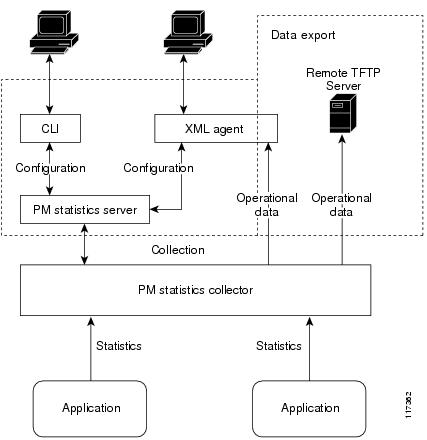
The PM statistics server is the front end for statistic collections, entity instance monitoring collections, and threshold monitoring. All PM statistic collections and threshold conditions configured through the command-line interface (CLI) or through XML schemas are processed by the PM statistics server and distributed among the PM statistics collectors.

PM Statistics Collector

The PM statistics collector collects statistics from entity instances and stores that data in memory. The memory contents are checkpointed so that information is available across process restarts. In addition, the PM statistics collector is responsible for exporting operational data to the XML agent and to the TFTP server.

PM Component Communications illustrates the relationship between the components that constitute the PM system.

Figure 1. PM Component Communications
PM Component Communications

PM Benefits

The PM system provides these benefits:

  • Configurable data collection policies

  • Efficient transfer of statistical data in the binary format via TFTP

  • Entity instance monitoring support

  • Threshold monitoring support

  • Data persistency across process restarts and processor failovers

PM Statistics Collection Overview

A PM statistics collection first gathers statistics from all the attributes associated with all the instances of an entity in the PM system. It then exports the statistical data in the binary file format to a TFTP server. For example, a Multiprotocol Label Switching (MPLS) Label Distribution Protocol (LDP) statistics collection gathers statistical data from all the attributes associated with all MPLS LDP sessions on the router.

This table lists the entities and the associated instances in the PM system.

Table 1. Entity Classes and Associated Instances

Entity Classes

Instance

BGP

Neighbors or Peers

Interface Basic Counters

Interfaces

Interface Data Rates

Interfaces

Interface Generic Counters

Interfaces

MPLS LDP

LDP Sessions

Node CPU

Nodes

Node Memory

Nodes

Node Process

Processes

OSPFv2

Processes

OSPFv3

Processes


Note


For a list of all attributes associated with the entities that constitute the PM system, see Table 1.


Note


Based on the interface type, the interface either supports the interface generic counters or the interface basic counters. The interfaces that support the interface basic counters do not support the interface data rates.


How to Implement Performance Management

Configuring an External TFTP Server or Local Disk for PM Statistics Collection

You can export PM statistical data to an external TFTP server or dump the data to the local file system. Both the local and TFTP destinations are mutually exclusive and you can configure either one of them at a time.

Configuration Examples

This example configures an external TFTP server for PM statistics collection.

RP/0/RP0/CPU0:Router# configure
RP/0/RP0/CPU0:Router(config)# performance-mgmt resources tftp-server 10.3.40.161 directory mypmdata/datafiles
RP/0/RP0/CPU0:Router(config)# commit

This example configures a local disk for PM statistics collection.

RP/0/RP0/CPU0:Router# configure
RP/0/RP0/CPU0:Router(config)# performance-mgmt resources dump local
RP/0/RP0/CPU0:Router(config)# commit

Configuring PM Statistics Collection Templates

PM statistics collections are configured through PM statistics collection templates. A PM statistics collection template contains the entity, the sample interval, and the number of sampling operations to be performed before exporting the data to a TFTP server. When a PM statistics collection template is enabled, the PM statistics collection gathers statistics for all attributes from all instances associated with the entity configured in the template. You can define multiple templates for any given entity; however, only one PM statistics collection template for a given entity can be enabled at a time.

Guidelines for Configuring PM Statistics Collection Templates

When creating PM statistics collection templates, follow these guidelines:

  • You must configure a TFTP server resource or local dump resource if you want to export statistics data onto a remote TFTP server or local disk.

  • You can define multiple templates for any given entity, but at a time you can enable only one PM statistics collection template for a given entity.
  • When configuring a template, you can designate the template for the entity as the default template using the default keyword or name the template. The default template contains the following default values:
    • A sample interval of 10 minutes.
    • A sample size of five sampling operations.
  • The sample interval sets the frequency of the sampling operations performed during the sampling cycle. You can configure the sample interval with the sample-interval command. The range is from 1 to 60 minutes.
  • The sample size sets the number of sampling operations to be performed before exporting the data to the TFTP server. You can configure the sample size with the sample-size command. The range is from 1 to 60 samples.


    Note


    Specifying a small sample interval increases CPU utilization, whereas specifying a large sample size increases memory utilization. The sample size and sample interval, therefore, may need to be adjusted to prevent system overload.


  • The export cycle determines how often PM statistics collection data is exported to the TFTP server. The export cycle can be calculated by multiplying the sample interval and sample size (sample interval x sample size = export cycle).
  • Once a template has been enabled, the sampling and export cycles continue until the template is disabled with the no form of the performance-mgmt apply statistics command.

  • You must specify either a node with the location command or enable the PM statistic collections for all nodes using the location all command when enabling or disabling a PM statistic collections for the following entities:
    • Node CPU
    • Node memory
    • Node process

Configuration Example

This example shows how to create and enable a PM statistics collection template.

RP/0/RP0/CPU0:Router# configure
RP/0/RP0/CPU0:Router(config)# performance-mgmt statistics interface generic-counters template template 1 
RP/0/RP0/CPU0:Router(config)# performance-mgmt statistics interface generic-counters template 1 sample-size 10 
RP/0/RP0/CPU0:Router(config)# performance-mgmt statistics interface generic-counters template 1 sample-interval 5
RP/0/RP0/CPU0:Router(config)# performance-mgmt apply statistics interface generic-counters 1 
RP/0/RP0/CPU0:Router# commit

Configuring PM Threshold Monitoring Templates

The PM system supports the configuration of threshold conditions to monitor an attribute (or attributes) for threshold violations. Threshold conditions are configured through PM threshold monitoring templates. When a PM threshold template is enabled, the PM system monitors all instances of the attribute (or attributes) for the threshold condition configured in the template. If at end of the sample interval a threshold condition is matched, the PM system generates a system logging message for each instance that matches the threshold condition. For the list of attributes and value ranges associated with each attribute for all the entities, see Performance Management: Details

Guidelines for Configuring PM Threshold Monitoring Templates

While you configure PM threshold monitoring templates, follow these guidelines:

  • Once a template has been enabled, the threshold monitoring continues until the template is disabled with the no form of the performance-mgmt apply thresholds command.

  • Only one PM threshold template for an entity can be enabled at a time.

  • You must specify either a node with the location command or enable the PM statistic collections for all nodes using the location all command when enabling or disabling a PM threshold monitoring template for the following entities:
    • Node CPU
    • Node memory
    • Node process

Configuration Example

This example shows how to create and enable a PM threshold monitoring template. In this example, a PM threshold template is created for the CurrMemory attribute of the node memory entity. The threshold condition in this PM threshold condition monitors the CurrMemory attribute to determine whether the current memory use is greater than 50 percent.


Router# conf t
Router(config)# performance-mgmt thresholds node memory template template20
Router(config-threshold-cpu)# CurrMemory gt 50 percent
Router(config-threshold-cpu)# sample-interval 5
Router(config-threshold-cpu)# exit
Router(config)# performance-mgmt apply thresholds node memory location 0/RP0/CPU0 template20
Router(config)# commit

Configuring Instance Filtering by Regular Expression

This task explains defining a regular expression group which can be applied to one or more statistics or threshold templates. You can also include multiple regular expression indices. The benefits of instance filtering using the regular expression group is as follows.
  • You can use the same regular expression group that can be applied to multiple templates.

  • You can enhance flexibility by assigning the same index values.

  • You can enhance the performance by applying regular expressions, which has OR conditions.


Note


The Instance filtering by regular-expression is currently supported in interface entities only (Interface basic-counters, generic-counters, data-rates.


Configuration Example

This example shows how to define a regular expression group.

RP/0/RP0/CPU0:Router# configure
RP/0/RP0/CPU0:Router(config)# performance-mgmt regular-expression regexp
RP/0/RP0/CPU0:Router(config-perfmgmt-regex)# index 10 match
RP/0/RP0/CPU0:Router(config)# commit

Performance Management: Details

This section contains additional information which will be useful while configuring performance management.

This table describes the attributes and value ranges associated with each attribute for all the entities that constitute the PM system.

Table 2. Attributes and Values

Entity

Attributes

Description

Values

bgp

ConnDropped

Number of times the connection was dropped.

Range is from 0 to 4294967295.

ConnEstablished

Number of times the connection was established.

Range is from 0 to 4294967295.

ErrorsReceived

Number of error notifications received on the connection.

Range is from 0 to 4294967295.

ErrorsSent

Number of error notifications sent on the connection.

Range is from 0 to 4294967295.

InputMessages

Number of messages received.

Range is from 0 to 4294967295.

InputUpdateMessages

Number of update messages received.

Range is from 0 to 4294967295.

OutputMessages

Number of messages sent.

Range is from 0 to 4294967295.

OutputUpdateMessages

Number of update messages sent.

Range is from 0 to 4294967295.

interface data-rates

Bandwidth

Bandwidth in kbps.

Range is from 0 to 4294967295.

InputDataRate

Input data rate in kbps.

Range is from 0 to 4294967295.

InputPacketRate

Input packets per second.

Range is from 0 to 4294967295.

InputPeakRate

Peak input data rate.

Range is from 0 to 4294967295.

InputPeakPkts

Peak input packet rate.

Range is from 0 to 4294967295.

OutputDataRate

Output data rate in kbps.

Range is from 0 to 4294967295.

OutputPacketRate

Output packets per second.

Range is from 0 to 4294967295.

OutputPeakPkts

Peak output packet rate.

Range is from 0 to 4294967295.

OutputPeakRate

Peak output data rate.

Range is from 0 to 4294967295.

interface basic-counters

InPackets

Packets received.

Range is from 0 to 4294967295.

InOctets

Bytes received.

Range is from 0 to 4294967295.

OutPackets

Packets sent.

Range is from 0 to 4294967295.

OutOctets

Bytes sent.

Range is from 0 to 4294967295.

InputTotalDrops

Inbound correct packets discarded.

Range is from 0 to 4294967295.

InputQueueDrops

Input queue drops.

Range is from 0 to 4294967295.

InputTotalErrors

Inbound incorrect packets discarded.

Range is from 0 to 4294967295.

OutputTotalDrops

Outbound correct packets discarded.

Range is from 0 to 4294967295.

OutputQueueDrops

Output queue drops.

Range is from 0 to 4294967295.

OutputTotalErrors

Outbound incorrect packets discarded.

Range is from 0 to 4294967295.

interface generic-counters

InBroadcastPkts

Broadcast packets received.

Range is from 0 to 4294967295.

InMulticastPkts

Multicast packets received.

Range is from 0 to 4294967295.

InOctets

Bytes received.

Range is from 0 to 4294967295.

InPackets

Packets received.

Range is from 0 to 4294967295.

InputCRC

Inbound packets discarded with incorrect CRC.

Range is from 0 to 4294967295.

InputFrame

Inbound framing errors.

Range is from 0 to 4294967295.

InputOverrun

Input overruns.

Range is from 0 to 4294967295.

InputQueueDrops

Input queue drops.

Range is from 0 to 4294967295.

InputTotalDrops

Inbound correct packets discarded.

Range is from 0 to 4294967295.

InputTotalErrors

Inbound incorrect packets discarded.

Range is from 0 to 4294967295.

InUcastPkts

Unicast packets received.

Range is from 0 to 4294967295.

InputUnknownProto

Inbound packets discarded with unknown protocol.

Range is from 0 to 4294967295.

OutBroadcastPkts

Broadcast packets sent.

Range is from 0 to 4294967295.

OutMulticastPkts

Multicast packets sent.

Range is from 0 to 4294967295.

OutOctets

Bytes sent.

Range is from 0 to 4294967295.

OutPackets

Packets sent.

Range is from 0 to 4294967295.

OutputTotalDrops

Outbound correct packets discarded.

Range is from 0 to 4294967295.

OutputTotalErrors

Outbound incorrect packets discarded.

Range is from 0 to 4294967295.

OutUcastPkts

Unicast packets sent.

Range is from 0 to 4294967295.

OutputUnderrun

Output underruns.

Range is from 0 to 4294967295.

mpls ldp

AddressMsgsRcvd

Address messages received.

Range is from 0 to 4294967295.

AddressMsgsSent

Address messages sent.

Range is from 0 to 4294967295.

AddressWithdrawMsgsRcd

Address withdraw messages received.

Range is from 0 to 4294967295.

AddressWithdrawMsgsSent

Address withdraw messages sent.

Range is from 0 to 4294967295.

InitMsgsSent

Initial messages sent.

Range is from 0 to 4294967295.

InitMsgsRcvd

Initial messages received.

Range is from 0 to 4294967295.

KeepaliveMsgsRcvd

Keepalive messages received.

Range is from 0 to 4294967295.

KeepaliveMsgsSent

Keepalive messages sent.

Range is from 0 to 4294967295.

LabelMappingMsgsRcvd

Label mapping messages received.

Range is from 0 to 4294967295.

LabelMappingMsgsSent

Label mapping messages sent.

Range is from 0 to 4294967295.

LabelReleaseMsgsRcvd

Label release messages received.

Range is from 0 to 4294967295.

LabelReleaseMsgsSent

Label release messages sent.

Range is from 0 to 4294967295.

LabelWithdrawMsgsRcvd

Label withdraw messages received.

Range is from 0 to 4294967295.

LabelWithdrawMsgsSent

Label withdraw messages sent.

Range is from 0 to 4294967295.

NotificationMsgsRcvd

Notification messages received.

Range is from 0 to 4294967295.

NotificationMsgsSent

Notification messages sent.

Range is from 0 to 4294967295.

TotalMsgsRcvd

Total messages received.

Range is from 0 to 4294967295.

TotalMsgsSent

Total messages sent.

Range is from 0 to 4294967295.

node cpu

NoProcesses

Number of processes.

Range is from 0 to 4294967295.

node memory

CurrMemory

Current application memory (in bytes) in use.

Range is from 0 to 4294967295.

PeakMemory

Maximum system memory (in MB) used since bootup.

Range is from 0 to 4194304.

node process

NoThreads

Number of threads.

Range is from 0 to 4294967295.

PeakMemory

Maximum dynamic memory (in KB) used since startup time.

Range is from 0 to 4194304.

ospf v2protocol

InputPackets

Total number of packets received.

Range is from 0 to 4294967295.

OutputPackets

Total number of packets sent.

Range is from 0 to 4294967295.

InputHelloPackets

Number of Hello packets received.

Range is from 0 to 4294967295.

OutputHelloPackets

Number of Hello packets sent.

Range is from 0 to 4294967295.

InputDBDs

Number of DBD packets received.

Range is from 0 to 4294967295.

InputDBDsLSA

Number of LSA received in DBD packets.

Range is from 0 to 4294967295.

OutputDBDs

Number of DBD packets sent.

Range is from 0 to 4294967295.

OutputDBDsLSA

Number of LSA sent in DBD packets.

Range is from 0 to 4294967295.

InputLSRequests

Number of LS requests received.

Range is from 0 to 4294967295.

InputLSRequestsLSA

Number of LSA received in LS requests.

Range is from 0 to 4294967295.

OutputLSRequests

Number of LS requests sent.

Range is from 0 to 4294967295.

OutputLSRequestsLSA

Number of LSA sent in LS requests.

Range is from 0 to 4294967295.

InputLSAUpdates

Number of LSA updates received.

Range is from 0 to 4294967295.

InputLSAUpdatesLSA

Number of LSA received in LSA updates.

Range is from 0 to 4294967295.

OutputLSAUpdates

Number of LSA updates sent.

Range is from 0 to 4294967295.

OutputLSAUpdatesLSA

Number of LSA sent in LSA updates.

Range is from 0 to 4294967295.

InputLSAAcks

Number of LSA acknowledgements received.

Range is from 0 to 4294967295.

InputLSAAcksLSA

Number of LSA received in LSA acknowledgements.

Range is from 0 to 4294967295.

OutputLSAAcks

Number of LSA acknowledgements sent

Range is from 0 to 4294967295.

OutputLSAAcksLSA

Number of LSA sent in LSA acknowledgements.

Range is from 0 to 4294967295.

ChecksumErrors

Number of packets received with checksum errors.

Range is from 0 to 4294967295.

ospf v3protocol

InputPackets

Total number of packets received.

Range is from 0 to 4294967295.

OutputPackets

Total number of packets sent.

Range is from 0 to 4294967295.

InputHelloPackets

Number of Hello packets received.

Range is from 0 to 4294967295.

OutputHelloPackets

Number of Hello packets sent.

Range is from 0 to 4294967295.

InputDBDs

Number of DBD packets received.

Range is from 0 to 4294967295.

InputDBDsLSA

Number of LSA received in DBD packets.

Range is from 0 to 4294967295.

OutputDBDs

Number of DBD packets sent.

Range is from 0 to 4294967295.

OutputDBDsLSA

Number of LSA sent in DBD packets.

Range is from 0 to 4294967295.

InputLSRequests

Number of LS requests received.

Range is from 0 to 4294967295.

InputLSRequestsLSA

Number of LSA received in LS requests.

Range is from 0 to 4294967295.

OutputLSRequests

Number of LS requests sent.

Range is from 0 to 4294967295.

OutputLSRequestsLSA

Number of LSA sent in LS requests.

Range is from 0 to 4294967295.

InputLSAUpdates

Number of LSA updates received.

Range is from 0 to 4294967295.

InputLSRequestsLSA

Number of LSA received in LS requests.

Range is from 0 to 4294967295.

OutputLSAUpdates

Number of LSA updates sent.

Range is from 0 to 4294967295.

OutputLSAUpdatesLSA

Number of LSA sent in LSA updates.

Range is from 0 to 4294967295.

InputLSAAcks

Number of LSA acknowledgements received.

Range is from 0 to 4294967295.

InputLSAAcksLSA

Number of LSA received in LSA acknowledgements.

Range is from 0 to 4294967295.

OutputLSAAcks

Number of LSA acknowledgements sent

Range is from 0 to 4294967295.

OutputLSAAcksLSA

Number of LSA sent in LSA acknowledgements.

Range is from 0 to 4294967295.

This table describes the commands used to enable entity instance monitoring for different entity instances.

Table 3. Entity Instances and Monitoring Commands

Entity

Command Description

BGP

Use the performance-mgmt apply monitor bgp command to enable entity instance monitoring for a BGP entity instance.

Syntax:

                      performance-mgmt
                         apply monitor
                         bgp 
                         ip-address
                         template-name | default} 
RP/0/RP0/CPU0:Router(config)# performance-mgmt apply monitor bgp 10.12.0.4 default 

Interface Data Rates

Use the performance-mgmt apply monitor data-rates command to enable entity instance monitoring for an interface data rates entity instance.

Syntax:

                        performance-mgmt
                           apply
                           monitor
                           interface
                           data-rates
                           type
                           interface-path-id {template-name |
                           default} 
RP/0/RP0/CPU0:Router(config)# performance-mgmt apply monitor interface data-rates
 HundredGigE 0/0/0/0 default
                    

Interface Basic Counters

Use the performance-mgmt apply monitor interface basic-counters command to enable entity instance monitoring for an interface basic counters entity instance.

Syntax:
performance-mgmt
                           apply
                           monitor
                           interface
                           basic-counters
                           type
                           interface-path-id {template-name |
                           default} 
RP/0/RP0/CPU0:Router(config)# performance-mgmt apply monitor interface basic-counters 
HundredGigE 0/0/0/0 default 

Interface Generic Counters

Use the performance-mgmt apply monitor interface generic-counters command to enable entity instance monitoring for an interface generic counters entity instance.

Syntax:

                        performance-mgmt
                           apply
                           monitor
                           interface
                           generic-counters
                           type
                           interface-path-id {template-name |
                           default}  
RP/0/RP0/CPU0:Router(config)# performance-mgmt apply monitor interface generic-counters
 HundredGigE 0/0/0/0 default 

MPLS LDP

Use the performance-mgmt apply monitor mpls ldp command to enable entity instance monitoring for an MPLS LDP entity instance.

Syntax:

                        performance-mgmt
                           apply monitor
                           mpls
                           ldp
                           ip-address {template-name |
                        default}  
RP/0/RP0/CPU0:Router(config)# performance-mgmt apply monitor mpls ldp 10.34.64.154 default 

Node CPU

Use the performance-mgmt apply monitor node cpu command to enable entity instance monitoring for a node CPU entity instance.

Syntax:

                        performance-mgmt
                           apply
                           monitor
                           node
                           cpu
                           location
                           node-id {template-name |
                        default}  
RP/0/RP0/CPU0:Router(config)# performance-mgmt apply 
monitor node cpu location 0/RP0/CPU0 default 

Node Memory

Use the performance-mgmt apply monitor node memory command to enable entity instance monitoring for a node memory entity instance.

Syntax:

                        performance-mgmt
                           apply
                           monitor
                           node
                           memory
                           location
                           node-id {template-name |
                        default}  
RP/0/RP0/CPU0:Router(config)# performance-mgmt apply 
monitor node memory location 0/RP0/CPU0 default 

Node Process

Use the performance-mgmt apply monitor node process command to enable entity instance monitoring collection for a node process entity instance.

Syntax:

                        performance-mgmt
                           apply monitor node
                           process
                           location
                           node-id
                           pid {template-name | default} 
                           
RP/0/RP0/CPU0:Router(config)# performance-mgmt apply 
monitor node process location p 0/RP0/CPU0 275 default 

Check System Health

Monitoring systems in a network proactively helps prevent potential issues and take preventive actions. This section illustrates how you can monitor the system health using the health check service. This service helps to analyze the system health by monitoring, tracking and analyzing metrics that are critical for functioning of the router.

The system health can be gauged with the values reported by these metrics when the configured threshold values exceed or are nearing the threshold value.

This table describes the significant fields shown in the display.

Table 4. System Health Check Metrics

Metric

Parameter Tracked

Considered Unhealthy When

System Resources

CPU, free memory, file system, shared memory

The respective metric has exceeded the threshold

Infrastructure Services

Field Programmable Device (FPD), fabric health, platform, redundancy

Any component of the service is down or in an error state

Counters

Interface-counters, fabric-statistics, asic-errors

Any specific counter exhibits a consistent increase in drop/error count over the last n runs (n is configurable through CLI, default is 10)

By default, metrics for system resources are configured with preset threshold values. You can customize the metrics to be monitored by disabling or enabling metrics of interest based on your requirement.

Each metric is tracked and compared with that of the configured threshold, and the state of the resource is classified accordingly.

The system resources exhibit one of these states:

  • Normal: The resource usage is less than the threshold value.

  • Minor: The resource usage is more than the minor threshold, but less than the severe threshold value.

  • Severe: The resource usage is more than the severe threshold, but less than the critical threshold value.

  • Critical: The resource usage is more than the critical threshold value.

The infrastructure services show one of these states:

  • Normal: The resource operation is as expected.

  • Warning: The resource needs attention. For example, a warning is displayed when the FPD needs an upgrade.

The health check service is packaged as an optional RPM. This is not part of the base package and you must explicitly install this RPM.

You can configure the metrics and their values using CLI. In addition to the CLI, the service supports NETCONF client to apply configuration (Cisco-IOS-XR-healthcheck-cfg.yang) and retrieve operational data (Cisco-IOS-XR-healthcheck-oper.yang) using YANG data models. It also supports subscribing to metrics and their reports to stream telemetry data. For more information about streaming telemetry data, see Telemetry Configuration Guide for Cisco 8000 Series Routers.

Here is a sample of Cisco-IOS-XR-health-check-cfg.yang data model to configure the health check metrics:

module Cisco-IOS-XR-health-check-cfg {
    namespace http://cisco.com/ns/yang/Cisco-IOS-XR-health-check-cfg;
    prefix “health-check-cfg”;

    import Cisco-IOS-XR-types {
        prefix “xr”;
    }

    container metric-cfg {
        list cpu {
            key “name”;
            description
                “system 15min avg cpu utilization”;
            leaf name {
                type string;
            }
            leaf enabled {
                type boolean;
                default “true”;
            }
            leaf threshold {
                type uint32 {
                    range “1..100”;
                }
                units “percent”;
                default “20”;
                description
                    “cpu system utilization should be less than threshold”;
            }
            leaf node {
                type string;
                default “all”;
            }
        }
        list free_memory {
            key “name”;
            description
                “system free RAM”;
            leaf name {
                type string;
            }
            leaf enabled {
                type boolean;
                default “true”;
            }
            leaf threshold {
                type uint32 {
                    range “1..4096”;
                }
                units “MB”
                default “1024”;	
                description
                    “system free memory should be greater than threshold”;
            }
            leaf node {
                type string;
                default “all”;
            }
        }
    }
}

Associated Commands

Restrictions of the Health Check Feature

The following restrictions are applicable for the system health check feature:

  • Once the user configures the health check feature through the command line interface, the feature is in Configured state in the output of show healthcheck status . Enabling the netconf-yang agent is a prerequisite to enable the health check feature. When the user enables netconf-yang agent, the status of the health check feature changes to Enabled .

  • The system health data is available only when the health check feature is in Enabled state. If the user does not configure the netconf-yang agent, the status of the health check feature will remain in Configured state.

  • If the user disables the netconf-yang agent after enabling the health check feature, the status of the health check feature changes back to the Configured state.

  • The values reported in the interface-counters, asic-errors and fabric-stats are not accumulated statistics but rather they show the actual number of drops or errors in the collection window. The collection window is the cadence for the collectors.

Monitoring Critical System Resources

This task explains how to check the health of a system using operational data from the network. The data can be queried by both CLI and NETCONF RPC, and can also be streamed using telemetry.

Before you begin

Enable NETCONF-yang agent.

Procedure


Step 1

Enable NETCONF, SSH and configure the management interface.

Example:


configure
line default
exec-timeout 0 0
session-timeout 0
!

line console
exec-timeout 0 0
session-timeout 0
!

vty-pool default 0 99 line-template default
!

netconf-yang agent ssh
!

ssh server v2
ssh server vrf default
ssh server netconf vrf default
ssh timeout 120
ssh server rate-limit 600
ssh server session-limit 110
!

commit
!

interface MgmtEth 0/RP0/CPU0/0
no shut
ipv4 address dhcp
commit
!

End

Step 2

Install the health check RPM.

Example:

install source <path-to-repository>/xr-healthcheck-<release-version>.x86_64.rpm

For instructions to download optional RPMs, see the Software Installation Guide for Cisco 8000 Series Routers.

Step 3

Check the status of all metrics with its associated threshold and configured parameters in the system.

Example:

Router#show healthcheck status
Healthcheck status: Enabled

Collector Cadence: 60 seconds

System Resource metrics
  cpu
      Thresholds: Minor: 10%
                  Severe: 20%
                  Critical: 30%

       Tracked CPU utilization: 15 min avg utilization

   free-memory
        Thresholds: Minor: 10%
                    Severe: 8%
                    Critical: 5%

   filesystem
        Thresholds: Minor: 80%
                    Severe: 95%
                    Critical: 99%

   shared-memory
        Thresholds: Minor: 80%
                    Severe: 95%
                    Critical: 99%

Infra Services metrics
   fpd

   fabric-health

Step 4

View the health state for each enabled metric.

Example:


Router#show healthcheck report
Healthcheck report for enabled metrics

cpu
  State: Normal

free-momry
   State: Normal

shared-memory
   State: Normal

fpd
   State: Warning
One or more FPDs are in NEED UPGD state

fabric-health
   State: Normal

In the above output, the state of the FPD shows a warning message that indicates an FPD upgrade is required.

To further investigate the warning message, check the metric information. Here, for example, check the FPD state.

FPD Metric State: Warning
Last Update Time: 17 Feb 18:28:57.917193
FPD Service State: Enabled
Number of Active Nodes: 69

Node Name: 0/0/CPU0
    Card Name: 8800-LC-48H
    FPD Name: Bios
    HW Version: 0.31
    Status: NEED UPGD
    Run Version: 5.01
    Programmed Version: 5.01

-------------Truncated for brevity---------------
The Last Update Time is the timestamp when the health for that metric was computed. This timestamp gets refreshed with each collector run based on the cadence.

Note

 
With the health check service enabled, no other configuration change is permitted. Before you change a configuration and commit the change, first disable the service.

Router#configure
Router(config)#no healthcheck enable
Router(config)#commit

Step 5

Customize the health check threshold value for the following parameters:

  • Cadence: To change the preset cadence, use the command:
    Router(config)#healthcheck cadence <30 – 1800>
  • Metric: To list the metrics that can be configured, use the command:
    
    Router(config)#healthcheck metric ?
      cpu            cpu configurations(cisco-support)
      fabric-health  fabric configurations(cisco-support)
      filesystem     Filesystem usage configurations(cisco-support)
      fpd            FPD configurations(cisco-support)
      free-mem       free memory configurations(cisco-support)
      shared-mem     shared memory configurations(cisco-support)
    
    For example, to change the preset value of CPU metric, use the command:
    
    Router(config)#healthcheck metric cpu ?
       threshold minor, severe or critical threshold
       avg_cpu_util 1min, 5min or 15min
            ios(config)#healthcheck metric cpu threshold ?
            minor       minor threshold in %
            severe      severe threshold in %
            critical    critical threshold in %
          
  • Disable or enable metrics to selectively filter some metrics. By default, all metrics are enabled.
    
    Router(config)#[no] healthcheck metric cpu disable
    Router(config)#[no] healthcheck metric free-mem disable
    

Monitoring Infrastructure Services

This task explains how to check the health of the infrastructure services of a system. The data can be queried by both CLI and NETCONF RPC, and can also be streamed using telemetry.

Before you begin

Enable NETCONF-yang agent.

Perform steps 1-3 from the section Monitoring Critical System Resources

Procedure


Step 1

Check the health status of the infrastructure metrics in the system. By default, the router software enables the health check for infrastructure services.

Example:

The below example shows how to obtain the health-check status for the platform metric:
Router# show healthcheck metric platform
Platform Metric State: Normal ==========> Health of the metric
Last Update Time: 25 Jun 05:17:03.508172 =====> Timestamp at which the metric data was collected
Platform Service State: Enabled =====> Service state of Platform
Number of Racks: 1 ======> Total number of racks in the testbed
Rack Name: 0 
Number of Slots: 12
Slot Name: RP0 
Number of Instances: 2
Instance Name: CPU0 
Node Name 0/RP0/CPU0 
Card Type 8800-RP 
Card Redundancy State Active 
Admin State NSHUT 
Oper State IOS XR RUN

To retrieve the health-check information for the platform metric using the Netconf GET operation, use the schema shown below:

<health-check xmlns="http://cisco.com/ns/yang/Cisco-IOS-XR-healthcheck-oper">
<metric-info>
<platform/>
</metric-info>
</health-check>

Example:

The below example shows how to obtain the health-check status for the redundancy metric:
Router# show healthcheck metric redundancy
Redundancy Metric State: Normal ==========> Health of the metric
Last Update Time: 25 Jun 05:21:14.562291 =====> Timestamp at which the metric data was collected Redundancy Service State: Enabled =====> Service state of the metric
Active: 0/RP0/CPU0
Standby: 0/RP1/CPU0
HA State: Node Ready
NSR State: Ready

To retrieve the health-check information for the redundancy metric using the Netconf GET operation, use the schema shown below:

<health-check xmlns="http://cisco.com/ns/yang/Cisco-IOS-XR-healthcheck-oper">
<metric-info>
<redundancy/>
</metric-info>
</health-check>

Step 2

Disable health-check of any of the metrics, if required. By default, all metrics are enabled.

Example:

The below example shows how to disable the health-check status for the platform metric:
Router(config)# healthcheck metric platform disable
Router(config)# commit

To disable the health-check for the platform metric using the Netconf, use the schema shown below:

<health-check xmlns="http://cisco.com/ns/yang/Cisco-IOS-XR-healthcheck-cfg">
<ord-b>
<metric>
<platform>
<disable/>
</platform>
</metric>
</ord-b>
</health-check>

Example:

The below example shows how to disable the health-check status for the redundancy metric:
Router(config)# healthcheck metric redundancy disable
Router(config)# commit

To disable the health-check for the redundancy metric using the Netconf, use the schema shown below:

<health-check xmlns="http://cisco.com/ns/yang/Cisco-IOS-XR-healthcheck-cfg">
<ord-b>
<metric>
<redundancy>
<disable/>
</redundancy>
</metric>
</ord-b>
</health-check>

Monitoring Counters

This task explains how to check the health of the counters of a system. The counter values that can be monitored are interface-counters, asic-errors and fabric-statistics.

Before you begin

Enable NETCONF-yang agent.

Perform steps 1-3 from the section Monitoring Critical System Resources

Procedure


Step 1

Configure the size of the buffer which stores the history of the counter values as shown in the below examples.

Example:

The below example shows how to configure the buffer-size for the interface-counters to store values for the last 5 cadence snapshots:
Router(config)# healthcheck metric intf-counters counter-size 5
Router(config)# commit

Example:

The below example shows how to configure the buffer-size for the asic-errors counters to store values for the last 5 cadence snapshots:
Router(config)# healthcheck metric asic-errors counter-size 5
Router(config)# commit

Example:

The below example shows how to configure the buffer-size for the fabric-stats counters to store values for the last 5 cadence snapshots:
Router(config)# healthcheck metric fabric-stats counter-size 5
Router(config)# commit

Step 2

Configure the list of interfaces for which the interface-counters should be tracked as shown in the below examples. This is possible only for the interface-counters metric.

Example:

The below example shows how to configure the list of interfaces for which the interface-counters need to be tracked :
Router(config)# healthcheck metric intf-counters intf-list MgmtEth0/RP0/CPU0/0 HundredGigE0/0/0/0 
Router(config)# commit

Example:

The below example shows how to configure all the interfaces so that the interface-counters are tracked for them :
Router(config)# healthcheck metric intf-counters intf-list all 
Router(config)# commit

Step 3

By default, the router software enables the health-check for counters. Check the health status of the counters in the system as shown in the below examples.

Example:

The below example shows how to obtain the health-check status for the interface-counters:
Router# show healthcheck metric interface-counters summary
Interface-counters Health State: Normal ==========> Health of the metric
Last Update Time: 25 Jun 05:59:33.965851 =====> Timestamp at which the metric data was collected
Interface-counters Service State: Enabled =====> Service state of the metric
Interface MgmtEth0/RP0/CPU0/0 =====> Configured interface for healthcheck monitoring
Counter-Names Count Average Consistently-Increasing
------------------------------------------------------------------------------------------------
output-buffers-failures 0 0 N
Counter-Names =====> Name of the counters
Count =====> Value of the counter collected at "Last Update Time"
Average =====> Average of all values available in buffer
Consistently-Increasing =====> Trend of the counter values, as per data available in buffer
Router# show healthcheck metric interface-counters detail all
Thu Jun 25 06:02:03.145 UTC
Last Update Time: 25 Jun 06:01:35.217089 =====> Timestamp at which the metric data was collected
Interface MgmtEth0/RP0/CPU0/0 =====> Configured interface for healthcheck monitoring
Following table displays data for last <x=5> values collected in periodic cadence intervals
-------------------------------------------------------------------------------------------------------
Counter-name Last 5 values
LHS = Earliest RHS = Latest
-------------------------------------------------------------------------------------------------------
output-buffers-failures 0 0 0 0 0 
parity-packets-received 0 0 0 0 0

Example:

The below example shows how to obtain the health-check status for the asic-errors:
Router# show healthcheck metric asic-errors summary 
Asic-errors Health State: Normal ==========> Health of the metric
Last Update Time: 25 Jun 06:20:47.65152 =====> Timestamp at which the metric data was collected
Asic-errors Service State: Enabled =====> Service state of the metric
Node Name: 0/1/CPU0 =====> Node name for healthcheck monitoring

Instance: 0 =====> Instance of the Node

Counter-Names Count Average Consistently-Increasing
------------------------------------------------------------------------------------------------
Link Errors 0 0 N
Counter-Names =====> Name of the counters
Count =====> Value of the counter collected at "Last Update Time"
Average =====> Average of all values available in buffer
Consistently-Increasing =====> Trend of the counter values, as per data available in buffer
Router# show healthcheck metric asic-errors detail all 
Thu Jun 25 06:25:13.778 UTC
Last Update Time: 25 Jun 06:24:49.510525 =====> Timestamp at which the metric data was collected
Node Name: 0/1/CPU0 =====> Node name for healthcheck monitoring
Instance: 0 =====> Instance of the Node
Following table displays data for last <x=5> values collected in periodic cadence intervals
-------------------------------------------------------------------------------------------------------
Counter-name Last 5 values
LHS = Earliest RHS = Latest
-------------------------------------------------------------------------------------------------------
Link Errors            0     0     0     0     0

Example:

The below example shows how to obtain the health-check status for the fabric-stats:
Router# show healthcheck metric fabric-stats summary 
Thu Jun 25 06:51:13.154 UTC
Fabric-stats Health State: Normal ==========> Health of the metric
Last Update Time: 25 Jun 06:51:05.669753 =====> Timestamp at which the metric data was collected
Fabric-stats Service State: Enabled =====> Service state of the metric
Fabric plane id 0 =====> Plane ID
Counter-Names Count Average Consistently-Increasing
------------------------------------------------------------------------------------------------
mcast-lost-cells 0 0 N
Counter-Names =====> Name of the counters
Count =====> Value of the counter collected at "Last Update Time"
Average =====> Average of all values available in buffer
Consistently-Increasing =====> Trend of the counter values, as per data available in buffer
Router# show healthcheck metric fabric-stats detail all 
Thu Jun 25 06:56:20.944 UTC
Last Update Time: 25 Jun 06:56:08.818528 =====> Timestamp at which the metric data was collected
Fabric Plane id 0 =====> Fabric Plane ID

Following table displays data for last <x=5> values collected in periodic cadence intervals
-------------------------------------------------------------------------------------------------------
Counter-name Last 5 values
LHS = Earliest RHS = Latest
-------------------------------------------------------------------------------------------------------
mcast-lost-cells 0 0 0 0 0

Step 4

If required, disable health-check of any of the counters. By default, all counters are enabled.

Example:

The below example shows how to disable the health-check status for the interface-counters:
Router(config)# healthcheck metric intf-counters disable
Router(config)# commit

Example:

The below example shows how to disable the health-check status for the asic-errors:
Router(config)# healthcheck metric asic-errors disable
Router(config)# commit

Example:

The below example shows how to disable the health-check status for the fabric-stats:
Router(config)# healthcheck metric fabric-stats disable
Router(config)# commit