Troubleshooting the Installation

This chapter contains general troubleshooting information to help isolate the cause of any difficulties you might encounter during the installation and initial startup of the system.

Although an overtemperature condition is unlikely at initial startup, environmental monitoring functions are included in this chapter because they also monitor internal voltages.

Troubleshooting Overview

This section describes the methods used in troubleshooting the router. The troubleshooting methods are organized according to the major subsystems in the router.

If you are unable to solve a problem on your own, you can contact a Cisco customer service representative for assistance. Cisco customer service and technical support can be reached at:

http://www.cisco.com/en/US/support/tsd_cisco_worldwide_contacts.html

When you call, please have the following information ready:

  • Date you received the router and the chassis serial number (located on a label on the back of the chassis).
  • Installed line cards and Cisco software release number:
    • Use the show version command to determine which line cards are installed and the Cisco software release number, if possible.
  • Brief description of the symptoms and steps you have taken to isolate and solve the issue.
  • Maintenance agreement or warranty information.

Troubleshooting Using a Subsystem Approach

To solve a system problem, try to isolate the problem to a specific subsystem. Compare current router behavior with expected router behavior. Because a startup issue is usually attributable to one component, it is most efficient to examine each subsystem, rather than trying to troubleshoot each router component.

This table describes the subsystems for the Cisco ASR 9000 Series Routers:

Table 1. Subsystem Descriptions for the Cisco ASR 9000 Series Routers

Type of Subsystem

Description

Power subsystem

  • Up to 8 AC input or DC input power supply modules can be installed in the Cisco ASR 9010 Router chassis.

  • Up to 4 AC input or DC input power supply modules installed in the Cisco ASR 9006 Router chassis.

  • Up to 6 AC input or DC input power supply modules installed in the Cisco ASR 9904 Router chassis.

  • Up to 3 AC input power supply modules or 4 DC input power supply modules can be installed in the Cisco ASR 9906 Router chassis.

  • Up to 6 AC input power supply modules or 8 DC input power supply modules can be installed in the Cisco ASR 9910 Router chassis.

  • Up to 12 AC input or DC input power supply modules installed in the Cisco ASR 9912 Router chassis.

  • Up to 16 AC input or DC input power supply modules installed in the Cisco ASR 9922 Router chassis.

Chassis backplane power distribution

The system transfers –54 VDC power from the power modules to the chassis backplane and distributes it to all the cards through the backplane connectors.

Processor subsystem

Cisco ASR 9010 Router

Cisco ASR 9006 Router

Cisco ASR 9904 Router

Cisco ASR 9906 Router

Cisco ASR 9910 Router

Includes the active Route Switch Processor (RSP) card (and optional, redundant RSP card, if installed).

Up to eight line cards in the Cisco ASR 9010 Router and Cisco ASR 9910 Router, four line cards in the Cisco ASR 9006 Router and Cisco ASR 9906 Router, and two line cards in the Cisco ASR 9904 Router.

Note

 
The RSP and line cards are equipped with onboard processors. The RSP downloads a copy of the Cisco software image to each line card processor. The system uses an alphanumeric display on the active RSP to display status and error messages, which can help in troubleshooting.

Cisco ASR 9922 Router

Cisco ASR 9912 Router

Includes the active Route Processor (RP) card, standby redundant RP card.

Up to 20 line cards in the Cisco ASR 9922 Router or 10 line cards in the Cisco ASR 9912 Router.

Note

 
The RP and line cards are equipped with onboard processors. The RP downloads a copy of the Cisco software image to each line card processor. The system uses an alphanumeric display on the active RP to display status and error messages, which can help in troubleshooting.

Cooling subsystem

Cisco ASR 9010 Router

Cisco ASR 9006 Router

Cisco ASR 9904 Router

Cisco ASR 9906 Router

Cisco ASR 9910 Router

Cisco ASR 9912 Router

Consists of one or two fan trays, which circulate air through the card cage to cool the cards, and two fans in each of the power modules, which circulate cooling air through the power module.

Cisco ASR 9922 Router

Consists of four fan trays, which circulate air through the top and bottom line card cages to cool the cards, and two fans in each of the power modules, which circulate cooling air through the power module.


Note


There are two types of image files, -P PIE files, and x86-based -PX PIE files. -P PIE files are for use on Cisco ASR 9000 Series Routers with RSP route switch processors (RSP-4G and RSP-8G). -PX PIE files are for use on the routers with RSP-440/RSP-440 Lite and RSP-880/RSP880-LT route switch processors, and the Cisco ASR 9922 Router and Cisco ASR 9912 Router route processors.

Normal Router Startup Sequence

You can generally determine when and where the router failed during the startup sequence by checking the status LEDs on the power modules, and the alphanumeric displays on the RSP, RP, and line cards.

In a normal router startup sequence, the following sequence of events and conditions occur:

  1. The fan in each power module receives power and begins drawing air through the power supply.

The power module input power and output power indicators are on.

  1. The fans in the fan tray receive power and begin drawing air through the chassis.

The fan tray OK indicator is on.

  1. As the power-on and boot process progresses for the RSP/RP, the status of the RSP/RP appears on the alphanumeric display on the front panel of the card.

Identifying Startup Issues

This table shows the contents of the alphanumeric displays on the various RSP/RP cards, as well as the normal LED states on the power modules (AC or DC) and the fan tray after a successful system startup.


Note


For the RSP/RP card to communicate properly to a power module in a power tray, the appropriate input power should be present.
Table 2. Alphanumeric Displays and LEDs at System Startup

Component

Type of Indicator

Display Contents/LED Status and Meaning

RSP card

Alphanumeric display

INIT—Card is inserted and microcontroller is initialized

BOOT—Board is powered on and CPU is booting

IMEM—Start initializing memory

IGEN—Start initializing the board

ICBC—Start initializing communication with the microcontroller

PDxy—Loading programmable devices (x = FPGA, y = ROMMON)

PSTx—Power on self test x

RMN—All tests are finished and ROMMON is ready for commands

LOAD—Downloading Minimum Boot Image (MBI) image to CPU

MBI—Starting execution of MBI

IOXR—Cisco IOS XR software is starting execution

ACTV—RSP role is determined to be active RSP

STBY—RSP role is determined to be standby RSP

PREP—Preparing disk boot

RSP-440

RSP-440 Lite

RSP-880

RSP880-LT

RSP4-S

Alphanumeric display

INIT—Card is inserted and microcontroller is initialized

BOOT—Board is powered on and CPU is booting

IMEM—Start initializing memory

IGEN—Start initializing the board

ICBC—Start initializing communication with the microcontroller

SCPI—Board is not plugged in properly

RSP-440/RSP 440-Lite:

  • STID—CBC was unable to read slot ID pins correctly

  • PSEQ—CBC detected power sequencer failure

  • DBPO—CBC detected an issue during board power up

  • KPWR—CBC detected an issue during board power up

  • LGNP—CBC detected an issue during board power up

  • LGNI—CBC detected an issue during board power up

RMN—All tests are finished and ROMMON is ready for commands

LOAD—Downloading MBI image to CPU

RRST—ROMMON is performing a soft reset after 5 consecutive MBI validation requests timed out

MVB—ROMMON trying MBI validation boot

MBI—Starting execution of MBI

IOXR—Cisco IOS XR software is starting execution

LDG—The RSP is loading (MBI started and card preparing for activity)

INCP—The software or configuration is incompatible with the RSP

OOSM—The RSP is in Out of Service, Maintenance mode

ACTV—RSP role is determined to be active RSP

STBY—RSP role is determined to be standby RSP

PREP—Preparing disk boot

RP card

RP2 card

Alphanumeric display

INIT—Card is inserted and microcontroller is initialized

BOOT—Board is powered on and CPU is booting

IMEM—Start initializing memory

IGEN—Start initializing the board

ICBC—Start initializing communication with the microcontroller

SCPI—Board is not plugged in properly

STID—CBC was unable to read slot ID pins correctly

PSEQ—CBC detected power sequencer failure

DBPO—CBC detected an issue during board power up

KPWR—CBC detected an issue during board power up

LGNP—CBC detected an issue during board power up

LGNI—CBC detected an issue during board power up

RMN—All tests are finished and ROMMON is ready for commands

LOAD—Downloading MBI image to CPU

RRST—ROMMON is performing a soft reset after 5 consecutive MBI validation requests timed out

MVB—ROMMON trying MBI validation boot

MBI—Starting execution of MBI

IOXR—Cisco IOS XR software is starting execution

LDG—The RP is loading (MBI started and card preparing for activity)

INCP—The software or configuration is incompatible with the RP

OOSM—The RP is in Out of Service, Maintenance mode

ACTV—RP role is determined to be active RP

STBY—RP role is determined to be standby RP

PREP—Preparing disk boot

Line Cards

Status LED

Green: The line card is enabled and ready for use.

AC Power Modules

Power status LEDs

Input power indicator on (green): Input AC power OK.

Output power indicator on (green): Output DC power OK.

Fault LED off (red): No fault is present. The correct power module voltages are present and no faults have been detected.

DC Power Modules

Power status LEDs

Input power indicator on (green): Input DC power OK. On the DC power tray, the Power Input LED is lit solid green if both DC feeds are valid and blinks green if only a single DC feed is valid.

Output power indicator on (green): Output DC power OK.

Fault LED off (red): No fault is present. The correct power module voltages are present and no faults have been detected.

Fan Trays

Fan tray status LED

Green LED on: Fan Tray OK.

The fan tray fans are operating correctly.

Troubleshooting the Power Subsystem

This section contains information to troubleshoot the power subsystems:


Note


For the RSP/RP card to communicate properly to a power module in a power tray, input power to at least one of the three power modules in the power tray should be present.

Troubleshooting the AC Input Power Subsystem

AC input power modules are monitored for internal temperature, voltage, and current load by the RSP/RP. If the router detects an extreme condition, it generates an alarm and logs the appropriate warning messages on the console.

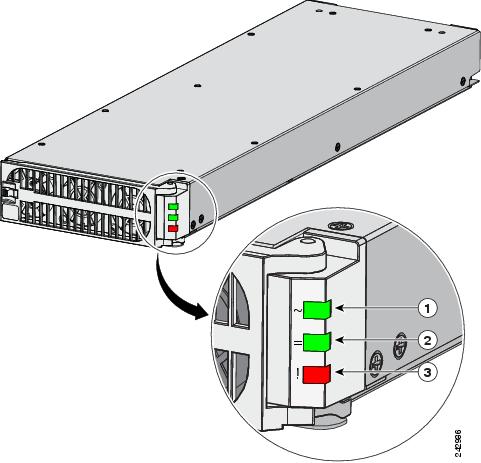
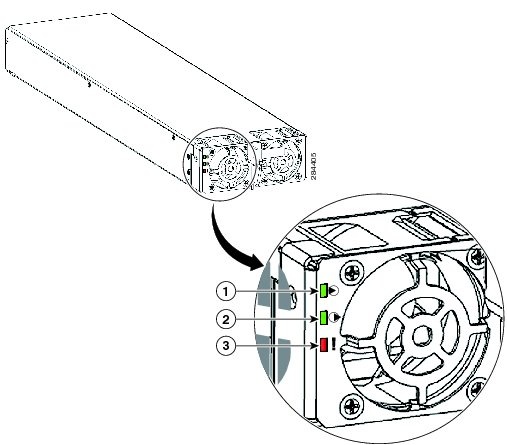
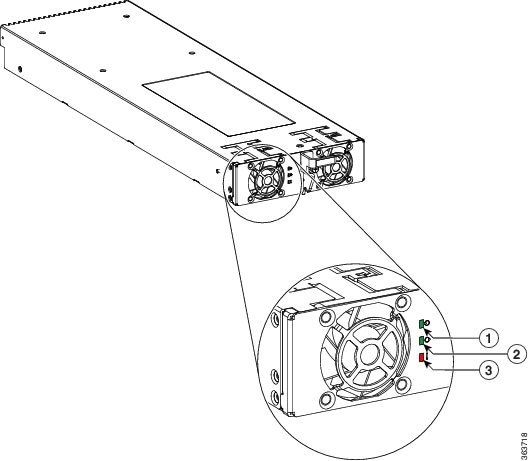
The figure titled "Version 1 Power Module Status Indicators" shows the status indicators for the version 1 power module. The figure titled "Version 2 Power Module Power Module Status Indicators" shows the status indicators for the version 2 power module, and the figure titled "Version 3 AC Power Module Status Indicators" shows the status indicators for the version 3 AC power module. The indicator definitions follow the two figures.

Figure 1. Version 1 Power Module Status Indicators

1

Input power LED

ON continuously when the input voltage is present and within the correct range

BLINKING when the input voltage is out of acceptable range

OFF when no input voltage is present

2

Output power LED

ON when the power module output voltage is present

BLINKING when the power module is in a power limit or overcurrent condition

3

Fault LED

ON to indicate that a power module failure has occurred

Figure 2. Version 2 Power Module Power Module Status Indicators

1

Input power LED

ON continuously when the input voltage is present and within the correct range

BLINKING when the input voltage is out of acceptable range

OFF when no input voltage is present

2

Output power LED

ON when the power module output voltage is present

BLINKING when the power module is in a power limit or overcurrent condition

3

Fault LED

ON to indicate that a power module failure has occurred

Figure 3. Version 3 AC Power Module Status Indicators

1

Input power LED

ON continuously when the input voltage is present and within the correct range

BLINKING when the input voltage is out of acceptable range

OFF when no input voltage is present

2

Output power LED

ON when the power module output voltage is present

BLINKING when the power module is in a power limit or overcurrent condition

3

Fault LED

ON to indicate that a power module failure has occurred

Follow these steps to troubleshoot the AC power module if it is not operating properly.

Procedure


Step 1

Make sure the power module is seated properly by ejecting and reseating the power module. Check that:

  • Latch on the door/ejector lever is locked securely.

  • Power switch on the power tray is set to the ON (1) position.

Step 2

Make sure the router is powered on and that all power cords are connected properly. Check that the:

  • Power cords plugged into the power tray receptacles are secured in place with their retention clips.

  • Power cords at the power source end are securely plugged into their own AC power outlets.

  • Source AC circuit breaker is switched on.

Step 3

Check the power supply status LED indicators:

  • Input power LED (green)—Indicates that the AC power input is operating normally, and the source AC input voltage of 200 to 240 VAC is within the nominal operating range.

    If the input power LED is blinking, the input voltage is out of acceptable range. Verify that each AC power source is operating in the nominal range of 200 to 240 VAC.

    Note

     
    On the DC power tray, the Power Input LED is lit solid green if both DC feeds are valid and blinks green if only a single DC feed is valid.
  • Output power LED (green)—Indicates that the DC power output is operating normally and the –54 VDC output voltage to the backplane are within the nominal operating range. This indicator lights only when the power switch at the rear of the power tray is set to the ON (1) position. See Location of DC Power Switch—Version 2 and Version 3 Power System.

    • If the Output power LED remains off after checking all the power sources, replace the power supply with a spare. If the spare power module does not work, troubleshoot the power tray in which the module is plugged.

    • If the output power LED is blinking, the power module is in a power limit or overcurrent condition. Make sure that each power cord is connected to a dedicated AC power source. Verify that each AC power source is operating in the nominal range of 200 to 240 VAC and is supplying a minimum service of 20 A, North America (or 13 A, international).

  • Fault LED (red)—Indicates that the system has detected a fault within the power supply. This indicator remains off during normal operation. If the fault LED is on:

    • If your system has more than one power tray (Cisco ASR 9010 Router, Cisco ASR 9922 Router, and Cisco ASR 9912 Router) with power modules installed for redundancy, you can toggle the power switch at the rear of the first power tray off and then on. If the fault LED remains on after several attempts to power it on, replace the power module with a spare.

    • If the spare power module also fails, the problem could be a faulty power tray backplane connector. Power off the router and contact a Cisco service representative for assistance.

    • Verify that the power module fans are operating properly.

    • Verify that the fan tray is operating properly.

If the power module fans and the fan trays are operating properly, replace the existing power module with a spare.

Caution

 
Because the AC input power subsystems use redundant power modules, a problem with the DC output voltage to the backplane from only one power module should not affect router operation. When the router is equipped with two AC power supplies, it powers on and operates even if one power supply fails. However, complete router functionality may be affected depending on the system load.

Troubleshooting the DC Input Power Subsystem

DC input power supplies are monitored for internal temperature, voltage, and current load by the RSP/RP. If the router detects an extreme condition, it generates an alarm and logs the appropriate warning messages on the console.

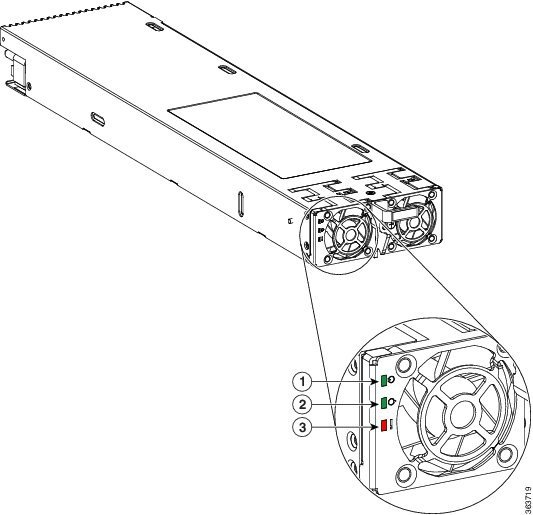
The figure titled Version 1 Power Module Status Indicators shows the status indicators for the version 1 power module, and the figure titled Version 2 Power Module Power Module Status Indicators shows the status indicators for the version 2 power module, and the figure titled Version 3 DC Power Module Status Indicators shows the status indicators for the version 3 DC power module. The indicator definitions follow the two figures.

Figure 4. Version 3 DC Power Module Status Indicators

1

Input power LED

ON continuously when the input voltage is present and within the correct range

BLINKING when the input voltage is out of acceptable range

Note

 
On the DC power tray, the Power Input LED is lit solid green if both DC feeds are valid and blinks green if only a single DC feed is valid.

OFF when no input voltage is present

2

Output power LED

ON when the power module output voltage is present

BLINKING when the power module is in a power limit or overcurrent condition

3

Fault LED

ON to indicate that a power module failure has occurred

Troubleshooting a DC Power Module

Follow these steps to troubleshoot a DC power module if it is not operating properly.

Procedure

Step 1

Make sure the power module is seated properly by ejecting and reseating the power module. Check that:

  • Latch on the door/ejector lever is locked securely.

  • Power switch on the power tray is set to the ON (1) position.

Step 2

Make sure the router is powered on and that all power cords are connected properly. Check that the:

  • Power cables are securely attached to their power module terminal studs.

  • Power cables are securely attached at the DC source end.

  • Source DC circuit breaker is switched on.

Step 3

Check the power supply status LED indicators:

  • Input power LED (green)—Indicates that the DC power input is operating normally, and the source DC input voltage is within the nominal operating range of –40 to –72 VDC.

    • If the input power LED is blinking, input connections to the power module are loose or not connected, or the input voltage is below the minimum. Verify that DC power from the source is operating in the nominal range of –40 to –72 VDC.

      Note

       
      On the DC power tray, the Power Input LED is lit solid green if both DC feeds are valid and blinks green if only a single DC feed is valid. Check the input connections to the power module.
    • If the indicator is still flashing after you perform the above checks, replace the power module.

  • Output power LED (green)—Indicates that the DC power output is operating normally, and the –54 VDC output voltage to the backplane is within the nominal operating range. This indicator lights only when the power switch at the rear of the power tray is set to the ON (1) position. See Location of DC Power Switch—Version 2 and Version 3 Power System.

    • If the output power LED remains off after checking all the power sources, replace the power module with a spare. If the spare power module does not work, troubleshoot the power tray in which the module is plugged.

    • If the output power LED is blinking, the power module is in a power limit or overcurrent condition. Make sure that each power cable is connected to a dedicated DC power source. Verify that each DC power source is operating in the nominal range of –40 to –72 VDC.

  • Fault LED (red)—Indicates that the system has detected a fault within the power supply. This indicator remains off during normal operation. If the fault LED is on, check the following:

    • If your system has more than one power tray (Cisco ASR 9010 Router, Cisco ASR 9922 Router, and Cisco ASR 9912 Router) with power modules installed for redundancy, you can toggle the power switch at the rear of the first power tray off and then on. If the fault LED is still on, eject and reseat the power module. If the fault LED remains on after several attempts to power it on, replace the power module with a spare.

    • If the spare power module also fails, the problem could be a faulty power tray backplane connector. Power off the router and contact a Cisco service representative for assistance.

    • Verify that the power module fans are operating properly.

    • Verify that the fan tray is operating properly.

    • If the power module fans and the fan trays are operating properly, replace the faulty power module with a spare.

Caution

 
Because there are redundant power modules, a problem with the DC output voltage to the backplane from only one power module should not affect router operation. When the router is equipped with two DC power supplies, it powers on even if one power supply fails. However, complete router functionality may be affected depending on the system load.

Additional Power Subsystem Troubleshooting Information

This section contains additional troubleshooting information to help you isolate the cause of a power problem.

Obtaining Temperature and Environmental Information

If both the RSP/RP and fan trays are operating, all internal correct DC voltages are present.

Enter the show environment command at the router admin prompt to display temperature and voltage information for each installed card, fan tray, and power module as shown in this example:

RP/0/RSP0/CPU0:router(admin) #show environment

Temperature Information
---------------------------------------------
 
R/S/I Modules Inlet Hotspot
Temperature Temperature
(deg C) (deg C)
 
0/RSP0/*
host 25.3 41.6
 
0/0/*
host 29.2 30.0
0/1/*
host 35.0 46.6
 
0/FT0/*
host 21.2 20.8
0/FT1/*
host 22.0 21.5
 
 
Voltage Information
---------------------------------------------
 
R/S/I Modules Sensor (mV) Margin
0/RSP0/*
 
host VP3P3_CAN 3300 n/a
host VP2P5 2499 n/a
host VP3P3 3299 n/a
host VP1P2 1199 n/a
host VP1P5 1500 n/a
host VP1P8 1800 n/a
host VP5P0 5000 n/a
host VP7P0 6999 n/a
host VP2P5_DB 2499 n/a
host VP1P8_DB 1800 n/a
host VP1P5_DB 1500 n/a
host VP1P2_DB 1199 n/a
host VP0P75_DB 750 n/a
host VP1P05_DB 1050 n/a
host VP1P8_ENSO 1800 n/a
host VP1P0_SAC0_VDDA 1000 n/a
host VP1P0_SAC0_VDDD_VDDACM 999 n/a
host VP1P2_SERDES_PLL_LGN 1199 n/a
host VP1P0_SAC1_VDDD_VDDACM 999 n/a
host VP1P0_SAC1_VDDA 999 n/a
host VP1P0_SAC1_VDD 1000 n/a
host VP1P0_SAC0_VDD 1000 n/a
host VP1P0_DAO 999 n/a
host VP1P0_KAW_LDO 1000 n/a
host VP1P0_MGTVCC_DAO 1000 n/a
host VP1P2_SERDES_PLL_DAO 1200 n/a
host VP1P0_SKT_IO 1000 n/a
host VP1P0_SKT_CORE 1000 n/a
host VP1P9_LDO 1900 n/a
host VP1P8_10GPHY_LDO 1800 n/a
host VP1P2_10GPHY_01 1200 n/a
host VP0P75_TMX_VTT 743 n/a
host VP3P3_OCXO 3300 n/a
host VP1P8_OCXO 1799 n/a
host VP1P0_ARB 999 n/a
 
0/0/*
host IBV 10552 n/a
host 5.0V 4939 n/a
host VP3P3_CAN 3275 n/a
host 3.3V 3303 n/a
host 2.5V 2515 n/a
host 1.8VB 1803 n/a
host 1.2VB 1203 n/a
host 1.8VA 1795 n/a
host 0.9VB 881 n/a
host 1.2V_LDO_BRG0 1195 n/a
host 1.2V_LDO_BRG1 1196 n/a
host 1.8VC 1806 n/a
host 1.5VB 1504 n/a
host 1.5VA 1499 n/a
host 1.1V(1.05V_CPU) 1051 n/a
host 0.75VA 749 n/a
host 0.75VB_0.75VC 754 n/a
host 1.1VB 1101 n/a
host 1.2V_TCAM0 1203 n/a
host 1.2V_TCAM1 1202 n/a
host 1.0V_Bridge_LDO 995 n/a
host 1.0VB 1046 n/a
host 0.75VD_and_0.75VE 755 n/a
host 1.2V_TCAM2 1208 n/a
host 1.2V_TCAM3 1203 n/a
host 1.5VC 1507 n/a
host 1.8VD 1793 n/a
host 1.1VC 1105 n/a
host ZARLINK_3.3V 3284 n/a
host ZARLINK_1.8V 1810 n/a
host 1.2V_DB 1200 n/a
host 3.3V_DB 3320 n/a
host 2.5V_DB 2498 n/a
host 1.5V_DB 1493 n/a
host 1.8V_DB 1827 n/a
host 5.0V_XFP_DB 5034 n/a
host 1.2VB_DB 1226 n/a
 
0/1/*
host IBV 10460 n/a
host 5.0V 4920 n/a
host VP3P3_CAN 3283 n/a
host 3.3V 3294 n/a
host 2.5V 2510 n/a
host 1.8VB 1804 n/a
host 1.2VB 1203 n/a
host 1.8VA 1794 n/a
host 0.9VB 882 n/a
host 1.2V_LDO_BRG0 1191 n/a
host 1.2V_LDO_BRG1 1194 n/a
host 1.8VC 1816 n/a
host 1.5VB 1508 n/a
host 1.5VA 1497 n/a
host 1.1V(1.05V_CPU) 1054 n/a
host 0.75VA 749 n/a
host 0.75VB_0.75VC 755 n/a
host 1.1VB 1104 n/a
host 1.2V_TCAM0 1205 n/a
host 1.2V_TCAM1 1207 n/a
host 1.0V_Bridge_LDO 995 n/a
host 1.0VB 1047 n/a
host 0.75VD_and_0.75VE 753 n/a
host 1.2V_TCAM2 1207 n/a
host 1.2V_TCAM3 1199 n/a
host 1.5VC 1503 n/a
host 1.8VD 1805 n/a
host 1.1VC 1102 n/a
host ZARLINK_3.3V 3272 n/a
host ZARLINK_1.8V 1811 n/a
host 1.2V_DB 1197 n/a
host 3.3V_DB 3318 n/a
host 2.5V_DB 2540 n/a
host 1.5V_DB 1511 n/a
 
 
LED Information
---------------------------------------------
 
R/S/I Modules LED Status
0/RSP0/*
host Critical-Alarm Off
host Major-Alarm Off
host Minor-Alarm Off
host ACO Off
 
Fan Information
---------------------------------------------
 
Fan speed (rpm):
FAN0 FAN1 FAN2 FAN3 FAN4 FAN5
 
0/FT0/*
7080 7020 6990 7020 6960 6900
0/FT1/*
6900 6900 7110 6960 6900 7020
Power Supply Information
---------------------------------------------
 
R/S/I Modules Sensor Watts Status
 
0/PM0/*
host PM 3000 Ok
 
 
Power Shelves Type: AC
 
Total Power Capacity: 3000W
Usable Power Capacity: 3000W
Supply Failure Protected Capacity: 0W
Worst Case Power Used: 1910W
 
Slot Max Watts
---- ---------
0/RSP0/CPU0 250
0/RSP1/CPU0 250 (default)
0/0/CPU0 375
0/1/CPU0 375
0/FT0/SP 330 (default)
0/FT1/SP 330 (default)
 
Worst Case Power Available: 1090W
Supply Protected Capacity Available: Not Protected

Troubleshooting the Power Distribution System

The power distribution system consists of:

  • AC or DC power modules, which supply –54 VDC to the backplane.
  • Chassis backplane, which carries voltage to chassis components.
  • DC-to-DC converters, which convert –54 VDC from the backplane to the correct voltages required by the line cards.

Follow these steps to troubleshoot the power distribution system:

Procedure


Step 1

Check each power module to make sure that:

  • Power module door is fully closed and properly secured by its latch.
  • Green Input Power LED is on.
  • Green Output Power LED is on.
  • Red Fault LED is off.

If the power modules meet the above criteria, then the correct source power is present and within tolerance and output DC power is present. The power modules are functioning properly.

Step 2

Make sure the fan trays are operating:

  • If the fan trays are functioning, then the –54 VDC from the chassis backplane and the cables from the backplane to the fan trays are functioning properly.
  • If one or both fan trays are not functioning, there may be a problem with either the fan trays themselves, or the –54 VDC power supplied to the fan trays. Eject and reseat the fan trays.
  • If a fan tray is still not operating, there could be a problem with the fan tray controller card or cable. Replace the fan tray.
  • Contact your Cisco representative if replacing a fan tray or both fan trays does not fix the problem.

Troubleshooting the Route Processor Subsystem

The router processor subsystem consists of the route processor located on the RSP card. The RSP and the line cards each have the same onboard CPU serving as the main processor. The Controller Area Network (CAN) microcontroller processor monitors the environment and controls the onboard DC-to-DC converters.


Note


A minimally configured router must have an RSP/RP installed in RSP slot 0 or RP slot 0 of the card cage to operate. If the router is equipped with a redundant RSP/RP, the redundant RSP/RP must be installed in RSP slot 1 or RP slot 1 of the card cage.

This section contains information to troubleshoot the route processor subsystem, including:

RSP and RP Front Panel Indicators

Refer to the RSP and RP Front Panel Indicators section in the Cisco ASR 9000 Series Aggregation Services Router Overview and Reference Guide for detailed information about the Route System Processor (RSP) or Route Processor (RP) cards front panel LED indicators and LED dot-matrix display.

Fabric Card Front Panel Indicator

The front panel of the fabric card (FC) has one tri-color LED indicator for system information.

Refer to the Fabric Controller Card section in the Cisco ASR 9000 Series Aggregation Services Router Overview and Reference Guide for detailed information about the Fabric Card front panel LED indicators.

Troubleshooting Line Cards and Modular Port Adapters

See the Cisco ASR 9000 Series Aggregation Services Router Ethernet Line Card Installation Guide for information about troubleshooting line cards and modular port adapters (MPA).

Monitoring Critical, Major, and Minor Alarm Status

The alarms can warn of:

  • Overtemperature condition on a component in the card cage

  • Fan failure in a fan tray

  • Overcurrent condition in a power supply

  • Out-of-tolerance voltage on one of the cards

  • Insertion count for an RSP card, RP, card, FC, or LC has reached a specified threshold. For more information on OIR insertion counts, see OIR Monitoring.

The alarm LEDs are controlled by the CAN microcontroller software, which sets the threshold levels for triggering the different stages of alarms.

The RSP/RP card continuously polls the system for temperature, voltage, current, and fan speed values. If a threshold value is exceeded, the RSP/RP sets the appropriate alarm severity level on the alarm card, which lights the corresponding LED, and energizes the appropriate alarm display relays to activate any external audible or visual alarms wired to the alarm display. The RSP/RP also logs a message about the threshold violation on the system console.


Note


If one or more of the alarm LEDs is on, check the system console for messages describing the alarm.

Troubleshooting the Cooling Subsystem

You may need to troubleshoot the cooling subsystem if an overtemperature condition occurs. The cooling subsystem of the router consists of a fan tray in the chassis and a fan in each of the power supplies. The fan tray and the power supply fans circulate air to maintain acceptable operating temperatures within the router.


Caution


When troubleshooting the fan trays, never unplug all the fan trays at the same time.


Chassis Cooling Requirements

The Cisco ASR 9000 Series supports version 1 and version 2 fan trays. Version 2 high-speed fans provide additional cooling for new generation line cards that draw more power and generate more heat. This table lists the chassis cooling requirements for these cards.

Table 3. Chassis Cooling Requirements for Next Generation Line Cards

Chassis Type and Fan Tray

4x100GE

8x100GE

Mod200 (1xNPU) Low density EP

20x10GE

Mod200 (1xNPU), 2x100GE EP

Cisco ASR 9922, V2 fan tray

-5 to 50°C

0 to 1800 m

-5 to 50 °C

0 to 1800 m

-5 to 50°C

0 to 1800 m

-5 to 50°C

0 to 1800 m

-5 to 50°C

0 to 1800 m

Cisco ASR 9912, V1 fan tray

-5 to 50°C

0 to 1800 m

-5 to 50°C

0 to 1800 m

-5 to 50°C

0 to 1800 m

-5 to 50°C

0 to 1800 m

-5 to 50°C

0 to 1800 m

Cisco ASR 9010, V2 fan tray, low power optics (less than 1.5W)

-5 to 50°C

0 to 1800 m

-5 to 50°C

0 to 1800 m

-5 to 50°C

0 to 1800 m

-5 to 50°C

0 to 1800 m

-5 to 50°C

0 to 1800 m

Cisco ASR 9010, V2 fan tray, high power optics (greater than 1.5W)

-5 to 50°C

0 to 1800 m

-5 to 50°C

0 to 1800 m

-5 to 50°C

0 to 1800 m

-5 to 45°C (SFP+)

0 to 1800 m

-5 to 50°C

0 to 1800 m

Cisco ASR 9006 with baffle, V2 fan tray

-5 to 40°C

0 to 3000 m

-5 to 40°C

0 to 3000 m

-5 to 50°C

0 to 1800 m

-5 to 45°C (SFP+)

0 to 1800 m

-5 to 50°C

0 to 1800 m

Cisco ASR 9904 with baffle, V1 fan tray

-5 to 50°C

0 to 1800 m

-5 to 50°C

0 to 1800 m

-5 to 50°C

0 to 1800 m

-5 to 50°C

0 to 1800 m

-5 to 50°C

0 to 1800 m

Cisco ASR 9906, V1 fan tray

-5 to 50°C

0 to 1800 m

-5 to 50°C

0 to 1800 m

-5 to 50°C

0 to 1800 m

-5 to 50°C

0 to 1800 m

-5 to 50°C

0 to 1800 m

Cisco ASR 9910 Router with baffle, V2 fan tray

-5 to 50°C

0 to 1800 m

-5 to 50°C

0 to 1800 m

-5 to 50°C

0 to 1800 m

-5 to 50°C

0 to 1800 m

-5 to 50°C

0 to 1800 m

Fan Tray Operation

The fan trays maintain acceptable operating temperatures for the internal components by drawing cooling air through a replaceable air filter into the switch fabric and alarm card cage and then through the line card and RSP card cage.

See the Chassis Air Flow Guidelines section for the cooling paths for the ASR 9000 Routers.

The fan tray contains 12 fans (Cisco ASR 9010 Router, Cisco ASR 9904 Router, Cisco ASR 9910 Router, Cisco ASR 9922 Router, and Cisco ASR 9912 Router), seven fans (Cisco ASR 9906 Router), or six fans (Cisco ASR 9006 Router), a controller card, and one front panel status LED indicator:

  • Green—Fan tray is functioning properly.

  • Red—There is a fault detected in the fan tray.

If the air temperature inside the chassis rises, blower speed increases to provide additional cooling air to the internal components. If the internal air temperature continues to rise beyond the specified threshold, the system environmental monitor shuts down all internal power to prevent equipment damage because of excessive heat.

If the system detects that one or more of the fans in the fan tray has failed, it displays a warning message on the system console. Except for the Cisco ASR 9922, the remaining fans go to full speed to compensate for the loss of the failed fan.


Note


The Cisco ASR 9922 supports dynamic fan-speed algorithm (DFSA). DFSA sets the fan speed based on the temperature change. In case of a fan failure on the Cisco ASR 9922, the software increases the fan speed to the next level.

Caution


Due to air leakage, the chassis should not be operated with any of the fan trays completely missing. Replace any missing fan tray within five minutes. Any fan tray replacement should be performed when the chassis is back to room temperature.

Power Module Fans

Each AC or DC power module is equipped with two fans that draw cooling air in through the front of the power module and force warm air out the back of the power tray:

  • If the power source is within the required range, the power supply fan remains on.
  • If a fan fails:
    • Power module detects an internal overtemperature condition.
    • Fault and Temp indicators light.
    • Power module sends an overtemperature warning to the system and then shuts down the system.

For additional power supply troubleshooting information, see Troubleshooting the Power Subsystem.


Note


For the RSP/RP to communicate properly to a power module in a power tray, input power to at least one of the three power modules in the power tray should be present.

Overtemperature Conditions

The following console error message indicates that the system has detected an overtemperature condition or out-of-tolerance power value inside the system:


Queued messages:
%ENVM-1-SHUTDOWN: Environmental Monitor initiated shutdown

The preceding message could also indicate a faulty component or temperature sensor. Enter the show environment command or the show environment all command at the user EXEC prompt to display information about the internal system environment. The information generated by these commands includes:

  • Voltage measurements on each card from the DC-to-DC converter

  • The +5 VDC for the I2C module

  • Operating voltage for the fan trays

  • Temperature measurements received by two sensors on each card (one for inlet air temperature and one for the card’s hot-spot temperature) as well as temperature measurements from sensors located in each power module

If an environmental shutdown results from an overtemperature or out-of-tolerance condition, the Fault indicator on the power supply lights before the system shuts down.

Although an overtemperature condition is unlikely at initial system startup, make sure that:

  • Heated exhaust air from other equipment in the immediate environment is not entering the chassis card cage vents.

  • You allow sufficient air flow by maintaining a minimum of 6 inches (15.24 cm) of clearance at both the inlet and exhaust openings on the chassis and the power modules to allow cool air to enter freely and hot air to be expelled from the chassis.

Isolating Cooling Subsystem Problems

Follow these steps to isolate a problem with the chassis cooling system if you have an overtemperature condition:

Procedure


Step 1

Make sure the fan trays are operating properly when you power on the system. To determine if a fan tray is operating, check the LED indicator on each fan tray front panel:

  • OK (green)—Fan tray is functioning properly and receiving –48 VDC power, indicating that the cables from the chassis backplane to the fan tray are good.
  • Fail (red)—Fault is detected in the fan tray. Replace the fan tray.
  • If neither indicator is on and the blower is not operating, there may be a problem with either the fan tray or the –48 VDC power supplied to the fan tray. Go to Step 2.

Caution


Never unplug all the fan trays at the same time.

Step 2

Eject and reseat the fan tray making sure the captive screws are securely tightened to a torque of 10 +/–1 in-lb.

If the fan tray still does not function, go to Step 3.

Step 3

Check for –48 VDC power by looking at the LED indicators on each power module:

  • If the Pwr OK indicator is on and the Fault indicator is off on each power module, it indicates that the fan trays are receiving –48 VDC:
    • If a fan tray is still not functioning, there could be a problem with the fan tray controller card or an undetected problem in the fan tray cable. Replace the fan tray.
    • If the new fan tray does not function, contact a Cisco customer service representative for assistance.
  • If the Fault indicator is on, the power supply is faulty. Replace the power supply.
  • If the Temp and Fault indicators are on, an overtemperature condition exists:
    • Verify that the power supply fan is operating properly.
    • If the fan is not operating, replace the power supply.
    • Contact your Cisco representative if replacing the power supply does not fix the problem.