Monitor the Cisco Wide Area Bonjour Application

Cisco Wide Area Bonjour Application Assurance

The Cisco Wide Area Bonjour application supports comprehensive assurance capabilities. It manages service routing with network-wide, distributed Cisco Catalyst and Cisco Nexus switches in SDG agent roles, and mDNS services discovered over the Wide Area Bonjour domain. You can determine the service routing state, mDNS service state, and more at various levels for day-2 operations, analysis, and troubleshooting. This chapter provides guidelines to manage the Cisco Wide Area Bonjour application with various supporting service routing assurance functions.

Cisco Wide Area Bonjour Assurance Overview

The Cisco Wide Area Bonjour application supports multilevel assurance capabilities for day-to-day operations. The service routing, instance monitoring, management, and troubleshooting functions are divided into three major categories. Each category serves a unique function to manage and troubleshoot Wide Area Bonjour service routing for day-2 operation. The Monitor function comprises the following categories:

  • Dashboard: The Cisco Wide Area Bonjour application landing page provides key statistics in various formats to quickly determine service routing health across the network. Network administrators can monitor the operational status of service routing with SDG agent devices, historical charts of service discovery requests, processing and drops from network-wide distributed devices, and the top-five talkers across the network.

  • Subdomain 360°: Network administrators can collect statistics and status counts in the 360° view. When you click a subdomain, the left-panel monitoring and configuration bar opens automatically. You can verify configured policies and discovered service instances on a per-subdomain basis in the Configuration section.

  • Monitor: You can use the comprehensive three-tier monitoring and troubleshooting function for various day-2 operations. Network administrators use the detail view of the SDG agent, service instance, and advanced troubleshooting capabilities to manage and troubleshoot the Wide Area Bonjour domain with a single pane of glass in Cisco DNA Center.

Cisco Wide Area Bonjour Application Dashboard

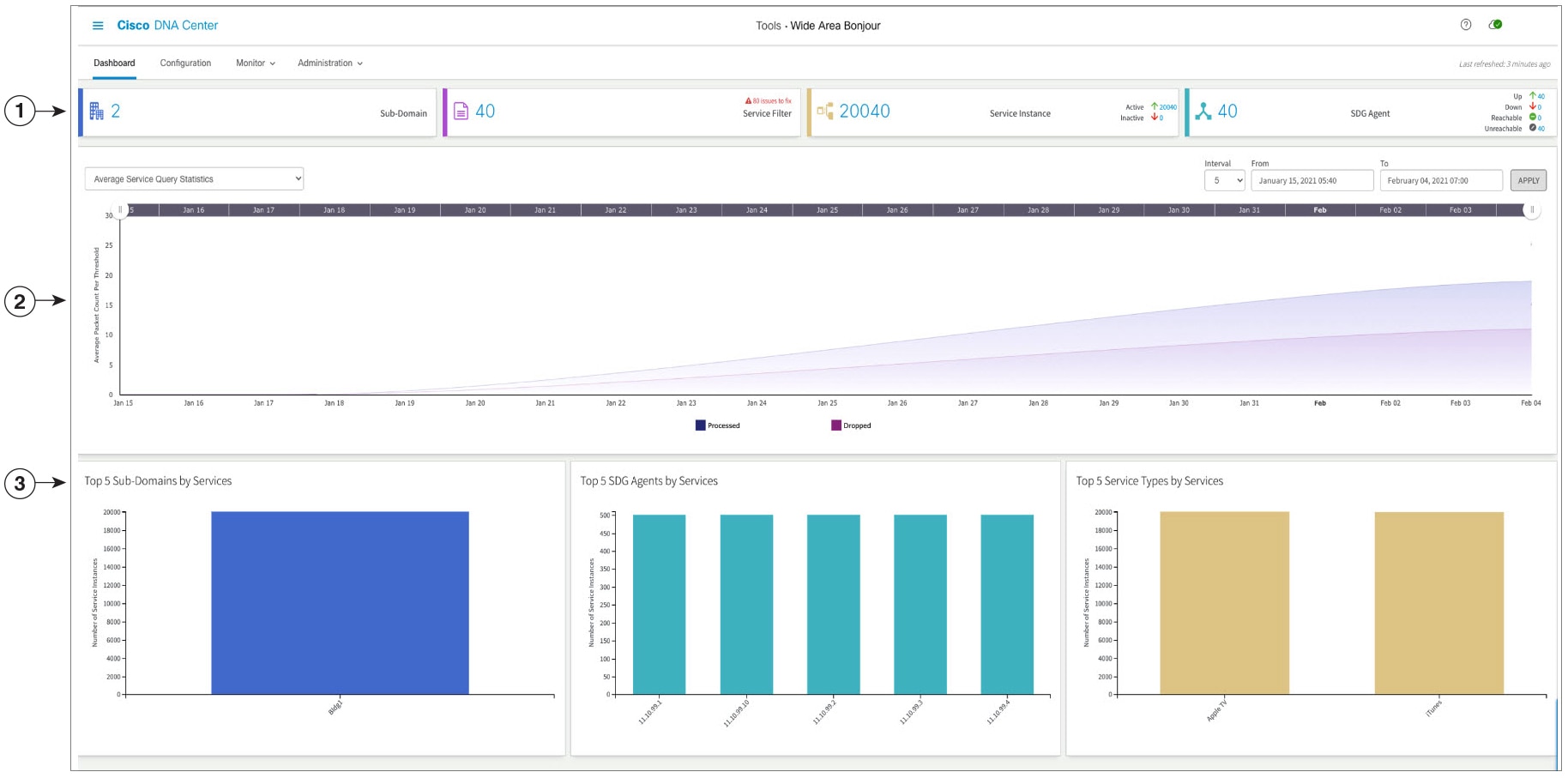
The Cisco Wide Area Bonjour dashboard provides real-time, aggregated information about service counts, and state visibility combined with top talkers across the Wide Area Bonjour domain. The Cisco Wide Area Bonjour application home page is divided into three layouts that provide key indicators of the overall health of the Wide Area Bonjour domain. These domains show the SDG agent device reachability, service routing status, and query statistics in real time.

The following figure shows the Cisco Wide Area Bonjour application dashboard.

Figure 1. Cisco Wide Area Bonjour Application Dashboard

1

Dashlets

3

Top talkers

2

Service query

The following table describes the Cisco Wide Area Bonjour application dashboard functions.

Table 1. Cisco Wide Area Bonjour Application Dashboard Functions
Management Function

Dashlets

Dashlets provide a quick statistical view of policy configuration and global service routing status. Dashlets are divided into the following categories, which provide unique service assurance capabilities:

  • Subdomain: Total count of configured subdomains in the Cisco Wide Area Bonjour application. A subdomain is a logical grouping of network devices, policies, and mDNS services that can be represented in an enterprise network location, such as Bldg-1.

  • Service Filter: Total count of service filter policies configured across all subdomains of the Cisco Wide Area Bonjour application. The service filter count includes active and inactive policies.

  • Service Instance: Total dynamically discovered service instance count from all SDG agent switches across the Wide Area Bonjour domain. The service instance count includes active and inactive entries.

  • SDG Agent: Provides assurance information:

    • Total number of SDG agent switches in UP state with service routing in operational state.

    • Total number of SDG agent switches in DOWN state with service routing in nonoperational state.

    • Total number of SDG agent switches in REACHABLE state with operational IP connectivity.

    • Total number of SDG agent switches in UNREACHABLE state with nonoperational IP connectivity.

Service Query – Average Statistics

Provides a historical chart view of the average number of mDNS service query messages that the Cisco DNA Center received from each SDG agent. The SDG agent sends these messages to discover services for locally attached wired or wireless endpoints. You can adjust the chart based on the date, time range, and minute interval providing deeper and more granular statistics counters within the provided time series. Two-layer average service query charts provide the following statistics:

  • Processed: The Cisco Wide Area Bonjour classify and mark Processed for a complete flow of incoming service discovery request is successfully matched with policy permission and outgoing service distribution to each querying SDG agent.

  • Dropped: The Cisco Wide Area Bonjour classify and mark Dropped for incoming service discovery request and policy permission has a mismatch from each querying SDG agent.

Service Query – Cumulative Statistics

Provides a historical chart view of the total or cumulative number of mDNS service query messages that the Cisco DNA Center received from all SDG agents. The SDG agents send these messages to discover services for locally attached wired or wireless endpoints. The chart can be adjusted based on the date, time range, and minute interval providing deeper and more granular cumulative statistics counters within the provided time series. Two-layer average service query charts provide the following statistics:

  • Processed: Aggregated statistics for the Cisco Wide Area Bonjour classify and mark Processing for a complete flow of incoming service discovery request is successfully matched with policy permission and outgoing service distribution to all querying SDG agents.

  • Dropped: Aggregated statistics for the Cisco Wide Area Bonjour classify and mark Dropped for incoming service discovery request and policy permission has a mismatch from all querying SDG agents.

Top Talkers

A bar chart for top talkers across the Wide Area Bonjour domain. The top-talker charts are divided into the following categories to determine overall service scale count by instance, location, and type:

  • Top Subdomain: The top-five subdomains in the Wide Area Bonjour domain advertising the highest mDNS service instance count. The total service instance count is an aggregated value that may source from one or more SDG agent switches.

  • Top SDG Agent: The top-five SDG agent switches in the Wide Area Bonjour domain advertising the highest mDNS service instance count. The total service instance count is an aggregated value that may source from one or more downstream service peer devices.

  • Top Service Instance: The top-five mDNS service types in the Wide Area Bonjour domain with the highest service instance count. The total service instance count by service type may source through multiple subdomains, SDG agents, and service peer devices in the network.

Subdomain 360°

Network administrators can get a 360° statistics view of the subdomain and associated parameters from the Configuration tab. The 360° statistics provide information at the individual subdomain level instead of global-level visualization on the dashboard. The Subdomain 360° view lets you navigate the different levels of the hierarchical domain structure and verify the aggregated statistics for policy configuration, service instance count, and more.

The Subdomain 360° view can be grouped into two-level parameters for service filter policy and SDG agent of the selected subdomain.

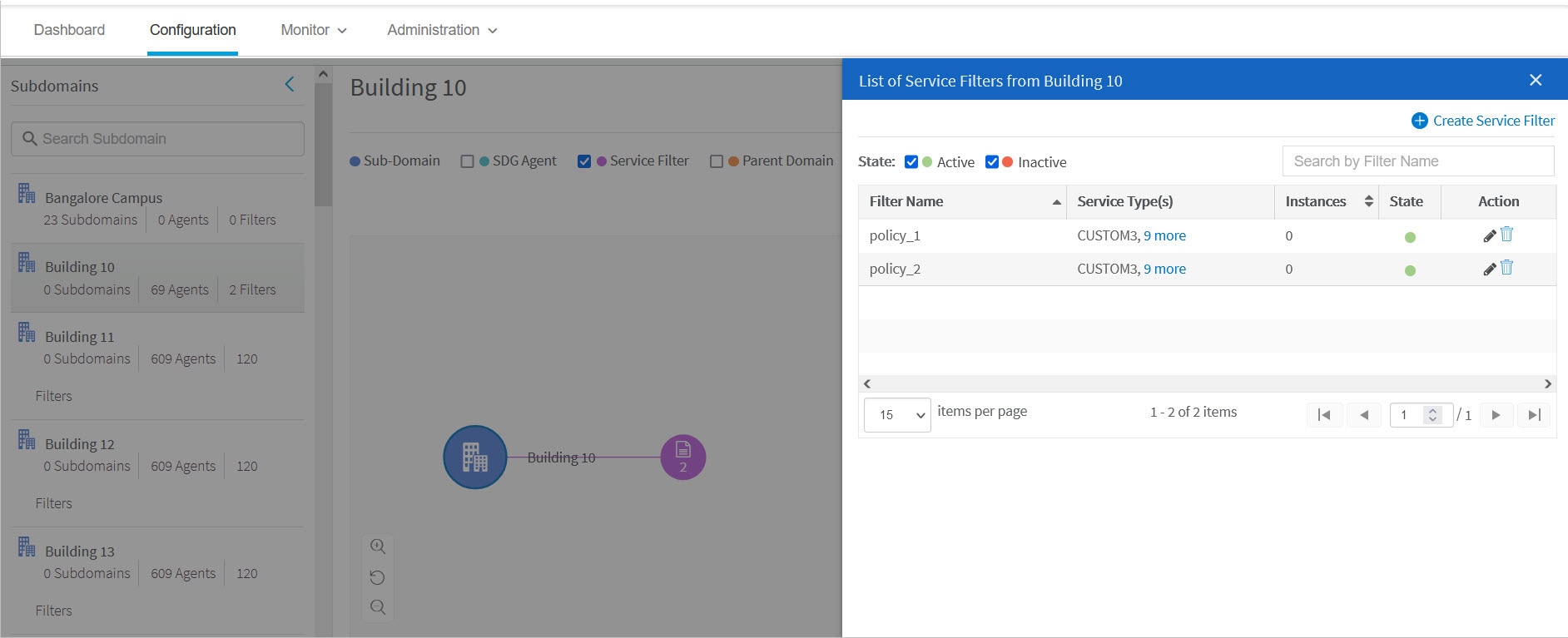
The following figure shows the Subdomain 360° view for Service Filter statistics.

Figure 2. Subdomain 360° View for Service Filter

To open the Subdomain 360° view for service filter, complete the following steps.

Procedure


Step 1

Navigate to the Configuration tab in the Cisco Wide Area Bonjour application.

Step 2

From the sidebar, select the subdomain.

Step 3

Check the Service Filter check box to expand the hierarchy and verify the aggregated service filter counts for the selected subdomain.

Step 4

Click the Service Filter icon to open the 360° panel and create a new service filter or verify information about an existing service filter, described as follows.

Management Function

Filter Name

Displays the user-defined service filter name of the selected subdomain.

Service Type(s)

Displays a collapsed list of one or more permitted service types in the configured service filter. Click again to verify the expanded list.

Instances

Displays the aggregated service instance count permitted by the selected service filter.

State

Displays the status of the selected service filter.

  • Green: The service filter is active and can perform service routing in the Wide Area Bonjour domain.

  • Red: The service filter is inactive and disabled by the network administrator for service routing in the Wide Area Bonjour domain.

Action

Click the pencil icon to update an existing service filter. To delete a service filter, click the trash icon.

Active

Check the check box to filter the service filter list by Active state. The default state is checked.

Inactive

Check the check box to filter the service filter list by Inactive state. The default state is checked.

Search

Search for a service filter by exact name or initial characters.

Items per Page

Displays the service filter count per page. The range is from 15 to 75; the default is 15.


Subdomain 360° View of an SDG Agent

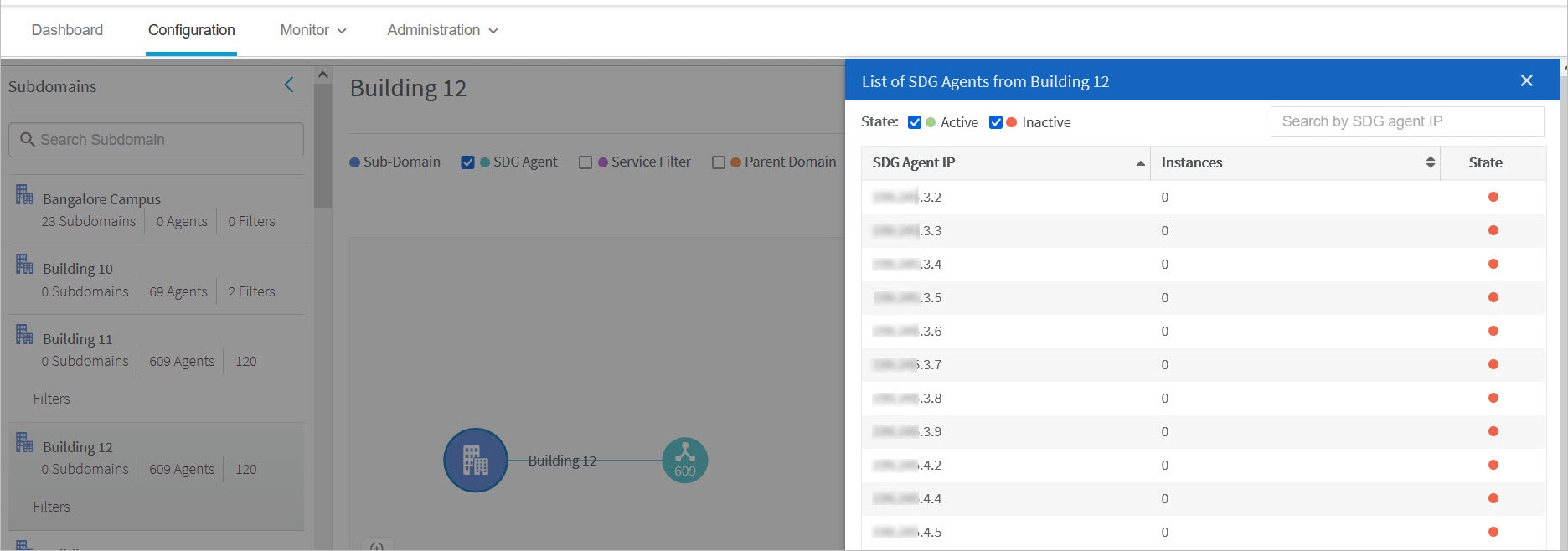
The following figure shows the Subdomain 360° view for SDG agent statistics.

Figure 3. Subdomain 360° View for SDG Agent

To open the Subdomain 360° view for an SDG agent, complete the following steps.

Procedure


Step 1

Navigate to the Configuration tab in the Cisco Wide Area Bonjour application.

Step 2

From the sidebar, select the subdomain.

Step 3

Check the SDG Agent check box to expand the hierarchy and verify the aggregated SDG agent counts for the selected subdomain.

Step 4

Click the SDG Agent icon to open the 360° panel and verify aggregated statistics and status for an existing SDG agent, described as follows.

Management Function

SDG Agent IP

Displays the IPv4 address paired with Cisco Wide Area Bonjour for service routing with the SDG agent switch on the selected subdomain.

Instances

Displays the aggregated service instance count learned from the SDG agent configured in the source role.

State

Displays the service routing status between Cisco DNA Center and the SDG agent switches.

  • Green: The SDG agent is reachable and service routing is in operational state to advertise and query mDNS services in the Wide Area Bonjour domain.

  • Red: The SDG agent is reachable or unreachable and service routing is nonoperational.

Active

Check the check box to filter the SDG agent list by Active state. The default state is checked.

Inactive

Check the check box to filter the SDG agent list by Inactive state. The default state is checked.

Search

Enter the SDG agent IPv4 address to search by address or initial numerical value for multiple matching digits.

Items per Page

Displays the SDG agent count per page. The range is from 15 to 75; the default is 15.


Wide Area Bonjour Monitor

The Cisco Wide Area Bonjour application provides detailed assurance capabilities for day-2 operations under the Monitor tab. The Monitor section is divided into three major categories. Each category provides unique information to manage service routing and instances from a single pane of glass in Cisco DNA Center.

Monitor an SDG Agent

The Monitor > SDG Agents function provides a list of network devices associated to service policies of the Cisco Wide Area Bonjour application. The detailed view shows the communication path, role, state, and more. Network administrators can quickly determine the operational state and manually synchronize service instances from the selected source SDG agent.

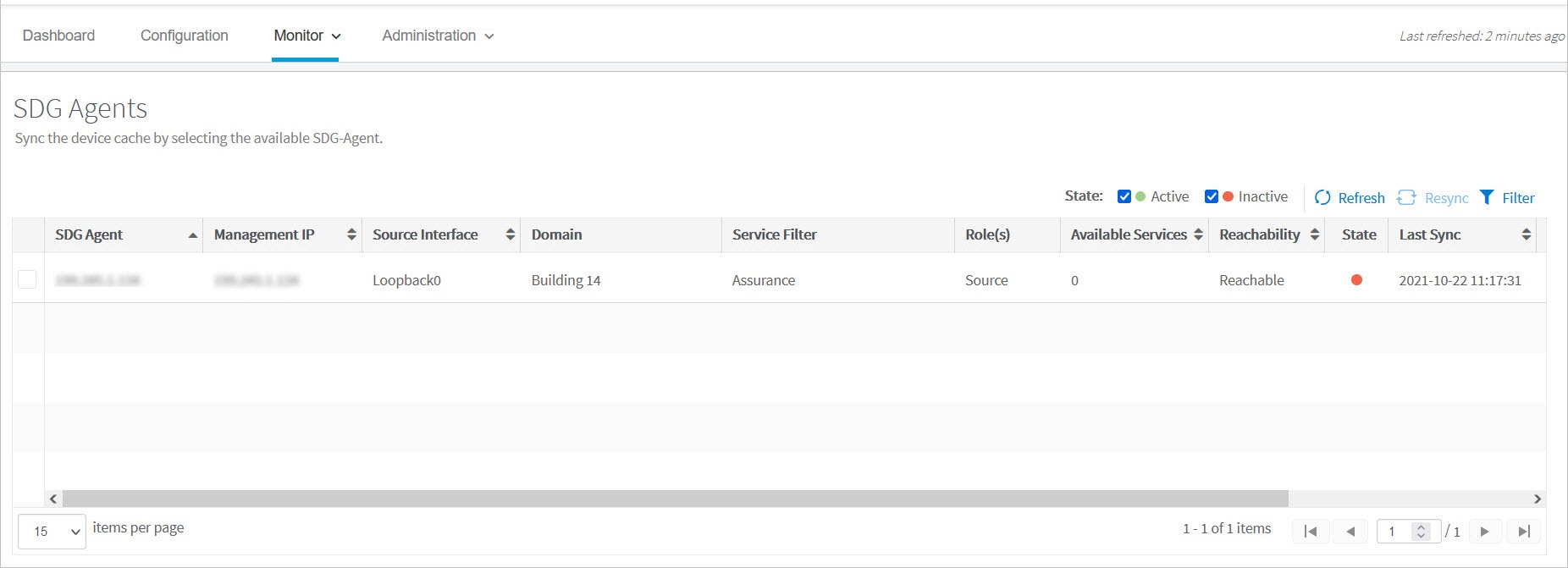
The following figure shows how to monitor each associated SDG agent with the Cisco Wide Area Bonjour application for global service routing.

Figure 4. Monitor SDG Agents

Network administrators can monitor and manage the status of each associated SDG agent switch in the network, described as follows.

Table 2. Monitor SDG Agent Functions
Management Function

SDG Agent IP

The SDG agent IPv4 address paired with Cisco DNA Center for service routing in the Cisco Wide Area Bonjour application.

Management IP

The IPv4 address of the SDG agent switch paired with the Cisco DNA Center network inventory for device management.

Source Interface

The source interface ID (such as Loopback) used on the selected SDG agent for service routing with the Cisco Wide Area Bonjour application.

Domain

The subdomain name where the selected SDG agent is associated to support service routing.

Service Filter(s)

The collapsed view of one or more service filters associated with the selected SDG agent switch. Click more to view the full list.

Role(s)

The SDG agent role can be verified as Source or Query across multiple service filters:

  • Source: The selected SDG agent is expected to connect service providers (such as Apple TV) and announce mDNS service instances to the Cisco Wide Area Bonjour application.

  • Query: The selected SDG agent is expected to connect service queriers (such as Apple iPad) and query mDNS service instances to the Cisco Wide Area Bonjour application.

Available Services

The total dynamically received service instance count from the selected source SDG agent switch. The total count includes service instances in Active and Inactive states in the Cisco Wide Area Bonjour application.

Reachability

The IP reachability between Cisco DNA Center and the selected SDG agent switch.

  • Green: The selected SDG agent is reachable and in managed state in the Cisco DNA Center device inventory.

  • Red: The selected SDG agent is unreachable or failed to reach managed state in the Cisco DNA Center device inventory.

State

The service routing status between Cisco DNA Center and the SDG agent switches.

  • Green: The SDG agent is reachable and service routing is in operational state to advertise and query mDNS services in the Wide Area Bonjour domain.

  • Red: The SDG agent is reachable or unreachable and service routing is nonoperational.

Last Sync

The last date and time when Cisco Wide Area Bonjour automatically or manually synchronized the mDNS service instance with one or more source SDG agent switches.

Resync

The Cisco Wide Area Bonjour application lets network administrators manually synchronize the mDNS service instance with one or more selected source SDG agent switches.

  1. Check the check box in the first column to select one or more SDG agents in the source role.

  2. Click the Resync button on the top-right side of the SDG agent table.

Resync Status

The mDNS service instance resynchronization status between the Cisco Wide Area Bonjour application and the source SDG agent switches in the network:

  • Successful: Complete mDNS service instance and respective information is fully synchronized between the Cisco Wide Area Bonjour application and the selected source SDG agent switches in the network.

  • In Progress: mDNS service instance synchronization is in progress between the Cisco Wide Area Bonjour application and the selected source SDG agent switches in the network.

  • Failed: Cisco Wide Area Bonjour failed to complete resynchronization of service instance information within the allotted time with one or more source SDG agent switches.

  • Not Initiated: Service routing with the source SDG agent is in nonoperational state, or the SDG agent is in a query role and service instance record resynchronization is not required.

Active

Check the check box to filter the SDG agent list by Active state. The default state is checked.

Inactive

Check the check box to filter the SDG agent list by Inactive state. The default state is checked.

Items per Page

The SDG agent count per page. The range is from 15 to 75; the default is 15.

SDG Agent Filter

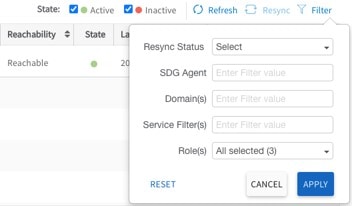
In large-scale enterprise network environments, network administrators can filter the SDG agent list with variable parameters. The following figure shows the SDG agent filter.

Figure 5. SDG Agent Filter

Procedure


Step 1

Navigate to the Monitor tab in the Cisco Wide Area Bonjour application.

Step 2

Expand the drop-down menu and choose SDG Agent.

Step 3

Above the SDG agent table, click Filter.

Step 4

Choose filter criteria as described in the following table.

Management Function

Resync Status

Choose Single, Multiple, or All to filter source SDG agents by current resynchronization status.

SDG Agent

The source SDG agent IPv4 address used for service routing with the Cisco Wide Area Bonjour application.

Domain(s)

The subdomain name where the SDG agents are associated to support service routing.

Service Filter(s)

The service filter name where the SDG agents are associated to support service routing.

Role(s)

Choose Source, Query, or All to filter SDG agents by configured role.

Step 5

Click Apply.


Monitor Service Instance

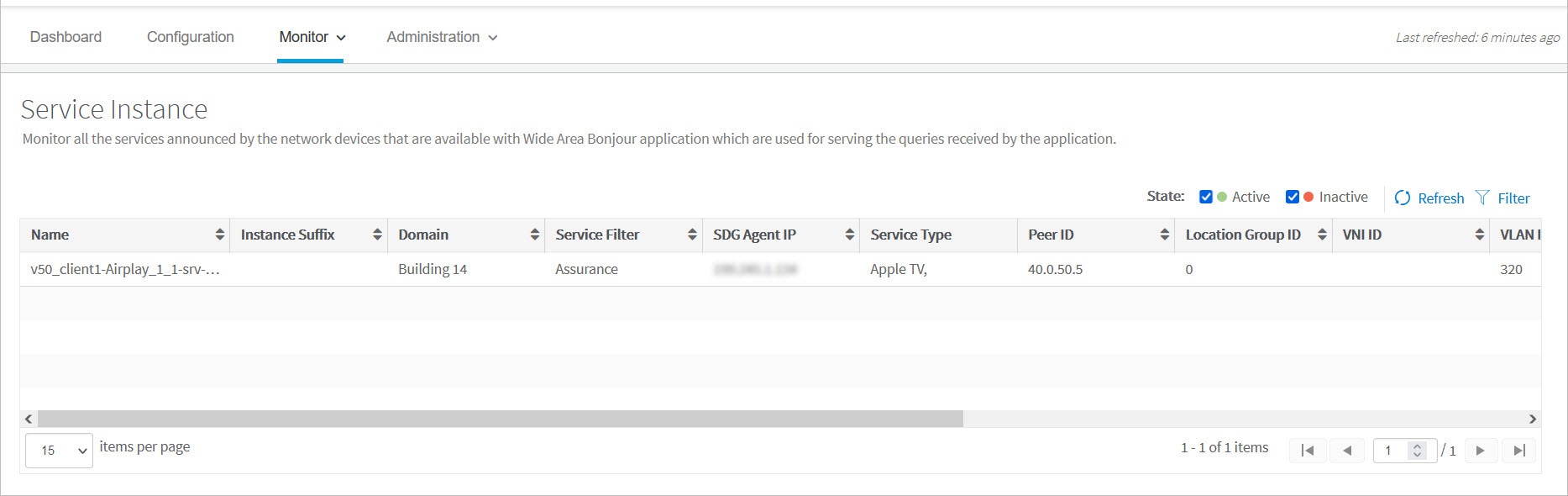
Cisco DNA Center dynamically discovers network-wide service instances via service routing communication with source SDG agent switches. The Service Instance window provides detailed information of each instance and its respective address, location and routing state in the Wide Area Bonjour domain.

The following figure shows how to monitor dynamically discovered mDNS service instances from source SDG agent with Cisco Wide Area Bonjour application for global service routing.

Figure 6. Monitor Service Instance
Monitor Service Instance

Network administrators can monitor and manage the status of each associated service instance in the network, as shown in the following table.

Table 3. Monitor Service Instance Functions
Management

Function

Name

The mDNS service provider-announced instance name across the Wide Area Bonjour domain, such as FL1-Printer.

Instance Suffix

The network administrator-appended text to the original announced mDNS instance name. For example, the Zone1 suffix is added to the original instance name FL1-Printer and becomes FL1-Printer-Zone1.

Domain(s)

The source subdomain name where the service instance is discovered dynamically.

Service Filter(s)

The name of the service filter in which the policy is validated, and the service instance accepted from a valid source SDG agent switch.

SDG Agent IP

The IP address of the source SDG agent switch of the selected service instance.

Service Type(s)

The collapsed view of service types for the selected service instance. Click more to view the full list.

Peer ID

The IPv4 address of the first-hop Catalyst switch or wireless controller in the service peer role that is directly attached to the service provider. This peer announces the mDNS service in the Wide Area Bonjour domain through the intermediate source SDG agent switch. The entry is empty if the service instance learned from the service provider is attached to the SDG agent, or if the SDG agent is connected to an intermediate Layer 2 mDNS flood device to reach the service provider.

Location Group ID

The location group ID of the service instance.

VNI ID

The mDNS service instance sourced from the BGP EVPN Layer 2 or Layer 3 virtual network ID (VNI) from the SDG agent in overlay VXLAN tunnel endpoint (VTEP) or border network roles.

VLAN ID

The mDNS service instance discovered from the source SDG agent from a specific unicast-mode Layer 2 VLAN ID. The service instance discovered from mDNS flood mode is empty.

TTL

The Time-to-Live (TTL) value of mDNS service instance records announced by source SDG agent switches in the Wide Area Bonjour domain.

Instance IPv4

The IPv4 address announced in the mDNS A record by the selected source mDNS service instance.

Instance IPv6

The IPv6 address announced in the mDNS AAAA record by the selected source mDNS service instance.

MAC Address

The MAC address of the source mDNS service provider discovered and announced by the source SDG agent.

State

The mDNS service instance maintains the following routing states in the Cisco Wide Area Bonjour application:

  • Active: The selected mDNS service instance is available with original source information and distributed when queried in the Wide Area Bonjour domain.

  • Inactive: The selected mDNS service instance is unavailable from the original source information and is not distributed when queried in the Wide Area Bonjour domain.

Active

Check the check box to filter the service instance list by Active state. The default state is checked.

Inactive

Check the check box to filter the service instance list by Inactive state. The default state is checked.

Items per Page

The service instance count per page. The range is from 15 to 75; the default is 15.

Service Instance Filter

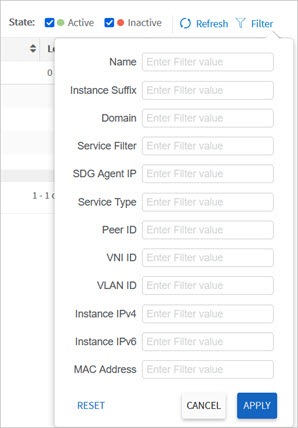
In large-scale enterprise network environments, you can filter the service instance list with variable parameters. The following figure shows the service instance filter.

Figure 7. Service Instance Filter
Service Instance Filter

Procedure


Step 1

Navigate to the Monitor tab in the Cisco Wide Area Bonjour application.

Step 2

Expand the drop-down list and choose Service Instance.

Step 3

Above the service instance table, click Filter.

Step 4

Choose one of following the filter criteria.

Management Function

Name

Search by the exact service filter name or search by initial characters.

Instance Suffix

Search by the exact instance suffix name or search by initial characters.

Domain(s)

Search by the exact subdomain name or search by initial characters.

Service Filter(s)

Search by the exact service filter name or search by initial characters.

SDG Agent IP

Enter the SDG Agent IPv4 address to search by address, or enter initial numerical values for multiple matching digits.

Service Type(s)

Search by the exact service type or search by initial characters.

Peer ID

Enter the source service peer switch or wireless controller IPv4 address to search by address, or enter initial numerical values for multiple matching digits.

VNI ID

Enter the source BGP EVPN Layer 2 or Layer 3 VNI ID to search by ID, or enter initial numerical values for multiple matching digits. The range is from 4096 to 16777215.

VLAN ID

Enter the unicast mode source Layer 2 VLAN ID to search by ID, or enter initial numerical values for multiple matching digits. The range is from 1 to 4094.

Instance IPv4

Enter the source service instance IPv4 address to search by address, or enter initial numerical values for multiple matching digits.

Instance IPv6

Enter the source service instance IPv6 address to search by address, or enter initial numerical values for multiple matching digits.

MAC Address

Enter the source service instance MAC address name to search by MAC address, or enter initial numerical values for multiple matching digits. The supported format is 00:00:00:00:00.

Step 5

Click Apply.


Troubleshoot the Cisco Wide Area Bonjour Application

The Cisco Wide Area Bonjour application supports built-in troubleshooting capabilities that allow network administrators to debug service routing, discovery, and distribution problems in the network. You can collect troubleshooting logs from the Cisco DNA Center back end at various levels based on a date and time range. Troubleshooting reports are generated in simple CSV format and downloaded locally to review problems based on selected logging level parameters.

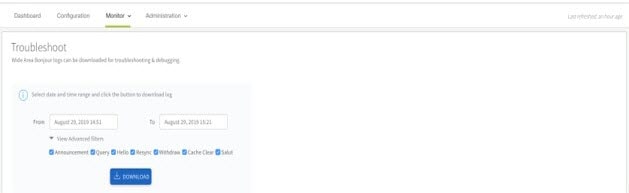
Troubleshooting reports are also useful to share with Cisco support. The following figure shows the Troubleshoot window of the Cisco Wide Area Bonjour application.

Figure 8. Cisco Wide Area Bonjour Application Troubleshoot Window

Procedure


Step 1

Navigate to the Monitor tab in the Cisco Wide Area Bonjour application.

Step 2

From the drop-down menu, choose Troubleshoot.

Step 3

Choose the From and To dates to download log files for a specific date range to your local computer.

Step 4

Choose advanced filter criteria as described in the following table, then click Download.

Advanced Filter Type Description

Announcement

Choose Announcement when the SDG agent-announced services cannot be found on Cisco DNA Center.

Query

Choose Query when wired or wireless users cannot see remote services from Cisco DNA Center.

Hello

Choose Hello when the service routing peering session between Cisco DNA Center and the SDG agent is unstable or cannot be established.

Resync

Choose Resync when manual service resynchronization is triggered from Cisco DNA Center to one or more SDG agents.

Withdraw

Choose Withdraw to collect information when the source SDG agent sends a service withdrawal message to prevent global distribution.

Cache Clear

Choose Cache Clear to collect logs for all service withdrawal messages from the SDG agent with a manual CLI step.

Salut

Choose Salut for initial communication messages between the SDG agent and Cisco DNA Center.