Work with Wireless 2D and 3D Floor Maps

Work with Floor Maps

There are several reasons to add floors with floor maps. One reason is to see your wireless network the way it exists today. Another reason is to help you plan and visualize future changes.

You can visualize your wireless network by creating or importing a floor map that contains various building components, like walls and windows, and then positioning your wireless devices on it. Using the floorplan, Cisco DNA Center computes 2D and 3D heatmaps that show the relative intensity of the RF signals in the coverage area. For 2D wireless maps, the heatmap is only an approximation of the actual RF signal intensity because it does not consider the attenuation of various building materials, such as drywall or metal objects, nor does it display the effects of RF signals bouncing off obstructions. In either case, we recommend that you import a file with an existing floor plan to get started.

Interactive planning helps you plan a floor layout by drawing planned, or hypothetical, APs and obstacles with a raster image or a CAD floor plan as the backdrop. You can export the floor map as a PDF and share it with the technicians who are mounting the APs. The floor drawing helps the technicians to visualize the floor layout and the exact AP mount locations.

With interactive floor planning, you can:

  • Create a floor layout with a raster or CAD floor plan as the canvas.

  • Place the planned APs or hypothetical APs on the floor map based on the signal coverage requirement. These hypothetical APs or planned APs are not yet installed or discovered by Cisco DNA Center.

  • Assign the antenna type and orientation.

  • Draw obstacles, such as walls and shelving on the floor, that impact the signal attenuation.

  • Plan all APs in sequence.

  • Export the floor map as a PDF.

Add a Floor with a Map File

When you create a floor, you can include a floor map at the same time. The following topics help you understand the different floor creation methods depending on the floor map file type that you use. Procedures for each method are also provided.

Floor Plans Overview

To view a wireless map, first you need to create a floor plan. There are three ways to create a floor plan for a wireless map:

  • Import a CAD file: When you use a CAD file (DXF or DWG file type) to import the floor plan, Cisco DNA Center imports the CAD layers and allows you to specify which layers appear as floor elements in the wireless map.

    Because the computation of a 3D heatmap requires significant computing power, we recommend that you include only the CAD layers that contribute significantly to the heatmap computation. You should include enough information to get an accurate heatmap, but not unnecessary information that overloads the computation process and delays the heatmap display.

    Cisco DNA Center takes these initial steps to minimize the time it takes to generate a heatmap:

    • Restricts the maximum number of walls for 2D and 3D maps. The maximum number of walls for a 3D heatmap is 3000, after optimization. If your CAD file contains more, Cisco DNA Center alerts you and preserves the 3000 most relevant walls (based on the length of the wall multiplied by its attenuation).

      The maximum number of walls for a 2D heatmap is 300, after optimization. If your CAD file contains more, Cisco DNA Center alerts you and preserves the 300 most relevant walls (based on the length of the wall multiplied by its attenuation).

    • Automatically removes small obstructions (under 0.75 ft) and the second sides of the walls, leaving only one side per wall. (Cisco DNA Center applies an attenuation value for each wall, not for each side of a wall.)

    When deciding which layers and elements to import, focus on obstacles that create the most attenuation. In principle, the longer and thicker a wall is, the higher its attenuation. Low walls, like cubicles, and narrow walls, like columns, have low attenuation and have little affect on the heatmap. Even if the material of an obstacle is heavy, the attenuation is not significant, because the signal can radiate around the obstacle. Likewise, if you are not interested in the coverage outside of a building, do not include external walls or windows. Doing so provides better 3D visualization of the inside of the building.

    If your CAD file does not have walls in specific layers, but has walls mixed with other elements, do not select them for import. You can add walls manually later. For information, see Add Walls.

    Block inserts and proxy entities cannot be imported. Please make imported layers contain only native elements like lines, polylines, arcs, and so on.

    For the procedure, see Create a Floor Map Using a CAD File.

  • Import a non-CAD image file: You can use the file types JPG, GIF, PNG, or PDF to import the floor plan. Typically, this type of file is used to create 2D floor maps. However, you need to manually create the floor elements, such as the walls and shelving, for them to be represented in the wireless map. For the procedure, see Create a Floor Map Using a Non-CAD File.

  • Import a Ekahau Pro Project plan: You can import Ekahau project data, such as the obstacles, APs, and more, into create a wireless map. For the procedure, see Create a Floor Map Using an Ekahau Project File.

Guidelines for Image Files to Use in Maps

  • Use a graphical application that can save the map image files to any of these formats: .jpg, .gif, .png, .pdf, .dxf, and .dwg.

  • Ensure that the dimension of an image is larger than the combined dimension of all the buildings and outside areas that you plan to add to the campus map.

  • Map image files can be of any size. Cisco DNA Center imports the original image to its database at a full definition, but during display, it automatically resizes them to fit the workspace.

  • Obtain the horizontal and vertical dimensions of the site in feet or meters before importing. This helps you to specify these dimensions during map import.

Create a Floor Map Using a CAD File

To view a wireless map, you must create a floor map.

You can use CAD files (the DXF or DWG file type) to create a floor map.

For 2D floor maps, you must choose the CAD layers that you want to appear in the 2D view. For 3D floor maps, Cisco DNA Center imports the CAD layers as the walls, shelving, obstacles, and other elements in the map.

Procedure


Step 1

Click the menu icon () and choose Design > Network Hierarchy.

Step 2

In the left Hierarchy pane, hover your cursor over the ellipsis next to the building and choose Add Floor.
Step 3

In the Floor Name field, enter a name for the floor.

The Floor Name field has the following restrictions:

  • The floor name cannot exceed 40 characters.

  • Special characters & > < ? ' " / [ ] aren't allowed.

Step 4

For the Type (RF Model) drop-down list, choose the RF model to apply to the floor.

Note


The RF model determines how the RF is calculated based on the characteristics of the floor.

Step 5

Drag and drop the CAD file (the DXF or DWG file type) to the Floor Image area.

Note


After you import a floor plan, make sure that you enable the overlay visibility. (From the floor, click View Options and enable the overlay toggles in Overlay Objects). By default, overlays are not displayed after you import a map.

Step 6

In the Floormap pop-up window, choose the CAD layers that you want to appear as floor elements in the map:

  1. For the 2D column, check the check boxes of the CAD layer that you want to appear in the 2D view.

  2. For the 3D Wall/Shelving Type column, use the drop-down list to choose a CAD layer that specifies the type of the wall or shelving.

    Note


    For a layer to appear in the 3D view, a 3D Wall/Shelving Type value is required. The wall/shelving type affects attenuation and how the heatmap is calculated. For more information, see Floor Plans Overview.

  3. Click Use Selected Layers.

Step 7

Enter the floor map dimensions in the Width, Length, and Height fields.

Step 8

Click Add.


Create a Floor Map Using a Non-CAD File

You can use non-CAD files (a JPG, GIF, PNG, or PDF file type) to create a floor map. However, when using a non-CAD file, the 3D floor elements, such as the walls and shelving, cannot be imported, and you need to add them manually later. For more information, see Configure Floor Map Elements and Overlays in 2D Maps.

Procedure


Step 1

Click the menu icon () and choose Design > Network Hierarchy.

Step 2

In the left Hierarchy pane, hover your cursor over the ellipsis next to the building and choose Add Floor.

Step 3

In the Floor Name field, enter a name for the floor.

The Floor Name field has the following restrictions:

  • The floor name cannot exceed 40 characters.

  • Special characters & > < ? ' " / [ ] aren't allowed.

Step 4

From the Type (RF Model) drop-down list, choose the RF model to apply to the floor.

Note


The RF model determines how the RF is calculated based on the characteristics of the floor.

Step 5

Drag and drop the non-CAD file (a JPG, GIF, PNG, or PDF file type) onto the Floor Image area.

Note


Be sure to provide the precise dimensions of floors that are in PDF format, because the image width and height ratio cannot be extracted from them.

Step 6

Click Add.

The floor map is created.

Step 7

From the map toolbar, click Add/Edit.

Step 8

To add walls as a 3D floor element, do the following:

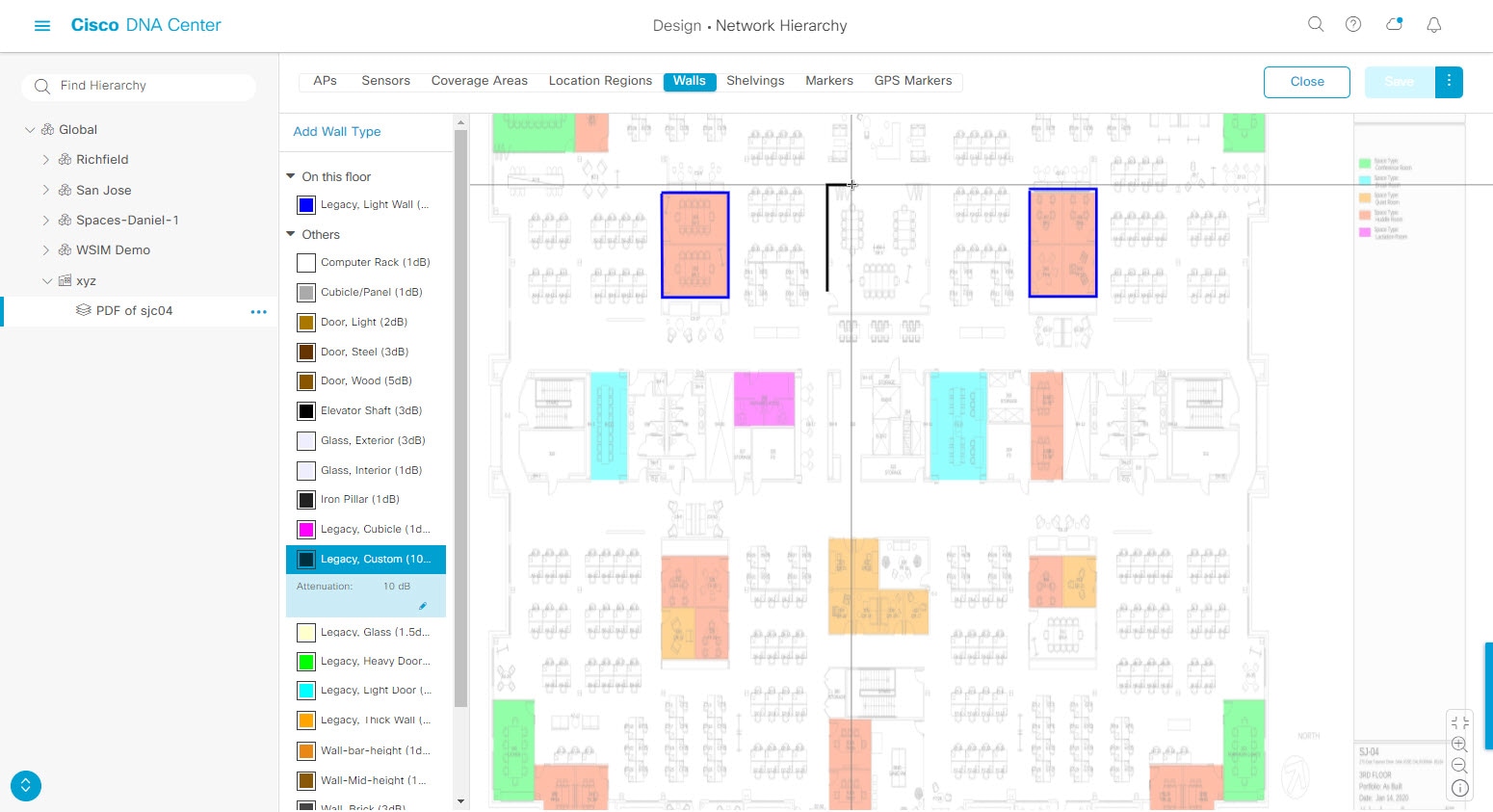
  1. From the map toolbar, click the Walls toggle to add the appropriate floor element.

  2. From the left pane of the map, click the wall type that you want to add.

    • If the wall type is not in the list, click Add Wall Type to create a new wall type.

  3. Use the drawing tool to create the wall area:

    • Click the map to create a point. Continue creating points until you have created the shape for the wall.

    • To finalize a shape, click the wall type of the shape from the left pane to exit drawing mode. Alternatively, double-click the map to finalize the shape. If you want to cancel the shape, right-click the map.

    • To change the type of an existing wall, right-click the shape and choose Change Type.

    • To move an existing wall, drag and drop the shape to the new location.

    • To remove an existing wall, right-click the shape and choose Delete.

    Figure 1. Adding a Wall with the Drawing Tool

Step 9

To add shelving units as a 3D floor element, do the following:

  1. In the map toolbar, click Shelving Units.

  2. In the left pane of the map, click the shelving type that you want to add.

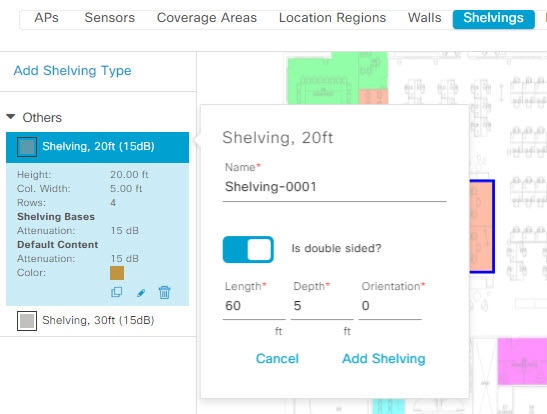
    • In the Shelving dialog box, you can edit the name, dimensions, and orientation of the shelving type. Orientation refers to the angle of the shelving, for example, 0 means that the shelving is vertical and parallel to the y axis.

    • If a shelving type is not in the list, click Add Shelving Type to create a new shelving type.

    Figure 2. Choosing a Shelving Type to Add
  3. In the Shelving dialog box, click Add Shelving to add the shelving to the floor map.

  4. Drag and drop the shelving to move it to a location on the floor map.

  5. Right-click the shelving and choose one of the following actions:

    • Edit: Edit the name, dimensions, and orientation of the shelving.

    • Clone: Create a copy of the shelving.

    • Array: Create an array of shelving by specifying the number of shelves and the distance between them.

    • Delete: Remove the shelving from the floor map.

Step 10

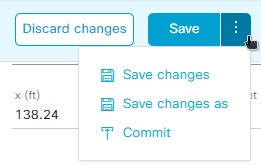
When you are done, click Save on the map toolbar.


Work with 2D Maps

2D maps are primarily used to configure elements on the floor map. Using 2D maps, you can add floor map elements and overlays and view heatmaps.

While viewing a 2D map, you can manipulate the display of the various elements and overlays. You can also filter device data and identify wireless interferers.

Configure Floor Map Elements and Overlays in 2D Maps

While viewing a 2D map, click Add/Edit from the map toolbar to enter edit mode. While in edit mode, you can do the following:

  • Add, position, and delete the following devices:

    • Access points (APs) and planned access points (PAPs)

    • Sensors

  • Add, edit, and delete the following overlay objects:

    • Coverage areas

    • Location regions

    • Walls

    • Shelving units

    • Markers

    • GPS markers

Work With APs on a Floor Map

Cisco DNA Center computes heatmaps for the entire map that show the relative intensity of the Radio Frequency (RF) signals in the coverage area. For 2D wireless maps, the heatmap is only an approximation of the actual RF signal intensity because it does not consider the attenuation of various building materials, such as drywall or metal objects, nor does it display the effects of RF signals bouncing off obstructions.

Follow these guidelines while placing APs on the floor map:

  • Place APs along the periphery of coverage areas to keep devices close to the exterior of rooms and buildings. APs placed in the center of these coverage areas provide good data on devices that would otherwise appear equidistant from all other APs.

  • Location accuracy can be improved by increasing overall AP density and moving APs close to the perimeter of the coverage area.

  • In long and narrow coverage areas, avoid placing APs in a straight line. Stagger them so that each AP is more likely to provide a unique snapshot of the device location.

  • Although the design provides enough AP density for high-bandwidth applications, location suffers because each AP view of a single device is not varied enough. Therefore, location is difficult to determine. Move the APs to the perimeter of the coverage area and stagger them. Each has a greater likelihood of offering a distinctly different view of the device, resulting in higher location accuracy.

  • For optimal heatmap visibility on floor maps, configure the AP height to approximately 10 feet (3 meters) or lower.

Export Bulk APs from Prime Infrastructure and Import into Cisco DNA Center

Cisco DNA Center allows you to import, assign and position a collection of access points to the floor map. If you have an existing collection of access points on Cisco Prime Infrastructure, you can import it into Cisco DNA Center, saving time and effort spent in importing, assigning, and positioning access points to the floor map.

This procedure describes how to export an existing collection of access points from Cisco Prime Infrastructure, and import into Cisco DNA Center.

Before you begin
  • To perform the following task, you must be a Super Admin or Network Admin.

  • Make sure that you have APs in your inventory. If not, discover them using the Discovery feature.

  • Add and position APs on a floor map.

  • The site, building, and floor must be present in the site hierarchy.

Procedure

Step 1

Export the bulk AP positions from Cisco Prime Infrastructure as a CSV file to your workstation.

Step 2

Click the menu icon () and choose Design > Network Hierarchy.

Step 3

From the left Hierarchy pane, hover your cursor over the ellipsis next to the site and choose Import Bulk AP.

Step 4

In the Import Bulk AP pop-up window, drag and drop the AP file, or click Choose a file to select the file from your workstation.

Note

 
  • To manually create the AP Positions CSV file with Prime Template, export a Prime Template to your workstation by clicking Download Prime Template. Prime Template does not support nested files.

  • To manually create the AP Positions CSV file with Cisco DNA Template, export a Cisco DNA Template to your workstation by clicking Download Template. Cisco DNA Template supports nested files.

Wait for the CSV file to download. The CSV file contains information about AP positions of various sites in the network.

Step 5

Click Import.

The Import Summary window appears.

  • The Information tab shows the list of successfully imported APs.

  • Click the Warning tab to see the list of warnings.

  • Click the Error tab to see the list of errors.


Add APs to a Map

You can add APs one at a time or in bulk.

Before you begin

Make sure that you have Cisco APs in your inventory. If not, discover your APs using the Discovery feature. See Discovery Overview.

Procedure

Step 1

Click the menu icon () and choose Design > Network Hierarchy.

Step 2

From the left hierarchy tree, choose a floor.

Step 3

From the map toolbar, click 2D.

Step 4

From the map toolbar, click Add/Edit.

Step 5

Ensure the APs option is enabled from the map toolbar.

Step 6

From the map left pane, click Add APs.

Step 7

From the Add APs slide-in pane, do one of the following:

  • To add a single AP: Click Add next to an AP that you want to add.
  • To add multiple APs: Check the check boxes next to APs you want to add and click Add Selected.

Note


You can search for APs using the search option available. Use the Filter field to search for APs using the AP name, MAC address, model, or Cisco Wireless Controller. The search is case-insensitive. The search result appear in a table. Click Add to add one or more of these APs to the floor area.

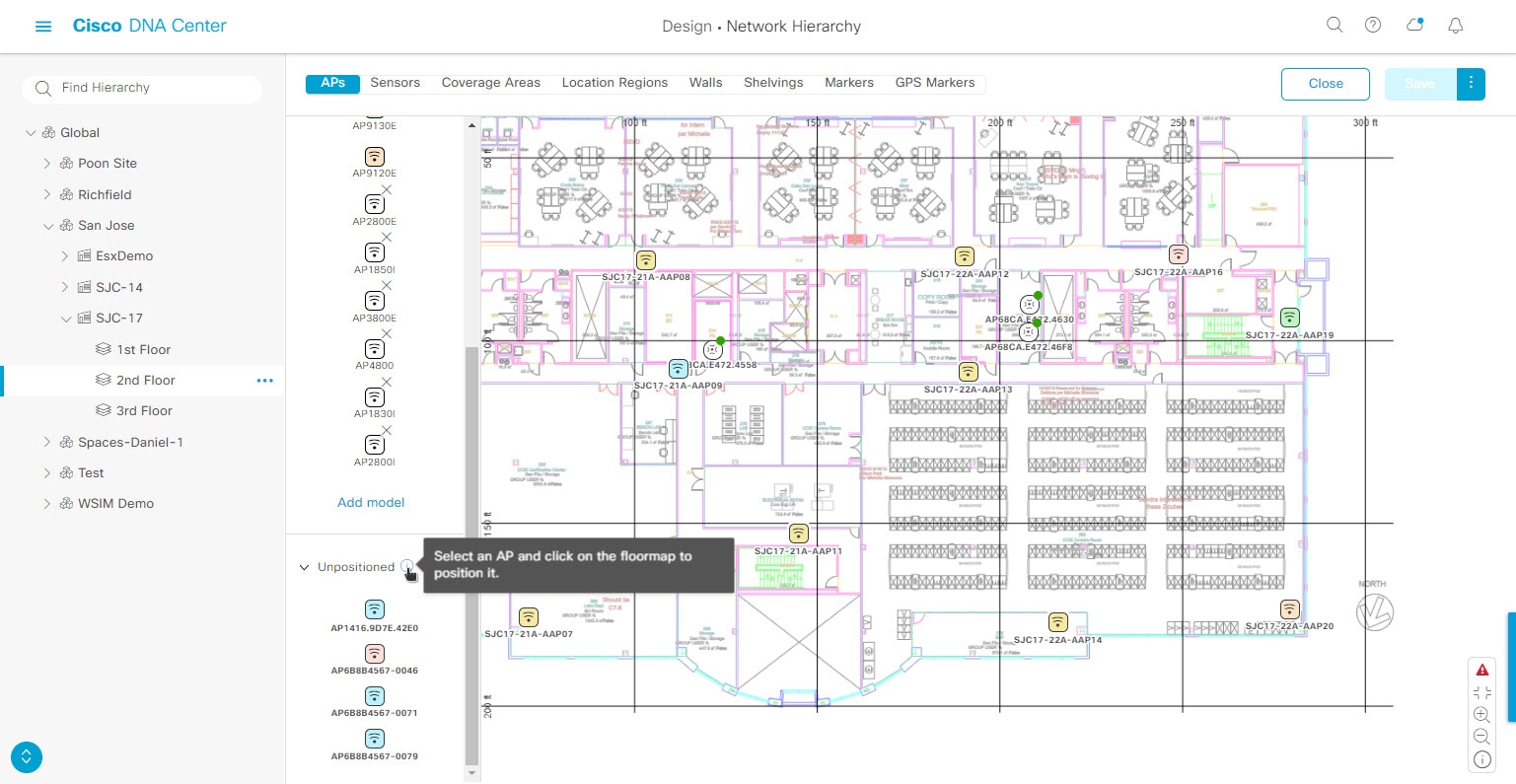
Newly added APs appear in the Unpositioned category from the map left pane in edit mode. For more information, see Position an AP on a Map.

Step 8

After adding the APs to a floor, close the Add APs window.


Add Planned APs to a Map

Using the AP Model Catalog feature, you can add a planned AP on a floor and configure its model, antenna type, azimuth, and elevation orientation. Then you can replicate that configuration to rest of the planned APs that belong to the same model type.
Procedure

Step 1

Click the menu icon () and choose Design > Network Hierarchy.

Step 2

From the left hierarchy tree, choose a floor.

Step 3

From the map toolbar, click 2D.

Step 4

From the map toolbar, click Add/Edit.

Step 5

From the map left pane, in the AP Models area, click the AP model of the planned AP to add.

Note


If the AP model is not listed, click Add Model to choose the AP model to add to the list.

Step 6

Using the drawing tool, click the location on the floor map to add the planned AP.

A planned AP of the selected model is added to the floor map and the Edit Planned AP slide-in pane appears on the right, with an AP name added to it by default.

Step 7

From the Edit Planned AP slide-in pane, click the gear icon, which is located next to the AP Name field.

The Name pattern dialog box appears.

Step 8

When you add the first AP to the floor, make sure that you enter a valid name pattern, for example SJC-BLD21-FL2-AP####, and then click Set name pattern.

Note


The planned APs must be unique within Cisco DNA Center, so make sure that the name pattern identifies the floor.

The #### in the name pattern is replaced by numbers in the AP Name, for example SJC-BLD21-FL2-AP0001, SJC-BLD21-FL2-AP0002, and so on.

Step 9

From the Antenna drop-down list in the Edit Planned AP slide-in pane, choose the appropriate antenna type for each of the radio slots of the AP.

Note


The antenna image reflects the antenna selected.

Step 10

Depending on the antenna type, enter the Azimuth and Elevation orientation, in degrees.

Step 11

To add another planned AP with the same properties as that of the planned AP that you just created, click a location in the floor map where you want to position the new AP.

A new AP icon appears on the map with all of the properties inherited and the AP name appended, for example BLD1-AP0002-TX.

Step 12

To add more planned APs with the same properties and appended AP Name, click the floor map.

Step 13

To stop adding planned APs to the floor map, press Esc or right-click the floor map.

Step 14

To reposition the planned APs, drag and drop them to the appropriate location in the floor map.

Step 15

To delete a planned AP, right-click the AP icon and click Delete.

Step 16

To edit a planned AP, right-click the AP icon and click Edit.

Step 17

When you are done, click Save from the map toolbar.


Assign Actual APs to Planned APs

When you are ready, you can assign actual APs to the planned APs on your map.

Procedure

Step 1

Click the menu icon () and choose Design > Network Hierarchy.

Step 2

From the left hierarchy tree, choose a floor.

Step 3

From the map toolbar, click 2D.

Step 4

From the map toolbar, click Add/Edit.

Step 5

From the map left pane, click Assign PAPs.

Step 6

On the floor map, click a planned AP.

Step 7

From the Assign Planned APs slide-in pane, check the check box next to the AP that you want to assign.

Step 8

Click Assign.

Step 9

When you are done, click Save from the map toolbar.


Position an AP on a Map

After adding the APs to a floor, you need to position them on the map.

Procedure

Step 1

Click the menu icon () and choose Design > Network Hierarchy.

Step 2

From the left hierarchy tree, choose a floor.

Step 3

From the map toolbar, click 2D.

Step 4

From the map toolbar, click Add/Edit.

Step 5

From the Unpositioned category in the map left pane, click an AP.

Figure 3. Unpositioned APs

Step 6

To position the AP, do one of the following:

  • Click the location on the floor map where you want to position the AP.
  • From the Edit AP slide-in pane, enter the x and y coordinates in the corresponding fields.
  • Draw three points on the floor map and position the AP by using the selected points. To do this:
    1. From the Edit AP slide-in pane, click Position by 3 points.

    2. To define the points, click anywhere on the floor map to start drawing the first point. Click again to finish drawing a point. A dialog box appears to set the distance to first point. Enter the distance, in meters, and click Set Distance.

    3. Define the second and third points similarly, and click Save.

  • Define two walls on the floor map and position the APs between the defined walls. This method helps you to know the position of APs between the two walls.
    1. From the Edit AP slide-in pane, click Position by 2 walls.

    2. To define the first wall, click anywhere on the floor map to start drawing the line. Click again to finish drawing a line. A dialog box opens to set the distance to the first wall. Enter the distance in meters and click Set Distance.

    3. Define the second wall similarly and click Save.

      The AP is placed based on the defined distance between the walls.

Step 7

From the map toolbar, click Save.

Note


If a Cisco Connected Mobile Experiences (CMX) is synchronized with Cisco DNA Center, you can view the location of clients on the heatmap. See Create Cisco CMX Settings.


Reposition an AP on a Map

At any time, you can reposition APs on a map.


Note


This task can be performed in a 2D or 3D map.


Procedure

Step 1

Click the menu icon () and choose Design > Network Hierarchy.

Step 2

From the left hierarchy tree, choose a floor.

Step 3

From the map toolbar, click 2D or 3D.

Step 4

From the map toolbar, click Add/Edit.

Step 5

In the map, drag and drop the AP to the new position.

Step 6

When you are done, click Save.


Edit an AP

You can change the configuration of a single AP. To change the configuration of multiple APs, see Edit Multiple APs.


Note


This task can be performed in a 2D or 3D map.


Procedure

Step 1

Click the menu icon () and choose Design > Network Hierarchy.

Step 2

From the left hierarchy tree, choose a floor.

Step 3

From the map toolbar, click 2D or 3D.

Step 4

From the map toolbar, click Add/Edit.

Step 5

Click an AP.

To deselect it, press the Shift key and click the AP again.

Step 6

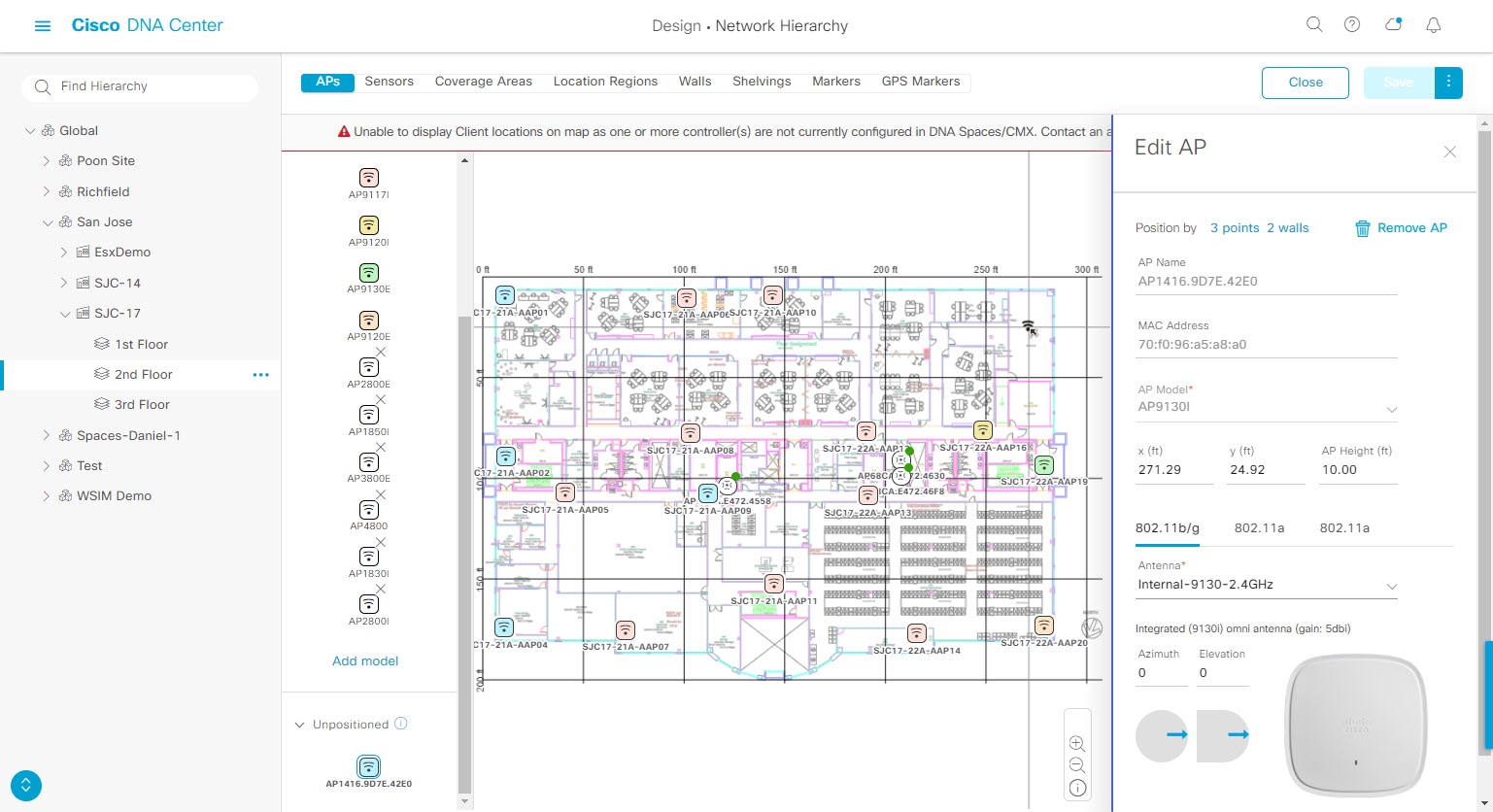
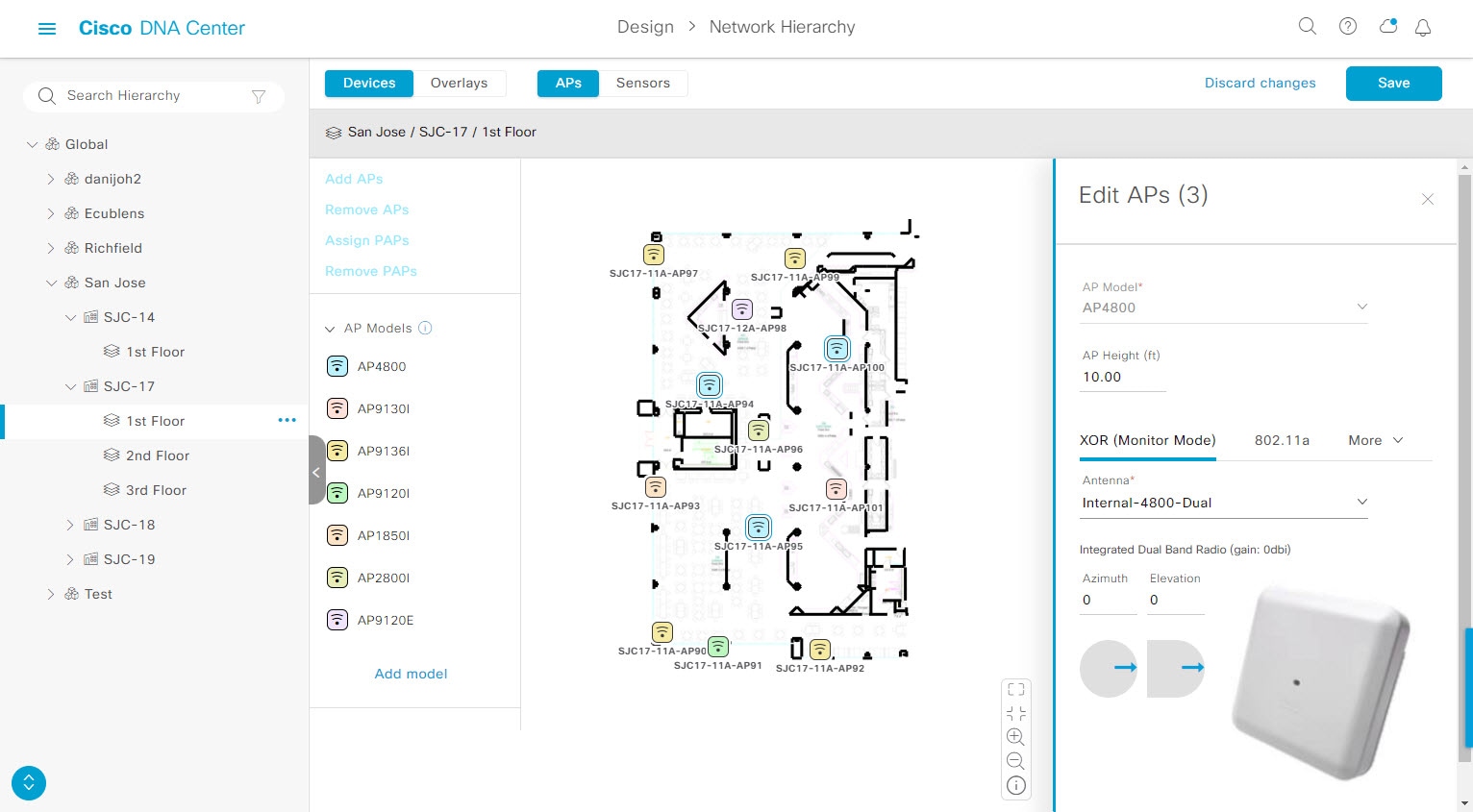
From the Edit AP slide-in pane, configure the following AP settings, as needed:

  • AP Name or Planned AP Name: Name of the AP

  • MAC Address: MAC address of the selected AP.

  • AP Model: Model of the selected AP.

  • x: X-axis coordinate of the AP. You can manually enter the value.

  • y: Y-axis coordinate of the AP. You can manually enter the value.

  • AP Height: Height of the AP. You can manually enter the value.

  • Antenna: Antenna type for this AP.

    Note


    For external APs, you must select an antenna, or the AP will not be present in the map.

  • Azimuth: Angle of the antenna, measured relative to the x axis, clockwise. The azimuth range is 0 to 360. In Cisco DNA Center, pointing right is 0 or 360 degrees; pointing down is 90 degrees.

    You can manually enter the value or use the blue arrow under the field to change the value.

    Note


    For omnidirectional antennas, the azimuth is not relevant if the elevation is 0.

  • Elevation: in degrees. You can manually enter the value or use the blue arrow under the field to change the value.

Note


For APs and antenna models that are designed to be placed on a ceiling, 0 elevation means pointing down. For APs and antenna models that are designed to be placed on a wall, 0 elevation means pointing horizontally and negative values means pointing down.

Figure 4. Edit AP Slide-In Pane

Step 7

Click Save.


Edit Multiple APs

When you select only one AP, you can change all editable attributes. However, when you select multiple APs, the following guidelines apply:

  • When the selected devices have the same value for an attribute, the value is displayed. Otherwise, the value is blank. In either case, if you change the value, the new value is applied to all the selected devices.

  • When the selected APs have the same model number and radios (number of radios and operating band), the antennas are editable. Otherwise, they are not editable.

  • You can change the model numbers of planned APs, but not added APs. So, if you select an AP, the model number is not editable.

  • Because bulk changes affect more devices, they do not take effect immediately. You need to click Apply to apply your changes.


Note


This task can be performed in a 2D or 3D map.


Procedure

Step 1

Click the menu icon () and choose Design > Network Hierarchy.

Step 2

From the left hierarchy tree, choose a floor.

Step 3

From the map toolbar, click 2D or 3D.

Step 4

From the map toolbar, click Add/Edit.

Step 5

Select the APs, using one of the following methods:

  • Click the first device, then press and hold the Shift key while you click the rest of the devices.

  • From the map navigation toolbar, click Select by rectangle. Then click an area of the map and drag the highlighted rectangle to select APs in a contiguous area. All the highlighted APs within the rectangle are selected.

To deselect APs, use one of the following methods:

  • To deselect a single AP, press and hold the Shift key while you click the AP.

  • To deselect all APs except one, click the AP you want to remain selected. All others are deselected.

  • To deselect all APs, press the ESC key or close the Edit pane.

  • Click Save to keep the changes, or Discard to reject them.

Step 6

From the Edit AP slide-in pane, configure the following AP settings, as available:

  • AP Name or Planned AP Name: Name of the AP

  • MAC Address: MAC address of the selected AP.

  • AP Model: Model of the selected AP.

  • x: X-axis coordinate of the AP. You can manually enter the value.

  • y: Y-axis coordinate of the AP. You can manually enter the value.

  • AP Height: Height of the AP. You can manually enter the value.

  • Antenna: Antenna type for this AP.

    Note


    For external APs, you must select an antenna, or the AP will not be present in the map.

  • Azimuth: Angle of the antenna, measured relative to the x axis, clockwise. The azimuth range is 0 to 360. In Cisco DNA Center, pointing right is 0 or 360 degrees; pointing down is 90 degrees.

    You can manually enter the value or use the blue arrow under the field to change the value.

    Note


    For omnidirectional antennas, the azimuth is not relevant if the elevation is 0.

  • Elevation: in degrees. You can manually enter the value or use the blue arrow under the field to change the value.

Note


For APs and antenna models that are designed to be placed on a ceiling, 0 elevation means pointing down. For APs and antenna models that are designed to be placed on a wall, 0 elevation means pointing horizontally and negative values means pointing down.

Figure 5. Edit Multiple APs Slide-In Pane

Step 7

Click Apply.

Step 8

Click Save.


Remove APs from a Map

You can remove APs and planned APs (PAPs) from a map without deleting them from the floor.

Procedure

Step 1

Click the menu icon () and choose Design > Network Hierarchy.

Step 2

From the left hierarchy tree, choose a floor.

Step 3

From the map toolbar, click 2D.

Step 4

From the map toolbar, click Add/Edit.

Step 5

To remove APs (including planned APs), do the following:

  1. Click the AP, or to select multiple APs, click the first AP and while pressing the Shift key, click the rest of the APs.

  2. In the Edit pane, click Remove.

Step 6

When you are done, click Save.


Work with Sensors on a Floor Map

The following topics show you how to add sensors to floor maps and position, reposition, and delete them, if needed.

For more information about sensors, see Configure Floor Map Elements and Overlays in 2D Maps.

Add Sensors to a Map


Note


Make sure you have the Cisco AP 1800S sensor in your inventory. The Cisco Aironet 1800s Active Sensor must be provisioned using Plug and Play for it to show up in the Inventory.


A sensor device is a dedicated AP 1800s sensor. The Cisco Aironet 1800s Active Sensor gets bootstrapped using PnP. After it obtains the Assurance server reachability details, it directly communicates with the Assurance server. For more information, including information about sensor tests, see the Cisco DNA Assurance User Guide.

Procedure

Step 1

Click the menu icon () and choose Design > Network Hierarchy.

Step 2

From the left hierarchy tree, choose a floor.

Step 3

From the map toolbar, click 2D.

Step 4

From the map toolbar, click Add/Edit.

Step 5

From the map toolbar, click Sensors.

Step 6

From the Add Sensors slide-in pane, check the check boxes of the sensors that you want to add. Alternatively, click Add next to the sensor row to add sensors.

Note


You can search for specific sensors using the search option. Use the Filter field and search using the name, MAC address, or model of a sensor. The search is case-insensitive. The search results are displayed in the table. Click Add to add one or more these sensors to the floor area.

Newly added sensors appear in the Unpositioned category from the map left pane in edit mode.


Position Sensors on a Map

Newly added sensors appear in the Unpositioned category from the map left pane in edit mode. This procedure shows you how to position a sensor after initially adding it.

Before you begin

Sensors must be added to the map before they can be positioned. For information, see Add Sensors to a Map

Procedure

Step 1

Click the menu icon () and choose Design > Network Hierarchy.

Step 2

From the left hierarchy tree, choose a floor.

Step 3

From the map toolbar, click 2D.

Step 4

From the map toolbar, click Add/Edit.

Step 5

From the map toolbar, click Sensors.

Step 6

From the map left pane, click a sensor in the Unpositioned category to position the sensor.

Step 7

Click the location on the floor map where you want to position the sensor.

You can use the x, y, and sensorHeight fields in the Sensor Details slide-in pane to enter the exact x, y, and z coordinates for the sensor.

Step 8

When you are done, click Save.


Reposition a Sensor on a Map

At any time, you can reposition sensors on a map.


Note


This task can be performed in a 2D or 3D map.


Procedure

Step 1

Click the menu icon () and choose Design > Network Hierarchy.

Step 2

From the left hierarchy tree, choose a floor.

Step 3

From the map toolbar, click 2D or 3D.

Step 4

From the map toolbar, click Add/Edit.

Step 5

In the map, drag and drop the sensor to the new position.

Step 6

When you are done, click Save.


Remove Sensors from a Map

You can remove sensors from a floor map.

Procedure

Step 1

Click the menu icon () and choose Design > Network Hierarchy.

Step 2

From the left hierarchy tree, choose a floor.

Step 3

From the map toolbar, click 2D.

Step 4

From the map toolbar, click Add/Edit.

Step 5

To remove sensors, do the following:

  1. Click the sensor, or to select multiple sensors, click the first sensor and while pressing the Shift key, click the rest of the sensors.

  2. In the Edit pane, click Remove.

Step 6

When you are done, click Save.


Add Coverage Areas

By default, any floor area or outside area defined as part of a building map is considered as a wireless coverage area.

If you have a building that is nonrectangular or you want to mark a nonrectangular area within a floor, you can use the map editor to draw a coverage area or a polygon-shaped area.

Procedure


Step 1

Click the menu icon () and choose Design > Network Hierarchy.

Step 2

From the left hierarchy tree, choose a floor.

Step 3

From the map toolbar, click 2D.

Step 4

From the map toolbar, click Add/Edit.

Step 5

From the map toolbar, click Coverage Areas.

Step 6

From the map left pane, click the Coverage Area icon.

Step 7

In the Coverage Area dialog box, enter a name for the coverage area in the field and click Add Coverage.

Step 8

Use the drawing tool to create the coverage area shape:

  1. Click on the map to create a point and continue creating points to define the coverage area shape.

    Note


    The coverage area shape must have at least 3 points.

  2. You can click and drag any points to redefine the coverage area shape.

  3. Double-click to exit the drawing tool and finalize the coverage area shape.

Step 9

After you can finish creating the coverage area, click Save from the map toolbar.

Step 10

To edit a coverage area, do the following:

  1. From the map toolbar, click Add/Edit.

  2. From the map toolbar, click Coverage Areas.

  3. You can click and drag the points of the coverage area to redefine the shape.

  4. To edit the coverage area name, right-click a coverage area and choose Edit.

  5. After finishing making edits, click Save from the map toolbar.

Step 11

To delete a coverage area, do the following:

  1. From the map toolbar, click Add/Edit.

  2. From the map toolbar, click Coverage Areas.

  3. Right-click the coverage area and choose Delete.

  4. After finishing deleting, click Save from the map toolbar.


Add, Edit, Copy, and Remove Openings

Creating an opening is similar to creating an open space or atrium on a floor. On multifloor buildings, typically the opening extends vertically through multiple floors. This procedure shows you how to add, edit, and remove openings on a floor map. It also shows you how to copy openings to other floors.

For more information about openings, see Configure Floor Map Elements and Overlays in 2D Maps.

Procedure


Step 1

Click the menu icon () and choose Design > Network Hierarchy.

Step 2

From the left hierarchy tree, choose a floor.

Step 3

In the map toolbar, click 2D > Add/Edit > Overlays > Openings.

Step 4

To add an opening, do the following:

  1. From the left pane of the map, click Opening.

  2. Click on the map to create a point and initiate the drawing tool.

  3. Continue creating points to define the opening shape.

    Note


    The opening shape must have at least three points. Click and drag a point to redefine the opening shape.

  4. Double-click to exit the drawing tool and finalize the shape.

Step 5

To edit an opening, do the following:

  1. In the map toolbar, click Add/Edit > Openings.

  2. To redefine the shape of an opening, click and drag a point.

  3. To move an opening, click inside the shaded area. Then, drag and drop the opening where you want to place it.

Step 6

To copy an opening from one floor to another, do the following:

  1. In the map toolbar, click Add/Edit > Openings.

  2. Right-click the opening and choose Copy to other floors.

  3. In the dialog box, check the check boxes next to the relevant floors.

  4. Click Copy.

  5. Click Close.

Step 7

To remove an opening, do the following:

  1. In the map toolbar, click Add/Edit > Openings.

  2. Right-click the opening and choose Remove.

Step 8

In the map toolbar, click Save.


Add Location Regions

You can create inclusion and exclusion areas to further refine location calculations on a floor. You can define the areas that are included (inclusion areas) in the calculations and those areas that are not included (exclusion areas). For example, you might want to exclude areas such as an atrium or stairwell within a building, but include a work area, such as cubicles, labs, or manufacturing floors.

Use the following guidelines to define inclusion and exclusion areas on a map:

  • Inclusion and exclusion areas can be any polygon-shaped area and must have at least 3 points.

  • You can only define one inclusion region on a floor. By default, an inclusion region is defined for each floor area when it is created. The inclusion region is indicated by a solid aqua line, and generally outlines the entire floor area.

  • You can define multiple exclusion regions in a floor area.

Add an Inclusion Region to a Floor

Procedure

Step 1

Click the menu icon () and choose Design > Network Hierarchy.

Step 2

From the left hierarchy tree, choose a floor.

Step 3

From the map toolbar, click 2D.

Step 4

From the map toolbar, click Add/Edit.

Step 5

From the map toolbar, click Location Regions.

Step 6

From the map left pane, click the Inclusion icon.

Step 7

Use the drawing tool to create the inclusion area:

  • Click on the map to create point and continue creating points until you have created the shape for the inclusion area.

  • To finalize the shape, click the Inclusion icon from the left pane to exit drawing mode. Alternatively, you can double-click on the map to finalize the shape. If you want to cancel the shape, right-click on the map.

  • To move an existing inclusion area, drag and drop the shape to the new location.

  • To remove an existing inclusion area, right-click the shape and choose Delete.

Step 8

When you are done, click Save from the map toolbar.


Add an Exclusion Region to a Floor

To further refine location calculations on a floor, you can define areas that are excluded (exclusion areas) in the calculations. For example, you might want to exclude areas such as an atrium or stairwell within a building. As a rule, exclusion areas are defined within the borders of an inclusion area.

Procedure

Step 1

Click the menu icon () and choose Design > Network Hierarchy.

Step 2

From the left hierarchy tree, choose a floor.

Step 3

From the map toolbar, click 2D.

Step 4

From the map toolbar, click Add/Edit.

Step 5

From the map toolbar, click Location Regions.

Step 6

From the map left pane, click the Exclusion icon.

Step 7

Use the drawing tool to create the exclusion area:

  • Click on the map to create point and continue creating points until you have created the shape for the exclusion area.

  • To finalize the shape, click the Exclusion icon from the left pane to exit drawing mode. Alternatively, you can double-click on the map to finalize the shape. If you want to cancel the shape, right-click on the map.

  • To move an existing exclusion area, drag and drop the shape to the new location.

  • To remove an existing exclusion area, right-click the shape and choose Delete.

Step 8

When you are done, click Save from the map toolbar.


Add Walls

Add walls to a floor for a more accurate heatmap. Walls affect the signal attenuation and how the RF is calculated in the heatmap.

Procedure


Step 1

Click the menu icon () and choose Design > Network Hierarchy.

Step 2

From the left hierarchy tree, choose a floor.

Step 3

From the map toolbar, click 2D.

Step 4

From the map toolbar, click Walls.

Step 5

From the map left pane, click a wall type from the Others or On this floor categories.

Note


If a wall type is not listed, click Add Wall Type to create a custom wall type.

Step 6

Use the drawing tool to create walls:

  1. Click on the map where you want to start a wall.

  2. Drag your cursor to where you want to end the wall or where you want to create a corner.

  3. To end a wall, double click. To create a corner, click and drag your cursor to the next point. Continue this process until you have created the shape for the wall or walls.

  4. To finalize a shape, double-click on the map where you want the wall to end. Alternatively, from the left pane, click the wall type to exit drawing mode.

  5. To cancel the shape, finish creating it, and then delete it.

Step 7

To make changes to the wall, do the following:

  1. Double-click the map.

    The points on the map become visible. This means the elements on the map are editable.

  2. Hover your cursor over the wall that you want to edit. When a wall is selected, it turns black.

  3. You can now do one of the following:

    • Change the wall type: Right-click the wall and choose Change Type.

    • Delete the wall: Right-click the wall and choose Delete.

    • Move the wall: Click the wall and drag and drop it to the new location.

Step 8

When you are done, click Save from the map toolbar.


Add Shelving Units

Shelving units are obstacles that affects signal attenuation. An example of a location with shelving units would be a high-ceiling warehouse.

Procedure


Step 1

Click the menu icon () and choose Design > Network Hierarchy.

Step 2

From the left hierarchy tree, choose a floor.

Step 3

From the map toolbar, click 2D.

Step 4

From the map toolbar, click Shelving Units.

Step 5

From the map left pane, click the shelving type to add.

  • In the shelving dialog box, you can edit the name, dimensions, and orientation of the shelving unit. The orientation means the angle of the shelving unit. A shelving unit with an orientation of 0 means that the shelving is vertical and parallel to the y axis.

  • If a shelving type is not in the list, click Add Shelving Type to create a new shelving type.

Step 6

Click Add Shelving.

Step 7

Drag and drop the shelving to move it to its location on the floor map.

Step 8

Right-click the shelving for the following actions:

  • Edit: Edit the name, dimensions, and orientation for the shelving.

  • Clone: Create a copy of the shelving.

  • Array: Create an array of shelving by specifying the number of shelving units and the distance between them.

  • Delete: Remove the shelving from the floor map.

Step 9

When you are done, click Save from the map toolbar.


Add Markers

Procedure


Step 1

Click the menu icon () and choose Design > Network Hierarchy.

Step 2

From the left hierarchy tree, choose a floor.

Step 3

From the map toolbar, click 2D.

Step 4

From the map toolbar, click Add/Edit.

Step 5

From the map toolbar, click Markers.

Step 6

Enter the name for the marker, and then click Add Marker.

Step 7

Use the drawing tool to place the marker:

  • Click the map to place the marker.

  • To move the marker, drag and drop the marker to the new location.

  • To edit an existing marker, right-click the marker and choose Edit.

  • To remove an existing marker, right-click the marker and choose Delete.

Step 8

When you are done, click Save from the map toolbar.


Add GPS Markers

To locate the physical position of a building on the world map and increase the accuracy of a client's position, you can place a GPS marker on a 2D map.


Note


The GPS marker is an attribute of the building and can be applied to all the floors of the building.


Procedure


Step 1

Click the menu icon () and choose Design > Network Hierarchy.

Step 2

From the left hierarchy tree, choose a floor.

Step 3

From the map toolbar, click 2D.

Step 4

From the map toolbar, click Add/Edit.

Step 5

From the map toolbar, click GPS Markers.

Step 6

From the map left pane, click the GPS Markers icon.

Step 7

Use the drawing tool to place the GPS marker:

  1. Click a location on the map to place the GPS marker.

  2. In the Place Markers dialog box, enter the name, latitude, longitude, x and y coordinates in the appropriate fields.

  3. Click Add GPS Marker.

Step 8

Repeat Steps 6 and 7 until there are three GPS markers on the floor map in a polygon-shape.

Step 9

To edit an existing GPS marker, right-click the GPS marker and choose Edit.

Step 10

To remove an existing GPS marker, right-click the GPS marker and choose Delete.

Step 11

When you are done, click Save from the map toolbar.


Add, Edit, and Remove Align Points

This procedure shows you how to add, edit, and remove align points. For more information about align points, see Configure Floor Map Elements and Overlays in 2D Maps.

Procedure


Step 1

Click the menu icon () and choose Design > Network Hierarchy.

Step 2

From the left hierarchy tree, choose a floor.

Step 3

In the map toolbar, click 2D > Add/Edit > Overlays > Align Points.

Step 4

To add an alignment point, do the following:

  1. In the left pane of the map, click the Align Points icon.

  2. On the map, click the location where you want to place the alignment point.

Step 5

To edit the name of an alignment point, do the following:

  1. Right-click the alignment point and choose Edit.

  2. Change the name and click Edit Marker.

Step 6

To change the location of an alignment point, do the following:

  1. Right-click the alignment point and choose Edit.

  2. Click Edit Marker.

  3. Drag and drop the alignment point to the new location.

Step 7

To remove an alignment point, right-click the alignment point and choose Remove.

Step 8

In the map toolbar, click Save.


View a 2D Wireless Floor Map

Procedure


Step 1

Click the menu icon () and choose Design > Network Hierarchy.

Step 2

From the left hierarchy tree, choose a floor.

Step 3

In the map toolbar, click 2D.

Step 4

Use the map toolbar for the following actions and settings:

Item Description

Click 2D to view the wireless map in 2D or 3D to view it in 3D.

Wi-Fi Band Filter: Use this filter to view the heatmap for the 2.4 GHz and 5 GHz Wi-Fi bands.

Add/Edit

Click to enter add and edit mode which allows to do the following:

Data

Apply filters to the access point, sensor, and client data that appears in the wireless map. For details, see Filter Device Data on a Floor.

View Options

Click to open the View Options slide-in pane which contains the view options for the map, devices, and floor map elements.

Gear Icon: Hover your cursor over the icon for the following options:

  • Recompute: Recomputes the heatmap.

  • Export: Export the floor map to a PDF or CSV file format.

  • Edit Floor: Edit the floor details such as its name

  • Set Scale: Change the scale by doing the following:

    1. Click on a point and then on another point to specify a known measurement on the map.

    2. In the New line length (ft) field, enter the length of the measurement.

    3. Click OK.

      The floor map dimensions are recalculated based on the length of the measurement.

  • Measure Distance: Measure a distance on the floor map. Click on a point and then another point to specify the distance.

Refresh Icon: Click to refresh the device and map data. To the left of the icon is the timestamp for the last refresh

Search: Use this search field to perform a search for specific floor map elements such as APs, sensors, clients, and so on.

Step 5

Use the map for the following functionality:

  • View the heatmap of the 2D wireless floor map. You can customize the view option settings from the View Options slide-in pane.

  • View an AP's details by hovering your cursor over an AP icon.

    You can view the basic info, RX neighbors, clients, interferers, and health score for an AP.

    Click Device 360 to get a 360° view of the AP.

    Note


    For Device 360, the package Assurance - Base is required.

  • View a sensor's status and test results by hovering your cursor over a sensor icon.

  • View a switch's details by hovering your cursor over a switch icon.

  • Use the map navigation controls at bottom-right of the map for the following controls:

    Map Navigation Controls Description

    Default Map View: Click to reset the map view to the default.

    Zoom In / Zoom Out: Zoom in and out of the map. Alternatively, you can use your mouse wheel to zoom in and out.

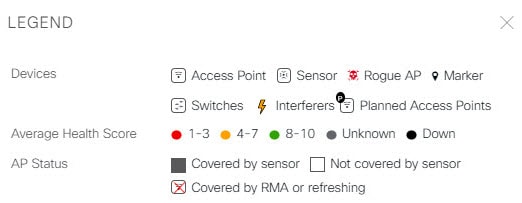
    Map Legend: Click this icon to view the map legend which describes the map icons such as the device type, average health score, and AP status.

Step 6

Click View Options from the map toolbar to open the View Options slide-in pane. This allows you to configure the view option settings. Expand the categories to view the settings:

  • Map: Contains various floor map and heatmap settings:

    Item Description

    Show Grid

    Click this toggle button to enable or disable a grid on the floor map. The grid provides the dimensions of the floor map.

    Map Opacity %

    Use this slider to customize the opacity or transparency of the floor map.

    Heatmap Type

    The heatmap provides a graphical representation of Radio Frequency (RF) wireless data where the values taken by variable are represented in maps as colors. RSSI heatmaps are computed based on a floor's RSSI prediction model, antenna type, and its orientation.

    2D heatmaps use fixed transmit powers: 18 dB for 2.4 GHz; 15 dB for 5 GHz; and 5dB for 6 GHz.

    3D heatmaps use real-time transmit power of operational APs and 11 dB for planned APs.

    Use the drop-down list to choose the heatmap type:

    • Operational RSSI: Coverage heatmap, which identifies the wireless signal strength of operational APs.

    • Planned Heatmap: Hypothetical heatmap that shows the coverage that planned access points would have on a floor.

    • Operational + Planned RSSI: (3D-only) Coverage heatmap created using both operational and planned APs. 2D maps only show operational AP coverage, so you need to switch to 3D maps to view this combined coverage heatmap.

    • Client Density: Density of associated clients.

    • IDS: Heatmap that shows the monitor mode access point coverage provided to the wireless clients on a floor map.

    RSSI Cut off (dBm)

    Use this slider to set the threshold for the RSSI value to appear on the heatmap. RSSI values that do not meet the threshold are faded.

    Heatmap Opacity %

    Use this slider to customize the opacity or transparency of the heatmap.

    Heatmap Color Scheme

    Customize the color scheme for the heatmap. Options are Legacy and Natural.

  • Access Points: Click this toggle button to enable or disable the AP icons on the floor map.

    • Display Label: Use the drop-down list to choose the type of label to appear for APs on the floor map such as the AP's name, MAC address, or IP address, and so on.

  • Planned Access Points: Click this toggle button to enable or disable the appearance of planned AP icons on the floor map.

    • Display Label: Use this drop-down list to choose the type of label to appear for the planned AP icons, such as the AP's name.

  • Switches: Click this toggle button to enable or disable the appearance of switch icons on the floor map.

    • Display Label: Use this drop-down list to choose the type of label to appear for switch icons on the floor map, such as the switch's name, MAC address, or AP count.

  • Sensors: Click this toggle button to enable or disable the appearance of sensor icons on the floor map.

    • Display Label: Use this drop-down list to choose the type of label to appear for sensor icons on the floor map, such as the sensor's name, MAC address, or IP address.

  • Overlay Objects: Click the toggle button for an overlay object to enable or disable it on the floor map.

    The following overlay objects are available:

    • Coverage Areas

    • Location Regions

    • Walls 2D & 3D

    • Walls 3D only

    • Shelvings

    • Markers

    • GPS Markers

  • Clients: Click this toggle button to enable or disable the appearance of client icons on the floor map.

    • Display Label: Use this drop-down list to choose the type of label to appear for client icons on the floor map, such as client name, IP address, MAC address, and so on.

    • Show Client Clusters: Click this toggle button to enable or disable clients in close proximity to be grouped together.

  • Interferers: Click this toggle button to enable or disable the appearance of client icons on the floor map.

    • Show Zone of Impact: Click this toggle to enable or disable the appearance of the zone of impact from interferers.

  • Map Properties: Contains the Auto Refresh setting. Use the Auto Refresh drop-down list to specify the time interval between each auto refresh for map data to occur.

  • Global Map Properties: Contains the Units of Measure setting. Use the Units of Measure setting to change the preferred measurement system to imperial system (feet) or metric system (meters). This setting applies to all wireless maps.


2D Maps Toolbar

Item Description

Click 2D to view the wireless map in 2D or 3D to view it in 3D.

Wi-Fi Band Filter: Use this filter to view the heatmap for the 2.4 GHz and 5 GHz Wi-Fi bands.

Add/Edit

Click to enter add and edit mode which allows to do the following:

  • Add, position, and delete floor elements

  • Add, edit, and delete overlay objects

Data

Apply filters to the access point, sensor, and client data that appears in the wireless map.

View Options

Click to open the View Options slide-in pane which contains the view options for the map, devices, and floor map elements.

Gear Icon: Hover your cursor over the icon for the following options:

  • Recompute: Recomputes the heatmap.

  • Export: Export the floor map to a PDF or CSV file format.

  • Edit Floor: Edit the floor details such as its name

  • Set Scale: Change the scale by doing the following:

    1. Click on a point and then on another point to specify a known measurement on the map.

    2. In the New line length (ft) field, enter the length of the measurement.

    3. Click OK.

      The floor map dimensions are recalculated based on the length of the measurement.

  • Measure Distance: Measure a distance on the floor map. Click on a point and then another point to specify the distance.

TBD

Full Hierarchy Path: Displays the full navigational path of the floor, including its associated building and site. Click the down arrow to navigate to a different floor.

Refresh Icon: Click to refresh the device and map data. To the left of the icon is the timestamp for the last refresh

Search: Use this search field to perform a search for specific floor map elements such as APs, sensors, clients, and so on.

2D Map View Options

To access the 2D map, click the menu icon () and choose Design > Network Hierarchy. From the left hierarchy tree, choose a floor, and in the map toolbar, click 2D > View Options.

The View Options slide-in pane opens. Expand the categories to view the settings:

  • Map: Contains various floor map and heatmap settings:

    Item Description

    Show Grid

    Click this toggle button to enable or disable a grid on the floor map. The grid provides the dimensions of the floor map.

    Map Opacity %

    Use this slider to customize the opacity or transparency of the floor map.

    Heatmap Type

    The heatmap provides a graphical representation of Radio Frequency (RF) wireless data where the values taken by a variable are represented in maps as colors. RSSI heatmaps are computed based on a floor's RSSI prediction model, antenna type, and its orientation.

    2D heatmaps use fixed transmit powers: 18 dB for 2.4-GHz; 15 dB for 5-GHz; and 5 dB for 6-GHz.

    3D heatmaps use real-time transmit power of operational APs and 11 dB for planned APs.

    Use the drop-down list to choose the heatmap type:

    • Operational RSSI: Coverage heatmap, which identifies the wireless signal strength of operational APs.

    • Planned Heatmap: Hypothetical heatmap that shows the coverage that planned access points would have on a floor.

    • Operational + Planned RSSI: (3D-only) Coverage heatmap created using both operational and planned APs. 2D maps only show operational AP coverage, so you need to switch to 3D maps to view this combined coverage heatmap.

    • Client Density: Density of associated clients.

    • IDS: Heatmap that shows the monitor mode access point coverage provided to the wireless clients on a floor map.

    RSSI Cut off (dBm)

    Use this slider to set the threshold for the RSSI value to appear on the heatmap. RSSI values that do not meet the threshold are faded.

    Heatmap Opacity %

    Use this slider to customize the opacity or transparency of the heatmap.

    Heatmap Color Scheme

    Customize the color scheme for the heatmap. Options are Legacy and Natural.

  • Access Points: Click this toggle button to enable or disable the AP icons on the floor map.

    Expand this category to configure the type of label to display with each AP. Valid label types are Name, AP MAC address, IP address, Bridge Group Names, and so on. From the Display Label drop-down list, choose a label type.

    To display other details about APs, see View a 2D Wireless Floor Map.

  • Planned Access Points: Click this toggle button to enable or disable the appearance of planned AP icons on the floor map.

    Expand this category to display labels with the planned AP name. From the Display Label drop-down list, choose a label type.

  • Switches and Switch Stacks: Click this toggle button to enable or disable the appearance of switch or switch stack icons on the floor map.

    Expand this category to display labels with the switch name, MAC address, or AP count. From the Display Label drop-down list, choose a label type.

    To display other details about switches, see View a 2D Wireless Floor Map.

  • Sensors: Click this toggle button to enable or disable the appearance of sensor icons on the floor map.

    Expand this category to display labels with the sensor name, MAC address, or AP count. From the Display Label drop-down list, choose a label type.

    To display other details about sensors, see View a 2D Wireless Floor Map.

  • Mesh: Click this toggle button to enable or disable the appearance of mesh APs on the floor map.

    Expand this category to configure options that control how the mesh AP-to-root AP link relationships are displayed:

    • Link Label: To disable link labels, click the None radio button. To display labels for link signal-to-noise ratios, click the Link SNR radio button. To display labels for packet error rates, click the Packet Error Rate radio button. The link label setting is reflected on the map immediately.

    • Link Color: To disable link color, click the None radio button. To display link signal-to-noise ratios in color, click the Link SNR radio button. To display packet error rates in color, click the Packet Error Rate radio button.

      The link color settings are reflected on the map immediately. See the following table for color definitions.

      Link Color Link Signal Noise Ratio (SNR) Packet Error Rate (PER)

      Represents an SNR above 25 dB (high value)

      Represents a PER of one percent (1%) or lower

      Represents an SNR between 20 dB and 25 dB (acceptable value)

      Represents a PER that is less than ten percent (10%) and greater than one percent (1%)

      Represents an SNR below 20 dB (low value)

      Represents a PER that is greater than ten percent (10%)

    • Mesh Parent-Child Hierarchical View: Choose which mesh APs to display. From this drop-down list, choose Select Only Root APs, Select up to 1st hops, Select up to 2nd hops, Select up to 3rd hops, or Select All.

  • Overlay Objects: Expand this category and click any of the overlay objects to enable or disable the overlay objects on the floor map.

  • Clients: Click this toggle button to enable or disable the appearance of client icons on the floor map.

    Expand this category to display labels with the client name, MAC address, or AP count. From the Display Label drop-down list, choose a label type.

    To enable or disable clients in close proximity to be grouped together, click the Show Client Clusters toggle button.

  • Interferers: Click this toggle button to enable or disable the appearance of client icons on the floor map.

    Expand this category to enable or disable the appearance of a zone of impact from interferers. Click the Show Zone of Impact toggle button.

  • Map Properties: Expand this category to specify the time interval between each auto refresh of map data. From the Auto Refresh drop-down lists, choose a time interval.

    Additional information is provided depending on the types of devices displayed on the map. For example, when mesh APs are selected to be displayed, the Map Properties category shows mesh SNR and PER color charts. You can configure the mesh SNR and PER value ranges and their corresponding colors.

  • Global Map Properties: Expand this category to change the preferred measurement system. From the Units of Measure drop-down list, choose either Feet (imperial system) or Meters (metric system).

    This setting applies to all wireless maps.

2D Map Navigation Controls

To access the 2D map, click the menu icon ( ) and choose Design > Network Hierarchy. From the left hierarchy tree, choose a floor, and in the map toolbar, click 2D.

The 2D map navigation controls are located at the bottom-right of the map. For details about the map, see View a 2D Wireless Floor Map.

Use the map navigation controls for the following functions:

Map Navigation Controls Description

Default map view

Default Map View: Click to reset the map view to the default.

zoom in and zoom out icons

Zoom In / Zoom Out: Click the zoom in and out icons to enlarge and reduce the size of the map. Alternatively, you can use your mouse wheel to zoom in and out.

Map legend icon

Map Legend: Click this icon to view the map legend which describes the map icons such as the device type, average health score, and AP status.

Map legend

AP Icon Legend

AP icons provide information about the configuration and health of the APs in your network.

Filter Device Data on a Floor

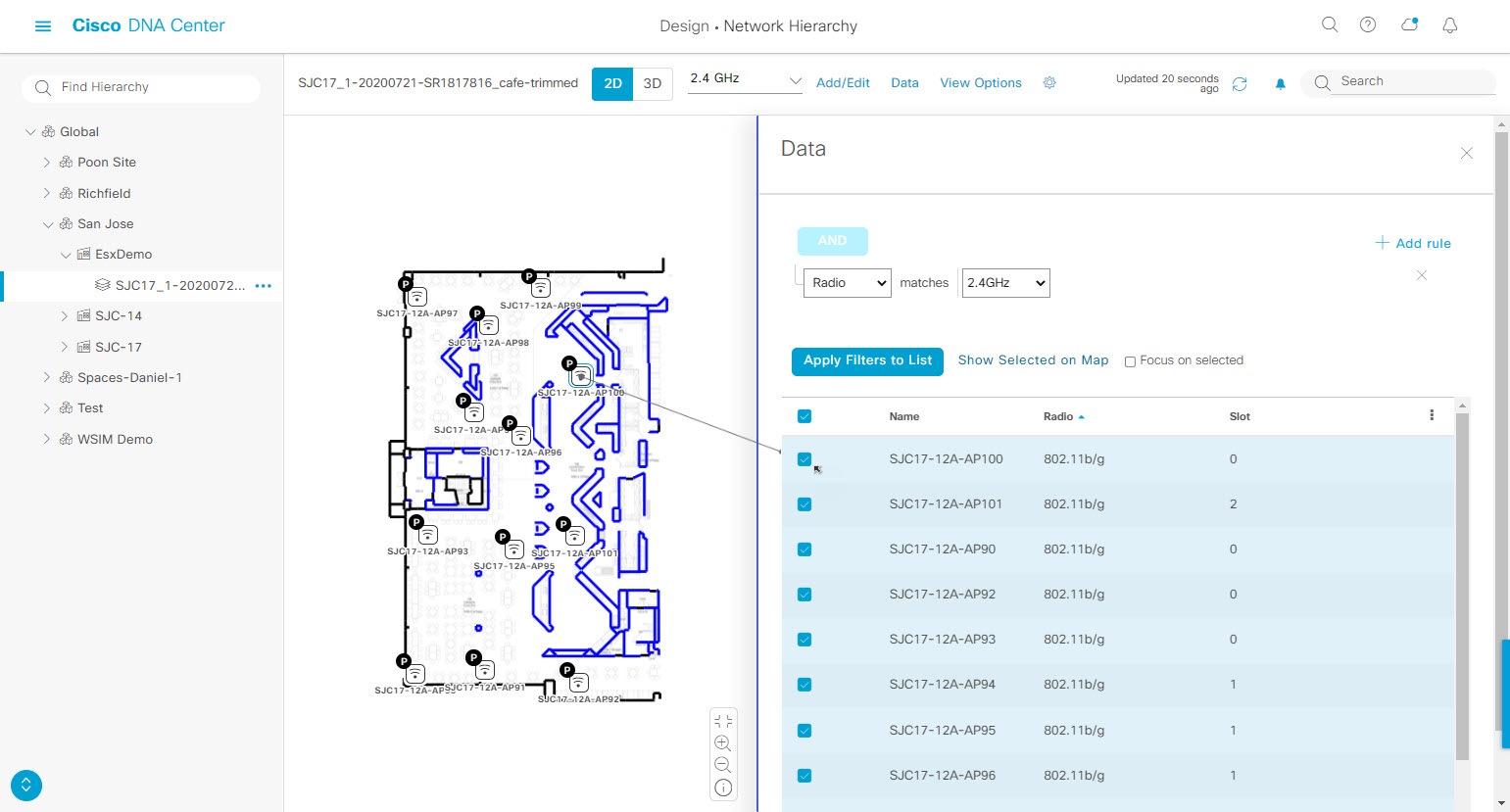
For 2D wireless maps, you can apply various filters to network devices such as access points, sensors, and so on. Based on the filter criteria, the search results appear in a table. Filtering device data is helpful in locating specific devices for floors with many devices.

Procedure


Step 1

Click the menu icon () and choose Design > Network Hierarchy.

Step 2

From the left hierarchy tree, choose a floor.

Step 3

From the map toolbar, click 2D.

Step 4

From the map toolbar, click Data.

Step 5

From the Data slide-in pane, click the device type that you want to apply a filter to.

Step 6

Define the filter rules by using the drop-down lists to choose the parameters.

Step 7

To add more filter rules, click the + icon near the top of the slide-in pane.

Step 8

When you are done, click Apply Filters to List.

The filter results appear in the table at the bottom of the slide-in pane.

Step 9

You can hover your cursor over a device in the table to locate its position on the floor map.

Figure 6. Locating a Device from the Filter Results

Step 10

To remove applied filters, do the following:

  1. Close the Data slide-in pane.

  2. From the map toolbar, click Data.

  3. Click the filter icon next to the device type to remove the filter.


Identify Wireless Interferers on the Floor Map

This is a 2D map feature.

Cisco DNA Center detects interference and disables the interference source for a specific band on a floor map. Any interference in the 2.4-GHz band disrupts the network traffic of the 802.11 wireless network.

Cisco DNA Center identifies the position, area of impact, and intensity of the interferer.

This procedure shows how to identify network interferers on a floor map.

Before you begin

Ensure that either Cisco Connected Mobile Experiences (CMX) or Cisco Spaces is synchronized with Cisco DNA Center.

Procedure


Step 1

Click the menu icon () and choose Design > Network Hierarchy.

Step 2

From the left hierarchy tree, choose a floor.

Step 3

From the map toolbar, click 2D.

Step 4

Hover your cursor over the ellipsis icon next to the floor and choose Sync: DNA Spaces/CMX to synchronize DNA Spaces or CMX with the floor.

Note


(Optional) In the world map, hover your cursor over the floor and choose Sync: DNA Spaces/CMX to synchronize DNA Spaces or CMX with the floor.

Step 5

In the Network Hierarchy window, click View Options.

Step 6

In the View Options window, scroll down and click the Interferers toggle button to enable interferers to appear on the floor map.

Step 7

Expand the Interferers category and click the Show Zone of Impact toggle button to enable the zone of impact of interferers to appear on the floor map.

Note


By default, Zone of Impact is disabled.

Step 8

In the floor map, hover your cursor over the interferer icon and click the impacted channel to view the interferer device details.


Work with 3D Maps

3D maps are primarily used to plan and analyze a wireless network on a floor. As such, there are minimal configuration and edit functions that you can perform in 3D maps.

You can visualize your wireless network in various circumstances by customizing the KPIs, telemetry, and 3D map element settings. You can gain different perspectives of your wireless network by displaying the heatmap from both first-person and third-person views. Insights provide useful information about degradations in network performance, where service-level agreements (SLA) are not being met.

Unlike 2D maps, 3D maps provide two modes of operation:

  • Operation Mode: In operation mode, the heatmap is computed based on live device information. Changes made to the following attributes cannot be saved:

    • AP model, channel, and Tx power

    • Planned AP channel and Tx power

  • Simulation Mode: In simulation mode, you can make changes to the map to see how they would affect wireless coverage on a floor. You can also save these changes as simulations, so that you can open them and make more changes later.

Prerequisite

The system you use to compute and display 3D wireless heatmaps must have a Graphical Processing Unit (GPU) installed and enabled on it. For example, if you're using a Windows virtual machine (VM), you need to make sure that it has a GPU.

Configure Floor Map Elements and Overlays in 3D Maps

In 3D maps, you are limited to the following configuration and edit functions:

To configure other floor map elements or overlays, you need to use the 2D map. For details, see Configure Floor Map Elements and Overlays in 2D Maps.

Clone an AP

You can duplicate an AP with its configuration by cloning it.

Before you begin

You must have actual APs to clone.

Procedure

Step 1

Click the menu icon () and choose Design > Network Hierarchy.

Step 2

From the left hierarchy tree, choose a floor.

Step 3

From the map toolbar, click 3D.

Step 4

From the map toolbar, click the Simulation icon .

Step 5

From the map toolbar, click Add/Edit.

Step 6

From the map, click an AP.

Step 7

From the AP Details slide-in pane, click Clone.

A duplicate AP is created and displayed below the original AP. It's name is appended with -1. If you keep cloning the same AP, the name continues to be incrementally appended. For example, the first clone for a-floor1-ap01 is named a-floor1-ap01-1, the second clone for the same AP is named a-floor1-ap01-2, and so on.

Step 8

In the map, right-click the cloned AP and choose Move.

Step 9

Drag and drop the AP to its new position.

Step 10

Click Save.


View a 3D Wireless Map

Use this procedure to view a 3D wireless map.

Procedure


Step 1

Click the menu icon () and choose Design > Network Hierarchy.

Step 2

From the left hierarchy tree, choose a floor.

Step 3

In the map toolbar, click 3D.

Step 4

In the map toolbar, click Operation.

Note


A 3D heatmap is delimited by its coverage area, which is the full floor width and length, by default. To specify a polygon for the heatmap boundaries, you need to edit the Coverage Area field value in the 2D map view. However, these boundaries do not apply to the 2D map view, as the full floor width and length is used for the 2D map view.

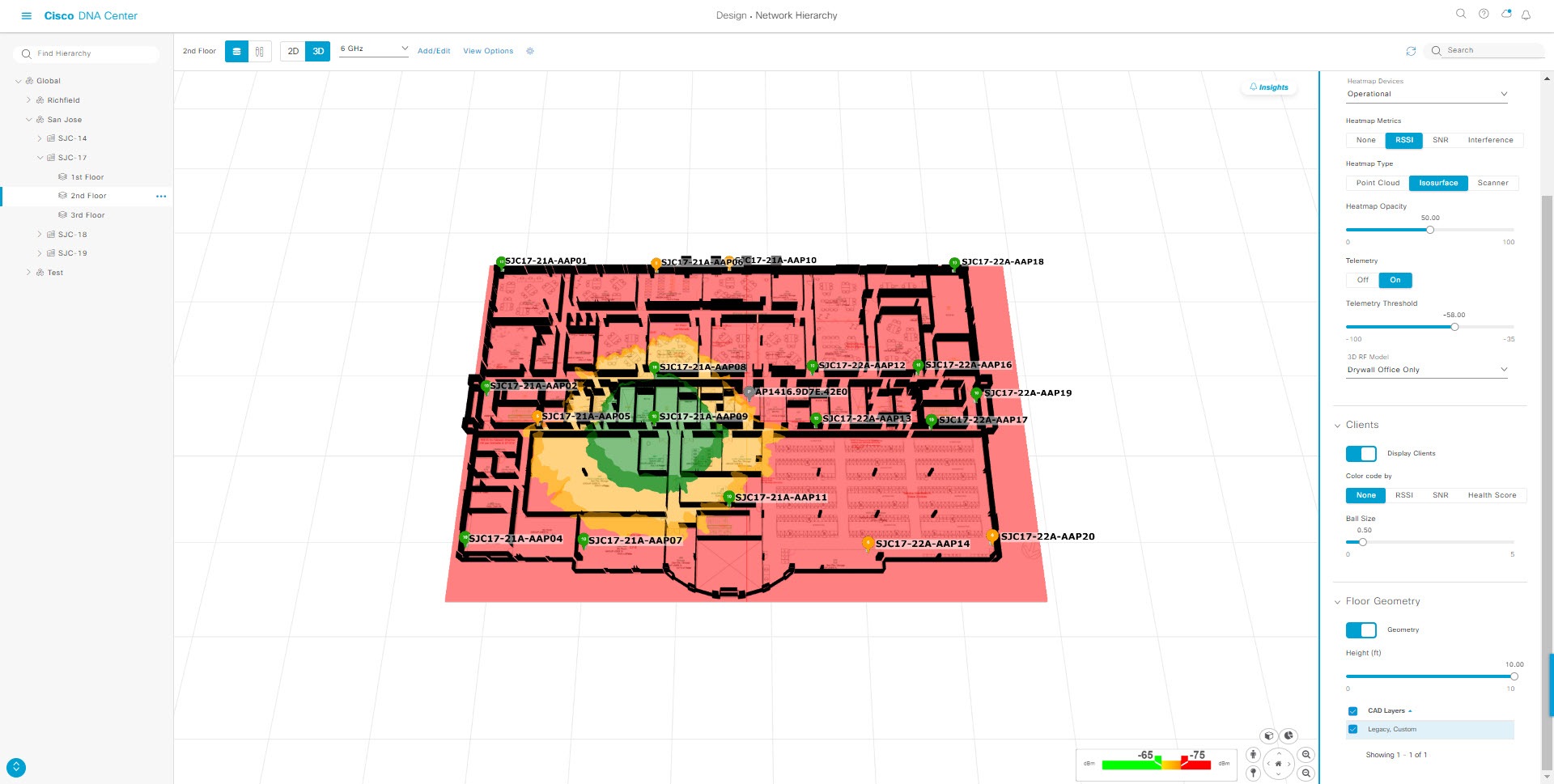
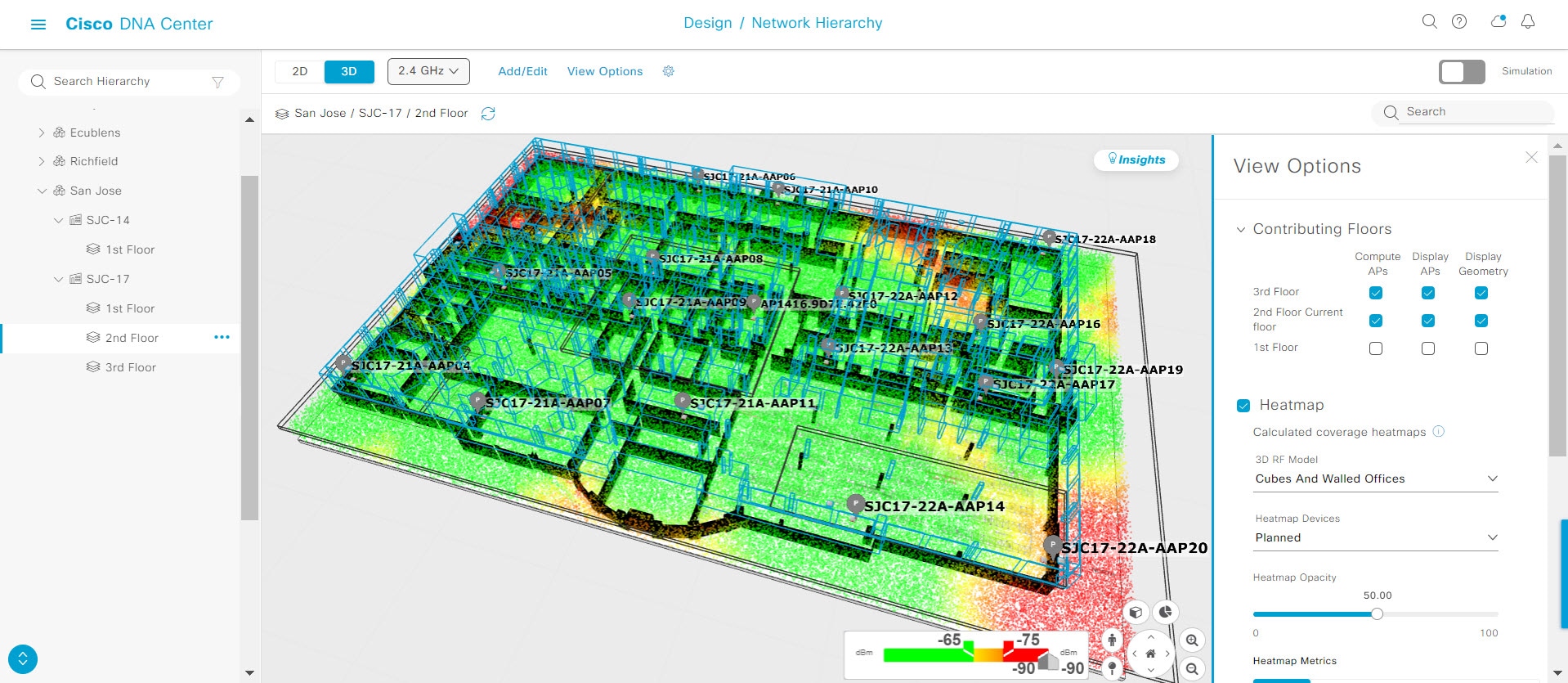
Figure 7. 3D Wireless Map in Operation Mode

Step 5

To view the heatmap for one or more APs, select and deselect the APs using one of the following methods:

  • To select a single AP, click the AP.

  • To select multiple APs, press the Shift key while clicking each AP, and then release the Shift key.

  • To deselect a single AP, click the AP.

    Note


    If no APs are selected, the heatmap includes all APs.

  • To deselect all APs, press the ESC key or double-click an area of the map that doesn't have any APs.

Step 6

Use the map toolbar for the following actions and settings:

Item Description

Click Operation to view the map in Operation mode and click Simulation to view it in Simulation mode.

Note


Simulation mode is available only in 3D maps, not in 2D maps.

Click 2D to view the wireless map in 2D or click 3D to view it in 3D.

Use the Wi-Fi Band Filter filter to view the heatmap for the 2.4-GHz or 5-GHz Wi-Fi bands.

Add/Edit

Click Add/Edit to add planned APs by cloning existing APs or planned APs. For information, see Clone an AP.

Note


Adding operational APs from inventory is not available in 3D. To add operational APs, use Add/Edit from the 2D map.

View Options

Open the 3D Floormap slide-in pane to display the contributing floors, KPI, telemetry, and floor element settings.

Hover your cursor over the Gear icon and click Insights Configuration to customize the conditions for insights.

Click the Refresh icon to update the device and map data. To the left of the icon is the timestamp for the last refresh.

Use the Search field to perform a search for specific floor map elements such as APs, sensors, clients, and so on. Matches to your search criteria are listed below the Search field.

When you hover your cursor over an element in the list, an indicator points to the element on the map. If the element is outside the field of view, the indicator displays as a broken red line. Reorient the map to see the element.

Step 7

At the top-right corner of the map, click Insights to view insights and potential issues in the wireless network.

For details, see Gain Insights from a 3D Wireless Map.

Step 8

Use the map for the following functions:

  • View the heatmap of the 3D wireless map. You can customize the KPIs, telemetry, and 3D map element settings from the 3D Floormap slide-in pane.

  • When the map is in default map view (Simulation mode), you can control the camera angle by clicking and dragging with the left or right mouse button.

  • Use the map navigation controls at the bottom-right corner of the map for greater control of the map:

    Map Navigation Control Description

    Use clip box: Click this icon to crop the heatmap using a box shape. Use the clipper at the bottom-left corner of the map to specify the crop:

    • Click and drag one of the anchor points to change the size of the crop.

    • Click and drag one of the anchor points on the right vertical slider to specify the height range of the crop.

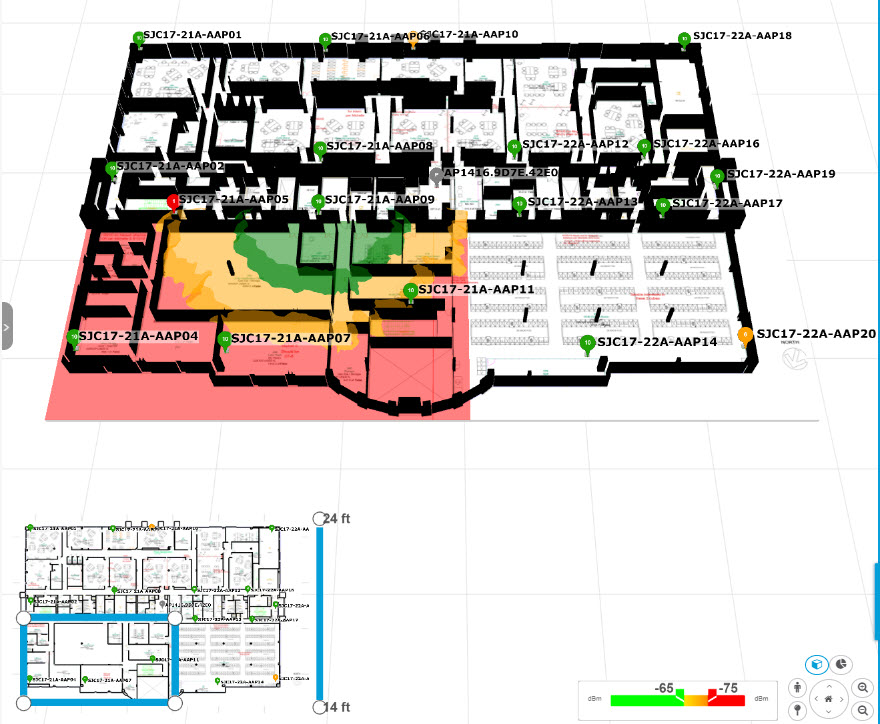
    Figure 8. Clip Box

    Use clip planes: Click this icon to crop the heatmap using a donut shape. Use the clipper at the bottom-left corner of the map to specify the crop:

    • Click and drag the anchor point in the center of the donut to reposition the donut.

    • Click and drag the two outer anchor points to change the shape of the crop.

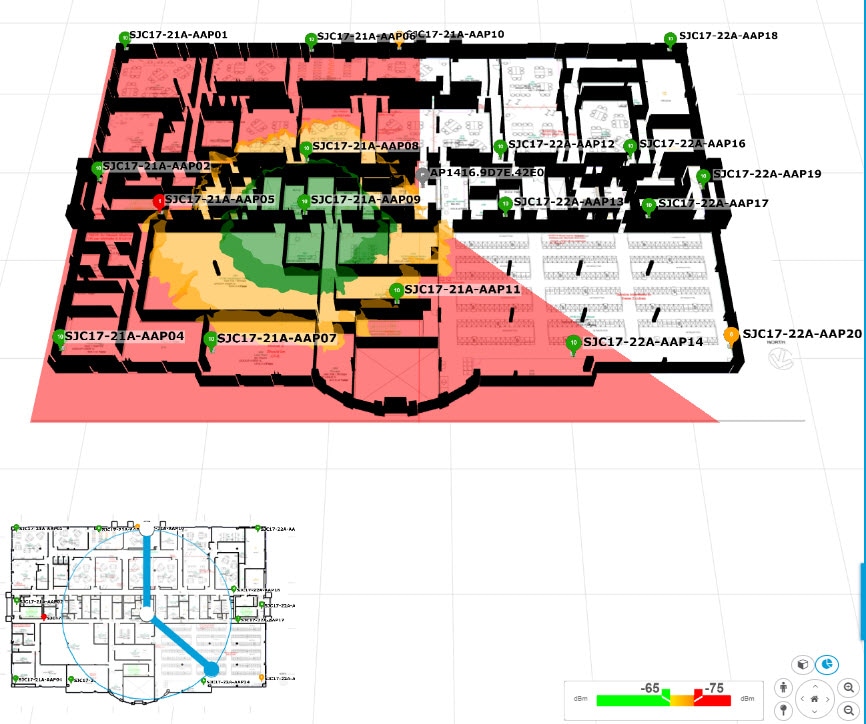
    Figure 9. Clip Planes in Use

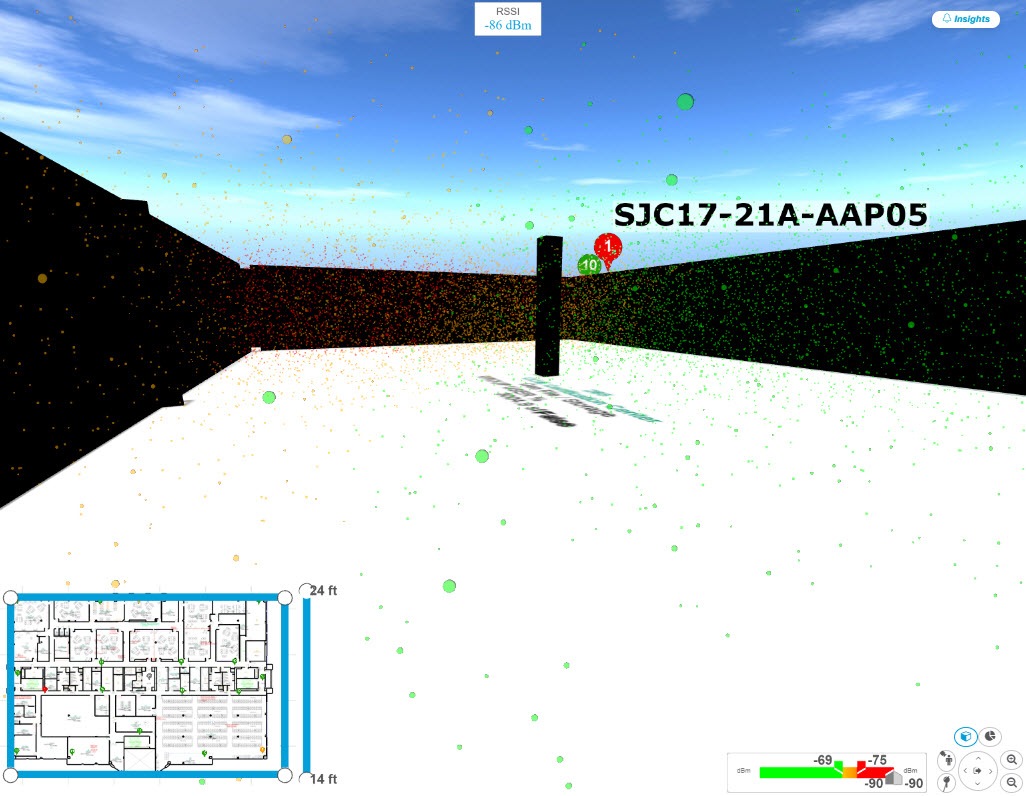
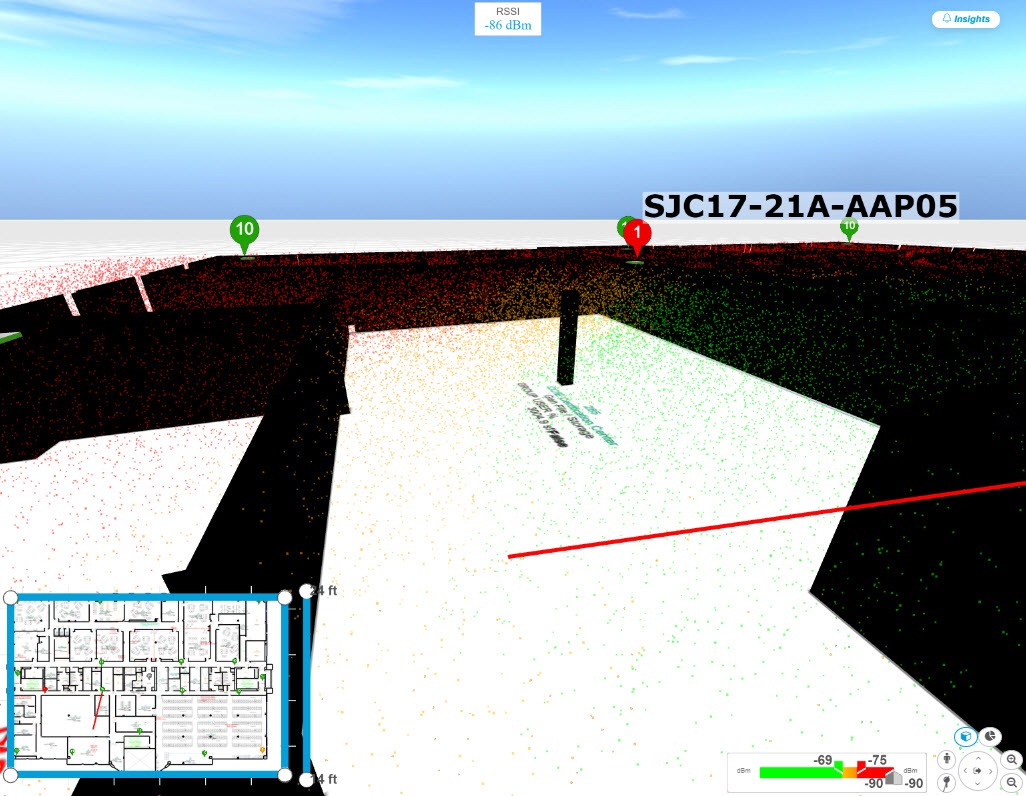
    First Person View: Click this icon to switch between first-person view and third-person view.

    The blue sphere indicates your position on the map. As you move throughout the map, your field of view changes. You can use the mini map at the lower left corner to get an idea of your field of view and orientation.

    Note


    If you have more than one floor selected for display, the First Person View automatically positions you on the current floor.

    For details, such as the controls for view, see Use First-Person and Third-Person Views for 3D Wireless Maps.

    Third Person View: Click this icon to switch between first person view and third person view.

    The blue sphere indicates your position on the map. As you move throughout the map, your field of view changes. You can use the mini map at the lower left corner to get an idea of your field of view and orientation.

    For details, such as the controls for view, see Use First-Person and Third-Person Views for 3D Wireless Maps.

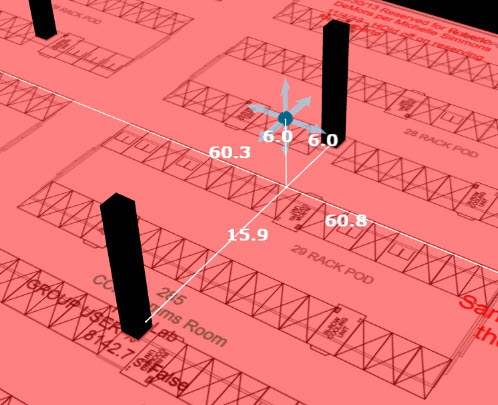
    Place a pin: Click this icon to view a predicted measurement (x, y, and z coordinates) of a specific point on the floor map. By placing a pin, you can view the measurements of the distance from the pin to the end of the yard stick. As you zoom in or out, the position of the measurements is adjusted to stay in your view. Click and drag the arrows around the pin to change the position of the pin, as follows:

    • To move the pin horizontally: Click the horizontal arrows and drag the pin left, right, forward, or backward. The selected arrows and yard stick are highlighted while active.

    • To move the pin vertically: Click the vertical arrows and drag the pin up or down. The selected arrows and yard stick are highlighted while active.

    For a video demonstration, click here.

    Figure 10. Adjusting a Pin

    Zoom In: Click this icon to enlarge the view. Alternatively, you can use your mouse wheel to zoom in.

    Zoom Out: Click this icon to reduce the size of the image and to increase your field of view. Alternatively, you can use the scroll wheel on your mouse to zoom out.

    Map Rotation and Default Map View: Click the directional arrows to change the camera angle.

    Click the Return Home icon to reset the map to the default view.

Step 9

Use the 3D Floormap slide-in pane to choose the contributing floors in 3D map metrics, KPIs, and other floor map element settings. Expand the following categories to view the settings:

  • Contributing Floors: Lists the floor above and below the current floor and allows you to configure the settings listed in the table below on a per floor basis, while maintaining focus on the heatmap of the current floor. Click Apply to generate the heat map with your settings.

    Figure 11. 3D Map of Multiple Floors
    Item Description

    Compute APs check box

    Check this check box to include the APs on the corresponding floor when computing the heatmap.

    Display APs check box

    Check this check box to display the APs on the corresponding floor.

    Display Geometry check box

    Check this check box to display the corresponding floor and its physical attributes in the heatmap.

  • KPI Category: Contains the following KPI and telemetry settings:

    Item Description

    Heatmap Metrics

    Change the KPI to be displayed on the heatmap:

    • None: Disables the heatmap.

    • RSSI: Displays the Received Signal Strength Indication (RSSI) values.

    • SNR: Displays the signal-to-noise ratio (SNR) values.

    • Interference: Displays the SNR that is caused by co-channel interference (CCI) or adjacent channel interference.

    Heatmap Type

    Change the heatmap type:

    • Point Cloud: Provides a collection of data points in space. Each data point has x, y, and z coordinates.

    • Isosurface: Represents the RSSI with isolines or lines of a contiguous value.

    • Scanner: Displays the RSSI for a specific elevation.

    Heatmap Opacity

    Use the slider to customize the opacity or transparency of the heatmap.

    Telemetry

    Use this toggle button to enable or disable telemetry.

    When telemetry is enabled, click a sensor or AP to view its telemetry:

    • The telemetry for a sensor displays the predicted and measured RSSI values between a sensor AP and other APs.

    • The telemetry for an AP displays the predicted and measured RSSI values between neighbor APs.

    Telemetry Threshold

    When telemetry is enabled, use this slider to set the threshold for telemetry sources to appear.

    Telemetry sources with predicted values that do not meet the threshold are faded.

    3D RF Model

    Use this drop-down list to choose the RF model.

    The RF model determines how RF is calculated based on the floor type.

  • Floor Geometry Category: Contains the following floor map element settings:

    Item Description

    Geometry

    Use this toggle button to enable or disable 3D map elements, such as walls.

    CAD Layers

    Choose the CAD layers that you want to be displayed on the map.


3D Wireless Map Toolbar

To access the 3D map, click the menu icon ( ) and choose Design > Network Hierarchy. From the left hierarchy tree, choose a floor, and in the map toolbar, click 3D.

The map toolbar consists of two bars and is located above the map. Use the map toolbar for the following actions and settings:

Item Description

Click 3D to view the wireless map in 3D or click 2D to view it in 2D.

Click the Wi-Fi band down arrow and choose a Wi-Fi band.

Add/Edit

Click Add/Edit to add planned APs by cloning the existing APs or planned APs. For details, see Clone an AP.

Note


The option to add operational APs from the inventory is not available in 3D. To add operational APs, click Add/Edit in the 2D map toolbar.

View Options

Open the 3D Floormap slide-in pane to display the contributing floors, KPIs, telemetry, device and client information, and floor element settings. For details, see 3D Map View Options.

Gear icon

Hover your cursor over the gear icon and click Insights Configuration to customize the conditions for insights. For details, see Gain Insights from a 3D Wireless Map.

Simulation

Click the Simulation toggle button to view the map in simulation mode. The default view is operation mode. For details, see Create Simulations for 3D Wireless Maps.

Note


Simulation mode is available only in 3D maps, not in 2D maps.

Full hierarchy path in map toolbar

Full Hierarchy Path: Displays the full navigational path of the floor, including its associated building and site. Click the down arrow to navigate to a different floor.

Refresh icon

Click the refresh icon to update the device and map data. To the left of the icon is the timestamp for the last refresh.

Search field

Use the Search field to find specific floor map elements such as APs, sensors, clients, and so on. The results of your search are listed below the Search field.

When you hover your cursor over an element in the list, an indicator points to the element on the map. If the element is outside the field of view, the indicator is displayed as a broken red line. Reorient the map to see the element.

3D Map View Options

To access the 3D map, click the menu icon ( ) and choose Design > Network Hierarchy. From the left hierarchy tree, choose a floor, and in the map toolbar, click 3D > View Options.

The View Options slide-in pane opens. Expand the categories to view the settings:

  • Contributing Floors: Expand this option to include more floors in the heatmap computation. When including a floor, you can choose to add its APs in the heatmap computation and display its APs and floor geometry. Click Apply to generate the heatmap with your settings.

    Figure 12. 3D Map of Multiple Floors
    3D map of multiple floors
    Item Description

    Compute APs

    Check this check box to include a floor's APs when computing the heatmap.

    Display APs

    Check this check box to display a floor's APs in the heatmap.

    Display Geometry

    Check this check box to display a floor's physical attributes in the heatmap.

  • Heatmap: Check this check box to display the heatmap and to configure the settings in the following table:

    Item Description

    3D RF Model

    Use this drop-down list to choose the RF model.

    The RF model determines how RF is calculated based on the floor geometry. Available models include drywall offices, cubes and walled offices, free space, outdoor open space, and indoor high ceiling.

    Note


    We recommend that you choose Free Space if you manually placed the walls or imported them from a CAD file or Ekahau project. If you didn't manually place the walls, use an RF model other than Free Space.

    Heatmap Devices

    Use this drop-down list to choose whether to display operational devices, operational and planned devices, or only planned devices on the heatmap.

    Heatmap Opacity

    Use this slider to customize the opacity or transparency of the heatmap.

    Heatmap Metrics

    Choose the type of metrics to display on the heatmap:

    • RSSI: Displays the Received Signal Strength Indicator (RSSI) values.

    • SNR: Displays the signal-to-noise ratio (SNR) values.

    • Interference: Displays the SNR that is caused by co-channel interference (CCI) or adjacent channel interference.

    • Leakage: Displays signal leakage between floors. For this option to be available, you must compute the heatmap with two or more contributing floors.

    Heatmap Type

    Choose the heatmap type:

    • Point Cloud: Provides a collection of data points in space. Each data point has x, y, and z coordinates.

    • Isosurface: Represents the RSSI with isolines or lines of a contiguous value.

    • Scanner: Displays the RSSI for a specific elevation.

    Apply Reflection

    Check this check box to show signal reflection, which can be caused when a signal bounces off materials such as glass, whiteboards, and plastic.

    Telemetry

    Use this toggle button to enable or disable telemetry.

    When telemetry is enabled, click a sensor or AP to view its telemetry:

    • The telemetry for a sensor displays the predicted and measured RSSI values between a sensor AP and other APs.

    • The telemetry for an AP displays the predicted and measured RSSI values between neighbor APs.

  • Telemetry: Check this check box and use the Telemetry Threshold slider to set the threshold for telemetry sources to be displayed on the heatmap.

    Telemetry sources with predicted values that do not meet the threshold are faded.

  • Devices and Clients: Click this option to configure the settings in the following table:

    Item Description

    APs

    Check this check box to display APs on the map.

    Planned APs

    Check this check box to display planned APs on the map.

    Sensors

    Check this check box to display sensors on the map.

    Clients

    Check this check box to display clients on the map. Additionally, you can do the following:

    • Display clients in their default blue color (None) or by their RSSI, SNR, or Health Score. For RSSI, SNR, and Health Score, clients are colored blue, yellow, or red, depending on their current condition.

    • Use the slider to change the size of the ball that represents a client on the map.

  • Overlay Objects: Click this option to configure the settings in the following table:

    Item Description

    Geometry

    Check this check box to display the floor geometry.

    Height

    Use this slider to set the height of walls on the heatmap.

  • Map: Click this option to configure the settings in the following table:

    Item Description

    Sky

    Check this check box to display the sky in the heatmap.

    Floor

    Check this check box to display the floor in the heatmap.

3D Map Navigation Controls

To access the 2D map, click the menu icon () and choose Design > Network Hierarchy. From the left hierarchy tree, choose a floor, and in the map toolbar, click 3D.

The 3D map navigation controls are located at the bottom-right corner of the map. For details about the map, see View a 3D Wireless Map.

Use the map navigation controls at the bottom-right corner of the map to control the map view.

Map Navigation Control Description

Clip box icon

Use clip box: Click this icon to crop the heatmap using a box shape. Use the clipper at the bottom-left corner of the map to specify the crop:

  • Click and drag one of the anchor points to change the size of the crop.

  • Click and drag one of the anchor points on the right vertical slider to specify the height range of the crop.

Figure 13. Clip Box
Clip box in a 3D map

Clip plane icon

Use clip planes: Click this icon to crop the heatmap using a donut shape. Use the clipper at the bottom-left corner of the map to specify the crop:

  • Click and drag the anchor point in the center of the donut to reposition the donut.

  • Click and drag the two outer anchor points to change the shape of the crop.

Figure 14. Clip Planes in Use
Clip plane in use

First person view icon

First Person View: Click this icon to switch between first-person view and third-person view.

The blue sphere indicates your position on the map. As you move throughout the map, your field of view changes. You can use the mini map at the lower-left corner to get an idea of your field of view and orientation.

Note


If you have more than one floor selected for display, the First Person View automatically positions you on the current floor.

For details, such as the controls for view, see Use First-Person and Third-Person Views for 3D Wireless Maps.

Third person view icon

Third Person View: Click this icon to switch between first person view and third person view. You can also drag and drop the icon on the map where you want to be positioned.

The blue sphere indicates your position on the map. As you move throughout the map, your field of view changes. You can use the mini map at the lower-left corner to get an idea of your field of view and orientation.

For details, such as the controls for view, see Use First-Person and Third-Person Views for 3D Wireless Maps.

Place a pin icon

Place a pin: Click this icon to view a predicted measurement (x, y, and z coordinates) of a specific point on the floor map. By placing a pin, you can view the measurements of the distance from the pin to the end of the yard stick. As you zoom in or zoom out, the position of the measurements is adjusted to stay in your view. Drag and drop the pin to change its position, as follows:

  • To move the pin horizontally: Click the horizontal arrows and drag the pin left, right, forward, or backward. The selected arrows and yard stick are highlighted while active.

  • To move the pin vertically: Click the vertical arrows and drag the pin up or down. The selected arrows and yard stick are highlighted while active.

For a video demonstration, click here.

Figure 15. Adjusting a Pin
Adjusting a pin on a 3D map

Zoom in icon

Zoom In: Click this icon to enlarge the view. Alternatively, you can use your mouse wheel to zoom in.

Zoom out icon

Zoom Out: Click this icon to reduce the size of the image and to increase your field of view. Alternatively, you can use the scroll wheel on your mouse to zoom out.

Map rotation and default map view

Map Rotation and Default Map View: Click the directional arrows to change the camera angle.

Click the Return Home icon to reset the map to the default view.

Use First-Person and Third-Person Views for 3D Wireless Maps

You can use the first-person and third-person views to gain different perspectives of your wireless network.

Procedure


Step 1

Click the menu icon () and choose Design > Network Hierarchy.

Step 2

From the left hierarchy tree, choose a floor.

Step 3

In the map toolbar, click 3D.

Step 4

To use the first-person view, click the First-Person View icon in the map navigation controls. Optionally, you can drag and drop the Person icon to a specific location on the map.

The map view changes to the first-person view.

Figure 16. First-Person View

Step 5

You can control the first person view by doing the following:

Action Controls

Move forward/backward and right/left.

Use the W, A, S, and D keys or arrow keys.

Change the camera angle.

Click and hold the left mouse button on the map and move the mouse wheel.

Raise the altitude of the camera angle.

Hold the Spacebar.

Lower the altitude of the camera angle.

Hold Shift + Spacebar.

Step 6

To use the third person view, click the Third-Person View icon from the map navigation controls.

The map view changes to the third person view.

Figure 17. Third Person View

Step 7

You can control the third person view by doing the following:

Action Controls

Move forward/backward and right/left.

Use the W, A, S, and D keys or arrow keys.

Change the camera angle.

Click and drag on the map.

Raise the altitude of the camera angle.

Hold the Spacebar.

Lower the altitude of the camera angle.

Hold Shift + Spacebar.

Step 8

To return to the default view, click the Return Home icon .


Display Details About APs and Clients

If you have a location service, such as Cisco Spaces or Cisco Connected Mobile Experiences (CMX), installed on Cisco DNA Center, you can view the locations of clients on a floor. Clients are identified as a small blue ball ( ) on the map.

Procedure


Step 1

Click the menu icon () and choose Design > Network Hierarchy.

Step 2

From the left hierarchy tree, choose a floor.

Step 3

In the map toolbar, click 3D.

Note


A 3D heatmap is delimited by its coverage area, which is the full floor width and length, by default. To specify a polygon for the heatmap boundaries, edit the Coverage Area field value in the 2D map view. However, these boundaries do not apply to the 2D map view because the full floor width and length are used for the 2D map view.

Step 4

To display details about an AP, click the AP.

Step 5

To display information about a client, hover your cursor over the ball (client).

A line is drawn between the client and its associated AP. A dialog box is displayed with information, such as the client's IPv4 address, IPv6 IP address, RSSI value, and so on. To open the Client 360 window, click the Client 360 link in the dialog box.

Step 6

To display the client in a color that corresponds to its RSSI, SNR, or health score, do the following:

  1. Click View Options > Devices and Clients.

  2. Check the Clients check box.

  3. Under the Clients check box, click None (default blue color), RSSI, SNR, or Health Score.

Step 7

To resize the ball, use the Ball Size slider in the View Options pane. This feature helps you to view clients in cases where there are many clients or only a few. For example, in cases where there are many clients, you can make the ball smaller, and in cases where there are only a few clients, you can make the ball larger.


Gain Insights from a 3D Wireless Map

Cisco DNA Center actively monitors the network performance of 3D wireless maps and provides insights into areas where service-level agreements (SLA) are not being met.

Procedure


Step 1

Click the menu icon () and choose Design > Network Hierarchy.

Step 2

From the left hierarchy tree, choose a floor.

Step 3

In the map toolbar, click 3D.

Step 4

At the top-right corner of the map, click Insights.

The Insights area appears.

Figure 18. Insights Area

Step 5

From the Insights area, you can do the following:

Actions Details

View insight details.

The Insights area displays the insight details. To view the insights, click Next and Previous.

An insight reports the percentage of floor coverage area that does not meet a specific KPI threshold, for example, RSSI is > -70 dBm.

Click Click to view the affected areas.

Get an overview of all insights.

Click View All Insights to open the All Insights slide-in pane that displays all insights (active and muted).

Customize the insight settings.

Customizing an insight settings allows you to change the insight's KPI threshold value.

Click View All Insights and then click Edit Configuration for the insight settings that you want to customize.

Alternatively, you can hover your cursor over the Gear icon in the map toolbar and choose Insights Configurations to customize insight settings.

Mute an insight.

Click Mute Insight to stop Cisco DNA Center from reporting the insight.

Muted insights appear at the bottom of the list in the All Insights slide-in pane.


Run the Wireless Coverage Optimizer

For wireless areas that aren't meeting their SLA, the optimizer takes your input of the maximum number of APs that you are prepared to move and add, and computes a configuration where the wireless coverage is maximized.

This procedure shows you how to run the wireless coverage optimizer.

Procedure


Step 1

Click the menu icon () and choose Design > Network Hierarchy.

Step 2

From the left hierarchy tree, choose a floor.

Step 3

In the map toolbar, click 3D.

Step 4

At the top-right corner of the map, click Insights.

The Insights area opens and displays information about the coverage areas that don't meet a specific KPI threshold, for example, RSSI is > -70 dBm.

Step 5

(Optional) To display the wireless coverage area, click View.

Red areas show where the SLA is not being met. Green areas show where the SLA is being met.

Step 6

(Optional) If there are specific APs that you don't want the optimizer to move, you can right-click them and choose Lock to lock their position. To remove the lock, right-click the AP and choose Unlock.

Step 7

Click Optimizer.

Step 8

In the Coverage Optimizer dialog box, enter the maximum number of APs that you are prepared to move and add.

If you don't want to move or add APs, leave the corresponding field blank or enter 0.

Step 9

Click Run Optimizer.

If needed, you can manually move any of the APs to other locations.

Step 10

When the analysis is complete, click View Results.

Cisco DNA Center displays a proposed layout that increases the wireless coverage to maximize the SLA. If the optimizer recommends moving an AP, the new layout displays a blue line to the recommended new location. Any new APs that have been added to the layout are displayed as blue markers ( ).

Step 11

To save the new layout as a simulation, click Save as a plan. To exit without saving, click the x at the top-right corner of the map.

Later, if you implement the recommended changes to your physical wireless network, you can save the simulation as an operational map. For information, see Create Simulations for 3D Wireless Maps.


Create Simulations for 3D Wireless Maps

You can create simulations for 3D wireless maps.


Note


Simulation mode is available only in 3D maps, not in 2D maps.


Simulations allow you to make changes to device configurations without having to save those changes in Operation mode. You can create multiple simulations and load them at any time.

Procedure


Step 1

Click the menu icon () and choose Design > Network Hierarchy.

Step 2

From the left hierarchy tree, choose

Step 3

In the map toolbar, click 3D.

Step 4

In the map toolbar, click Add/Edit.

In simulation mode, only particular attributes are editable and only for previewing the impact of changes on the heatmap.

Step 5

Make the changes to the devices, as needed:

  • APs: You can change the model, channel, and transmission power.

  • PAPs: You can change the channel and transmission power.

  1. Click Apply.

Step 6

In the map toolbar, hover your cursor over the vertical ellipsis and choose Save changes as.

Figure 19. Saving as a Simulation

Note


Choosing Save changes saves your changes to Operation mode.

Choosing Commit saves your changes to production devices.

Step 7

In the Save Simulation dialog box, enter a name for the simulation and click Save.

Step 8

To load a simulation, click the Simulation icon in the map toolbar.

The 3D wireless map enters simulation mode, which is indicated by the map toolbar color changing to light blue.

Step 9

Use the drop-down list to the right of the Simulation icon to choose which simulation to open. If you have no saved simulations, None available is displayed.